Create a Data Source via Tableau Connector for Jira Cloud on Jira Cloud side. Export the data into Tableau Desktop Worksheet.
How to publish data on Tableau server and create a scheduled task
-
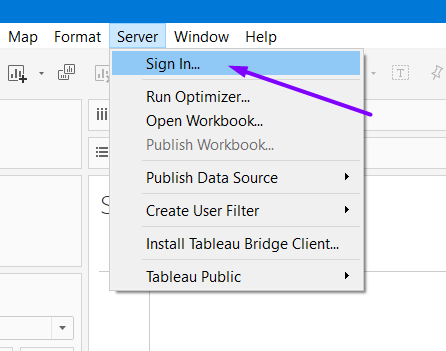
Sign in Tableau server. Enter server access credentials on the browser tab and check if you signed in successfully.
-
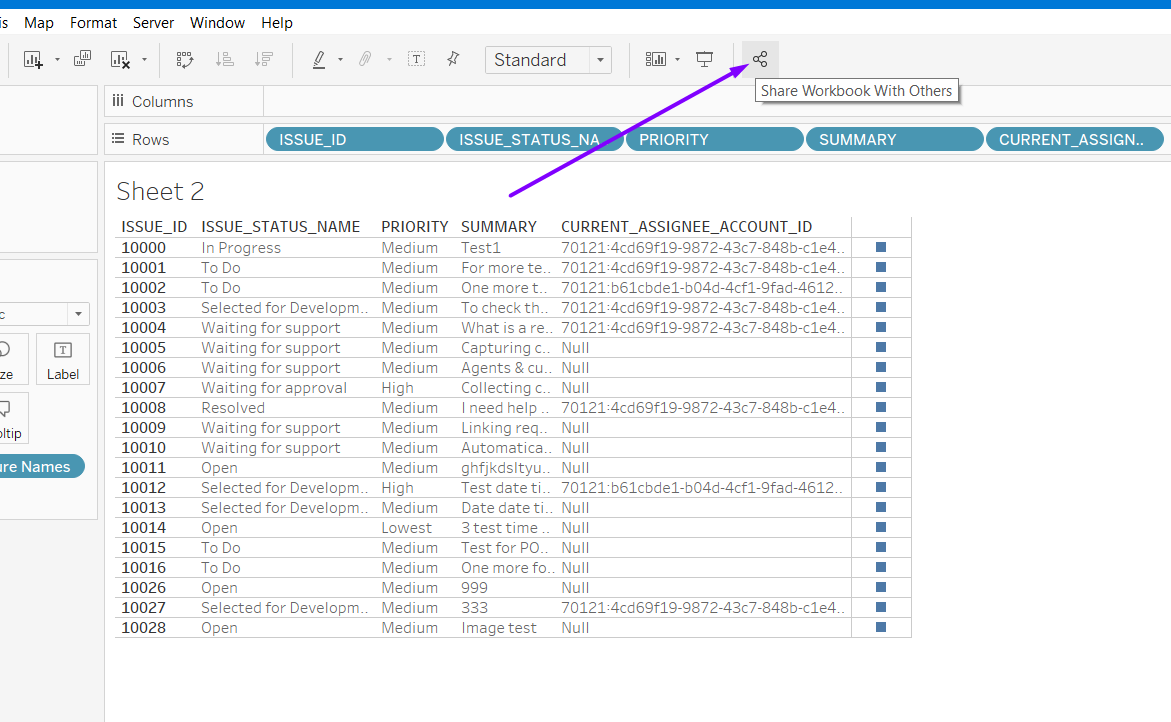
Create a workbook and hit the Share button.
-
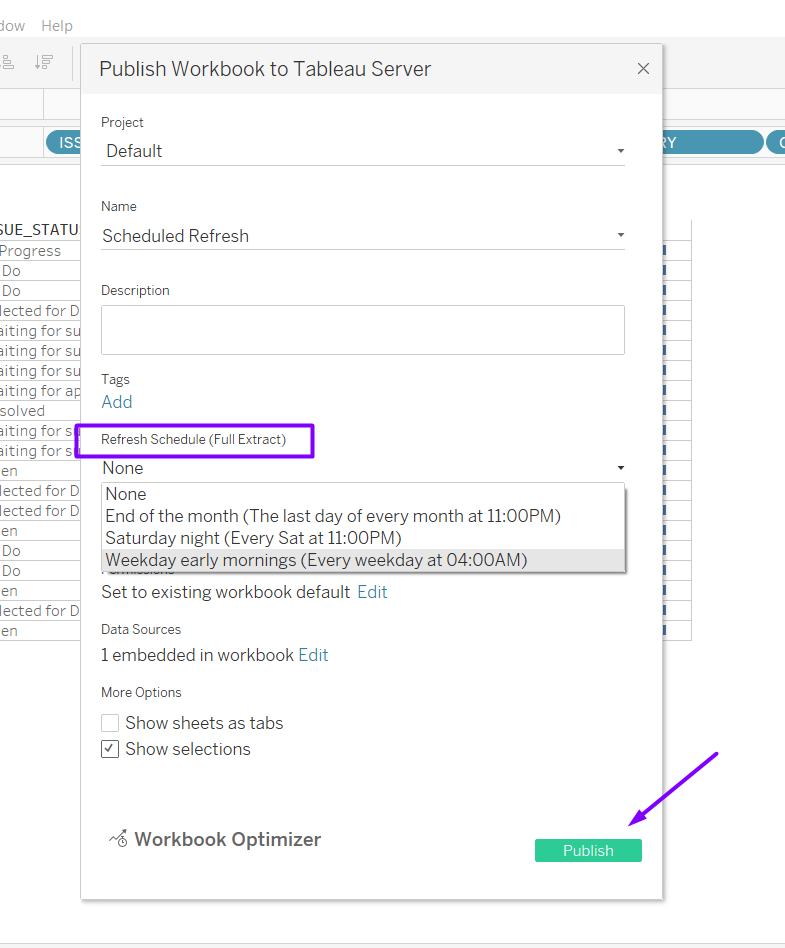
Adjust all needed information, such as a project, a workbook name, and a scheduled period, and publish the data to the server.
-
The workbook should be published on the server.
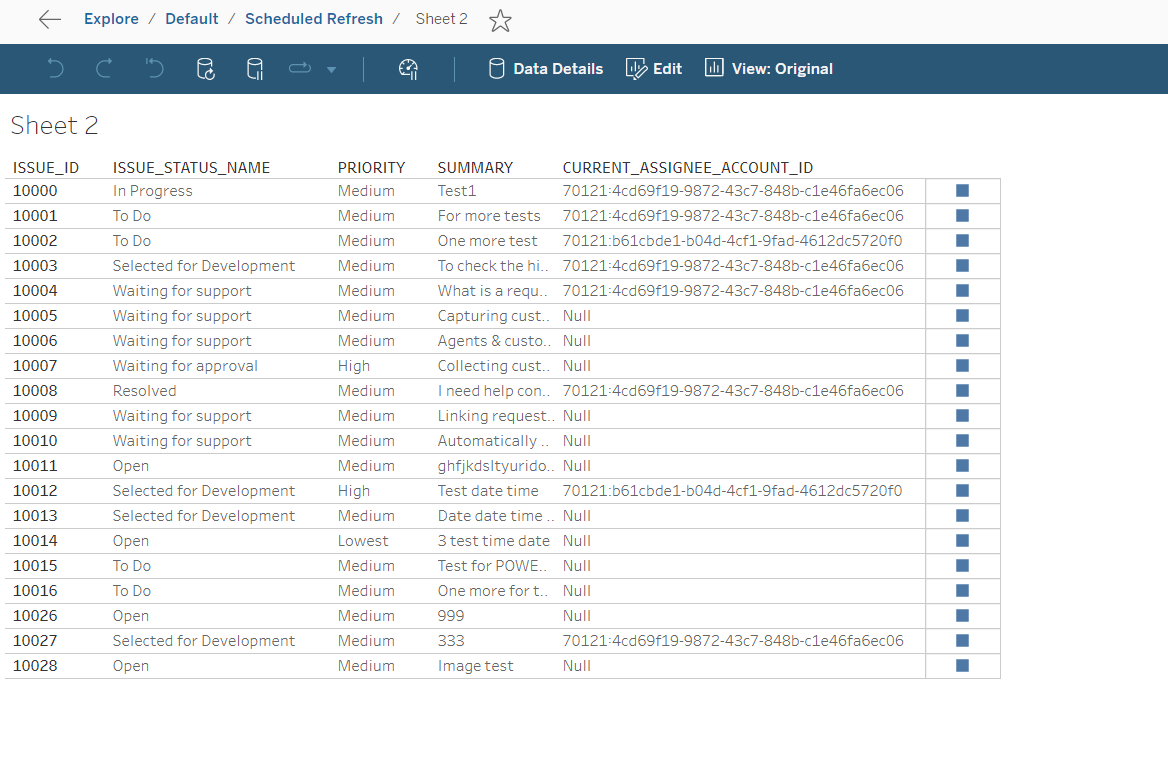
-
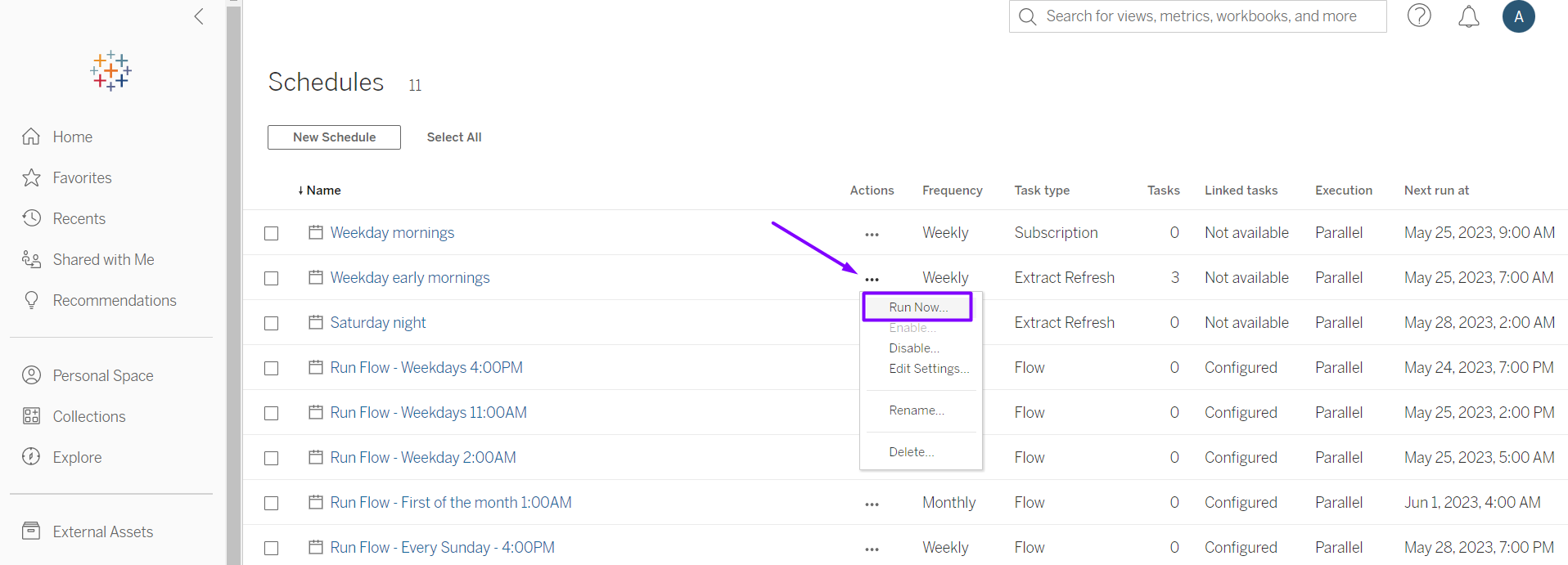
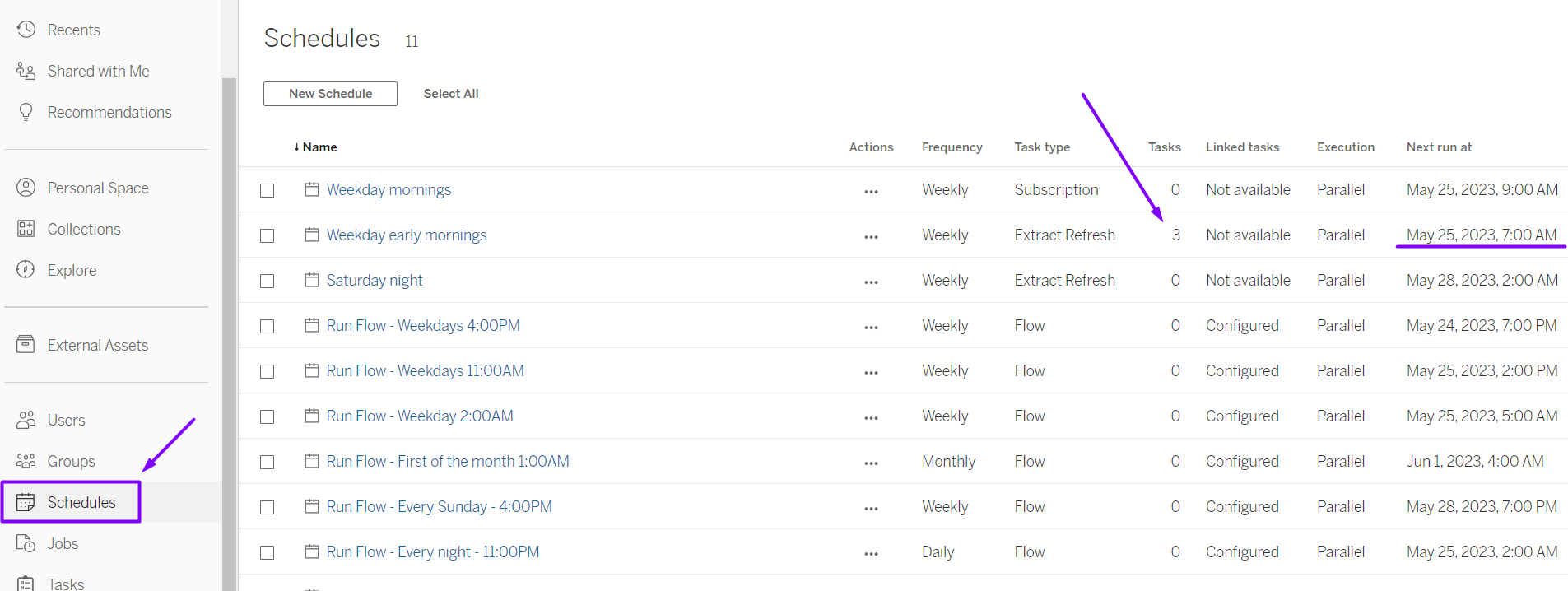
You can check scheduled actions under the Schedules tab.
-
Also, you can apply a manual data refresh.