
-
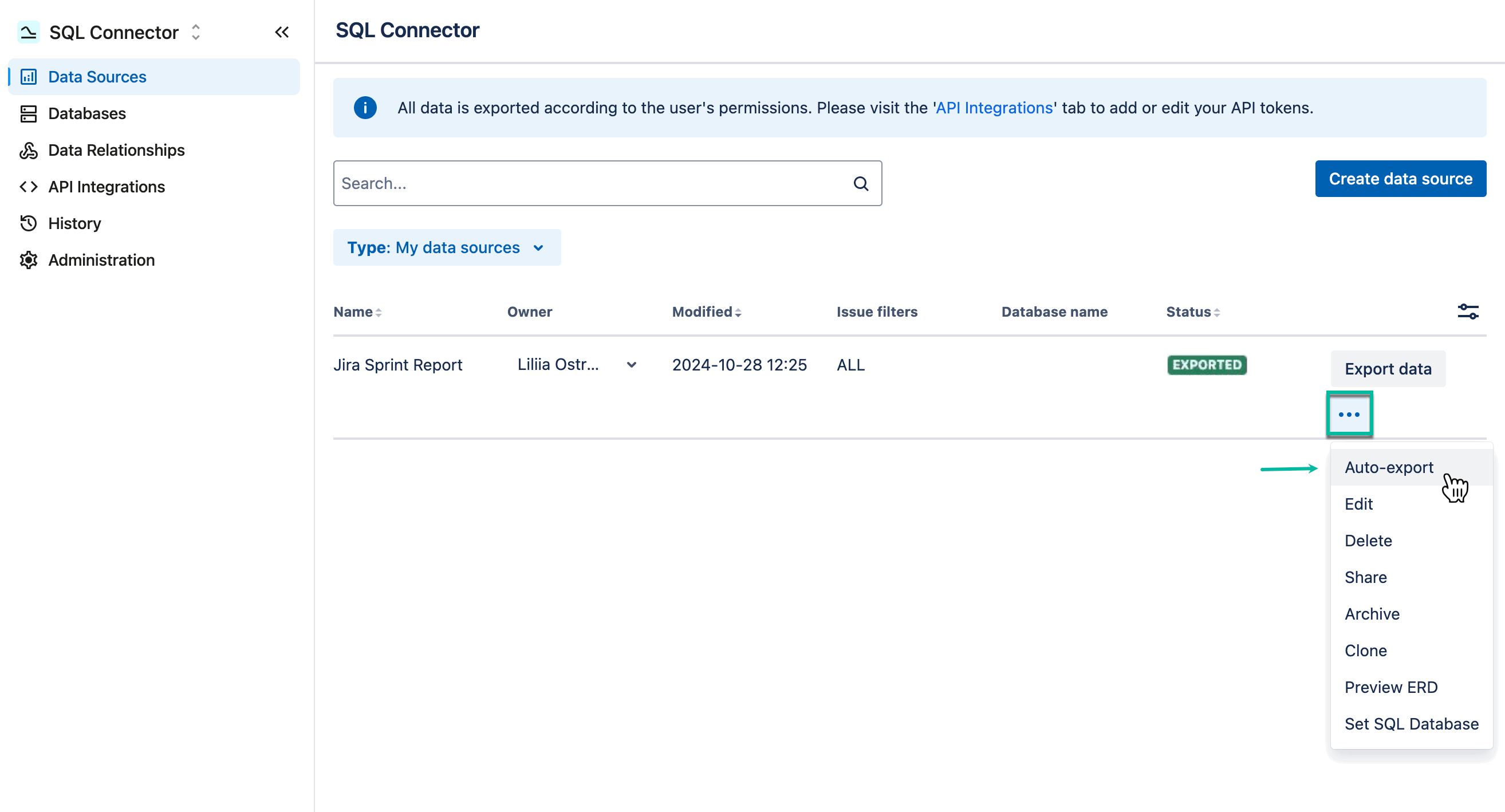
On the Data Sources page, select the data source you need, select three dots, and then select Auto-export.
-
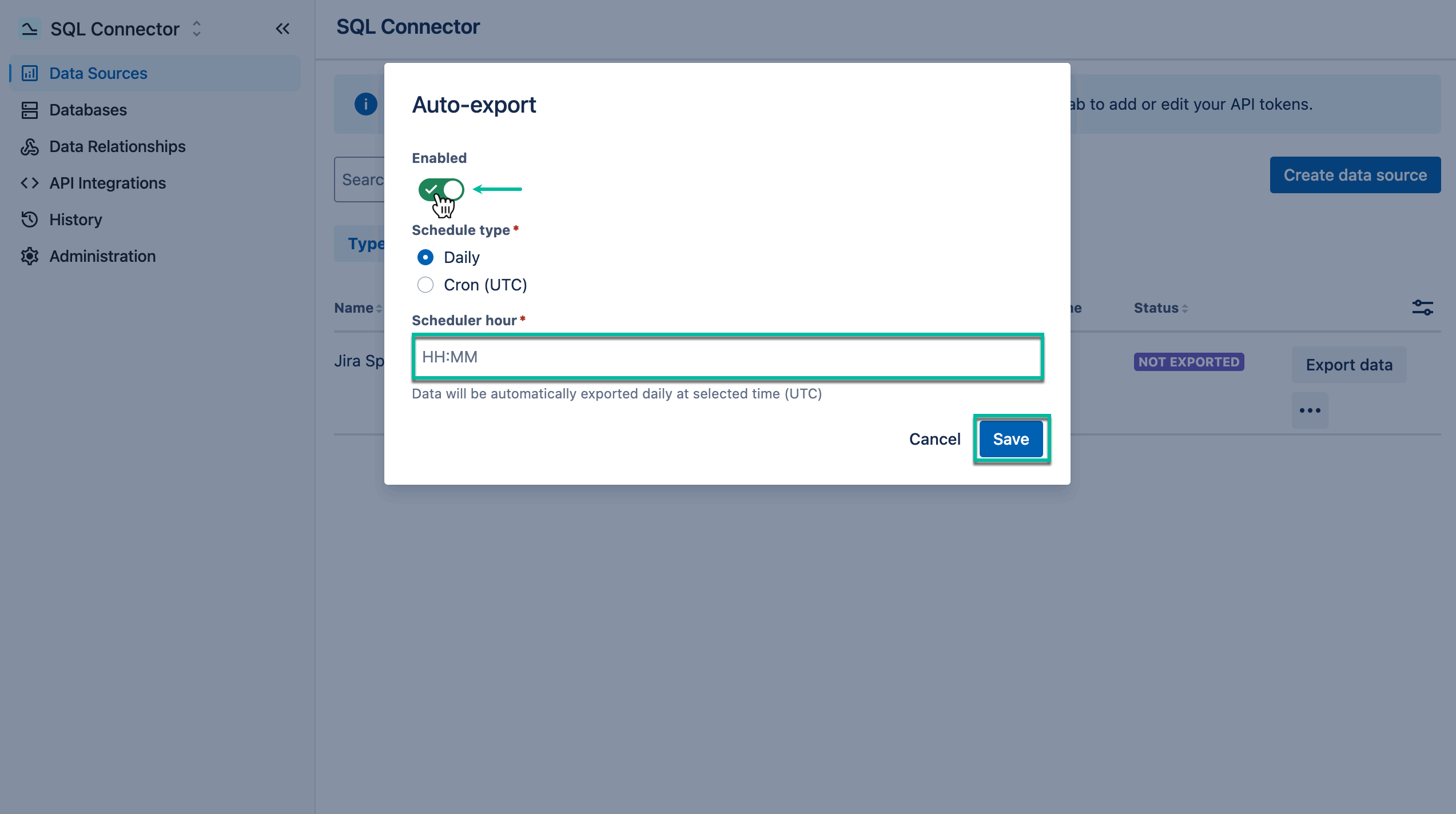
Enable auto-export.
-
Select the required schedule hour, and then select Save.
Export results
The export results are based on the Jira permissions of the user who triggers the export. This applies to both manually triggered exports and Auto-export.
When Auto-export is enabled, the export runs periodically according to the configured settings. The results can vary depending on who triggers the export:
Data source owner and current user are the same
The export includes the data configured in the data source that is available to the user based on their Jira permissions.
Data source owner and current user are different
This can occur when a user exports a data source shared with them. The export contains only the data available to that user according to their Jira permissions.
For example, the data source owner may configure the data source to include projects that are available only to them. When another user exports the same shared data source, those projects are not included in their export if they do not have access to them in Jira. As a result, the export results can differ between the data source owner and other users.
Note: When different users export the same shared data source, each user's export is based on that user's Jira permissions.