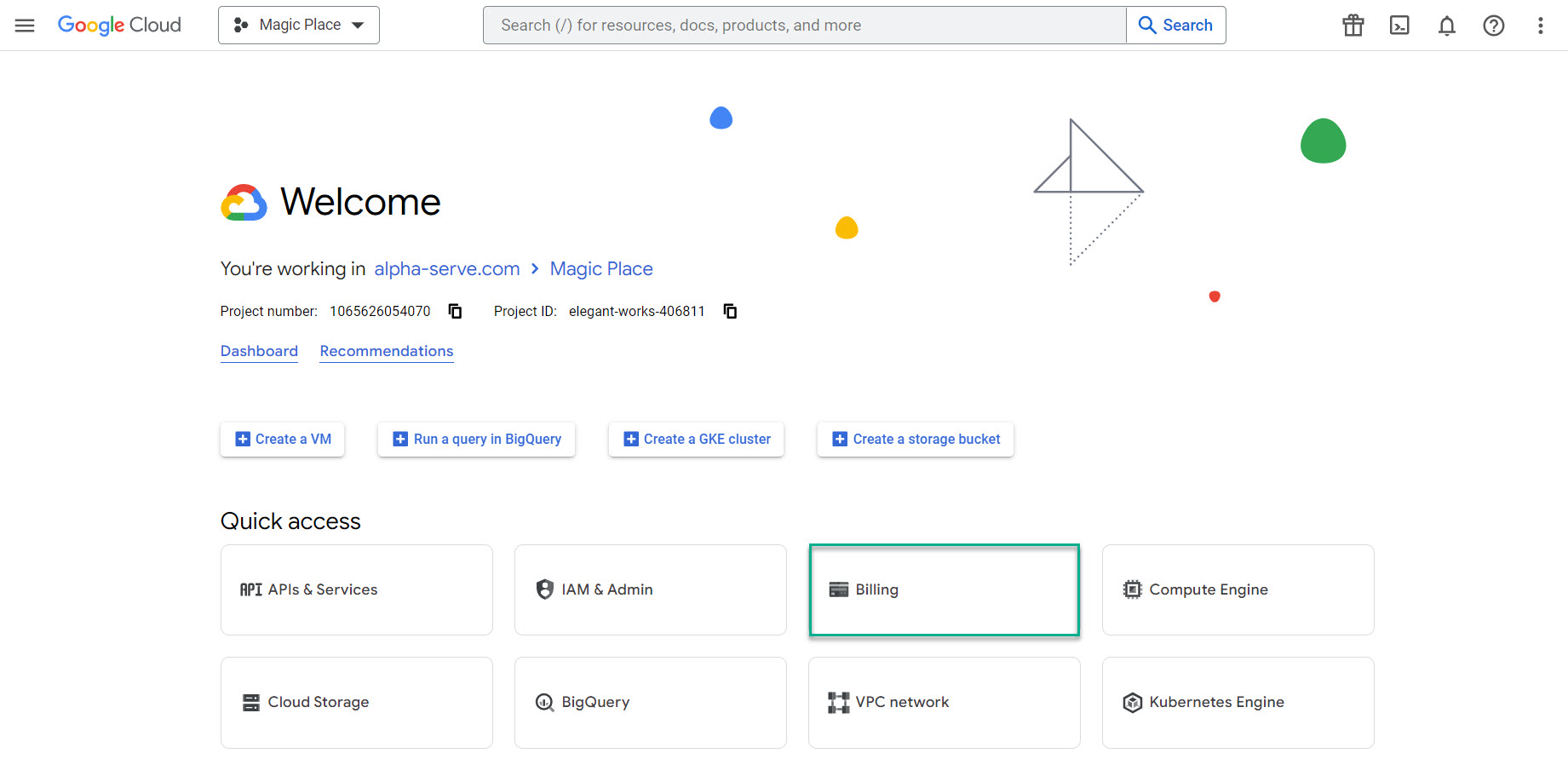
To authenticate in BigQuery, the service account key is required. Therefore, before exporting Jira data to BigQuery, create the key in the Google Cloud console.
-
This guide will walk you through all the required steps to create a service account key.
-
You’ll start by creating a custom role with the necessary permissions, then create a service account, and finally generate the key.
-
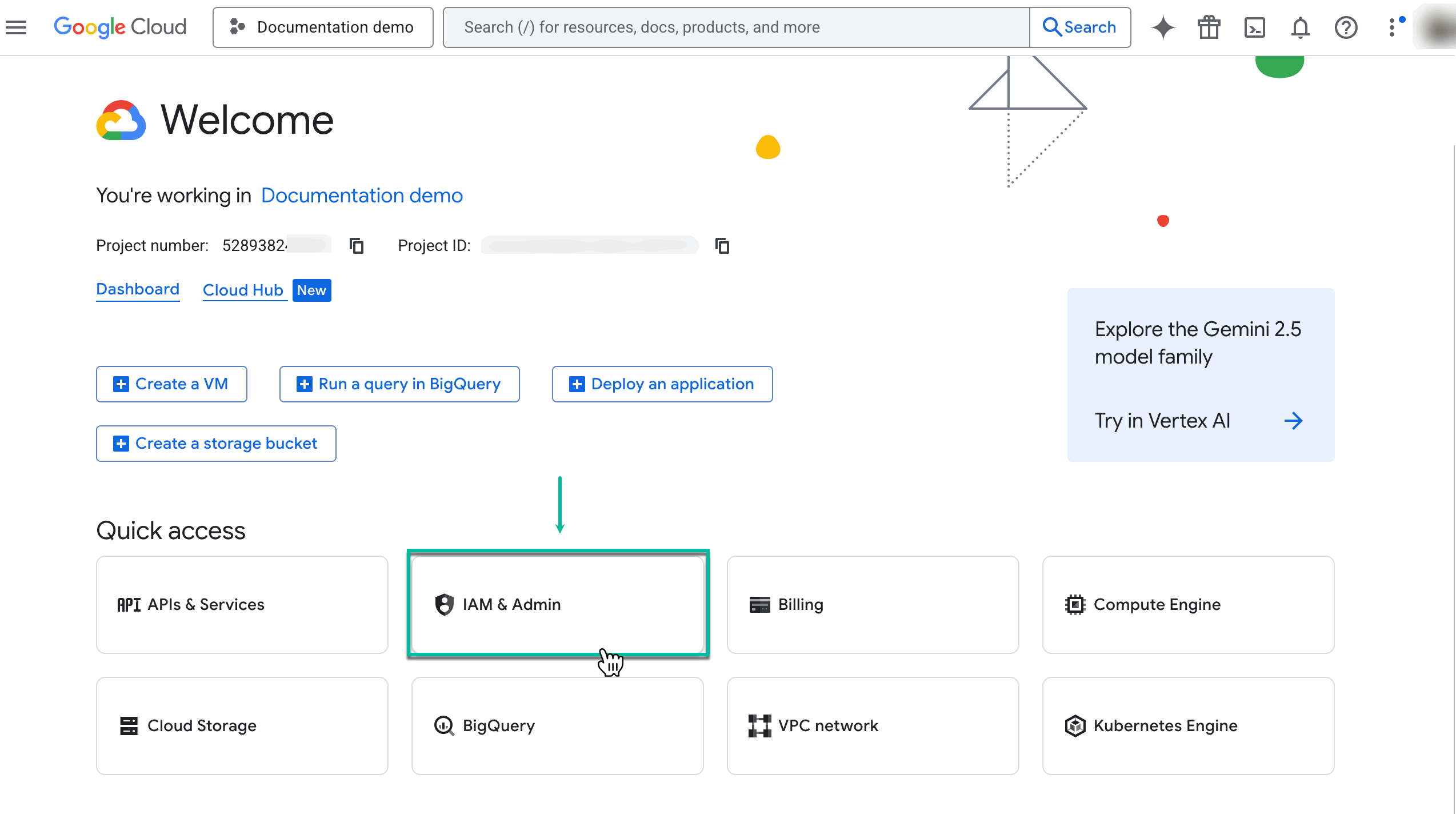
Open your project in the Google Cloud console, and then select IAM & Admin.
-
If you don’t have a project in the Google Cloud console, you have to create a billing one to export data.
-
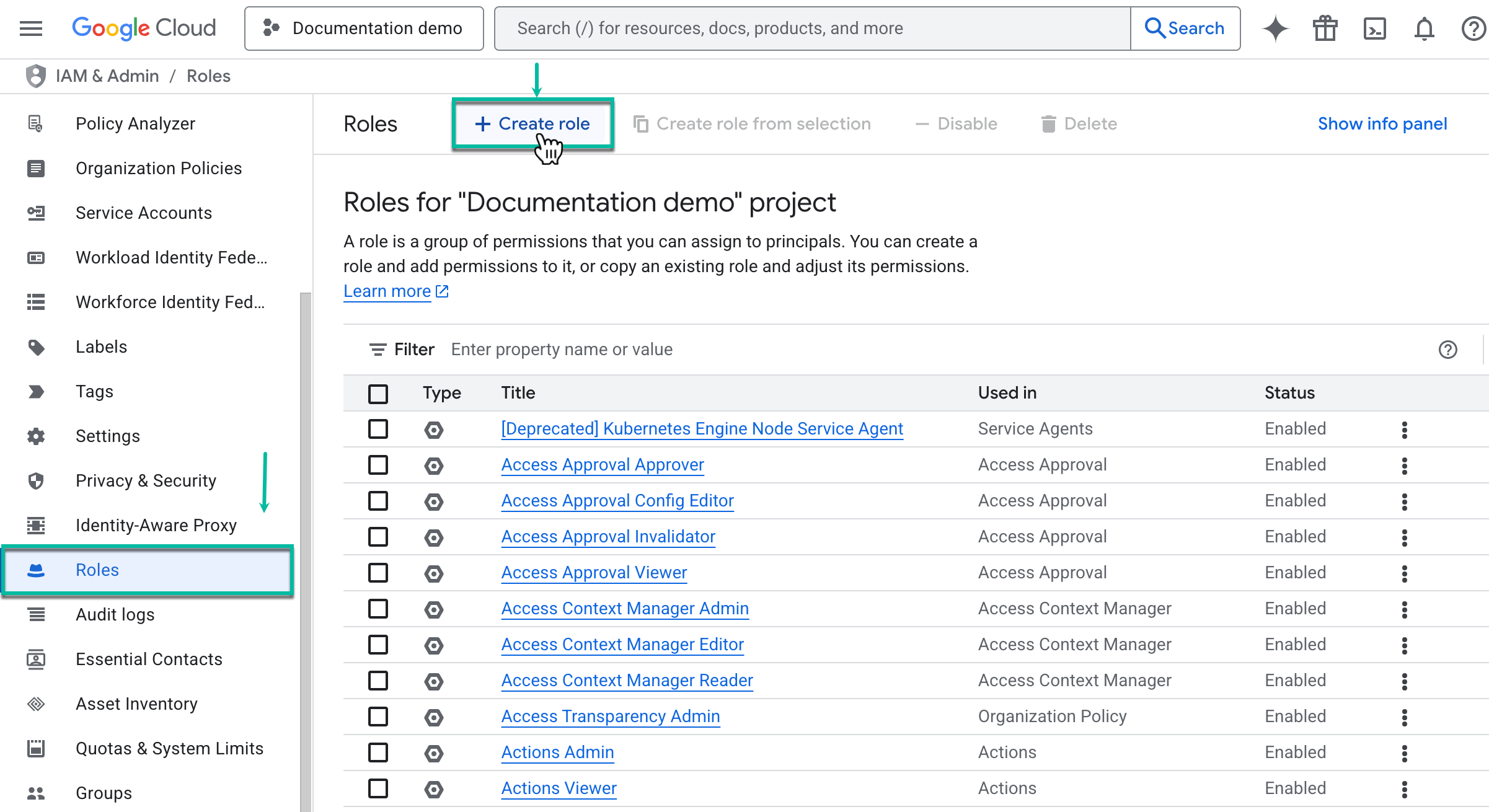
Select Roles, and then select + Create role.
-
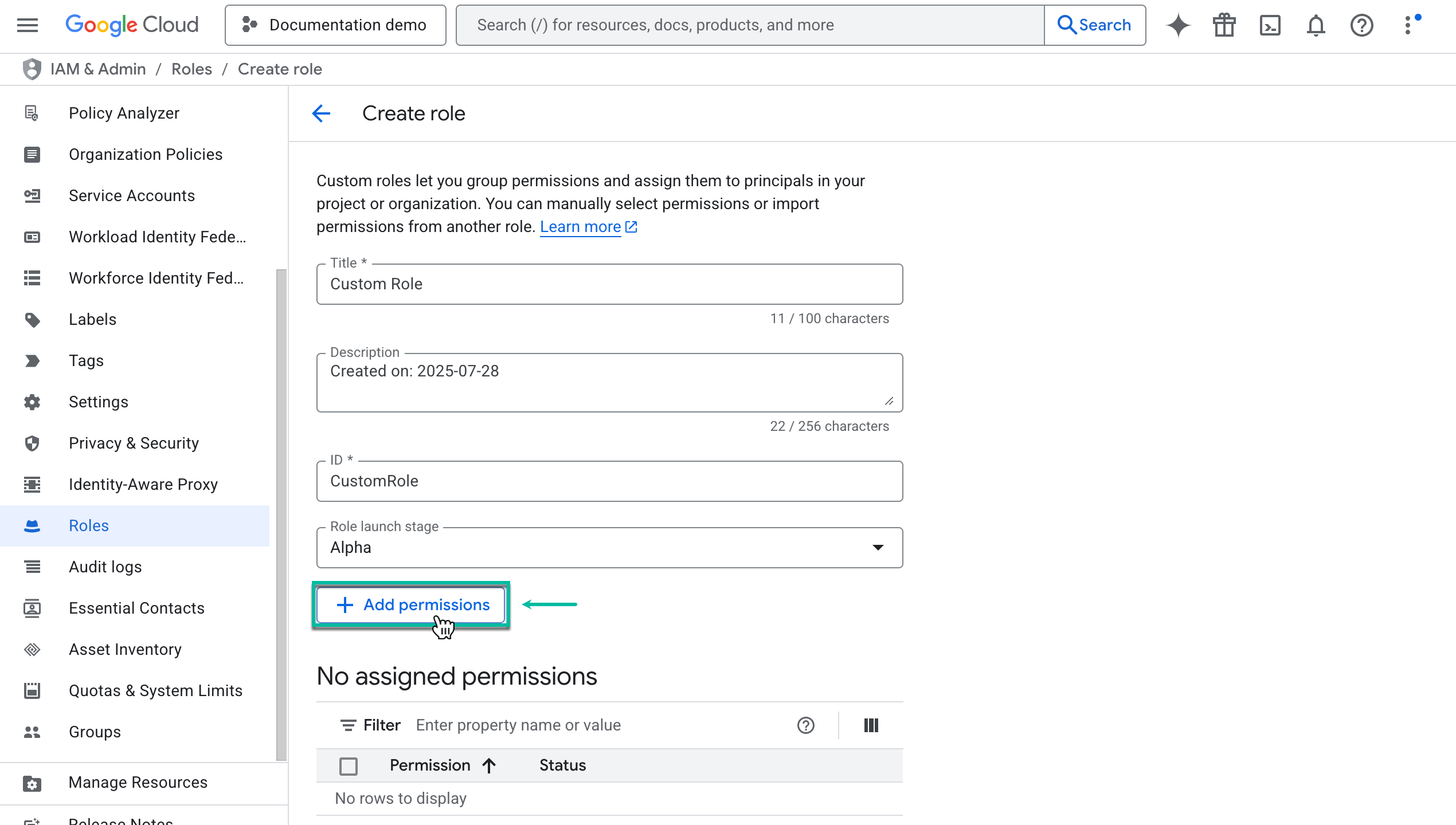
Select + Add permissions.
-
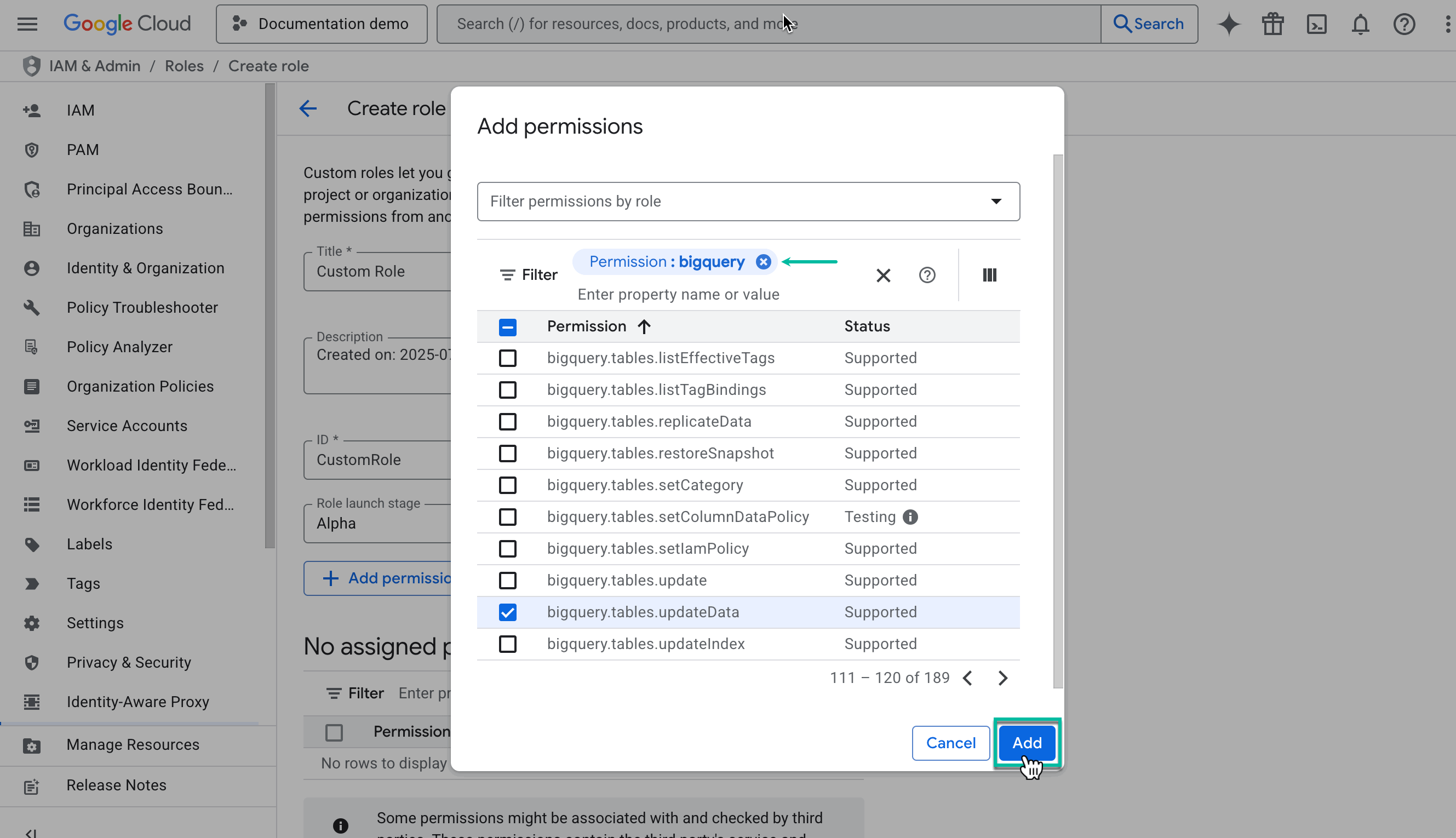
Select the following three permissions, and then select Add.
bigquery.datasets.create
bigquery.tables.create
bigquery.tables.updateData
-
We’ve decided to stop using the Owner role to manage access and instead recommend more appropriate alternatives. You can now choose the option that works best for your setup.
The most flexible and accurate solution is to create a custom role with a specific set of permissions.
Alternatively, you can use one of the default roles with fewer permissions than Owner - such as Editor or BigQuery Data Editor - if that meets your organization’s requirements.
-
View roles and their permissions in the Google Cloud console.
-
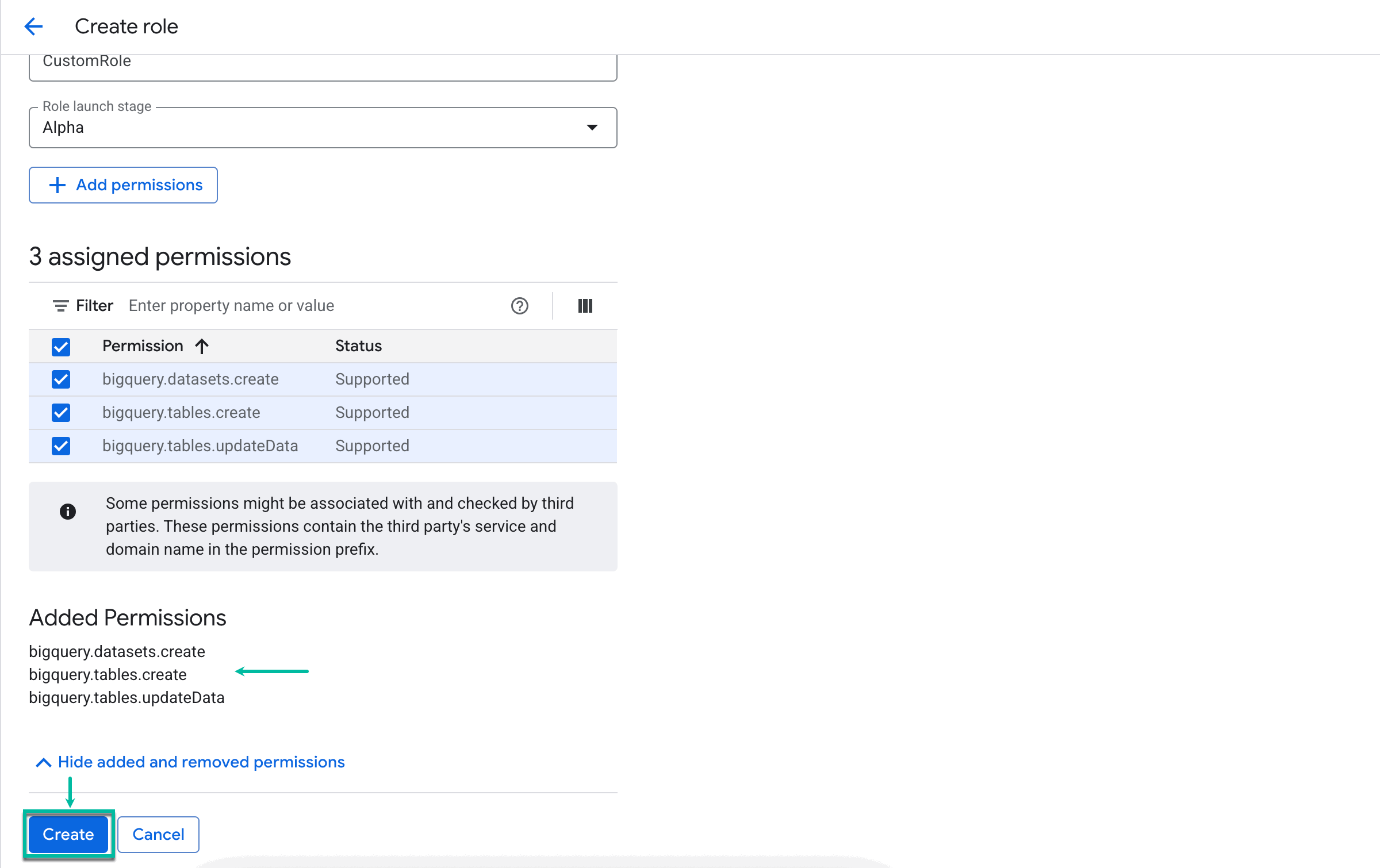
Check added permissions, and then select Create.
-
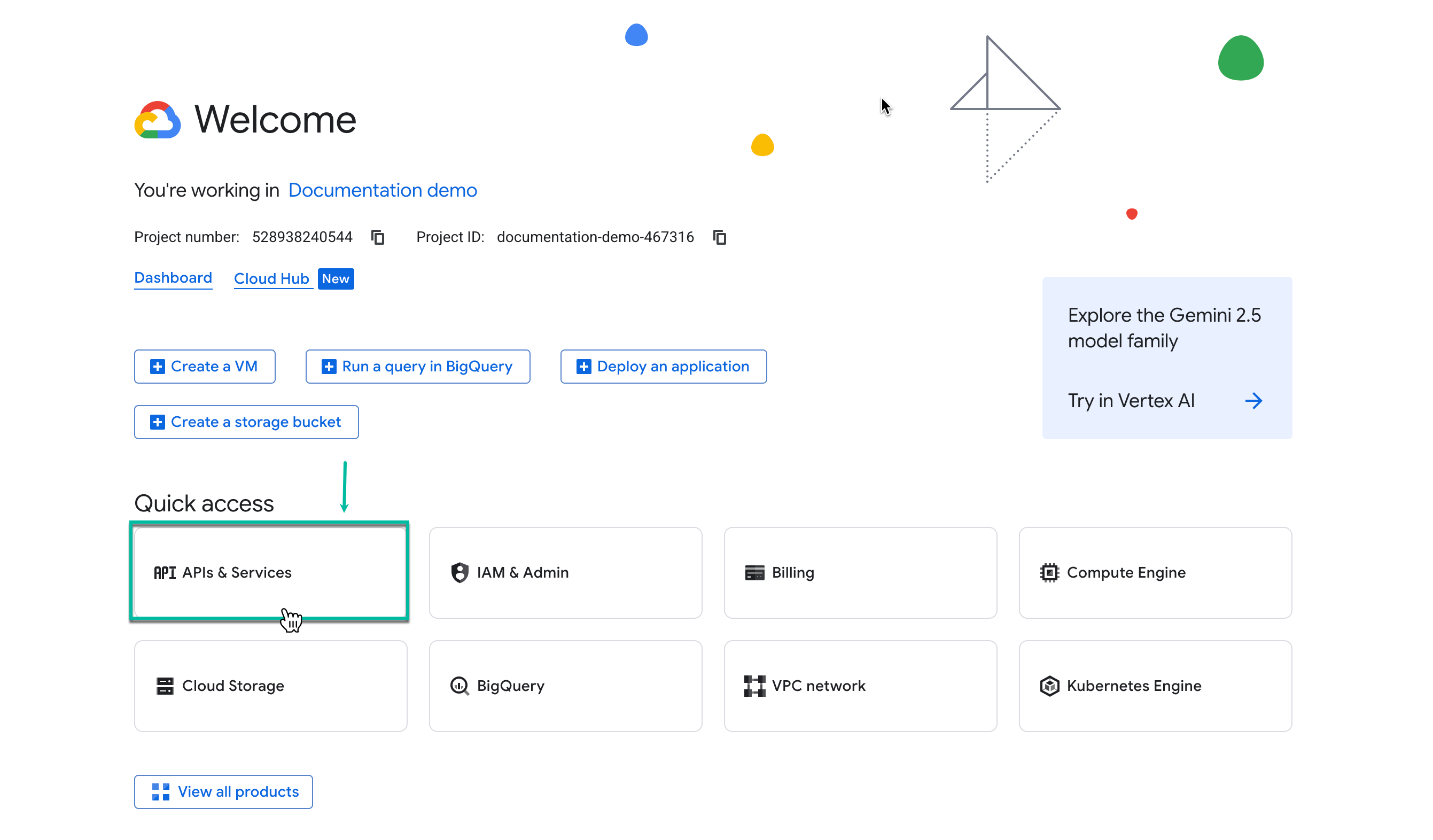
Select APIs & Services.
-
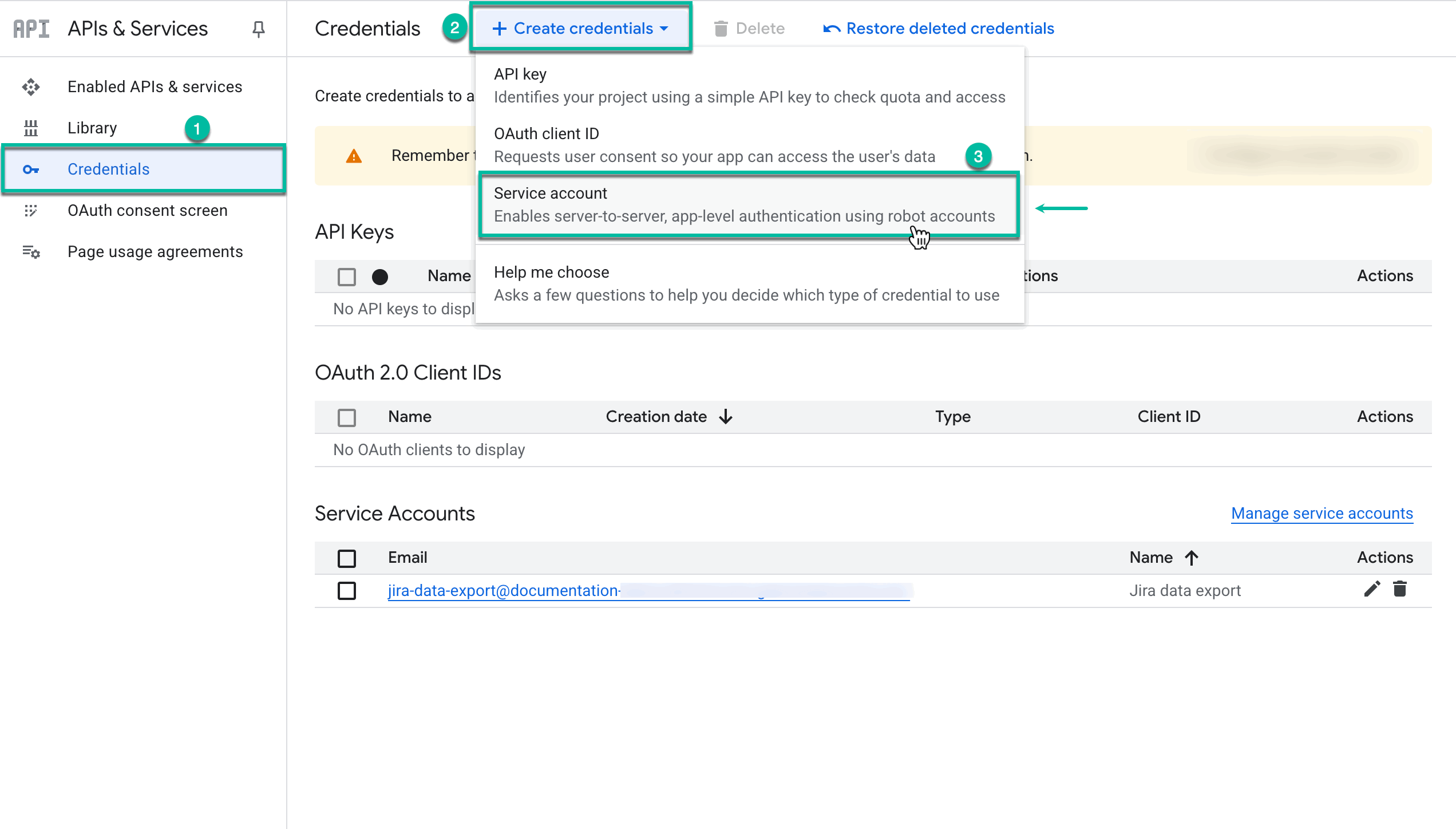
Select Credentials, select +CREAT CREDENTIALS, and then select Service account.
-
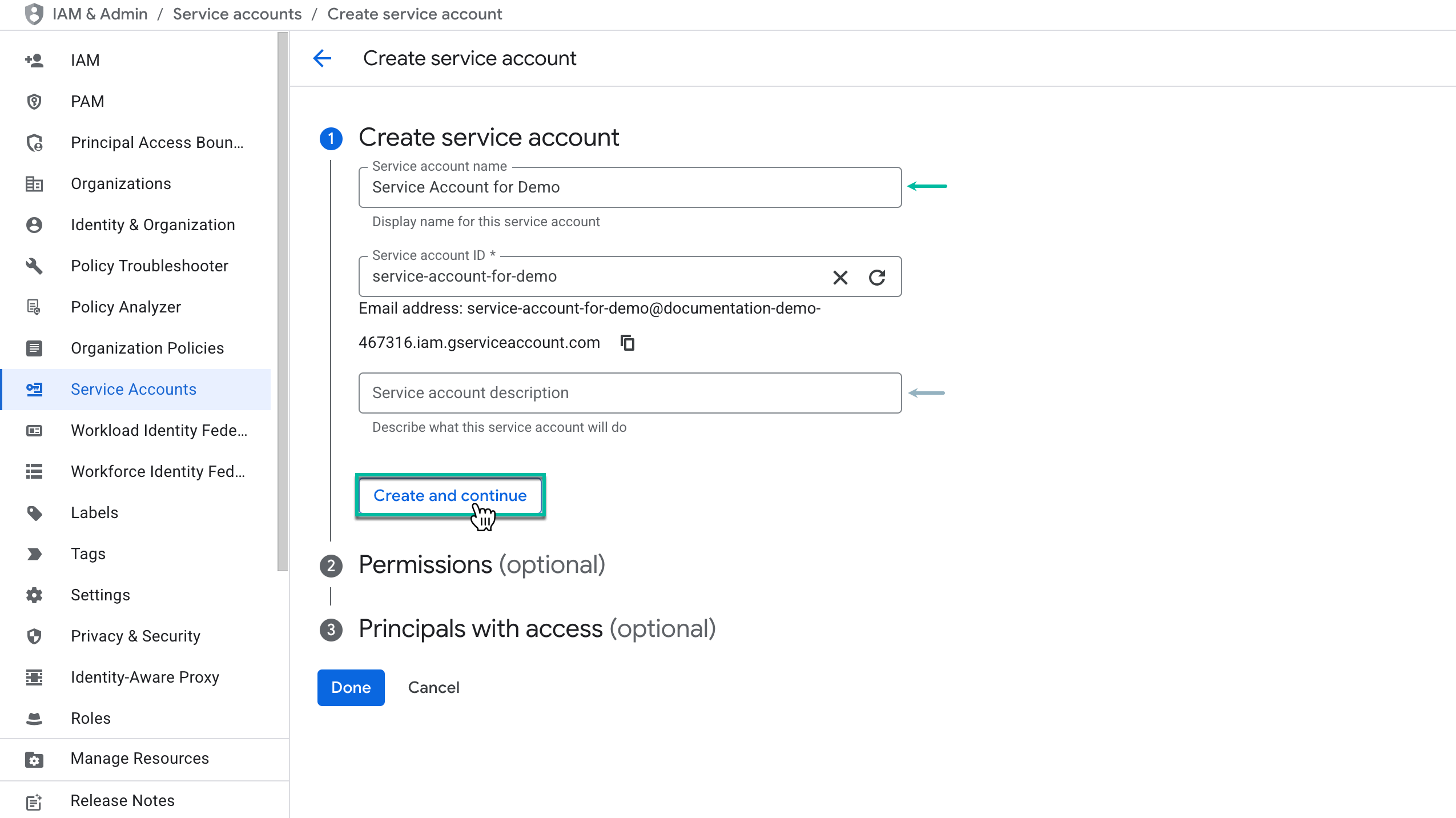
In the Service account name field, enter the name for your service account.
-
The Service account ID * field will be filled automatically upon entering the service name.
-
[Optional] In the Service account description, enter the description for your service account.
-
Select CREATE AND CONTINUE.
-
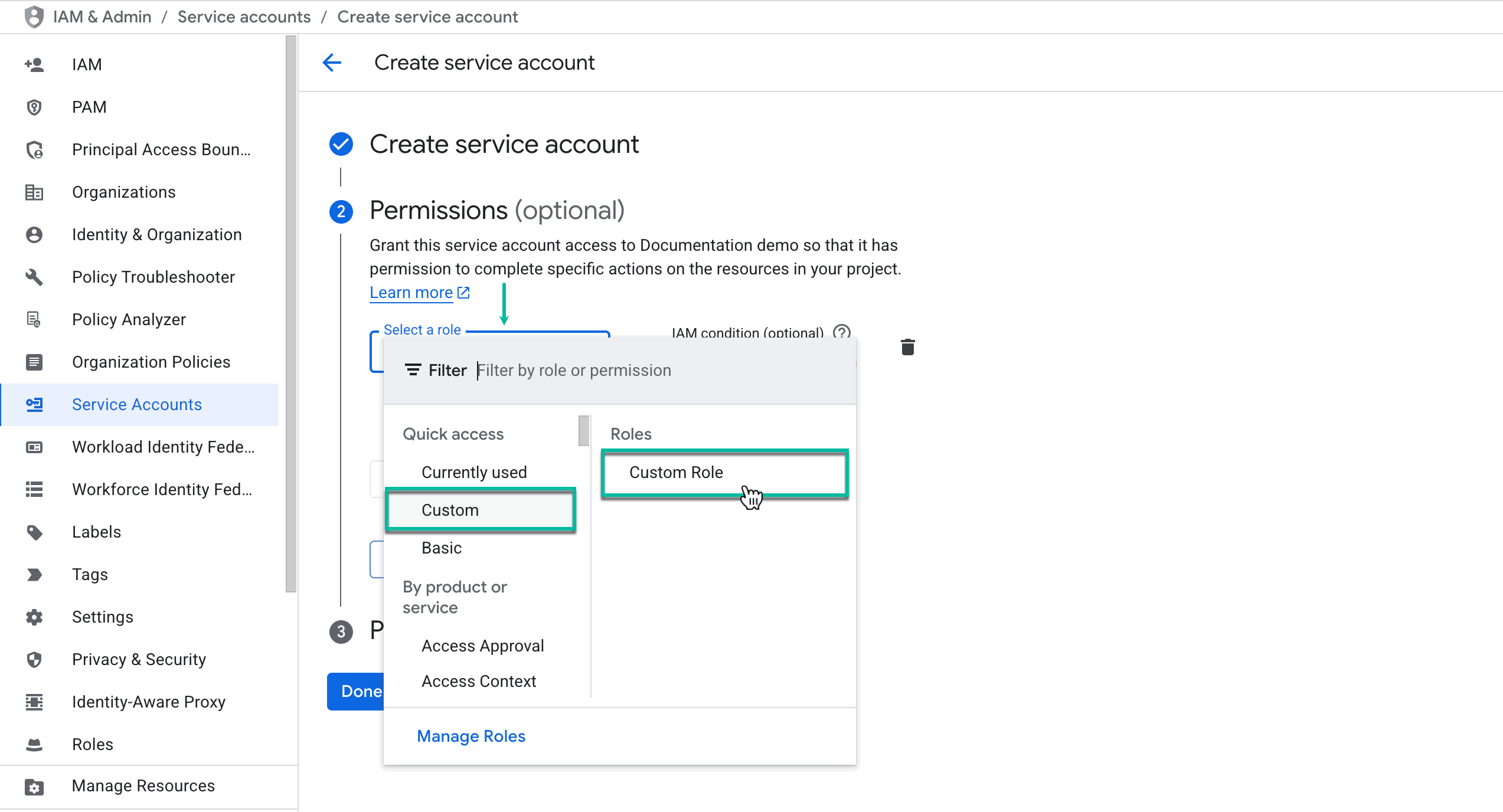
In the Select a role field, select Custom, and then select Custom Role.
Custom Role is just a placeholder name used for demonstration purposes. You can assign any name to your custom role.
-
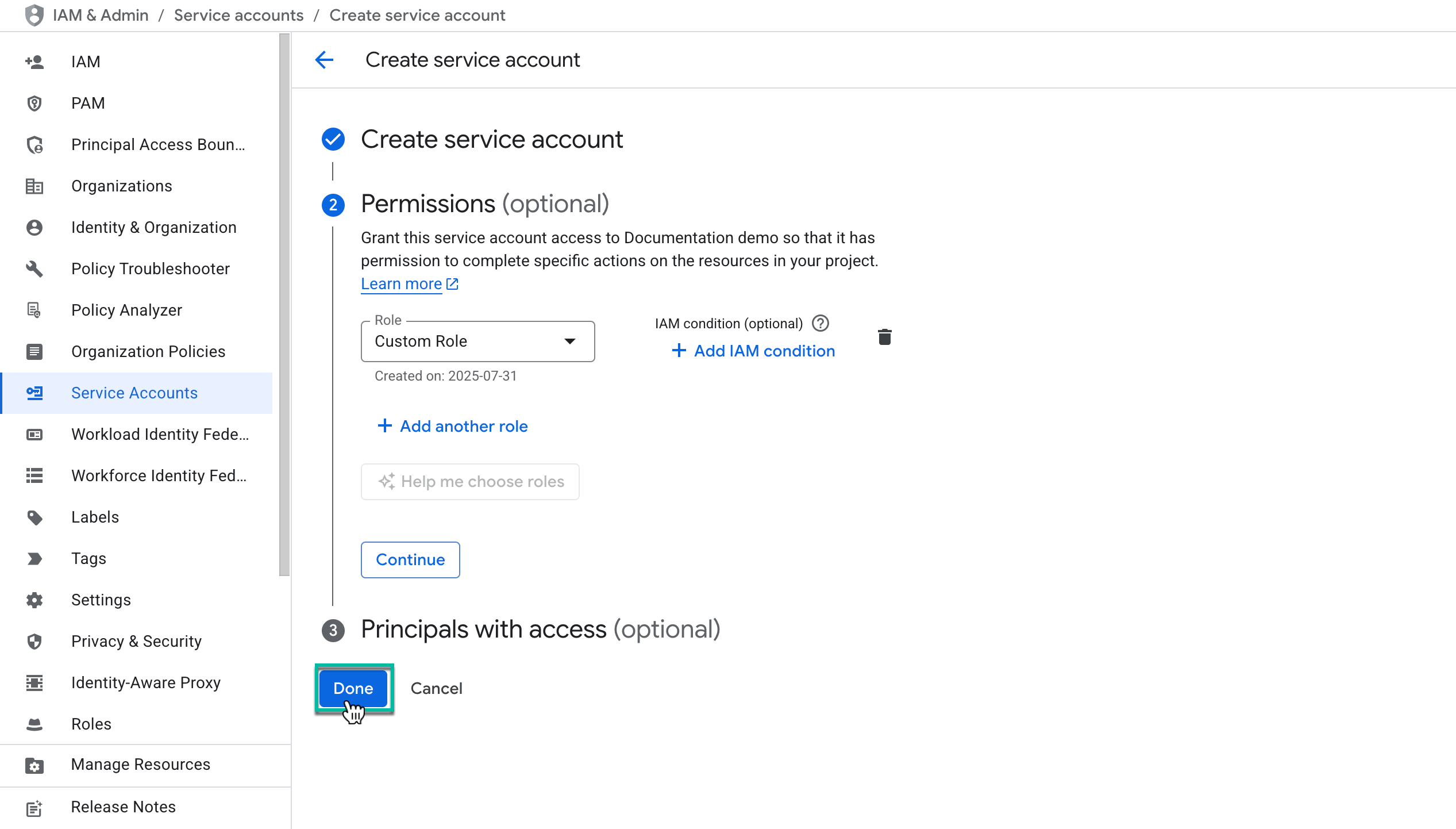
There are two options:
-
Select CONTINUE if you need to share this service account and its key with someone.
-
Select DONE if there’s no need to share the service account and its key.
Each user has to create their own service account, and then generate a service account key. If you need to share your service account and key with someone, you can grant them access to the service account. If there's no need, you can skip this step.
-
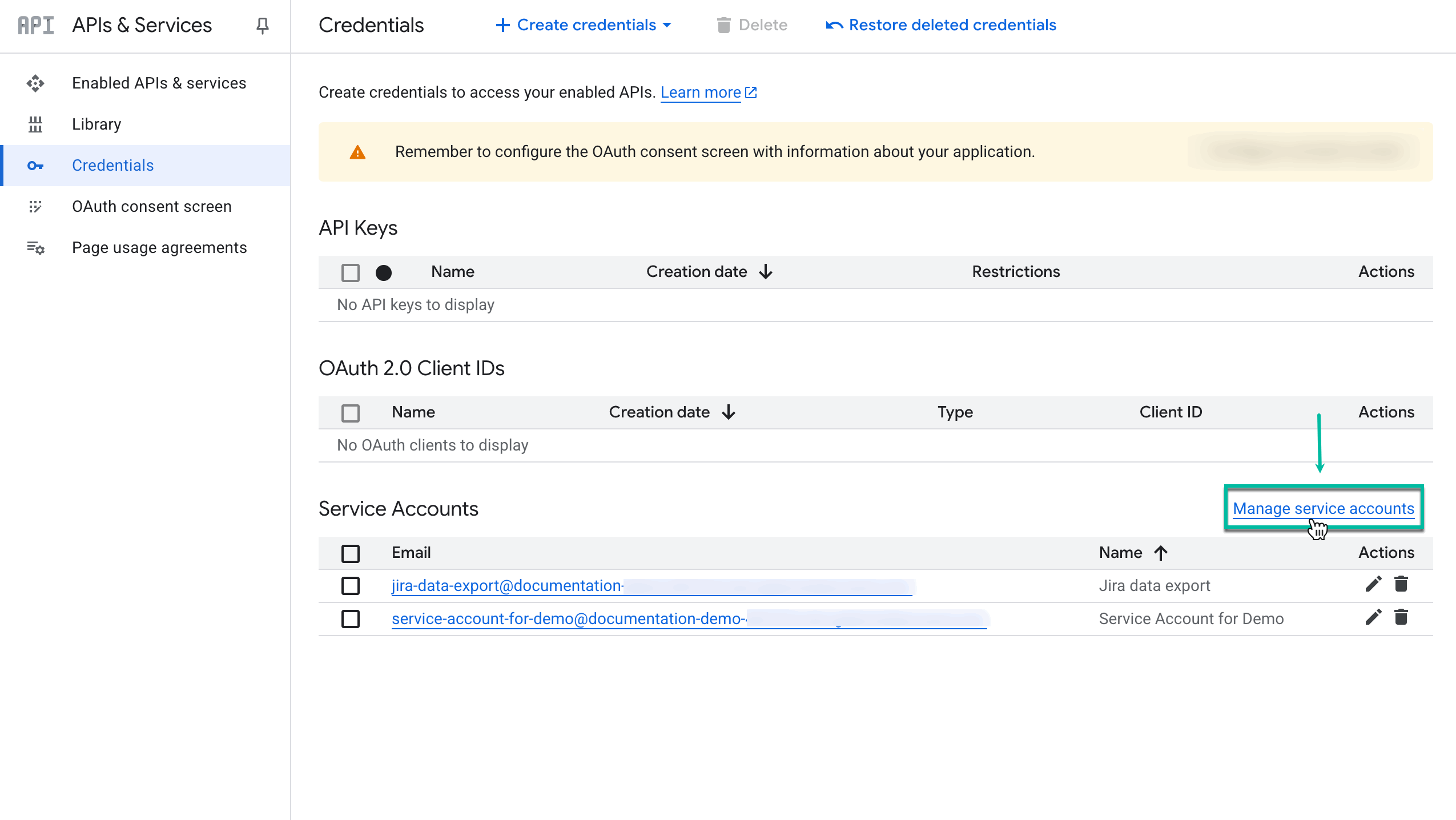
Select Manage service accounts.
-
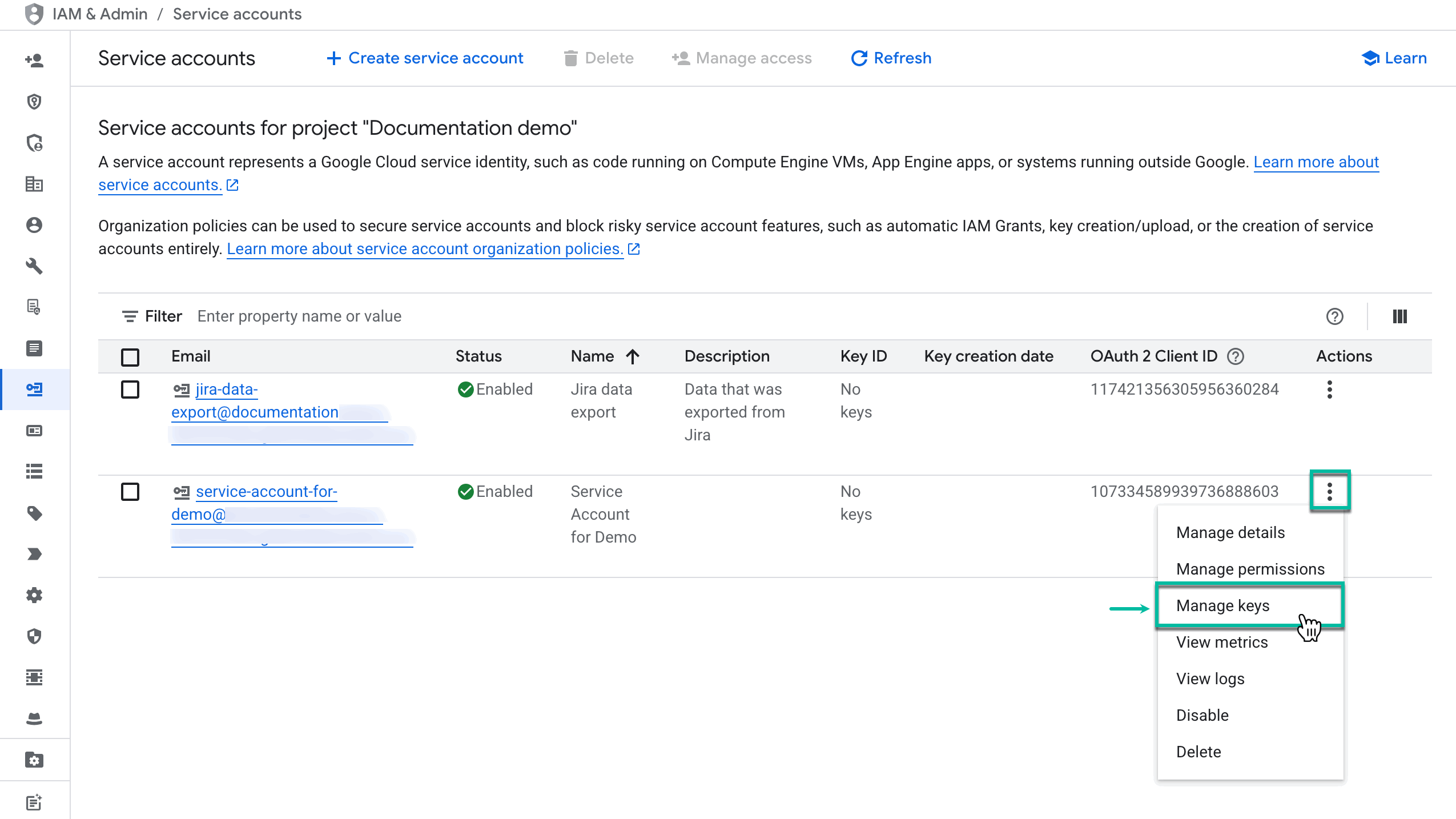
Find the corresponding service account, select the Actions button, and then select Manage keys.
-
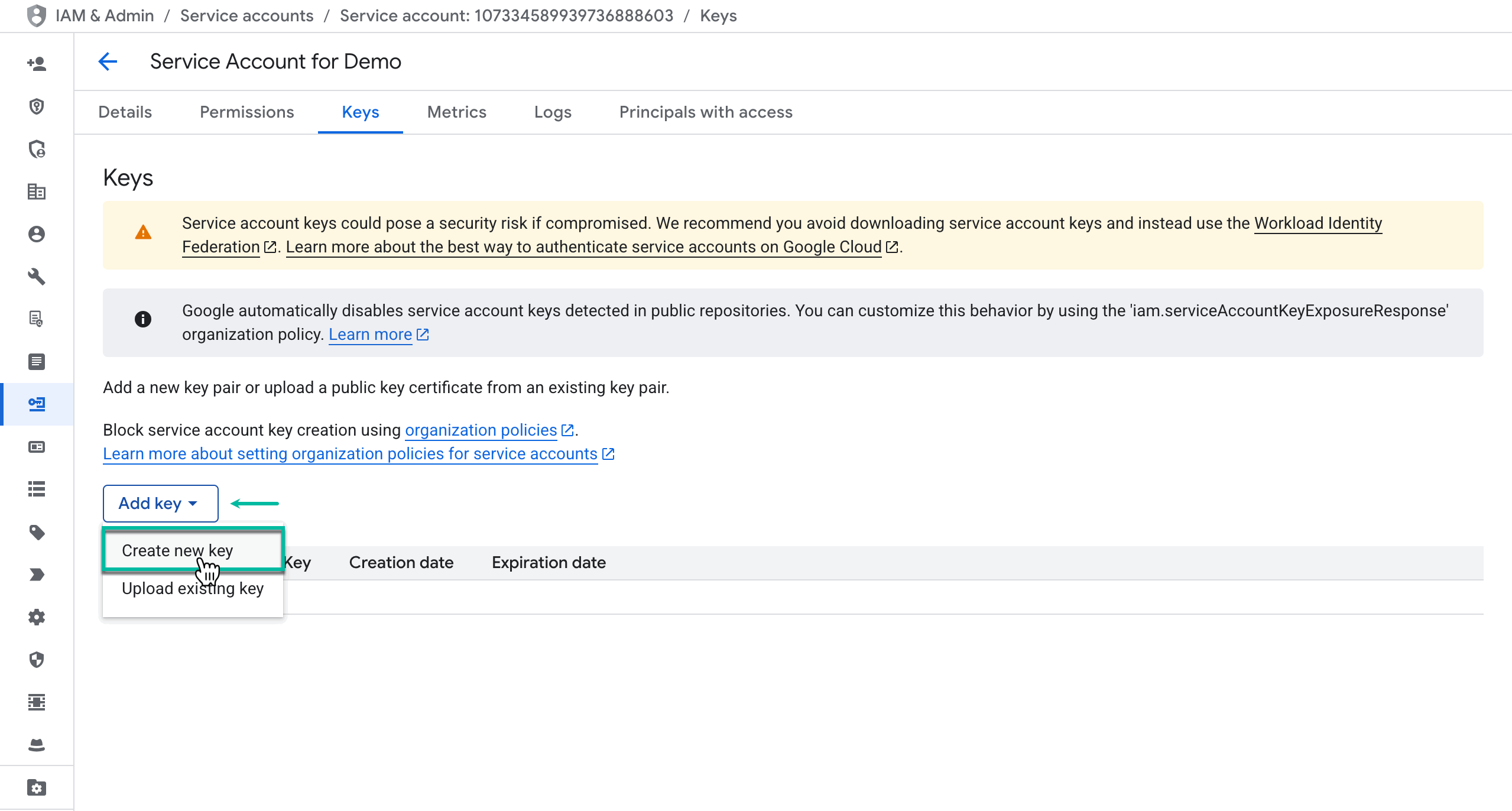
Select ADD KEY, and then select Create new key.
-
Select JSON, and then Create.

-
The private key will be automatically saved to your computer.

-
To use BigQuery, you have to enable billing on the corresponding project. From the home page, select Billing, and then follow the instructions provided on the screen.