
You can adjust BigQuery Connector for Jira settings on a single page. The instructions below will guide you in locating app settings page and provide an overview of all available configuration options.
Platform administrators always can view, modify, delete, and edit the share settings of any existing connectors in an instance.
How to Get to The Settings Page
There are 2 options for how to get to the application settings page. Feel free to use the one that is more convenient for you.
Option 1
-
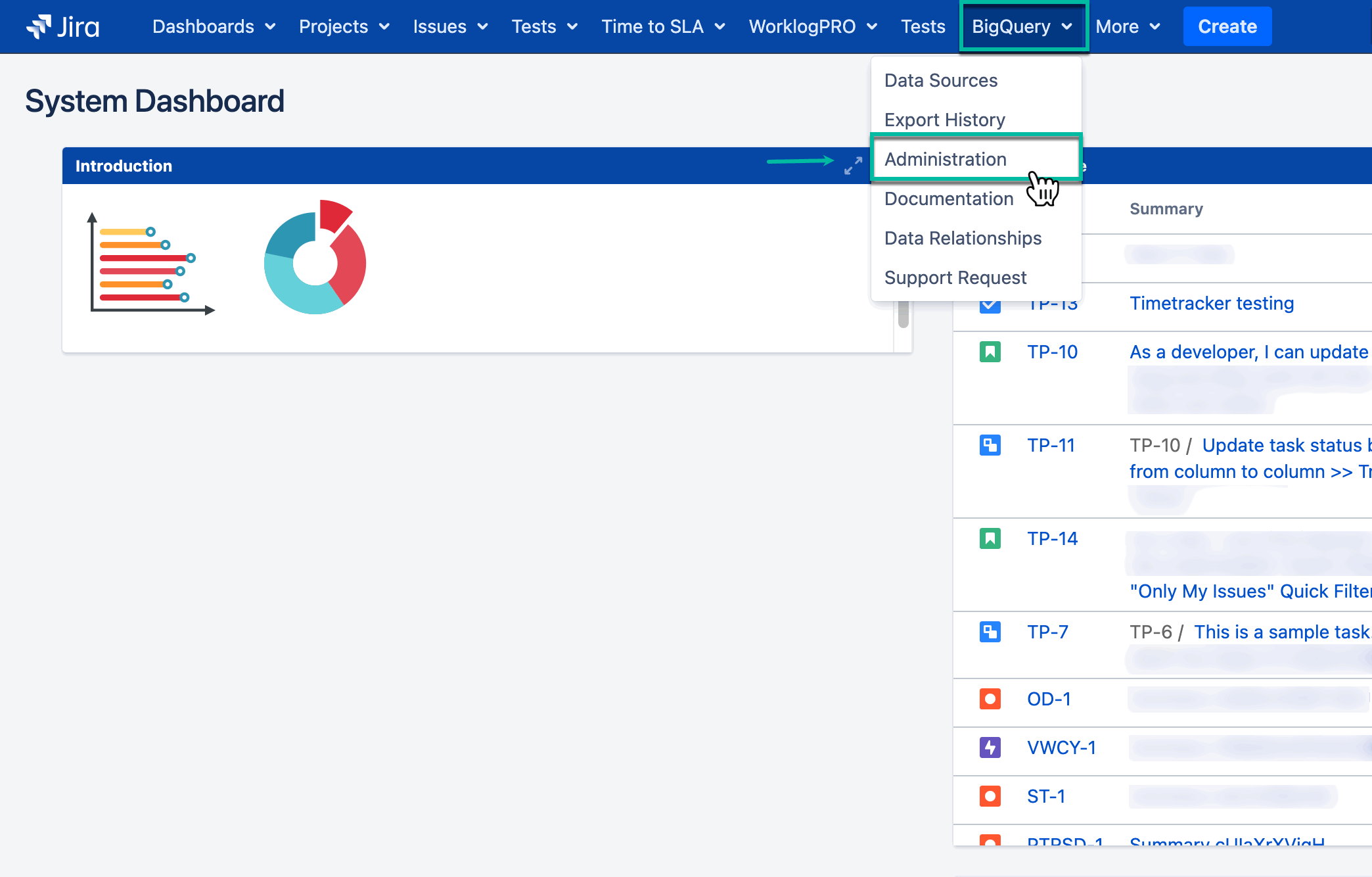
Being signed in to your Jira instance, select BigQuery, and then select Administration.
Option 2
-
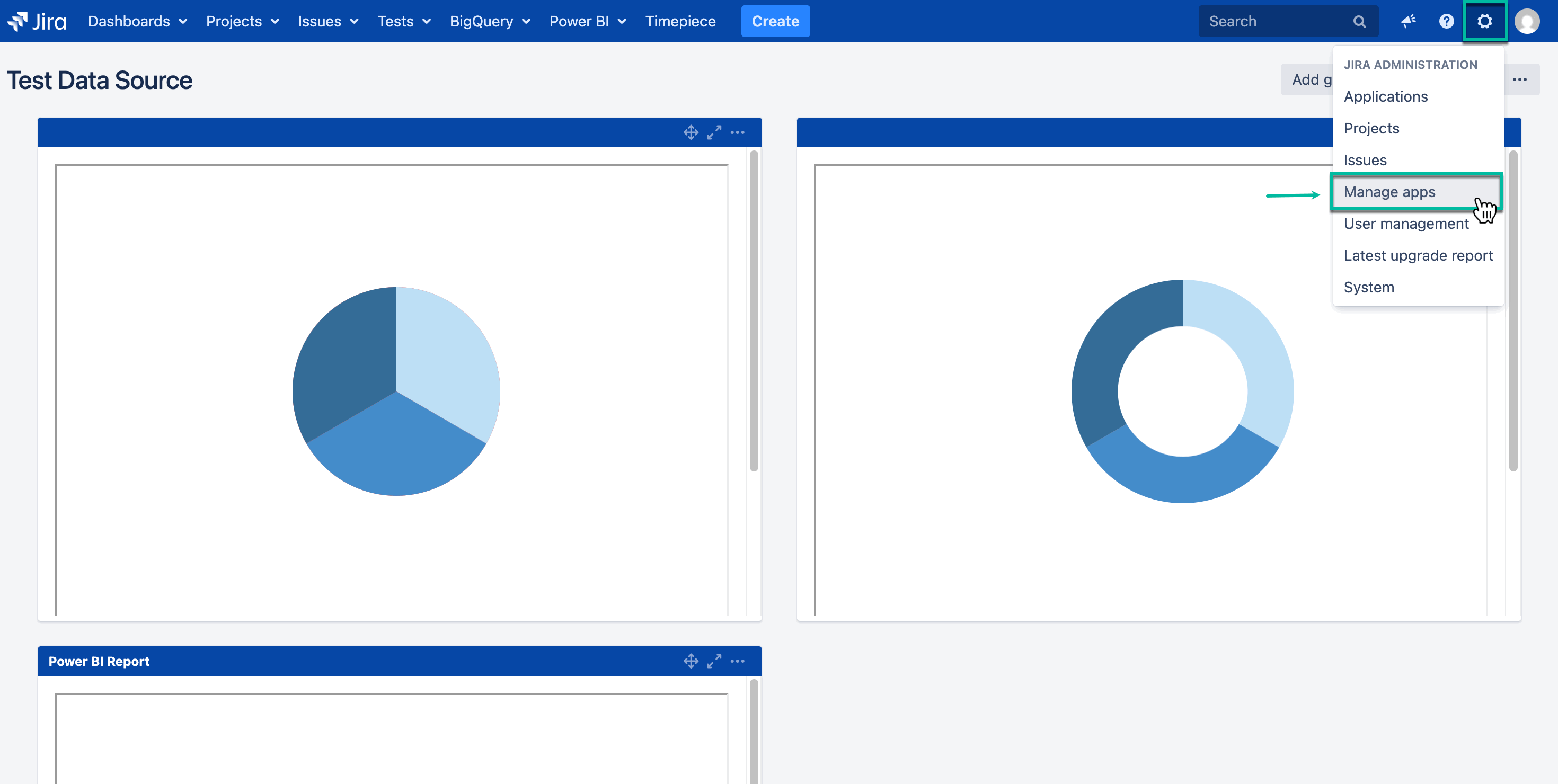
Being signed in to your Jira instance, select ⚙️, and then select Manage apps.
-
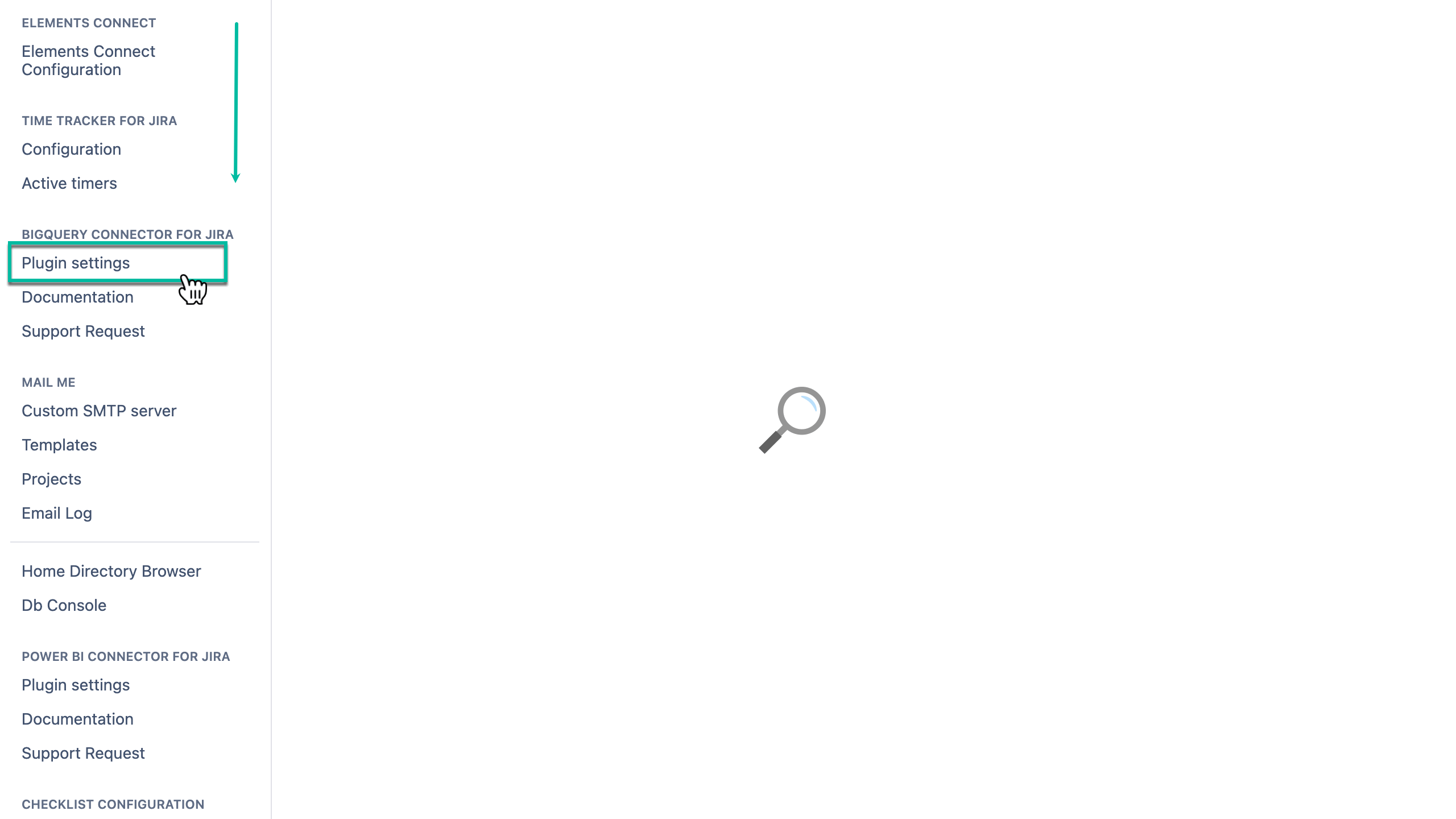
Scroll down, look for BIGQUERY CONNECTOR FOR JIRA, and then select Plugin settings.
Settings Page Overview
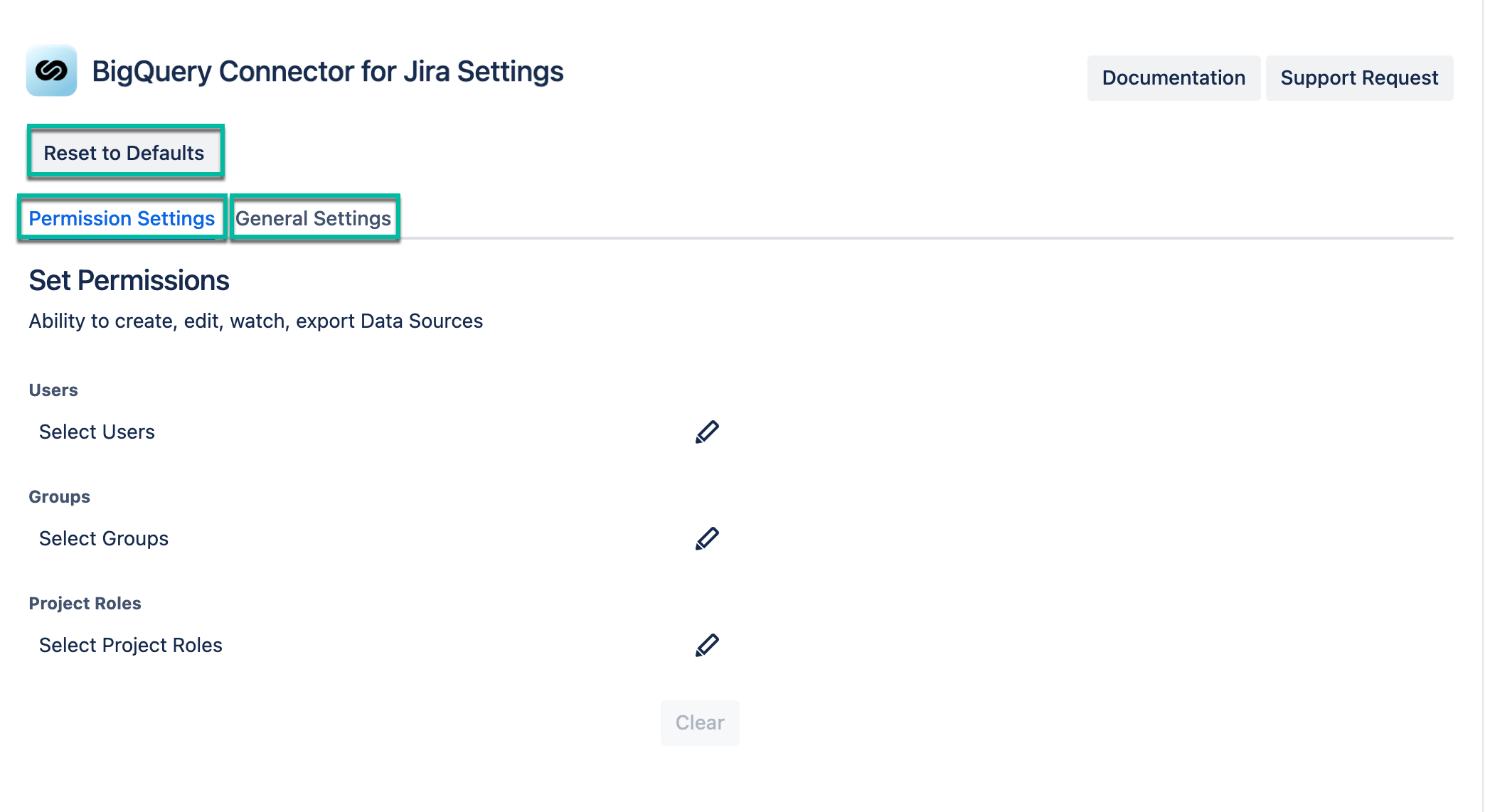
BigQuery Connector for Jira Settings page includes the following settings:
-
Permission Settings
-
General Settings
The page also has the Reset to defaults button.
Reset to Defaults
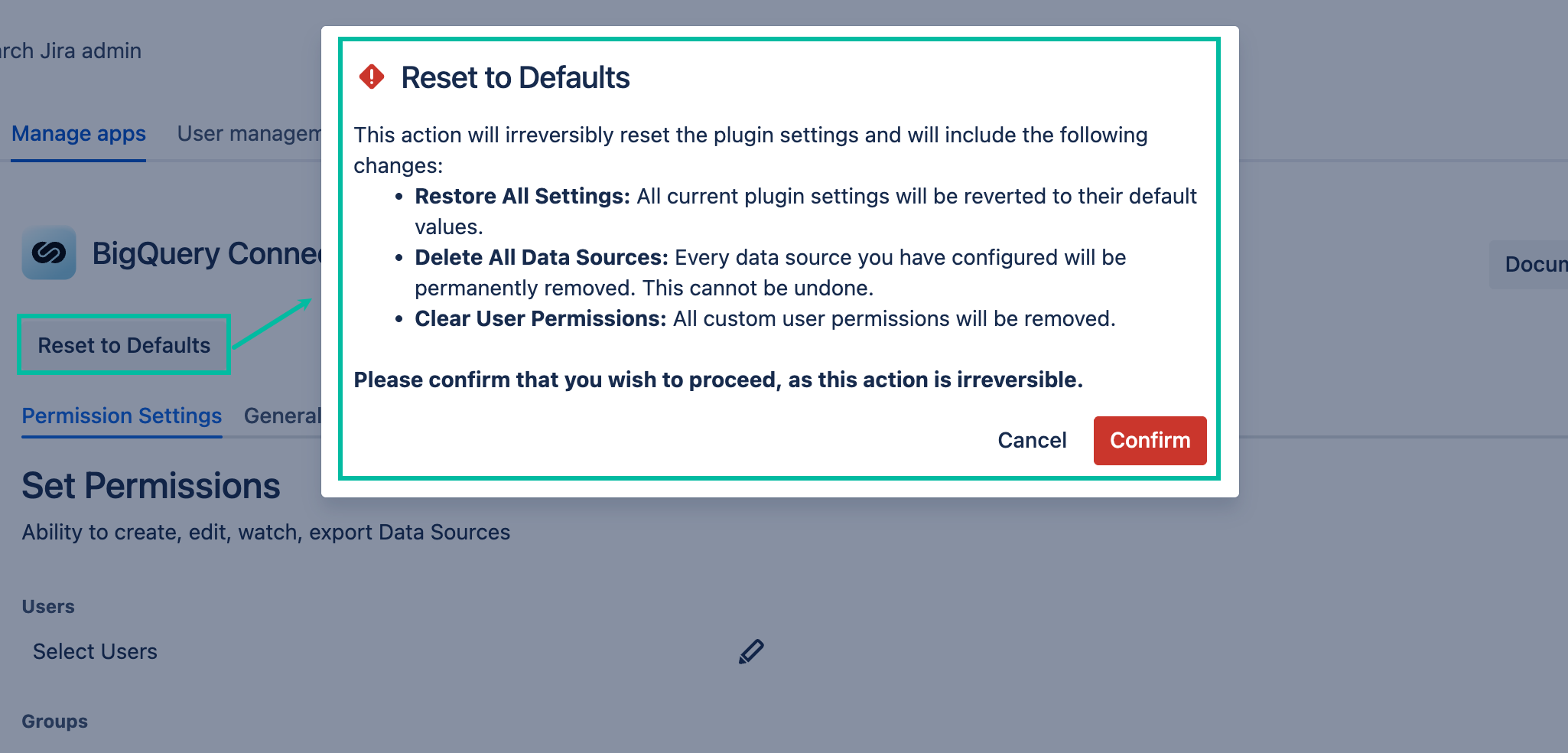
Reset to defaults - This action will restore all app settings, delete all data sources and their settings, and delete all users permissions.
-
Select Confirm, if you do want to reset all settings and delete data sources.
-
Select Cancel, if you no longer want to do it.
Permission Settings
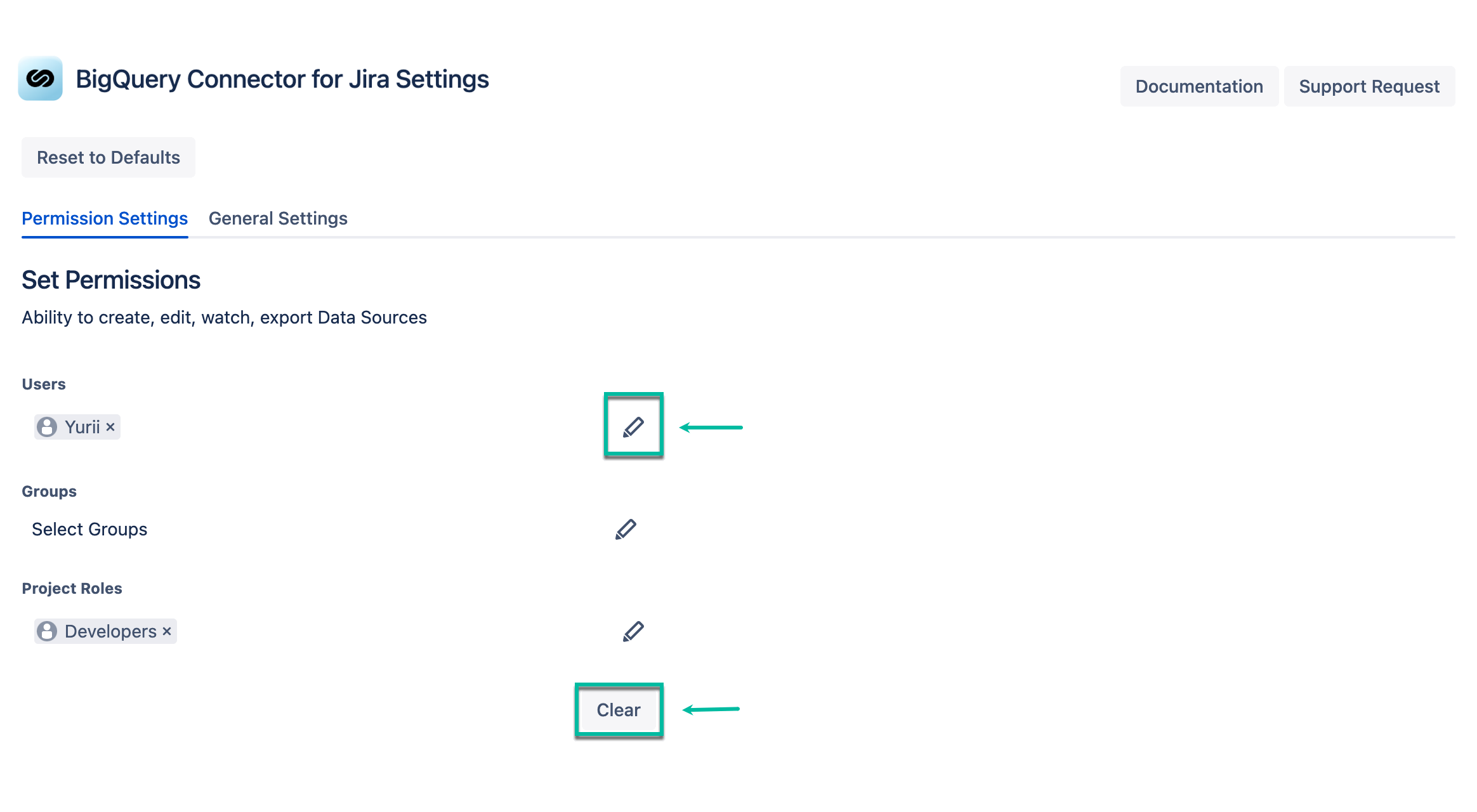
Here Jira administrators can grant permissions to users to create, edit, view, and export connectors.
-
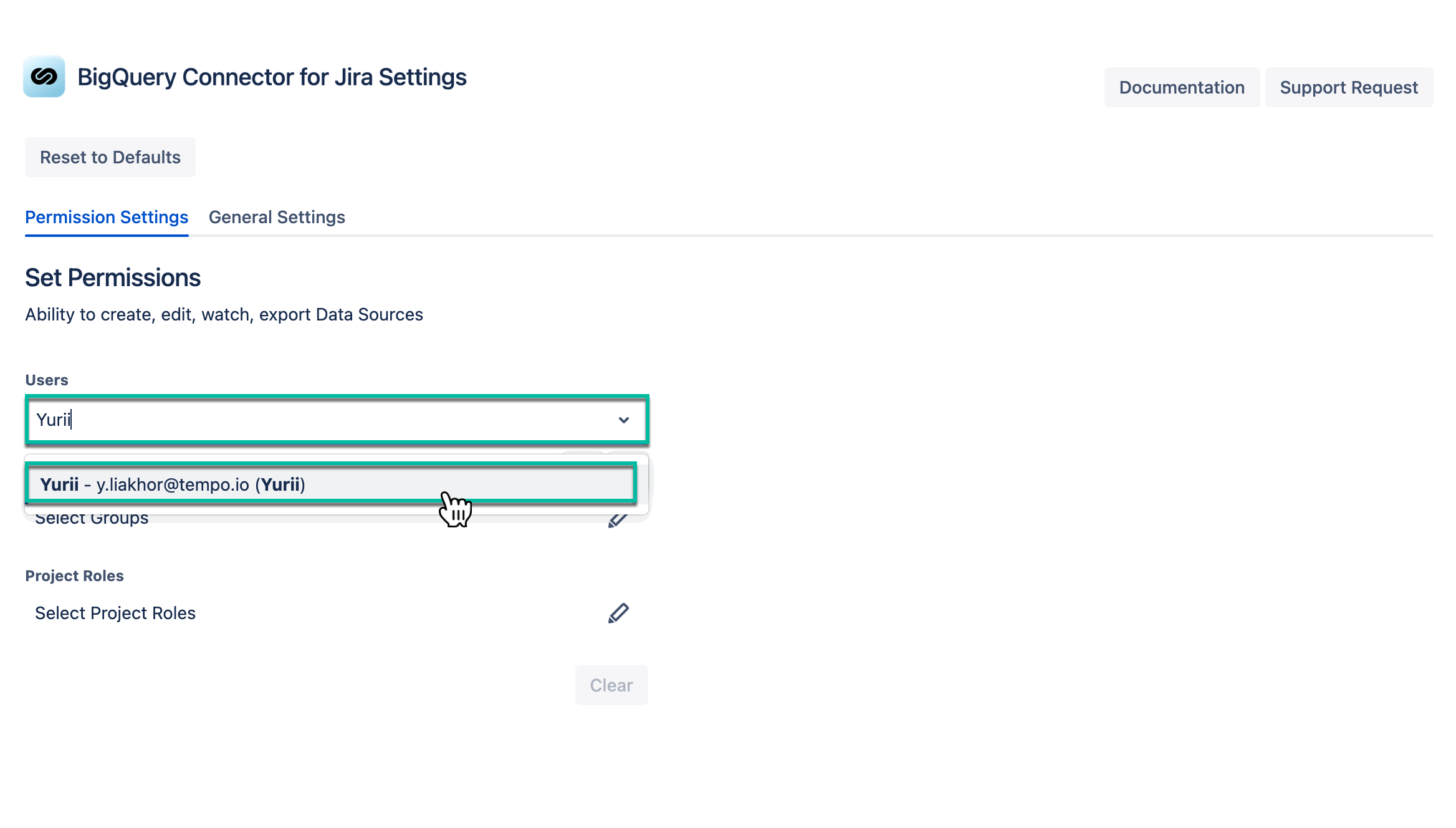
In the Users field, enter the username you want to grant permissions to.
-
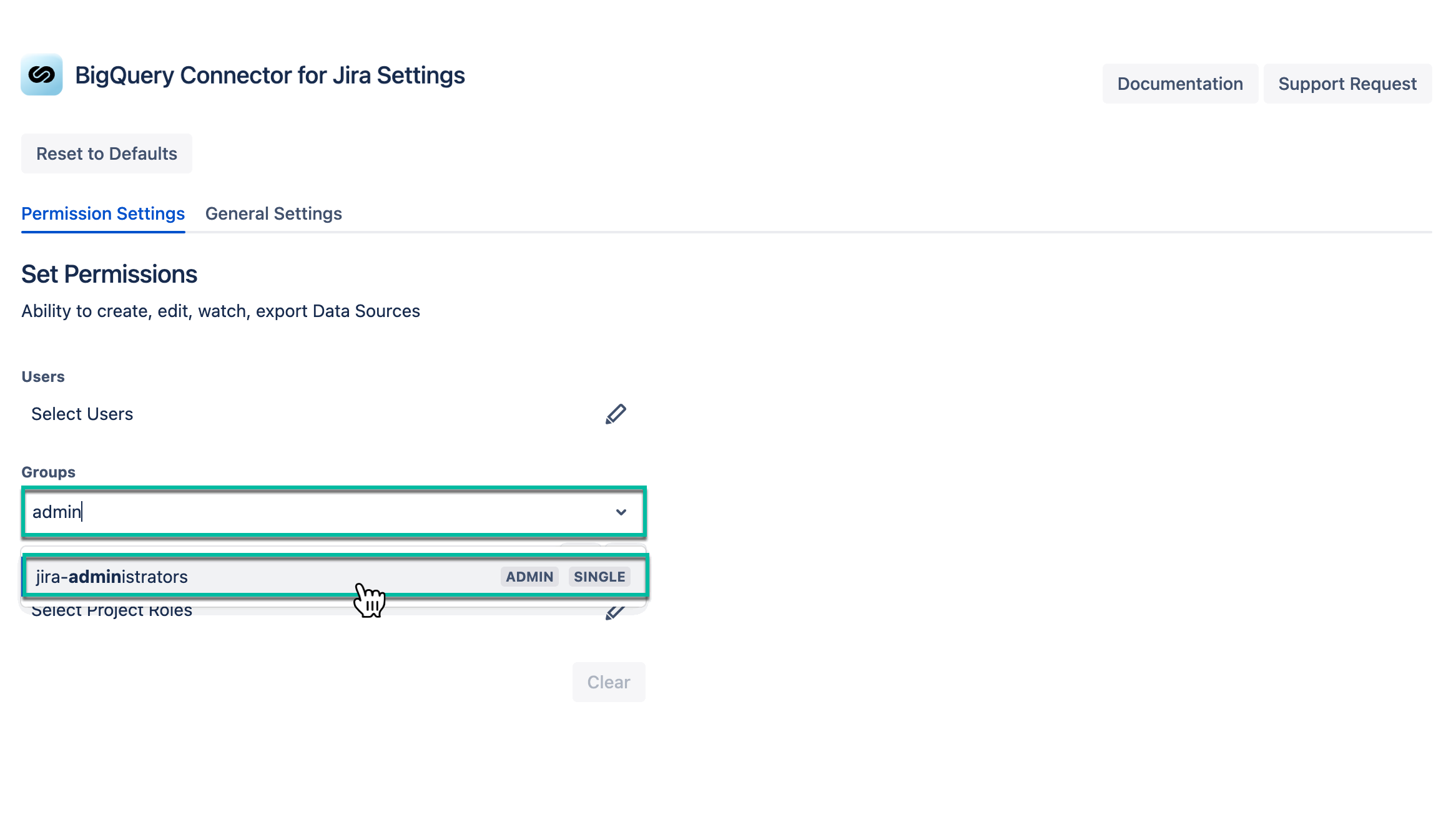
In the Groups field, enter the group name you want to grant permissions to.
-
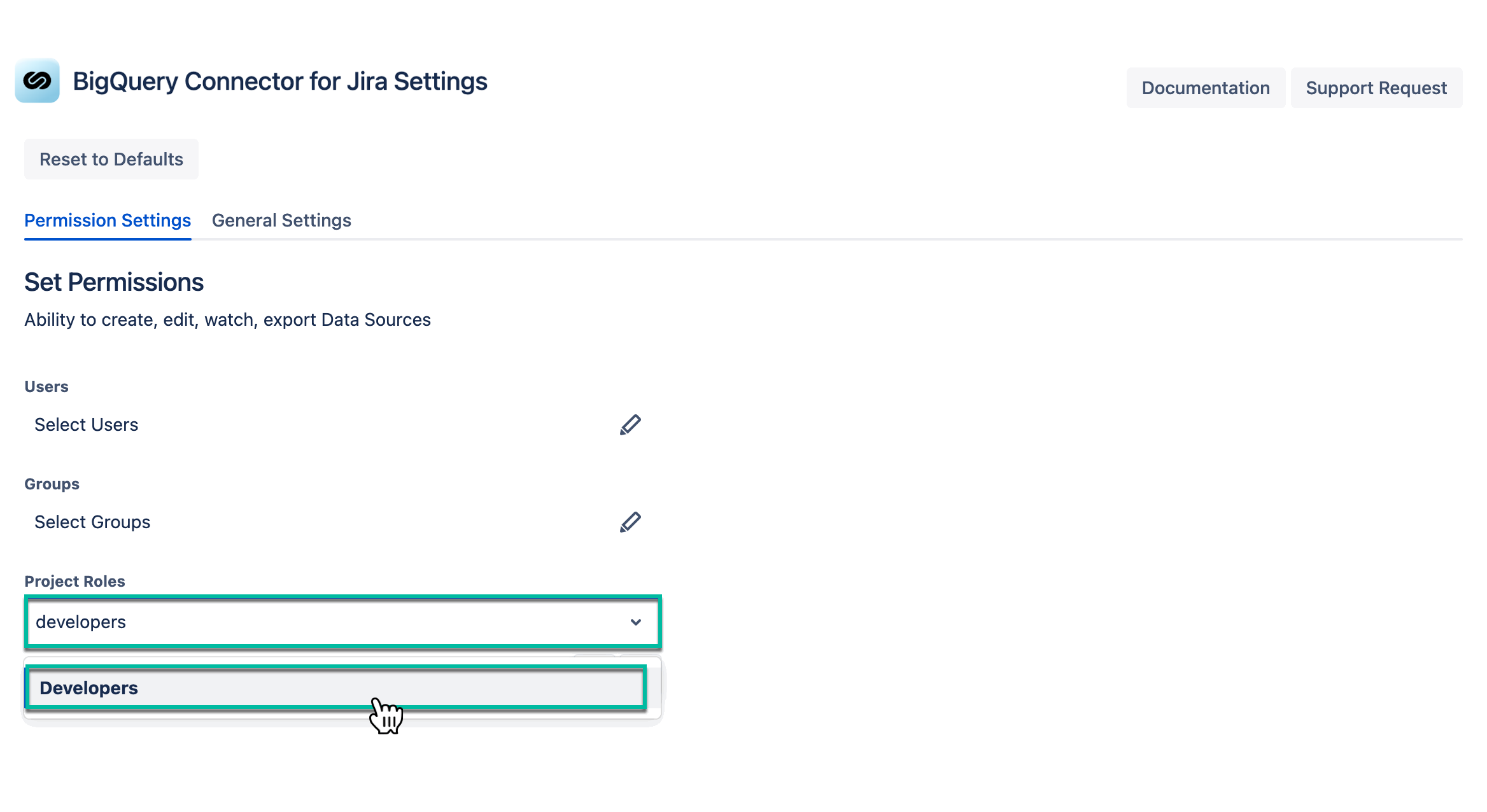
In the Project Roles field, enter the role(s) you want to grant permissions to.
-
Select the Edit icon, if you want to make changes.
-
Select the Clear button, if you want to delete permissions.
Selecting the Clear button, you will erase information from all fields: Users, Groups, and Project Roles.
General Settings
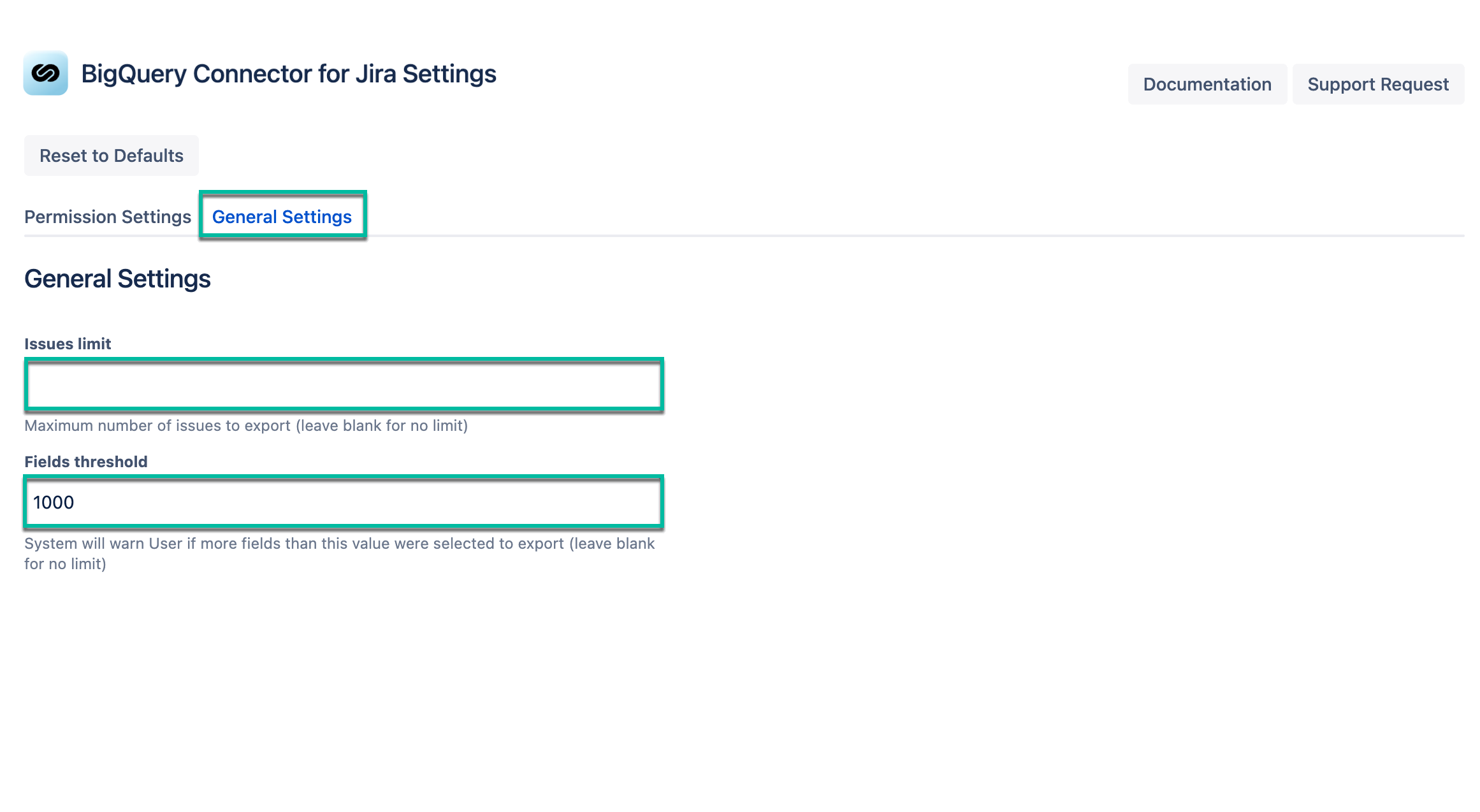
The General Settings help to:
-
prevent misuse of the app
-
alleviate the significant strain on Jira
-
improve time to export
Issues limit - This setting allows you to set a maximum number of tickets that can be exported at the instance level.
Fields threshold - This settings allows you to set a maximum number of fields that can be exported without a warning message.
Getting App & Export Logs
App & Export logs are now fully integrated with Jira logging.
To get logs:
-
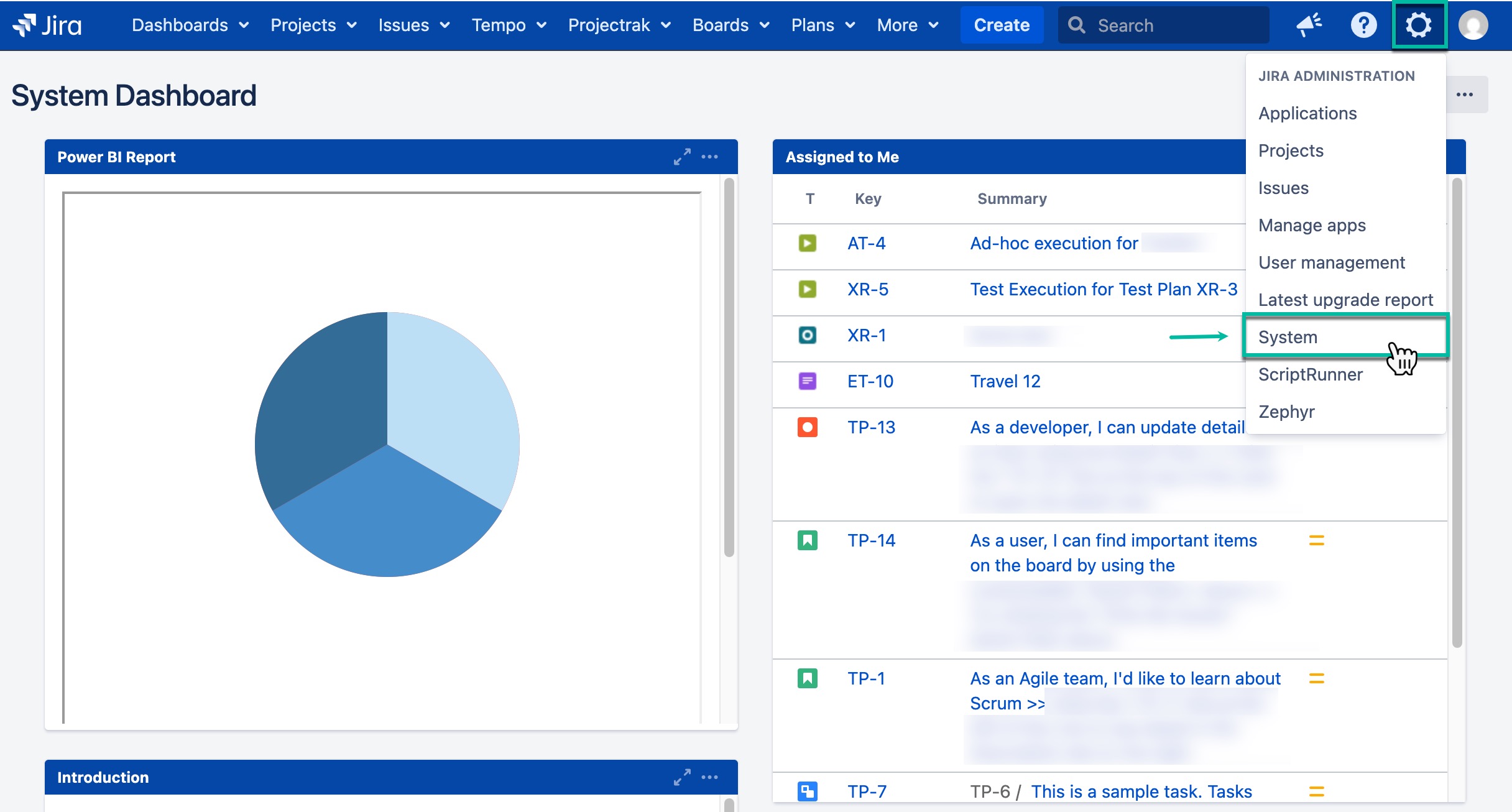
Being signed to your Jira instance, select Settings, and then select System.
-
Select Troubleshooting and support tools, and then select Create support zip.
-
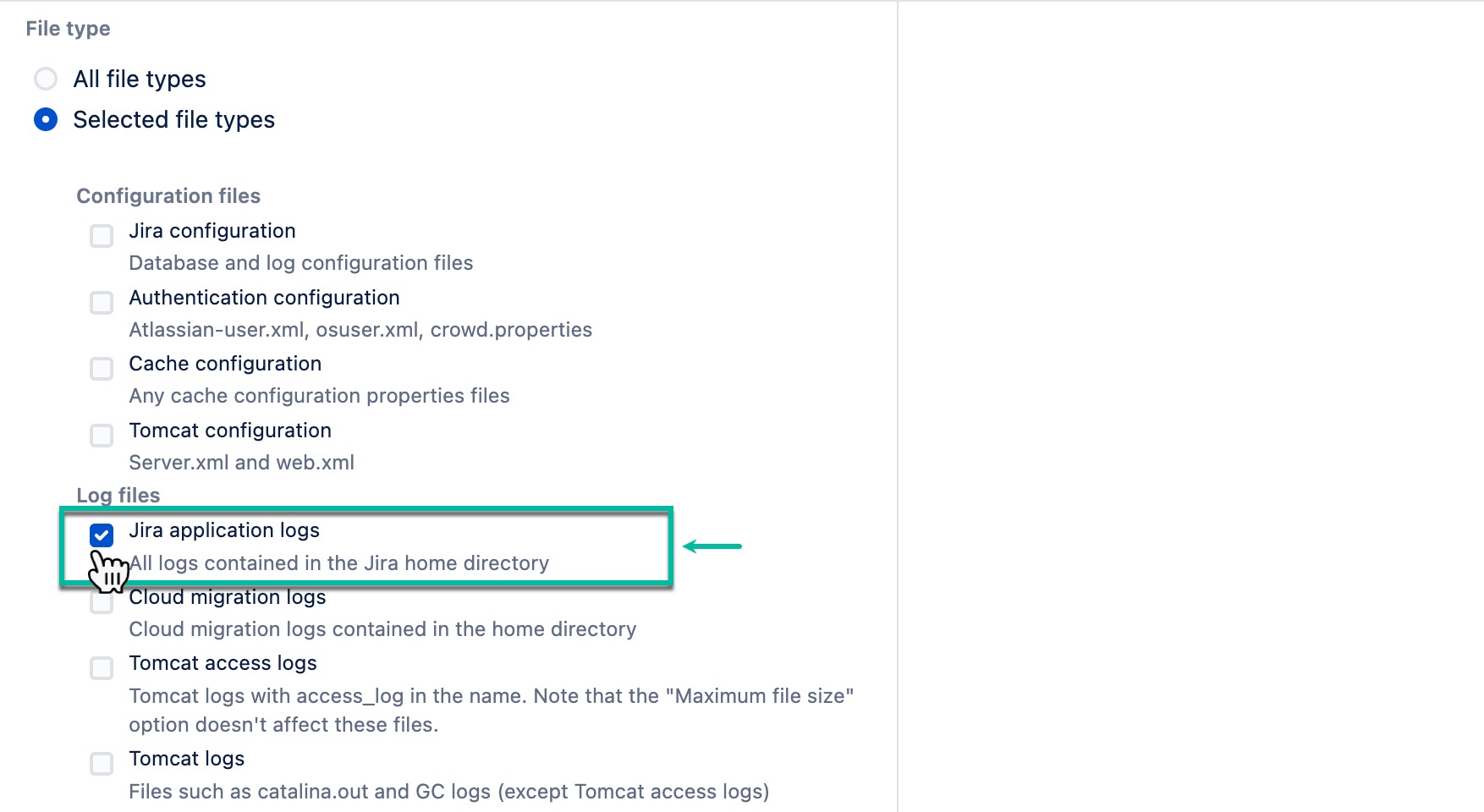
Select Create zip.
Make sure Jira application logs is enabled.
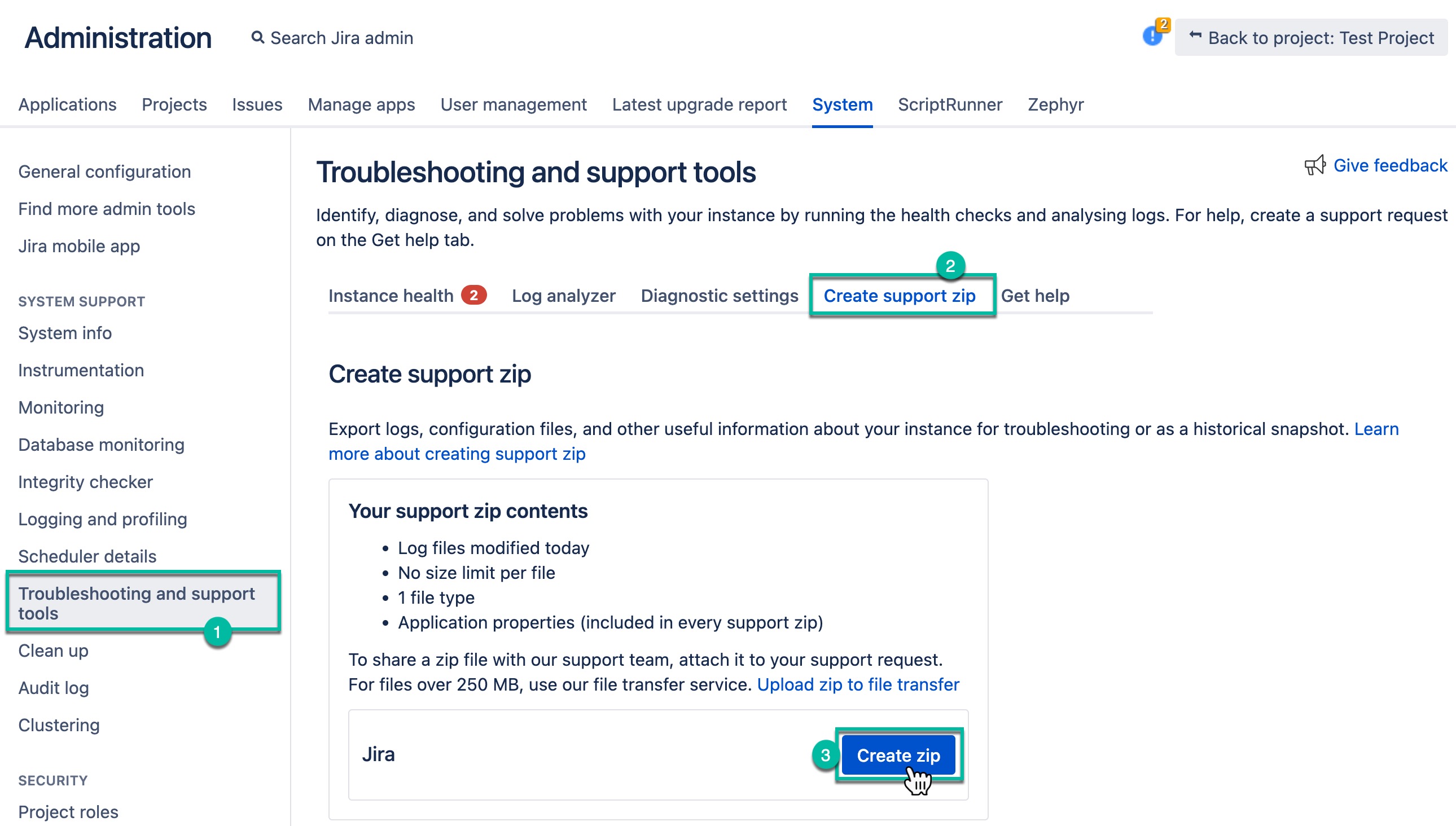
-
Select Download zip.
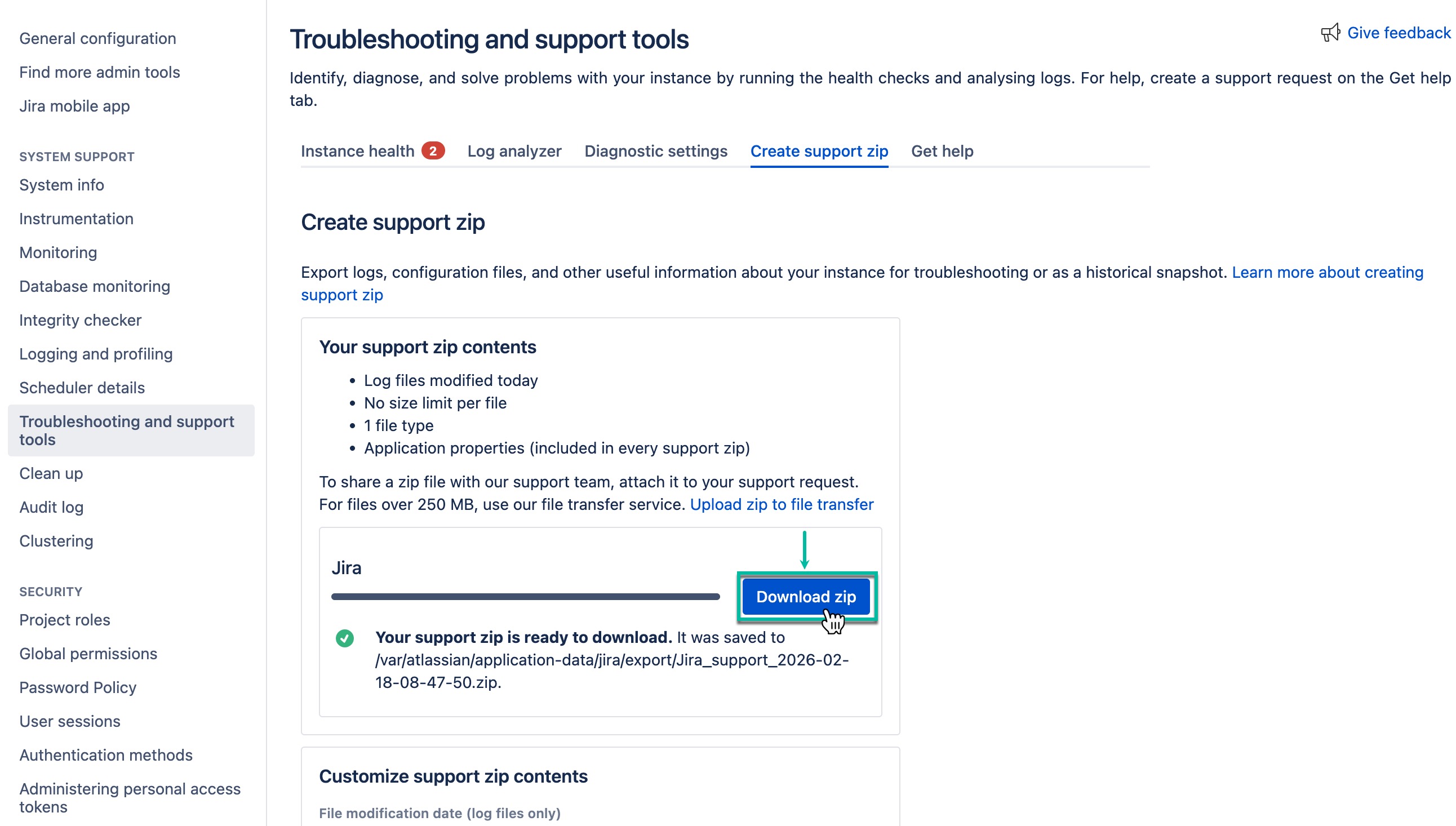
The log file is downloaded to your device.
Changing Log Levels
If you need more detailed logs - for example, when investigating an issue - you can change the logging level at runtime in the Jira administration UI.
To change logging level:
-
Being signed to your Jira instance, select Settings, and then select System.
-
Select Logging and profiling.
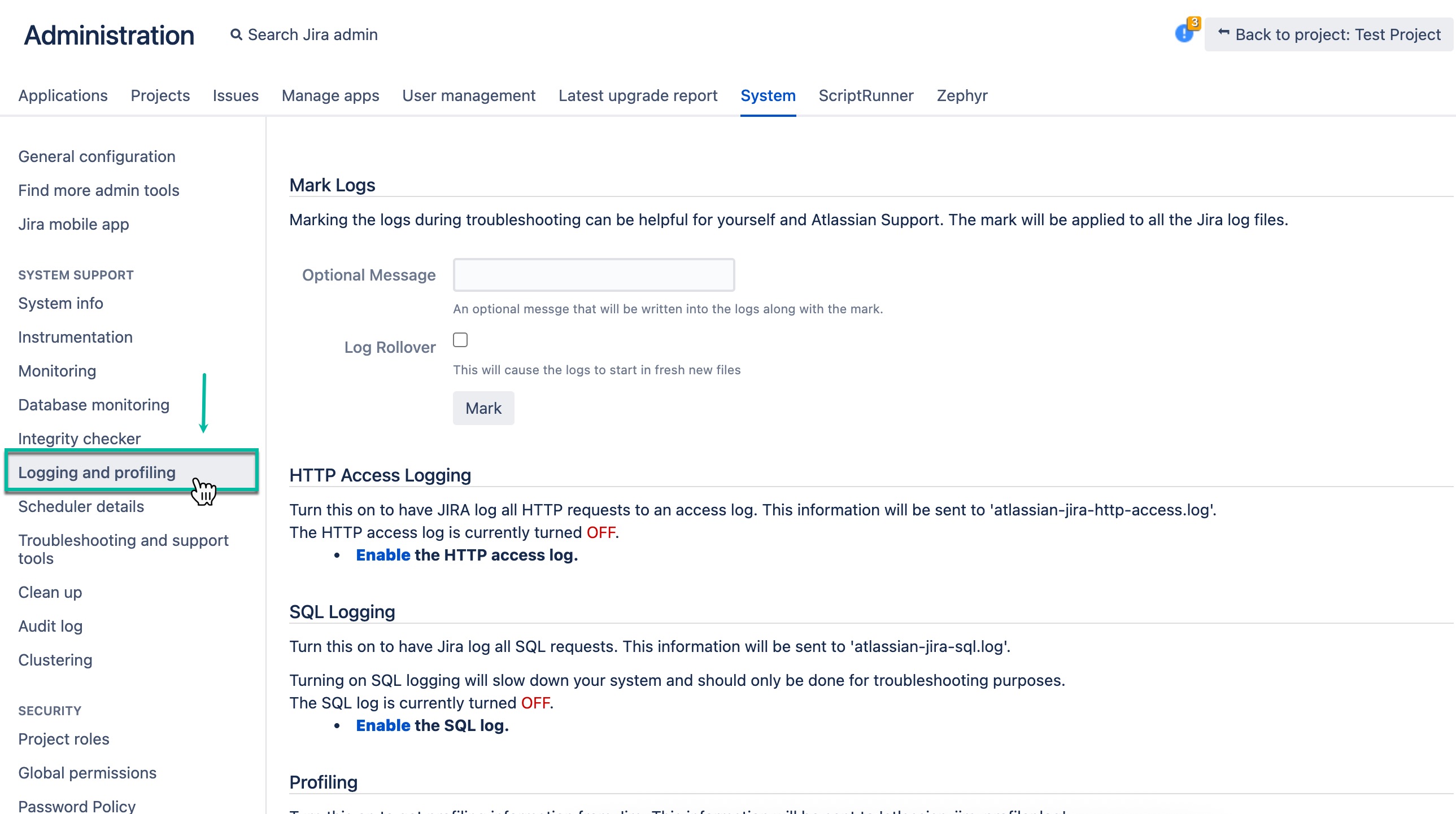
-
Find the app logger.
-
For BigQuery Connector, they are the following:
io.tempo.bigquery-connector-jira.app
io.tempo.bigquery-connector-jira.export
-
Select the desired logging level by clicking on that.
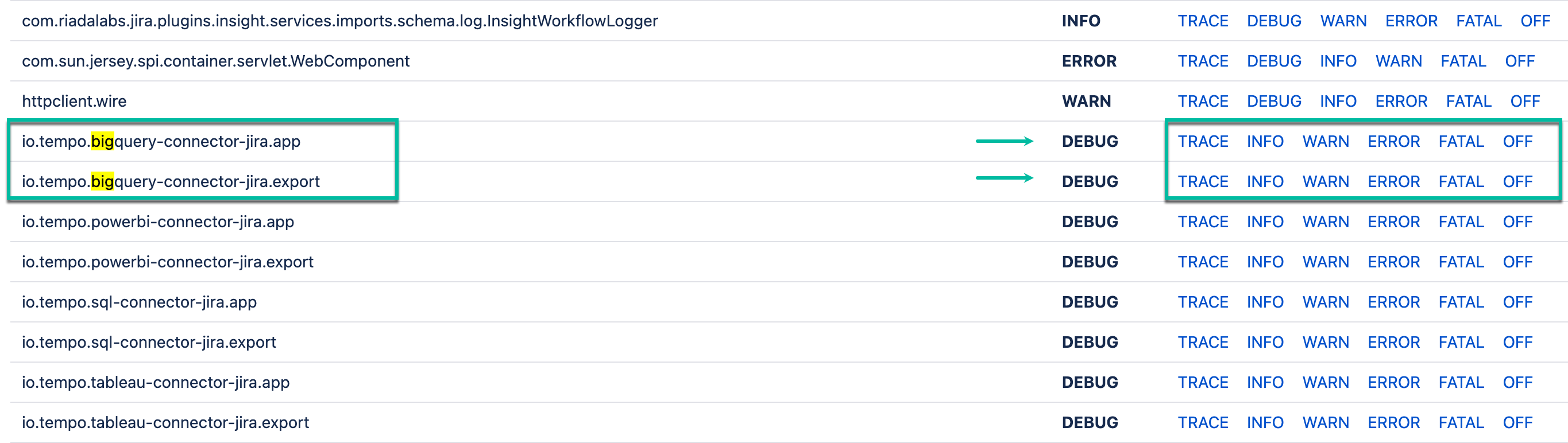
Logging Level Description
|
Log Level |
What to Log |
Examples |
|---|---|---|
|
ERROR |
Critical errors that prevent operation or indicate failure |
Exceptions, stack traces, failed export reasons, system error causes |
|
WARN |
Potential issues, recoverable problems |
Invalid configurations, deprecated API usage, non-critical failures |
|
INFO |
High-level operation flow |
Export started/completed, plugin initialization, user actions, MDC |
|
DEBUG |
Detailed internal plugin behavior |
REST requests/responses (truncated), service method calls, conditional logic, state, MDC |
|
TRACE |
Full step-by-step execution, method arguments, very detailed diagnostic info |
Every method entry/exit, arguments, return values, thread info, detailed state, detailed MDC |
At the moment, the output of the following tables is being logged.
|
Jira Core |
Jira Software |
Service Management |
Tempo |
Insight |
Xray |
Tempo Budgets |
|---|---|---|---|---|---|---|
|
|
|
|
|
|
|