
New to Tableau Connector? Start here.
The Tableau Connector for Jira Cloud is designed to simplify data import into Tableau Desktop.
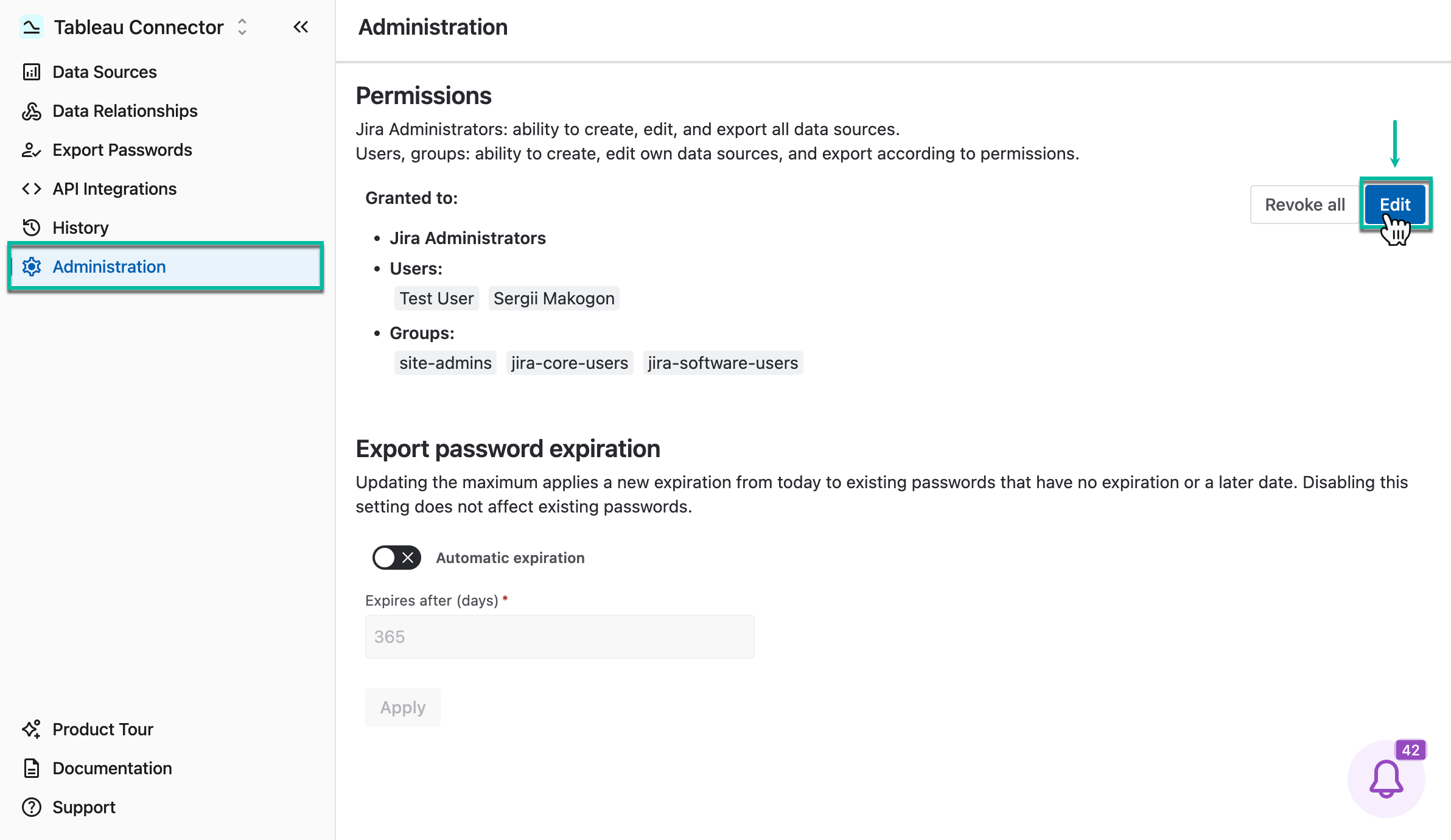
Step 1: Grant Permissions
If you are a Jira Administrator
-
Grant permission to individual users or groups so they can create, edit, watch, and export data sources.
-
Administrators can work with the Tableau Connector by default.
🔗 Learn how to grant permission
If you are a Regular User
-
Ask your Jira Administrator to grant the required permission.
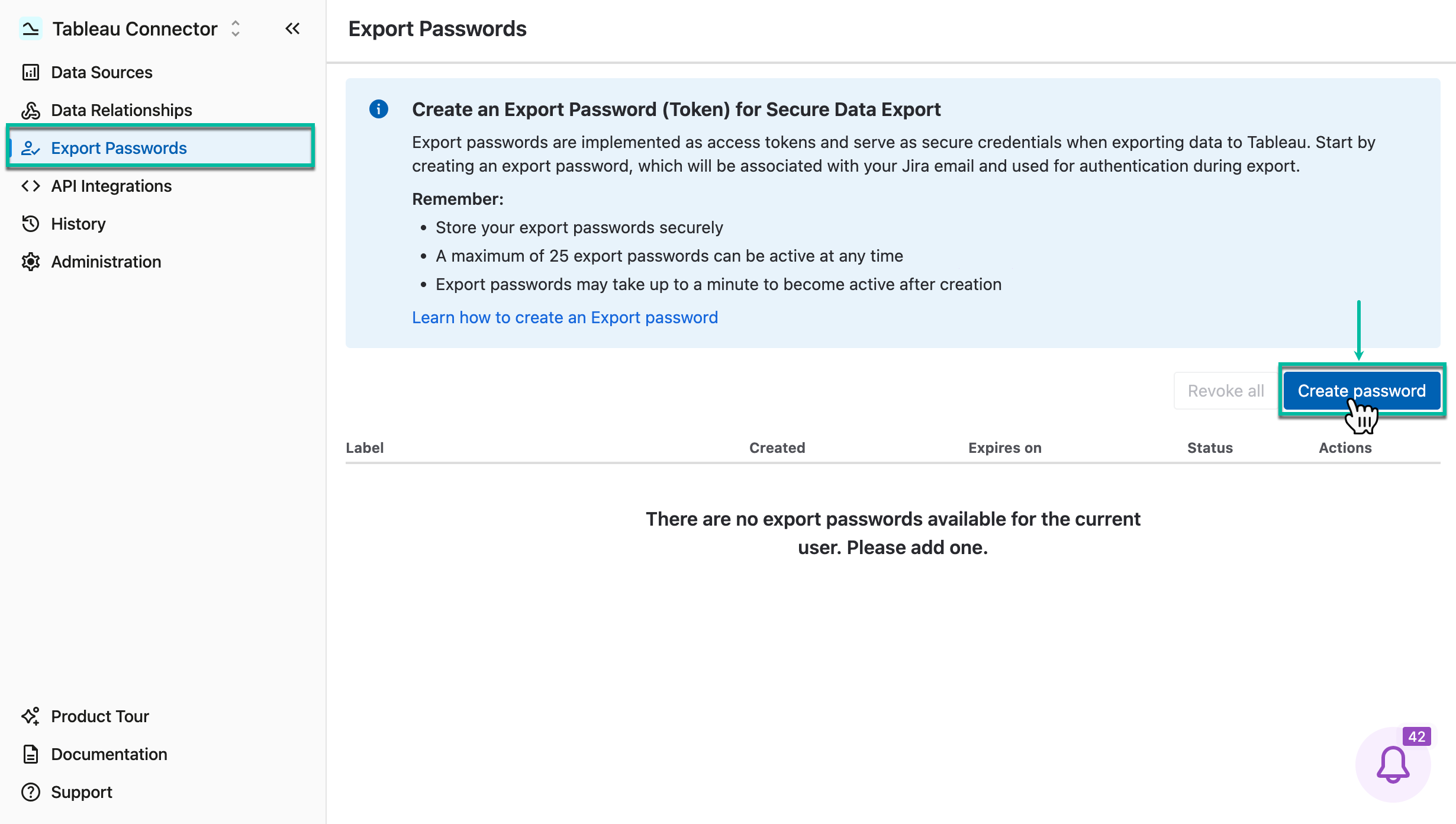
Step 2: Create an Export Password
-
You’ll use this password when connecting to Tableau Desktop.
-
Important: Keep the password secure because it provides access to your Jira data.
-
If needed, configure tokens for supported apps to include their data in your Tableau export.
🔗 Learn how to create export password
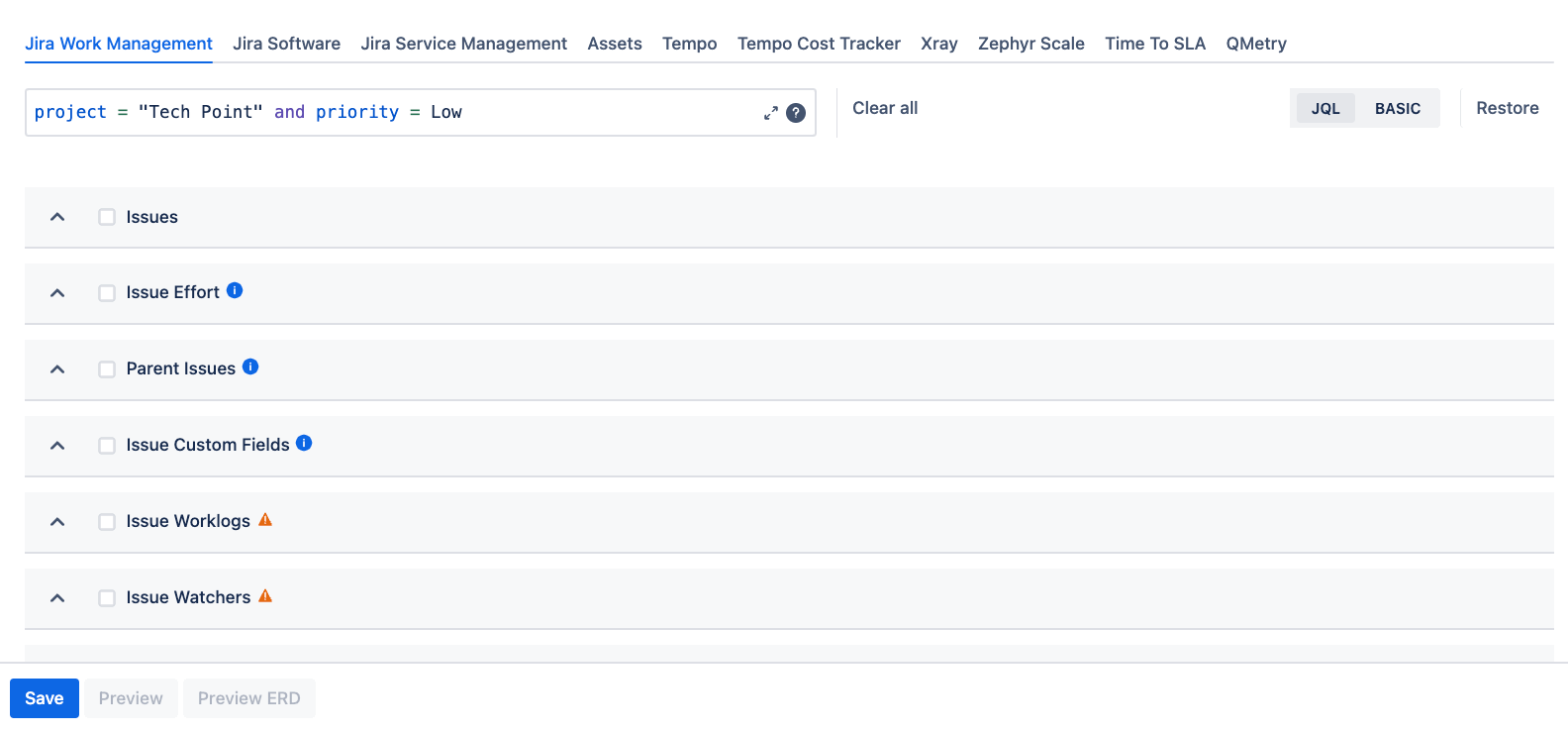
Step 3: Create a Data Source
-
Think about the report you want to build or the analysis you want to run.
-
Select the corresponding Jira fields through the Tableau Connector. This set of fields is called a data source.
🔗 Learn how to create data source
-
Apply filters (such as project, issue type, or other criteria) to include only relevant data.
-
Without filters, the Tableau Connector will export all data from your Jira instance.
-
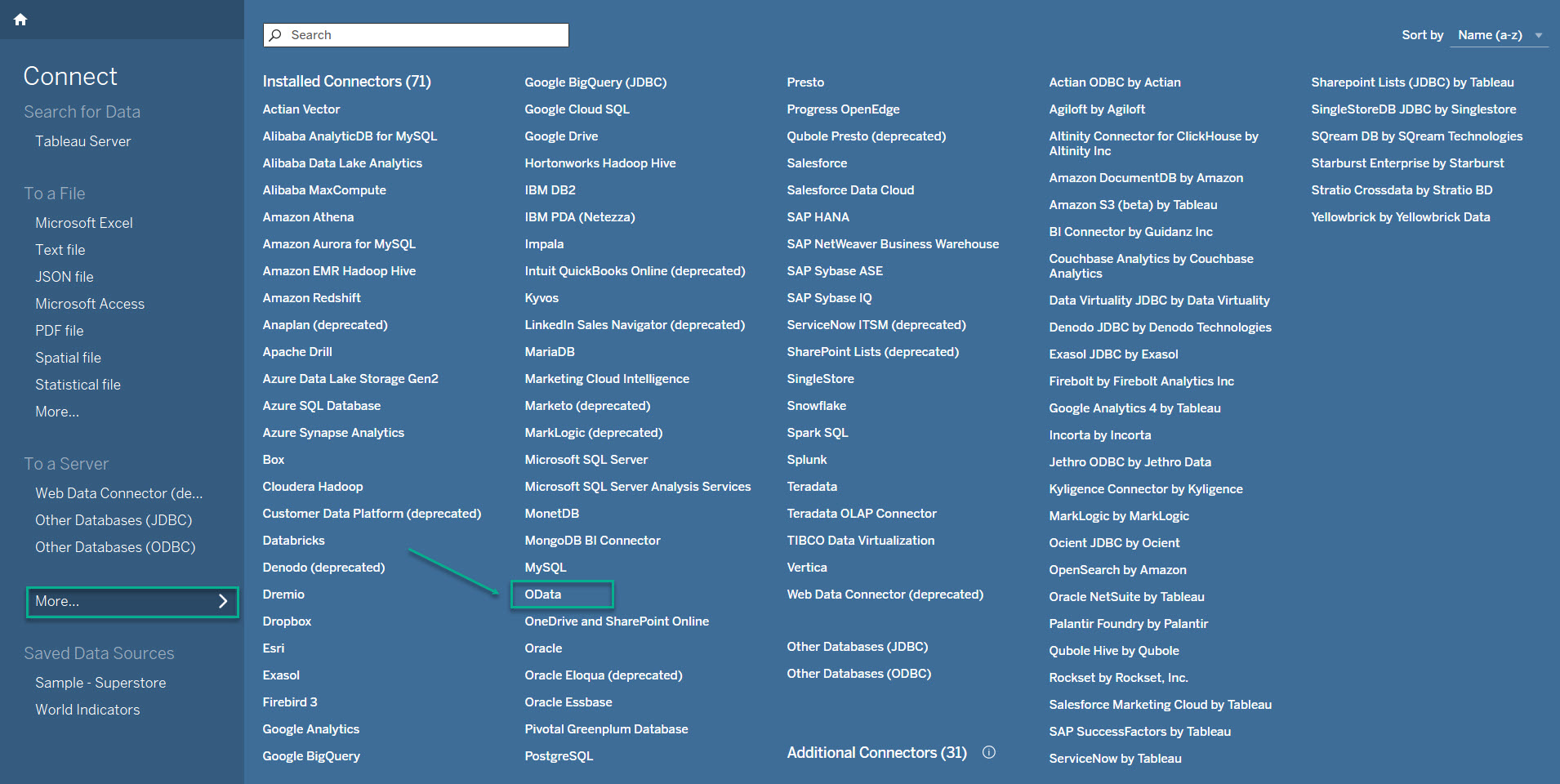
Step 4: Import Data to Tableau
-
Open Tableau Desktop.
-
Connect using the export password you created.
-
Import the datasets included in your data source.
🔗 Learn how to import data to Tableau
Done! You’re ready to explore and visualize your Jira Cloud data in Tableau Desktop.
App Navigation
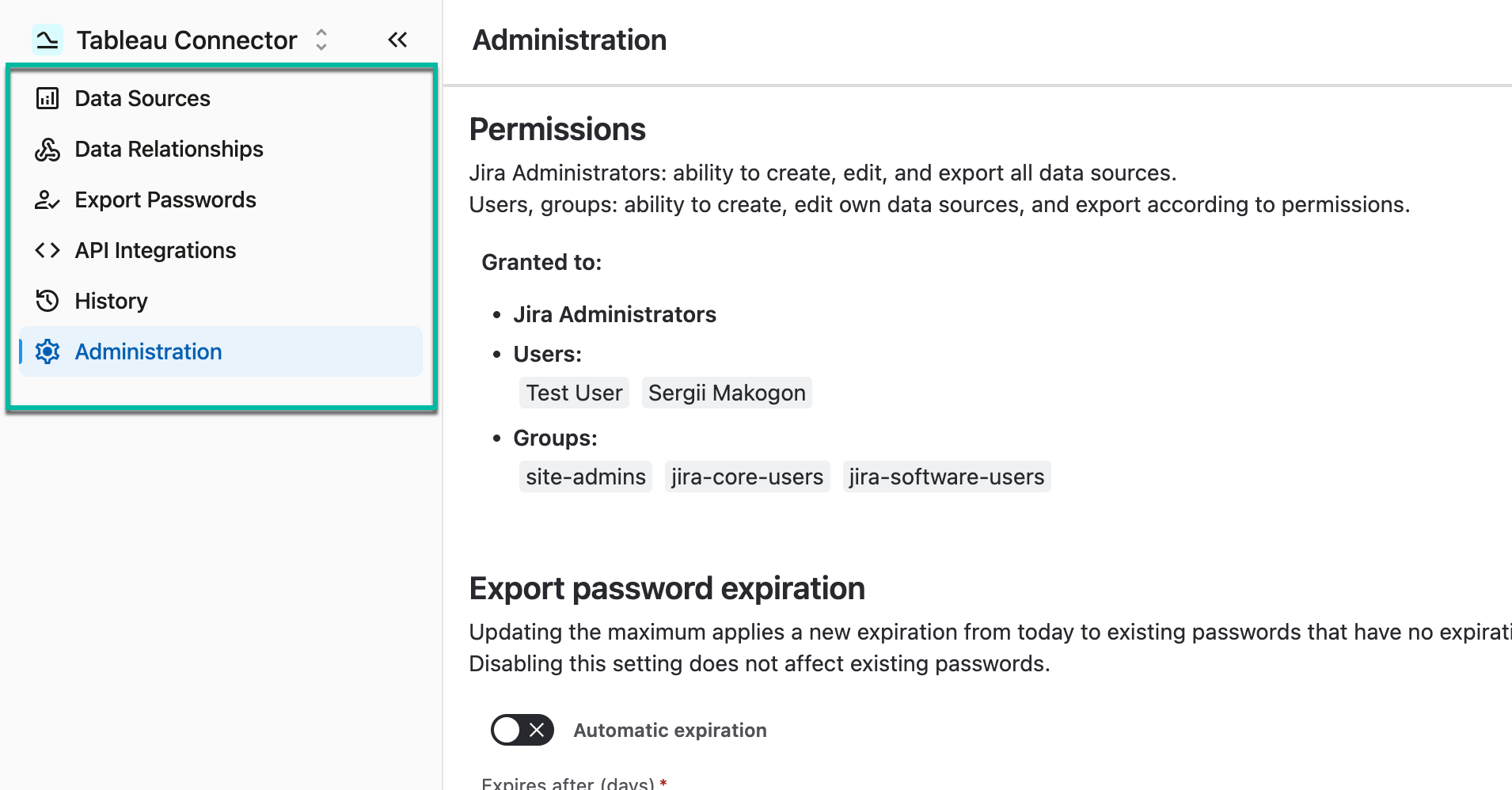
Use the app navigation to quickly switch between the following modules:
-
Data Sources
-
Data Relationships
-
Export Passwords
-
API Integrations
-
History
-
Administration
Enhanced Tableau Connector for Jira Cloud: Discover the Latest Features and Improvements
💬 Like using Tableau Connector for Jira? Leave us a quick review on the Marketplace!