
An Export Password functions like a regular password, so each user must create their own individually. Due to security reasons, Jira administrators cannot create Export Passwords for other users.
How to Create Export Password
-
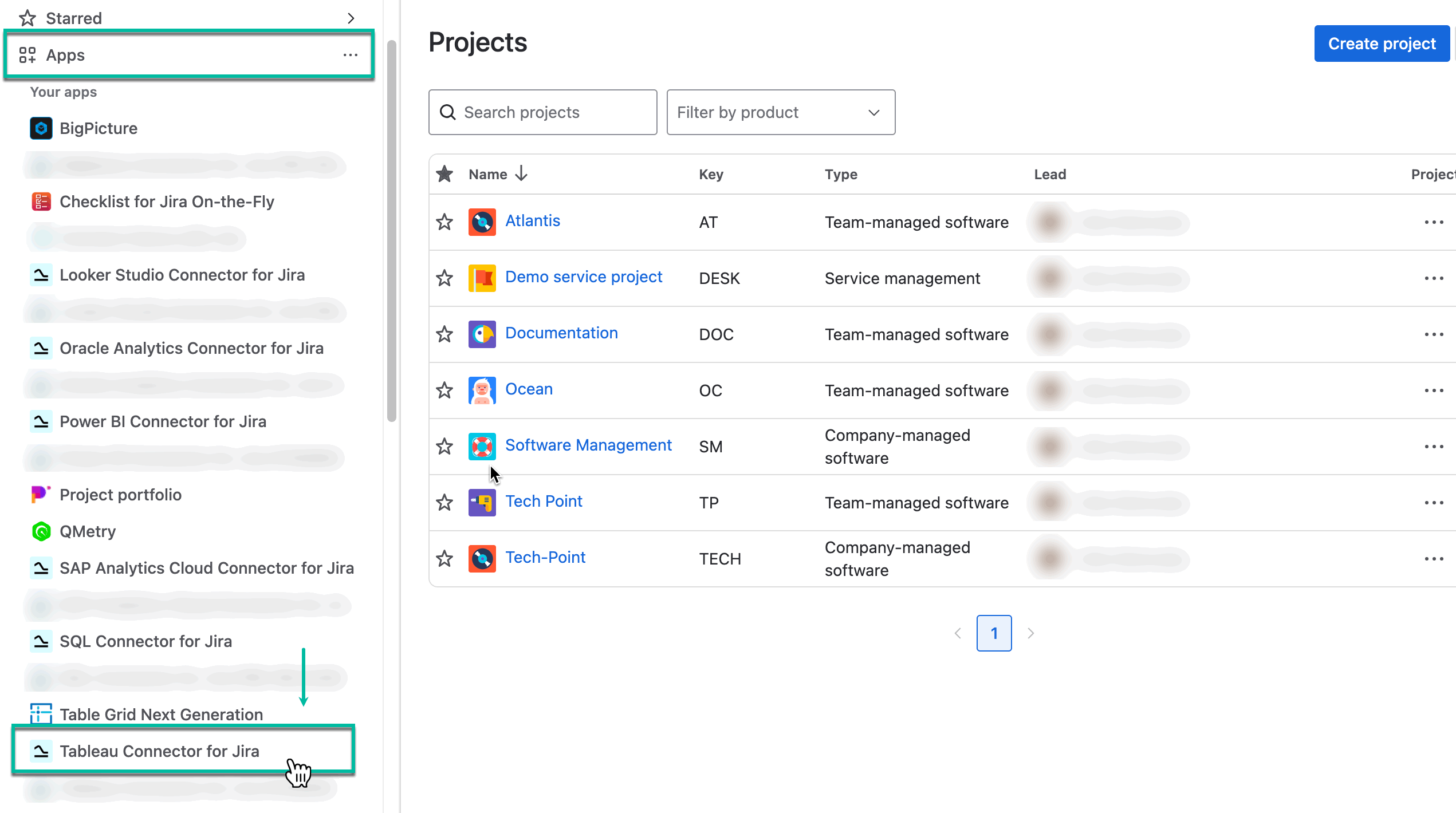
Being signed in to your Jira Cloud instance, select Apps, and then select Tableau Connector for Jira.
-
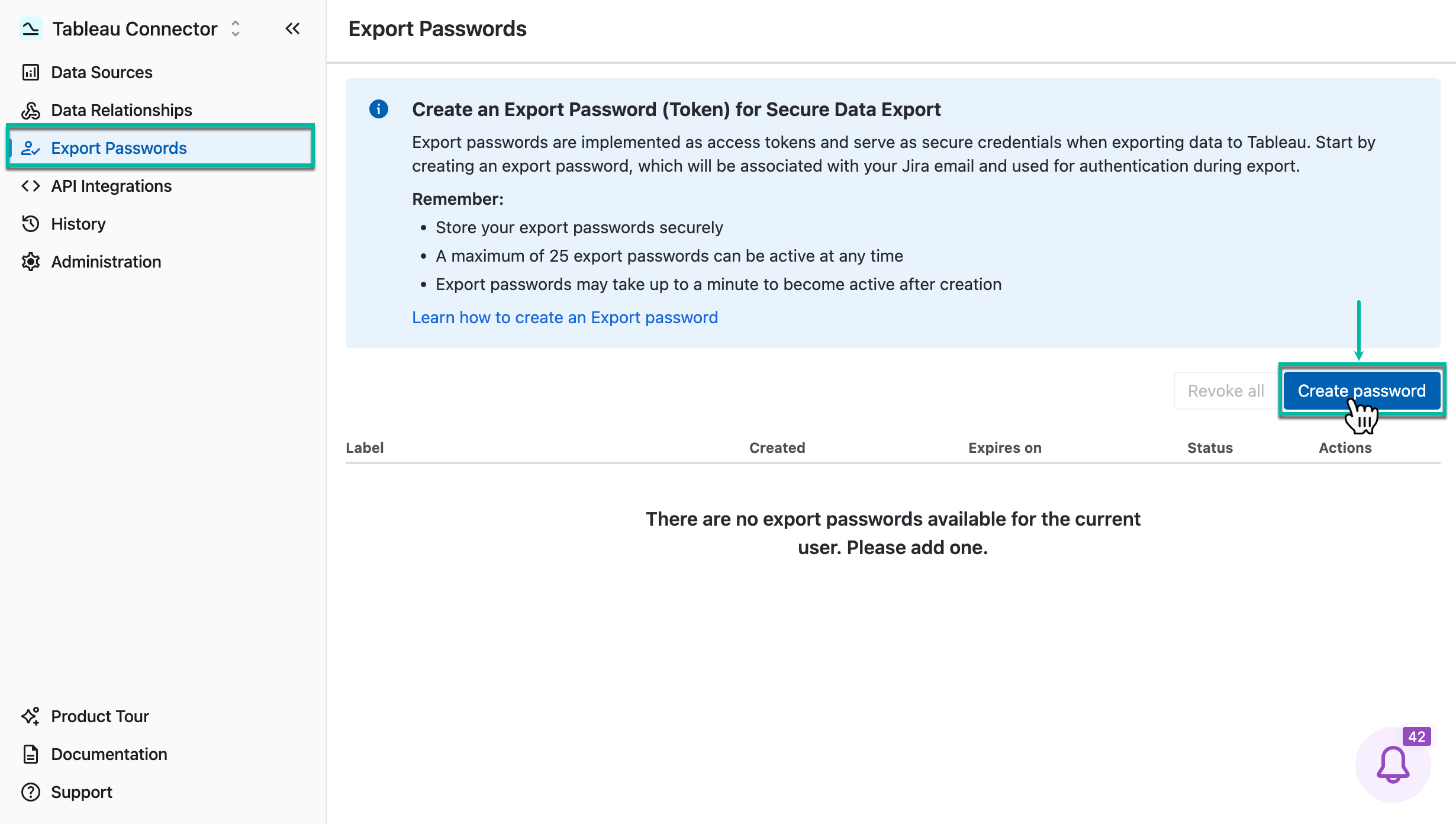
On the left-hand menu, select Export Passwords, and then select Create password.
-
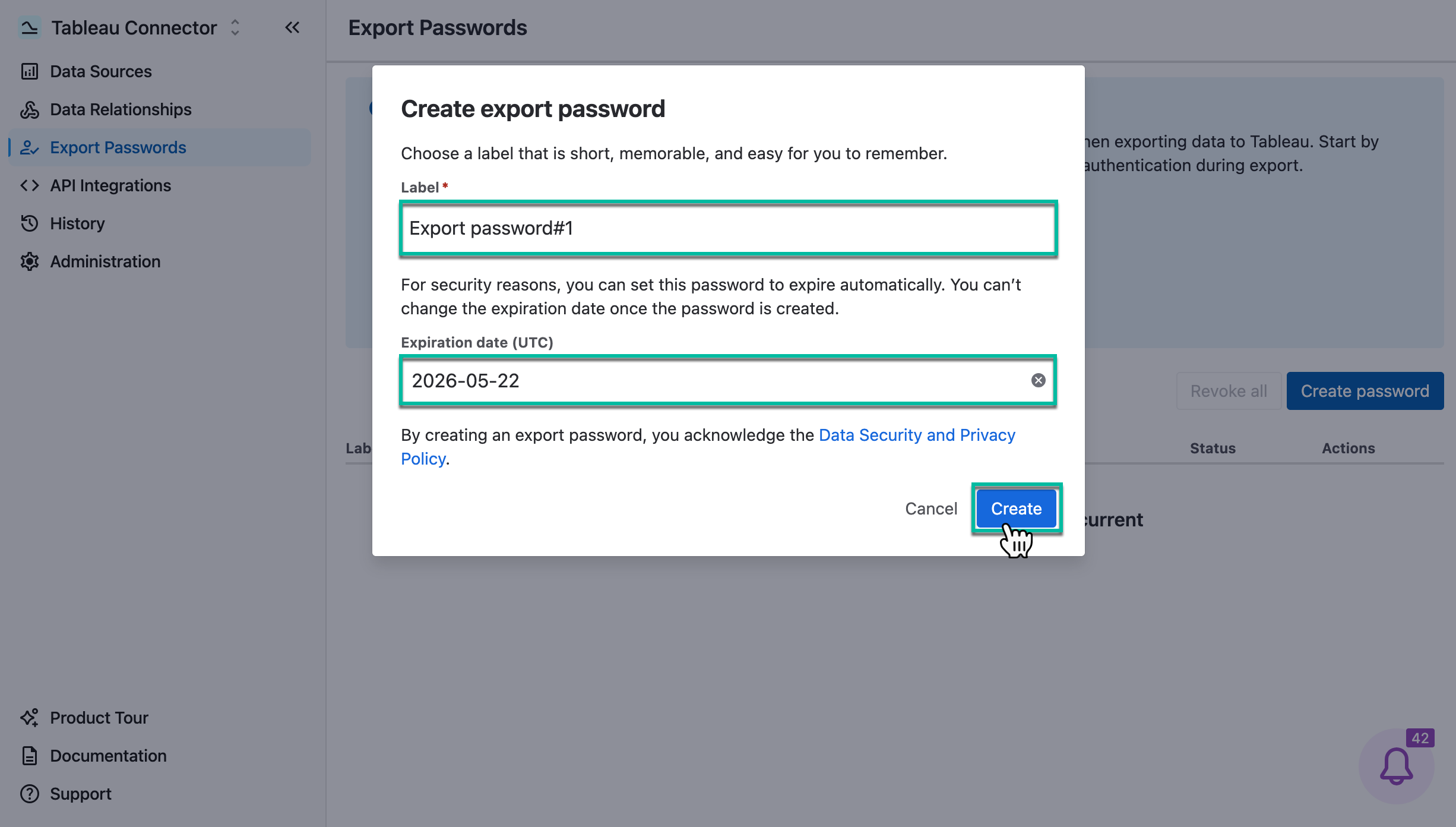
In the Label* field, enter a label.
-
In the Expiry date (UTC) field, pick the required date, and then select Create.
-
Select Copy.
Before closing the window, make sure you copy your export password. You won’t be able to see this password again.
You will use this password while connecting to Tableau Desktop. Please keep this export password secure as it provides access to your Jira data.
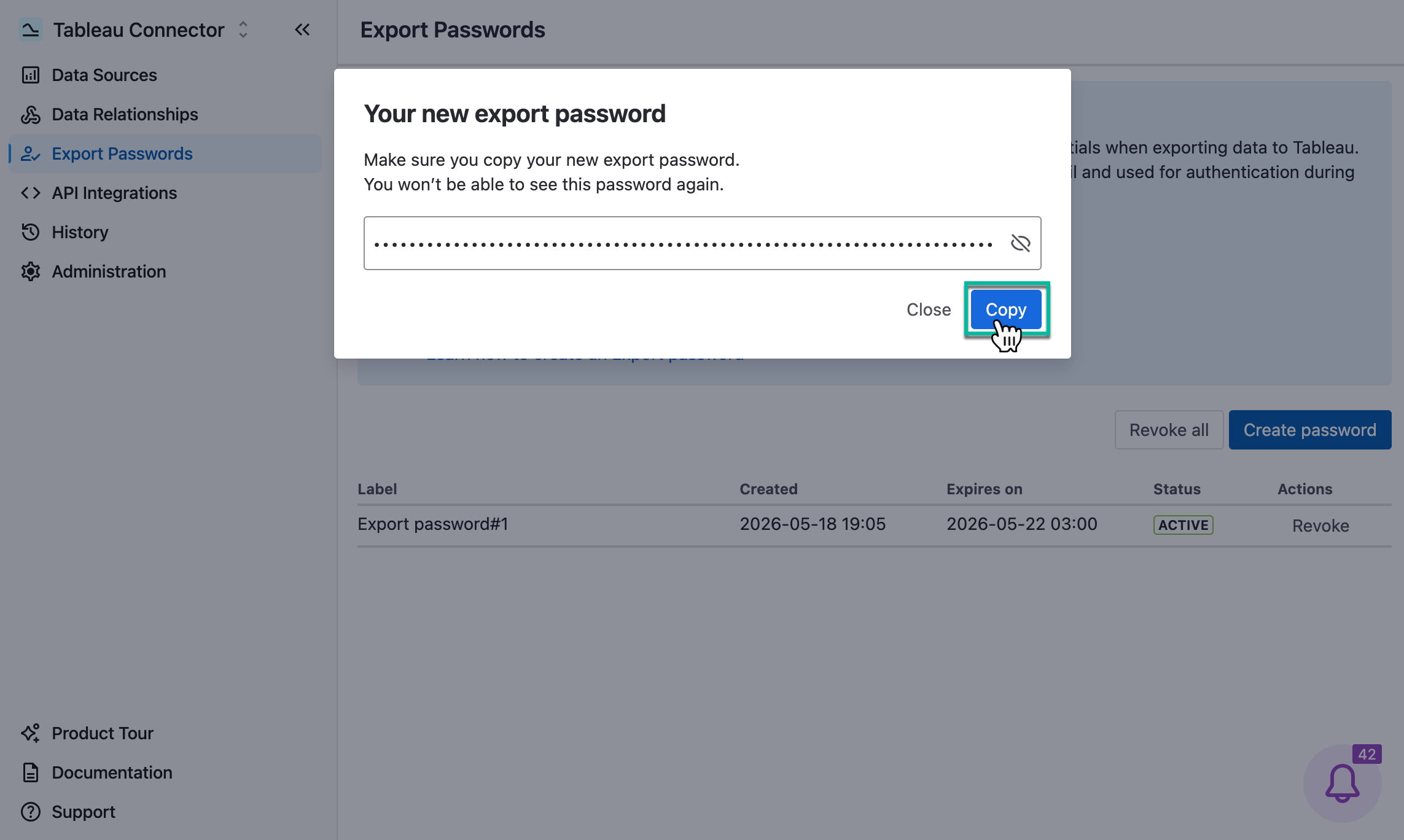
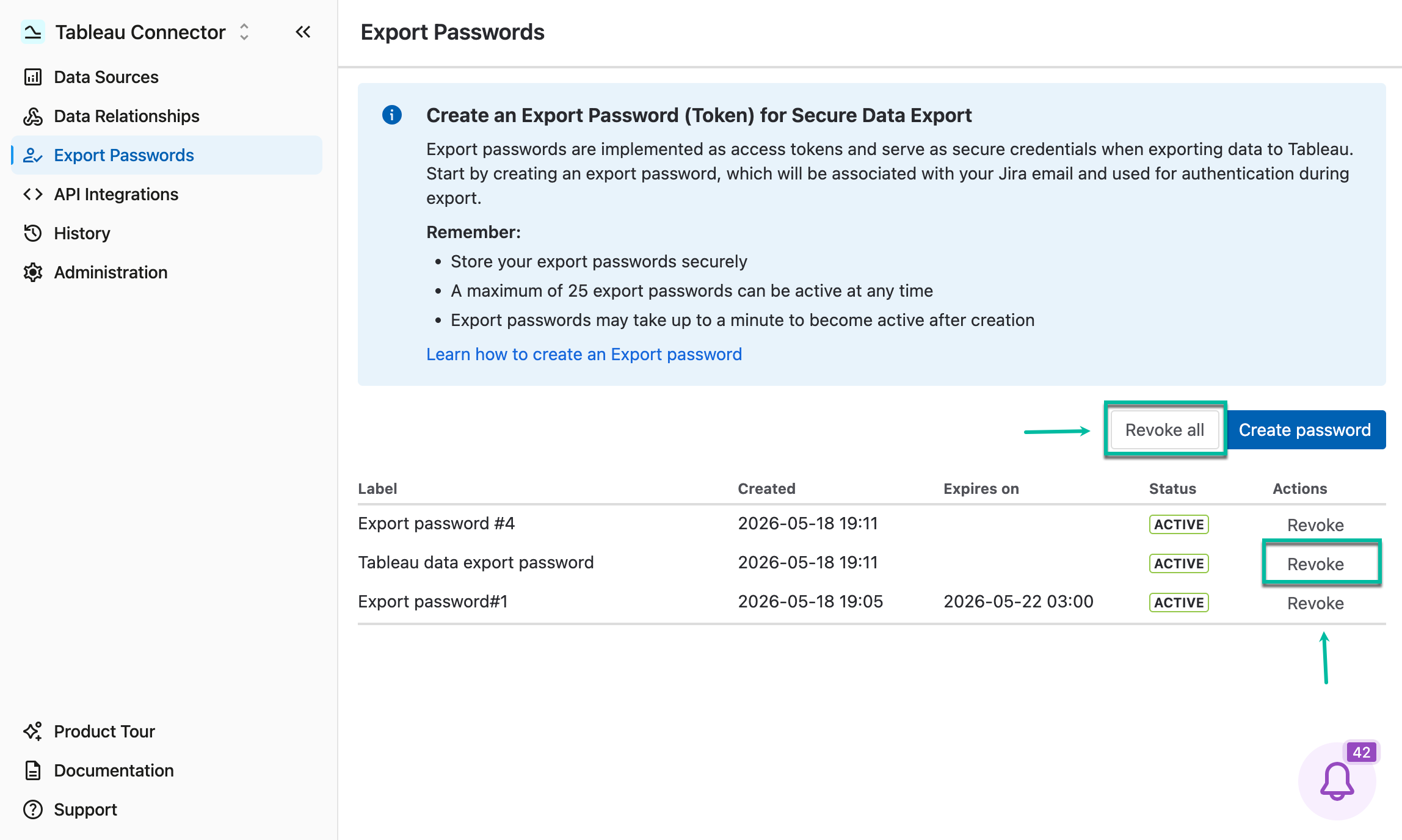
Here, you can also revoke your passwords. Revoking a password makes it invalid and removes it from the list.
What’s the next step? Create your first data source to effortlessly select the exact data you need for your report.
Export Password Expiration Date
Now you can set an expiration date for your export password. This feature allows you to better manage your security settings and ensure your access remains secure and up-to-date.
-
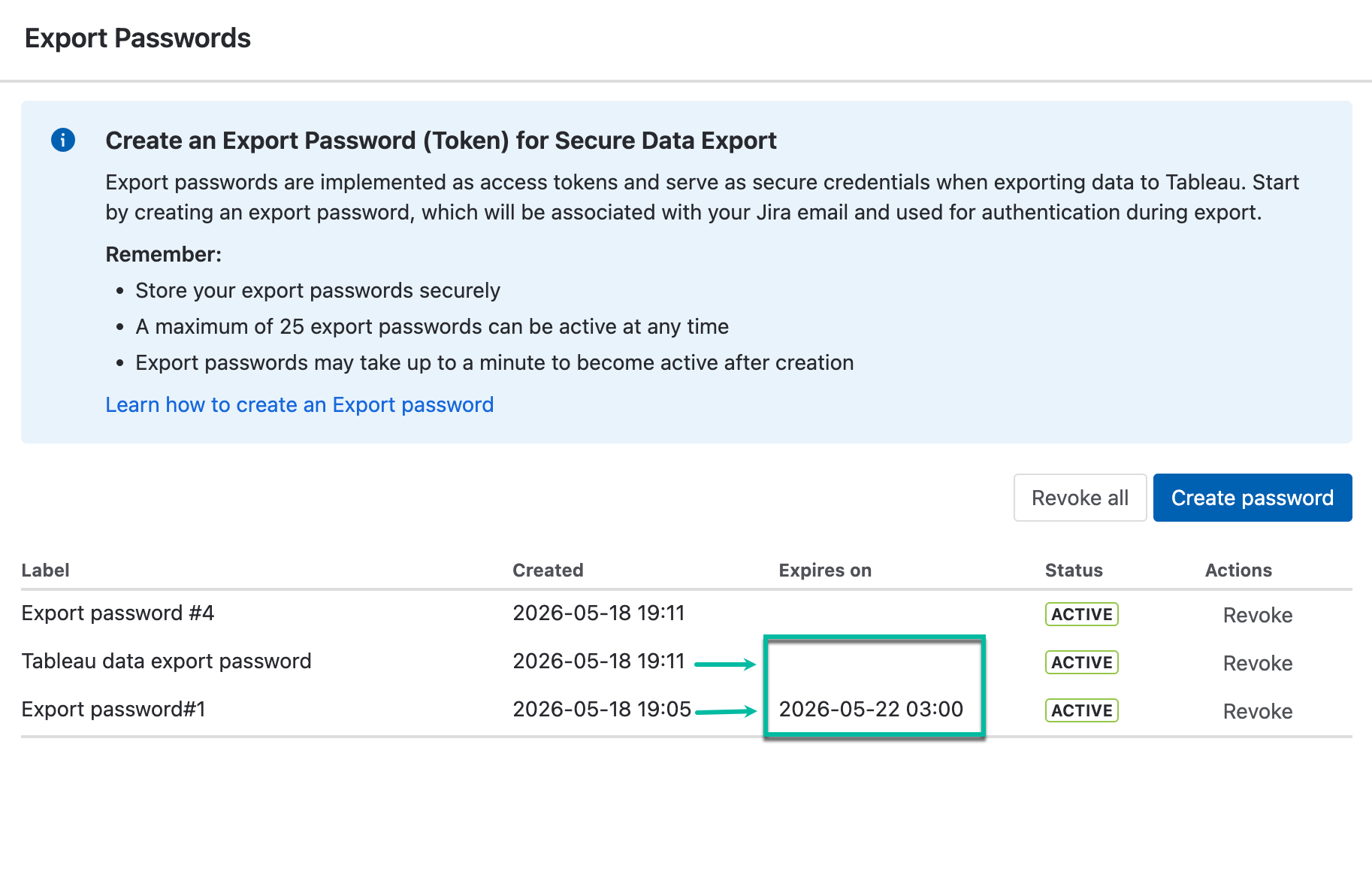
The passwords created before a new feature implementation don’t have a creation date and expiration date, therefore they are considered non-expiring.
-
All new passwords have a creation date and might have an expiration date (this is optional).
💬 Found this helpful? Share your thoughts in a review on the Marketplace.