
Starting with Power BI Connector for ServiceNow version 1.4.1, new option was implemented - create data source New from Report.
Before you start
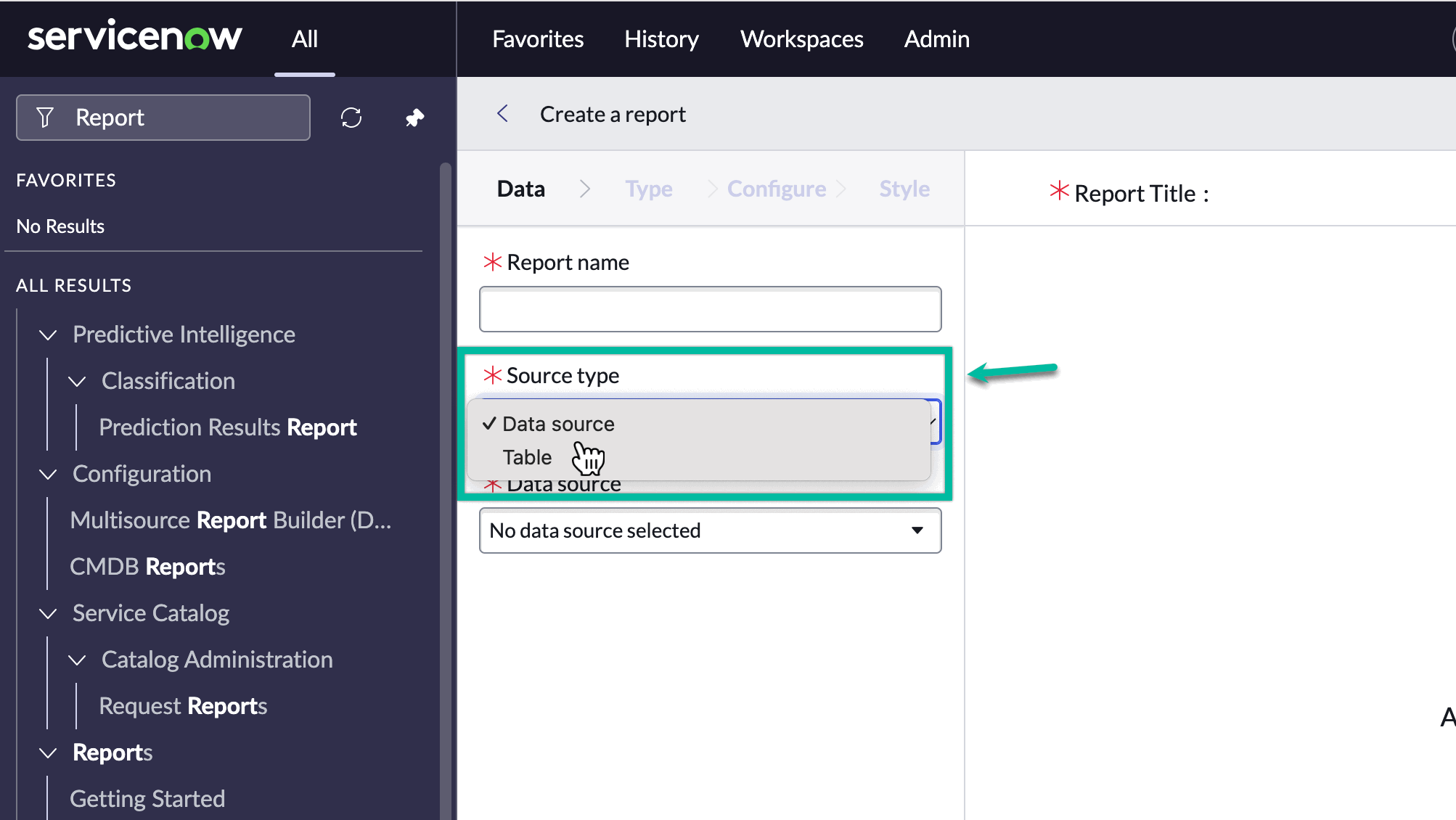
📘 There are two types of Report sources: Data source and Table.
➡️ Power BI Connector for ServiceNow version 1.4.1 and later
-
If you configure the (PBI Connector) data source from a Report based on the Data source Source type, filters will not be applied automatically. You have to apply filters manually or export an unfiltered amount of data. After selecting a report, you will be navigated to a new Data Source page with pre-filled fields:
-
Name
-
Description
-
Export configuration
-
Additionally, only report fields will be selected
-
-
If you configure the (PBI Connector) data source from a Report based on the Table Source type, filters will be applied automatically. After selecting a report, you will be navigated to a new Data Source page with pre-filled fields:
-
Name
-
Description
-
Export configuration
-
Filter
-
Additionally, only report fields will be selected
-
➡️ Power BI Connector for ServiceNow starting with version 1.7.0
-
Filters will be applied automatically to data sources configured from Reports of both Source types. After selecting a report, you will be navigated to a new Data Source page with pre-filled fields:
-
Name
-
Description
-
Export configuration
-
Filter
-
Additionally, only report fields will be selected
-
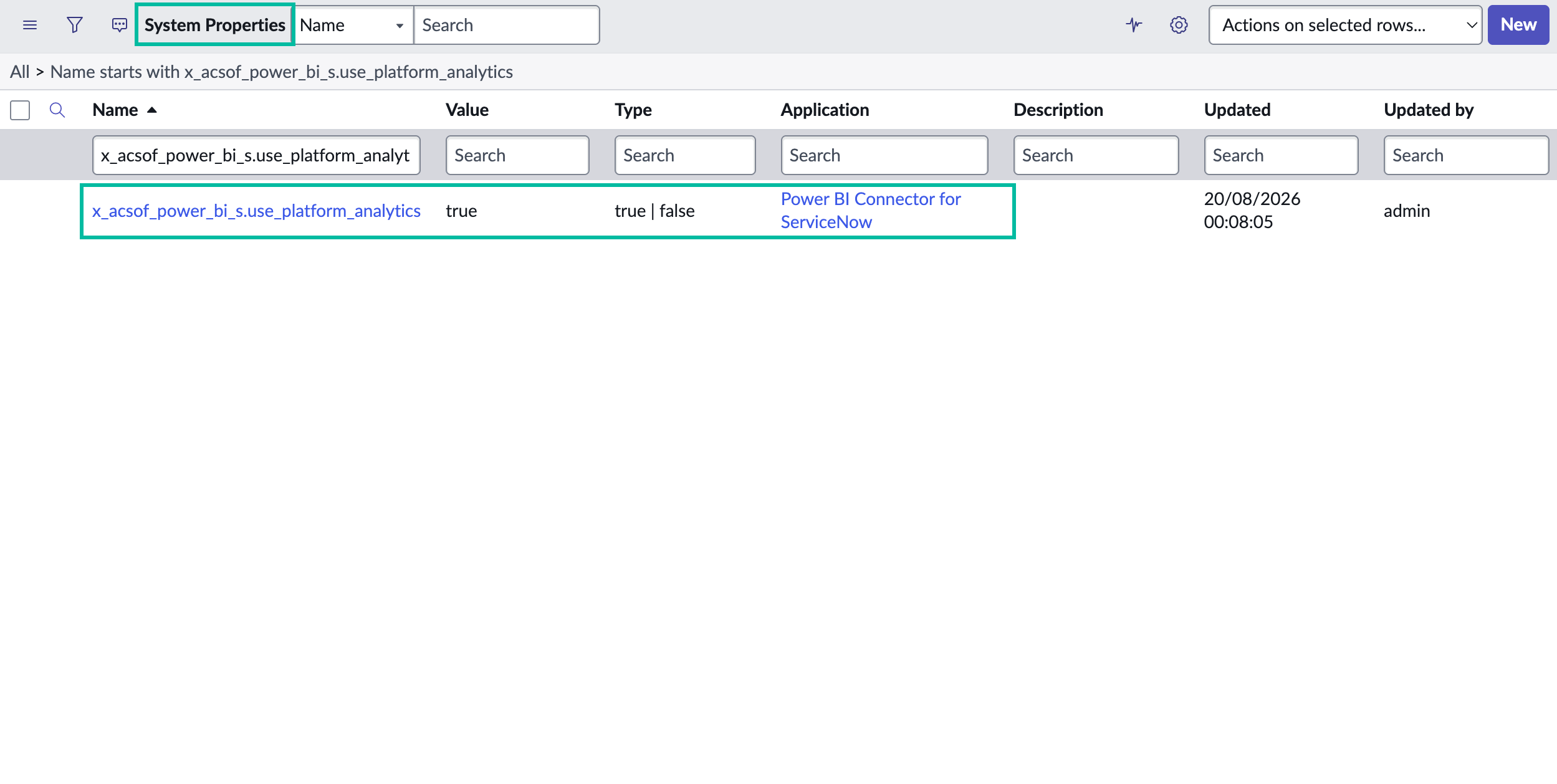
📘 You can configure which ServiceNow reporting implementation the app uses to retrieve available report sources. A property - x_acsof_power_bi_s.use_platform_analytics - in the sys_properties table determines whether the app uses the new Platform Analytics implementation or the existing Reports implementation.
Do not change the property name. Keep it as x_acsof_power_bi_s.use_platform_analytics
The property can have the following values:
-
true- Platform Analytics: The app retrieves reports from thepar_visualizationtable where the type is List. These reports are created through Platform Analytics → Library → Data Visualizations. -
false- Reports: The app retrieves reports from thereportstable. These reports are created through Platform Analytics → Core UI Artifacts → Reports. This is the legacy implementation and the default behavior.
The selected fields in a data source depend on the configuration of the selected report in ServiceNow.
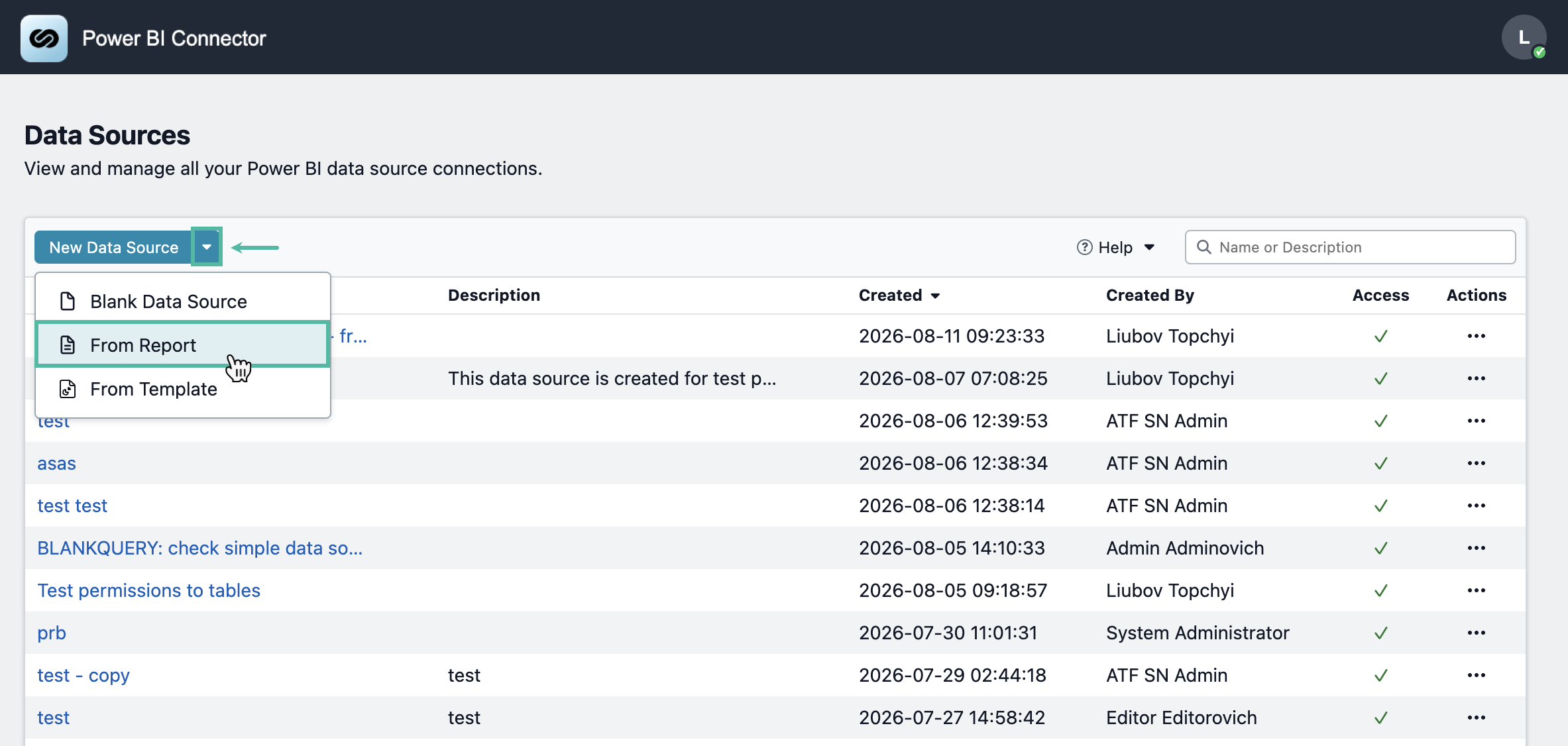
How to create data source from existing Report
-
Select From Report.
-
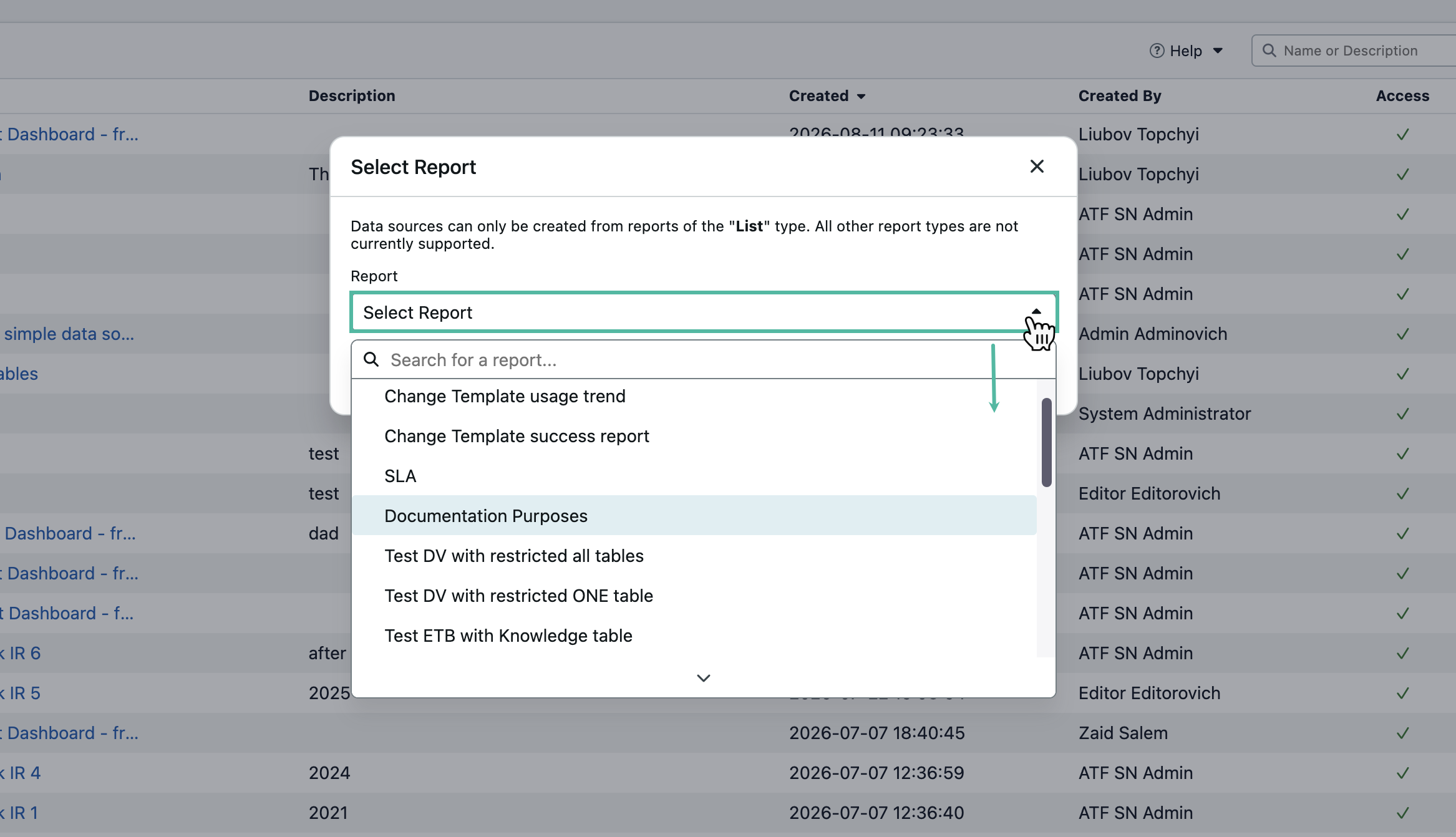
Select the report you need.
-
Click Select.
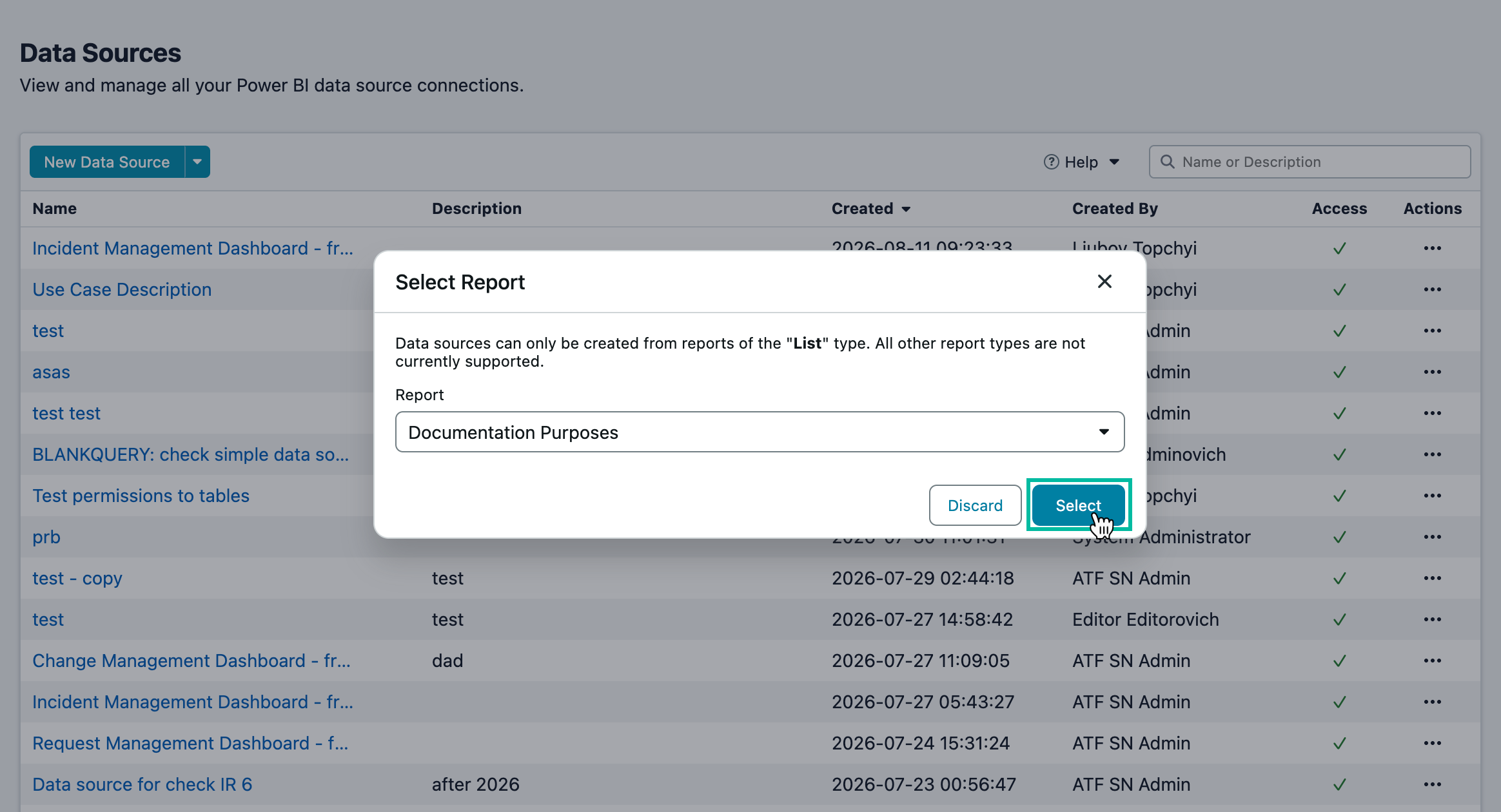
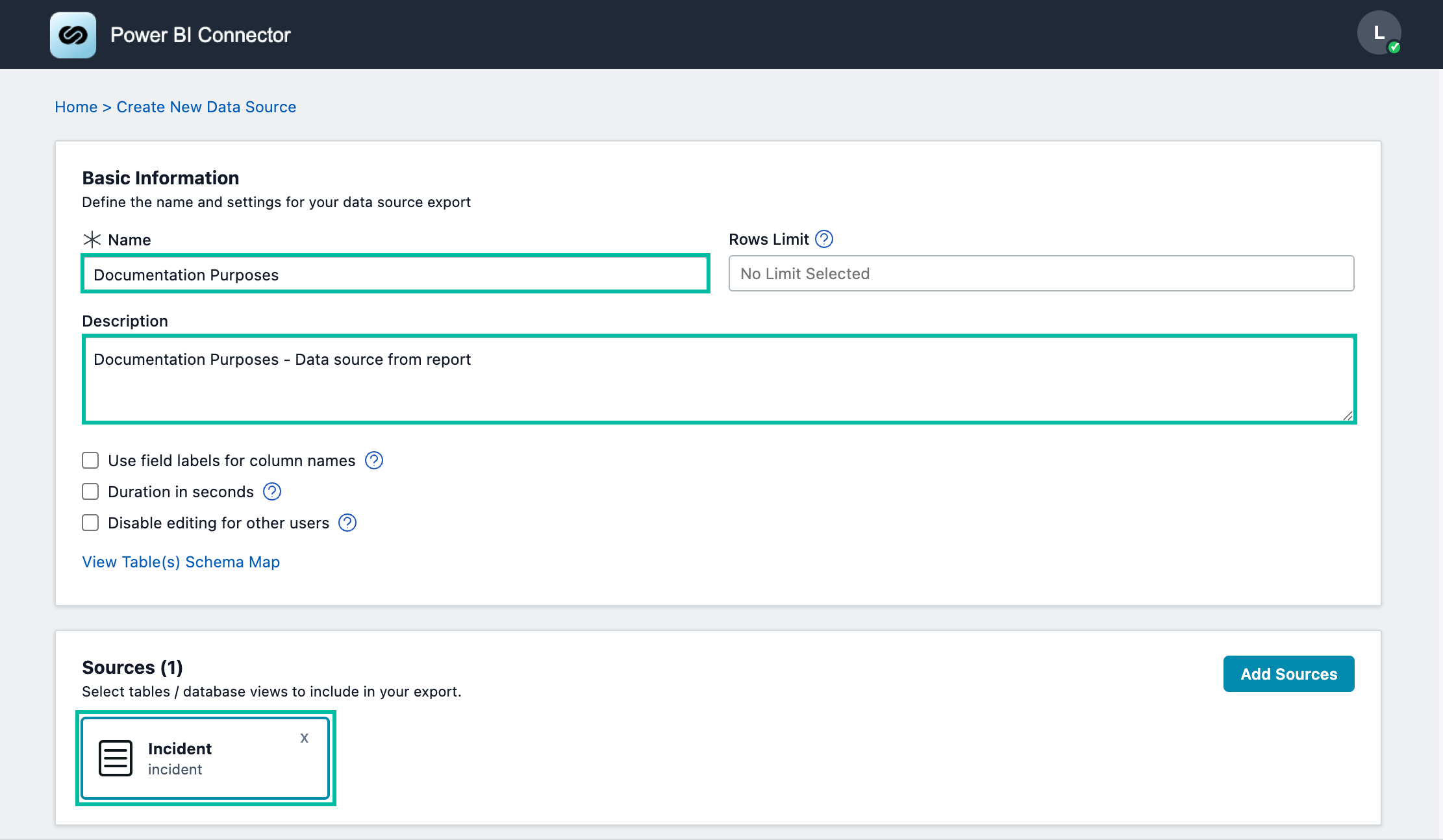
📘 Starting with Power BI Connector for ServiceNow version 1.7.0, after selecting a report, you will be navigated to a new Data Source page with pre-filled fields:
-
Name
-
Description
-
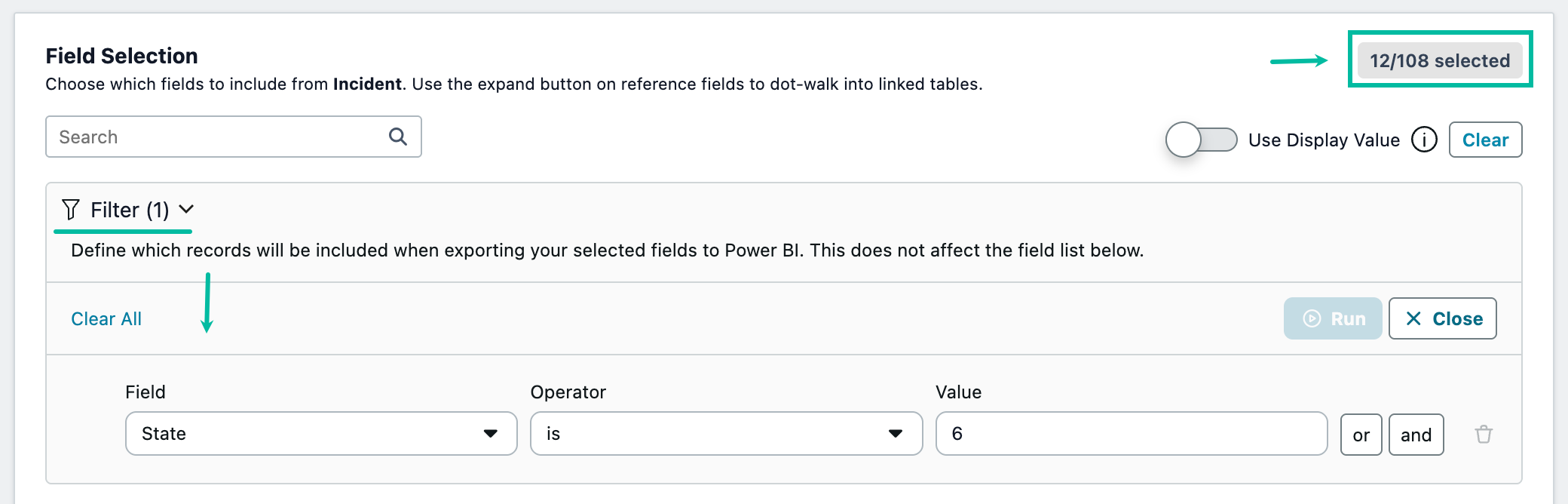
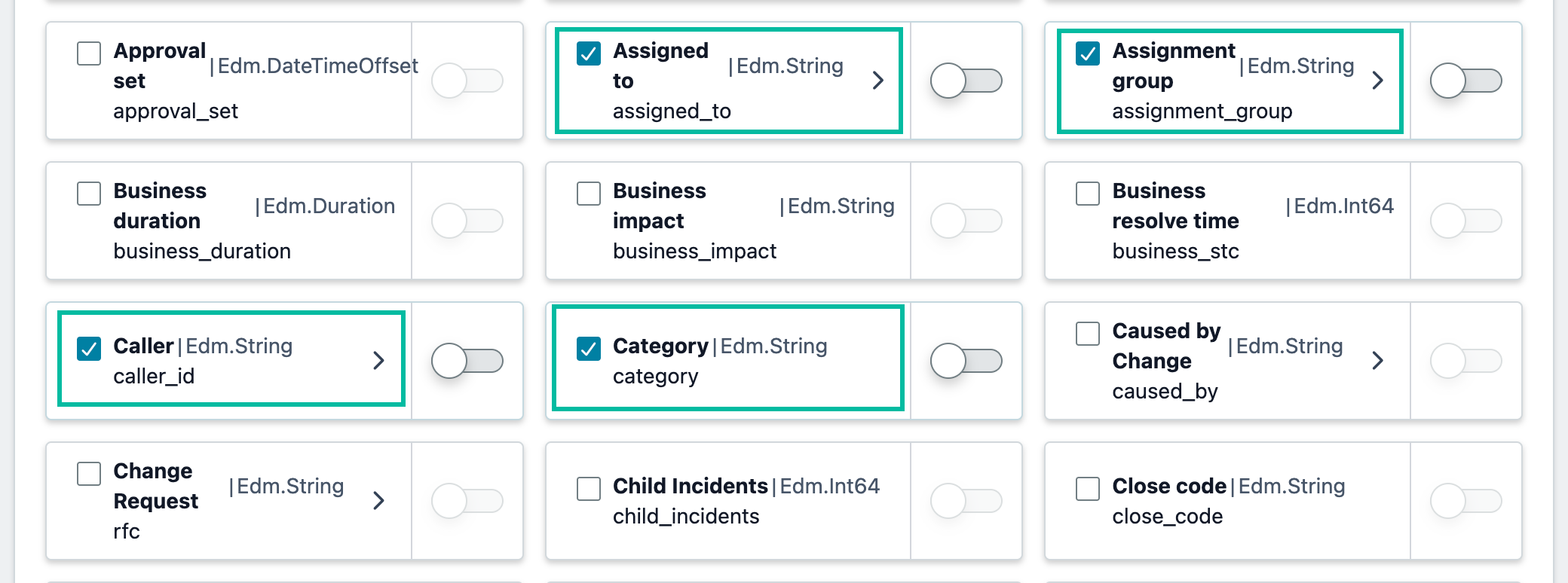
Export configuration
-
Filter (starting with version 1.7.0)
Additionally, only report fields will be selected
If needed, you can modify the Data Source: add more tables, rows limit, change filters, and more. Changes will not be applied to the existing Reports.
-
Select Save.
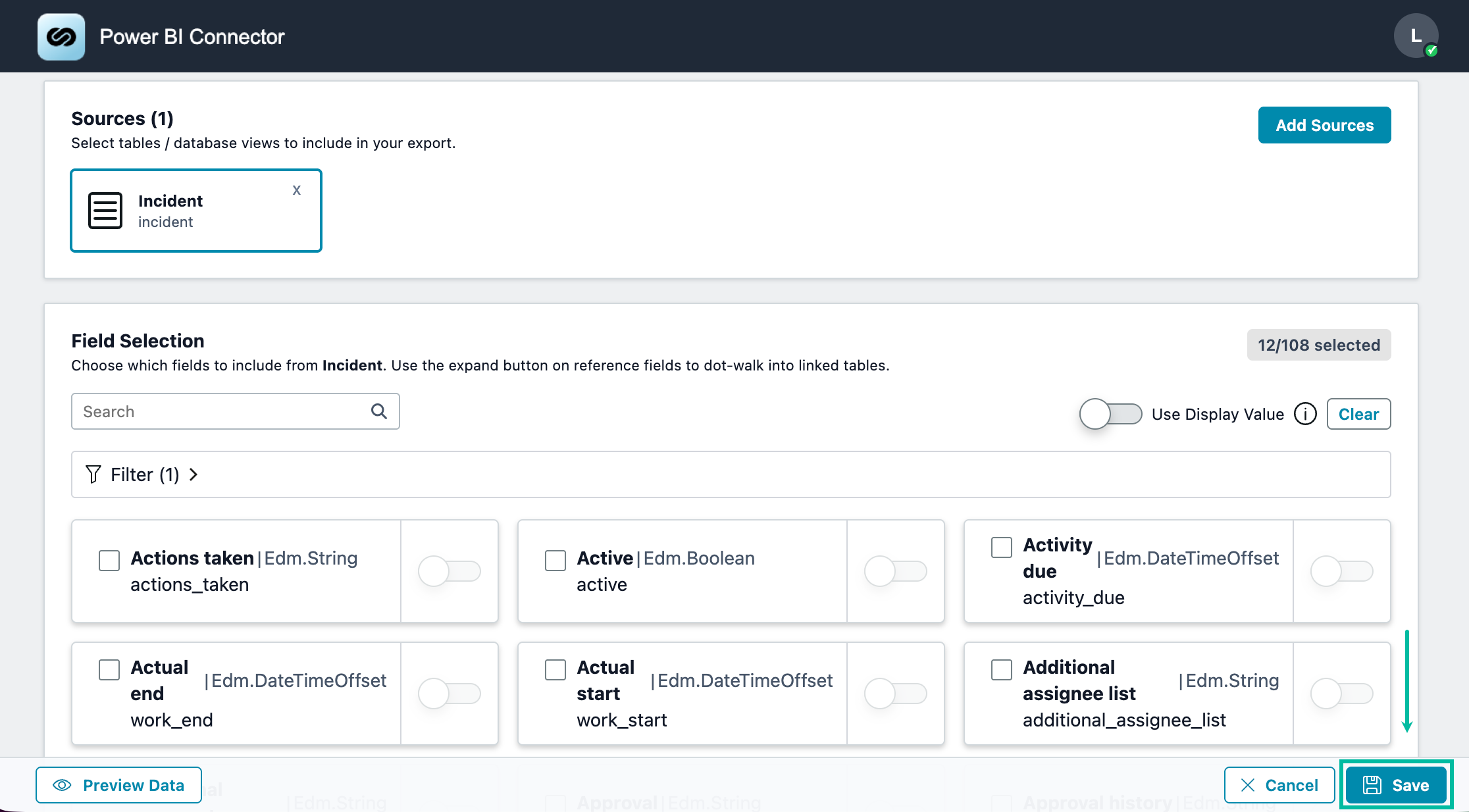
📘 If reports do not contain selected fields, it’s required to select preferred ones. Otherwise, you will not be able to save the data source.
-
The Save button is enabled by default when creating or editing a data source.
-
Before you can save the data source, all three required fields must be completed: Name, Sources, and Fields Selection.
-
If you select Save without completing all required fields, the incomplete fields are highlighted in red.
Before exporting, you must ensure that all necessary permissions for data export are assigned. Otherwise, you will not be able to create a data source.