
Book a video demo to see Power BI Connector for ServiceNow in action!
Before You Start
To be able to use Power BI Connector for ServiceNow users should be assigned to specific roles by ServiceNow System Admin. If you don’t have access to the connector, please contact your System Admin and request to assign any of the following roles: User roles.
Depending on roles assigned, users can access Power BI Connector from
-
Platform UI
Instance-Name.service-now.com/ -
Power BI Connector page
Instance-Name.service-now.com/x_acsof_power_bi_s_pbi_connector.do?
How to Create Data Source in ServiceNow
To create a Data Source, user should have PBI ADMIN or PBI EDITOR role.
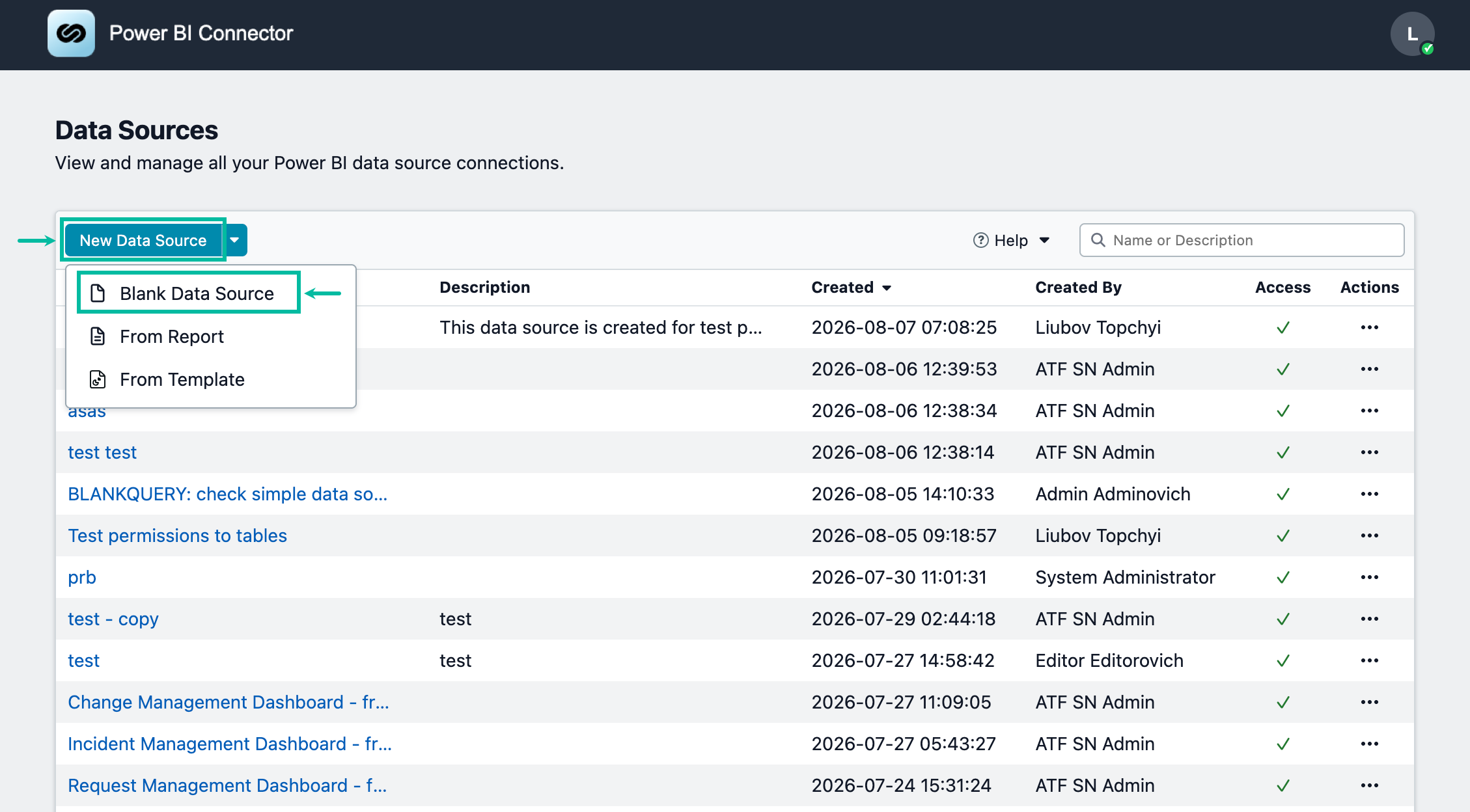
From the Power BI Connector pageInstance-Name.service-now.com/x_acsof_power_bi_s_pbi_connector.do?:
-
Select New Data Source or Blank Data Source.
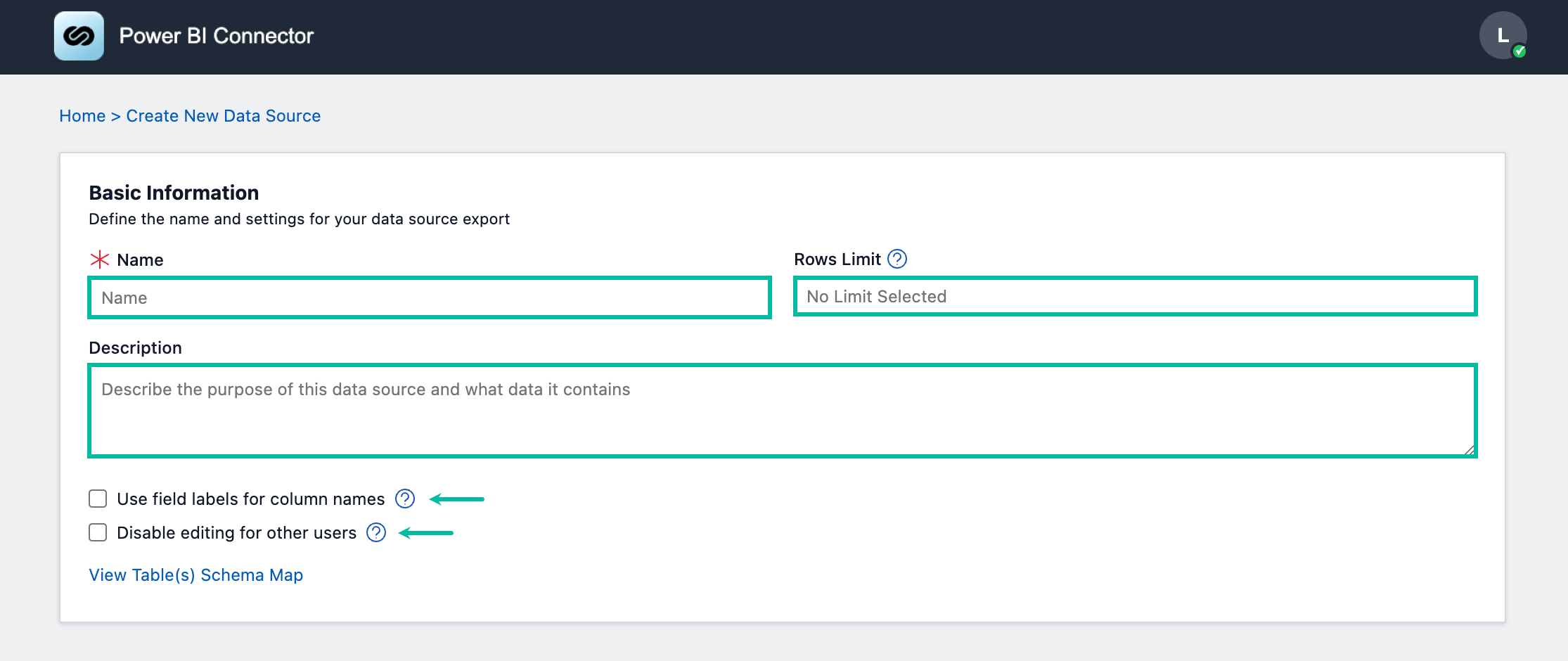
Fill in
-
Data Source name - any descriptive and short name
-
Descripton (optional) - any additional details about data source if needed
-
Set Rows limit - the numer of row imported into the Power BI, leave blank (by default) to export without limit
-
Set Use field labels for column names - set checkbox to allow change column Names in export results to Labels

-
Check the Disable editing for other users allows restricting data source editing for those who is not creator or not ServiceNow Admin.
-
Option is not selected by default and it means that any user can edit the data source.
-
If option is checked, but no Groups are selected it means that only Owner and ServiceNow Admin can edit the data source.
-
Selecting Group(s) of users will allow the editing of data source for all group members.
-


-
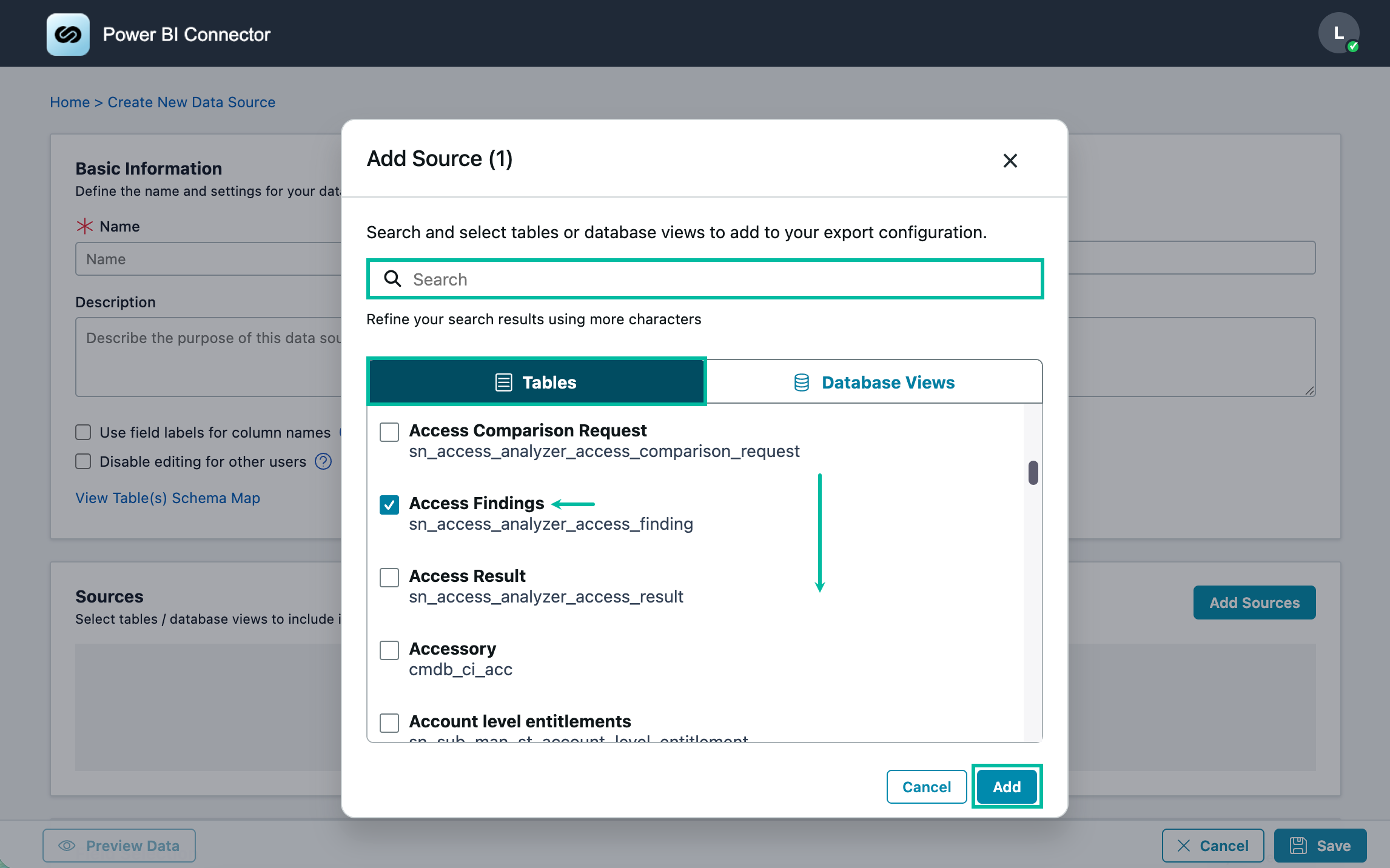
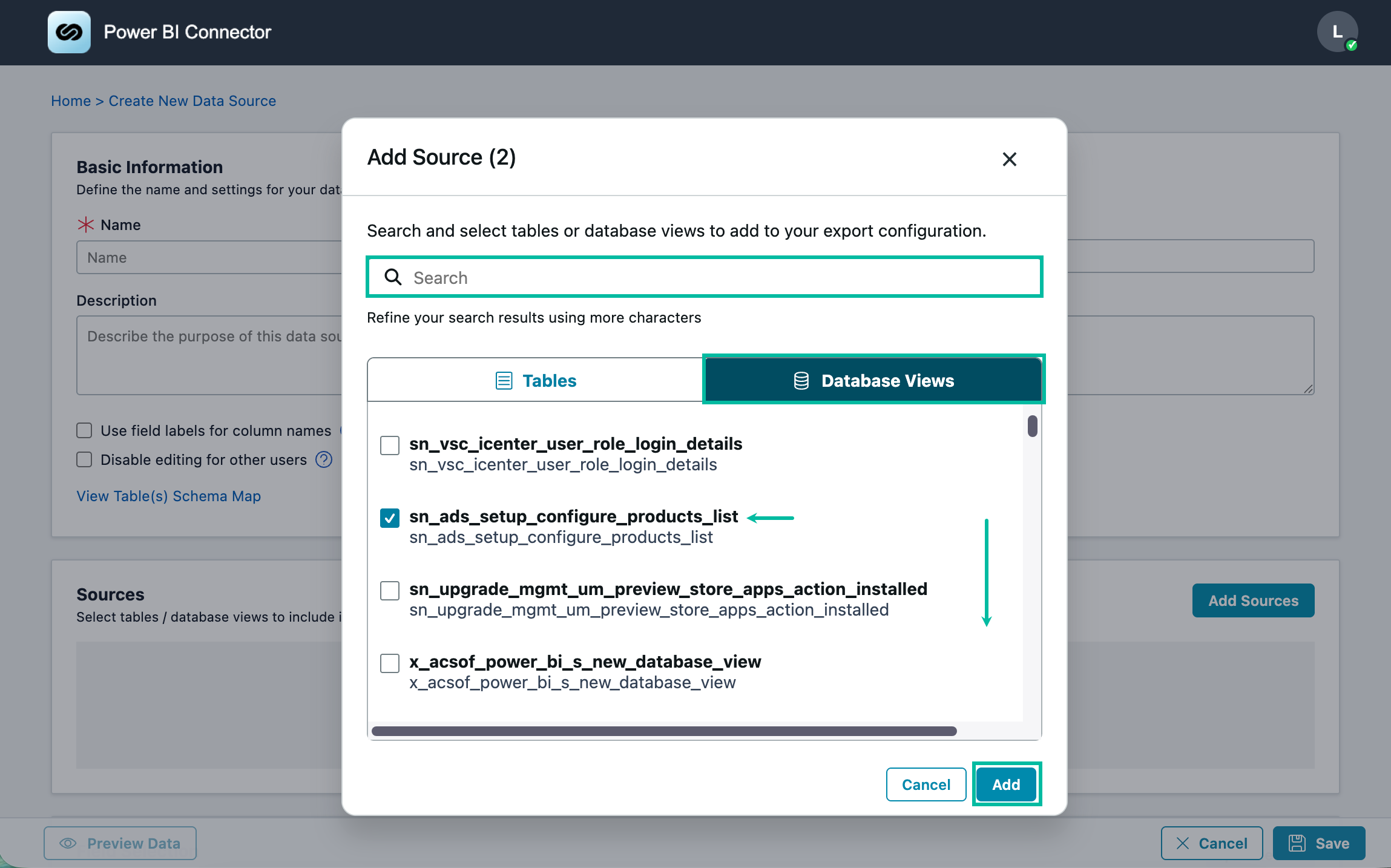
To add tables (Sources), select Add Sources, and then use the following sections:
-
Tables: Select the required table from the list, or use the Search box to find it. Then select Add.
-
Database Views: Select the required database view from the list, or use the Search box to find it. Then select Add.
-
.png?cb=1ff2eb13d74cb2fe0f70234457593bc3)
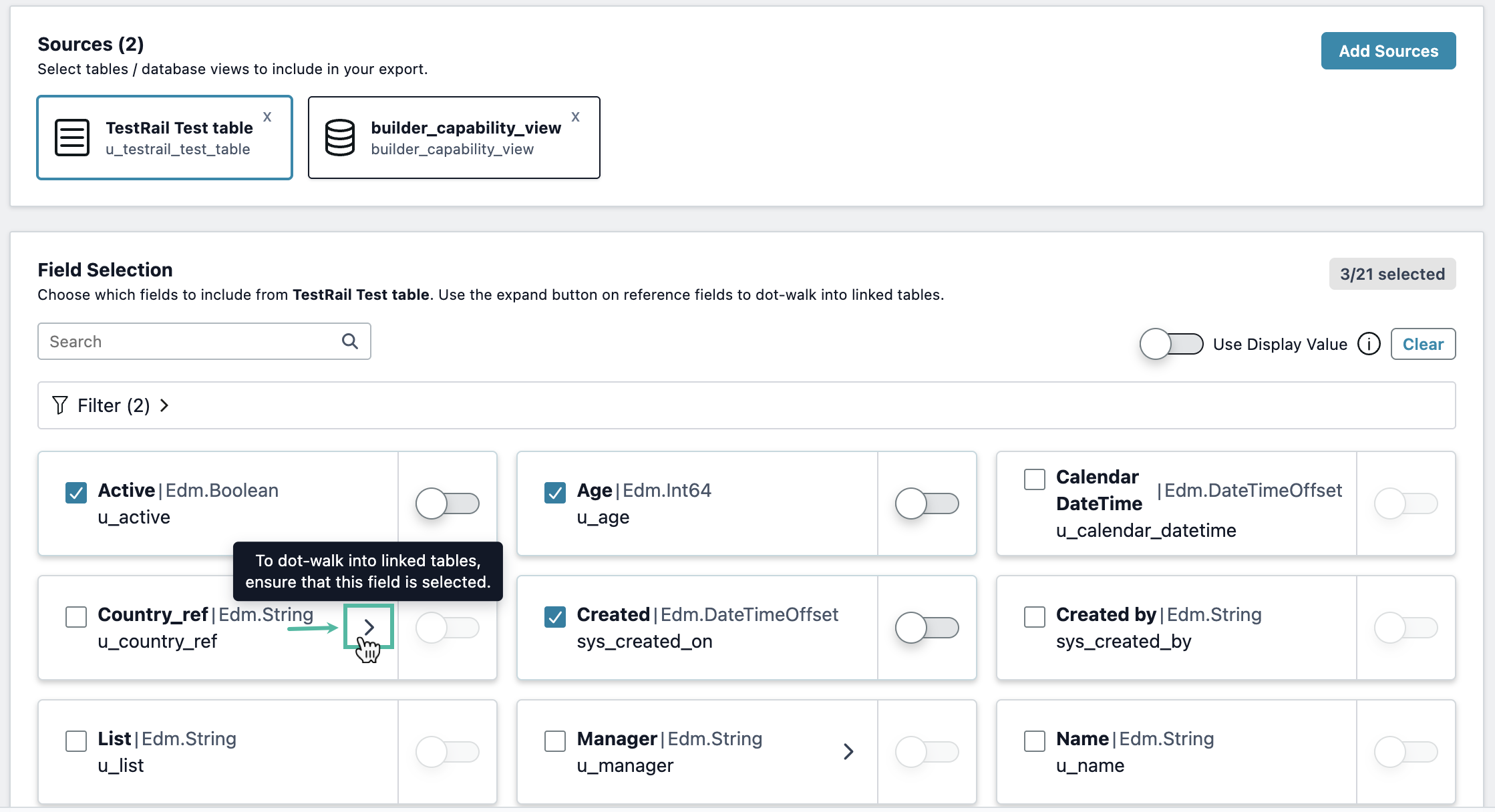
By default, no table fields are selected, no filters are applied, and Use display values is turned off globally and for individual fields. You can include any number of tables and fields in your Data Source.
-
Select the fields you want to include in your reports. You can export any ServiceNow tables and fields, including custom tables and fields.
.png?cb=0564e612d1b7c587fcf7529917a39dca)
-
Turn on Use Display Values to export data in string format.
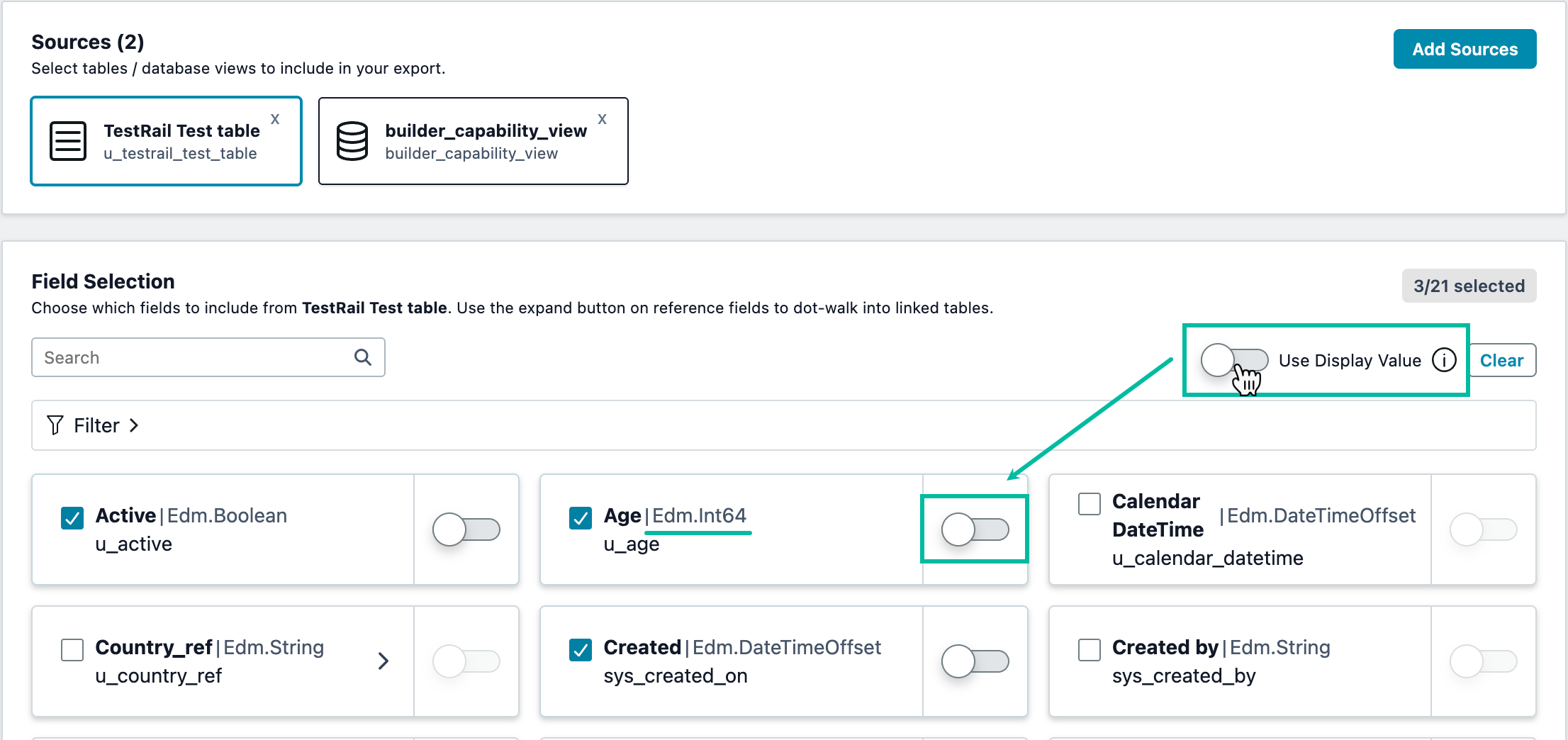
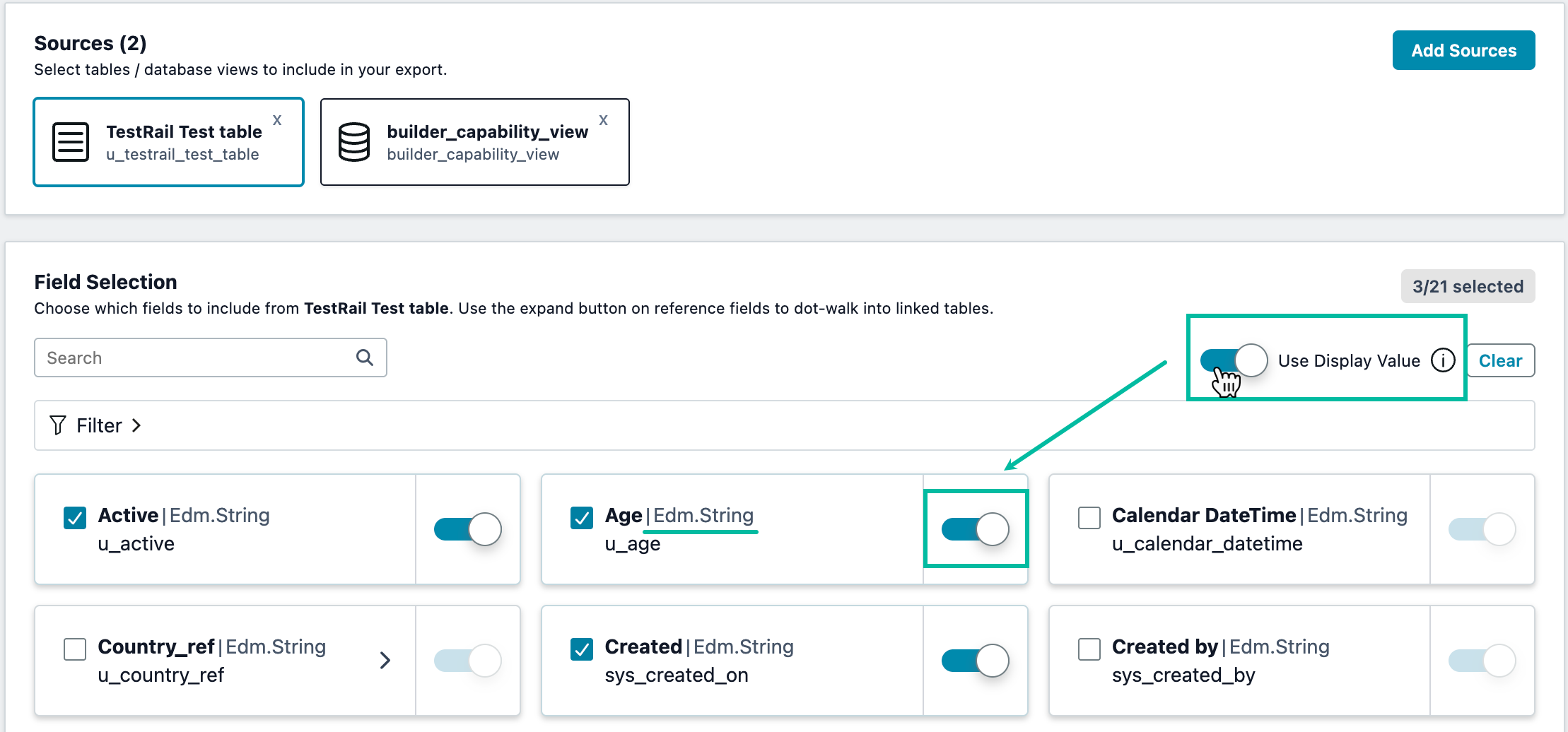
-
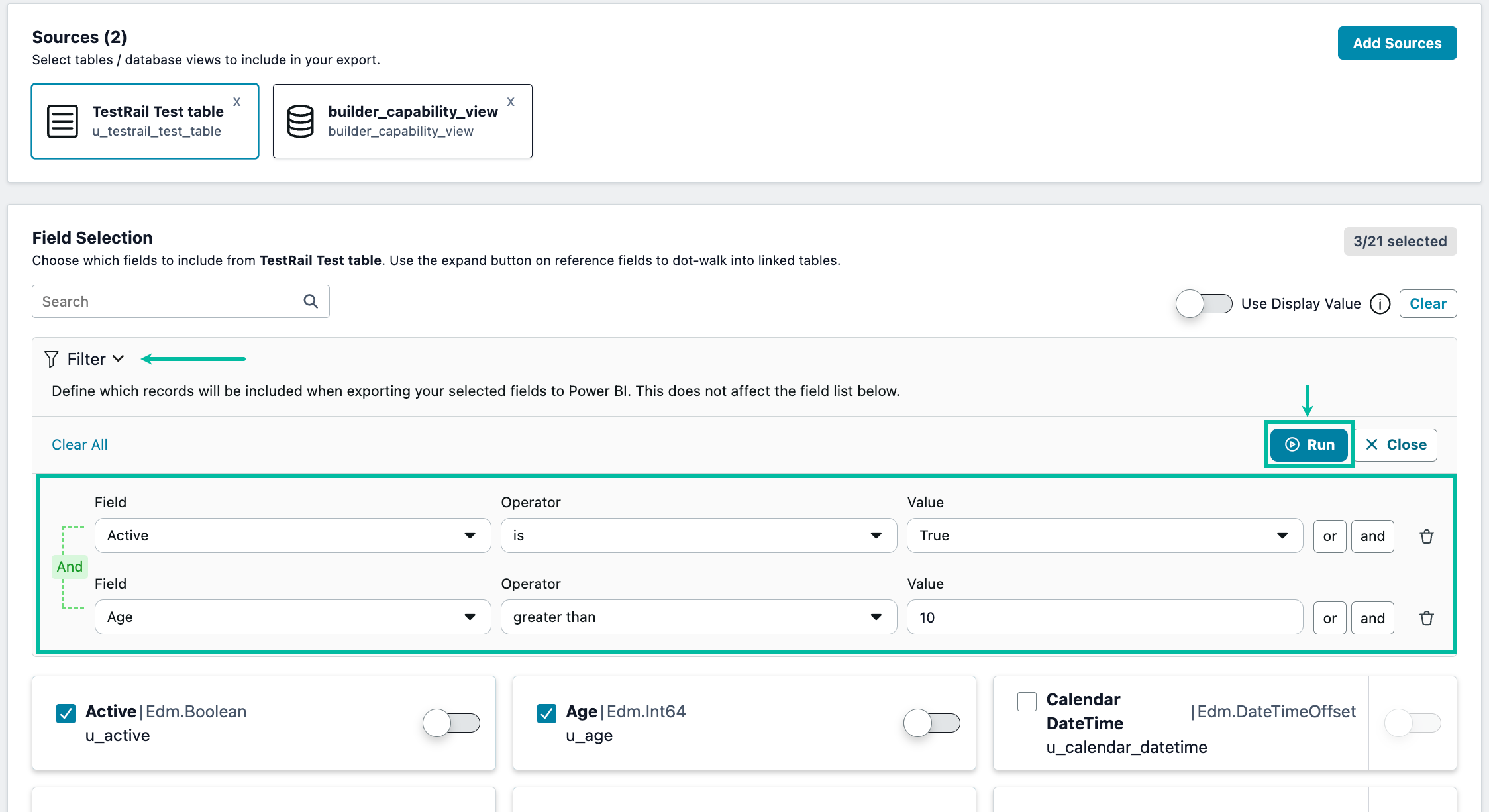
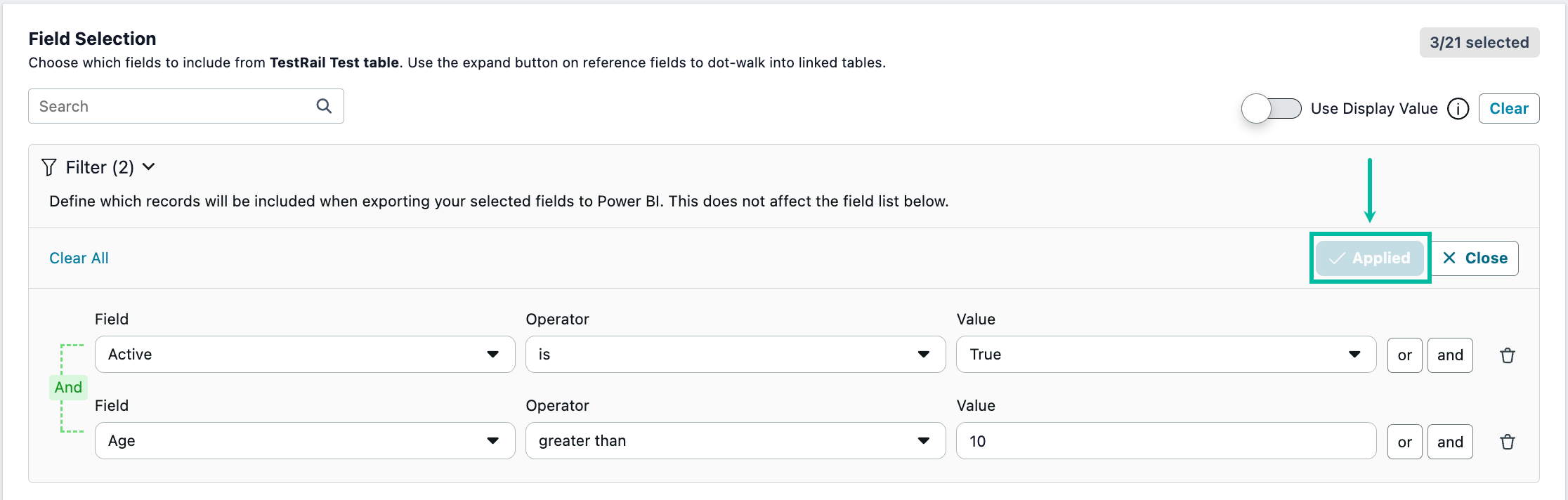
To narrow the export results, apply a filter to a table(s).
-
To configure a filter, select Filter, specify the filter conditions, and then select Run to apply the filter.
-
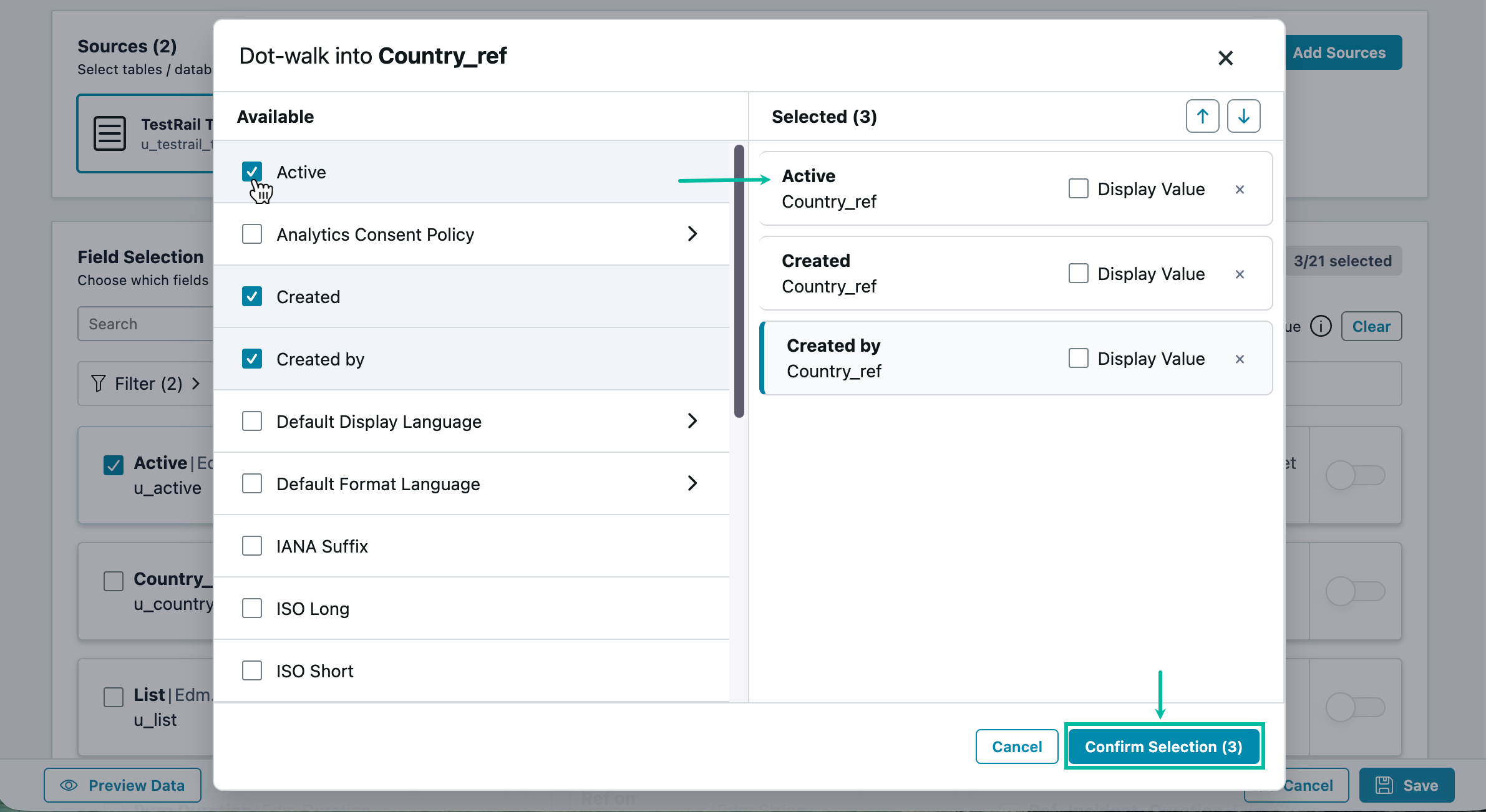
Some tables contain fields of the Reference type. To export data from a referenced field, select the > icon, choose the fields to export in the dialog that opens, and then select Confirm Selection.
Starting with Power BI Connector version 1.3.0, you can export both parent and child fields. For more information, see Use a dot-walking mechanism to export Reference type data
-
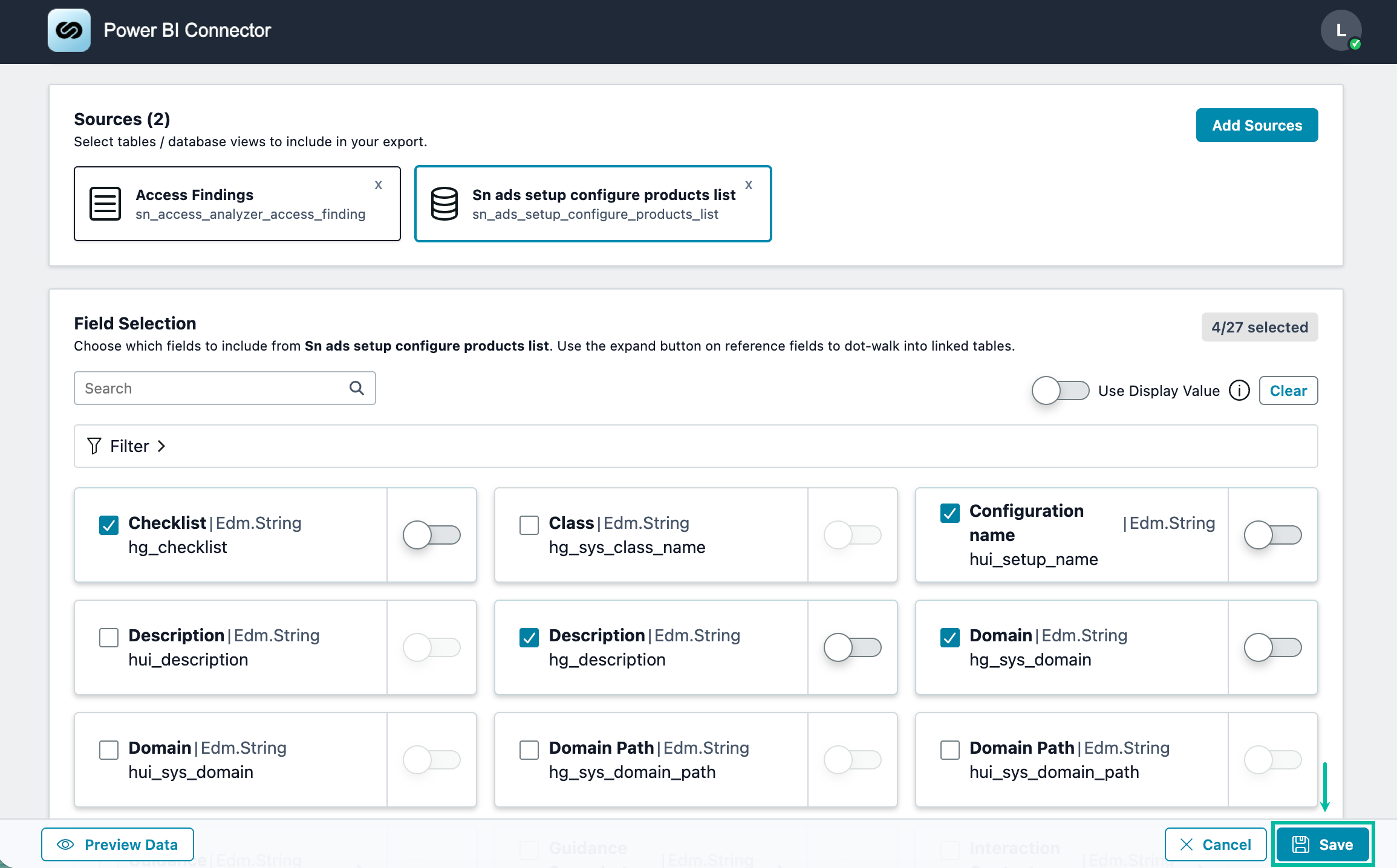
To save the data source, select Save at the bottom of the page.
-
The Save button is enabled by default when creating or editing a data source.
-
Before you can save the data source, all three required fields must be completed: Name, Sources, and Fields Selection.
-
If you select Save without completing all required fields, the incomplete fields are highlighted in red.
How to Import Data into Microsoft Power BI
-
From the Power BI Connector page:
Instance-Name.service-now.com/x_acsof_power_bi_s_pbi_connector.do?
Select Actions (three dots) panel, and then select Copy OData URL.
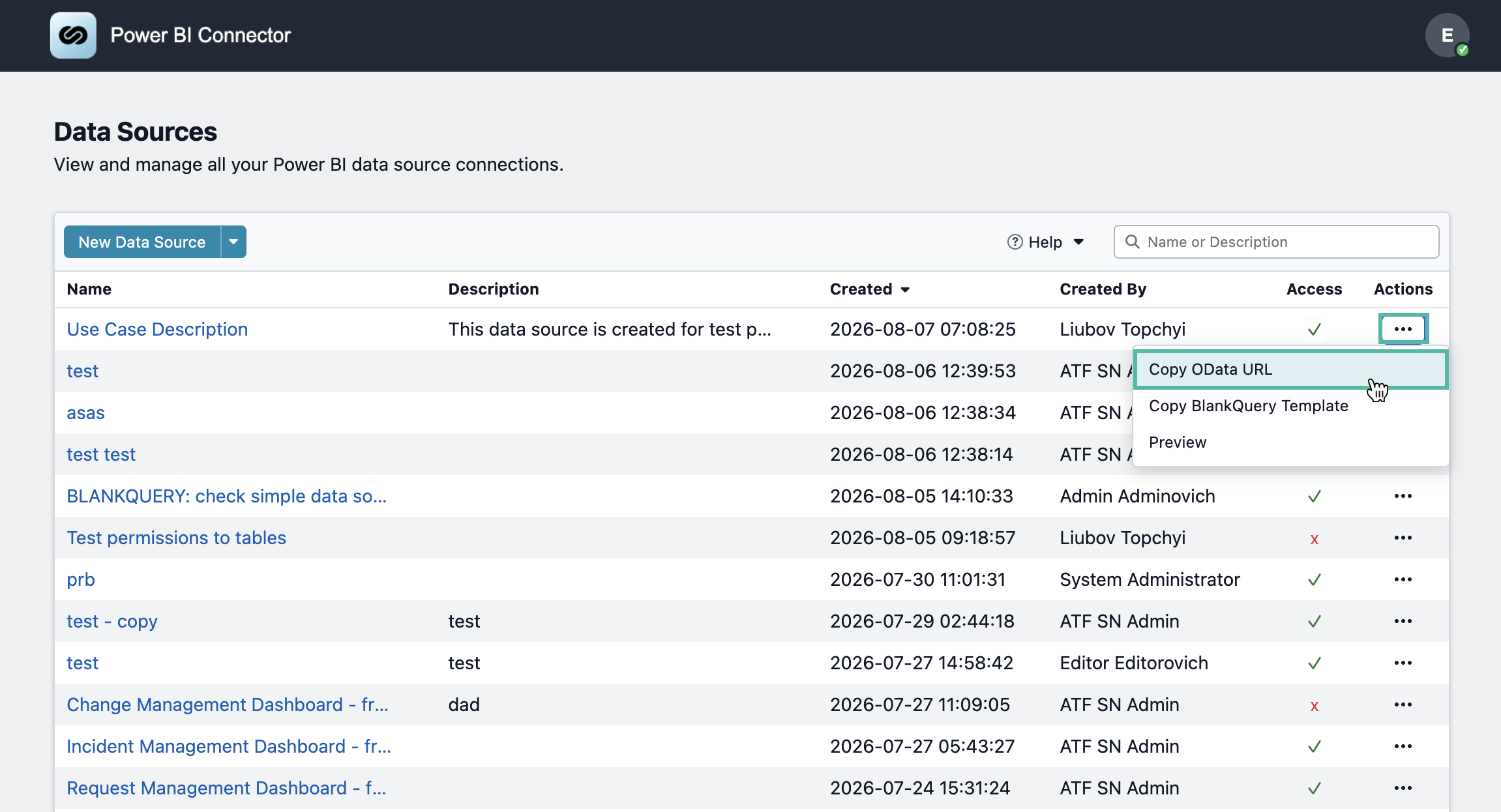
To quickly find a data source, use the Search box. You can search by Name or Description.
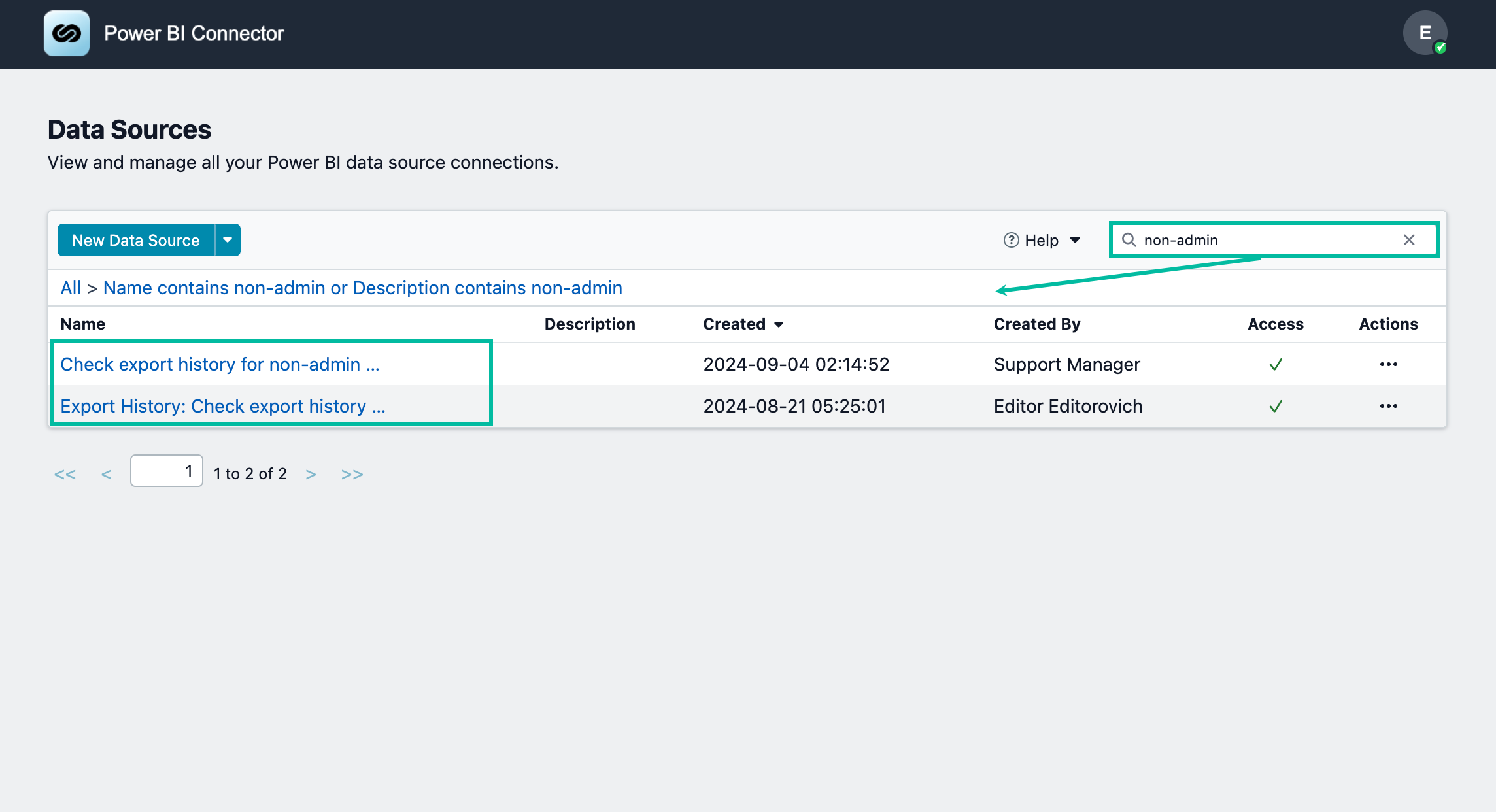
You can also apply filters: Show Matching or Filter Out.
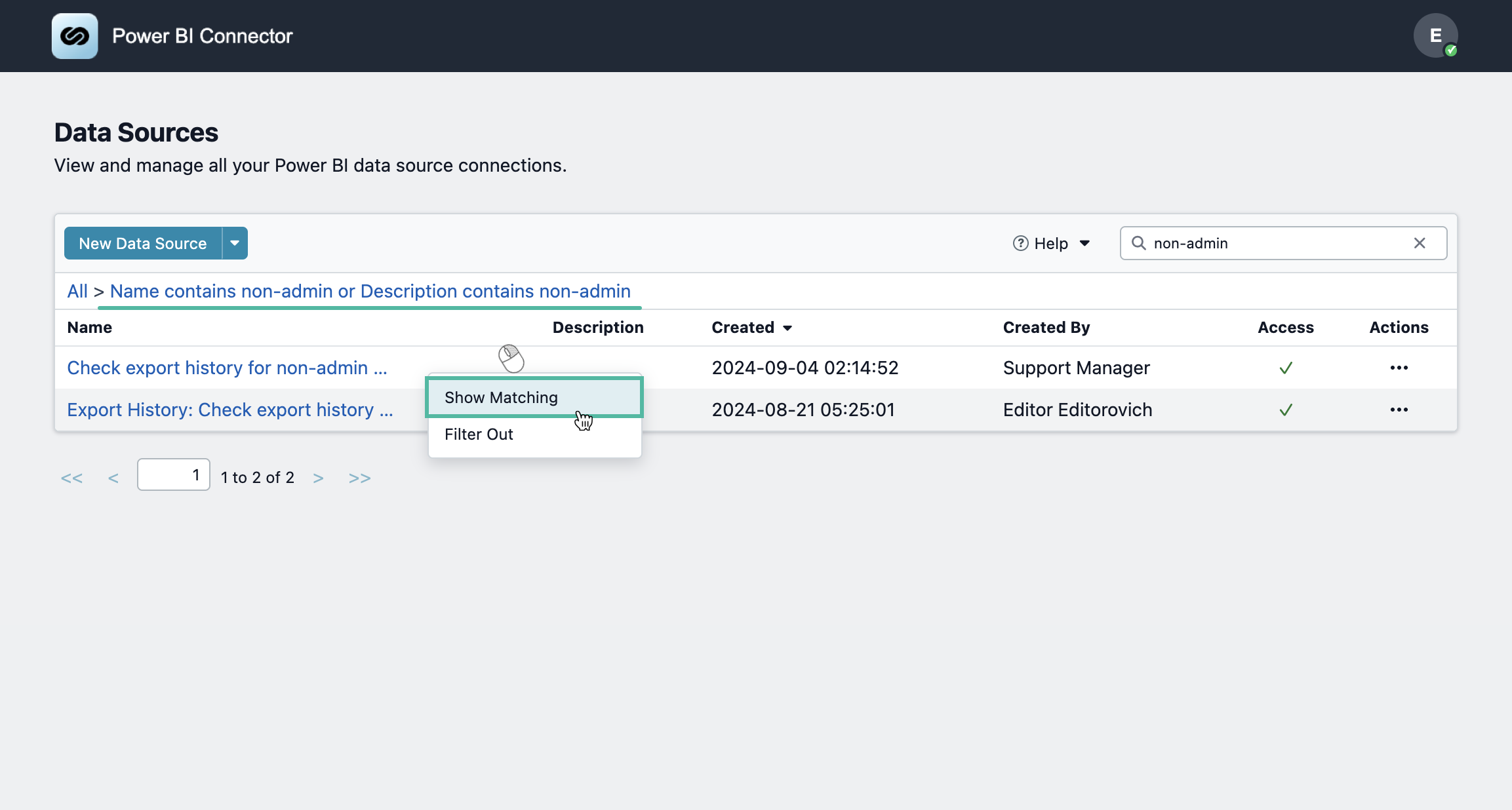
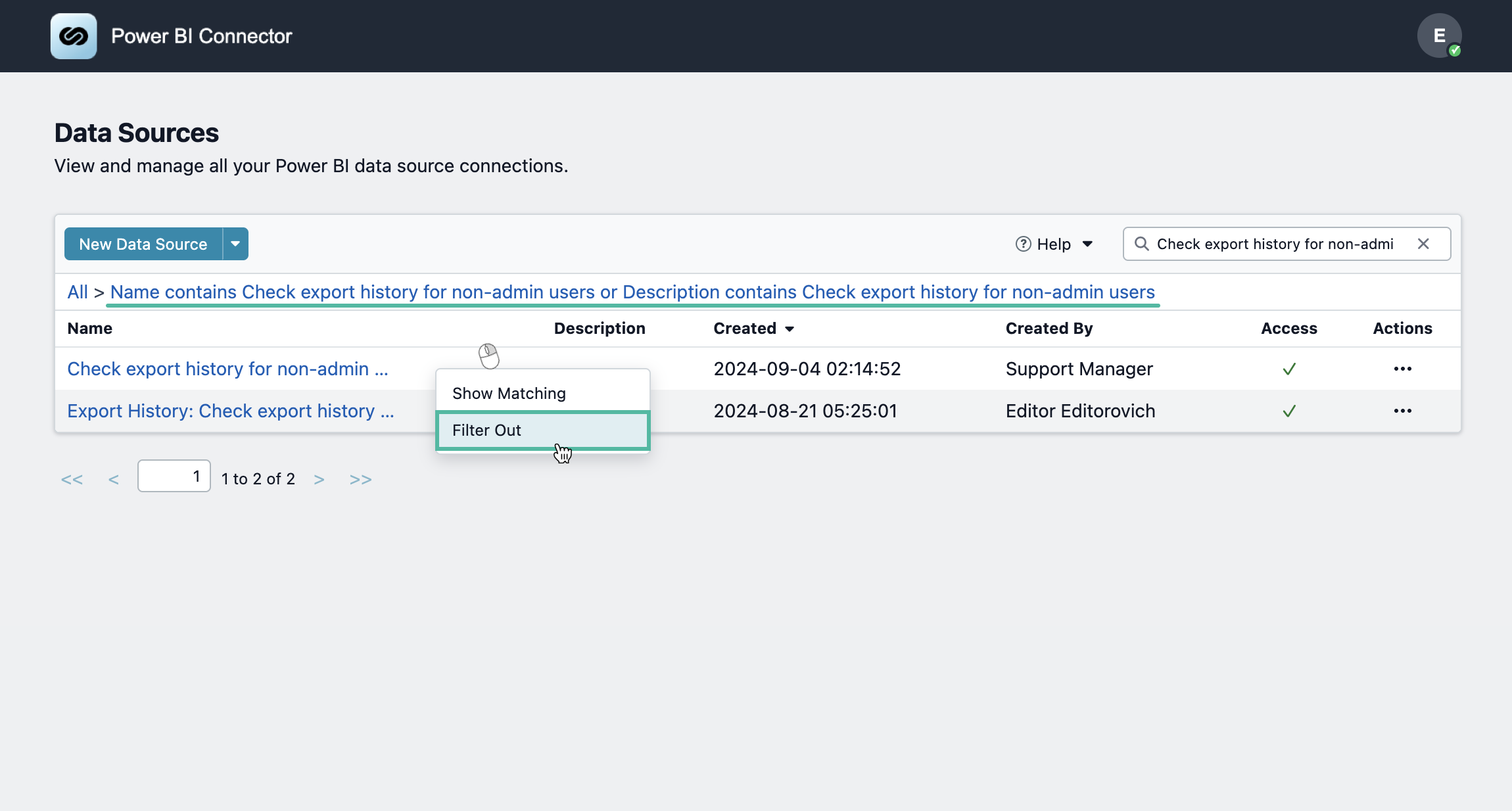
-
In the Power BI Desktop:
-
Select Get Data, and then select OData feed
-
Paste the data source URL
-
Select OK
-
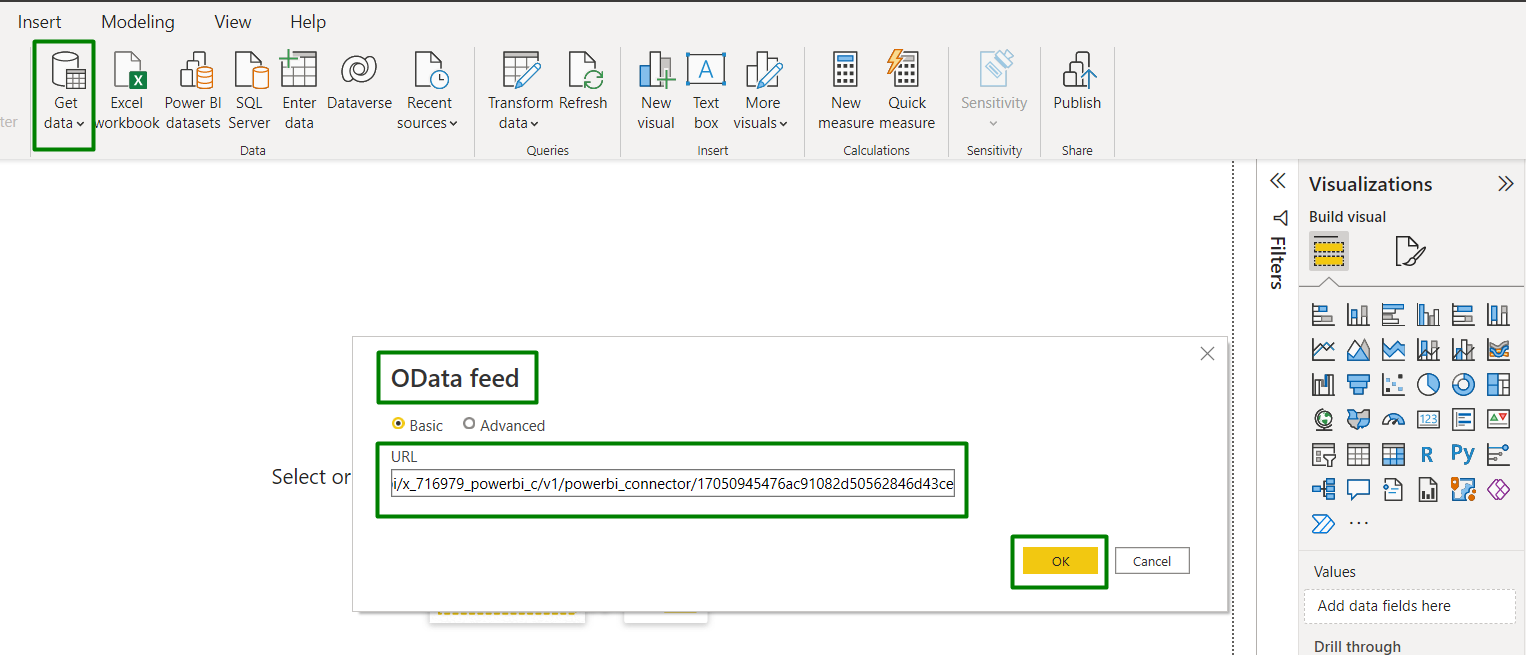
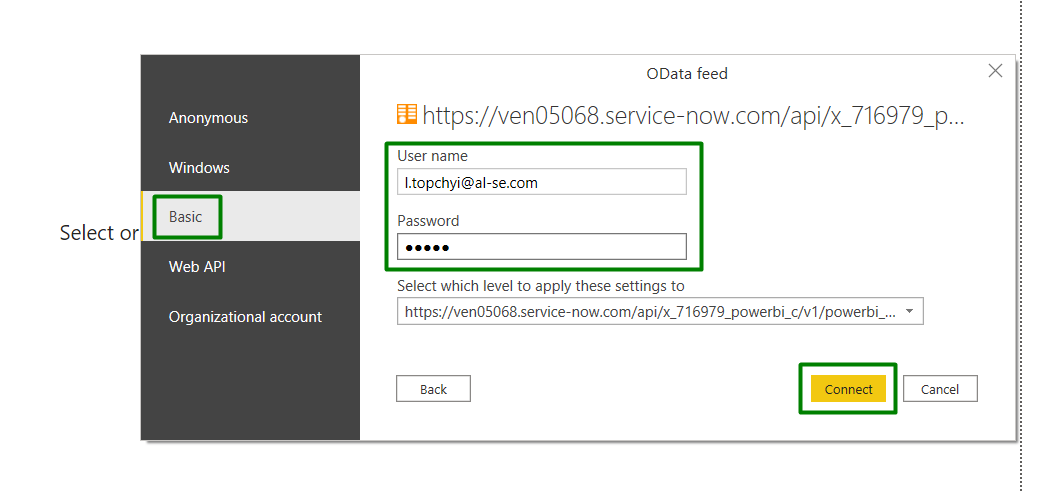
In the window that opens:
-
Select Basic authentication
-
Enter your ServiceNow credentials
-
Select Connect
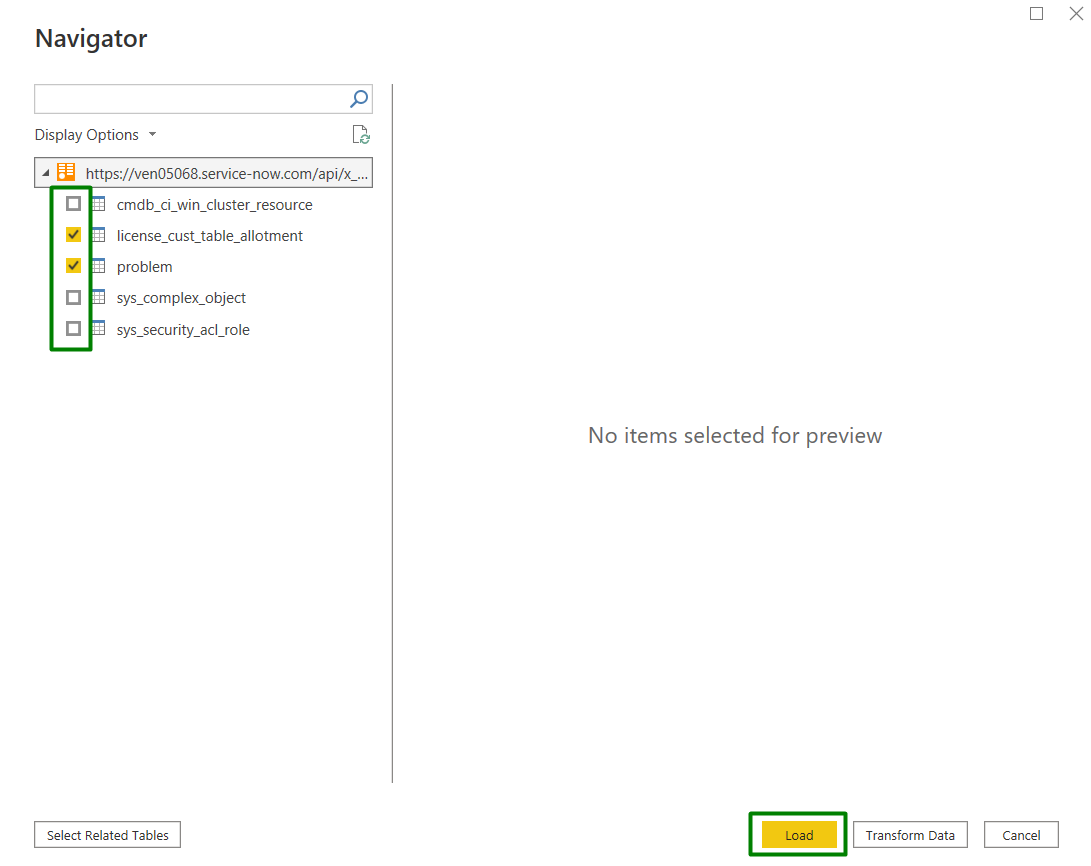
In the Navigator preview:
-
Chose tables for loading by checking the checkboxes
-
Select Load
You are already using Power BI Connector for ServiceNow? Leave us an honest review!