
If exported data in Microsoft Power BI doesn’t reflect recent updates, the issue is often related to caching. The app uses a local cache that refreshes every 15-30 minutes, depending on the entity.
If the delay persists beyond that interval, Power BI may be using cached data. Clearing the Power BI cache forces the app to retrieve fresh data from the source.
To clear cache:
-
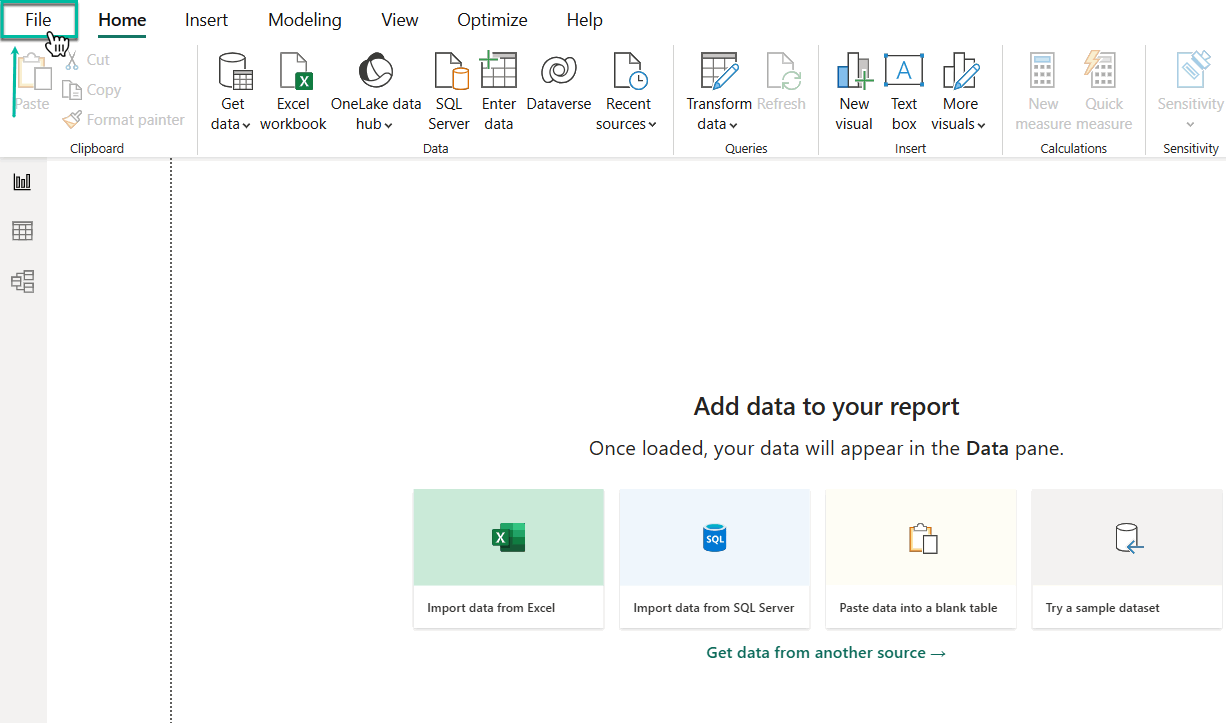
Launch Power BI Desktop, and then select File.
-
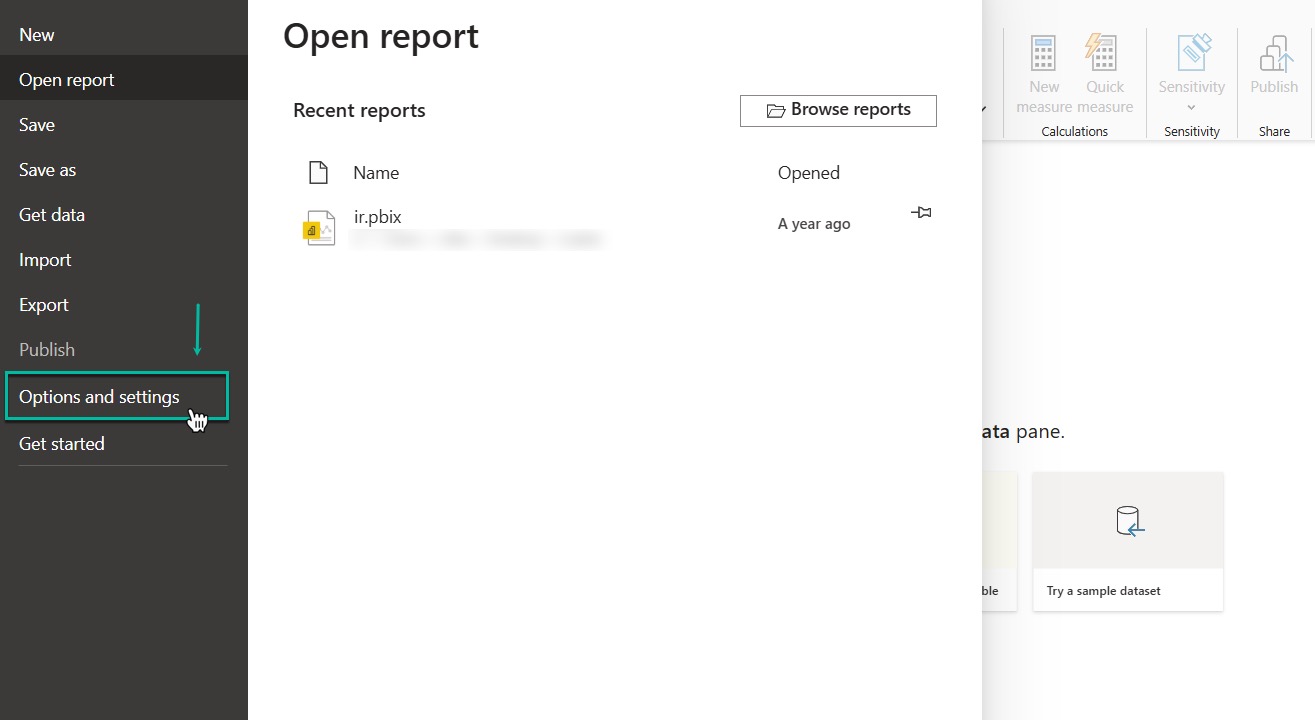
Select Options and settings.
-
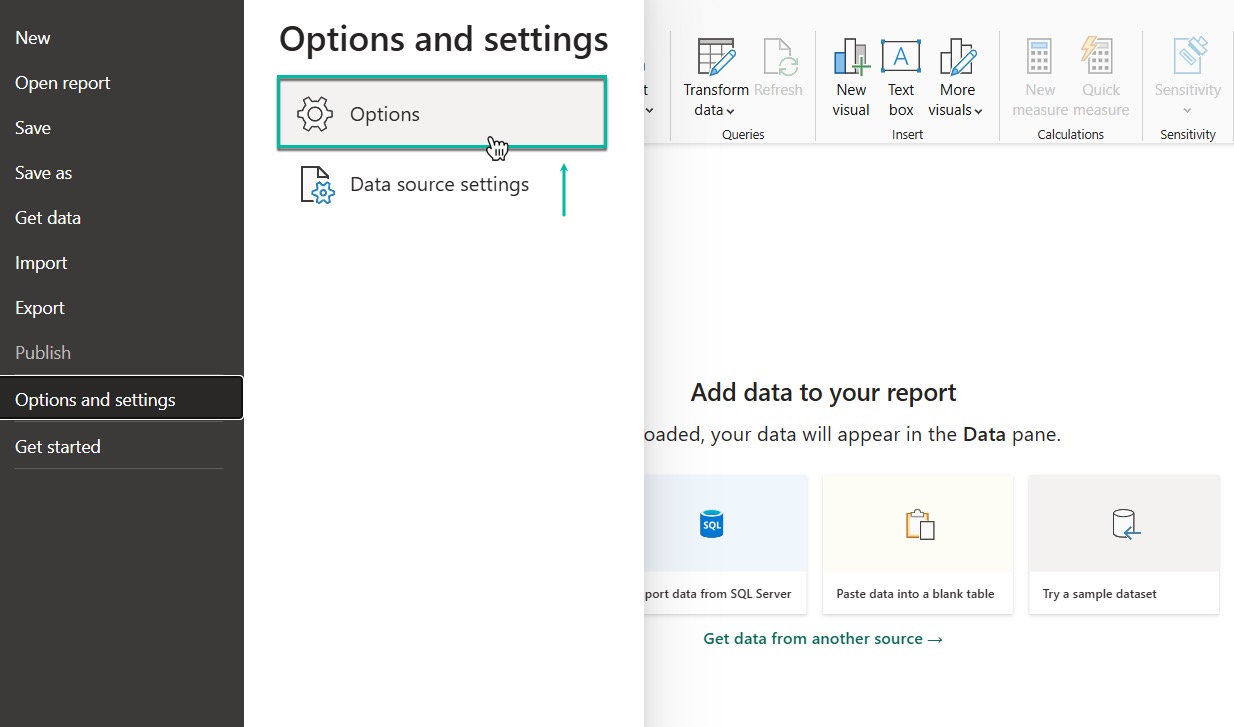
Select Options.
-
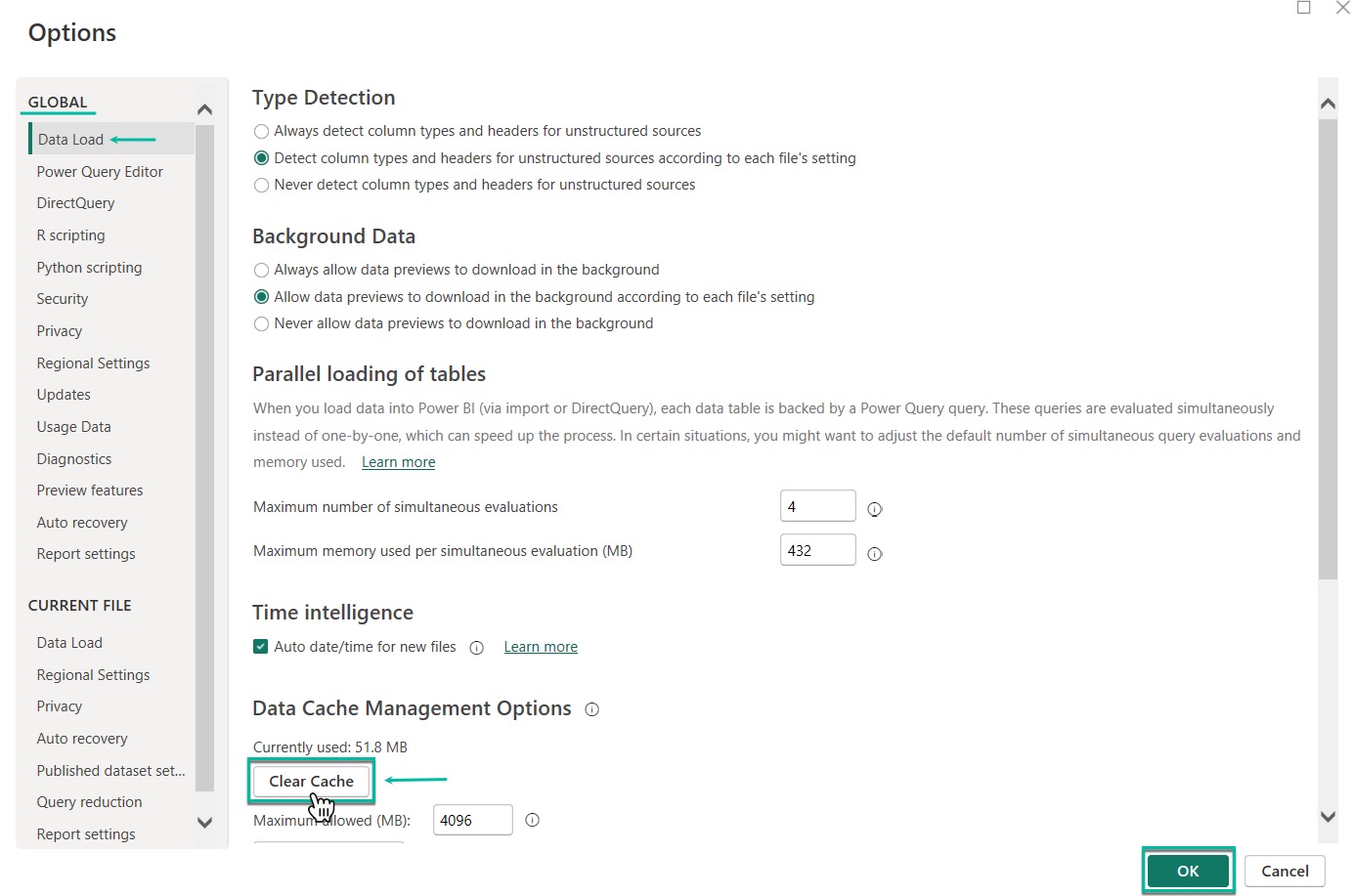
Select Clear Cache, and then select OK.
Make sure you’re in the Data Load section under GLOBAL.
-
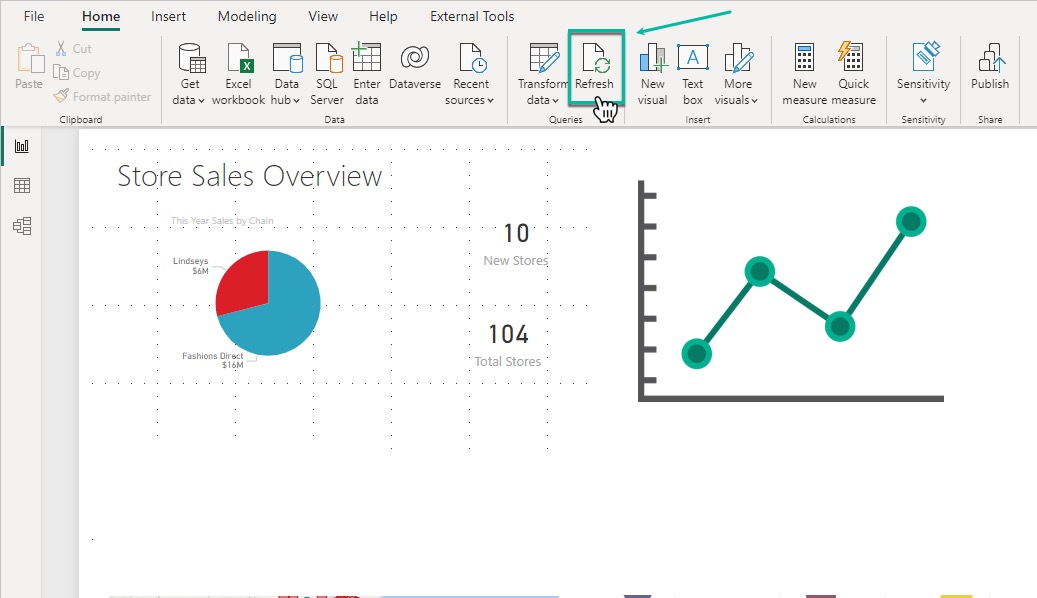
Navigate to the Home page, and then select Refresh.
-
This will re-establish the connection.
If the issue persists in the Power BI Service, republish the .pbix file from Power BI Desktop to overwrite the existing dataset in the service.
Clearing the cache may temporarily increase the duration of the next data refresh because the system must retrieve all metadata and records again.