
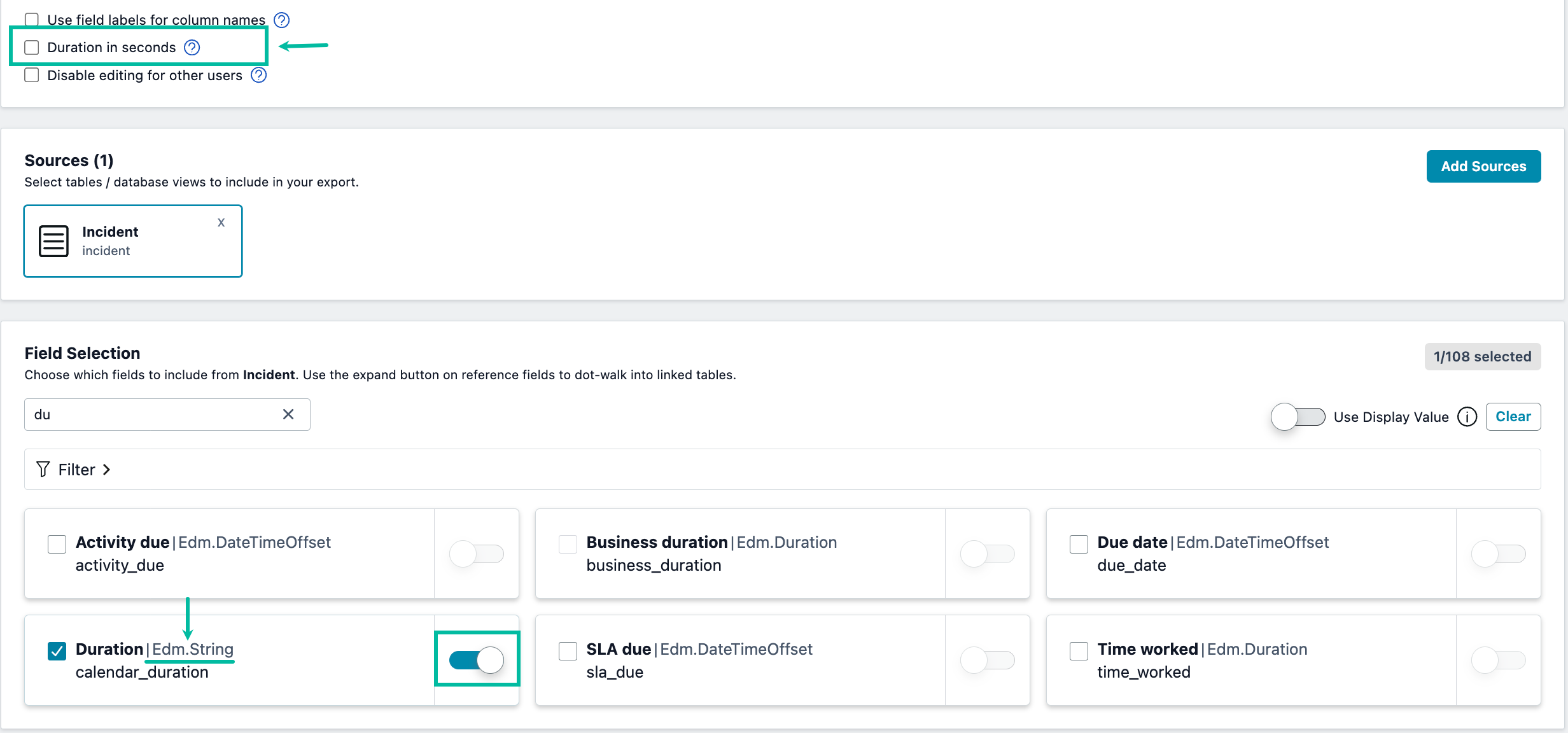
Starting with Power BI Connector version 1.5.19, you can use the Duration in seconds option in data source settings.
The option is available only when the data source contains at least one Duration field. It is cleared by default.
For data sources created from a Report, Template, or Database View, the option appears automatically if the data source contains Duration fields.
The option also appears when a table does not contain Duration fields but includes one or more referenced Duration fields.
What data format to choose for export
-
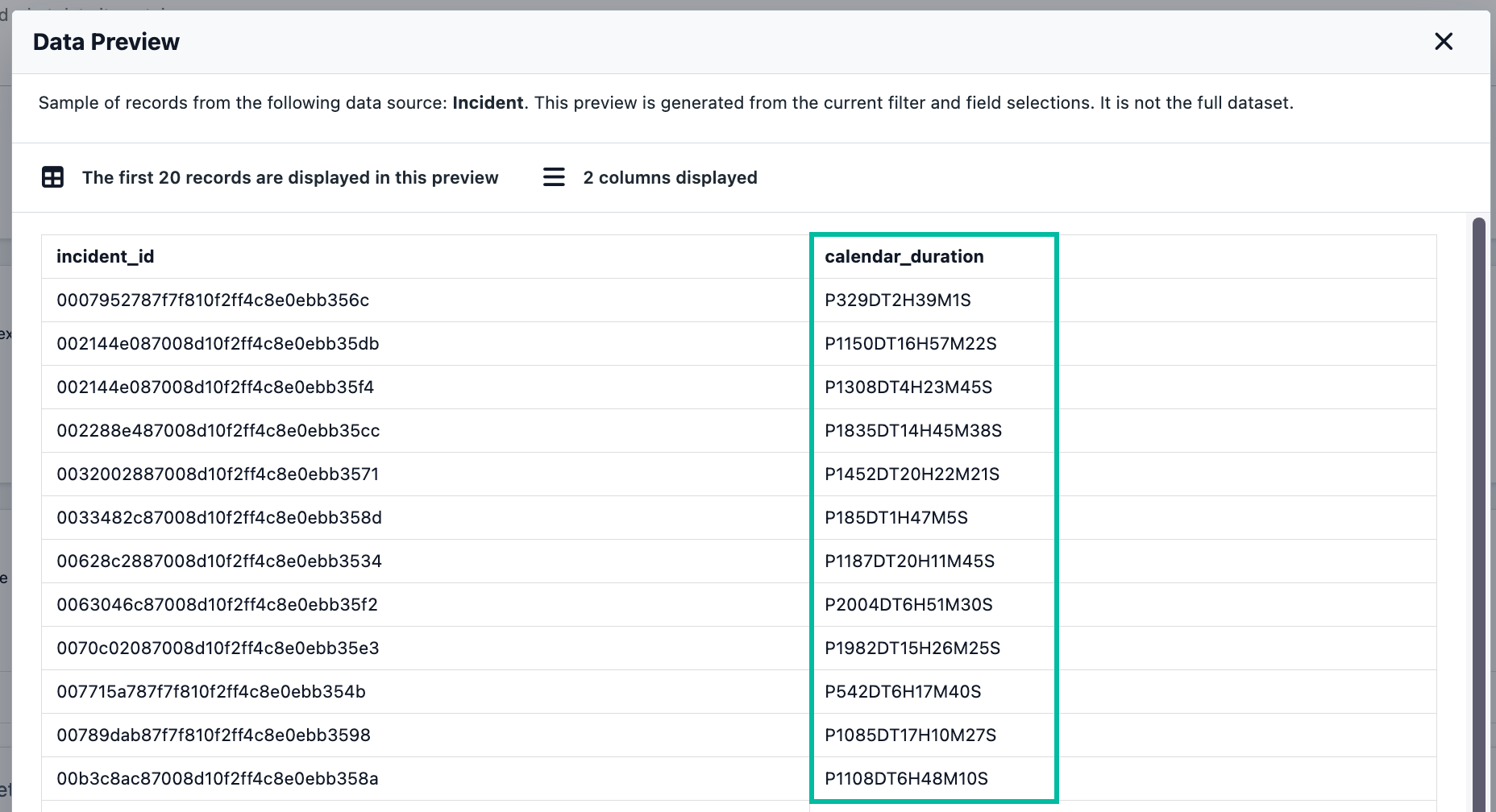
By default, when Duration fields are added and no “Duration in seconds” or “Use display value” are turn on, data will be exported in Edm.Duration format.
.png?cb=cae97146cf54dd13e8c71bdd0559a4dd)
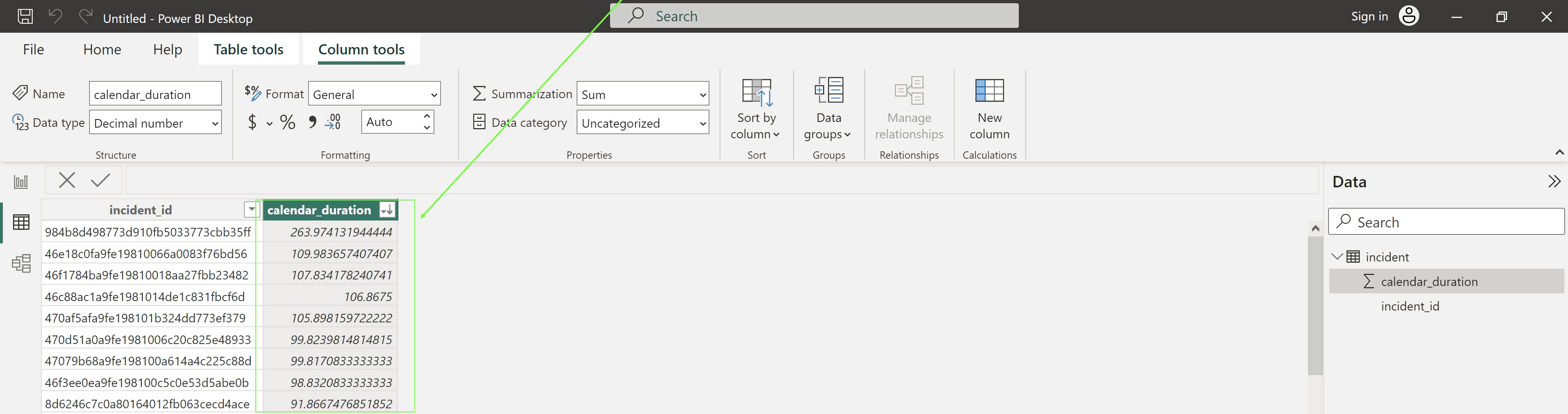
Please note that Power BI represents Edm.Duration values differently. As a result, the values shown in Power BI may differ from those displayed in the Preview dialog.
-
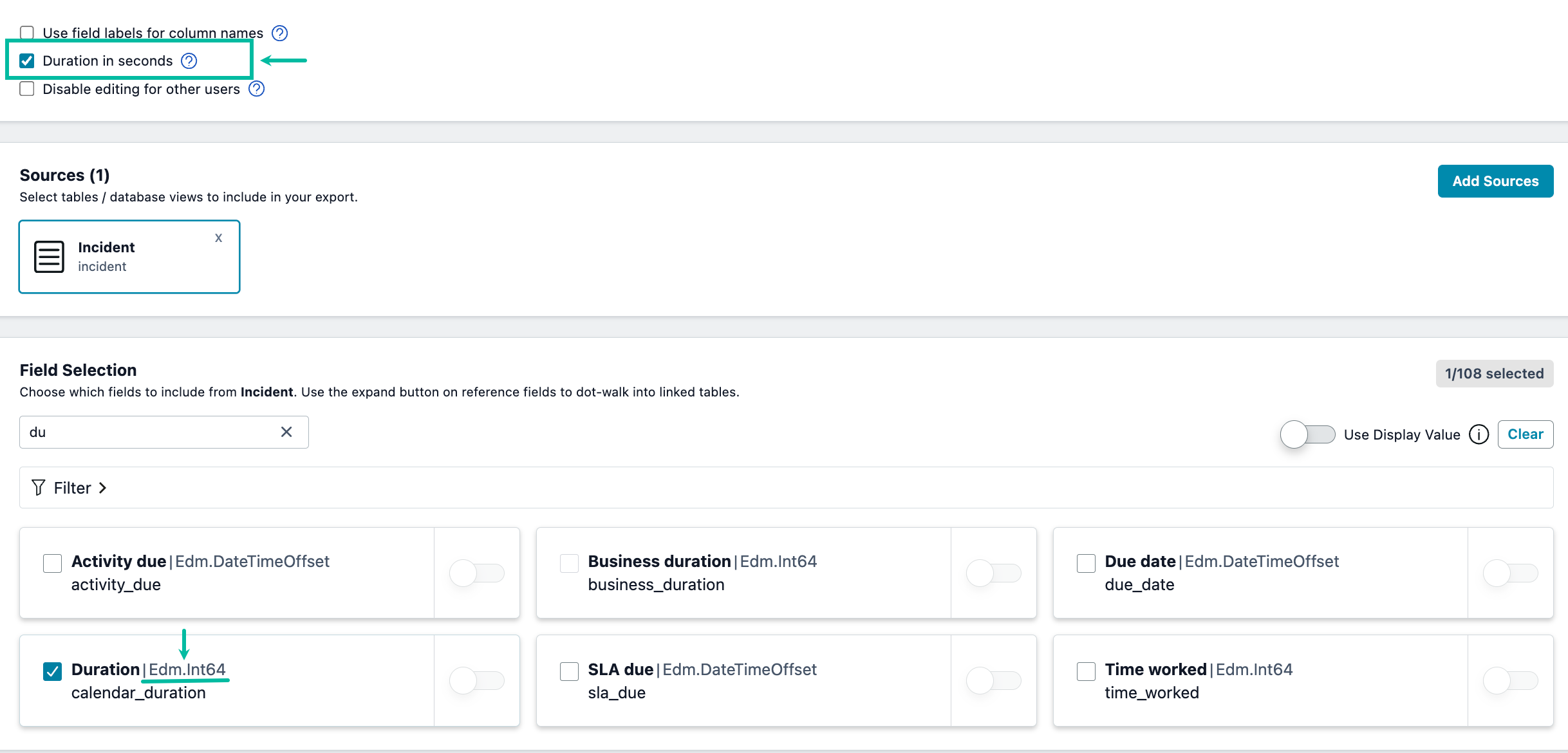
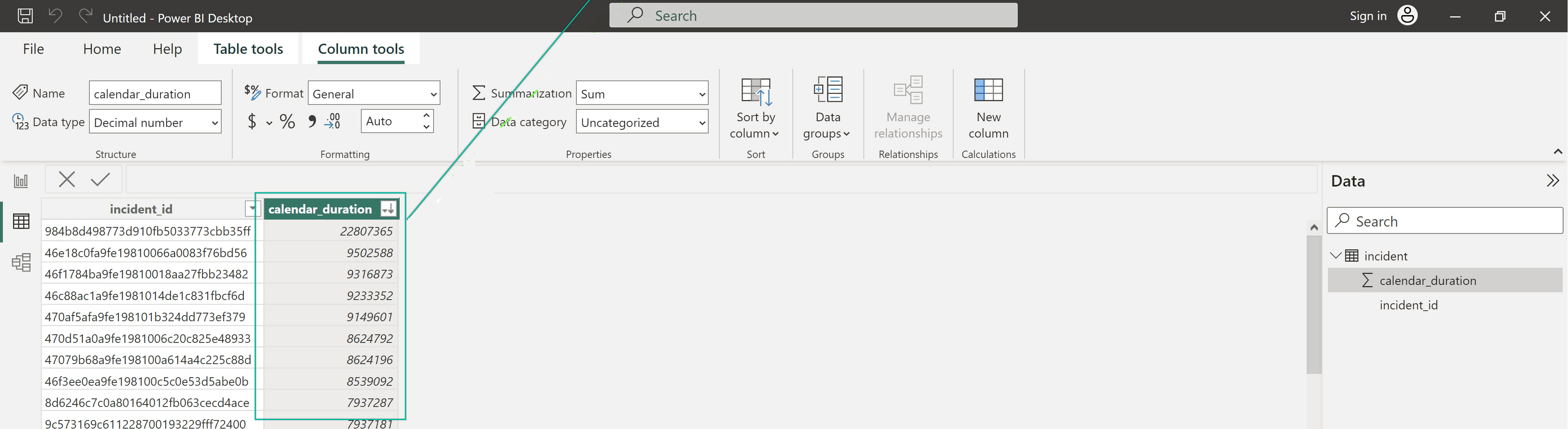
When “Duration in seconds” is turned on, data is exported in Decimal format (seconds).
-
When “Use display value” is turned on, data is exported in Edm.String.
-
It is impossible to apply both “Duration in seconds” and “Use display value” at once. They are mutually exclusive options. It means, that in case if “Duration in seconds” is turned on “Use display value” is turned off:
-
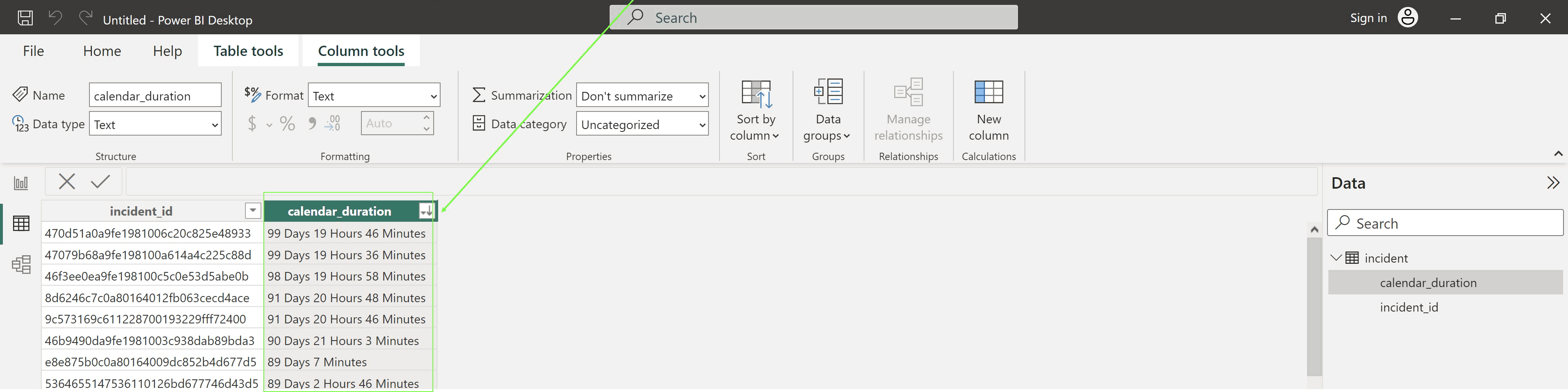
The String format for Display value is also used in the backend.
