
Starting with Power BI Connector version 1.3.0, you can export expanded Reference fields. You can export not only the direct parent field but also navigate through table dependencies and select the child fields you need.
-
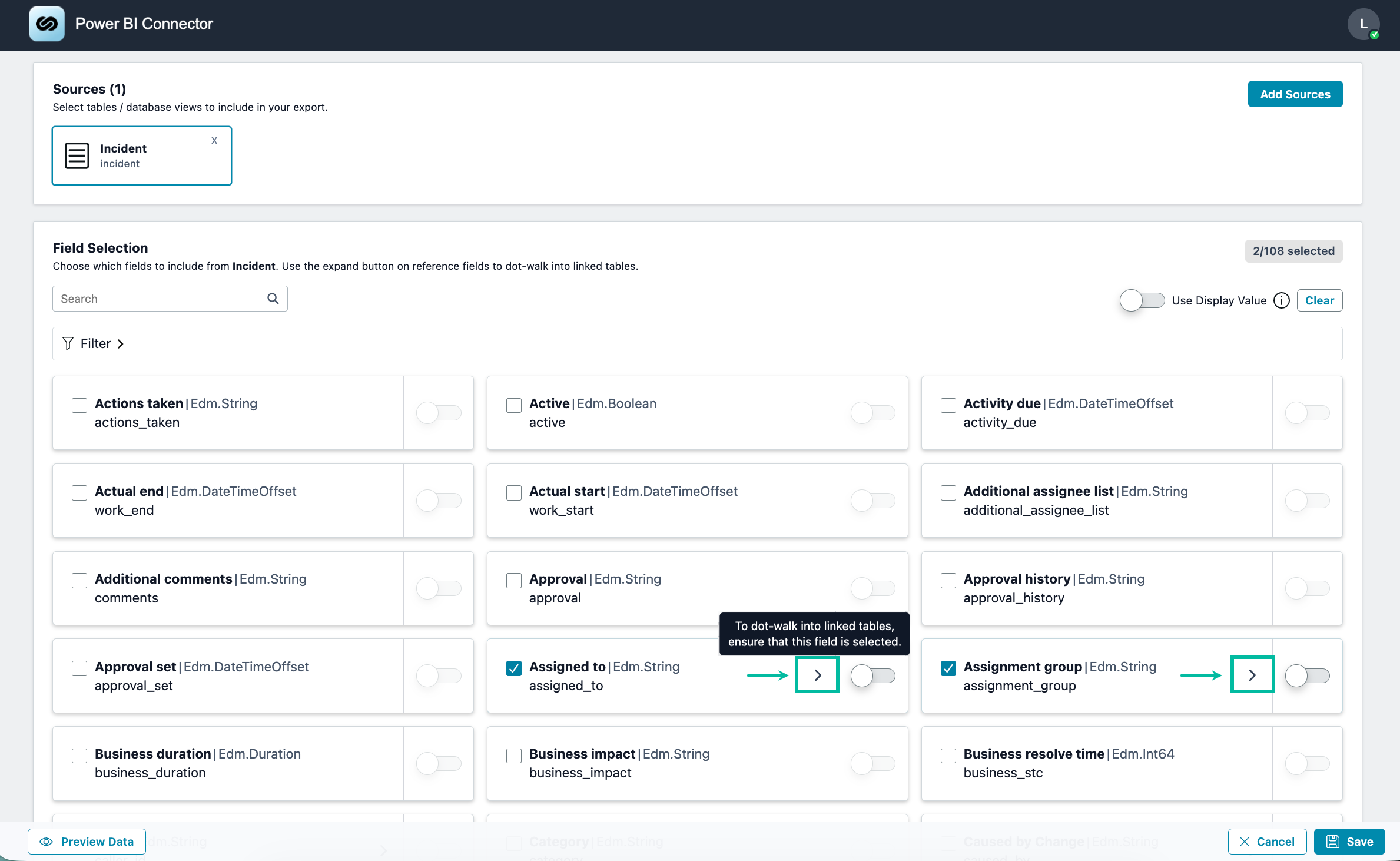
Navigate to the Data Sources list and select an existing data source or create a new one. Add a table. If the table contains Reference fields, the > icon appears next to those fields.
-
Select > next to the field to add its child fields.
-
A dialog opens for the selected field.
-
The dialog header shows Dot-walking into [parent field name] and a list of child fields from the referenced table.
-
Child fields can also be Reference fields, and can contain their own child fields.
-
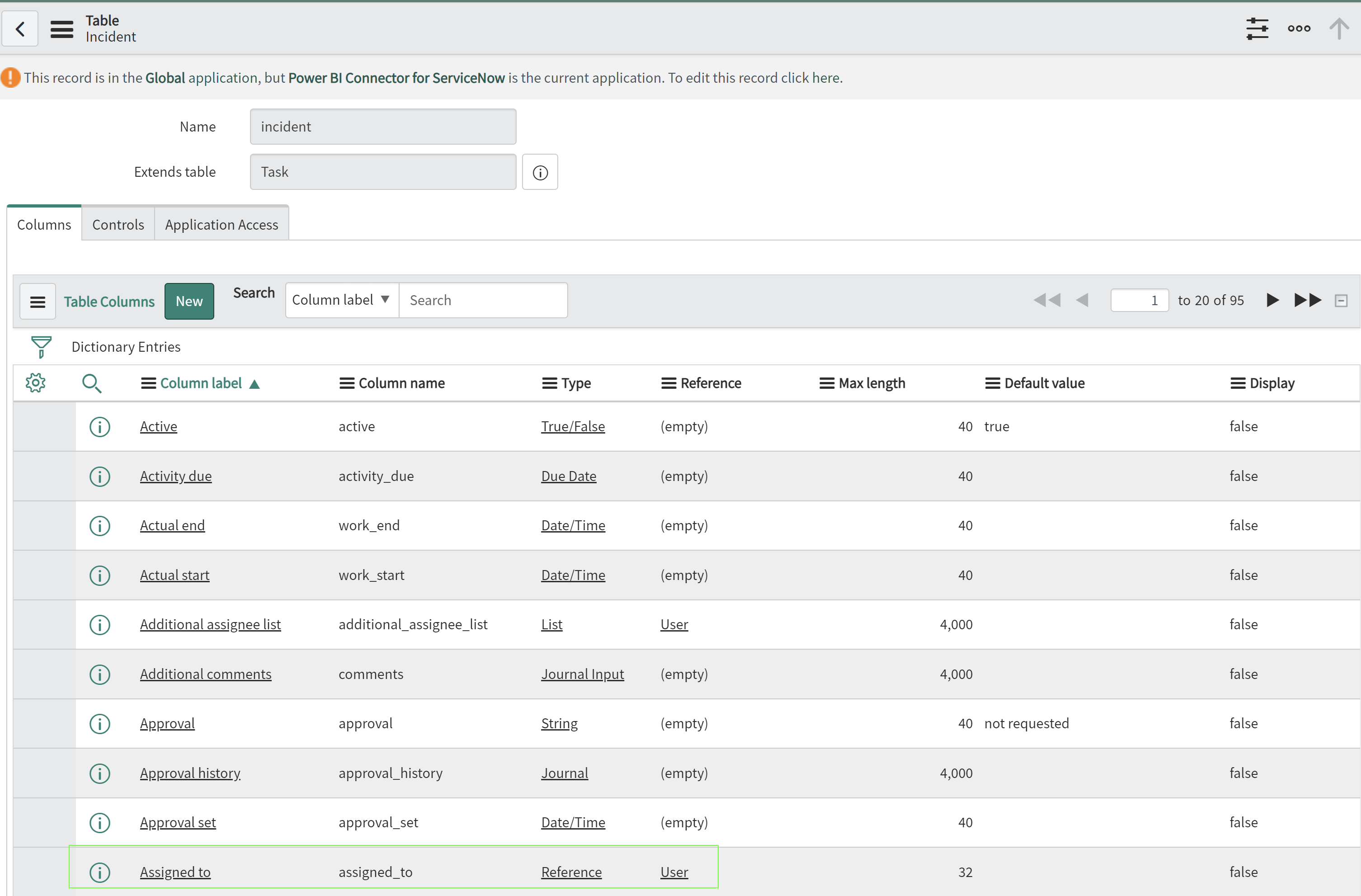
You can check which table is referenced on the backend.
-
-
.png?cb=8c7ac476b504ece4d36e2c8499f94ad8)
-
Select the fields you need. To navigate deeper into the table dependencies, select the > icon next to a field. Selected fields appear in the Selected column.
-
After adding the field, check its path and change the Display value setting if needed.
-
Select Confirm Selection.
-
-
Save Data Source, copy OData URL, and then export it in Power BI desktop.
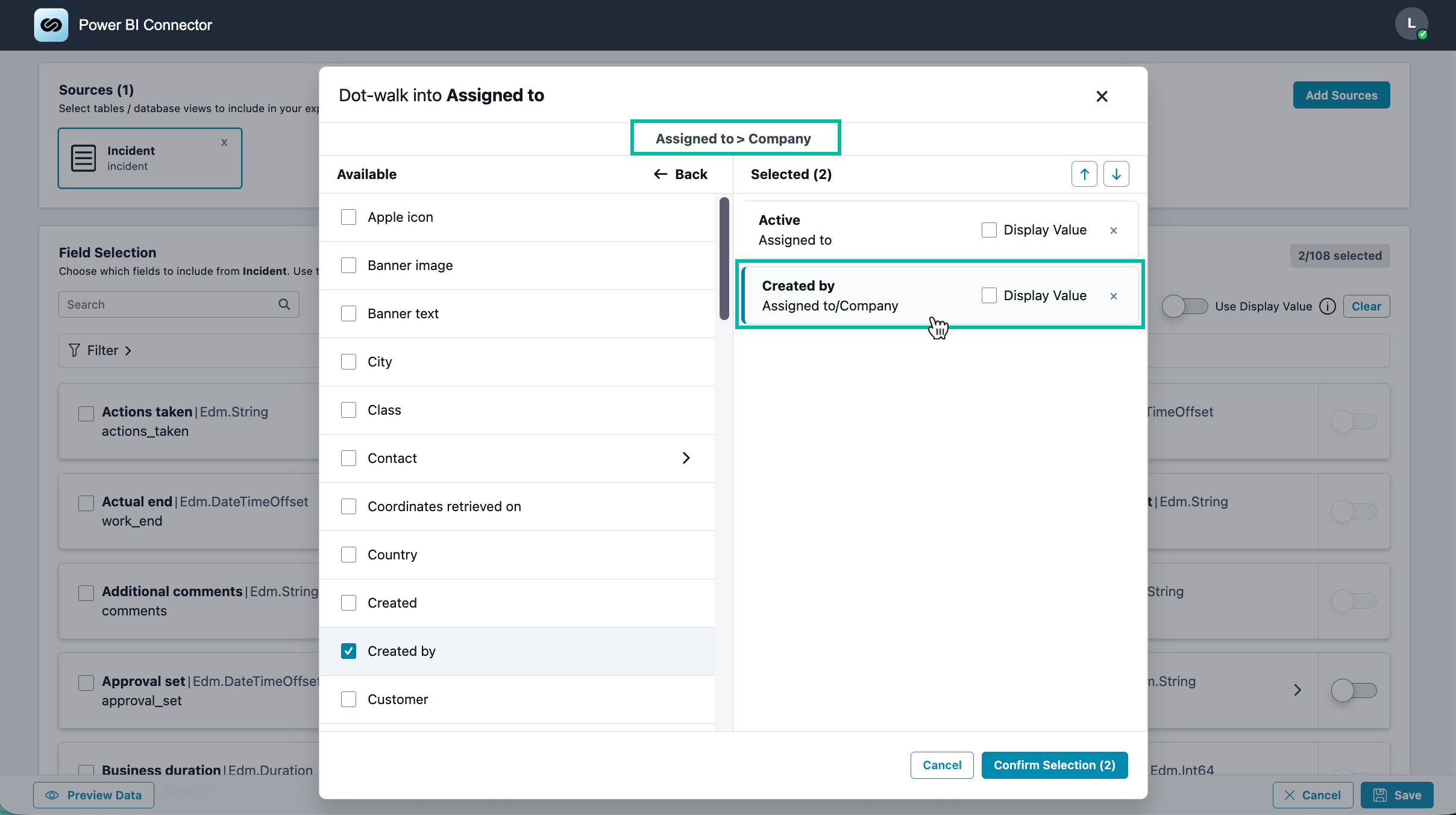
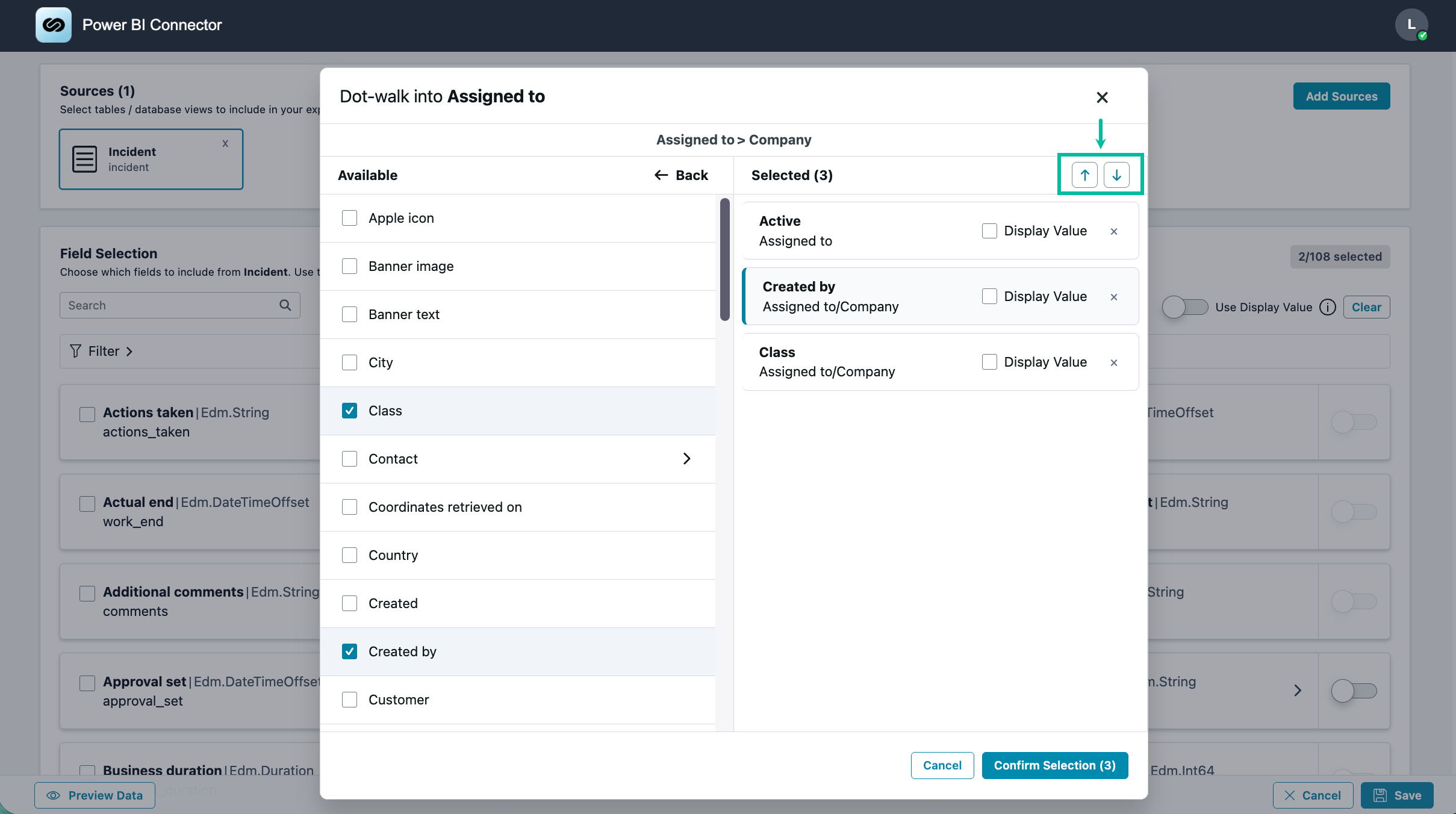
You can change the order of the selected fields by using the arrow buttons.
-
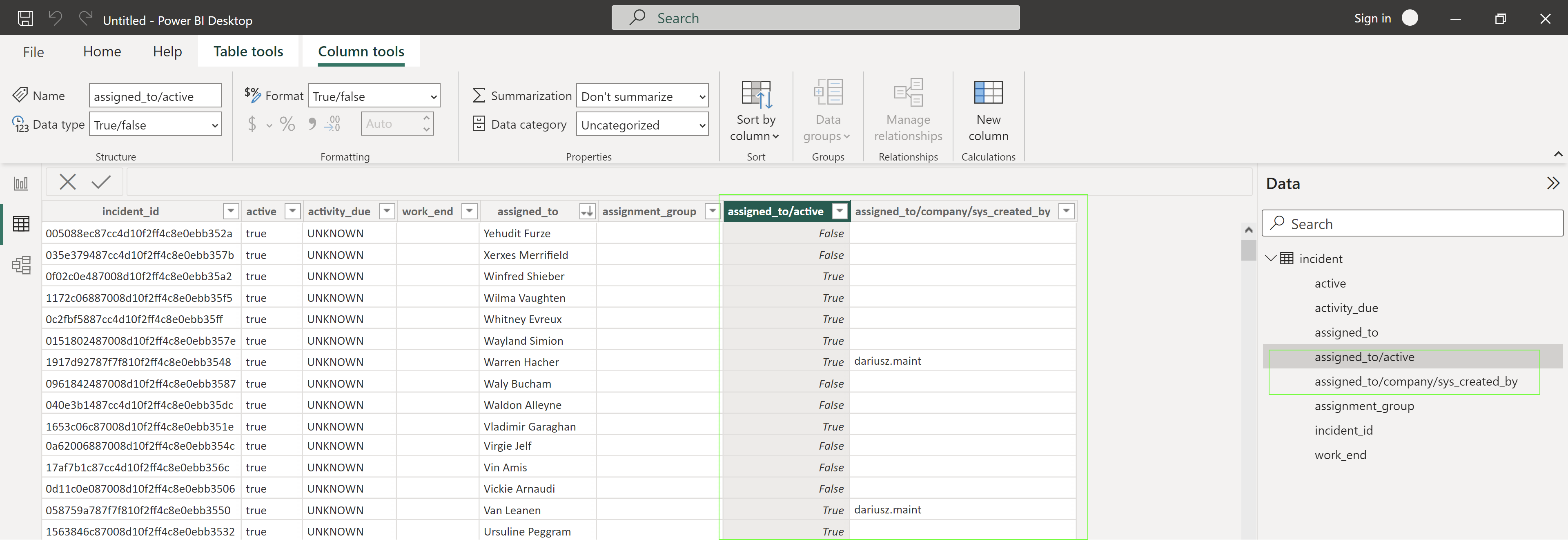
New child fields appear as additional columns in the selected table. Data is displayed according to the Display value settings for each table.
The available fields depend on your permissions for the referenced tables. You may see different field lists on the data source page.