You must have the Confluence Administrator’s rights to be able to carry out the instructions on this page. You can learn more about this here.
Please take a look at Supported Platforms section as well.
How to install 2FA for Confluence: U2F & TOTP?
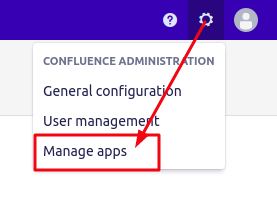
Step 1. Go to Confluence Administration tab and click Manage apps.
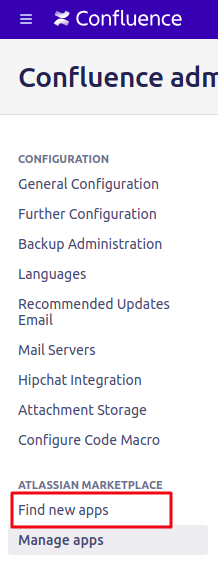
Step 2. On the left side menu panel find ATLASSIAN MARKETPLACE Tab and select Find new apps.
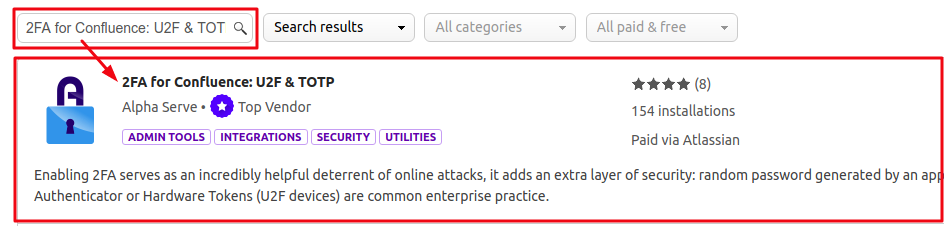
Step 3. Enter “2FA for Confluence: U2F & TOTP” in the search field and find application in the search result.
Step 4. Click Free trial to get a 30-day free trial license or Buy now to purchase application license.
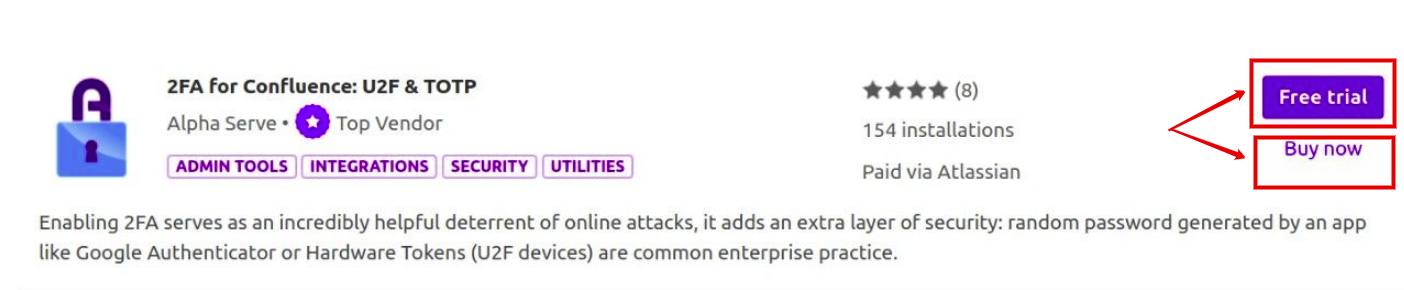
After step 4 follow the standard client installation path and the application will be automatically installed on your Confluence instance.
You can also install 2FA for Confluence: U2F & TOTP directly from Atlassian Marketplace by visiting the application product page here.

How to uninstall or disable 2FA for Confluence: U2F & TOTP?
Step 1. Go to Confluence Administration tab and click Manage apps.
Step 2. You will be redirected to the Find new apps section. Click Manage apps and enter “2FA for Confluence: U2F & TOTP” in the search field. Then click on the 2FA for Confluence: U2F & TOTP field.
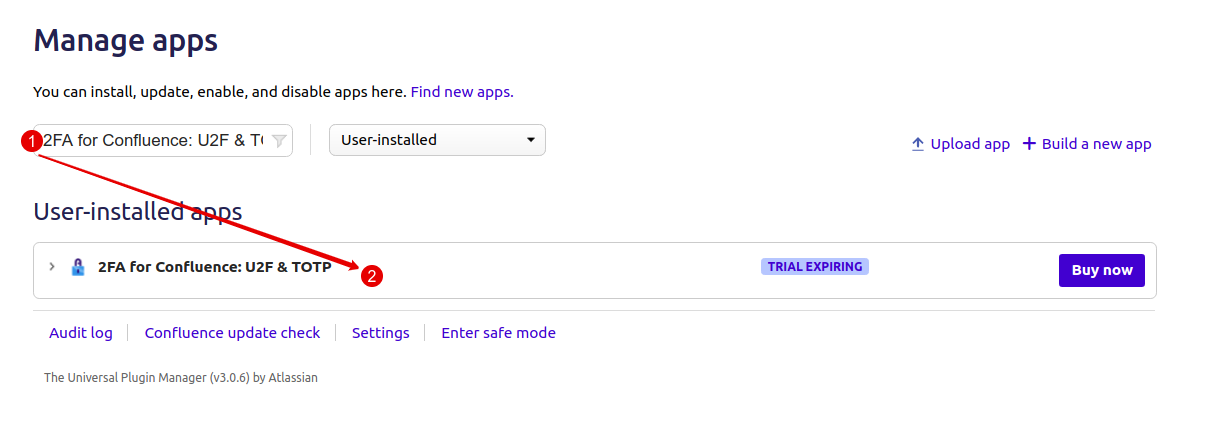
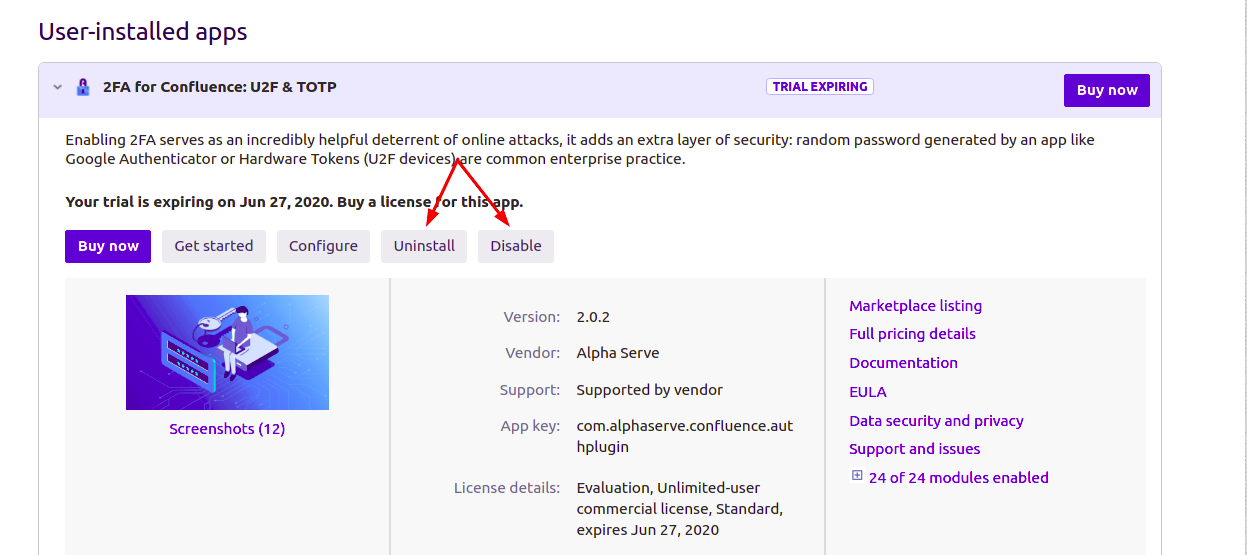
Step 3. In the field that opened, click Uninstall or Disable.
Note, uninstalling an app permanently removes it from your application and file system. If you only want to temporarily remove it, you can disable your app instead.