Read a comprehensive step-by-step guide on how to use Power BI Connector for monday.com in our blog ⬅️
Book a video demo to see Power BI Connector for monday.com in action:

Shape the future of the Power BI Connector! Share your ideas in our quick questionnaire - click here ⬅️
How to Export Data from monday.com to Microsoft Power BI
Power BI Connector for monday.com is designed as a dashboard widget, so it’s essential to have at least one dashboard to add the app.
For your convenience, we recommend creating a separate dashboard for Power BI Connector before installing it.
Since this is just a recommendation, you can select any dashboard for your Power BI Connector.
1. Create Data Source
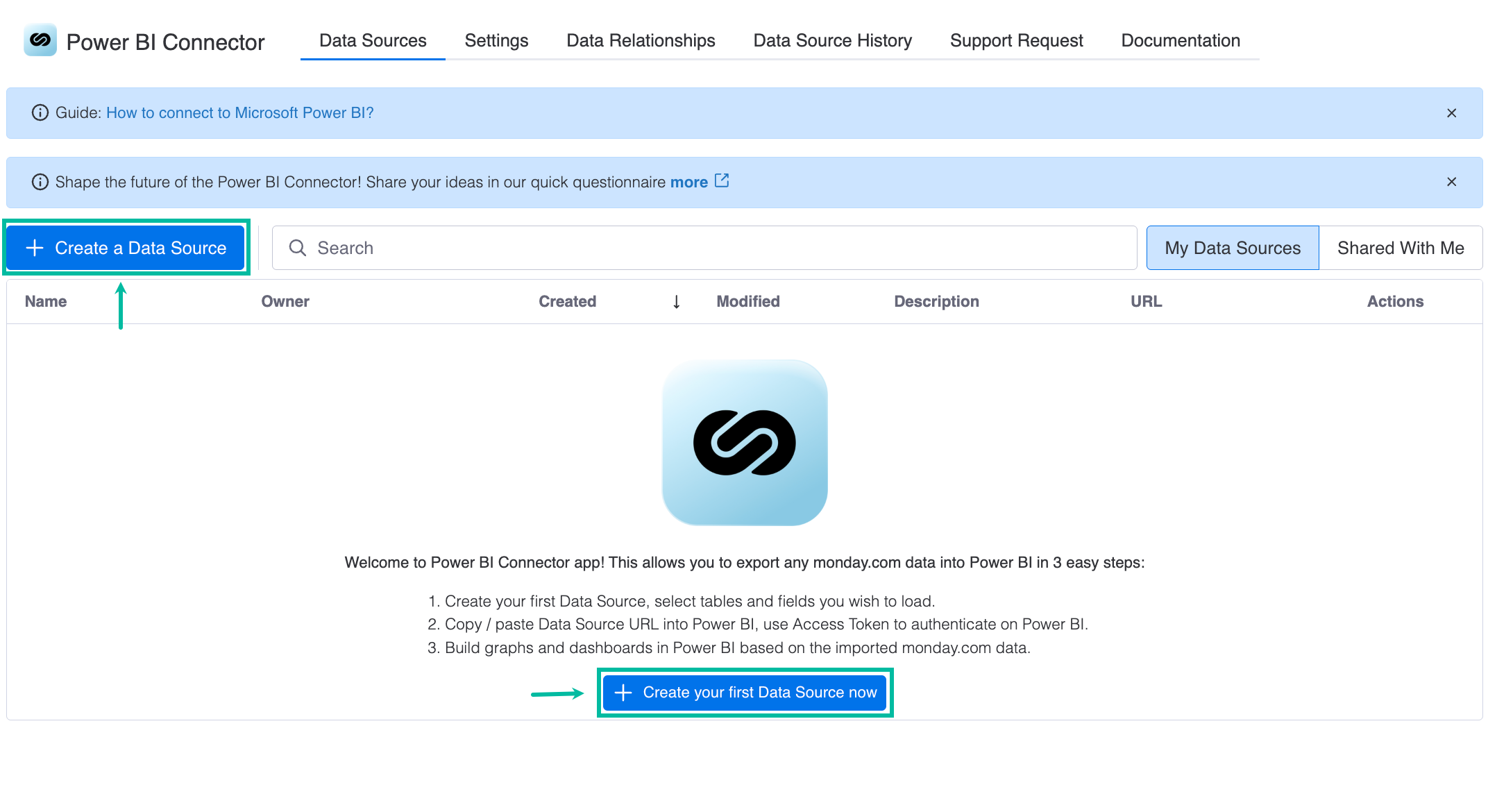
You have to create a data source for data you want to export from your monday.com to your Microsoft Power BI. You can do it by accessing the Power BI Connector widget, and then selecting + Create your first Data Source now.
You have to name your data source, and then select filters and tables you’d like to be in your data source.
If you need a detailed description of all fields and features of the Data Source page, please refer to this page.
If you need more information on how to create a data source, please refer to our step-by-step instructions.
2. Export Data into Microsoft Power BI
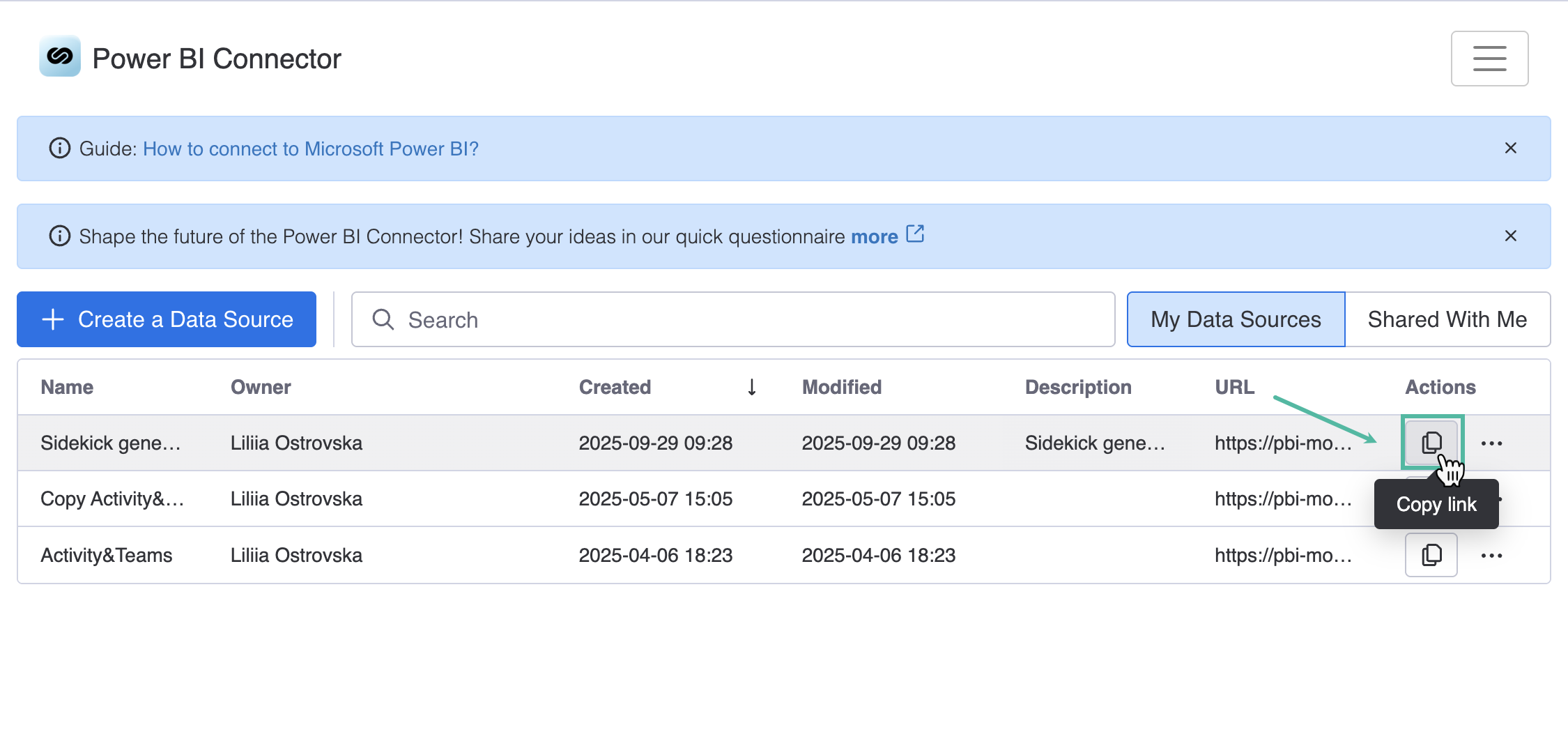
After creating a data source, you can easily export your data into Microsoft Power BI. Being on the Power BI Connector widget, select Copy link. Launch your Microsoft Power BI, authorize, connect, and start working with your data.
If you need more information on how to export data, please refer to our step-by-step guide.