Adding Power BI Embed Reports
You can add Power BI Embed Reports as a dashboard widget, board widget, and item view.
As a Dashboard Widget
To add Power BI Embed Reports, start from a dashboard. You can create a new dashboard or use an existing one, then add the app as a widget.
To do it:
-
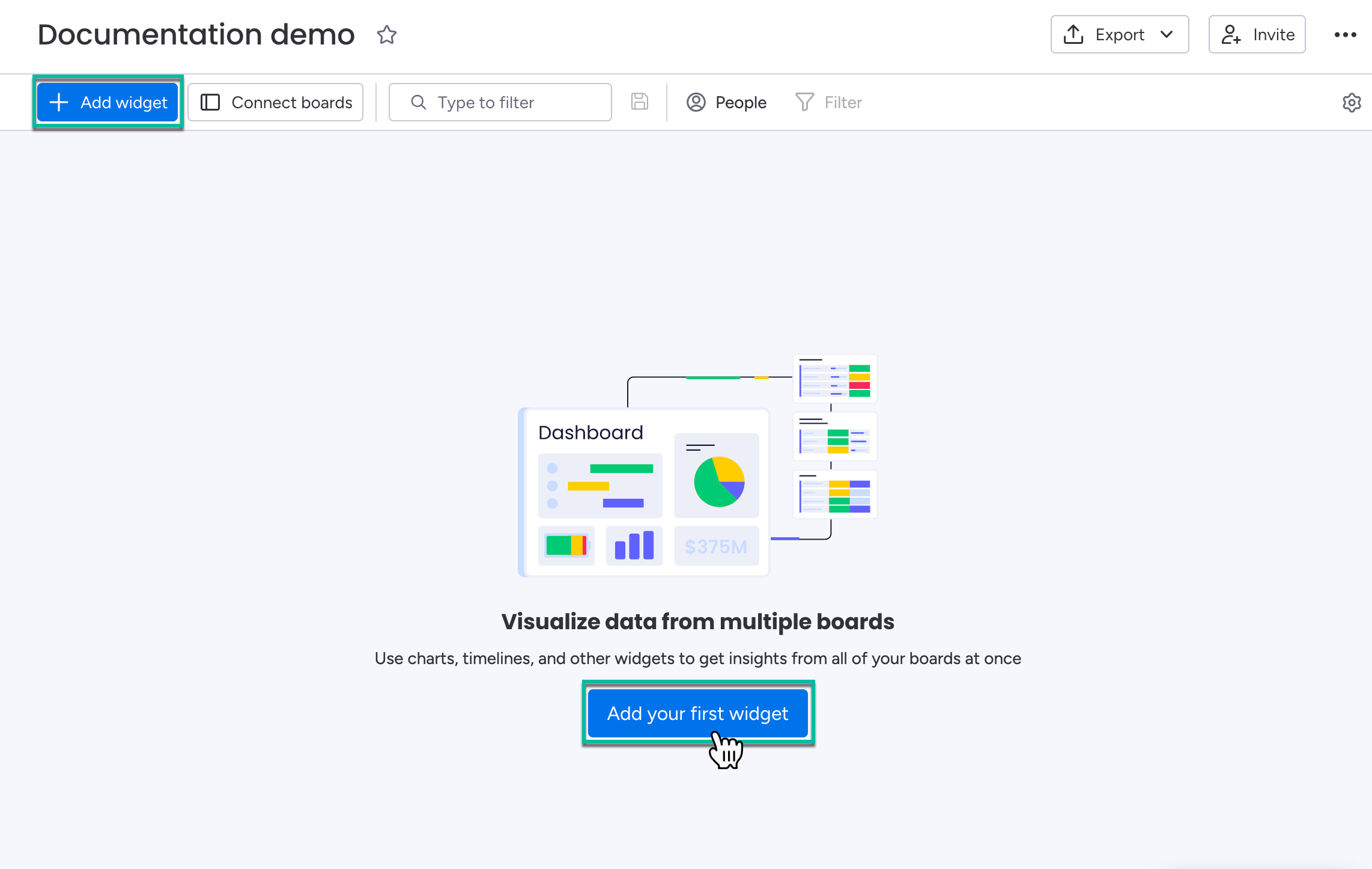
From the dashboard, select Add your first widget.
You might be prompted to connect specific boards to the dashboard. If this happens, do so.
-
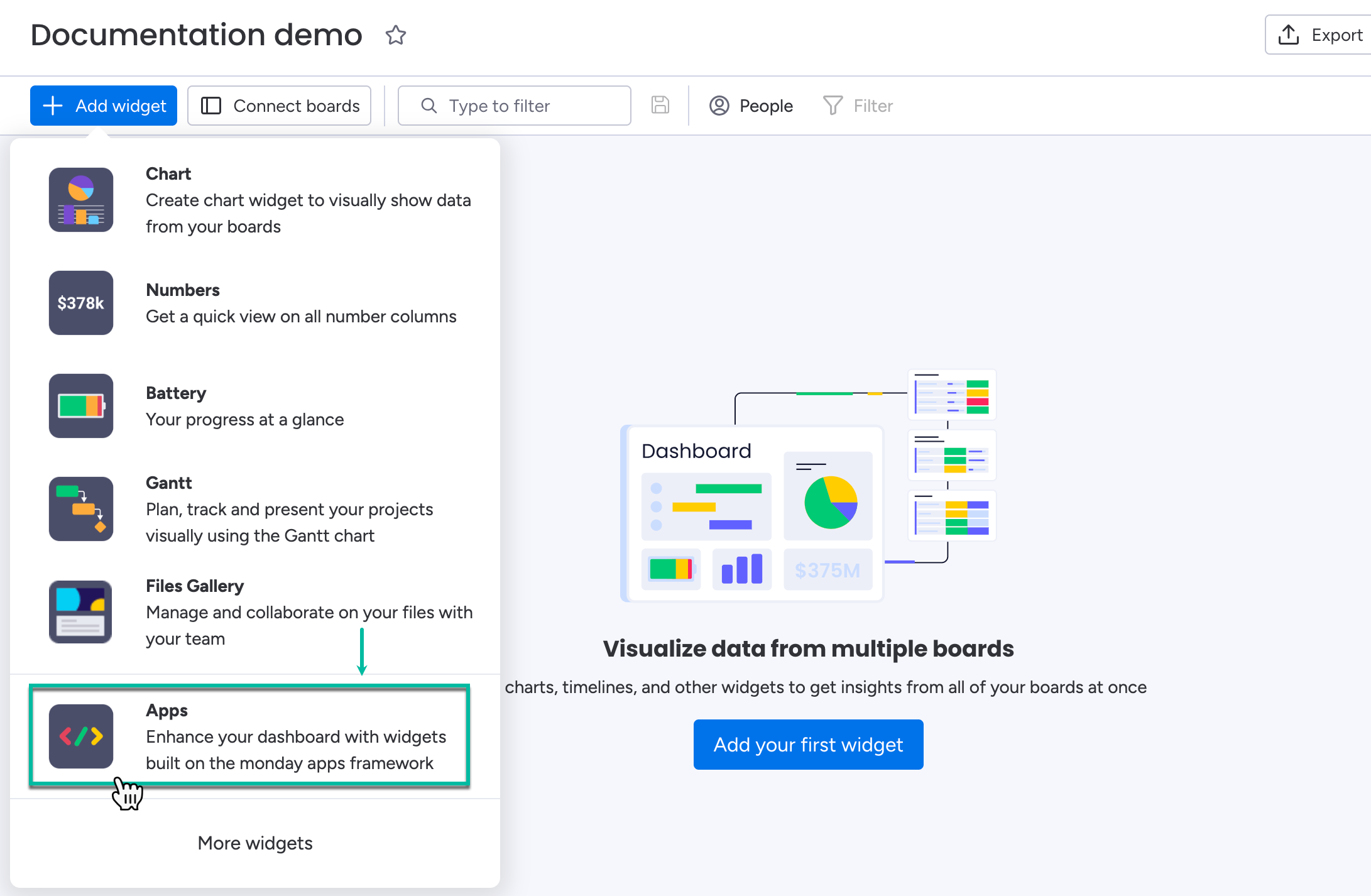
Select Apps.
-
Select Installed Apps, and then select Add widget (Power BI Embed Reports).
.png?cb=d4891e6cf481ef1998a128080a3bde1f)
-
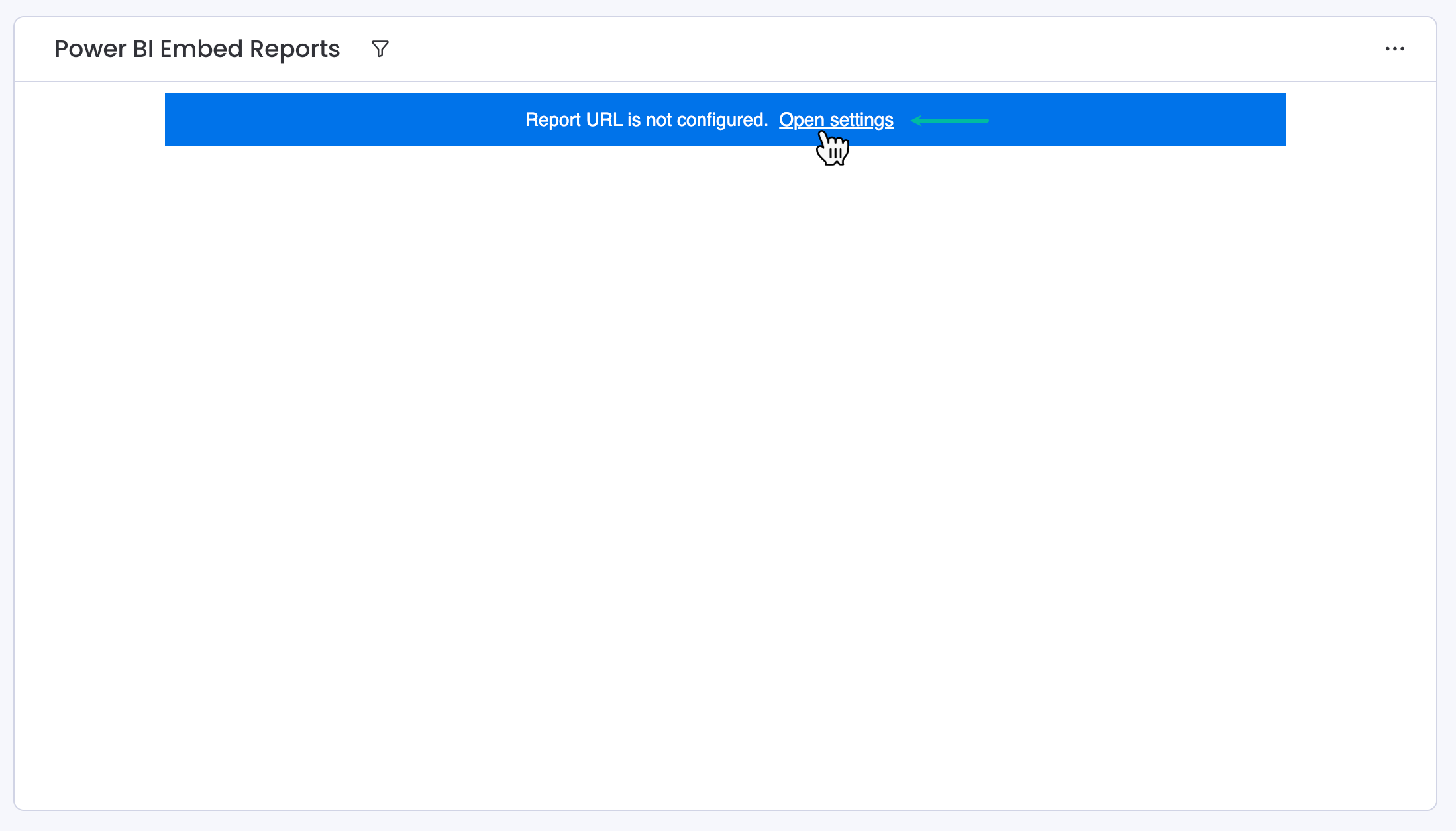
Select Open settings.
-
Open your Microsoft Power BI Pro, and then open the report you need.
-
Select File, select </> Embed report, and then select Website or portal.
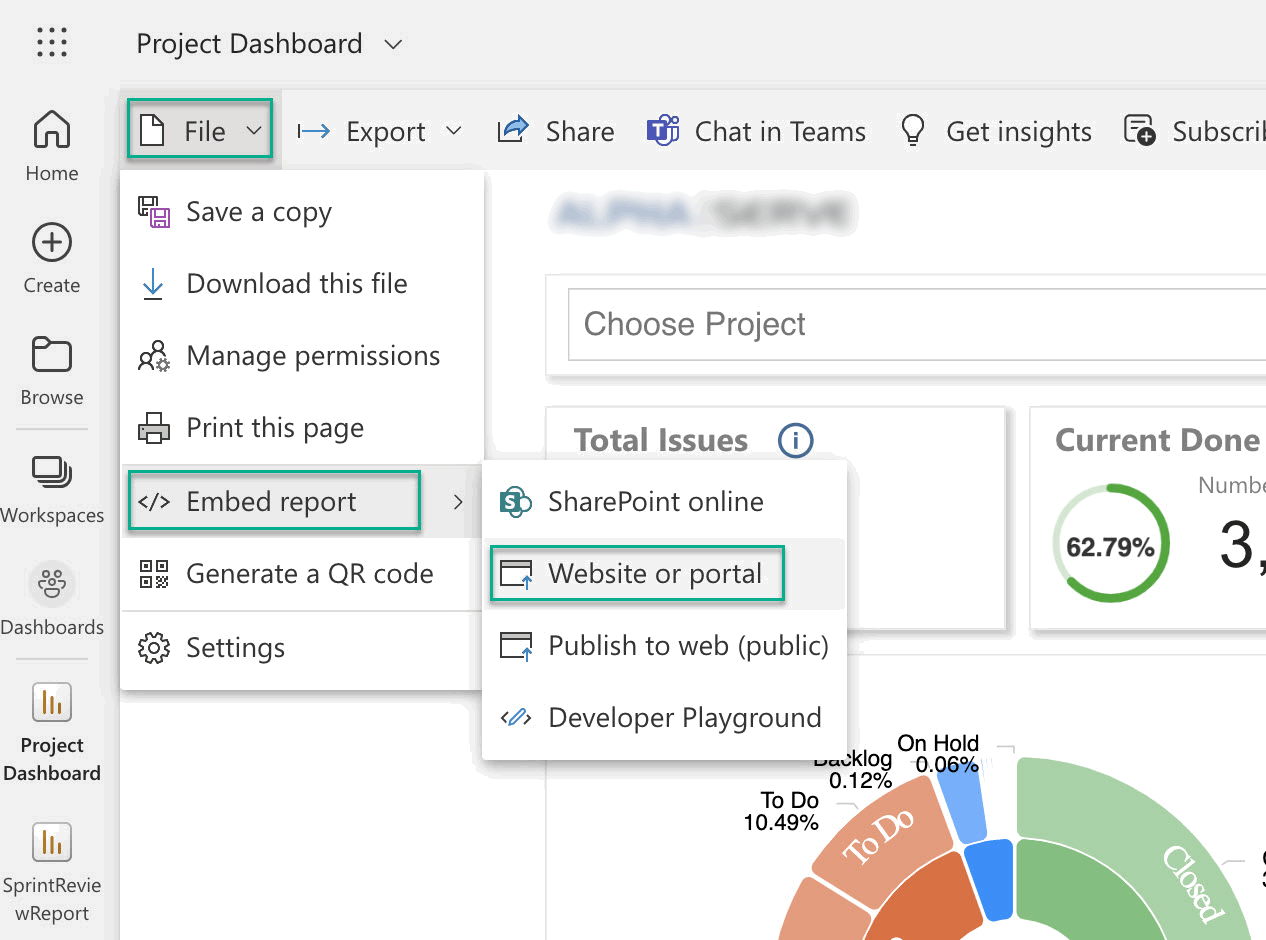
-
Copy the link, and then go back to your monday.com instance.
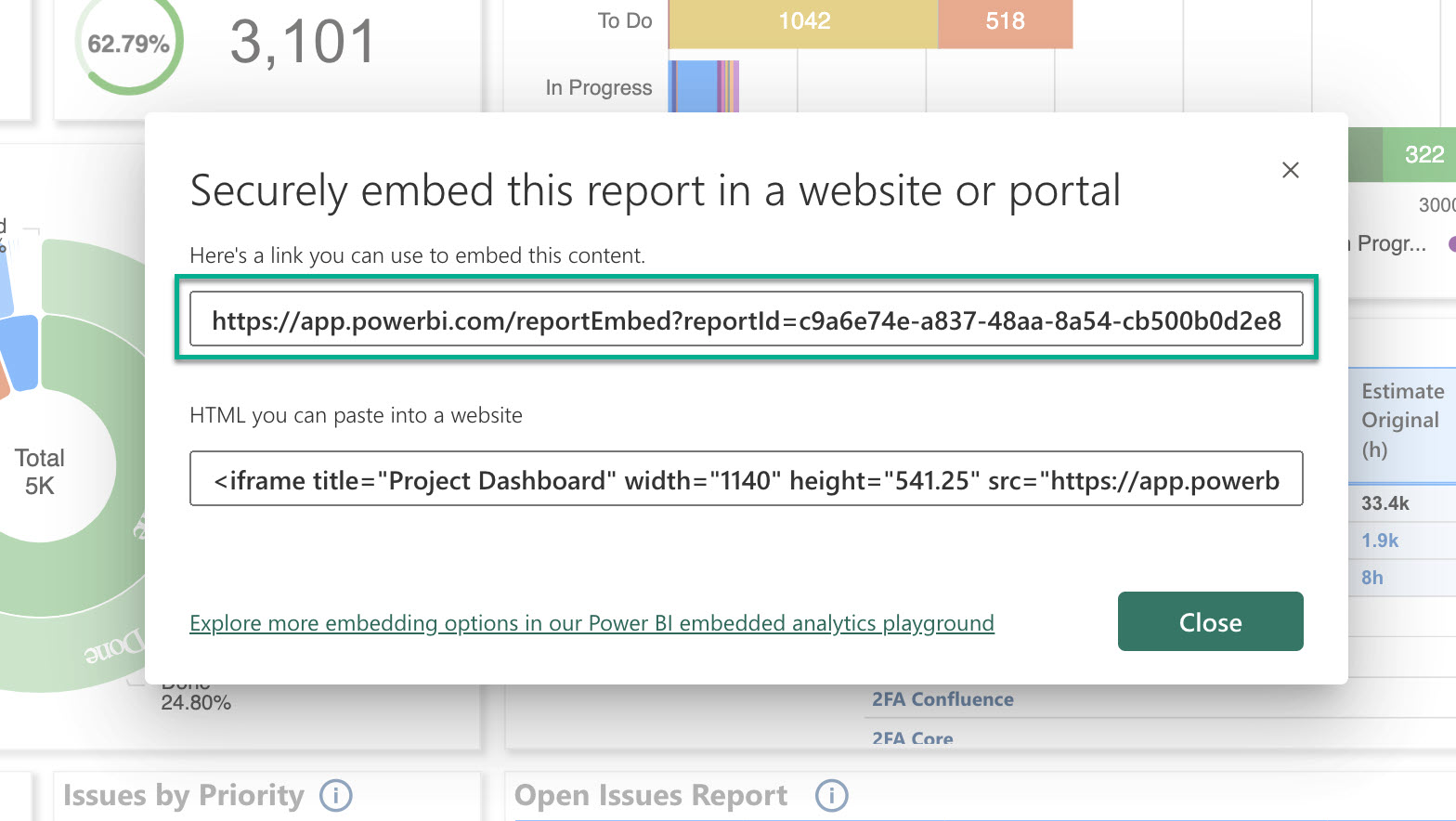
-
In the Power BI Report URL field, paste the link.
-
In the Width and Height fields, enter the desired width and height of your gadget.
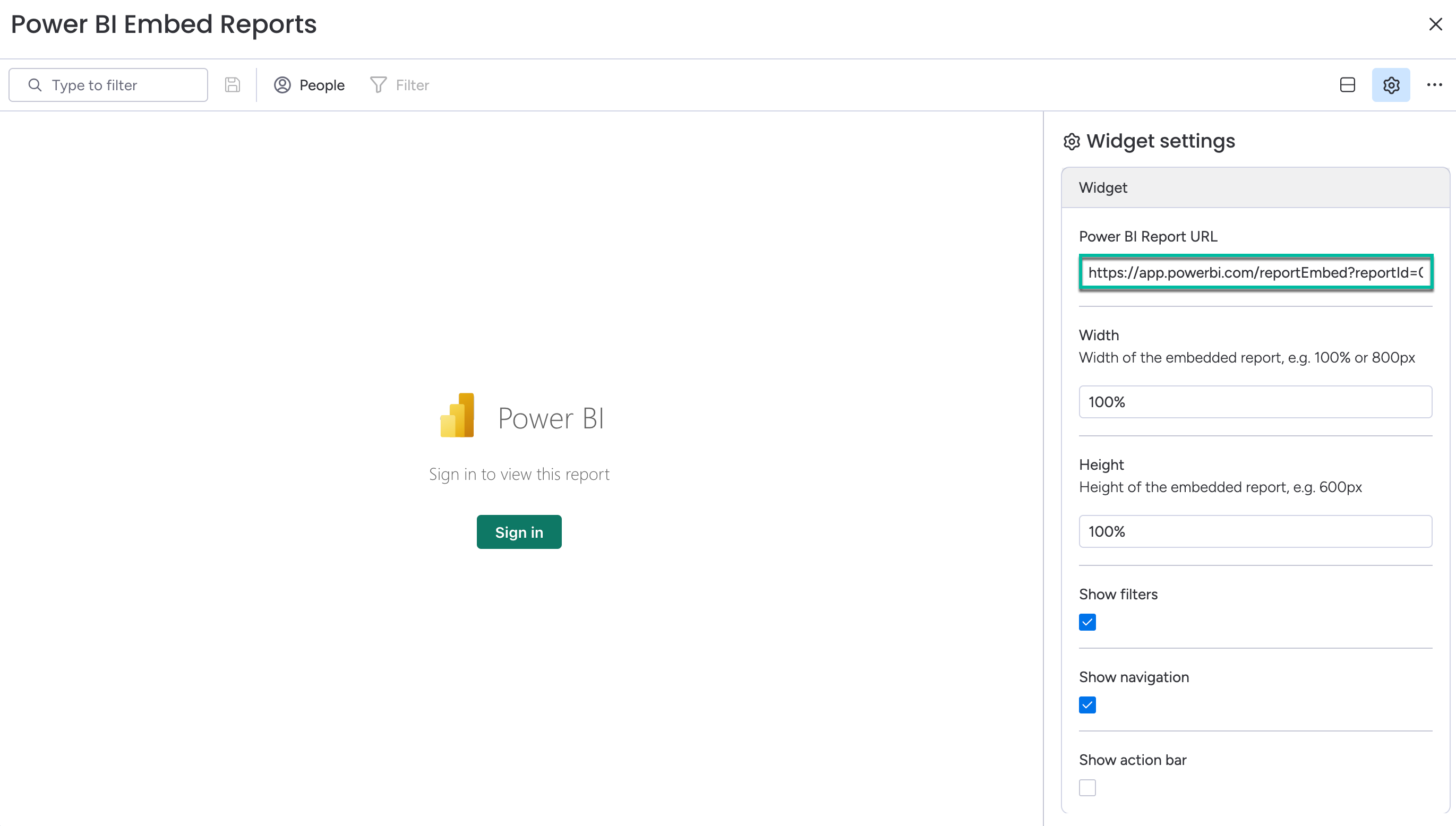
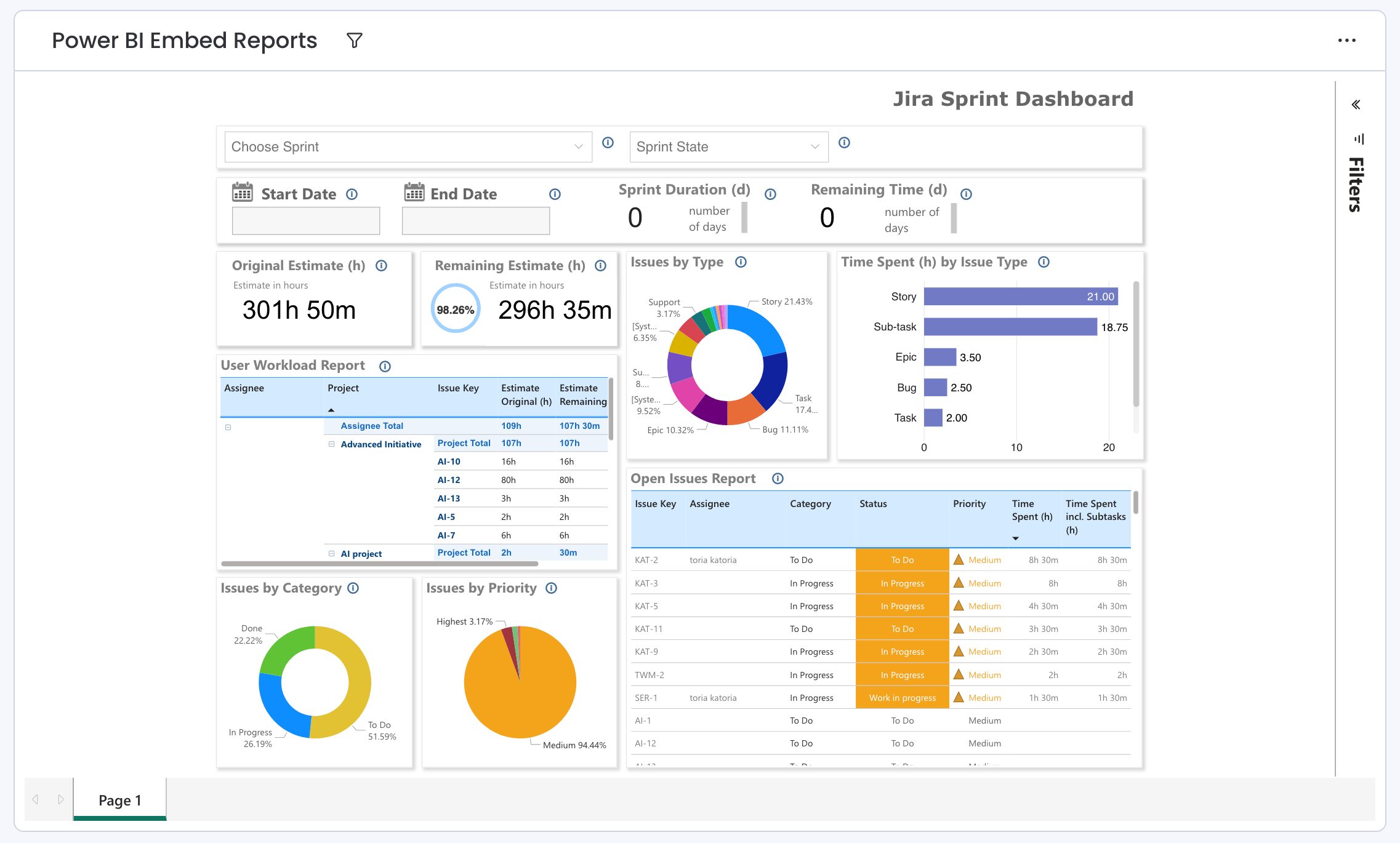
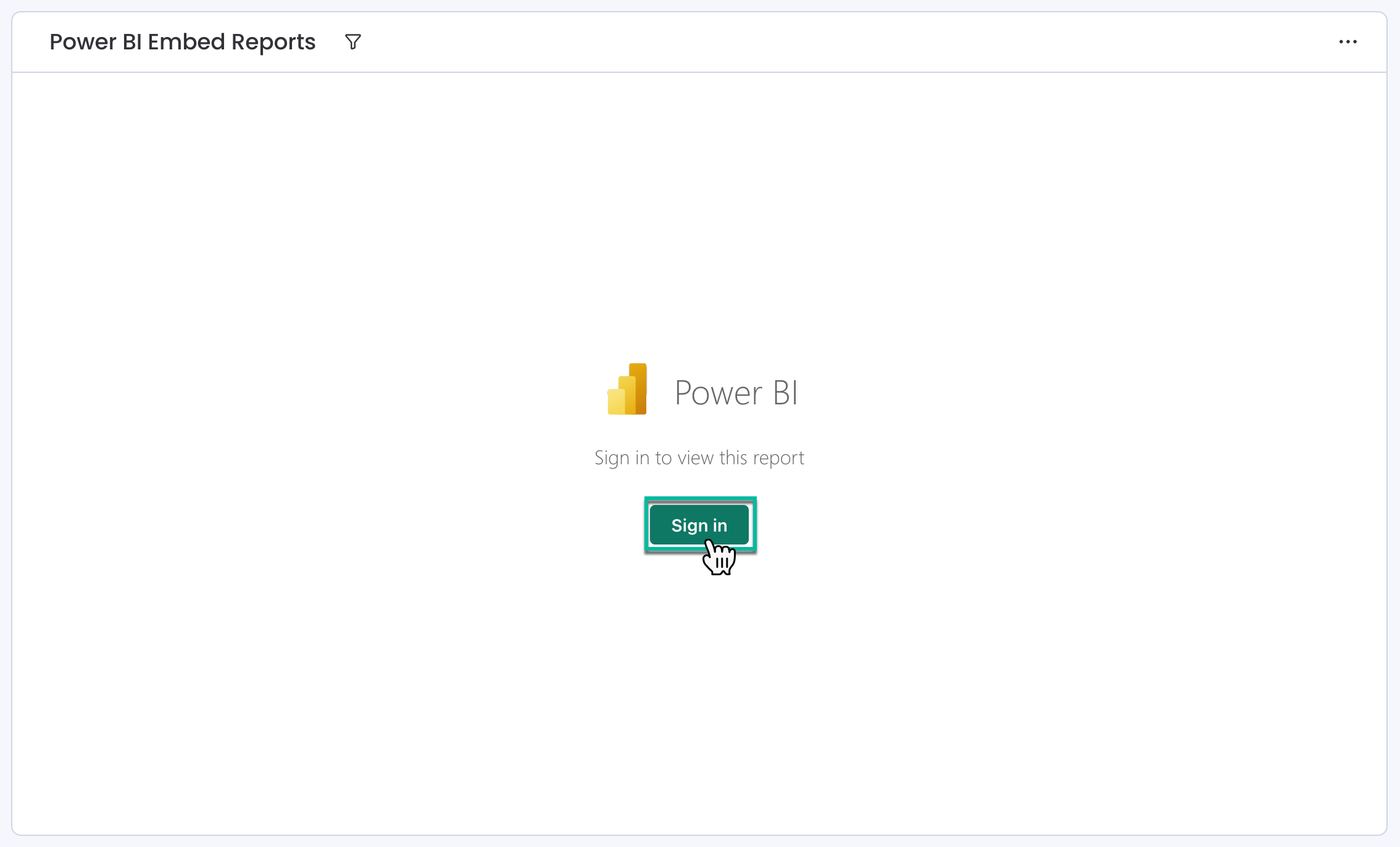
You might be prompted to sign in to your Power BI account to display the Power BI report in the monday.com widget.
As a Board Widget
To add Power BI Embed Reports, start from the required board. Afterward, the app appears as a separate tab.
To do it:
-
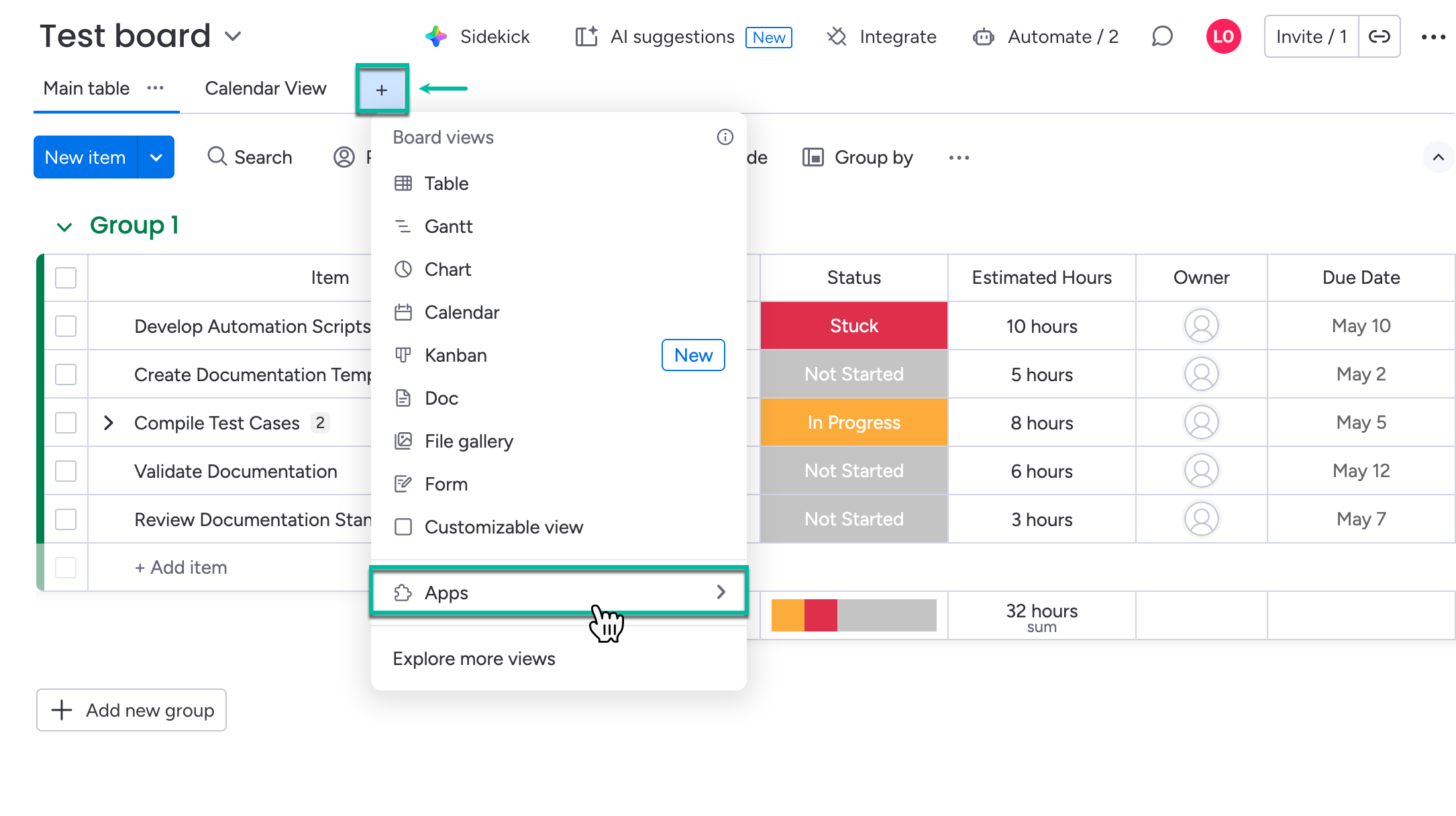
From the board, select +, and then select Apps.
-
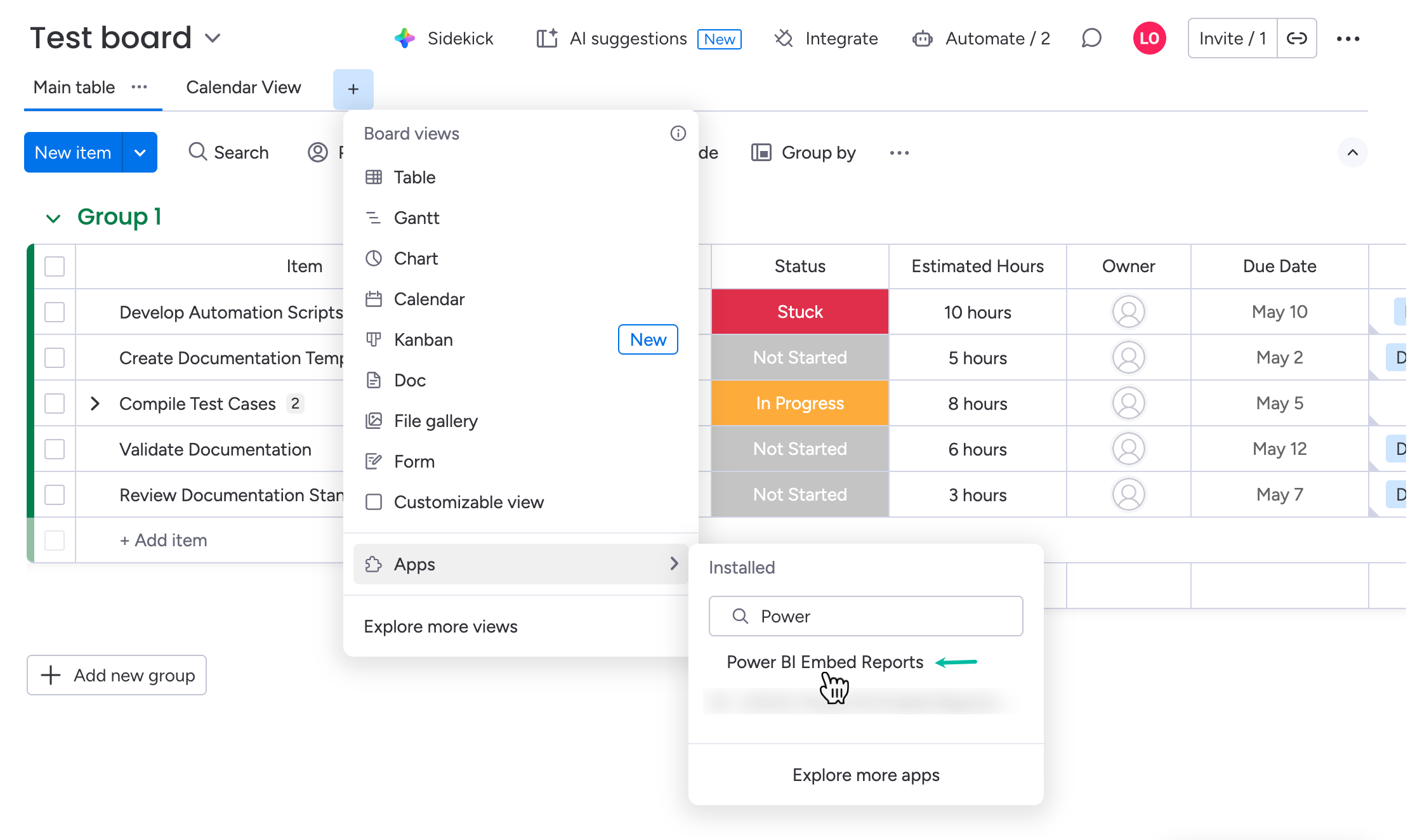
Enter the app name, and then select Power BI Embed Reports from the search results.
-
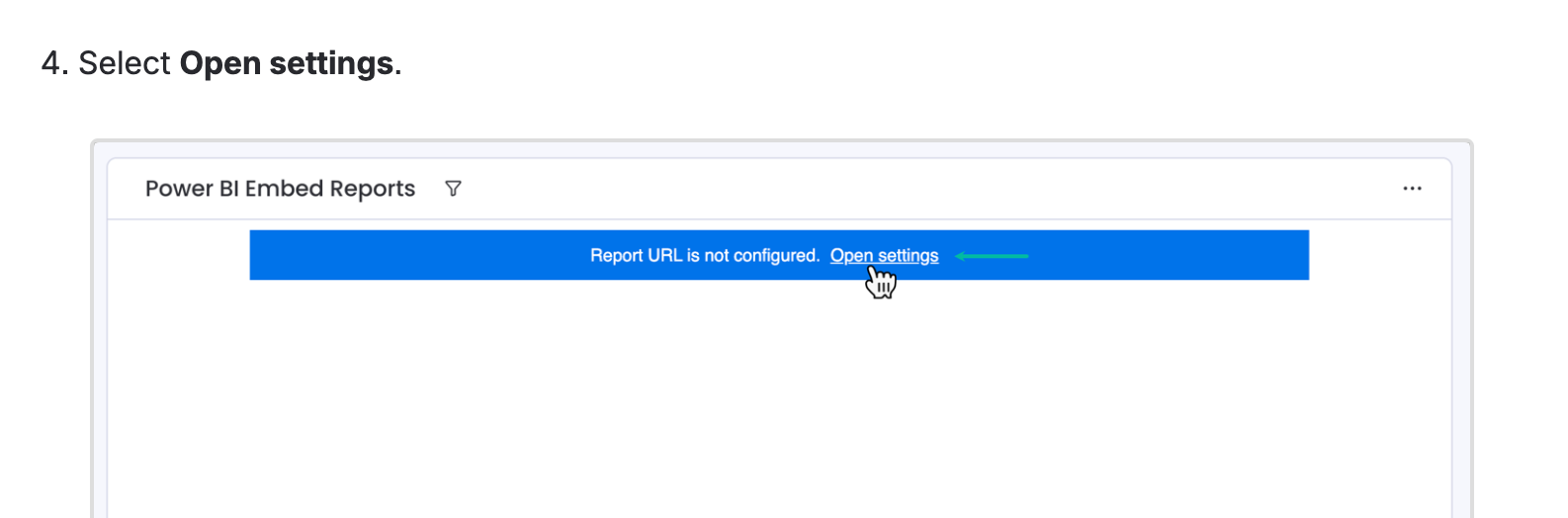
Continue with step 4 in the previous section.
As an Item View
To add Power BI Embed Reports, start from the required item on your board. Afterward, the app appears as a separate tab in the item view.
To do it:
-
From the board, select Open Item page, select +, and then select Explore more views.
.png?cb=61d7a861ef4b679d96dd98b4b4b9c4f1)
-
Select Installed Apps, and then select Open in board (Power BI Embed Reports).
.png?cb=444b51e6d4daf0ffe71272c44a1b2dde)
-
Select Open settings, and then continue with the step 5 in the Add as a Dashboard Widget section.
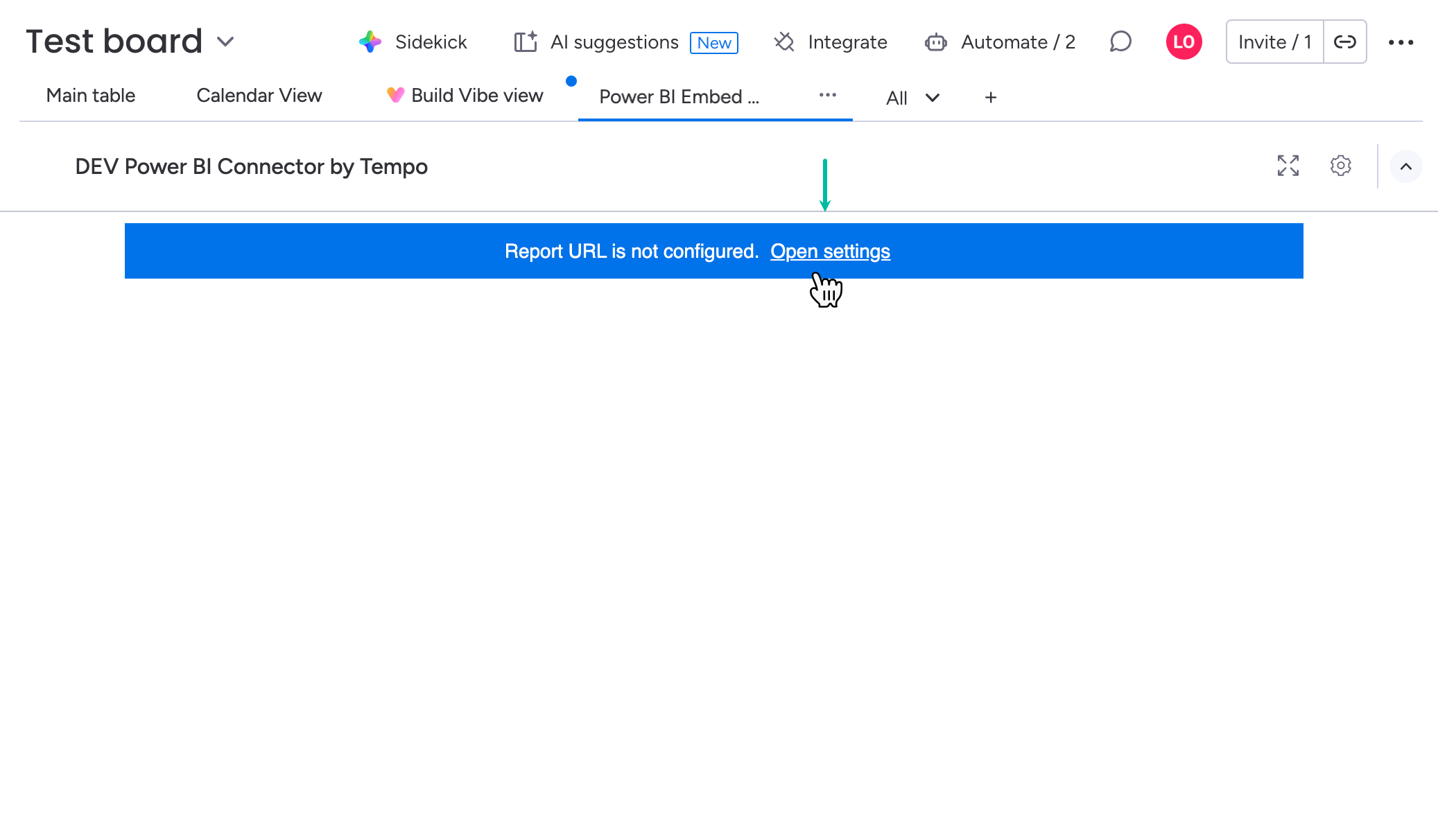
Power BI Embed Reports Configuration
-
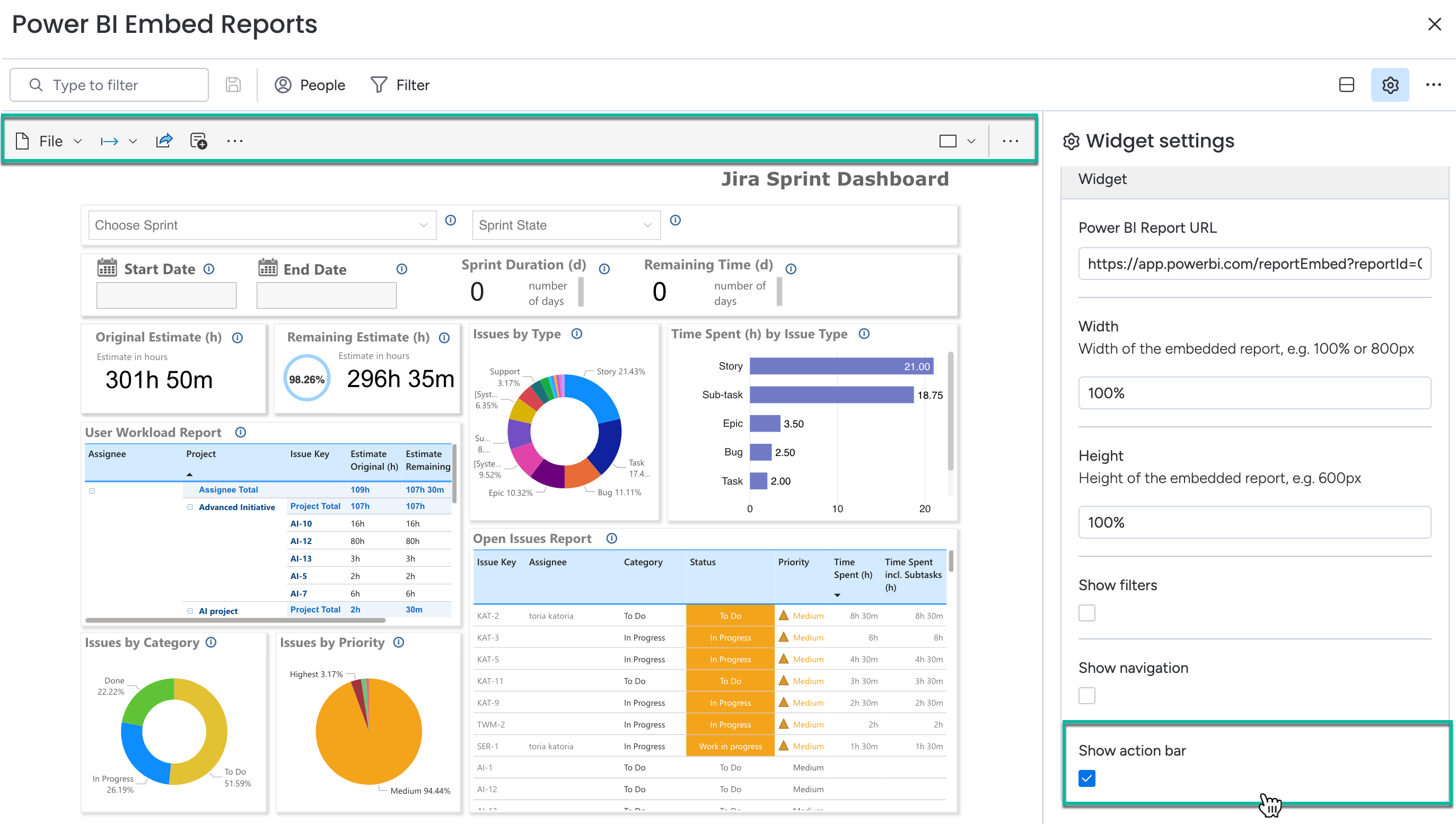
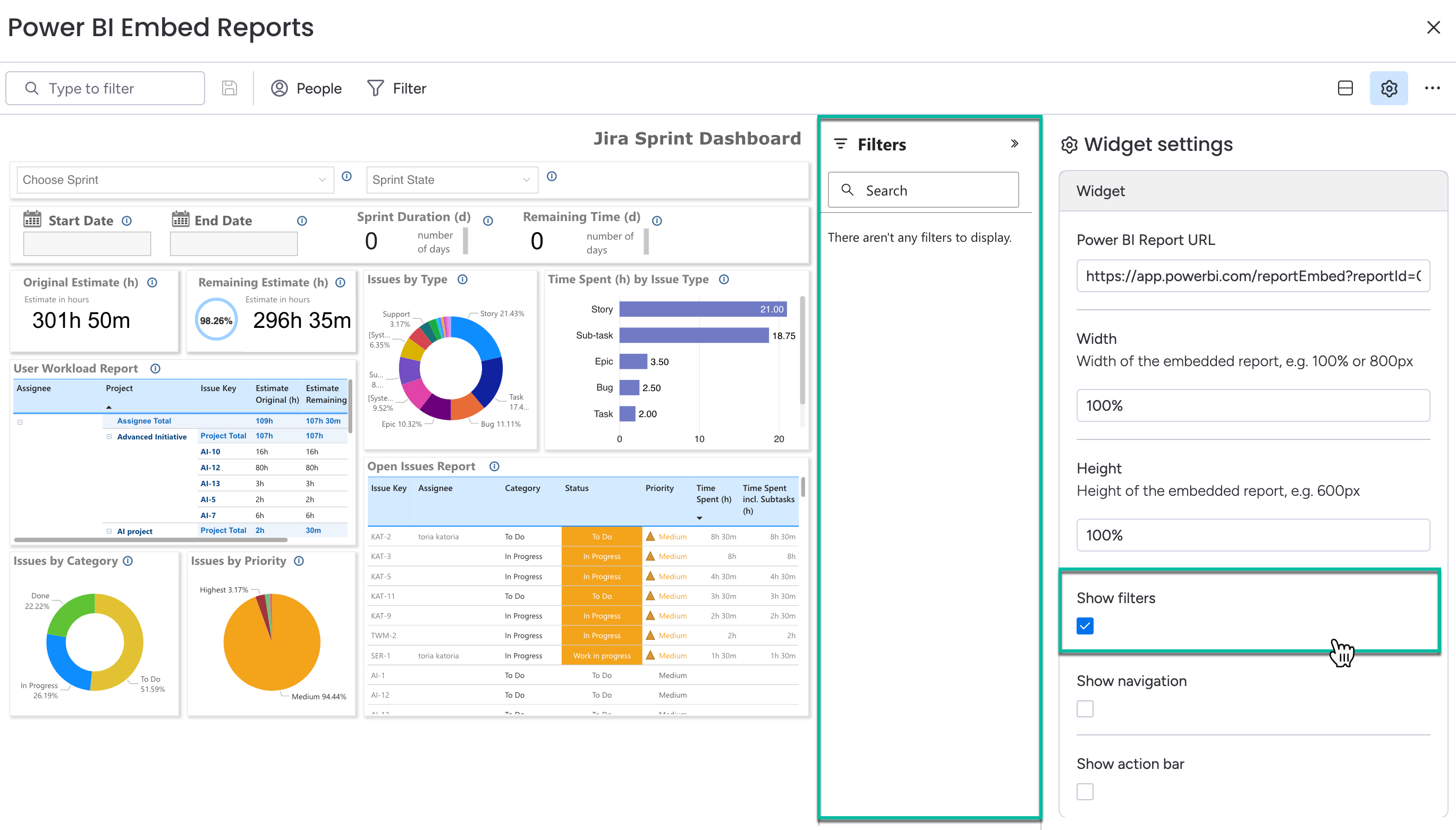
Select Show filters if you want the filters panel to be displayed on your gadget.
-
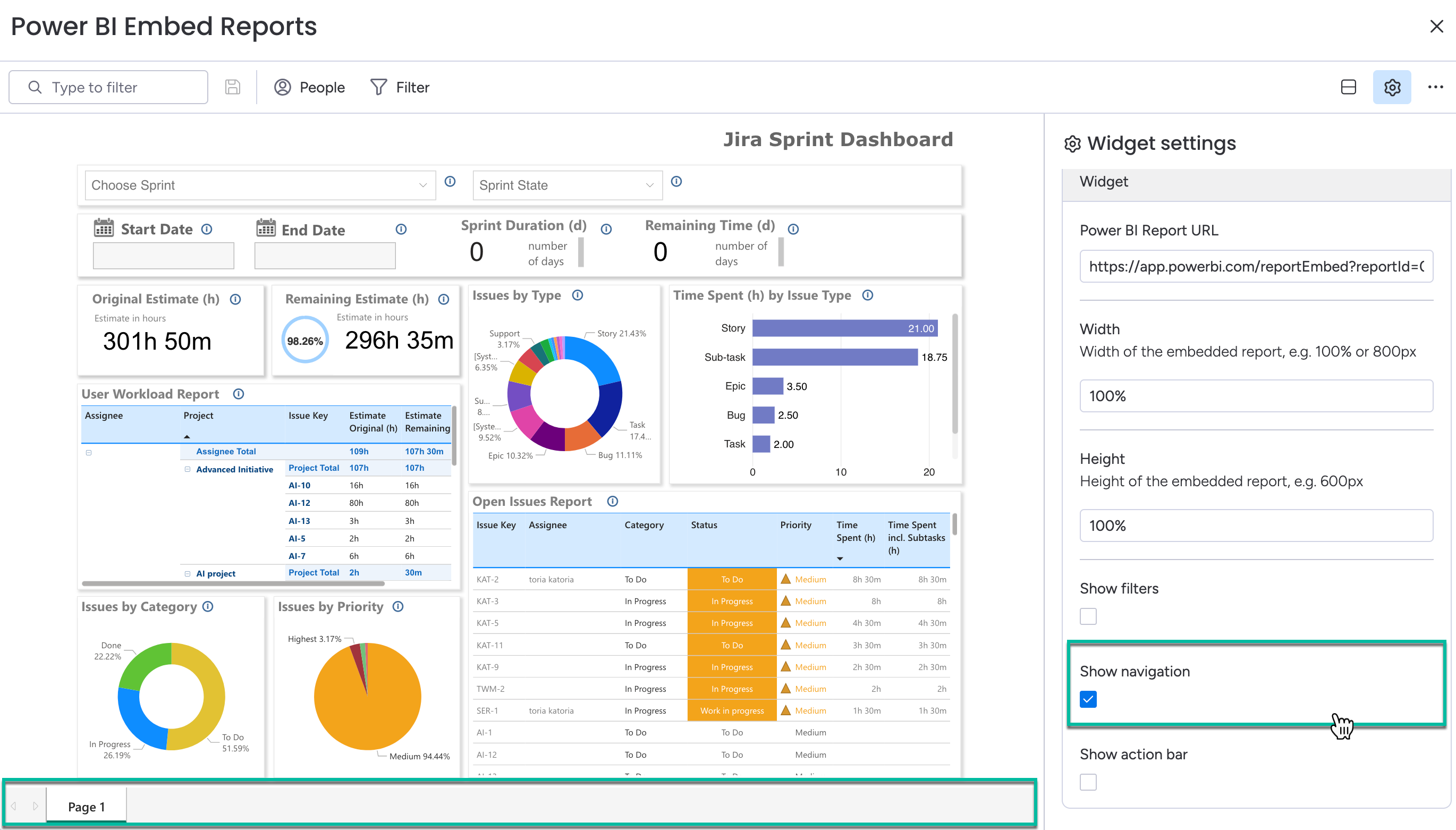
Select Show navigation if you want the navigation panel to be displayed on your gadget.
-
Select Show action bar if you want the upper ribbon with possible action to be displayed on your gadget.