Read a comprehensive step-by-step guide on how to use Power BI Connector for monday.com in our blog
https://www.alphaservesp.com/blog/power-bi-monday-com-integration-step-by-step-instruction-guide

How to Install Power BI Connector
-
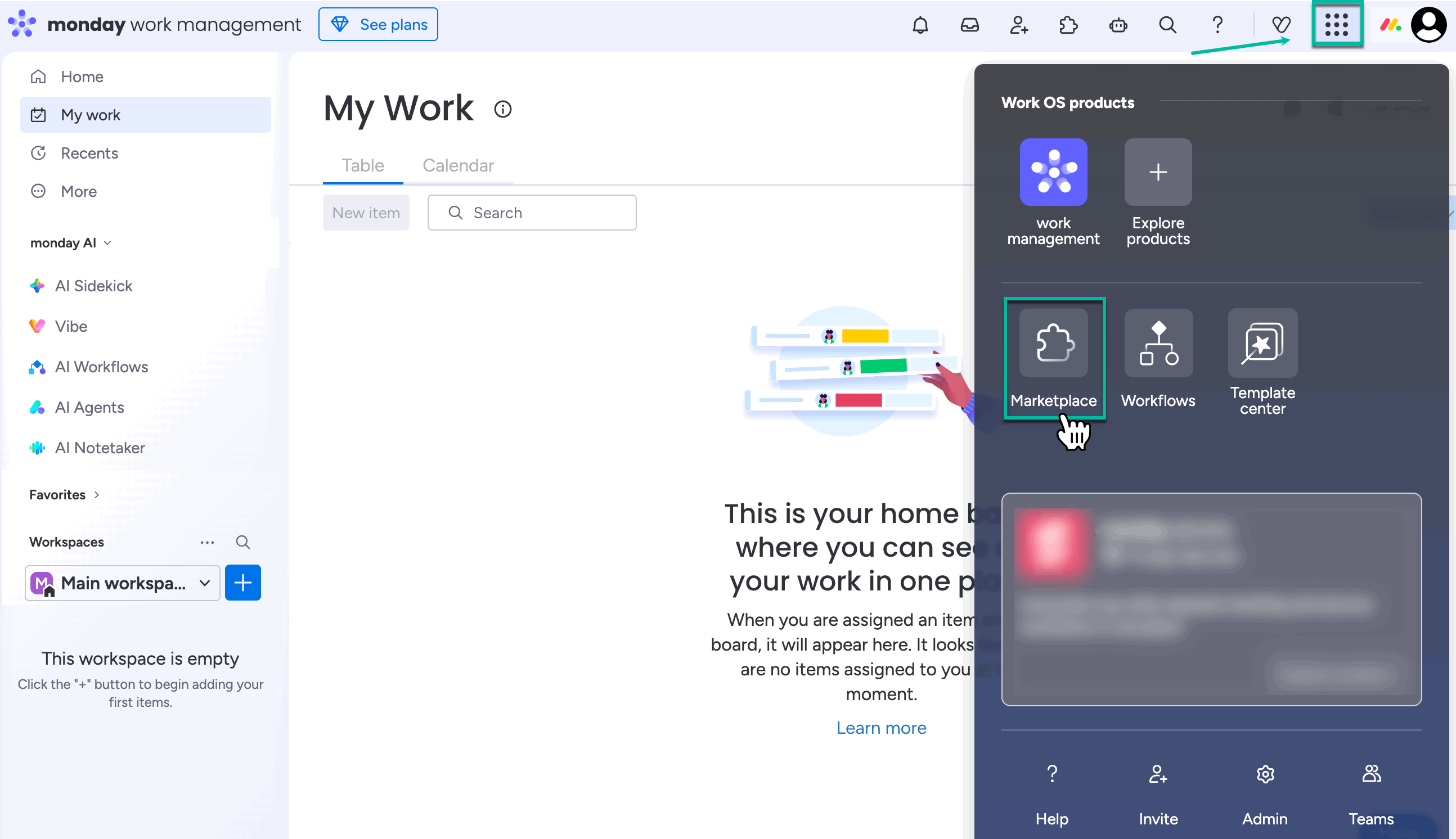
Being signed in to your monday account, select menu, and then select Marketplace.
-
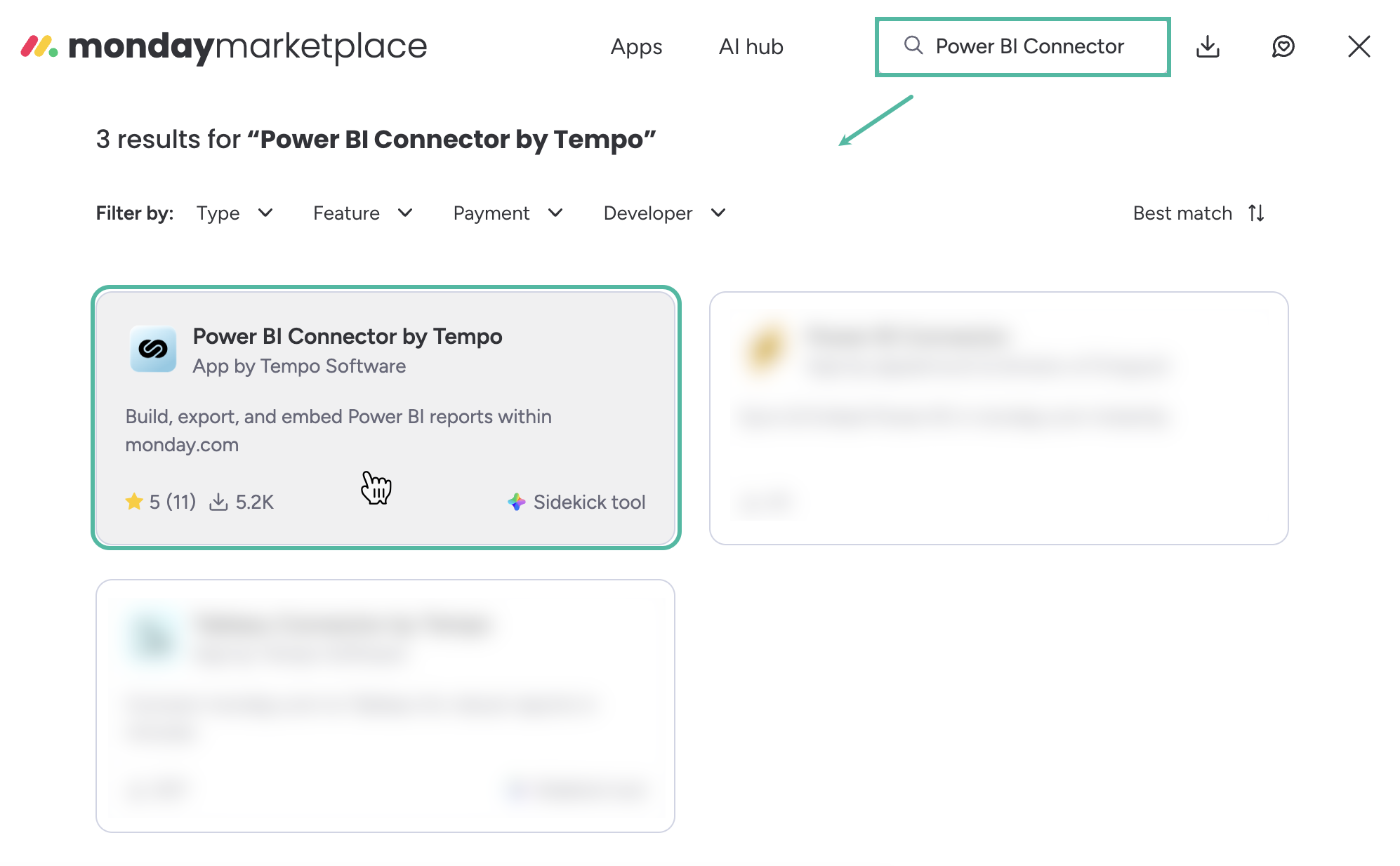
In the Search the marketplace box, enter Power BI Connector by Tempo, and then press Enter.
-
From the search results, select Power BI Connector by Tempo.
-
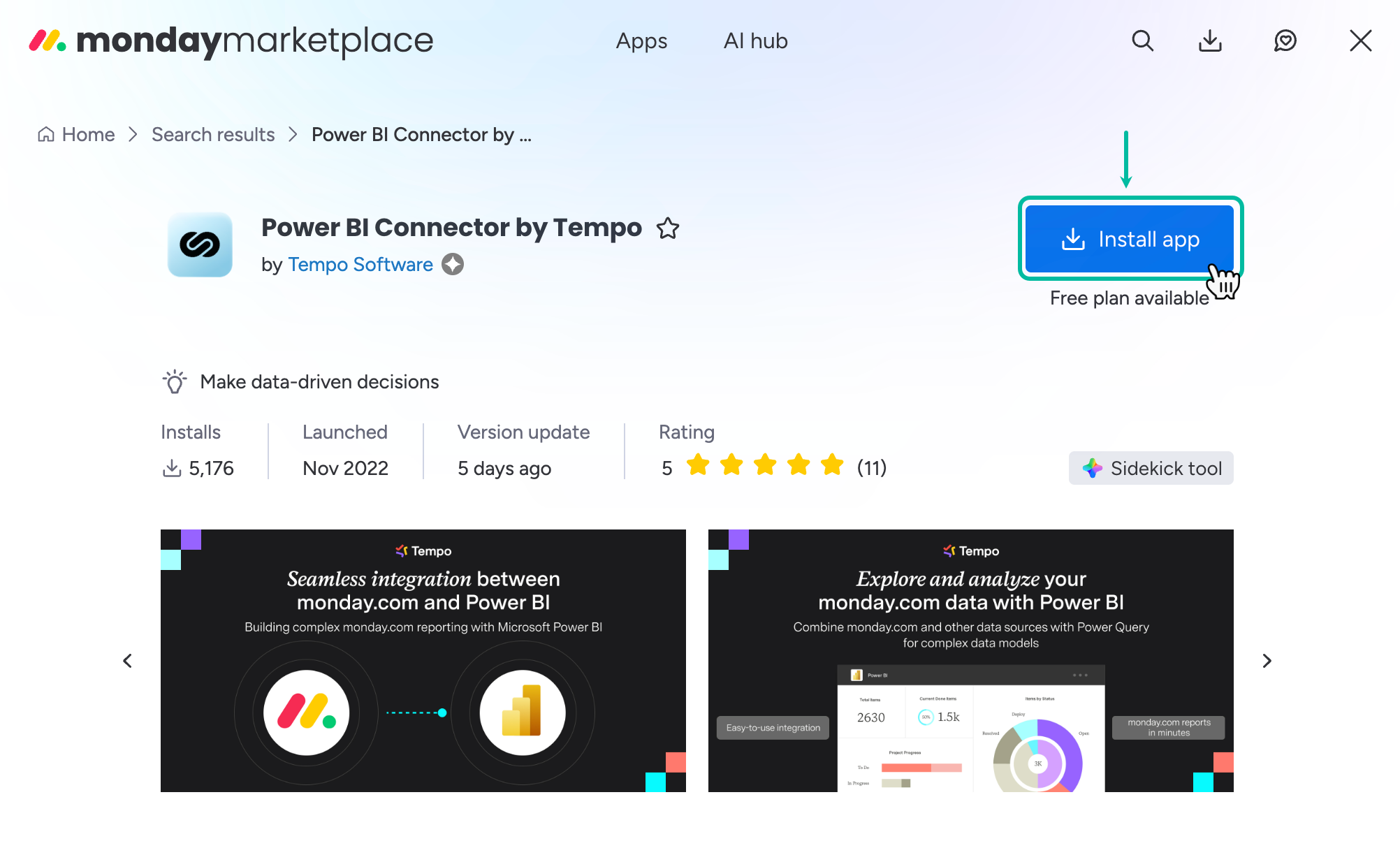
Select Install App.
-
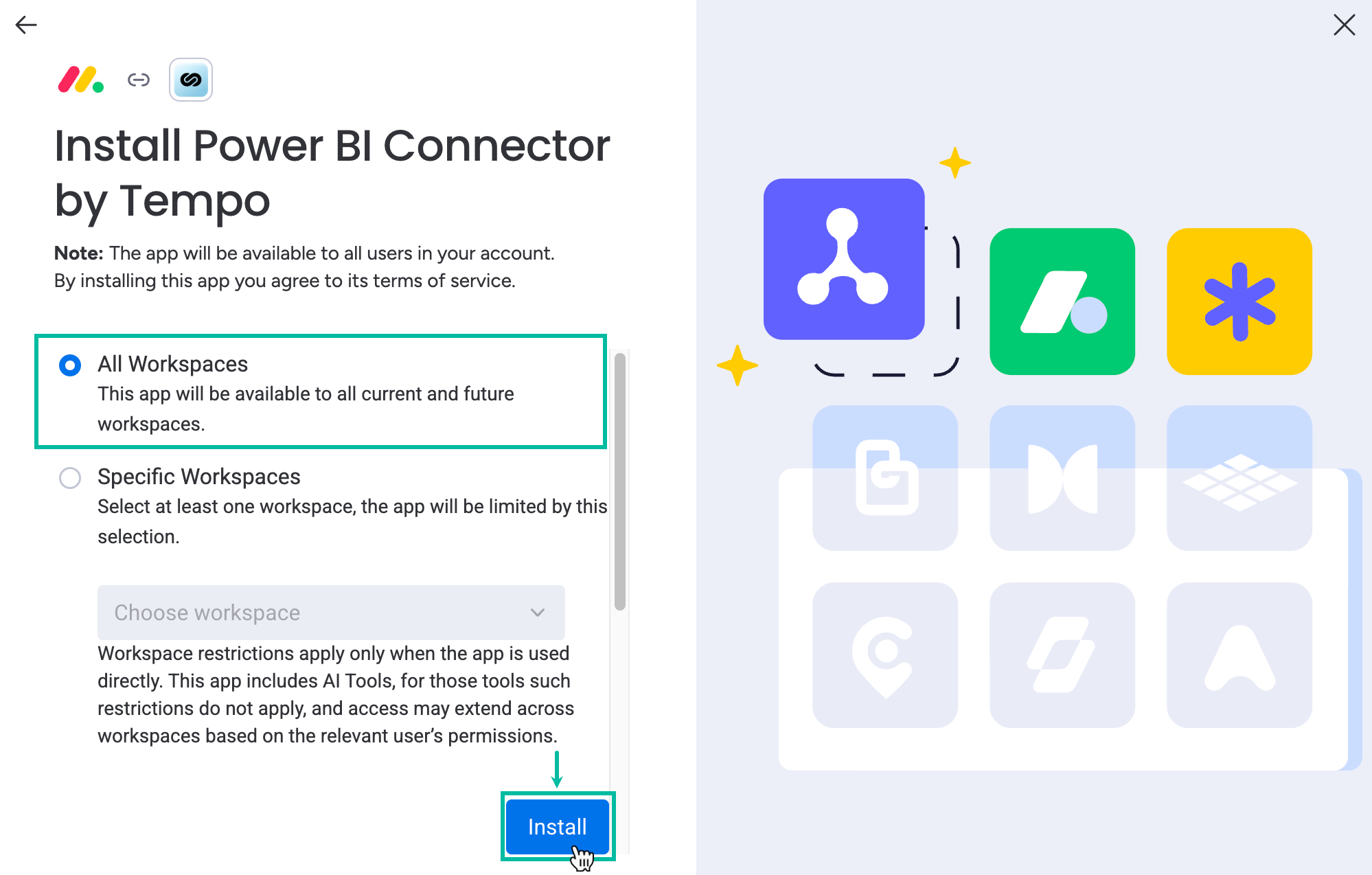
Select All Workspaces, and then select Install.
-
Select a workspace where to add Power BI Connector, and then select Add app.
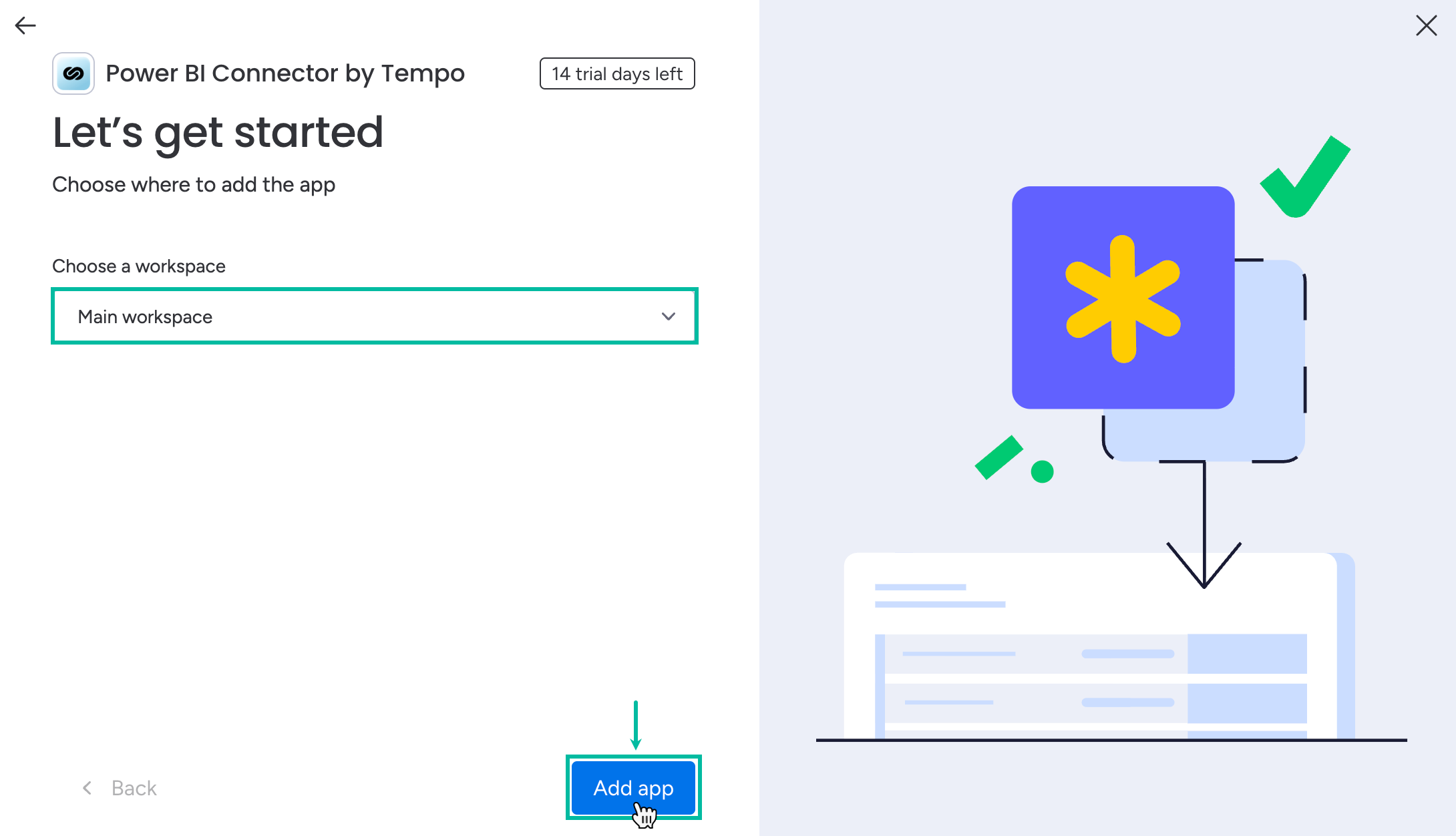
Power BI Connector Dashboard will be automatically created.
-
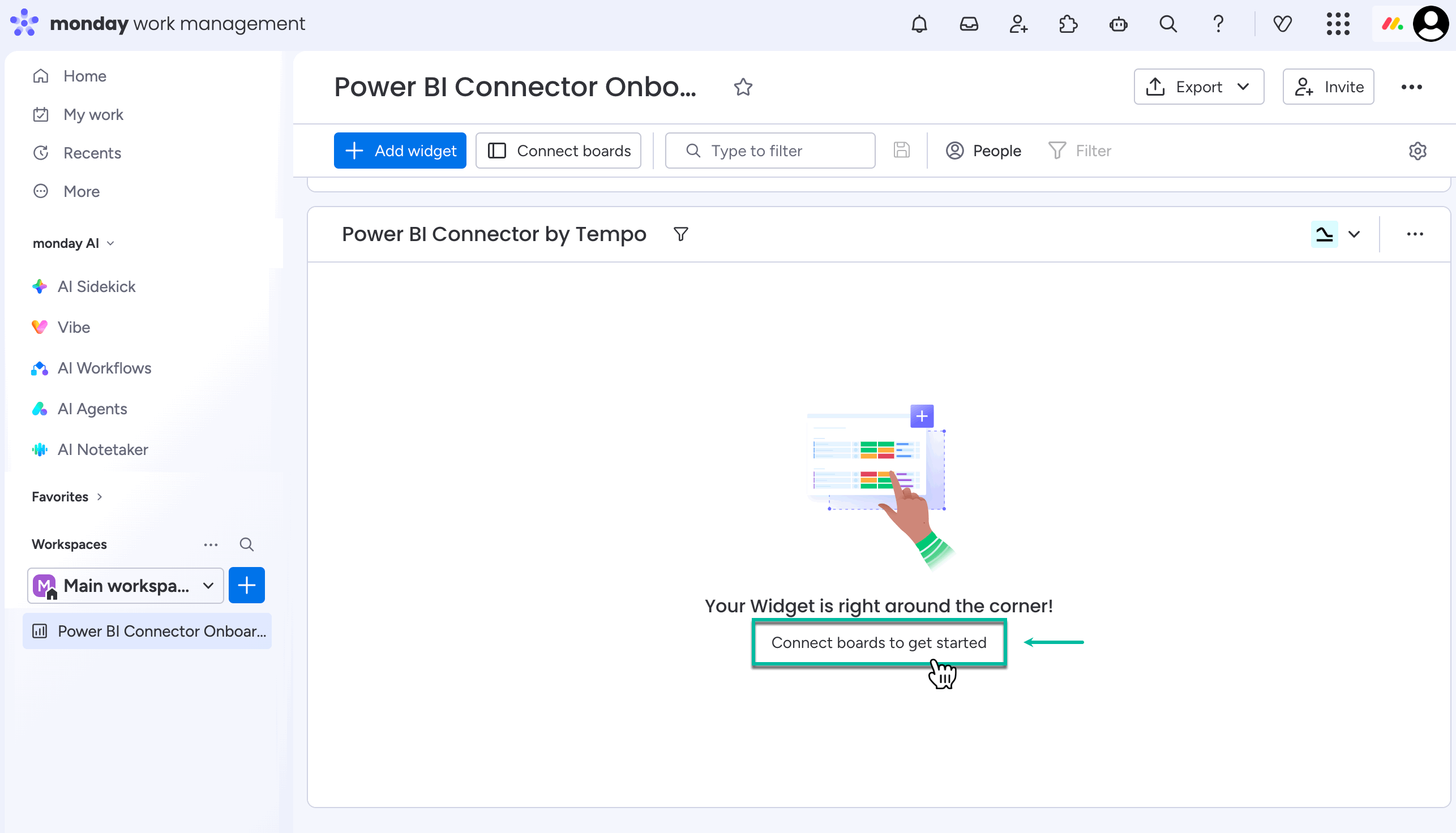
Select Connect boards to get started.
-
Select boards, check or uncheck the Add newly selected boards to all existing widgets option, and then select Done.
1.gif?cb=9305c7934e818ccdadfd59b4da111ae3)
-
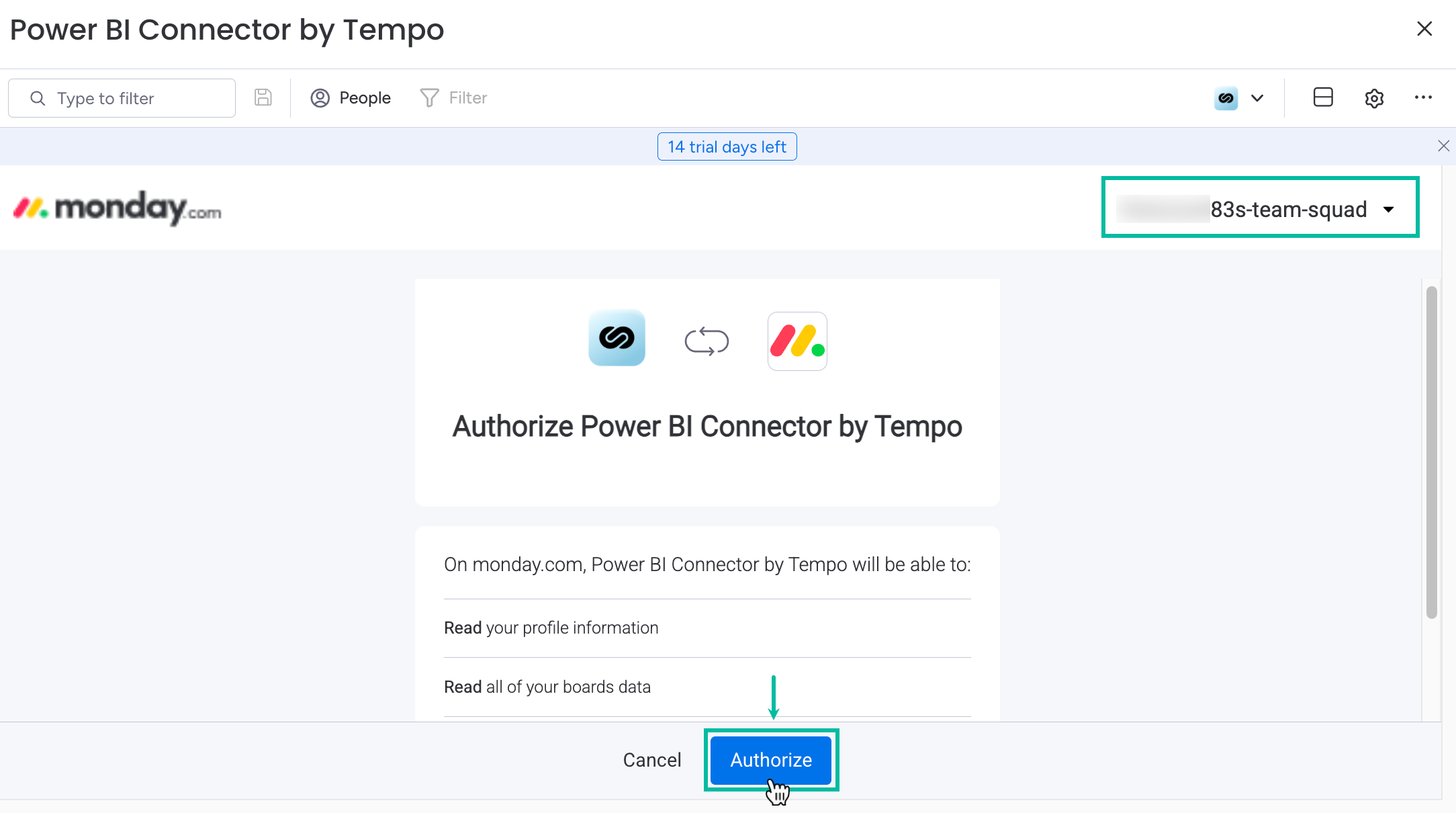
Select Authorize.
Please make sure that, during the authorization, you select the same account you signed in with to monday.com.
How to Uninstall Power BI Connector for monday.com
-
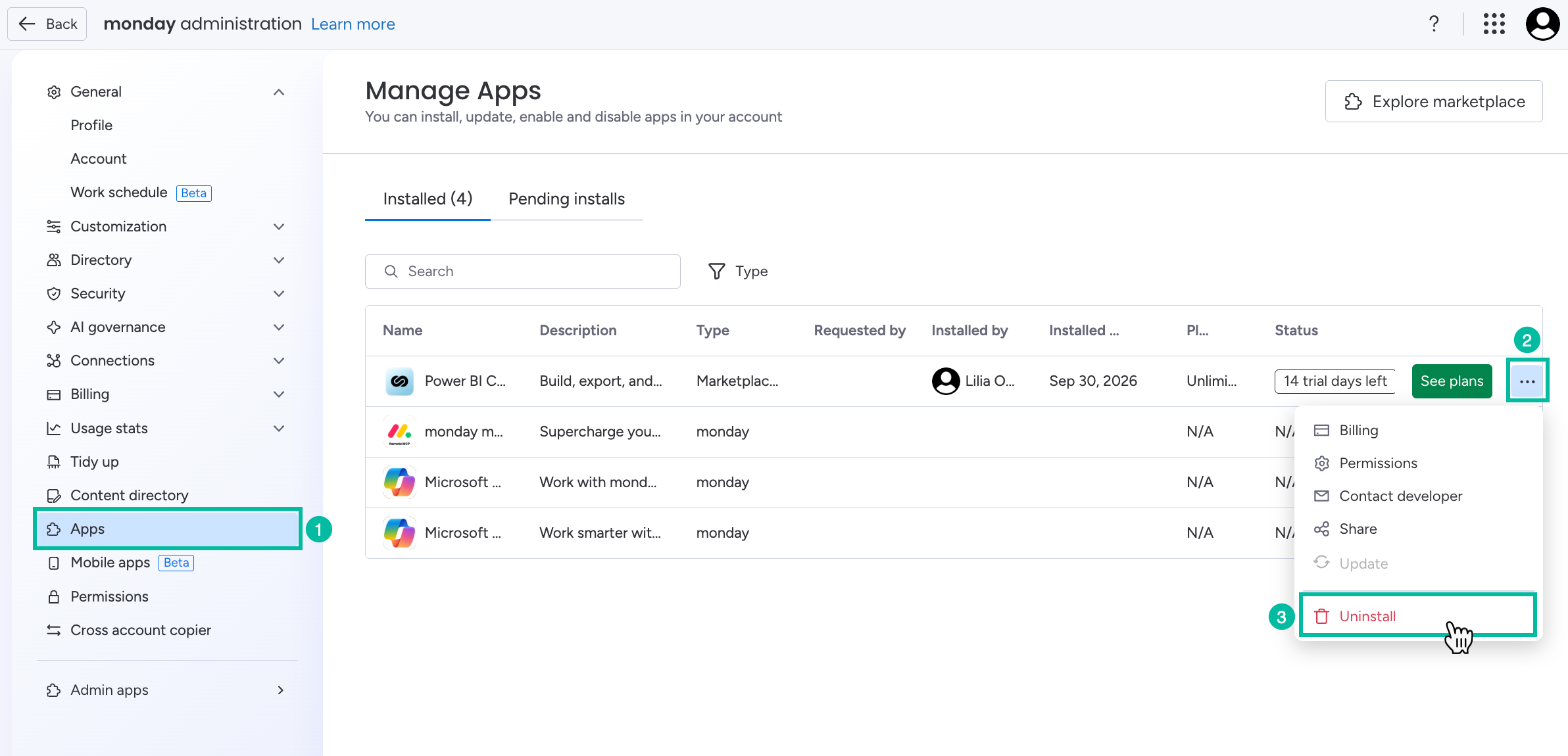
Being signed in to your monday account, select your profile picture, and then select Administration.
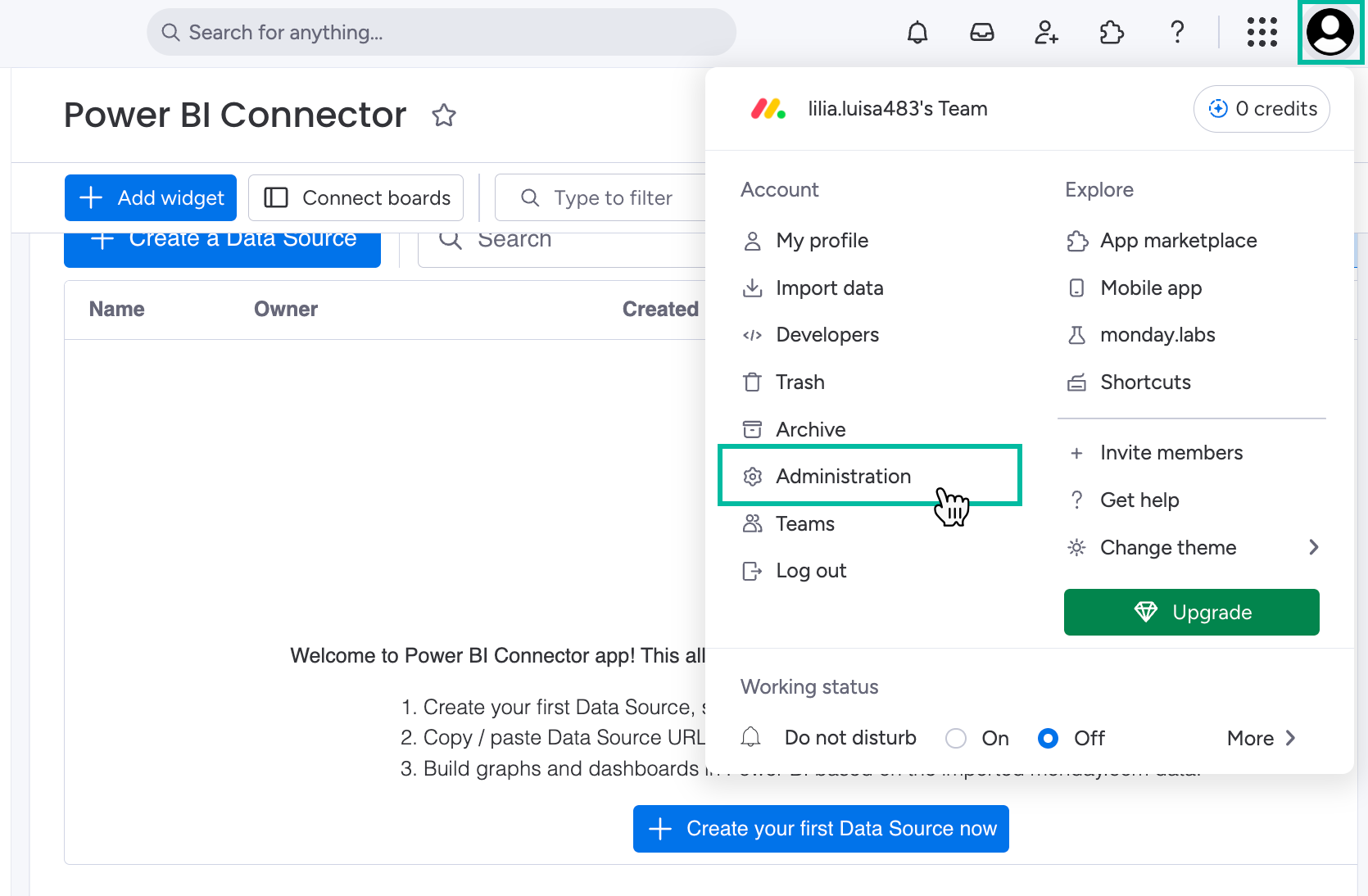
-
Select Apps.
-
Find Power Connector by Tempo, select ellipsis, and then select Uninstall.