Notice on Export Performance
We’re currently experiencing degraded performance when exporting data using the Xray integration. This issue started after Xray migrated to the new Jira JQL API in early May 2025.
What’s happening
-
Exports may take significantly longer than before or may fail entirely.
-
The issue is caused by recent changes in Jira’s API.
-
Both the Xray and Tempo Software product teams are aware of the problem and are actively working toward a solution.
What’s being done
-
Performance improvements are a priority for the Xray team.
-
They have already planned enhancements and will provide an estimated timeline soon.
-
We’re also collaborating closely with Xray to explore potential improvements, including offloading some logic to our side for more efficient data handling. This will require work from both teams.
What you can do now
Until a permanent fix is available, we recommend the following:
-
Use filters to narrow down the data before exporting.
-
Export only what is necessary to reduce load times and avoid errors.
We will continue to update this documentation as new information becomes available.
You can now revoke your integration token at any time! This gives you more control over your connected apps and helps keep your account secure.
Xray Test Management Overview
Xray app allows users to manage all tests as Jira issues, monitor test coverage, and analyze test statuses. When building Jira reporting in BI software such as Looker Studio, it is important to have this data to bring consistency to business analytics.
Looker Studio Connector for Jira allows exporting Xray app data easily from Jira to Looker Studio.
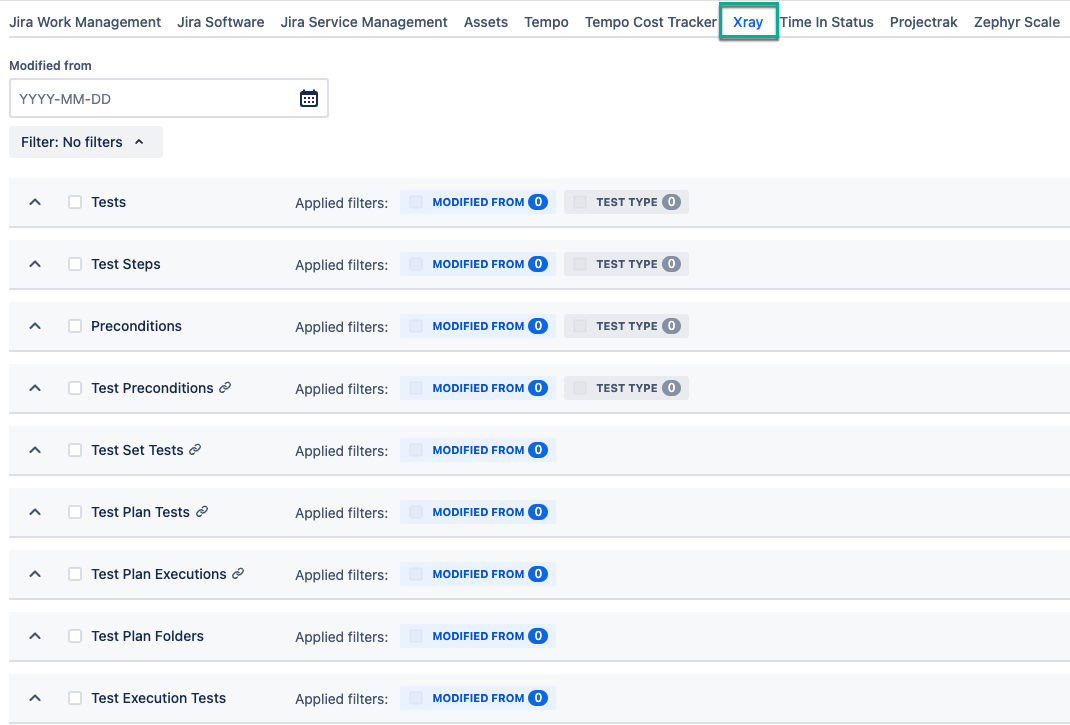
Xray Test Management Fields can be found in a separate tab.
How to Add Xray Client ID
Xray Client ID is required to view and export Xray data with Looker Studio Connector.
-
Being signed in to your Jira Cloud instance, select Ellipsis (…), and then select Manage apps.
.gif?cb=6448e6e9c71a80738aaa3de9acbde693)
-
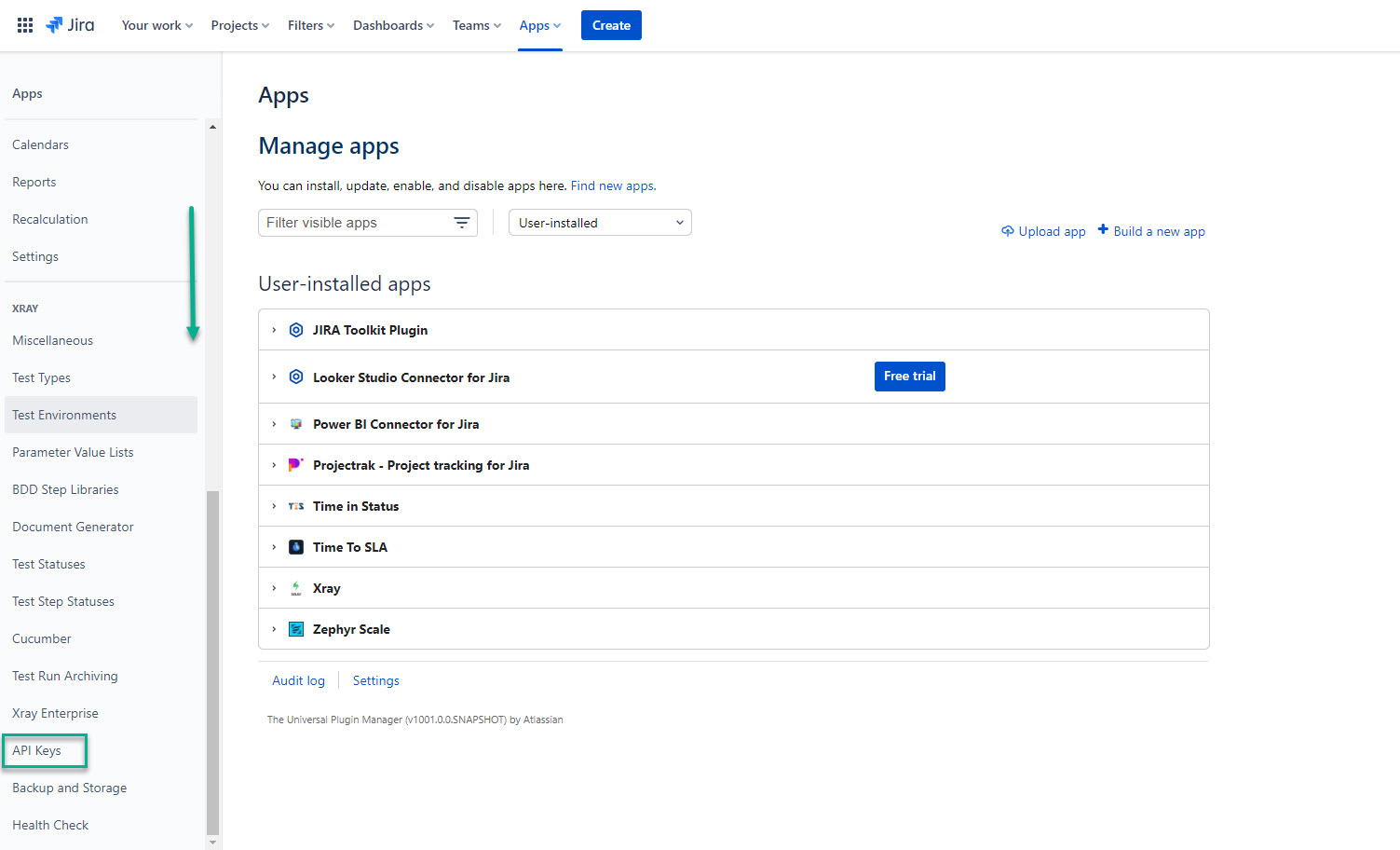
Scroll down, and then select API Keys.
-
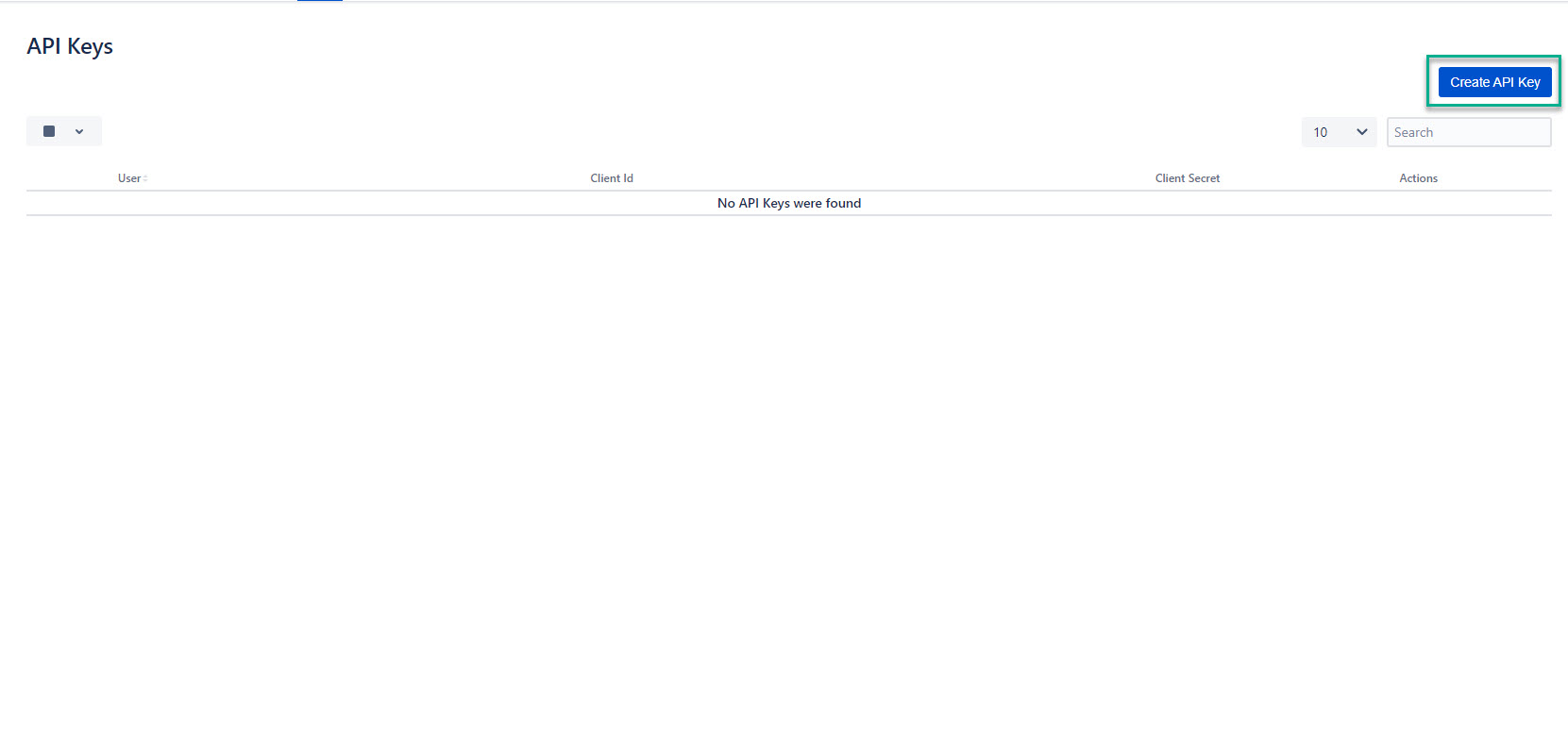
Select Create API Key.
-
Enter your name or name of desired user.
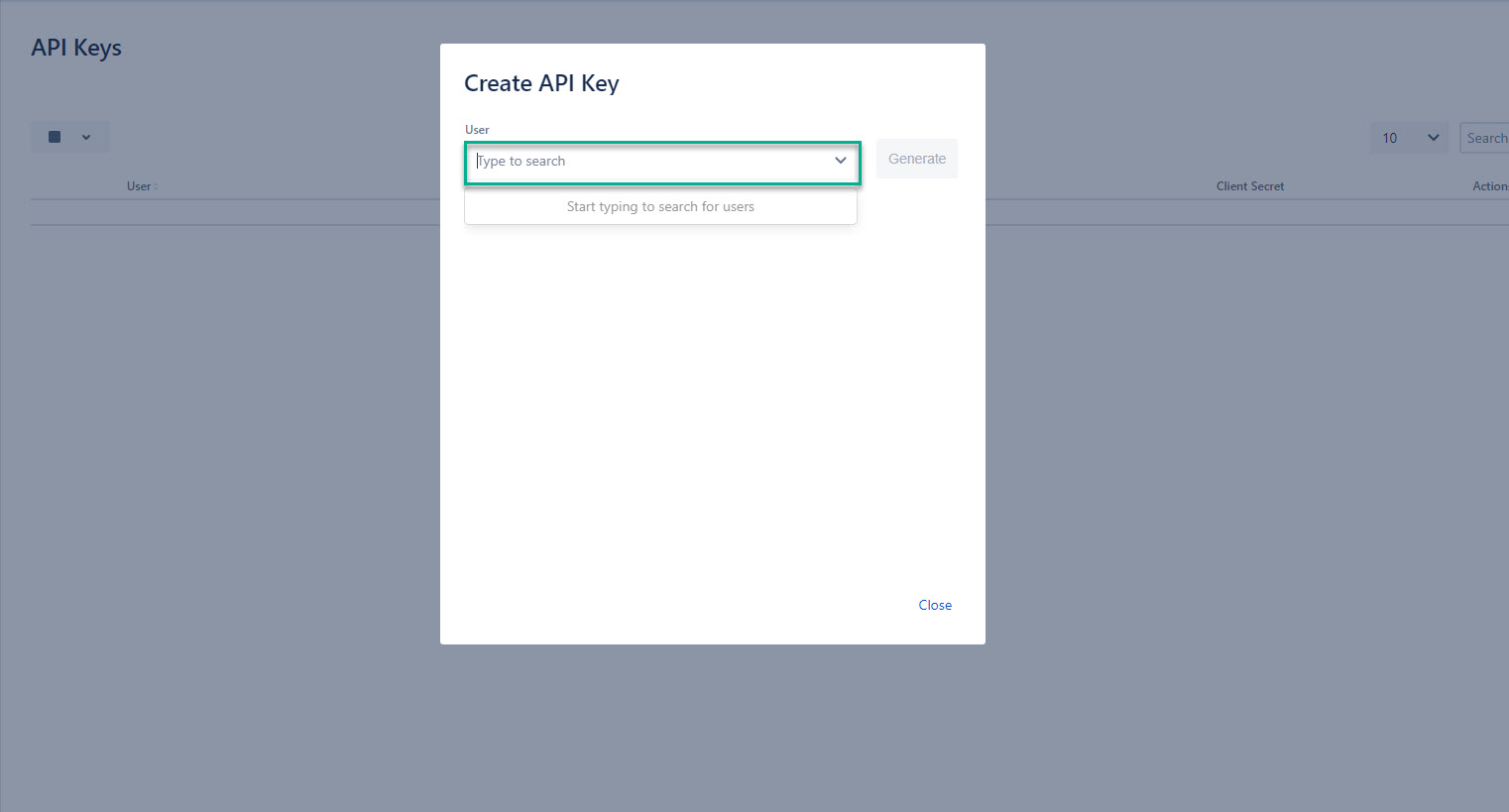
-
Select Generate.
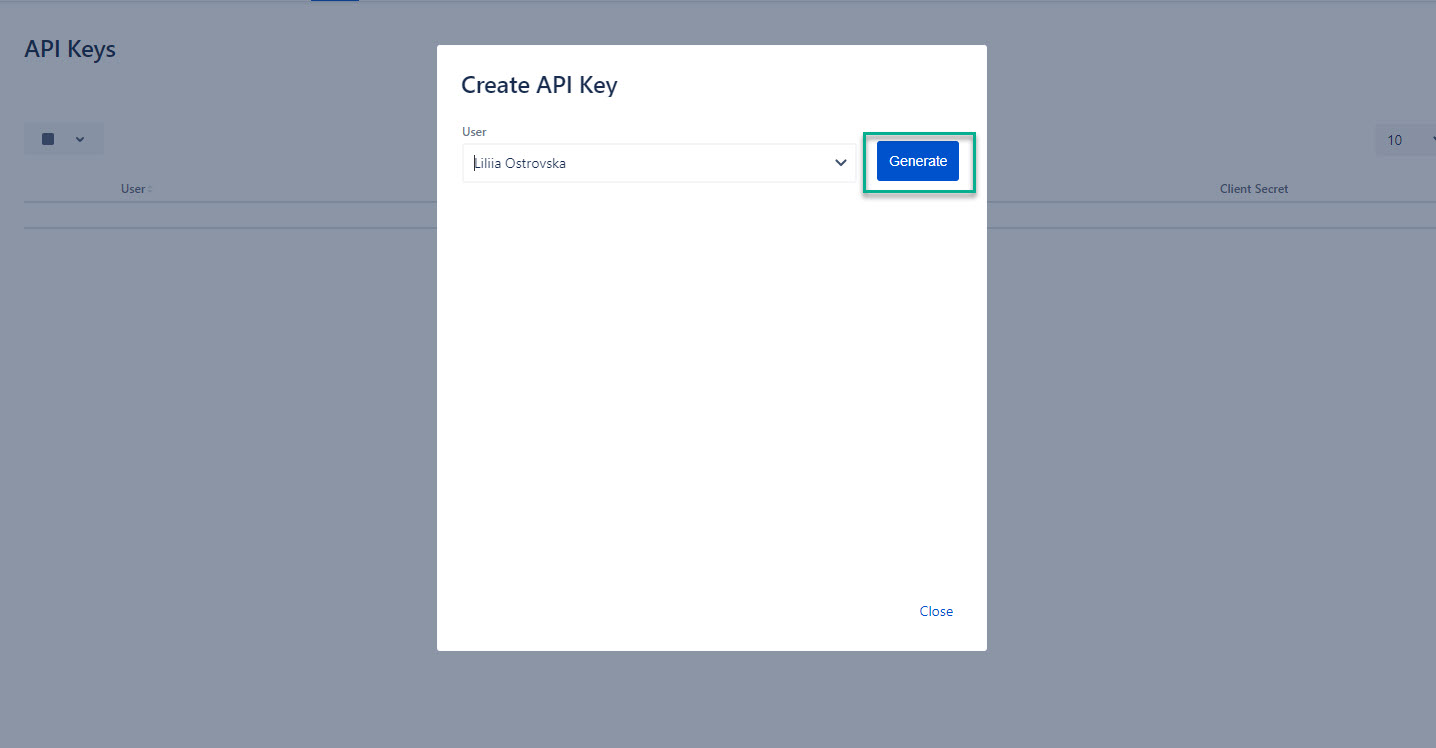
-
Copy Client Id and Client Secret, and the select Close.
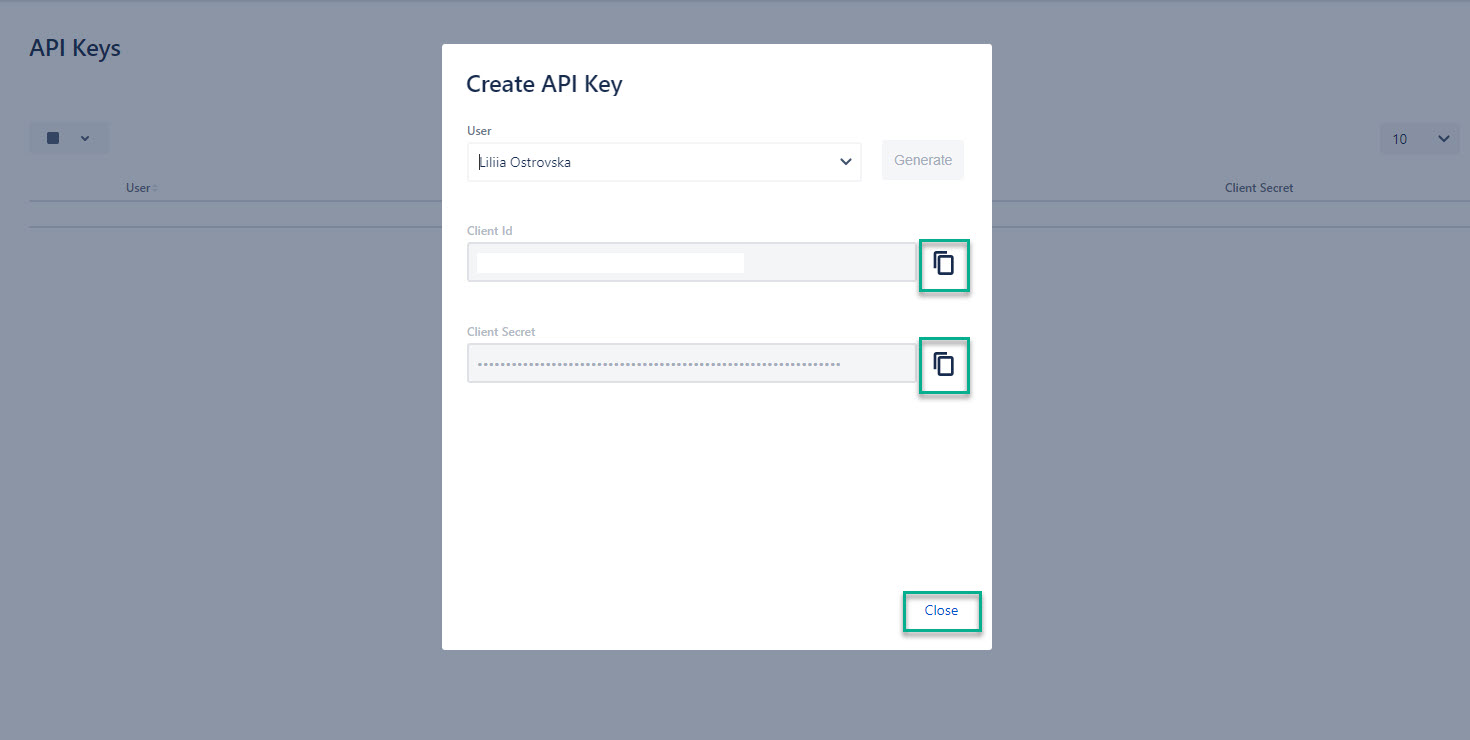
-
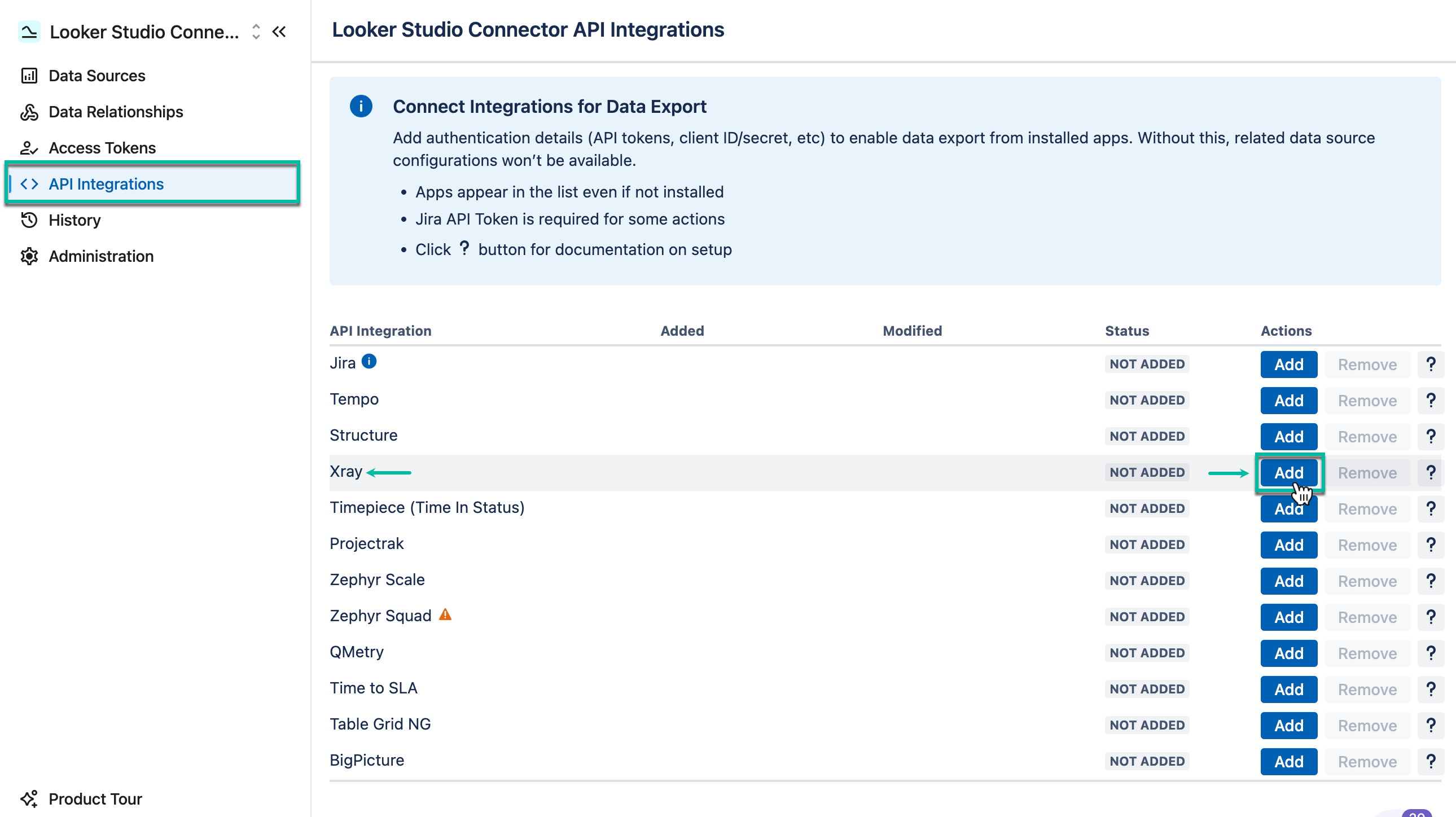
Select Apps, and then select Looker Studio Connector for Jira.
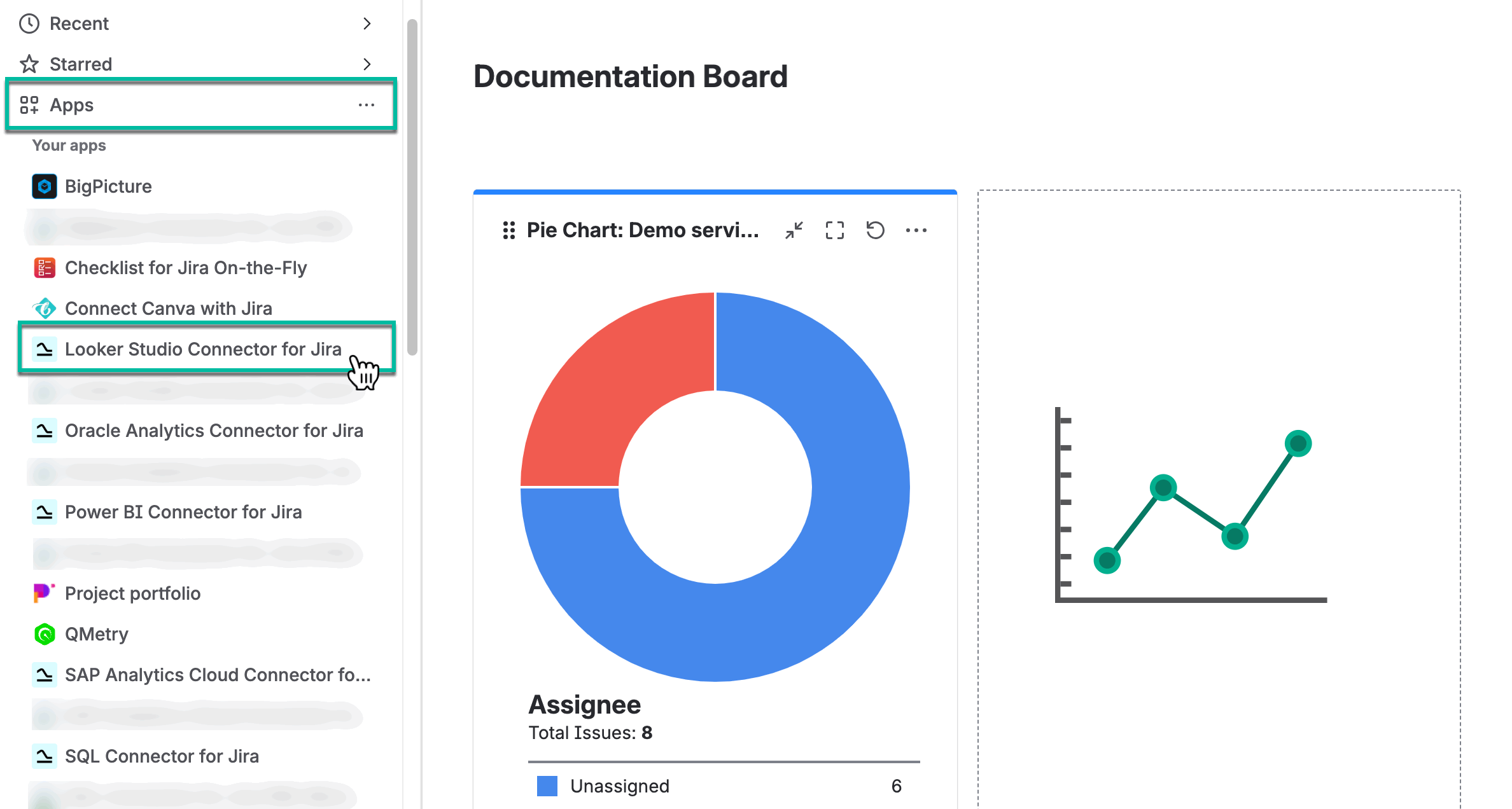
-
Select API Integrations, locate Xray, and then select Add.
-
In the Client Id* and Client Secret* fields, paste your client ID and client secret, and then select Save.
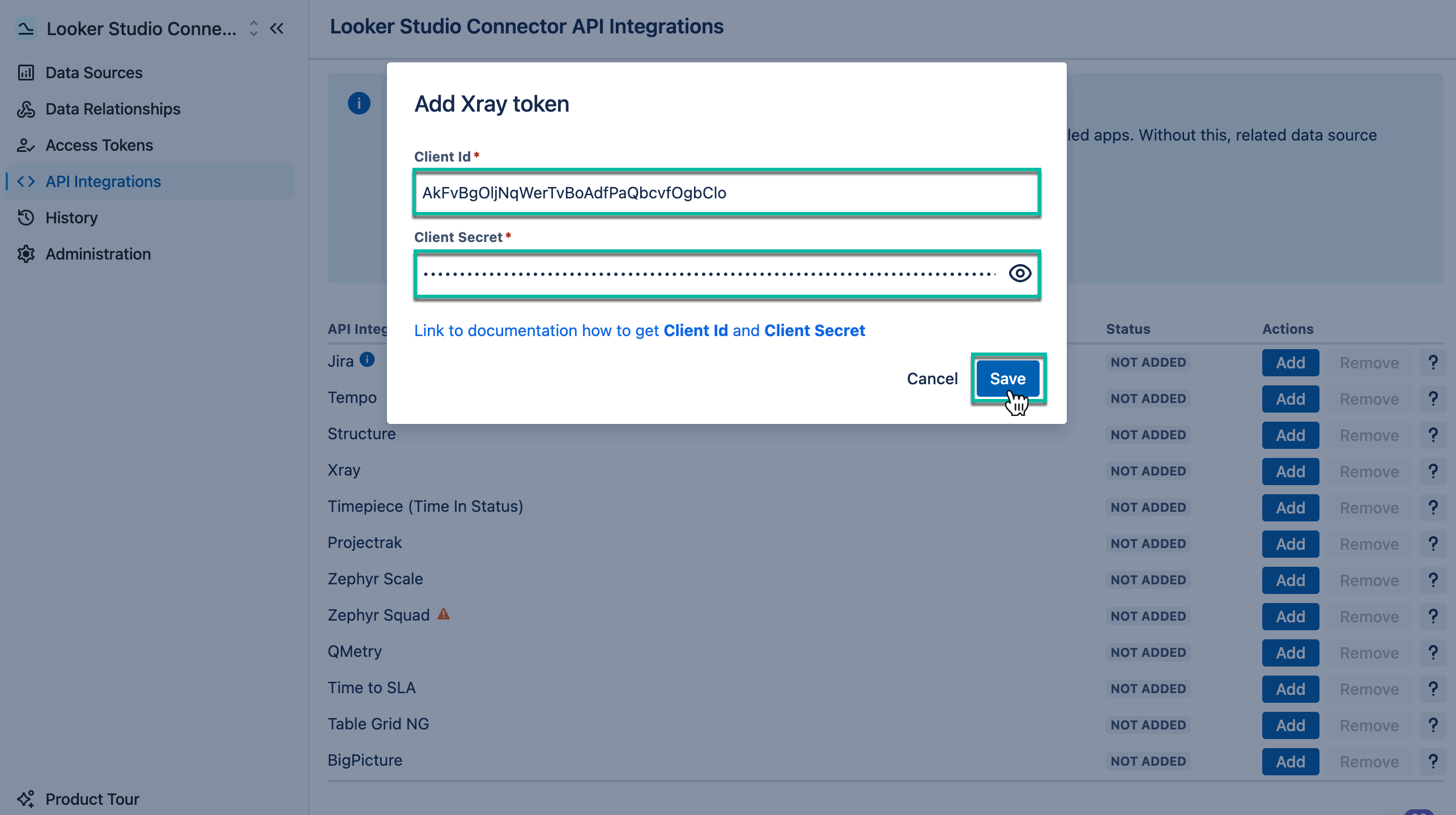
Starting now, all users with granted permission to work with the data sources can select Xray tables and fields for export.
Xray Tables Filtering
Looker Studio Connector provides global and local filters.
Global and Local Filters
global and local filters are the following:
Global Filers
-
JQL/Basic filters
-
modified from
-
tests by jql - new
-
Tests Executions by JQL - new
Local Filters
-
test type
-
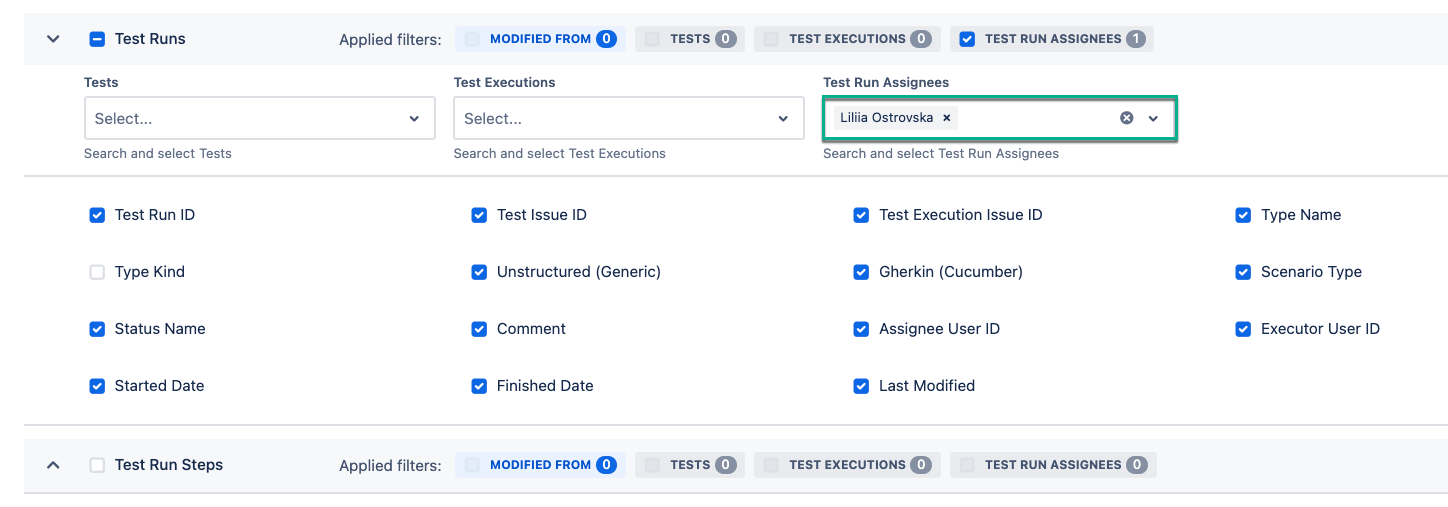
tests
-
test executions
-
test run assignees
|
Filter |
Tables applies to |
Comments |
|
modified from |
all Xray tables |
Can be deselected for individual tables if not needed. |
|
test type |
|
The test type filter allows selecting the specific type of tests for export: Manual, Generic, or Cucumber. You can select only one type at once. |
|
tests |
|
The tests filter allows selecting the specific test(s) for export. |
|
test executions |
|
The test executions filter allows selecting the specific test execution(s) for export. |
|
test run assignees |
|
The test run assignee filter allows selecting the certain test run(s) for export performed by a specific user (assignee).
|
|
N/A |
|
These tables don’t support any filters. |
|
tests by jql - new |
|
New for these two tables. This filter works as part of the global JQL/Basic filter and isn’t an independent filter. |
|
Tests Executions by JQL - new |
|
New for these two tables. This filter works as part of the global JQL/Basic filter and isn’t an independent filter. |
How the JQL/Basic Filters Work
The JQL/Basic filter is essentially a global filter, but it includes a few important nuances.
Originally, the filter applied by default to 11 of the 21 available tables:
-
Tests
-
Test Steps
-
Preconditions
-
Test Preconditions 🔗
-
Test Set Tests 🔗
-
Test Plan Tests 🔗
-
Test Plan Executions 🔗
-
Test Plan Folders
-
Test Execution Tests
-
Test Execution Environment
-
Test Step Attachment
new Support was recently added for two additional tables:
-
TestRuns
-
Defects
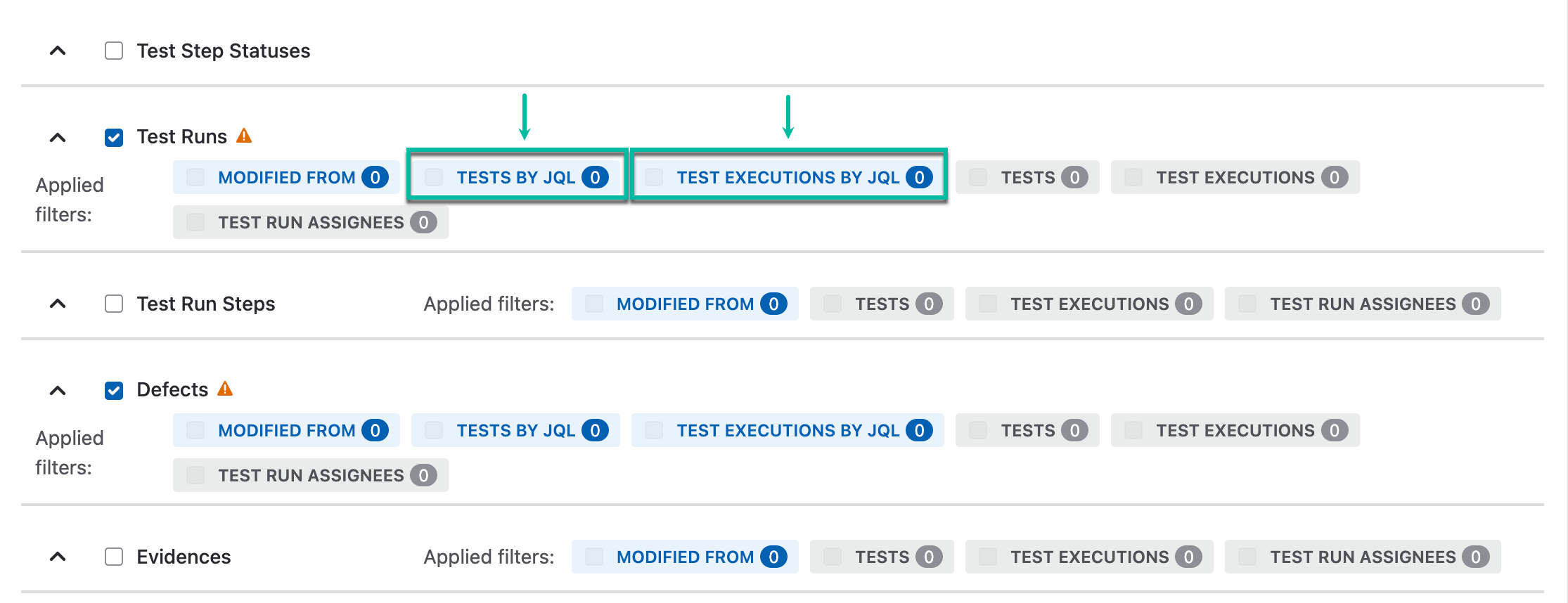
However, the filter is not applied automatically to these tables. To use it, you must select one of the following options/filters: tests by jql or Tests Executions by JQL :
-
The filters become available only after you enter a JQL query.
-
If the JQL field is empty, both filters remain disabled.
-
You can use only one of these filters at a time.

How the filter is applied
-
For the first 11 tables, the JQL/Basic filter is applied automatically when it isn’t empty.
-
For TestRuns and Defects, the filter applies only after you select either tests by jql or Tests Executions by JQL .
Filtering the Test Runs table
-
tests by jql - Filtering logic
-
You enter JQL query → the app identifies tests matching this JQL → the app returns test runs that executed those tests.
-
-
Tests Executions by JQL - Filtering logic
-
You enter JQL query → the app identifies test executions matching this JQL → the app returns test runs that were executed in those test executions.
-
Filtering the Defects table
-
tests by jql - Filtering logic
-
You enter JQL query → the app identifies tests matching this JQL → the app returns defects created in the test runs that executed those filtered tests.
-
-
Tests Executions by JQL - Filtering logic
-
You enter JQL query → the app identifies test executions matching this JQL → the app returns defects created in the test runs that were executed within those filtered test executions.
-
For linking tables, JQL/Basic filters apply only to the main table.
All linking tables are marked with the link icon 🔗.
For example, the Test Preconditions 🔗 table links the Test issue types (Xray tests) and the Precondition issue types. In this case, only the Test issue types will be filtered by JQL or Basic filter. This means you’ll get all the Test issue types that match the specified filter along with their preconditions.
Notes & Tips
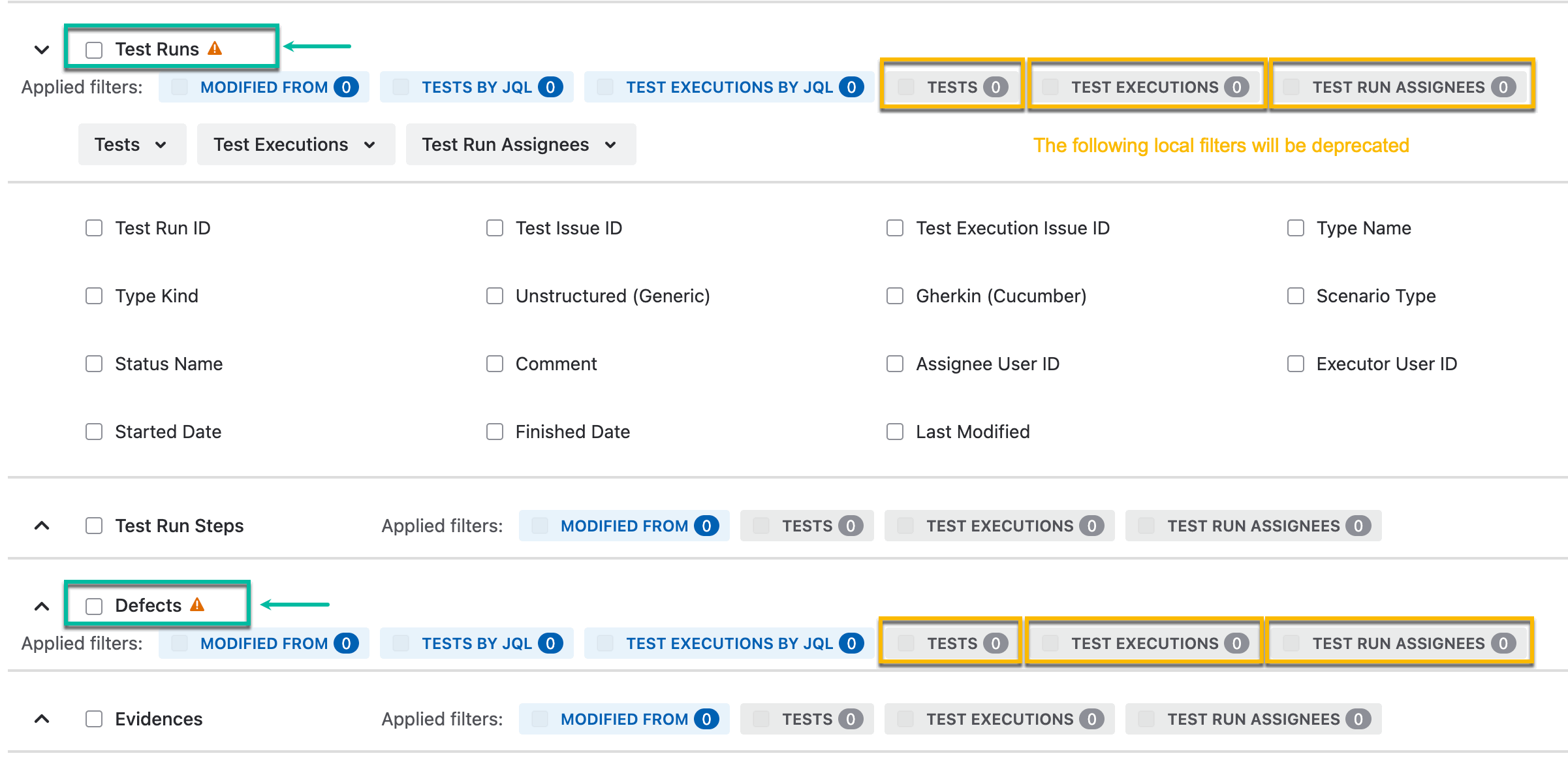
Deprecation Notice
-
tests
-
Test Executions
-
Test Run Assignees
This change is intended to simplify the filtering experience and make it more aligned and logical across the product.
Other
-
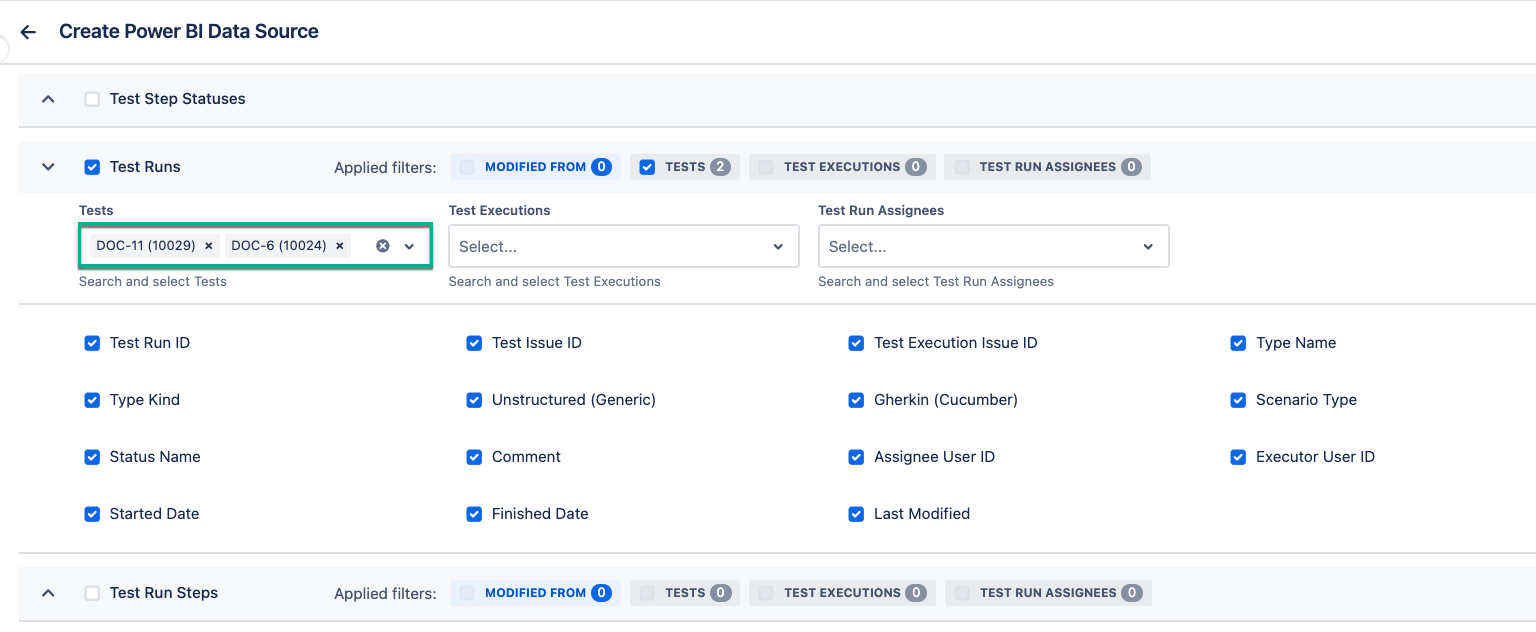
If you need to export test runs for specific tests, simply select them using the Tests filter.
-
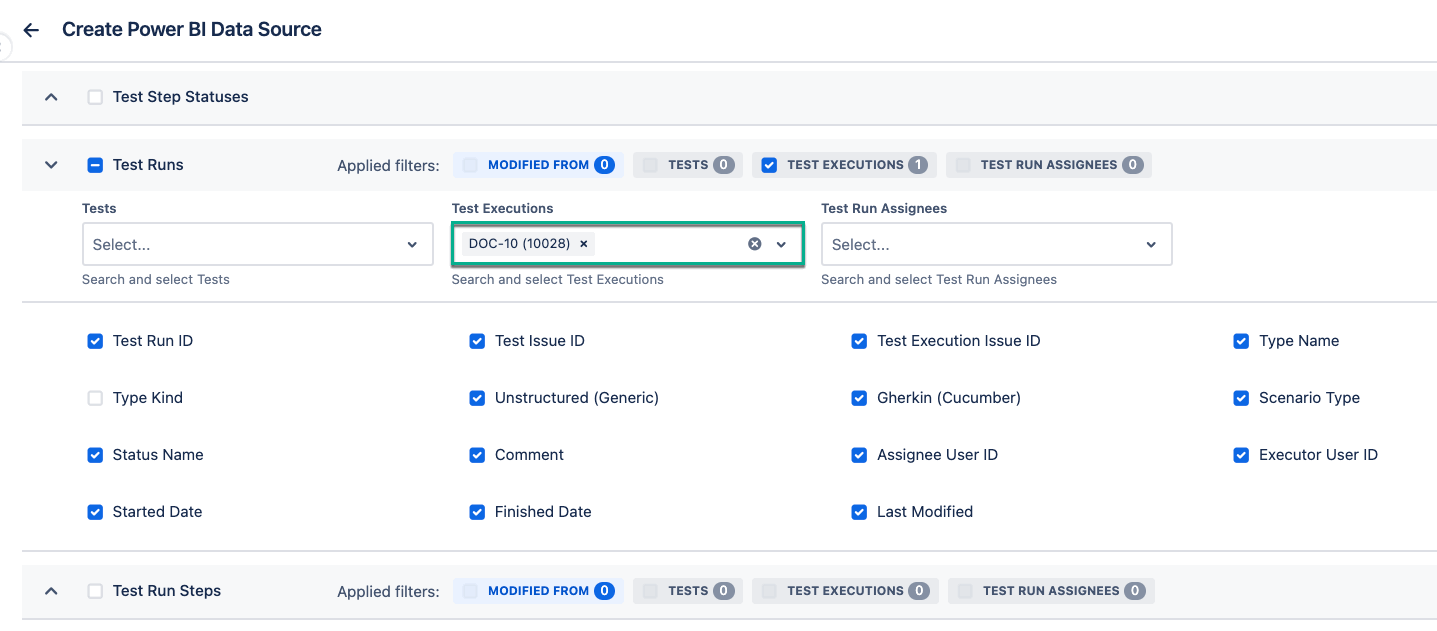
If the specific tests you need to export are already grouped within a single test execution, just select that test execution using the Test Executions filter. You can select a few test executions.
-
When selecting a specific test execution in the Test Executions filter, and then selecting tests in the Tests filter that don't belong to the specified test execution, the exported table will be blank as a result.
-
-
If you need to export test runs assigned to a specific user, select their name in the Test Run Assignees filter. You can select a few assignees.
-
When selecting a specific assignee’s name in the Test Run Assignees filter, and then selecting tests in the Tests filter, the exported table will be blank as a result (the same logic is applied for selecting test executions).
-