
Tableau Connector Data Sources table can be integrated as one of the app's widgets into a standard or custom portal.
Role required: admin or sp_admin
Integrate the application widget into a standard or custom portal page
-
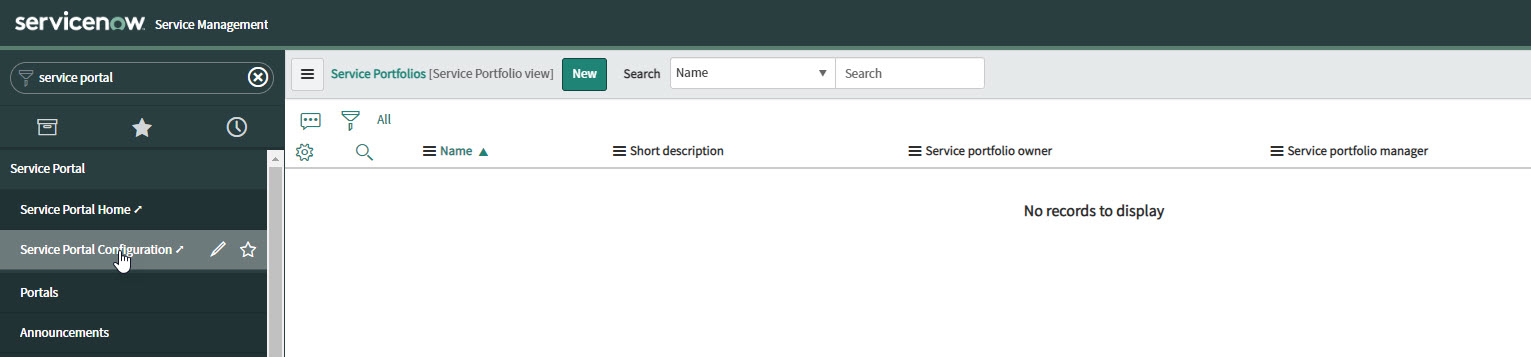
Navigating to Service Portal > Service Portal Configuration to get the access to Service Portal configuration page.
-
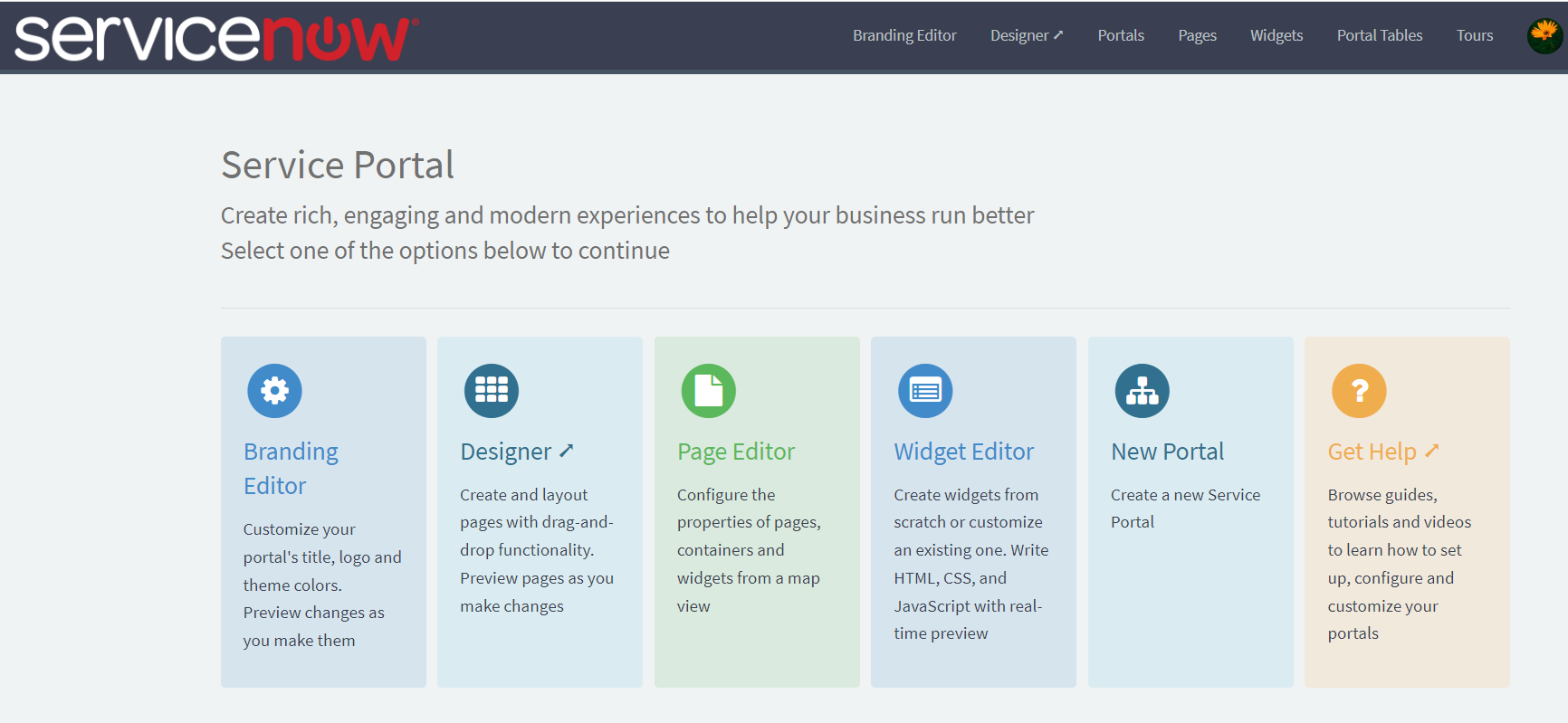
The Service Portal configuration page is opened in a new tab
-
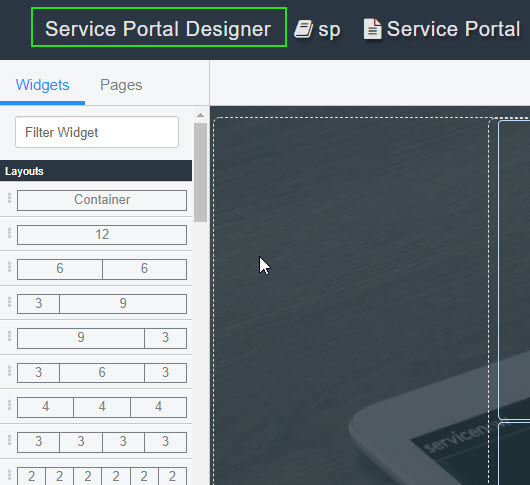
Select Designer. Service Portal Designer is opened in a new tab in your browser

-
Select the target page to edit
-
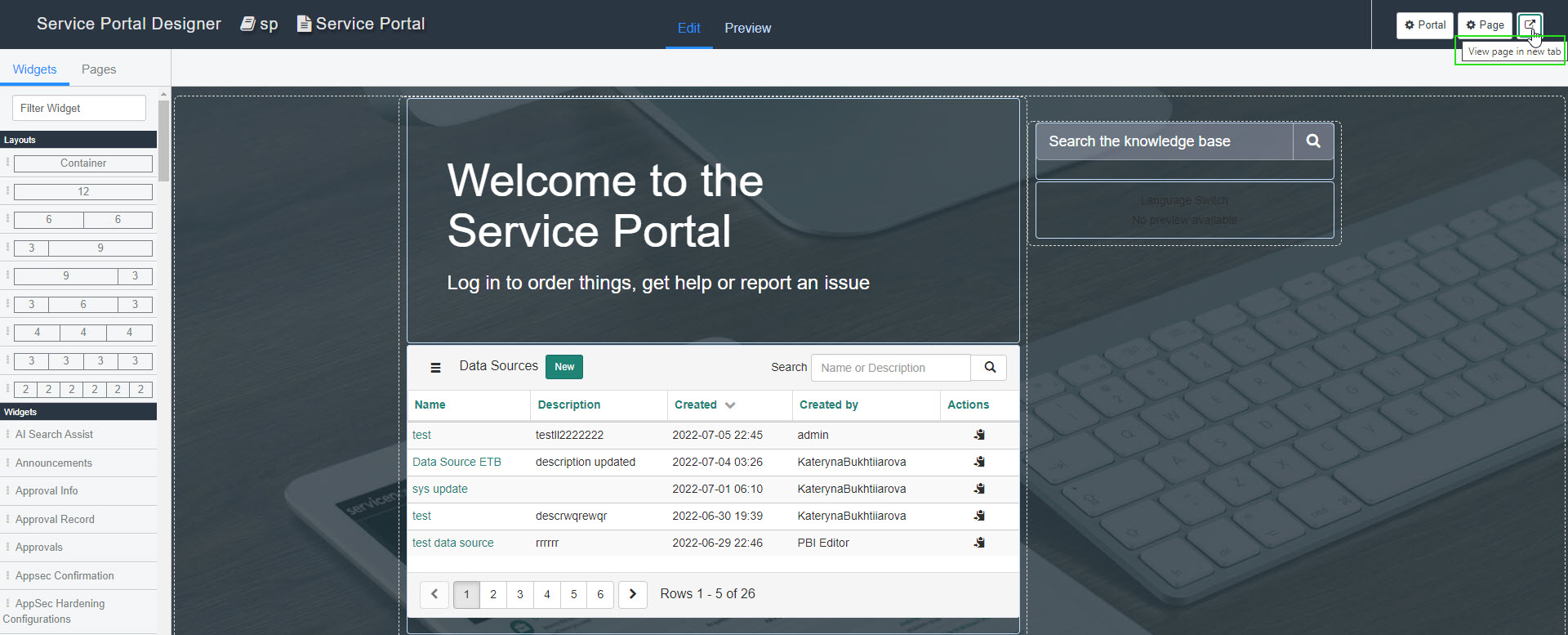
Use the filter to search for a Tableau Connector Table widget, then drag the widget to the layout

Configure the Data sources table widget
-
Navigate to the page, where the Data Sources table widget is located
-
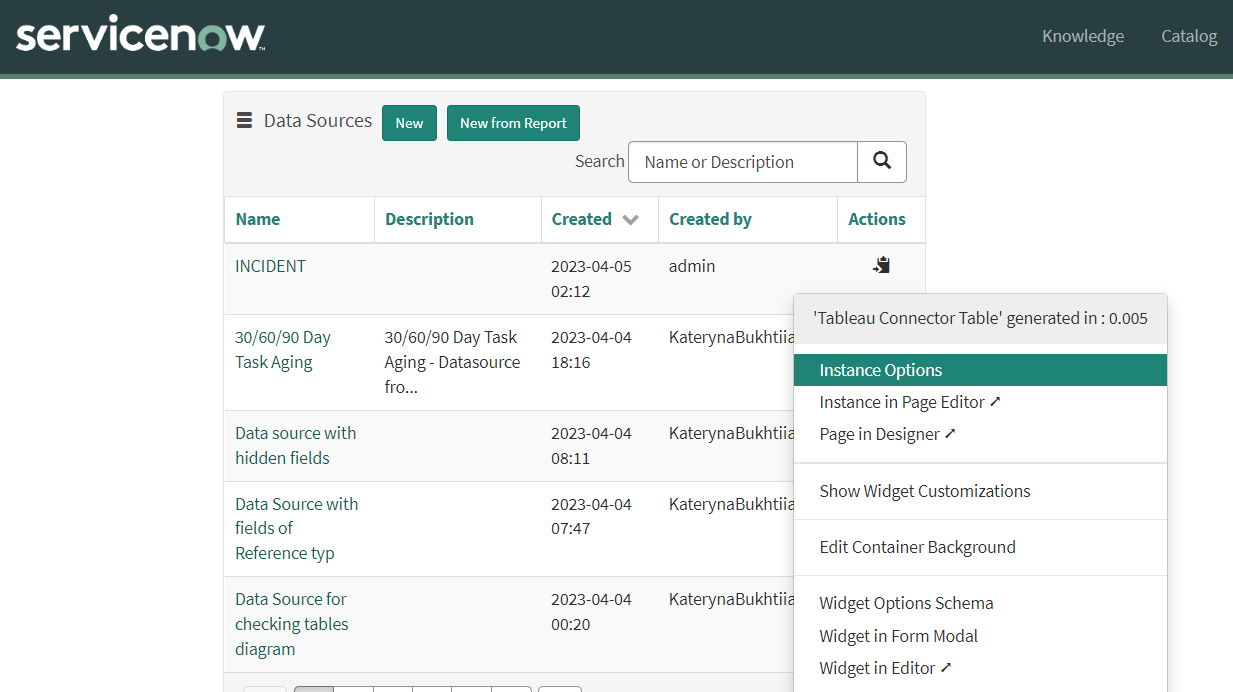
Open the context menu with the CTRL+right-click on the widget and select the Instance Options
-
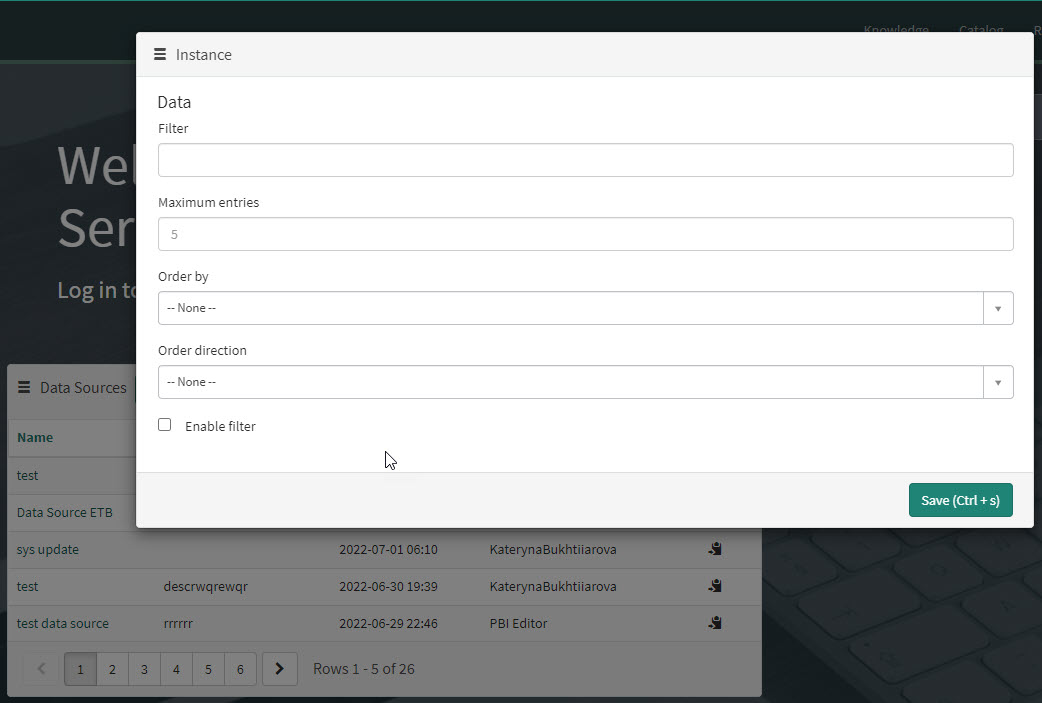
Configure widget options:
|
Filter |
Text field from the condition builder that can be used to limit the items returned in the data sources table. |
|
Maximum entries |
Limits the number of items displayed in the table. If there are more entries than allowed in the table, users can scroll to the next page. |
|
Order by |
The default field used for sorting the list of data sources. |
|
Order direction |
The default sort order for the sort field: ascending or descending. |
|
Enable filter |
Allow users to filter data sources. |
-
Click Save
Configure data source form widget
-
Navigate to the page, where the Data Sources Table widget is located
-
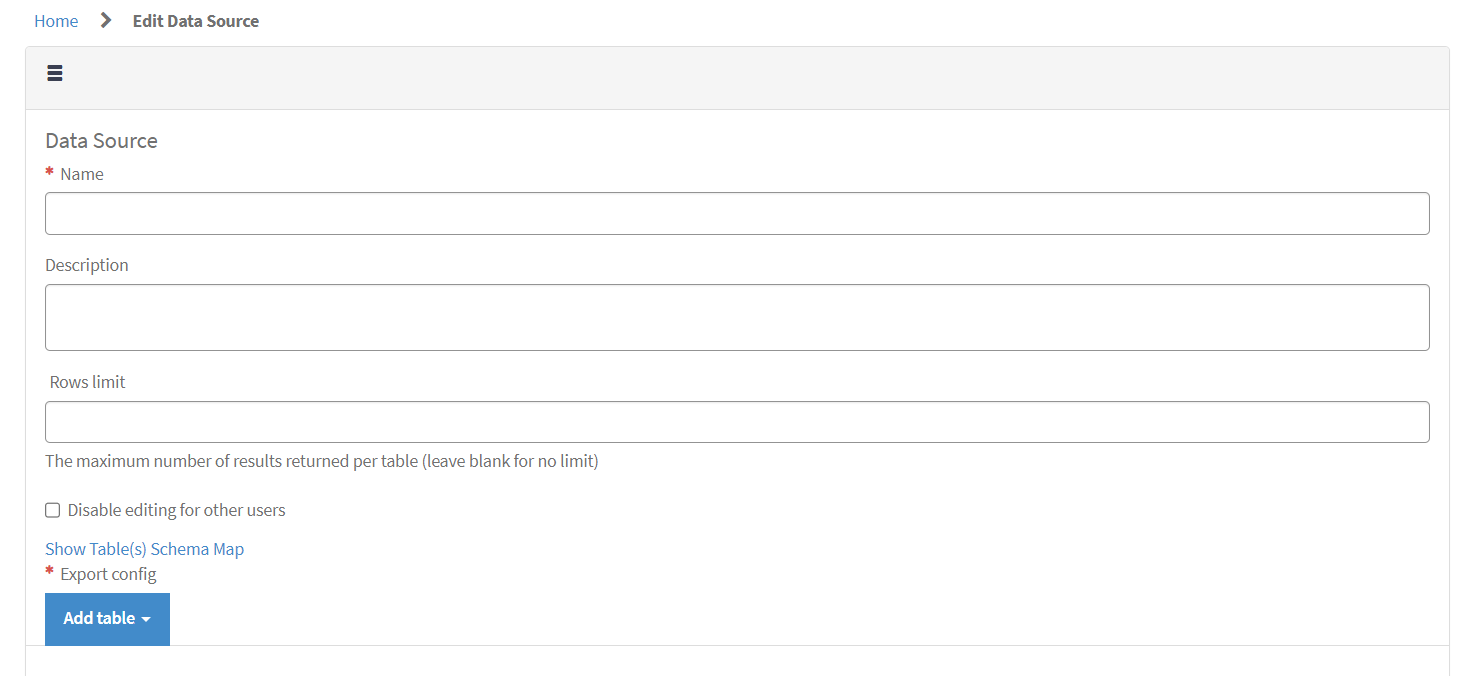
Click on New button. The Data Source Edit Form page is open
-
Open the context menu with the CTRL+right-click on the widget and select the Instance Options

-
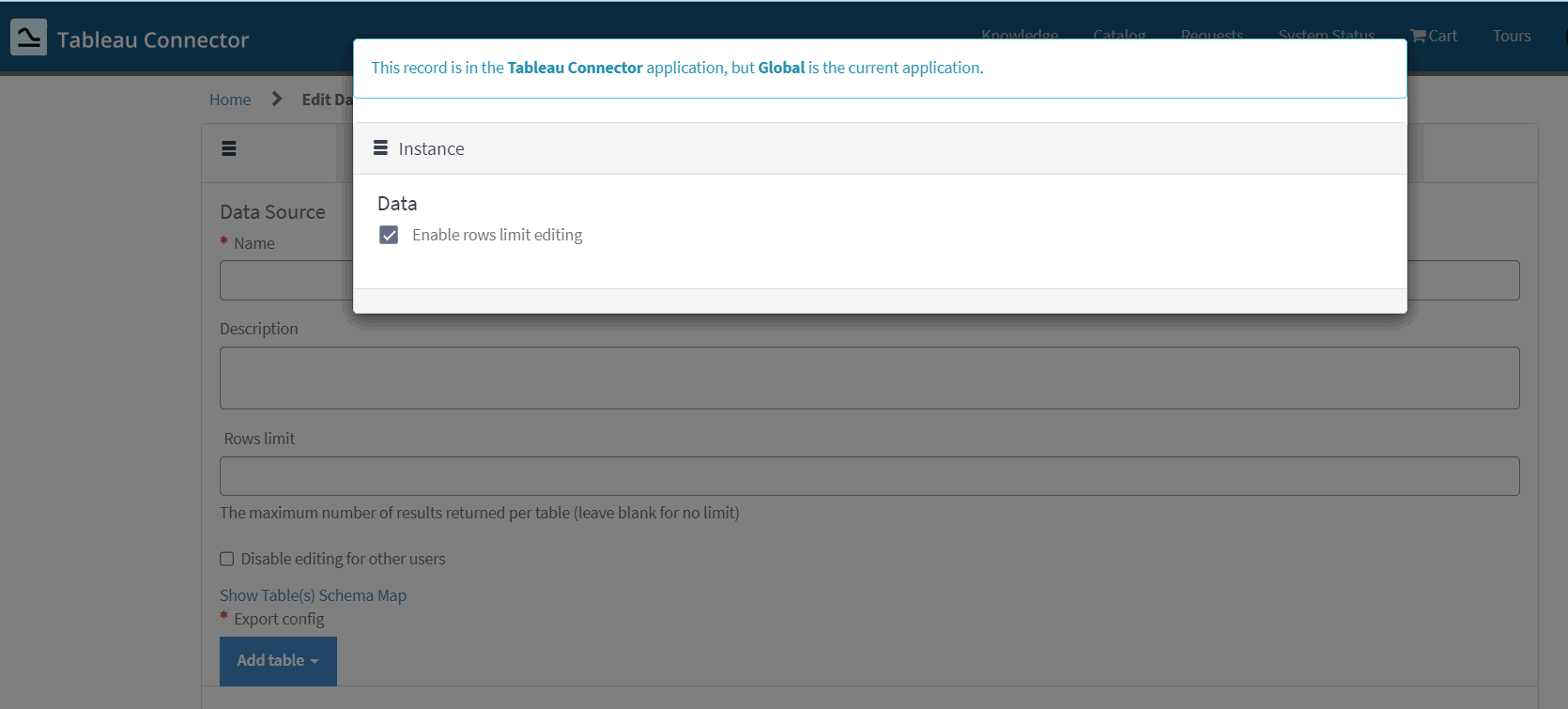
Configure widget options:
|
Enable rows limit editing |
Allow users to change the rows limit parameter |
-
Click Save