
Viewing Saved Baselines
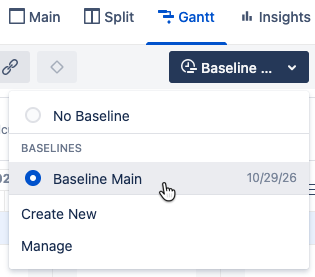
To compare the current chart to a saved baseline, open the Baseline menu and select the baseline you wish to use.
Baseline Offset
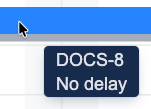
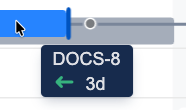
When viewing a chart with a baseline, hover over a task to see a comparison between the task’s current position and the baseline.
If the task and the baseline are on the same schedule, you will see No delay.
If the task differs from the baseline, you will see difference between the two. An arrow indicates if the task is earlier or later than the baseline.
Hiding Baselines
The Baseline menu shows the name of the active baseline. It may be truncated if the name is too long for the current view.

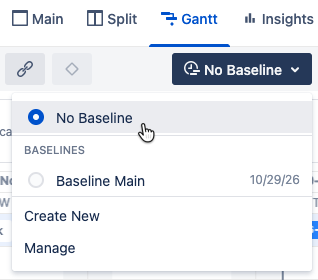
To hide the baseline and view only the current timeline for your tasks, open the Baseline menu and select No Baseline.
Exporting Baselines
You can include baselines when exporting a Gantt chart. The following example is an export to .svg format.
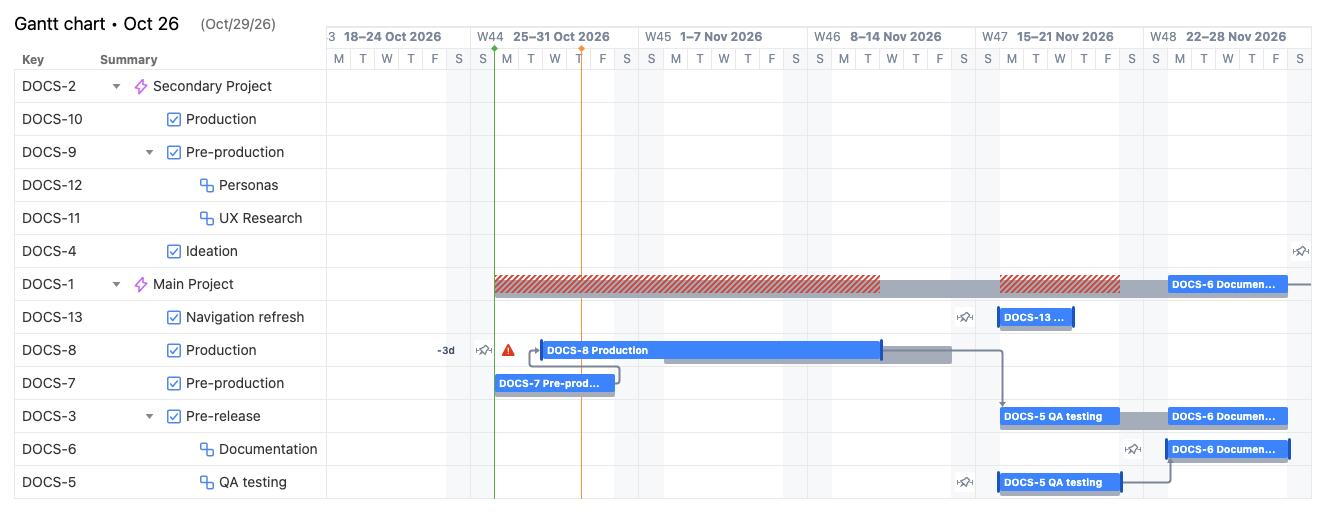
To include baselines in an export:
-
Make sure the baseline you want to include is visible in the chart.
-
Select Export :structureExport: > Export Gantt chart in the Structure pane.
-
Turn on Baseline in the Gantt chart Details section.
-
Turn on Baseline delays to display the delay amount in the export.

-
Select Export.