
One of the advantages of Structure is the ability to manage issues from multiple projects in a single location. This guide shows one approach to add Epics, Stories, and Tasks from multiple projects into a single structure.
Using the Insert generator
This first part of the guide will set up an Automation to populate your structure with Epics.
-
While in your newly created structure, select Automation from the Structure toolbar to open Automation Editing Mode.

-
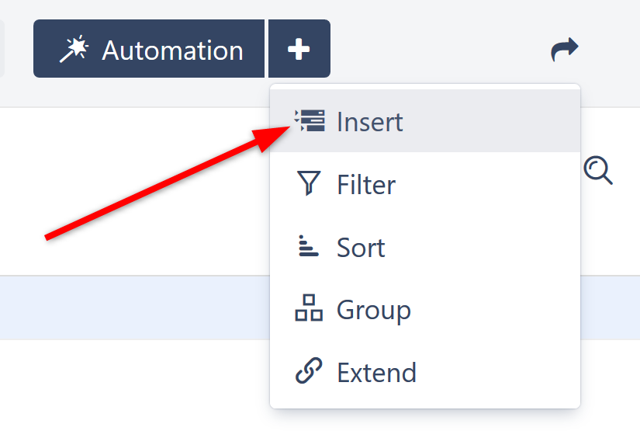
With Automation enabled, select Insert from the (+) menu.
-
When you import items, you can select an Agile board or an existing structure as the source; or you can use a JQL query or text search. For this example, you’ll use a simple JQL Query:
issuetype = Epic. You can also specify projects in this query if you want to include them.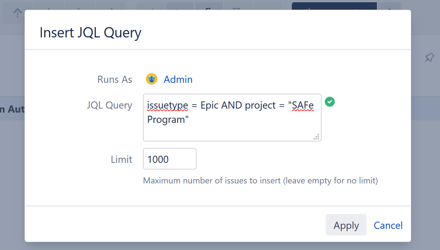
Large Jira instances may have a large amount of issues. While this isn’t likely to cause a problem when pulling Epics, you may want to adjust the Limit of imported issues if you experience performance problems or want more manageable results.
-
Select Apply and the Insert generator will pull issues that match your query into your structure.
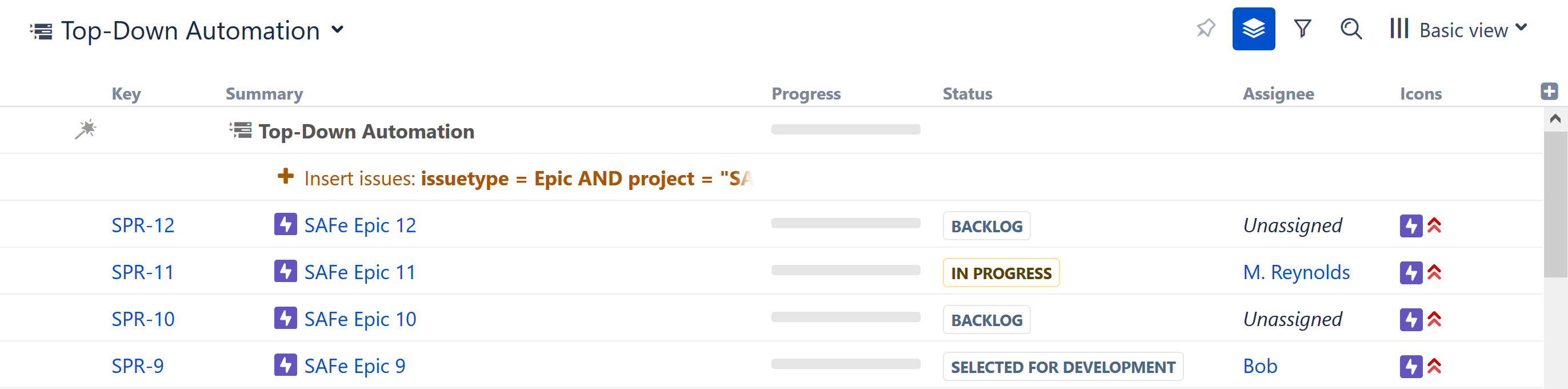
In Automation Editing Mode, all generators are listed in red. To make changes to a generator, double-click it. To delete a generator, highlight its row and select the delete icon (x) or press the delete key.
Using the Extend generator
Now that your structure has a list of Epics, you can use the Extend generator to pull in Stories and Sub-tasks.
-
Select the top line of your structure to apply the generator to the entire structure, and select Extend from the (+) menu.
-
Select Stories under Epics…

-
For now, keep the settings on this dialog at their default settings and select Apply.
The option Allow changes via Structure will apply any in-structure changes to the issues in Jira as well.
-
Any epics with child issues will have a small arrow next to their Summary. Select this arrow to expand the hierarchy.
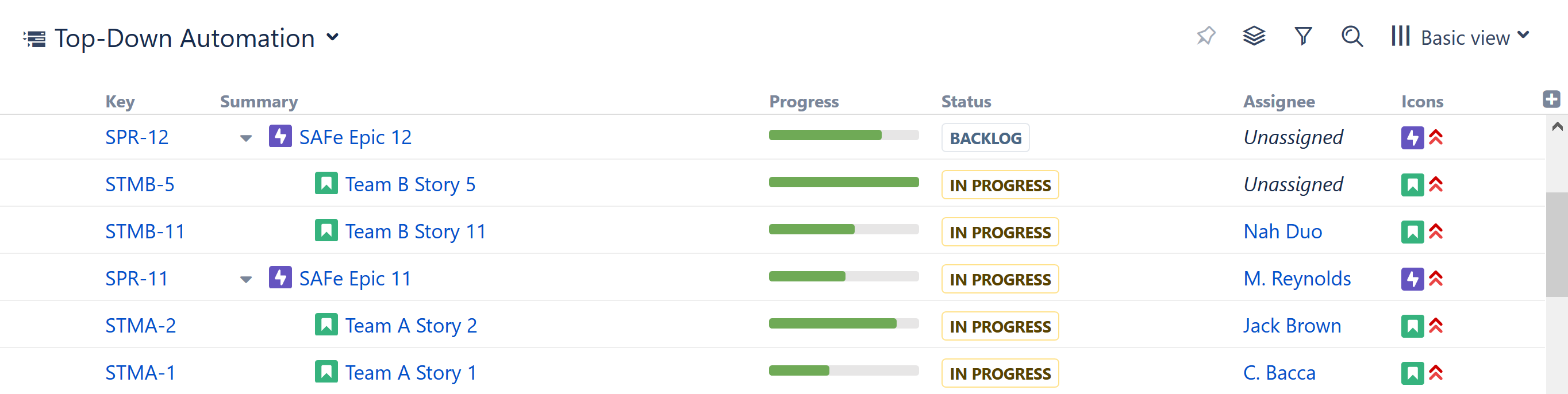
If you don’t select the top of your structure before adding an Extend generator, you will see the following error:
You are about to create a generator. It will be impossible to add it to the structure because of the automation installed: Cannot add generators to dynamic content. You can drag-and-drop the item to a different location.
Extend generators are global generators that affect the entire structure. To avoid conflicts, all other generators in your structure need to be global as well.
If you do receive this error, select the top line of your structure and try again to add an Extend generator.
Adding sub-tasks
-
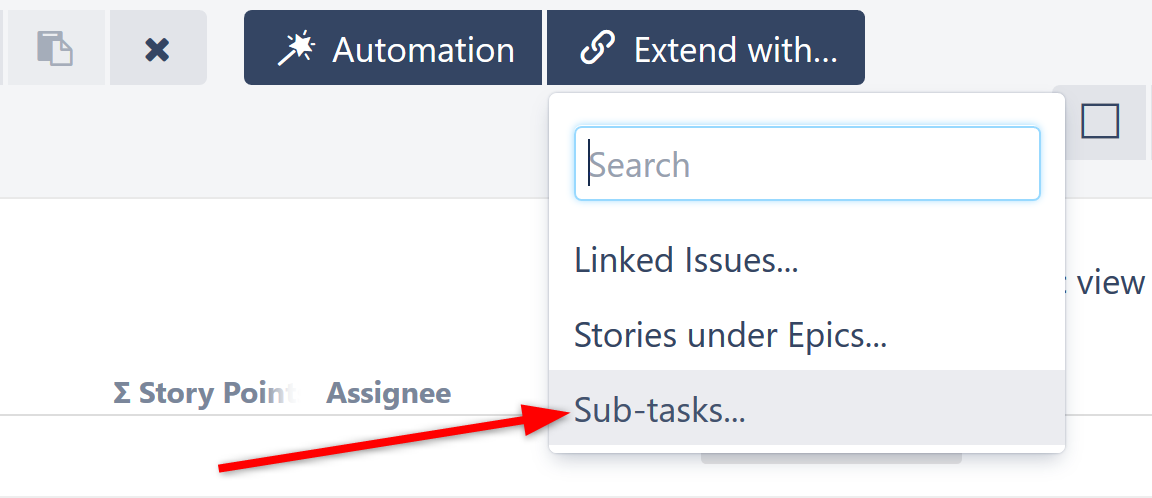
Select the top line of your structure—this will apply the generator to the entire structure—and select Extend from the (+) menu.
-
Select Sub-tasks…
-
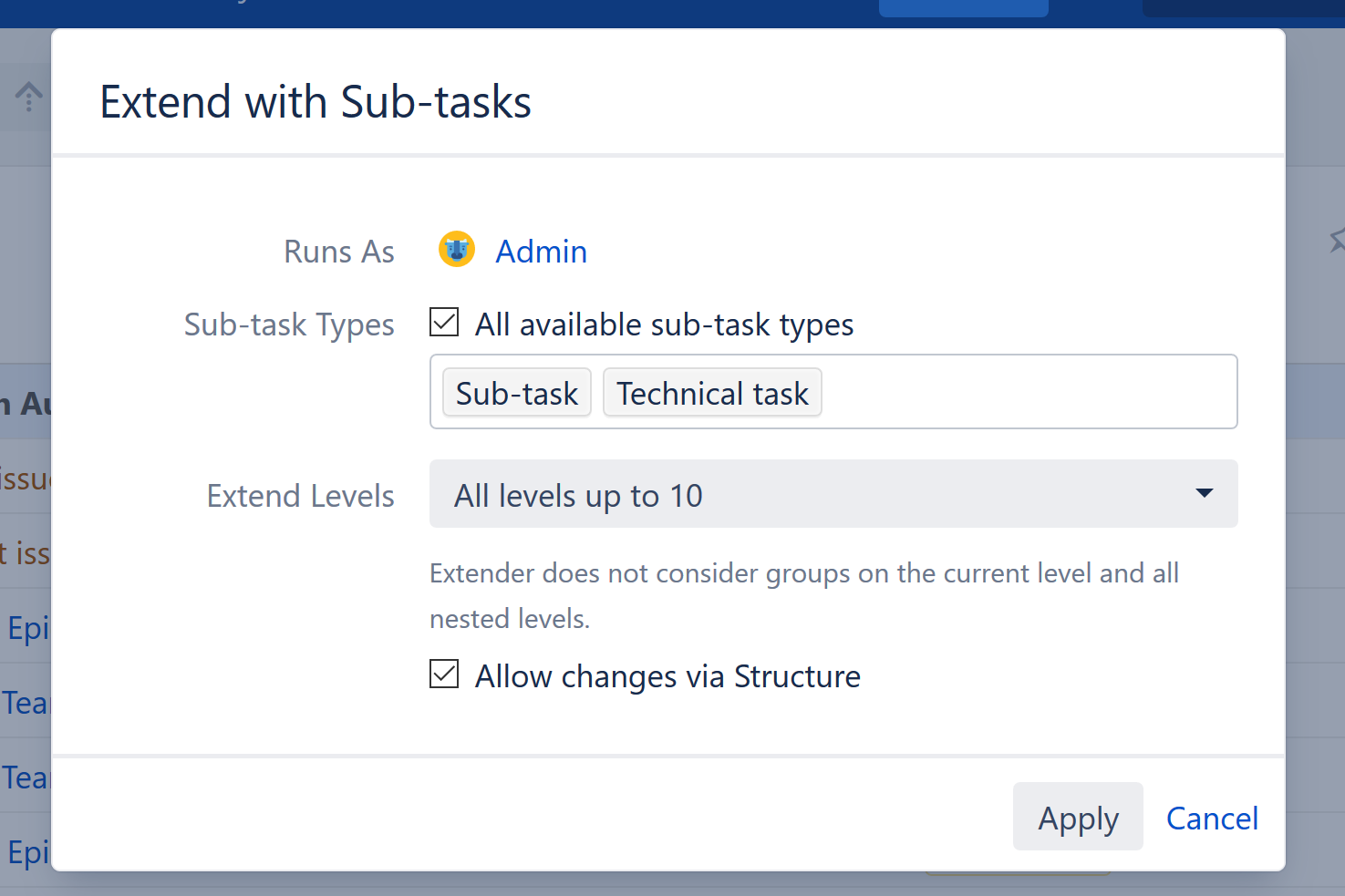
Select All available sub-task types or enter specific Sub-task Types to include.
-
Leave the other options at their default and select Apply.
-
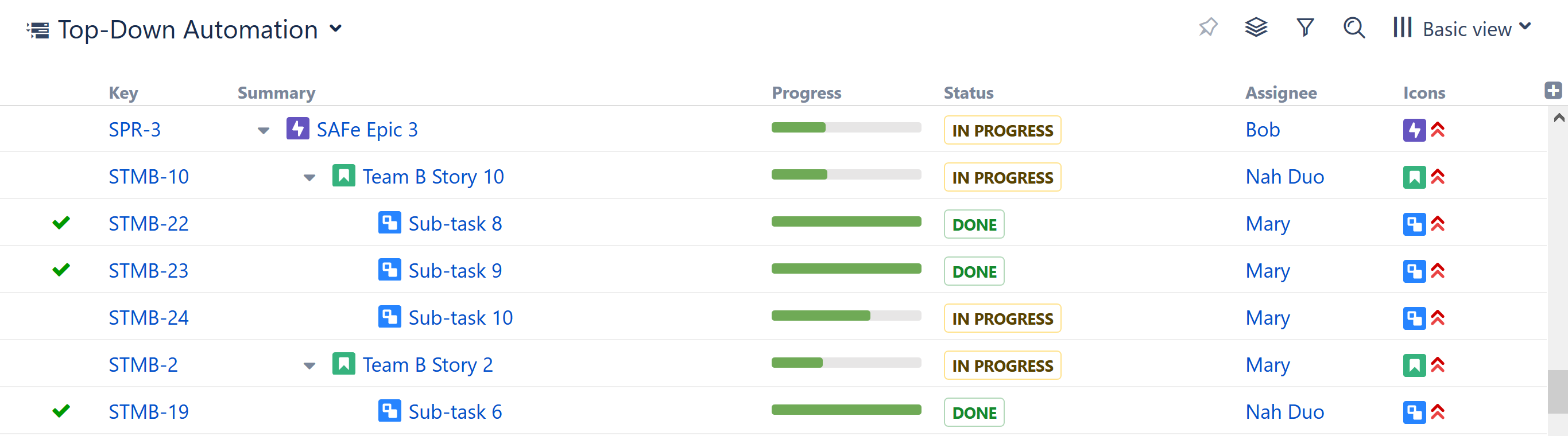
Stories with sub-tasks will have the same arrow as the epics. You can select that arrow to expand the hierarchy of your structure.
Further learning
This guide doesn’t cover other types of Automation, but you can explore them in the Generators section of the Structure User's Guide.
This guide only covered global generators, but you can also add automation to specific locations in a structure.
For example, you can create a folder for a particular project, select that folder before adding a generator, and import its epics into that folder.
Next Steps
Next, we'll take a look at how to create a bottom-up structure, which can be very useful for tracking projects and tasks across teams or departments.