Sprints Scheme: Filter by Issues
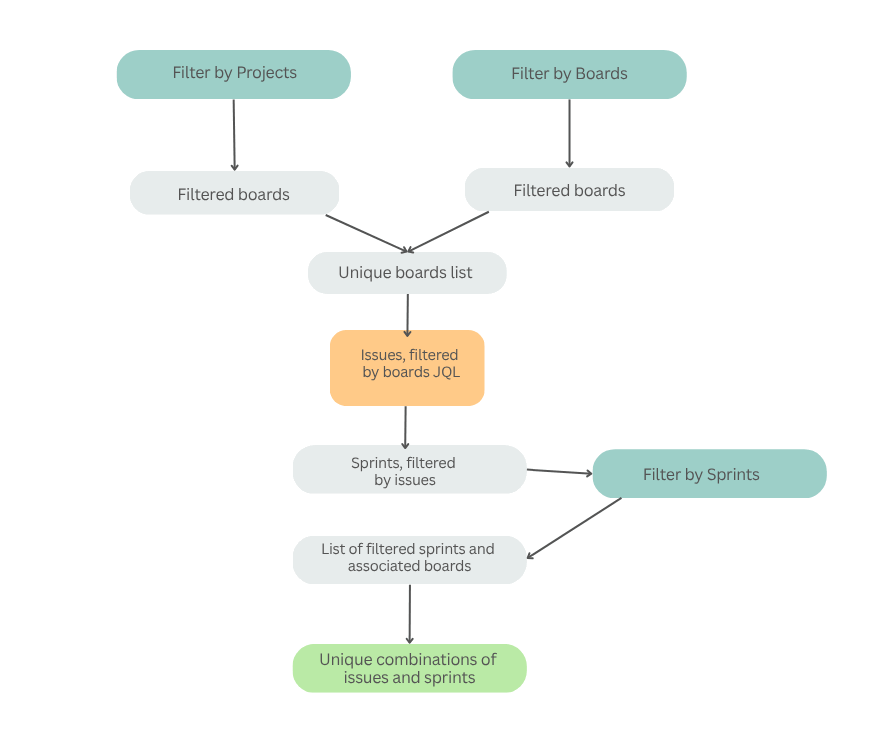
When Filter by Issues is applied and followed by the Projects, Boards, or Sprints filters, the filtering process is the following:
-
Boards are loaded and filtered based on the selected Projects filter.
-
Boards are loaded and filtered based on the selected Boards filter.
-
All unique boards from previous filtered sets are combined into a single list.
-
The Issues, linked to the filtered boards by JQL, are loaded.
-
Then Sprints are loaded based on the issues list and filtered according to the Sprints filter.
-
The chart data is exported page by page with the corresponding unique combinations of sprints and issues.
-
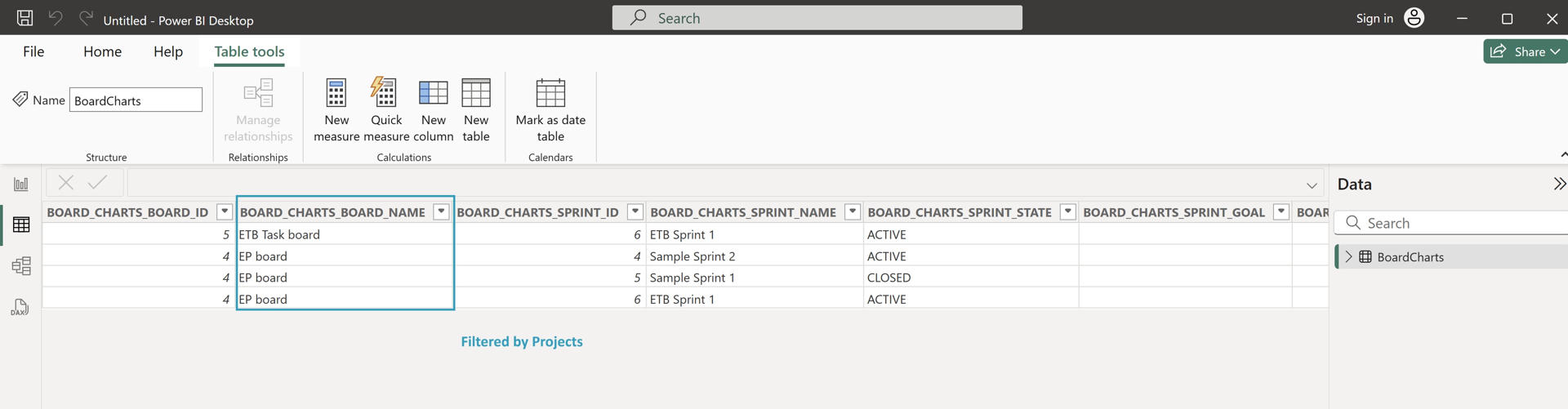
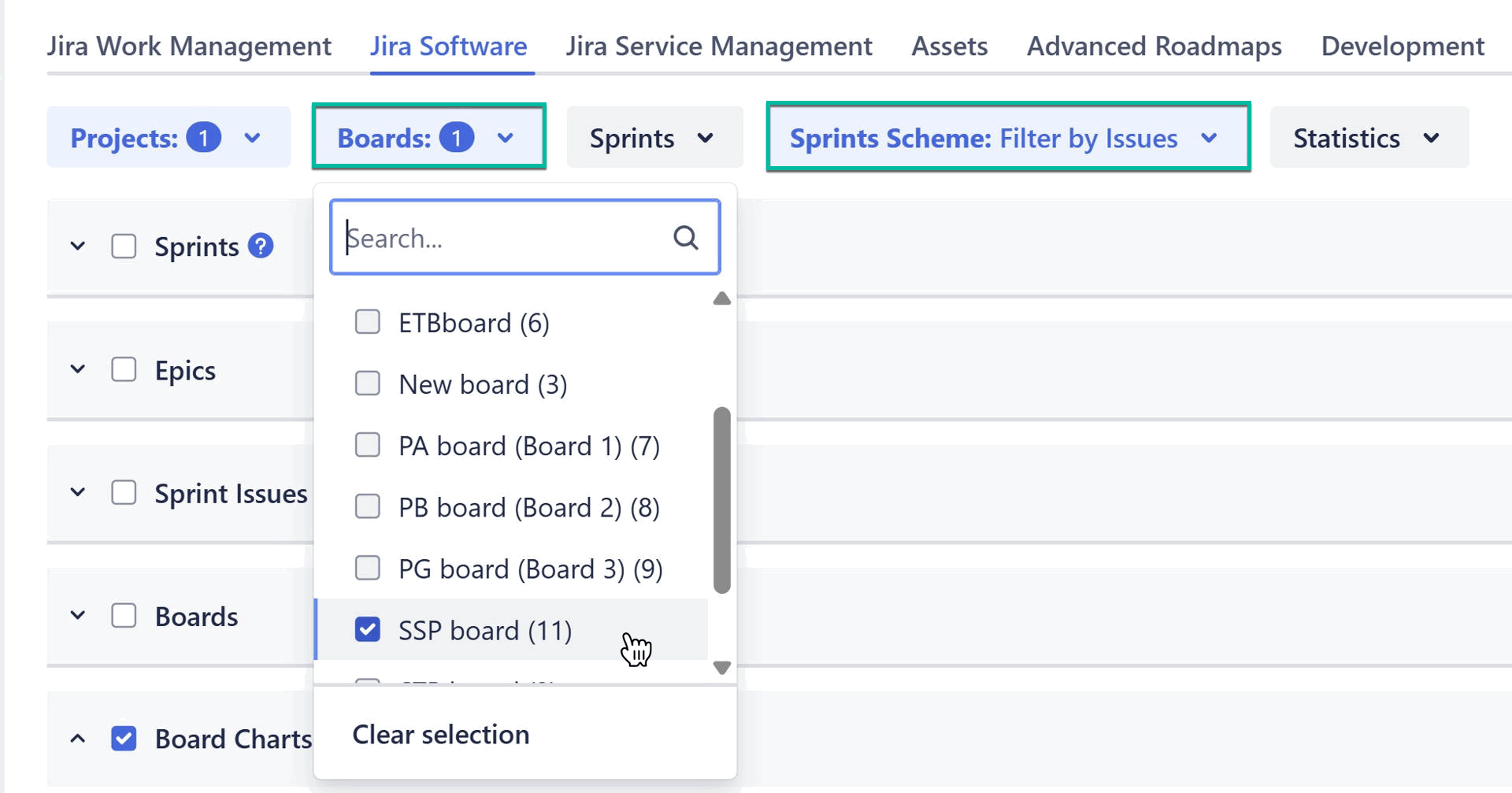
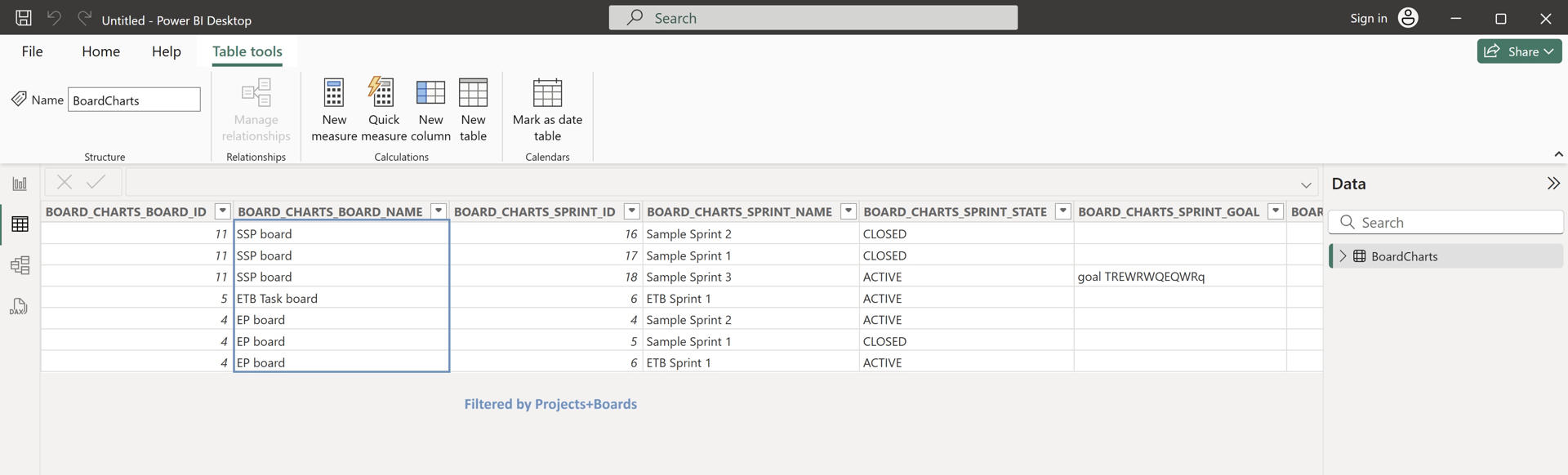
When you filter by Projects, all boards that contain issues from this project (based on JQL) are returned. The exported table displays unique combinations of boards and sprints.

-
When you add a filter by Boards (meaning a board from another project), issues matching the board’s JQL are found.
-
The system then identifies all sprints linked to those issues.
-
The exported table includes additional rows of unique board-sprint combinations, and results from both filters are combined.
-
The list expands to include all unique combinations across the selected projects and boards.
-
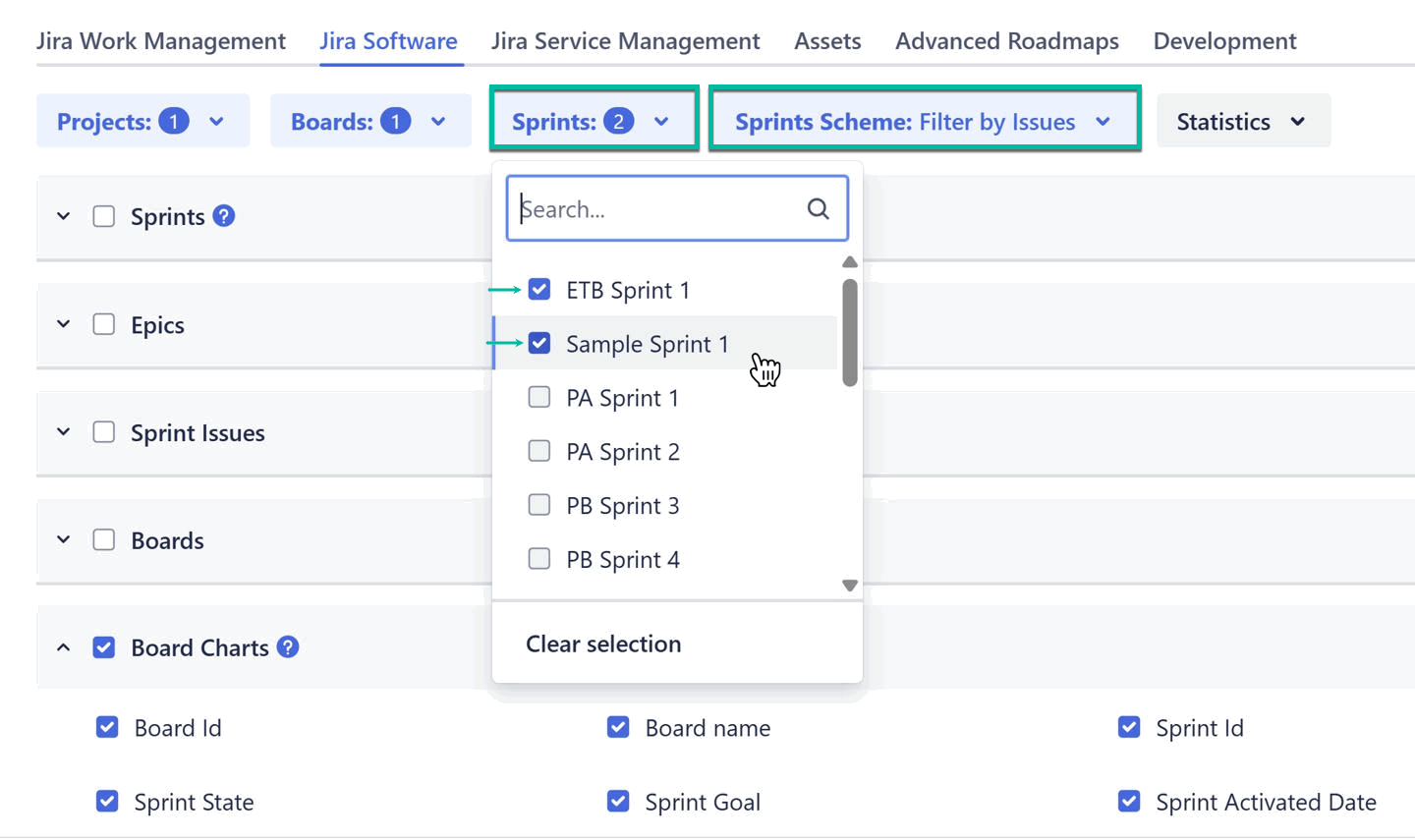
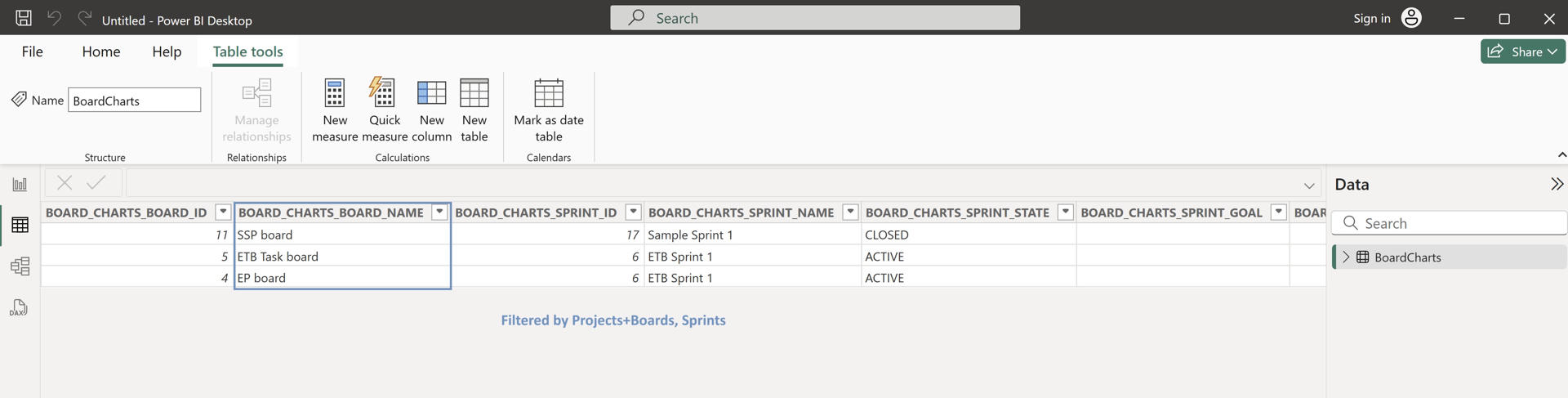
When you apply the Sprints filter after the Projects and Boards filters, all issues linked to selected sprints are found.
-
The exported table then displays unique board-sprint combinations associated with the selected sprint:
-
In this case, the Sprints filter narrows the results rather than combining them.
-
As a result, the amount of exported data is reduced.
-
Sprints Scheme: Filter by Parent Boards
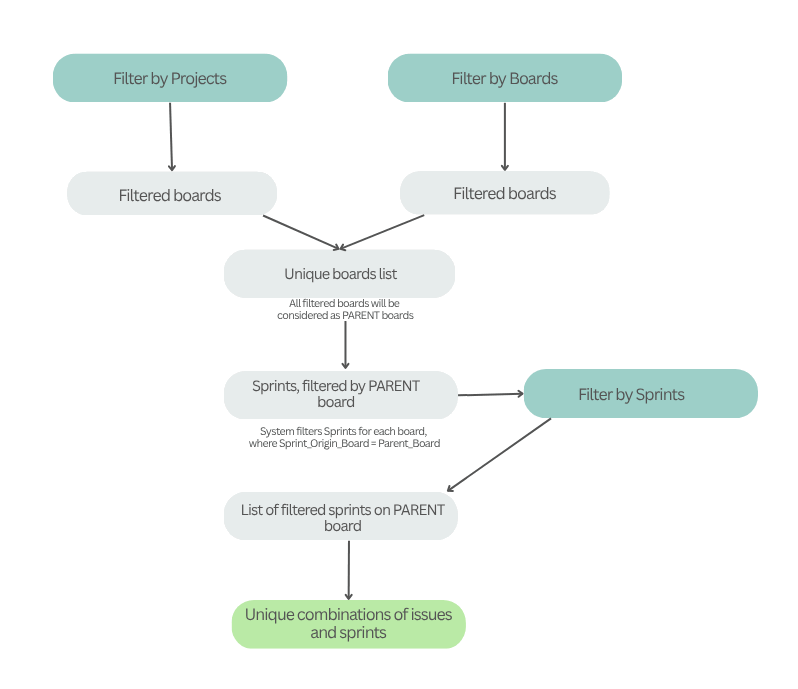
When filter by Parent Board schema is applied and followed by the Projects, Boards and Sprints filters, the filtering process is the following:
-
Boards are loaded and filtered based on the selected Projects filter.
-
Boards are loaded and filtered based on the selected Boards filter.
-
All unique boards from previous filtered sets are combined into a single list and considered as PARENT boards list.
-
Then Sprints are loaded and filtered based on the link Sprint Origin Board = Parent Board.
-
All unique sprints from the previous filtered set are combined into a single list and filtered by Sprints filter.
-
The chart data is exported page by page with the corresponding unique combinations of sprints and issues.
-
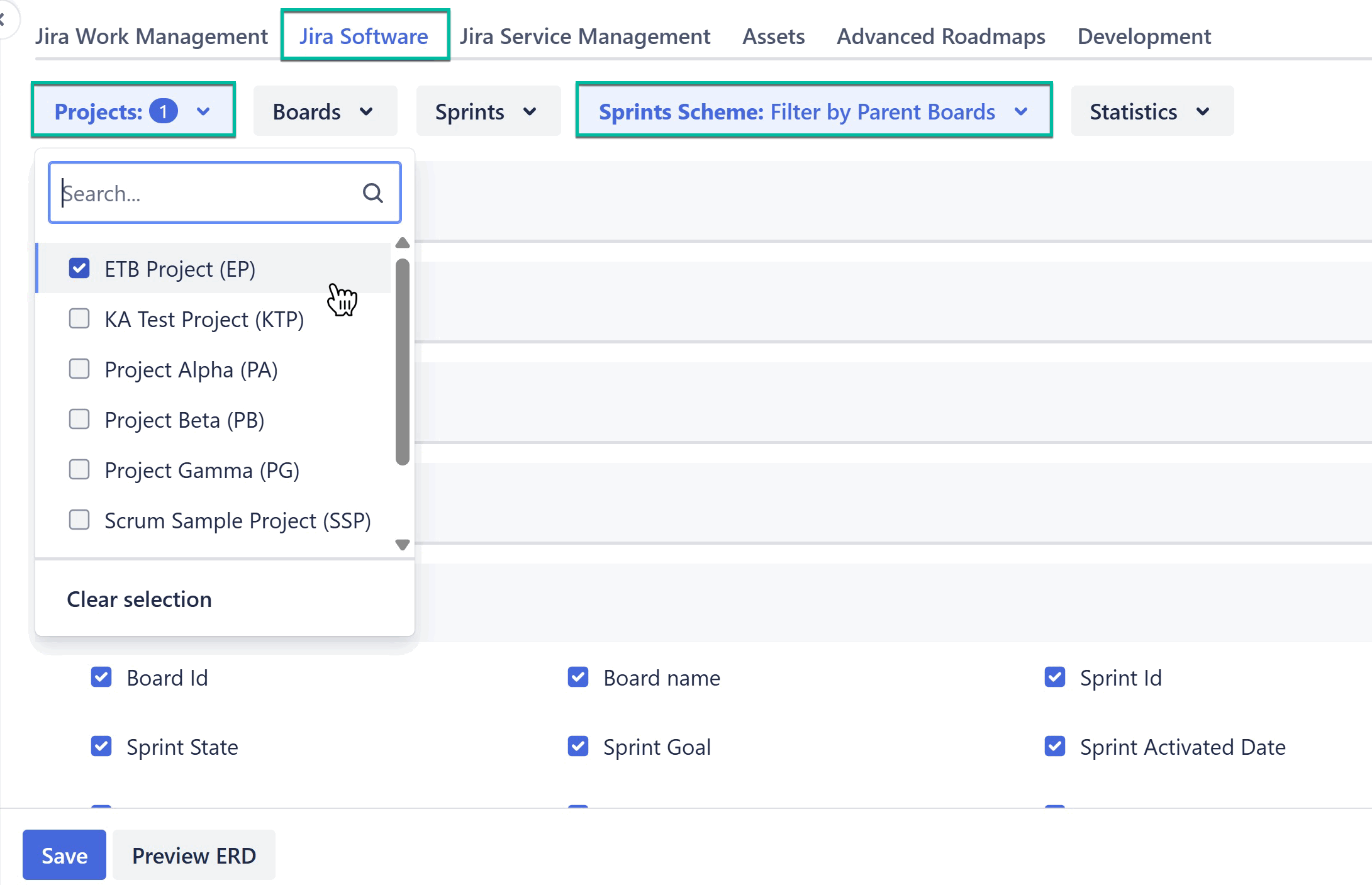
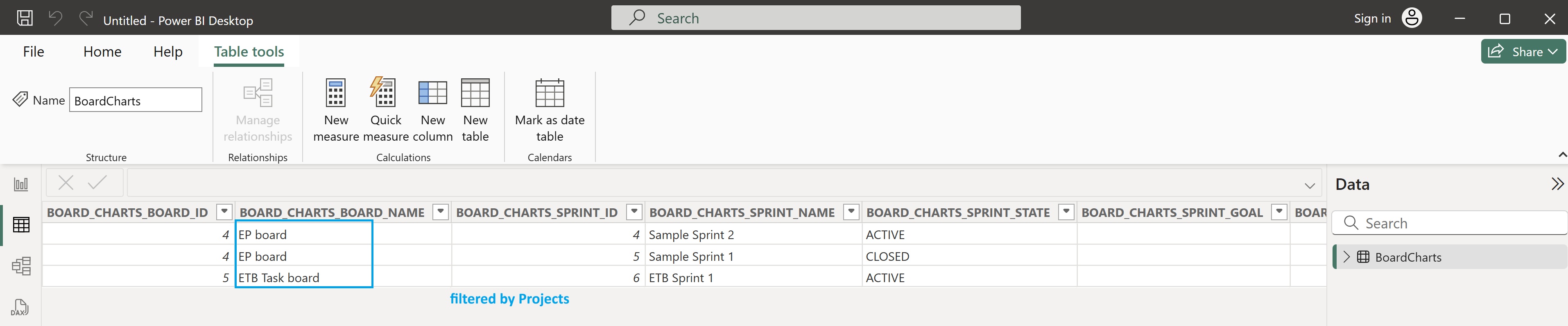
When you apply the Projects filter, all boards belonging to that project are found.
-
The system then identifies all sprints where each board is the PARENT_BOARD.
-
The exported table displays unique board–sprint combinations.
-
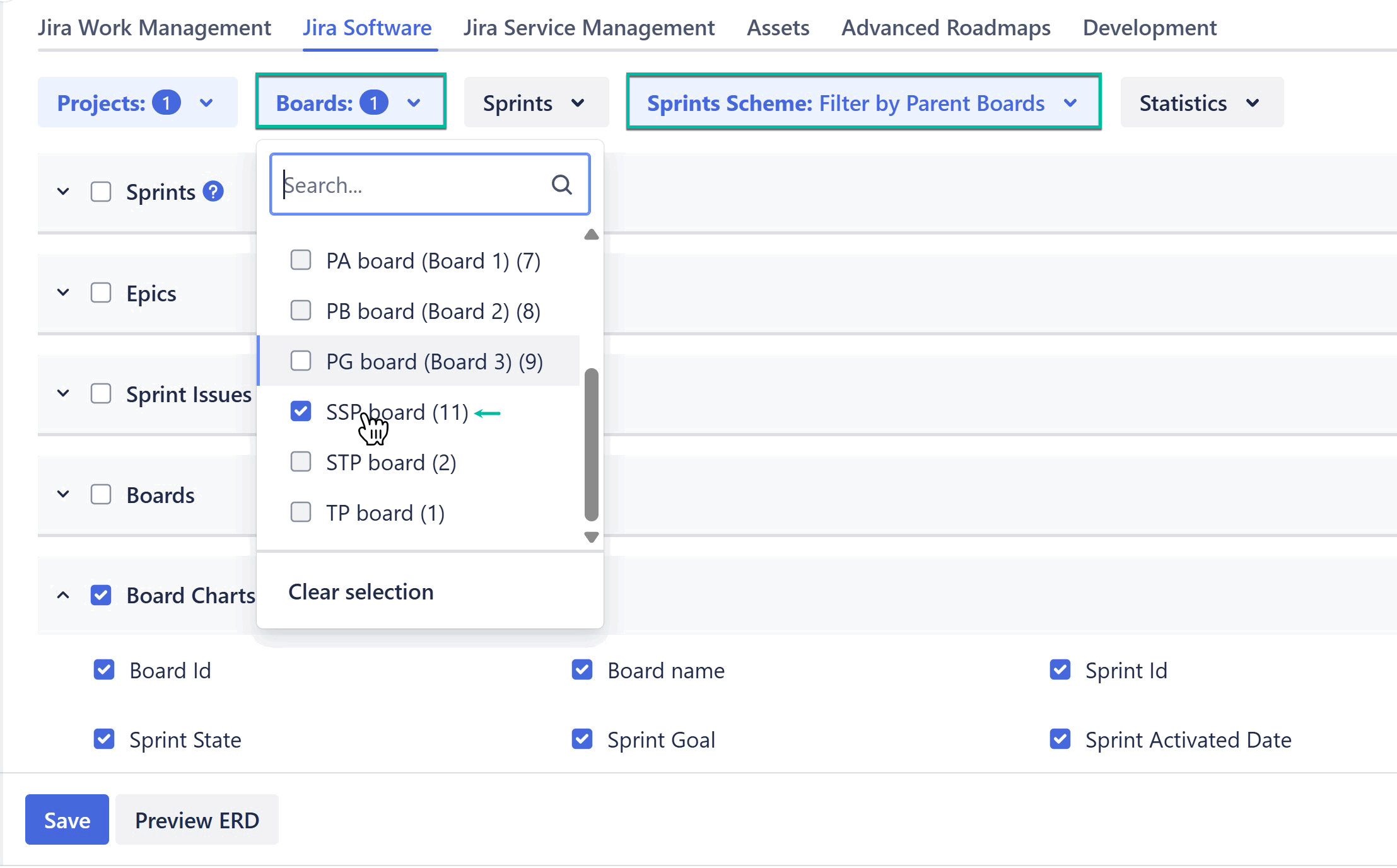
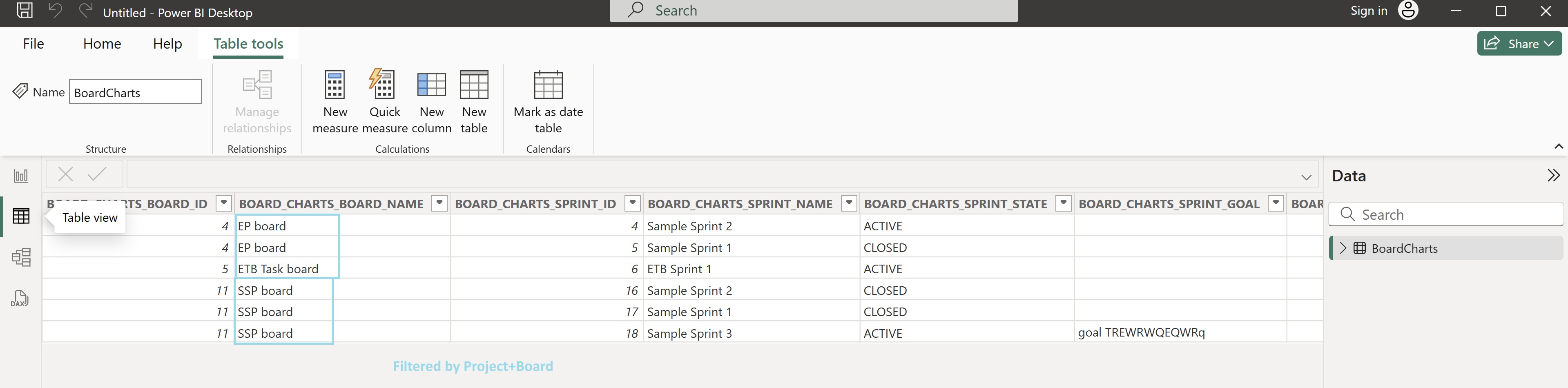
When you apply the Boards filter, all sprints where each selected board is the PARENT_BOARD are found.
-
The exported table combines these results with the previously returned data and keeps only the unique board–sprint combinations.
-
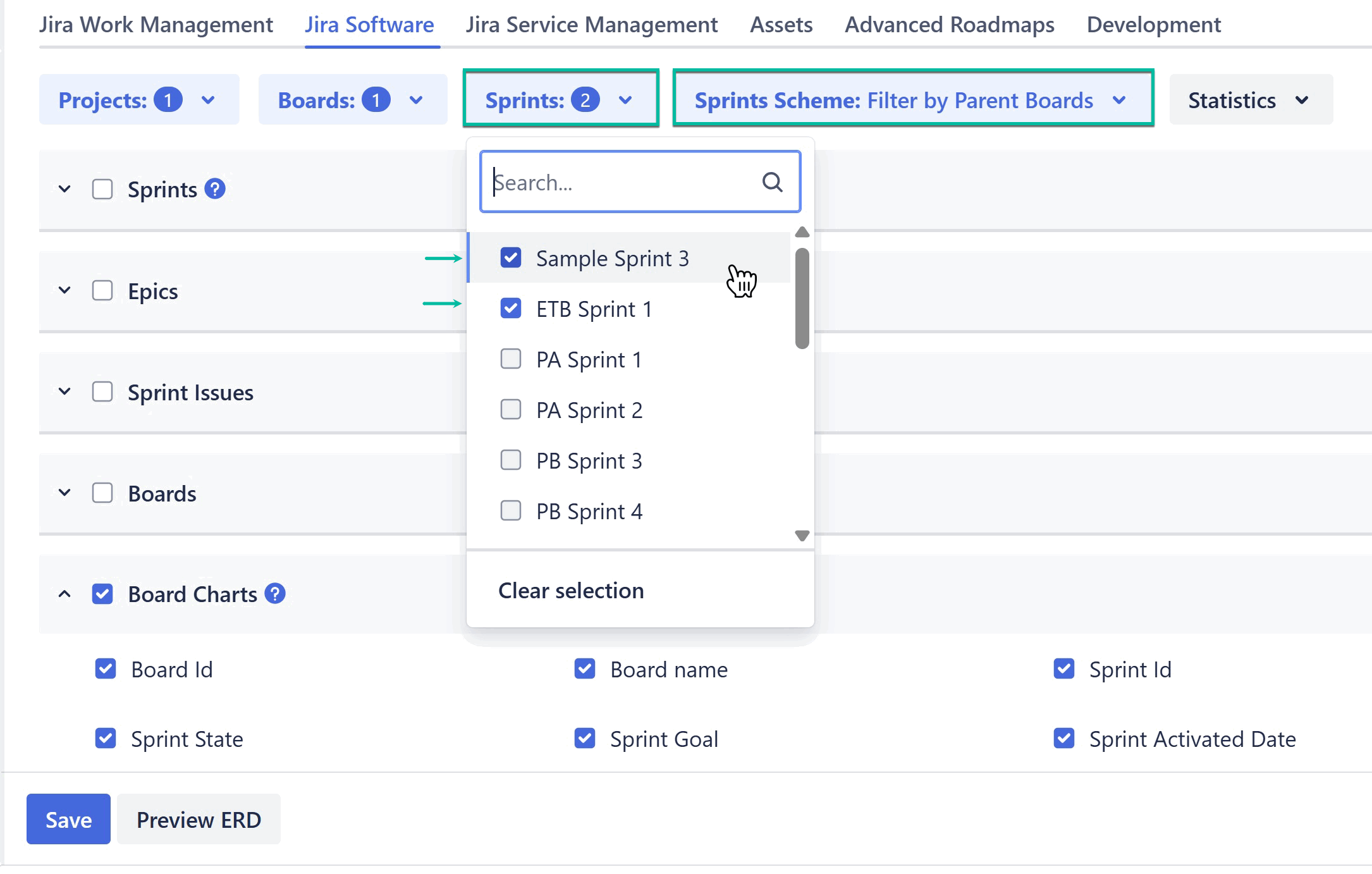
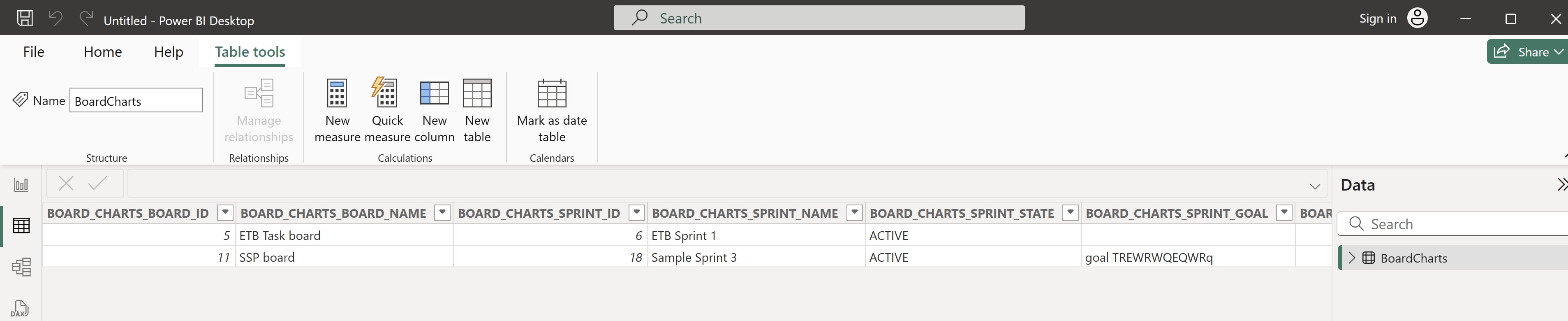
When you apply the Sprints filter, all sprints for each parent board are retrieved. These sprints are then filtered by the selected Sprints filter:
-
In this case, the Sprints filter narrows the results rather than combining them.
-
As a result, the exported data set is reduced.
-
Exporting Empty Sprints Based on the Sprints Schema Filter
The following sprint types are treated as empty:
-
Sprint 1: No linked issues; sprint not started.
-
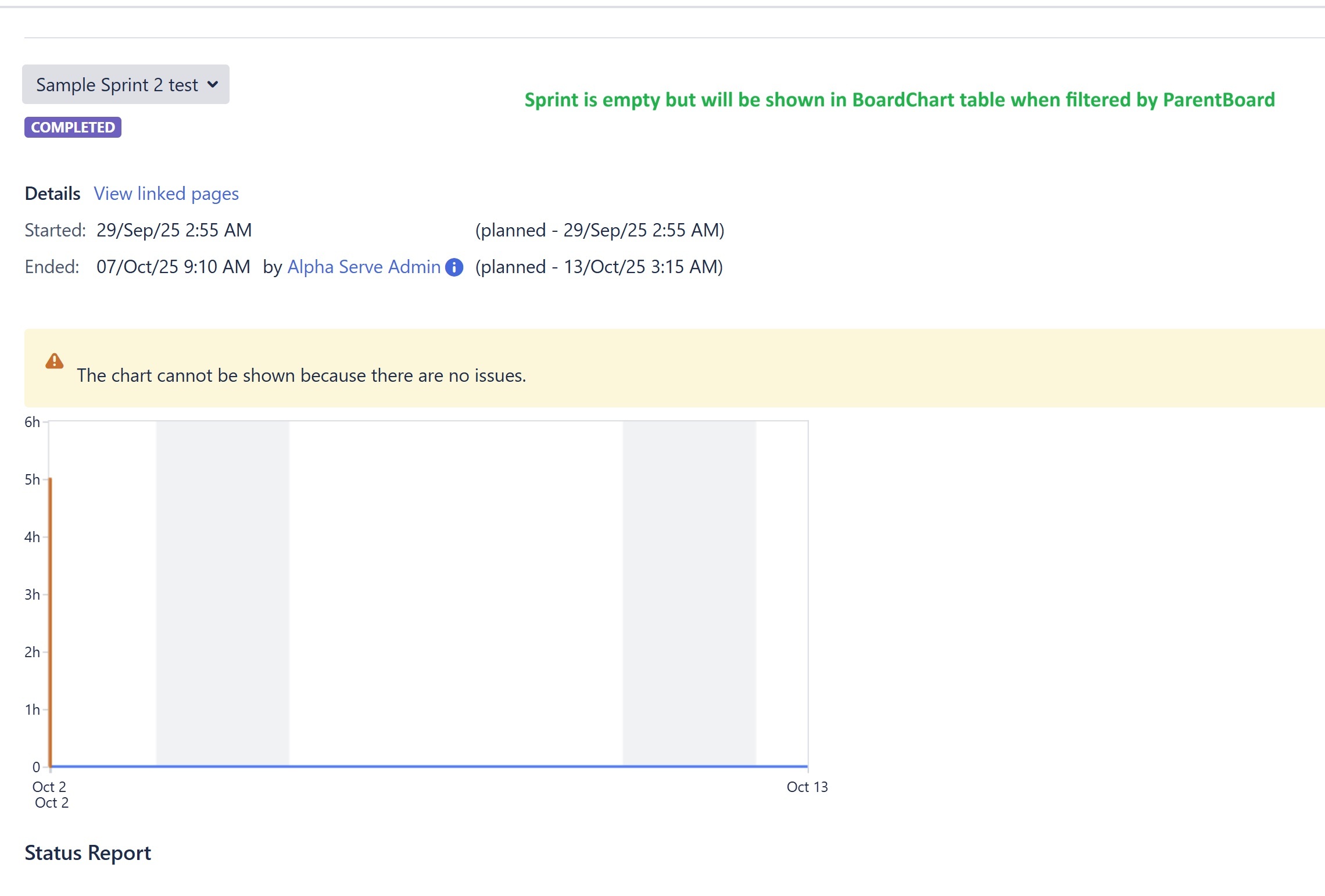
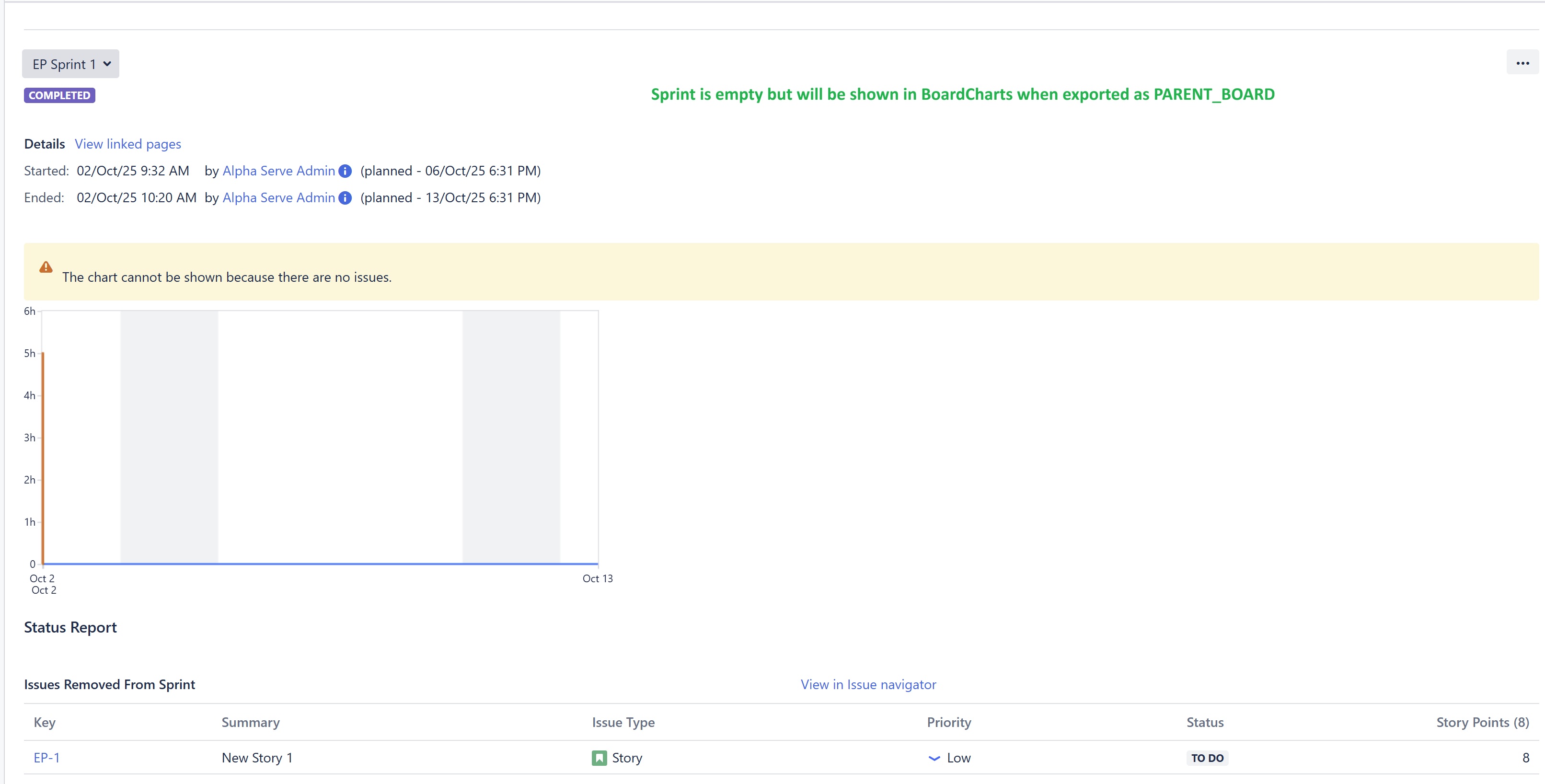
Sprint 2: No linked issues; sprint was started and then closed.
-
Sprint 3: No linked issues; issues were removed; sprint was started and then closed.
The filtering behavior is the same as described earlier.
Consider the following behavior:
-
When applying Sprint Schema: Filter by Issues, the export result will be empty because no sprints contain linked issues. As a result, there is no Board Chart data to display.
-
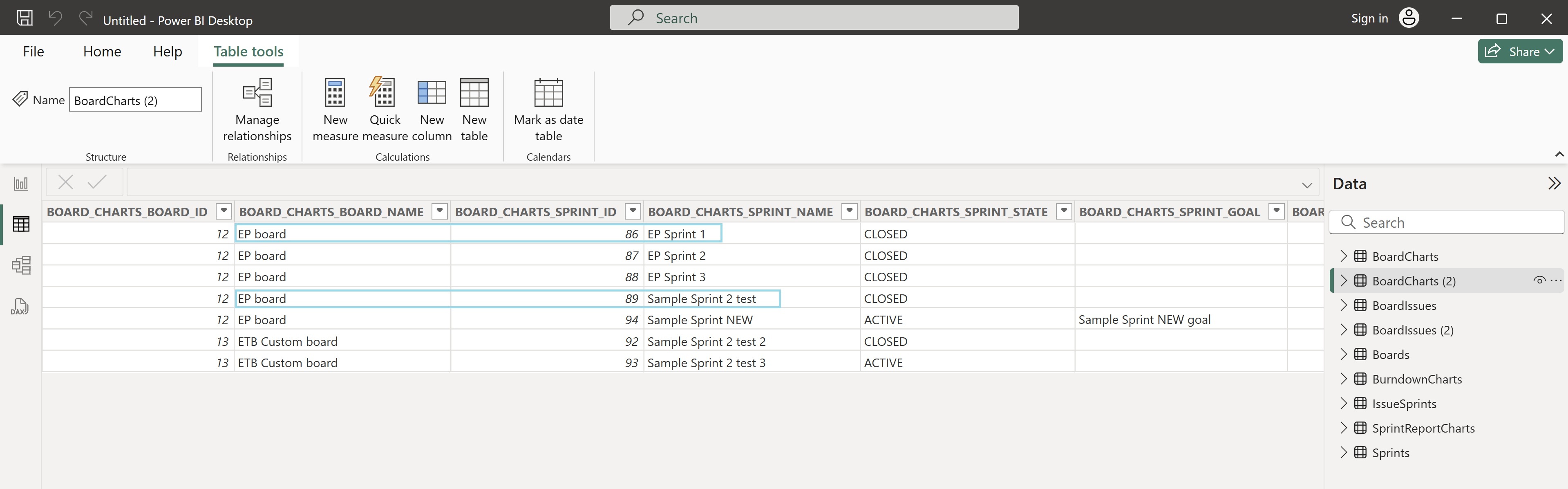
When applying Sprint Schema: Filter By Parent Board, the export includes Sprint 2 and Sprint 3, because both are linked to the parent board. In this case, Burndown Chart contains rows with the following information:
-
Sprint 3: Shows started and closed actions, and removed issue actions.
-
Sprint 2: Shows started and closed actions.
-
Sprint 1: Not included because it is a future-type sprint, which is excluded from the export.
-
Verifying Exported Data in Jira
To verify that your data was exported correctly:
-
Locate the relevant values directly in Jira.
-
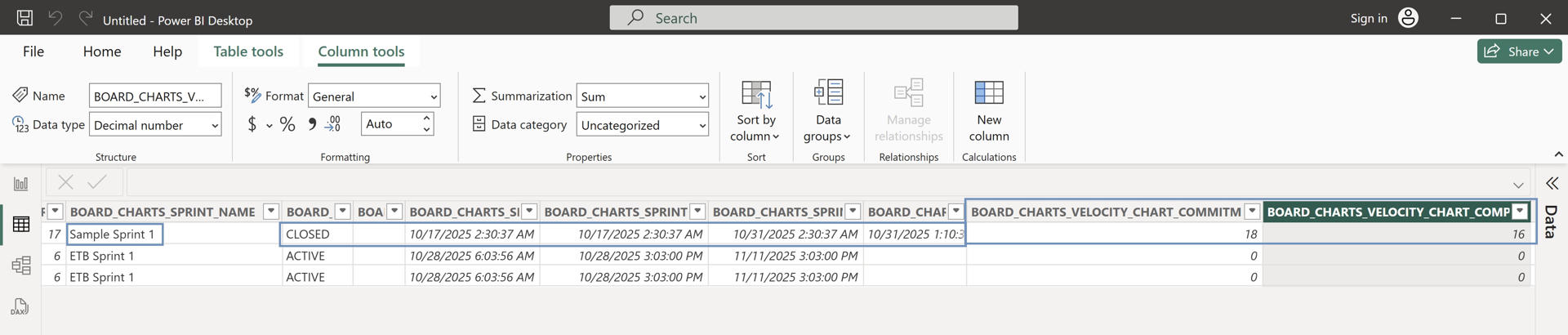
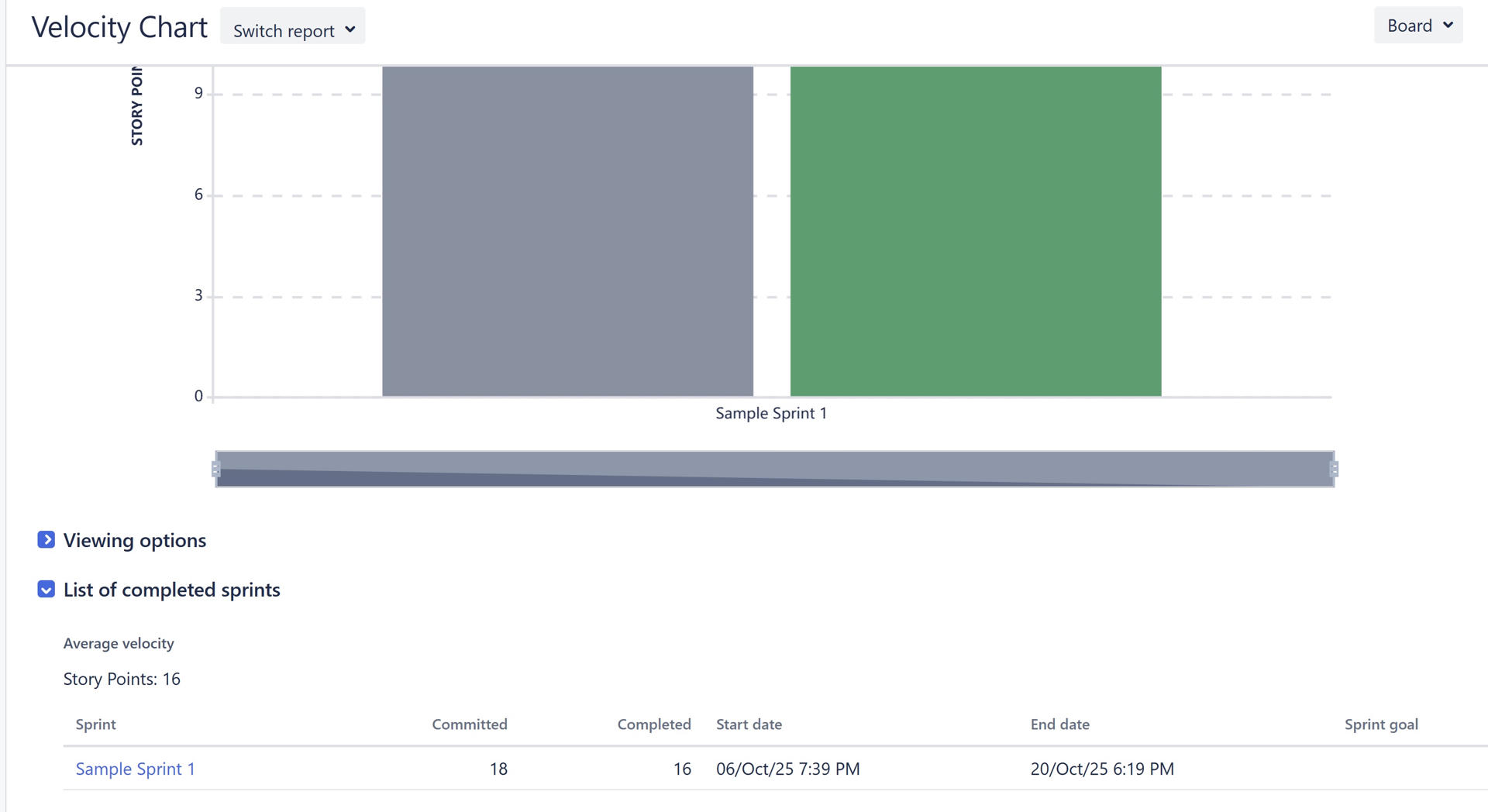
Compare the exported data with the Jira values (for example, issue counts, sprint IDs, or board names).
Comparing velocities
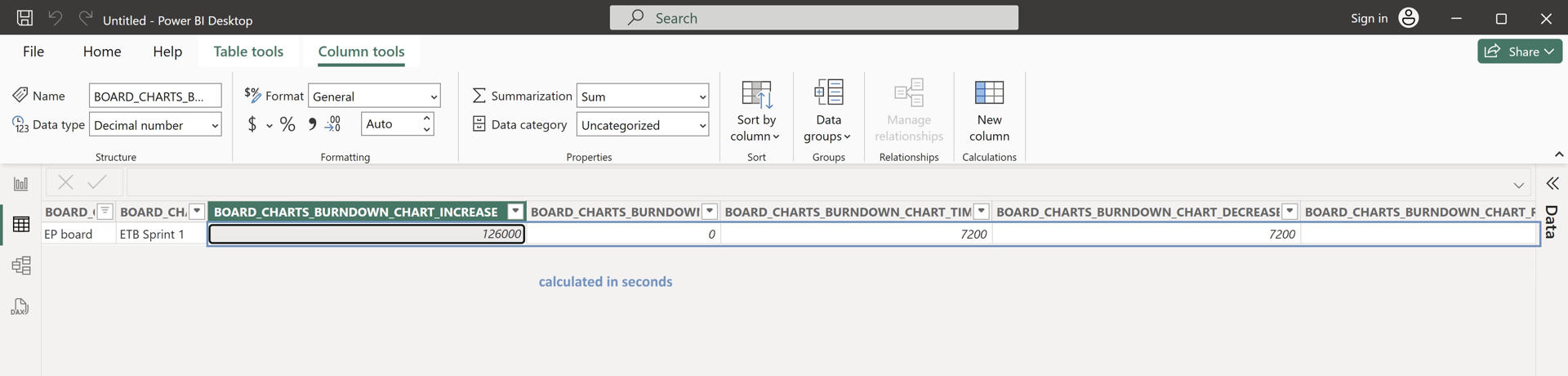
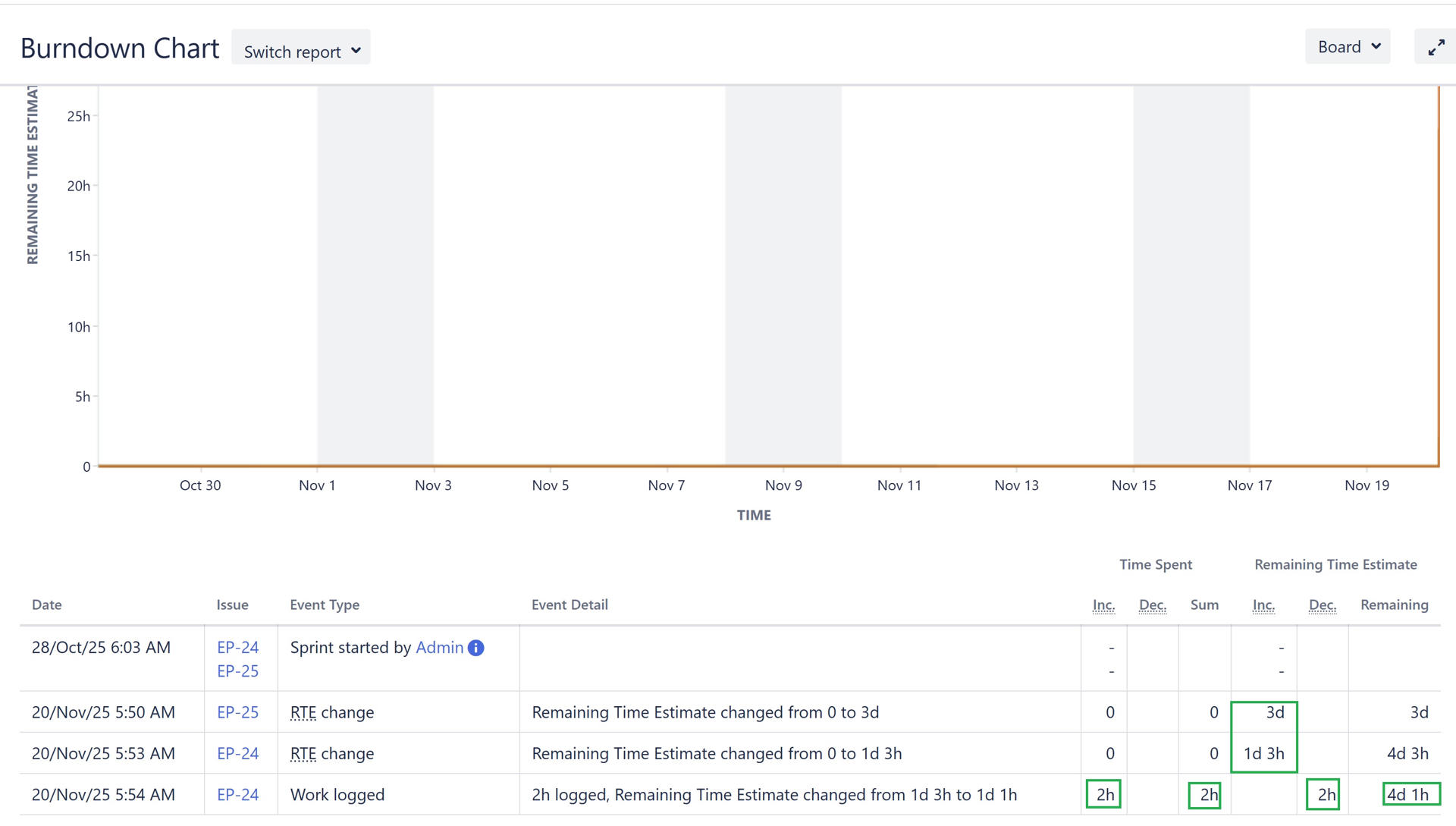
Comparing the Burndown Charts fields