Tracket Quick Overview
Tracket data helps you understand how time is spent across projects, making it easier to track productivity, resource use, and project costs. Use Power BI Connector for monday.com to export Tracket data into Microsoft Power BI and enhance your reports with meaningful time-tracking insights.
Before continuing with the steps below, please ensure Tracket is installed and configured.
How to Add Tracket Client Secret and Client ID
Tracket Client Secret and Client ID is required to view and export Tracket data with Power BI Connector for monday.com.
-
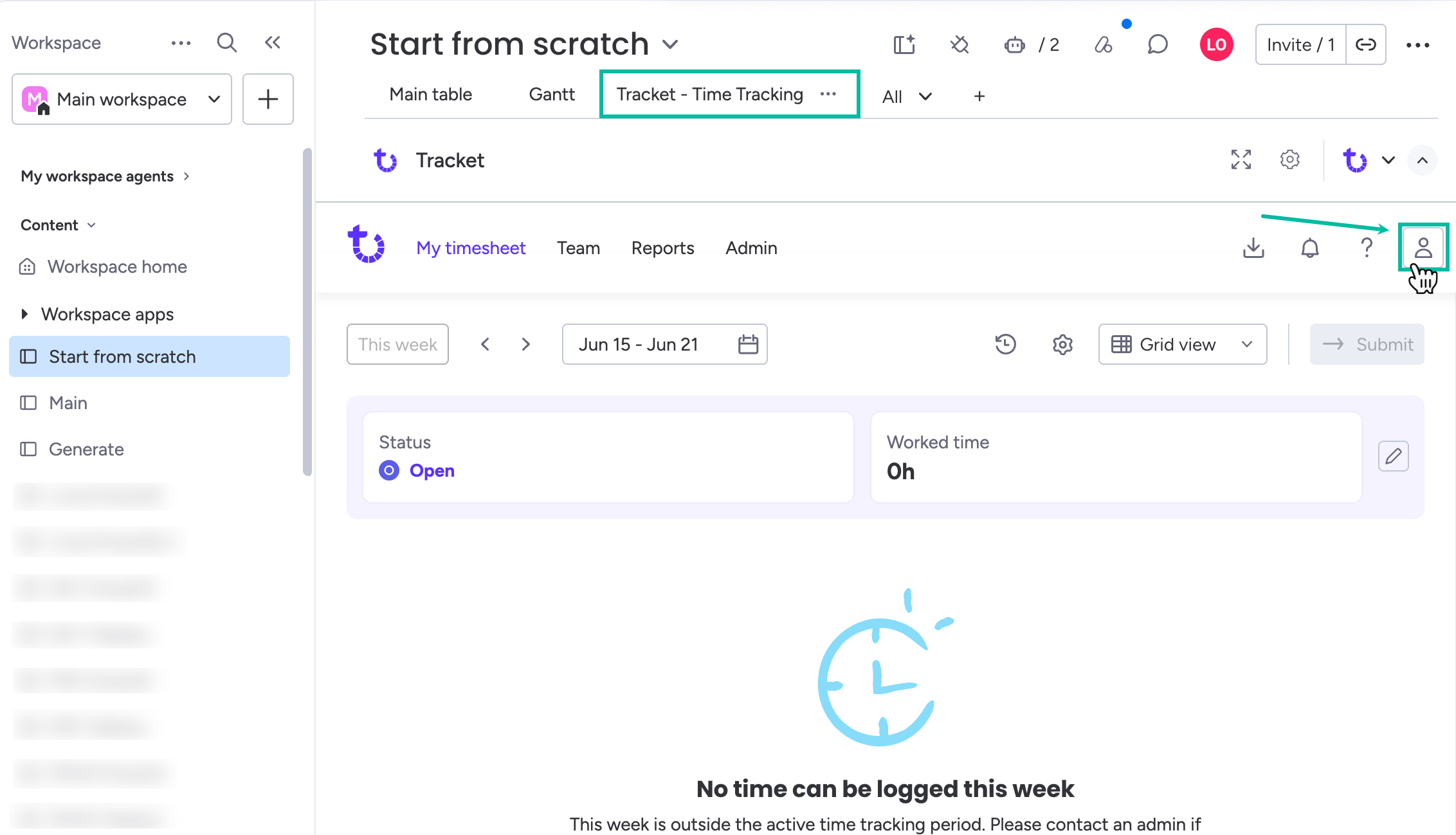
Open Tracket, and then select User icon.
-
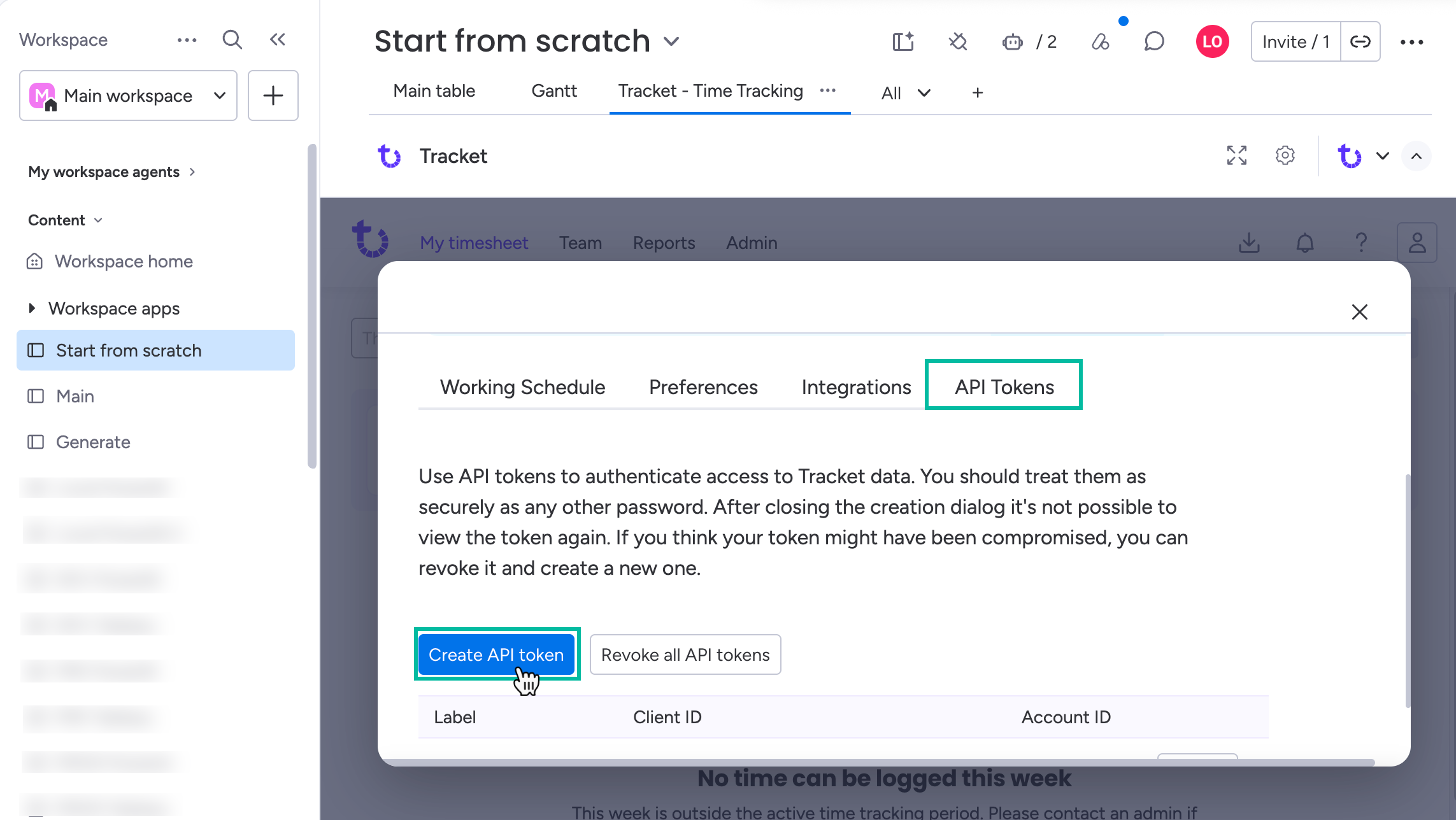
Select API Tokens, and then select Create API token.
-
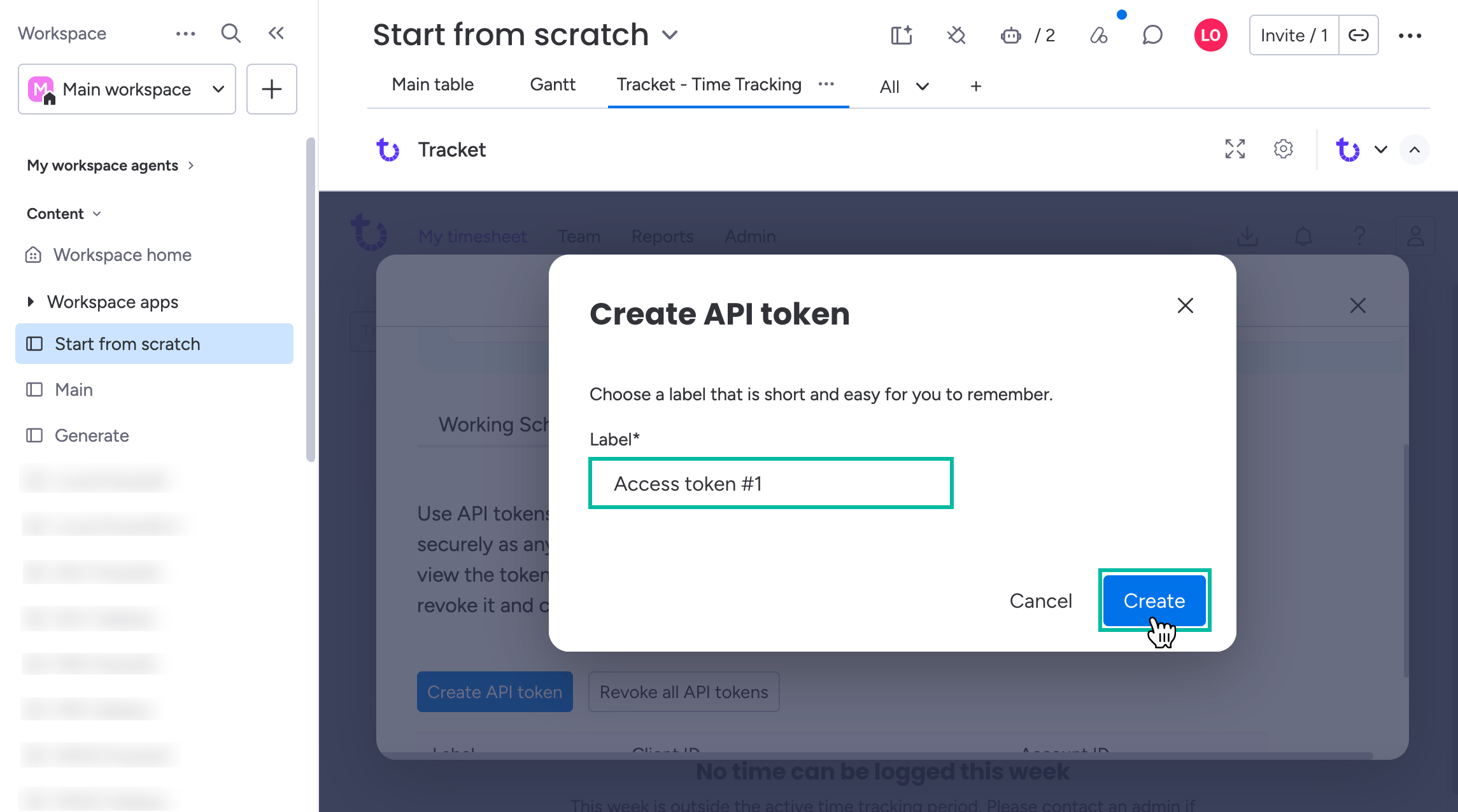
In the Label* field, enter a name for your token, and then select Create.
-
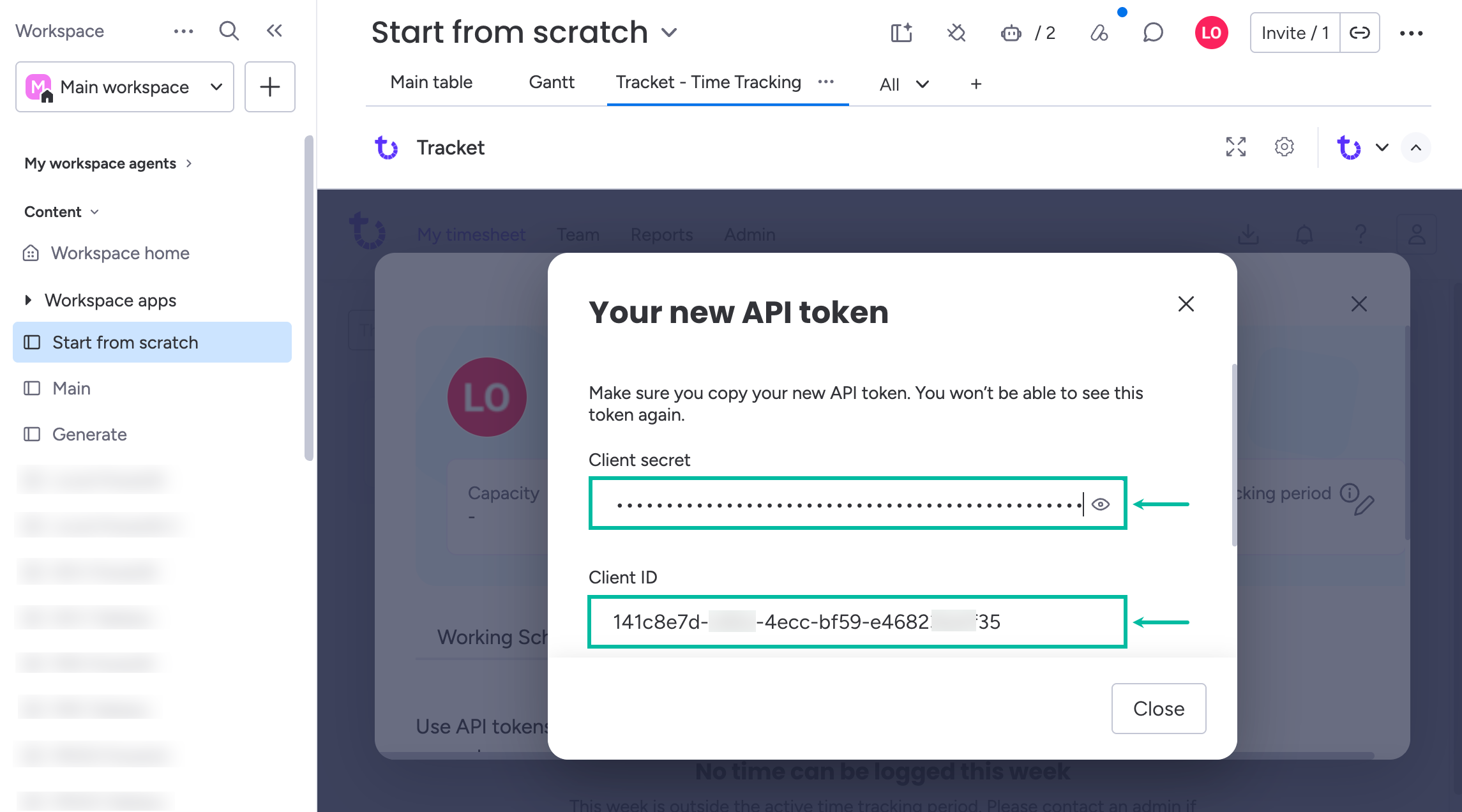
One by one, copy Client secret and Client ID, and then paste them respectively (step 6).
Before closing a window, please ensure you copy Client secret. You won’t be able to see this Client secret again.
-
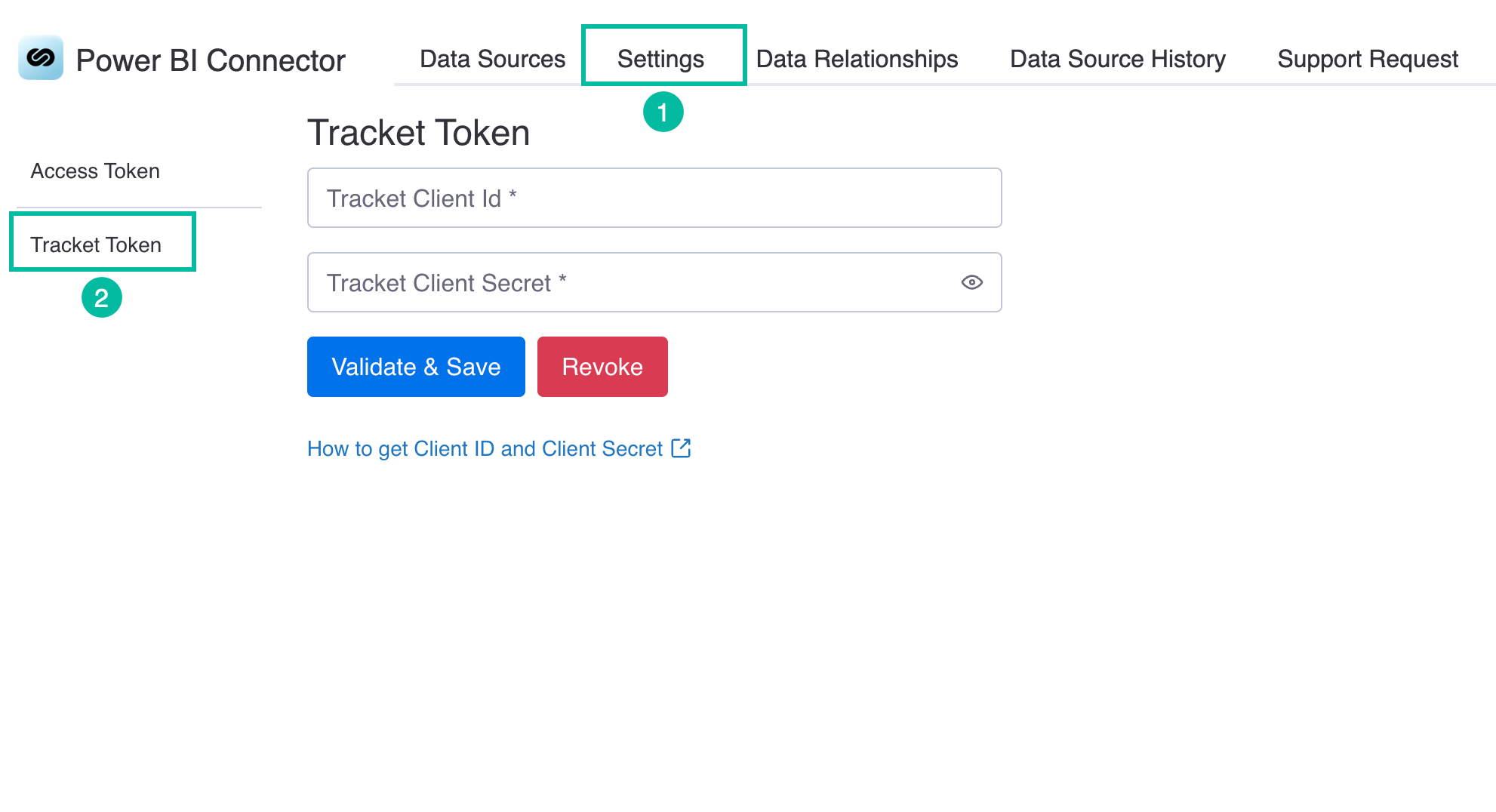
Navigate to Power BI Connector widget, select Settings, and then select Tracket Token.
-
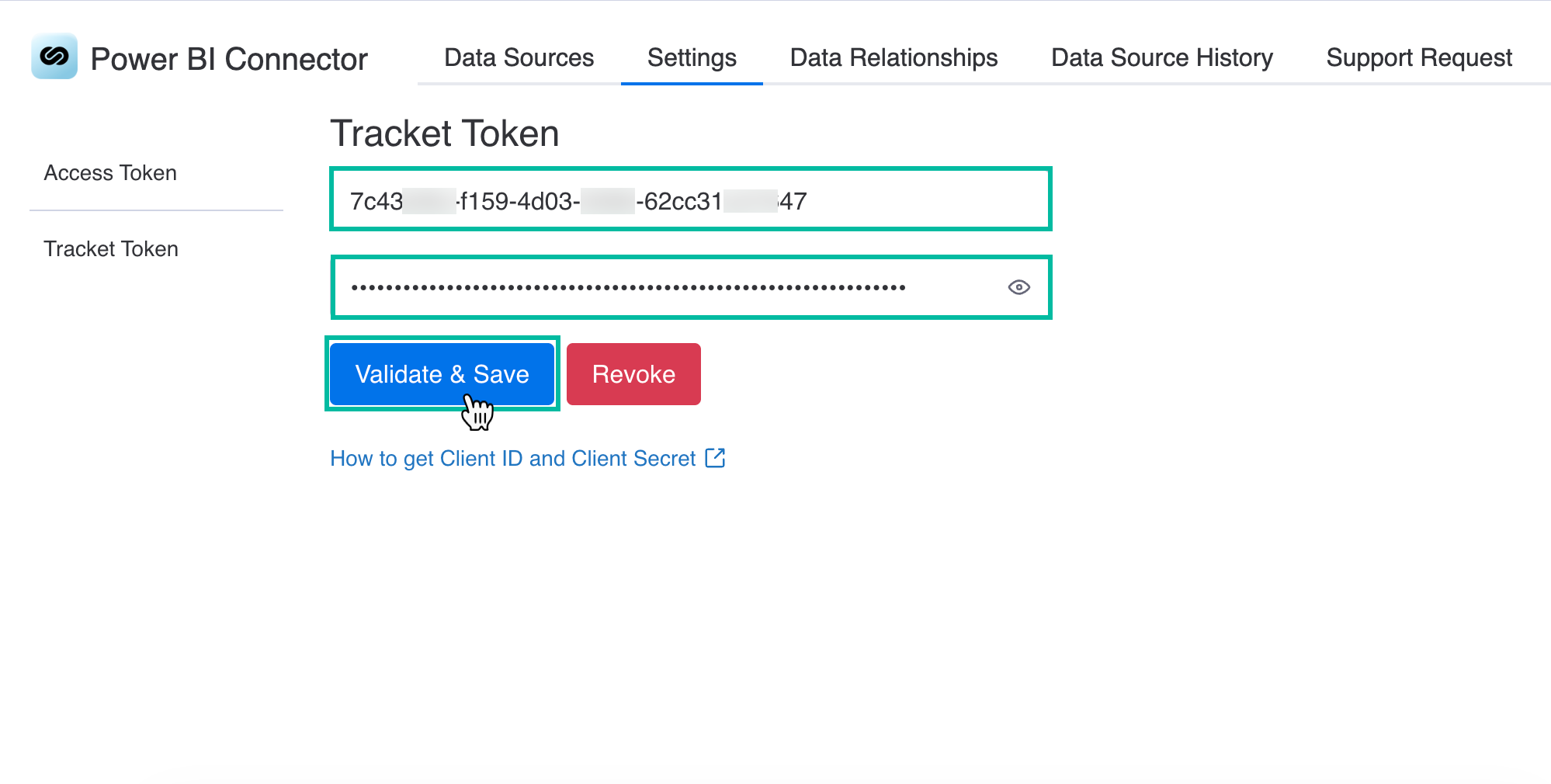
In the Tracker Client ID and Tracket Client Secret fields, paste copied before client ID and client secret respectively (step 4).
-
Select Validate & Save.
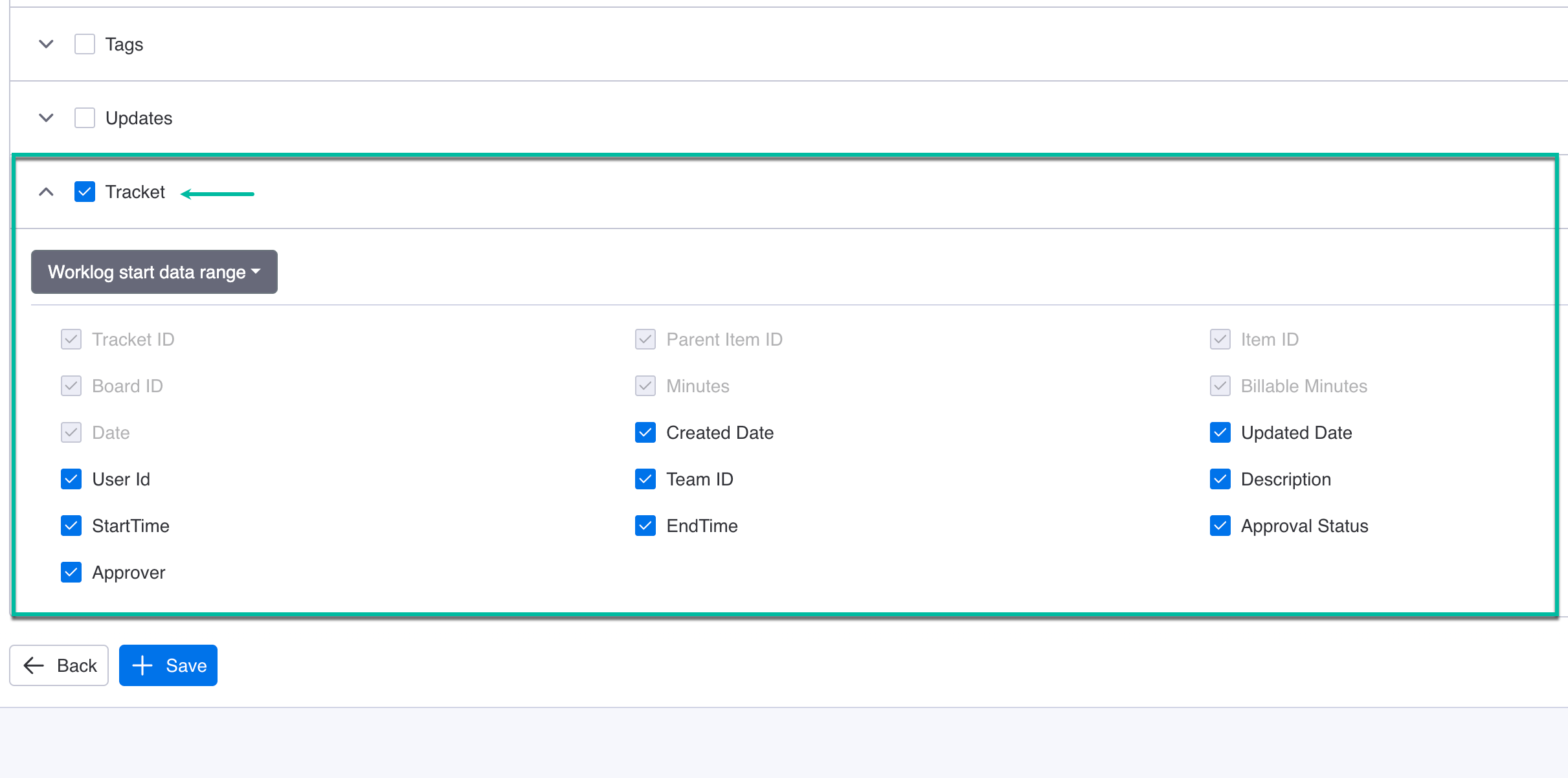
During the next data export, you'll be able to include Tracket data.
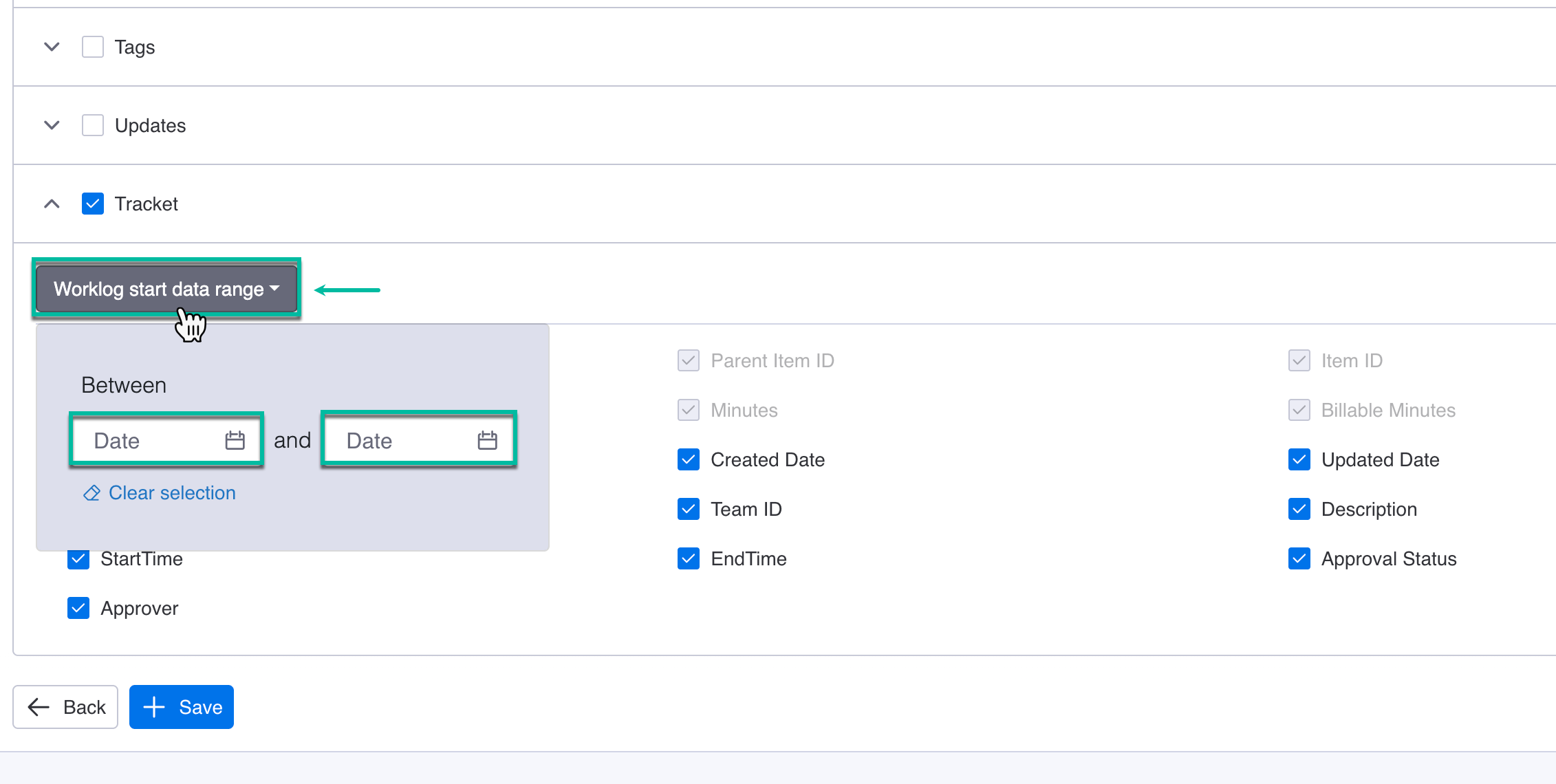
Some fields are selected by default - they’re greyed out and cannot be deselected - while others are optional and can be added based on your needs.
Tracket Table Filter
A new filter has been added to the app.
You can use this filter to limit the data included in your export. This allows you to export only relevant records instead of the entire dataset.