
Without a Jira API token, the export may be limited to 10,000 users, and inactive users will not be included.
The newly-created data source has the NOT EXPORTED status.
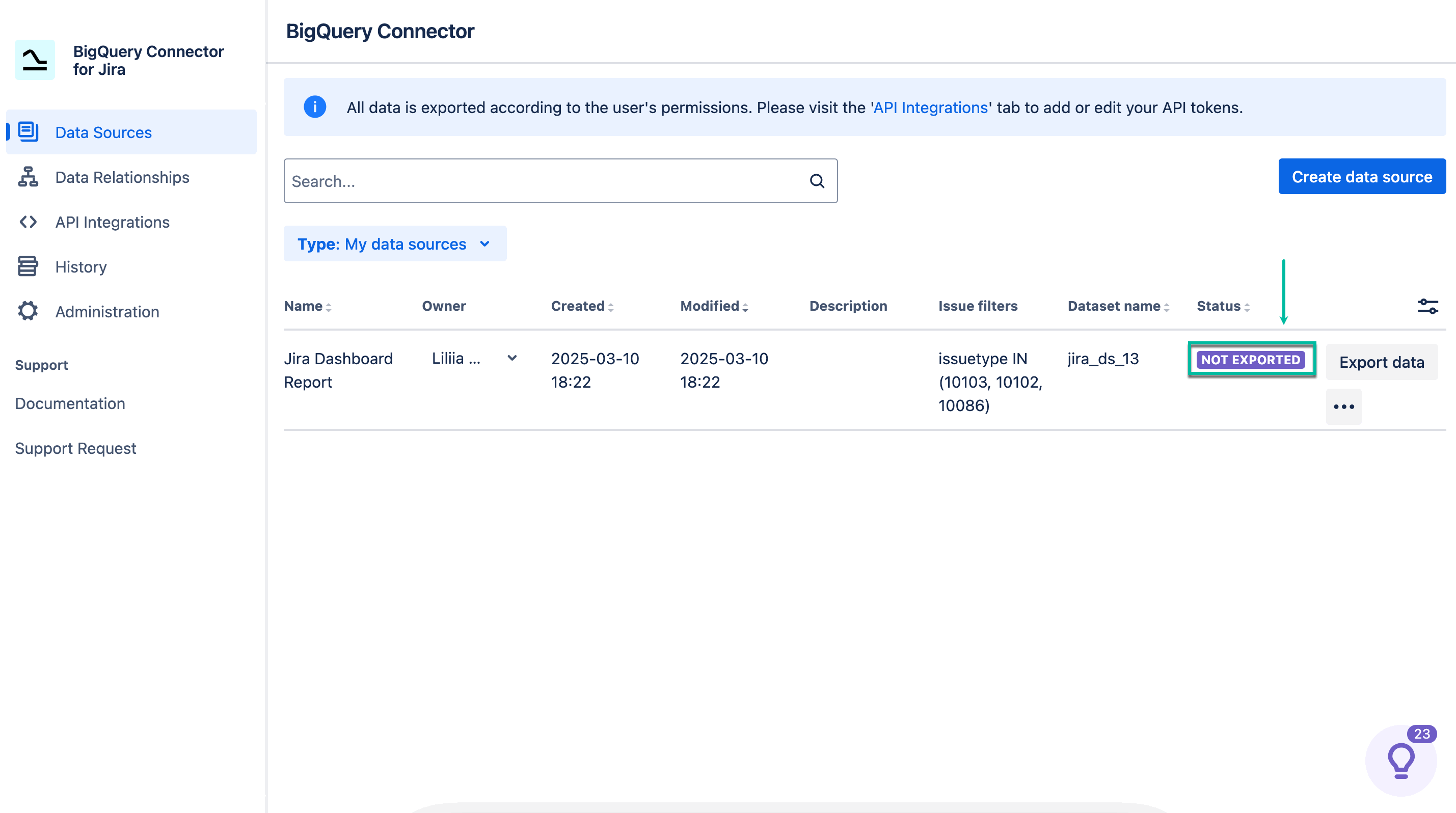
-
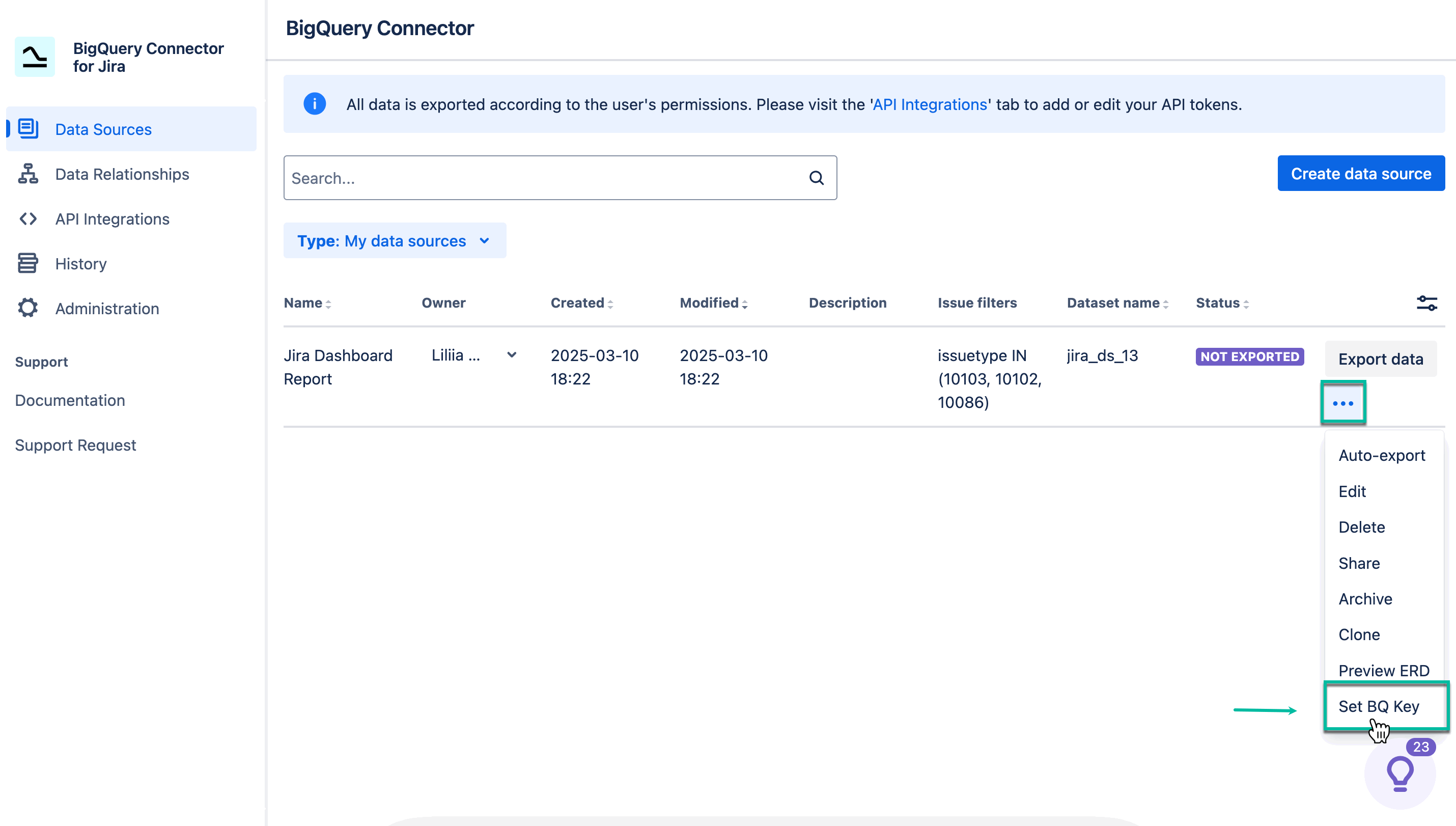
Select three dots, and then select Set BQ Key.
How to create a service account key.
BQ key is another name for the service account key.
-
Select Choose file, upload your service account key, and then select Save.
.gif?cb=3dd32d3b5a928f8b8b00edab49819001)
-
Select Export data.
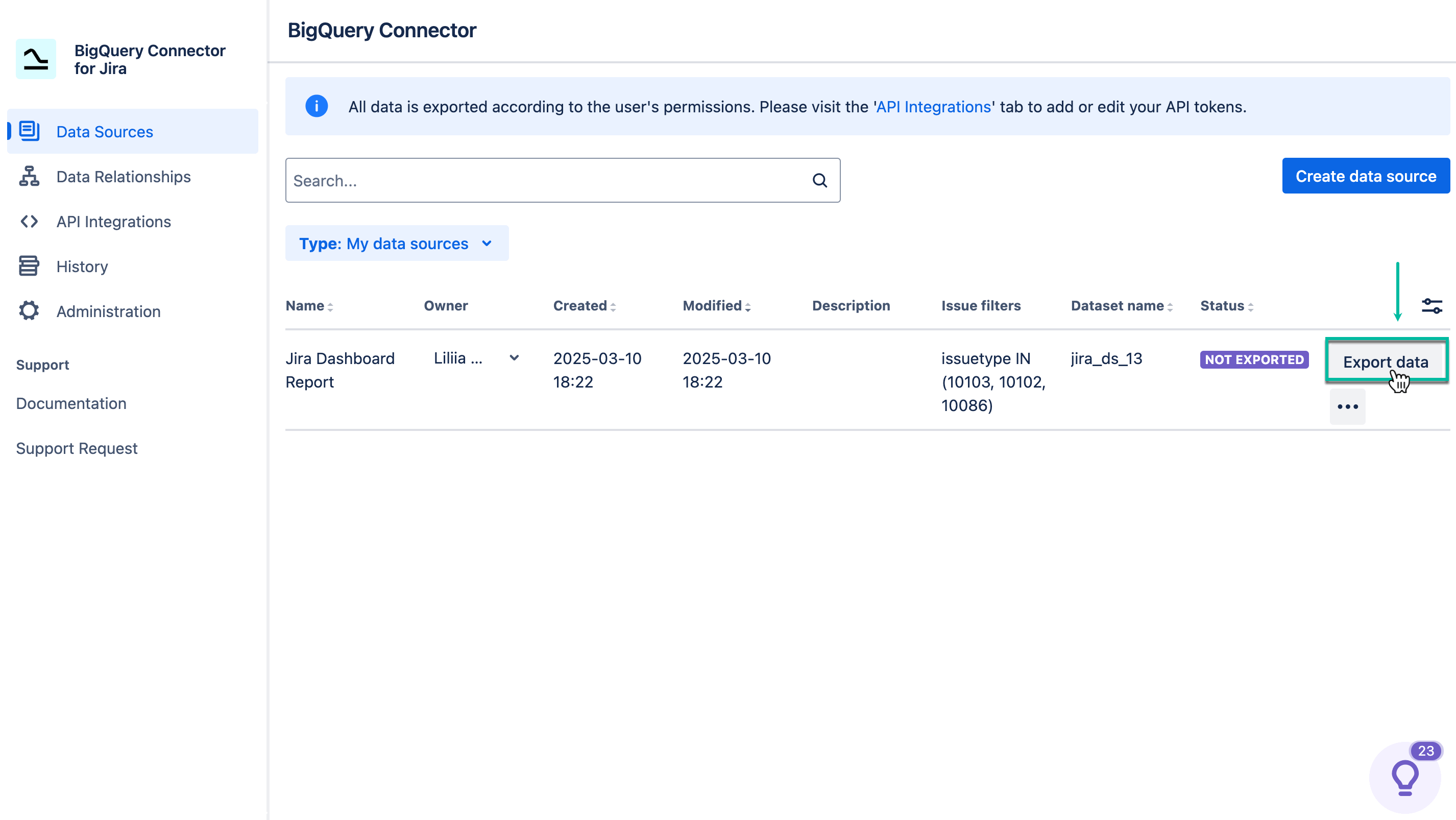
The data source status will be changed to LOADING .
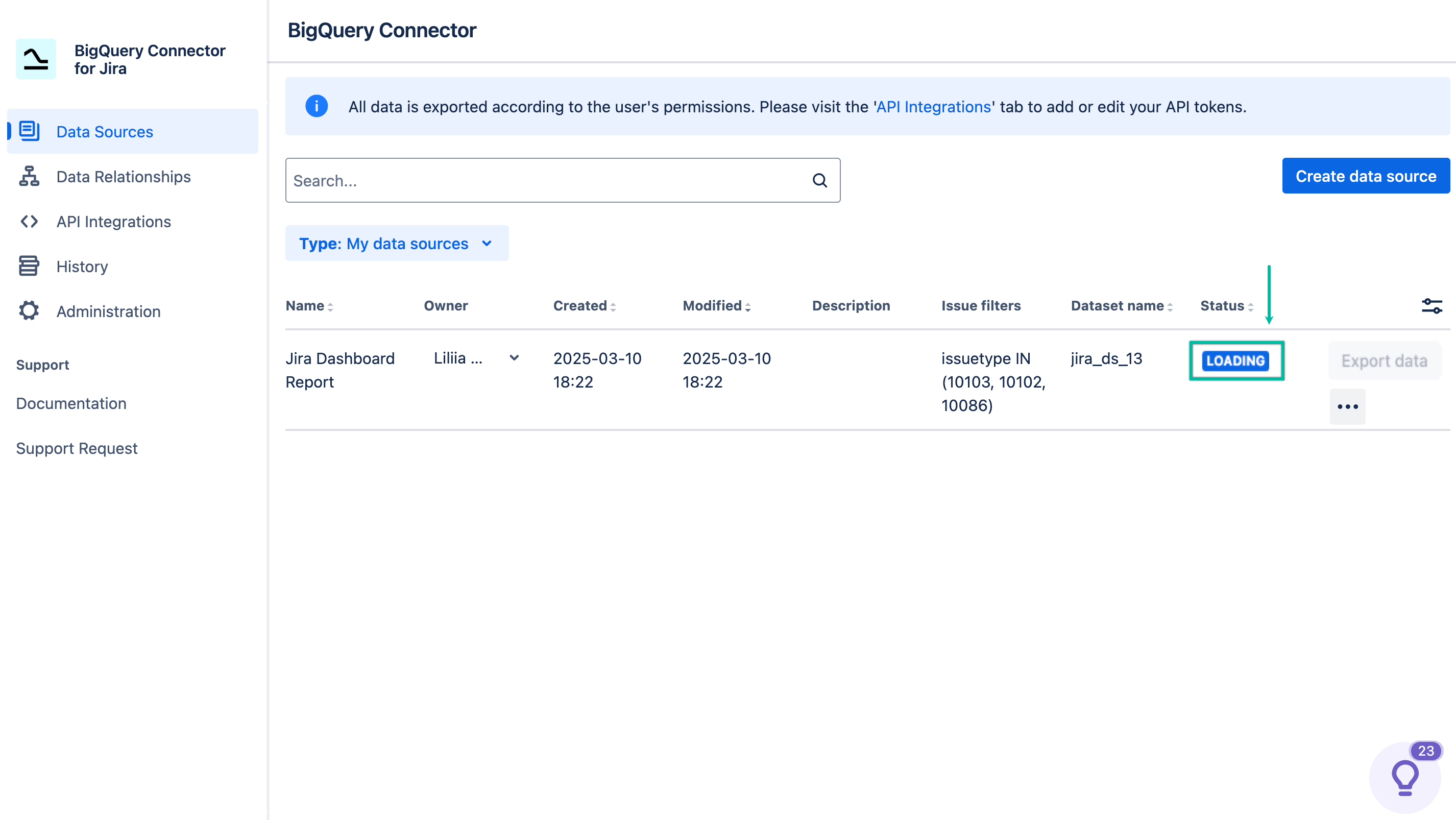
After the export is finished, the data source status will be set to EXPORTED.
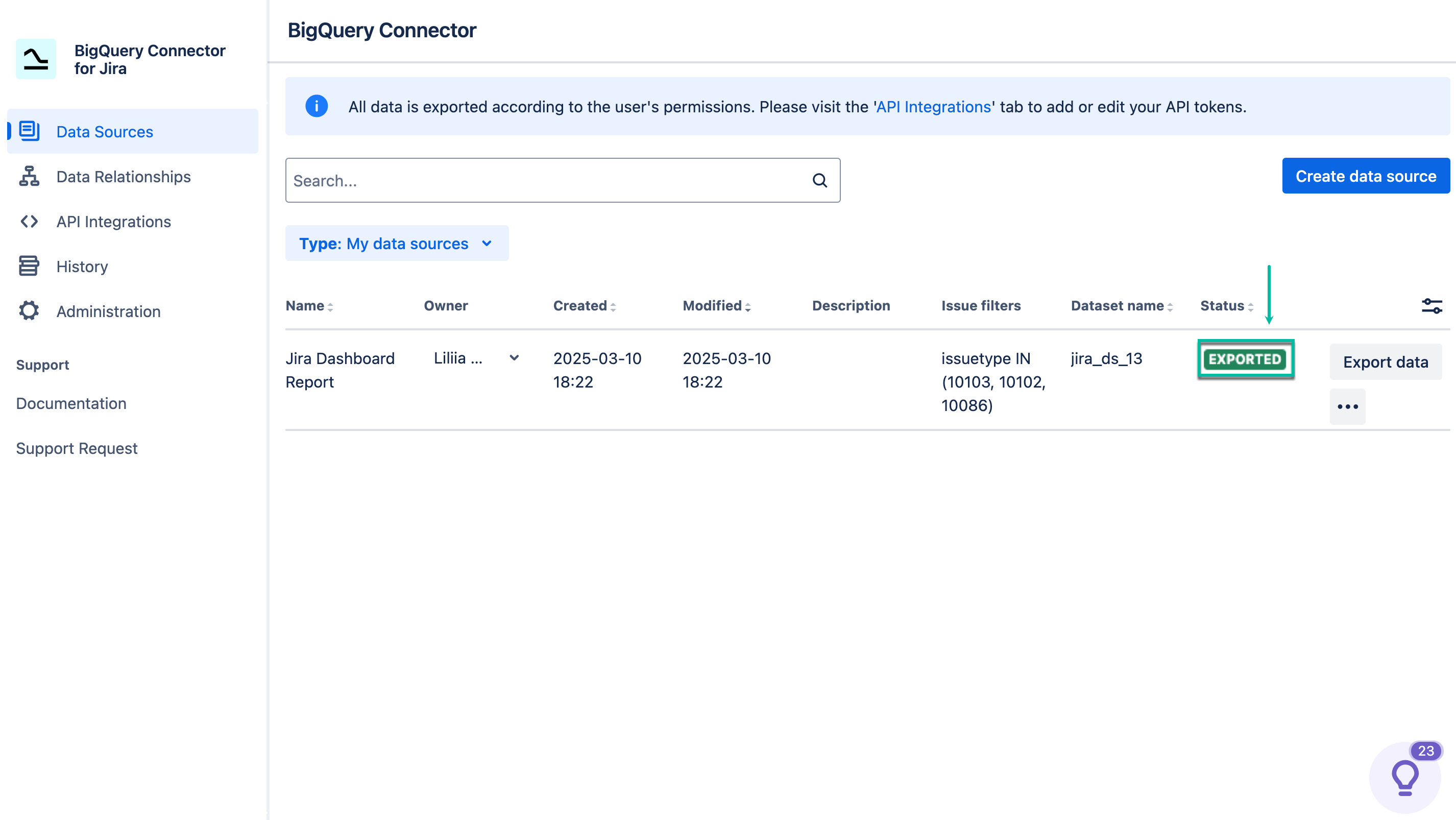
-
Open your Google Cloud Platform, and then select BigQuery.
Please ensure that the correct project is selected. It’s supposed to be the one where you’ve created the service account key.
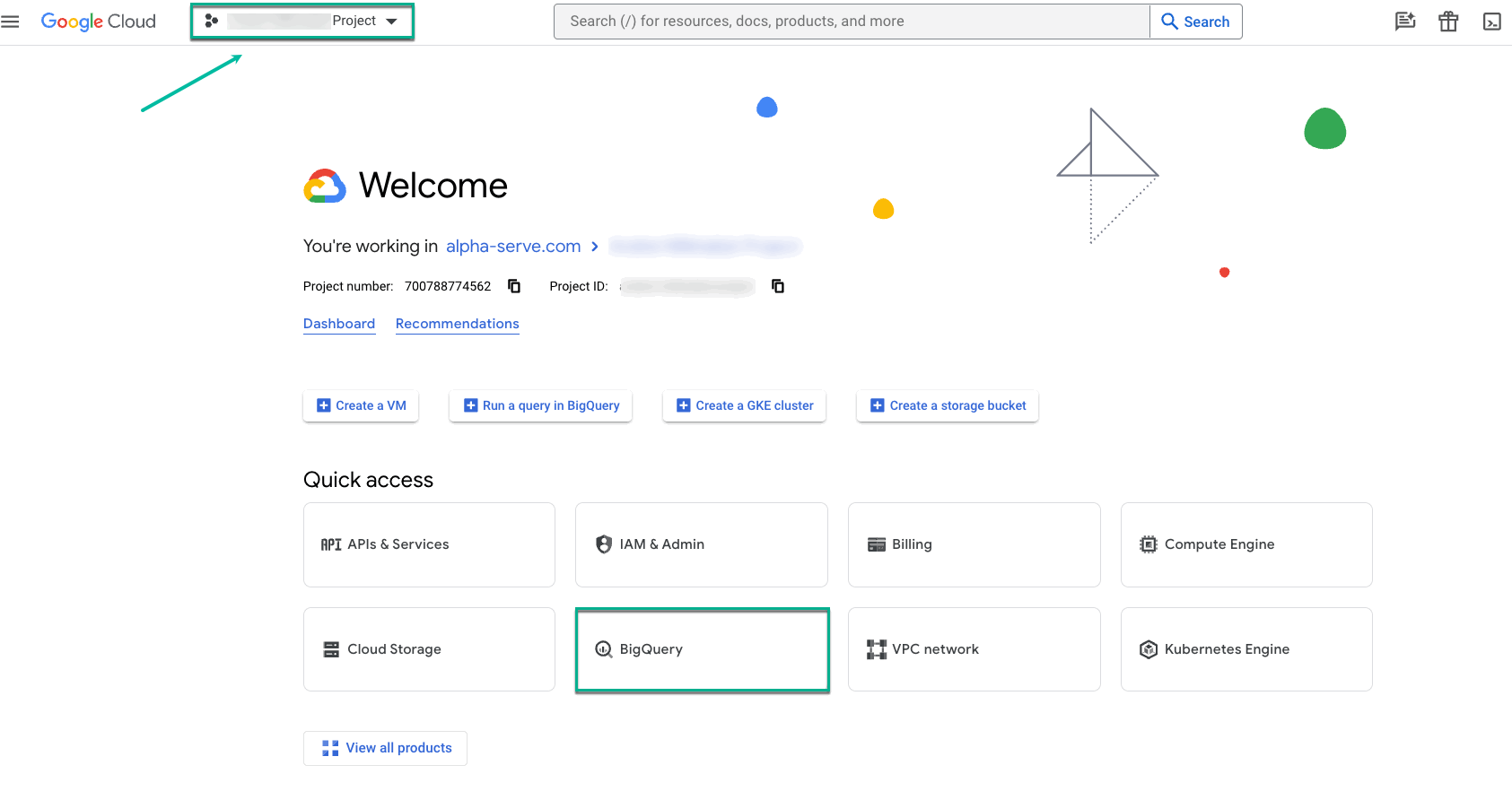
-
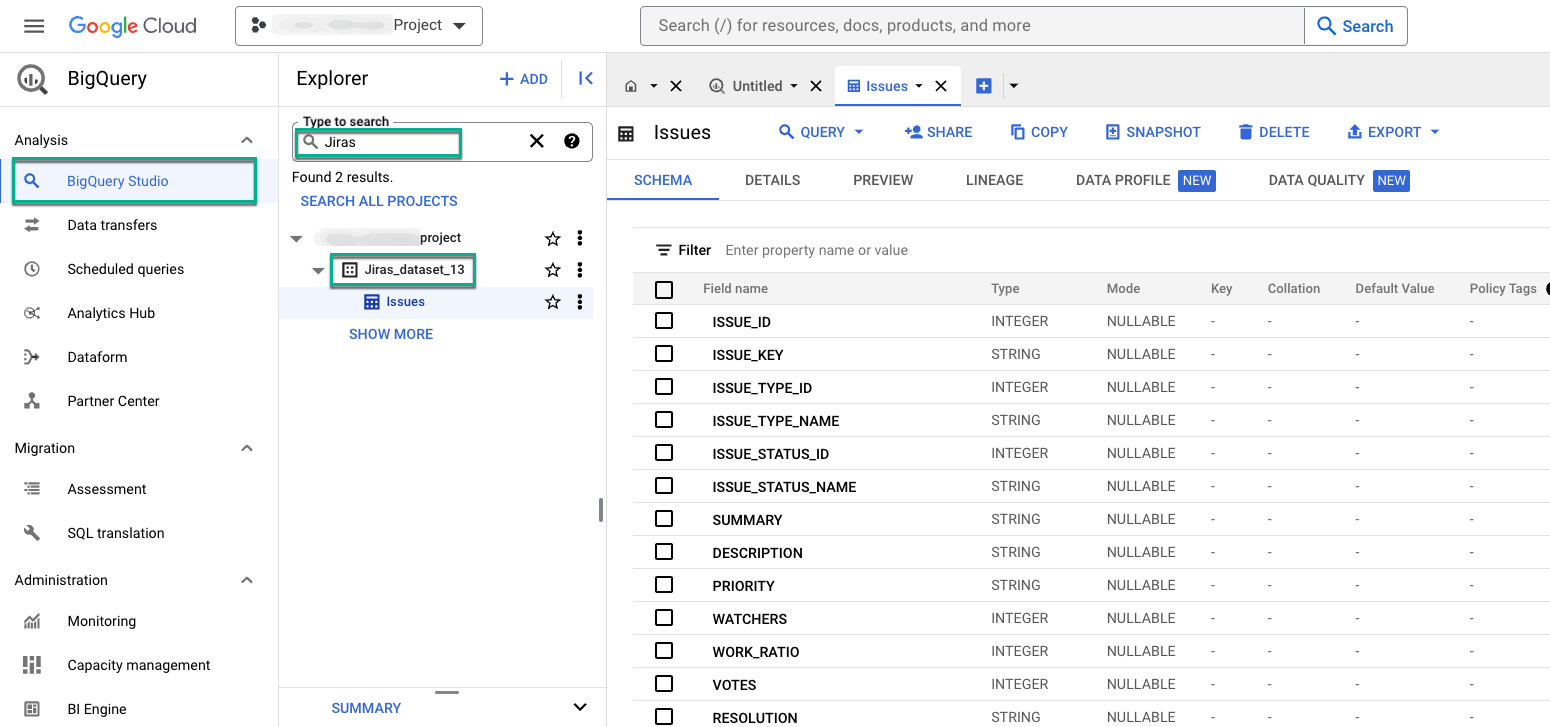
Find your exported data source by the dataset name you used while creating the data source.
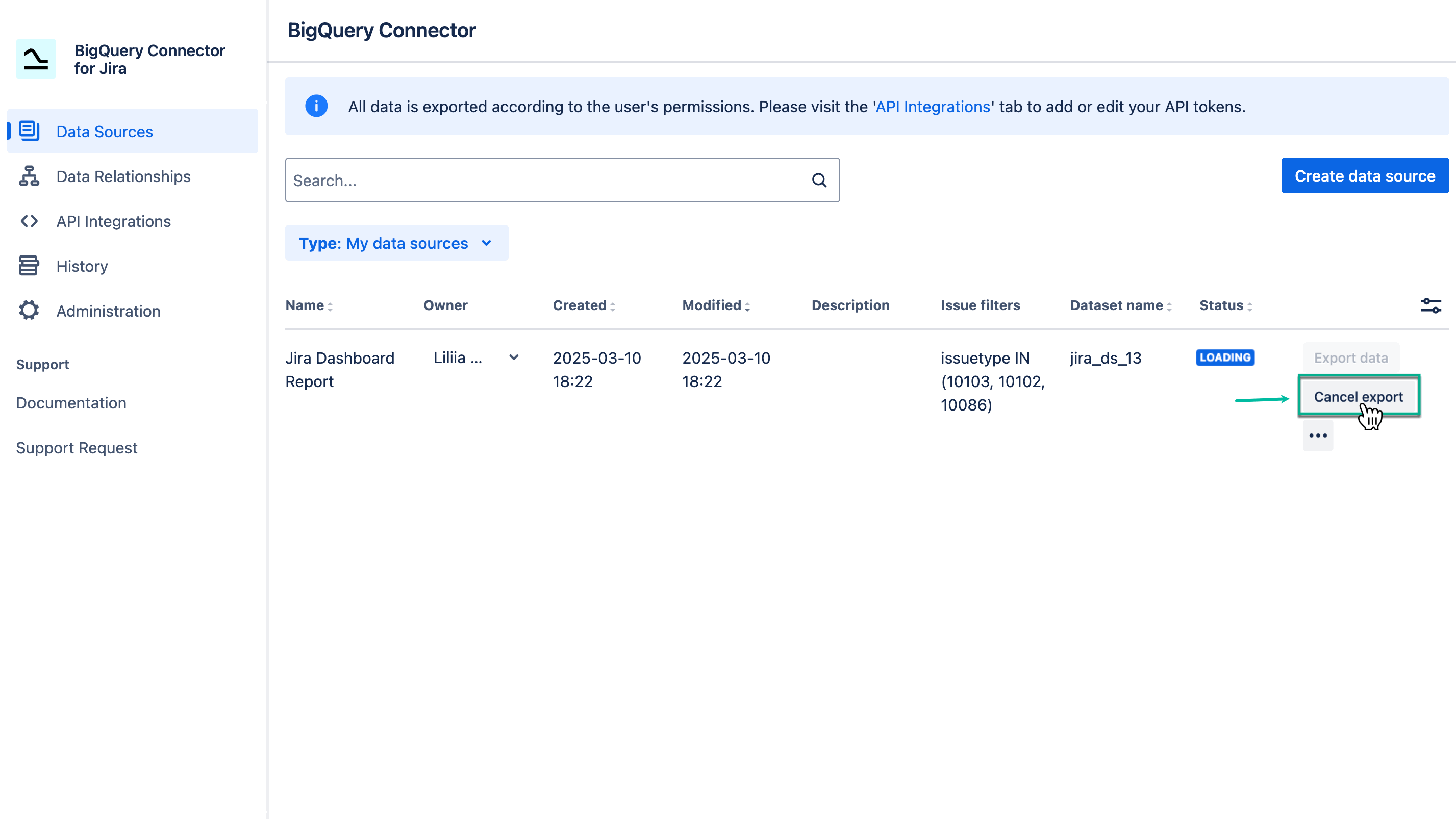
If the export process takes too long, you can cancel it by selecting Cancel export. Any data exported before cancellation will remain in the dataset.
The cancellation process may take up to a minute.
What’s the next step? Explore the Supported Apps section to discover additional possibilities to enrich your report.