
If you are the Project Owner, you can change the Jira filter or structure you are using to define the project scope. This is especially useful if you’ve imported the wrong one.
When you change the project scope, you are only switching the Jira filter, structure, Jira space selection, or Jira epic selection.
-
You retain any groupings you created to define the project.
-
If the new scope you select includes any of the same work items, they are automatically grouped as they were originally.
You can also switch between scopes.
Change the Project Scope
-
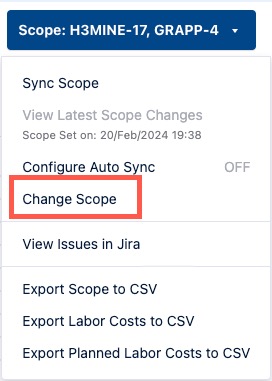
Select Change Scope from the Scope drop-down located at the top-right.
-
Select how you want to import work items from Jira:
-
Jira Filter - Use this option when you want to use a JQL query to curate the work items to track. This is the recommended method when using custom issue types at or above the Epic level to ensure that all child work items, logged time, and costs roll up correctly. You can select a preexisting Jira filter or create a new one.
-
Structure - Use this option when you have created a structure with the work items you want to track.
-
Jira Spaces - Use this option to track all work done in specific Jira spaces. You can select multiple Jira spaces; however, Financial Manager can report on up to 10,000 work items.
-
Epics - Use this option to track specific Jira epics. Note that custom issue types at the Epic level (e.g., "Project Epic" or "Initiative") are not supported by this option.
-
Financial Manager does not automatically recognize parent links for custom issue types above the standard Epic level when using the Epics scope option. To ensure that all child work items and their associated logged time and costs are included in your project, you must use a Jira Filter (JQL) that explicitly includes those items.
-
Search for or select items from the list, then click Apply.
If you selected a Jira Filter, your favorite filters appear at the top of the list in alphabetical order. All other filters are ordered alphabetically. The list displays only the Jira filters, structures, Jira spaces, and Jira epics you can access.