Important: The Power BI gadget will be deprecated soon.
As part of our migration to Forge Remote, we’ll no longer be able to support the Power BI gadget. This is due to current Forge limitations that prevent linking to external (non-Atlassian) services, which is required for Power BI authentication.
We’re currently evaluating possible work-arounds. To help us prioritize the best solution, please vote in the short questionnaire we’ve prepared. Your feedback will directly influence which approach we implement.
If Forge introduces secure external integration support in the future, we’ll consider reintroducing the gadget.
How to Add Power BI Gadget
-
Being signed in to your Jira Cloud instance, select Dashboards, and then select the dashboard you want to add a gadget to.
-
Select the Edit button.
-
Select Add gadget.
-
In the search box, enter power.
-
Select Add.
In the search results, Power BI Report by Tempo Software will appear.
-
Open your Microsoft Power BI Pro, and then open the report you need.
-
Select File, select </> Embed report, and then select Website or portal.
-
Copy the link, and then go back to your Jira Cloud instance.
-
In the Power BI Report URL* field, paste the link.
-
In the Width* and Height* fields, select the desired width and height of your gadget.
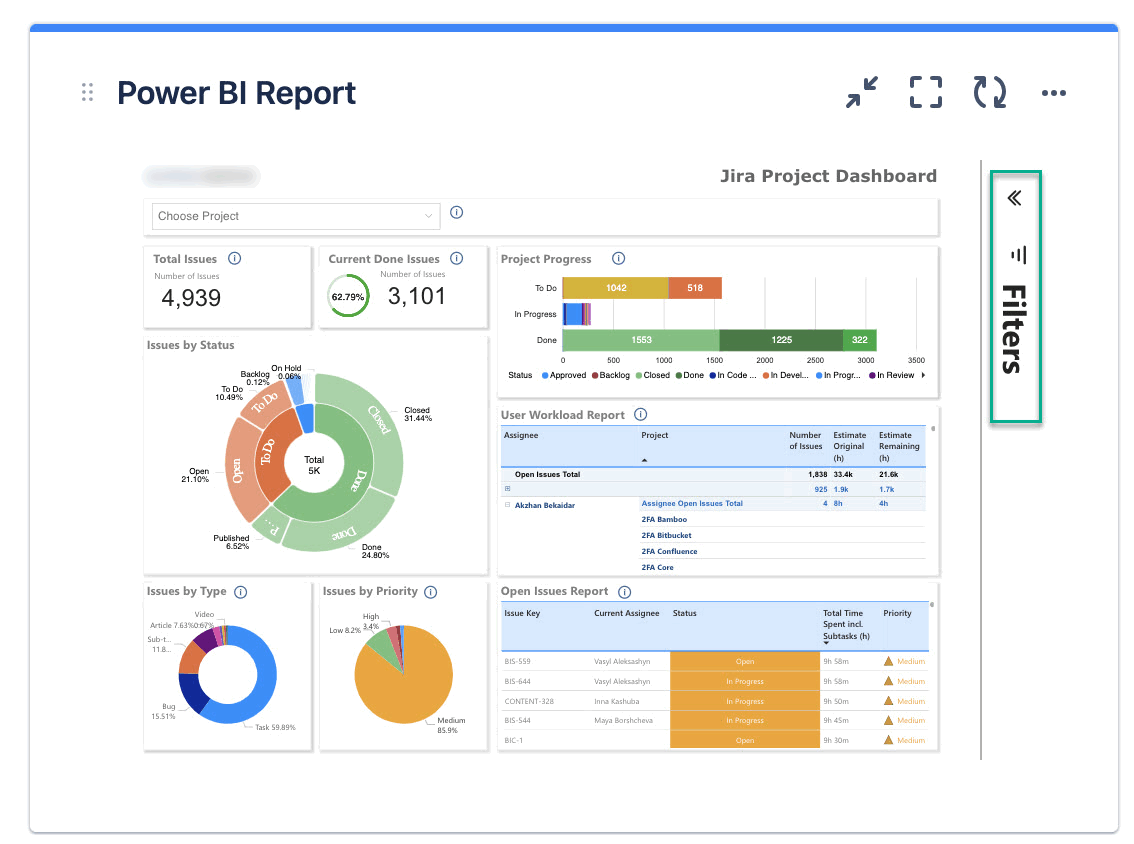
10.1. Select Show filters if you want the filters panel to be displayed on your gadget.
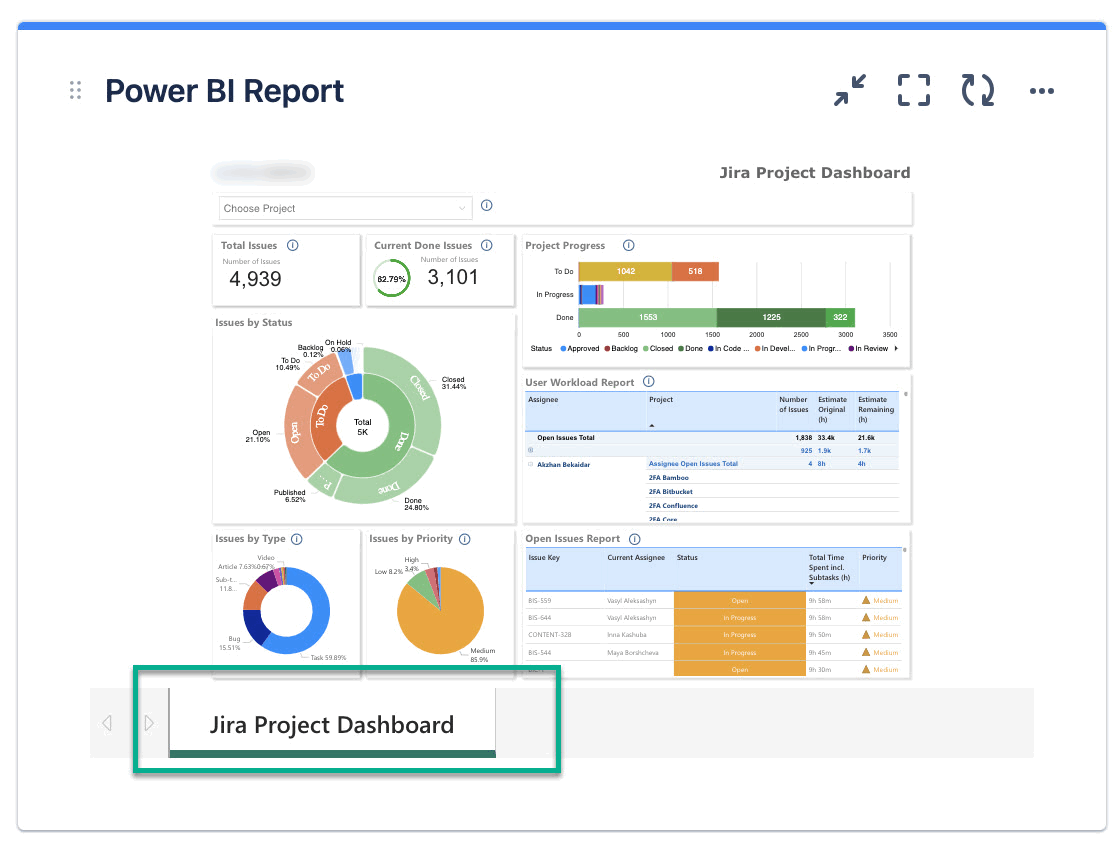
10.2. Select Show navigation if you want the navigation panel to be displayed on your gadget.
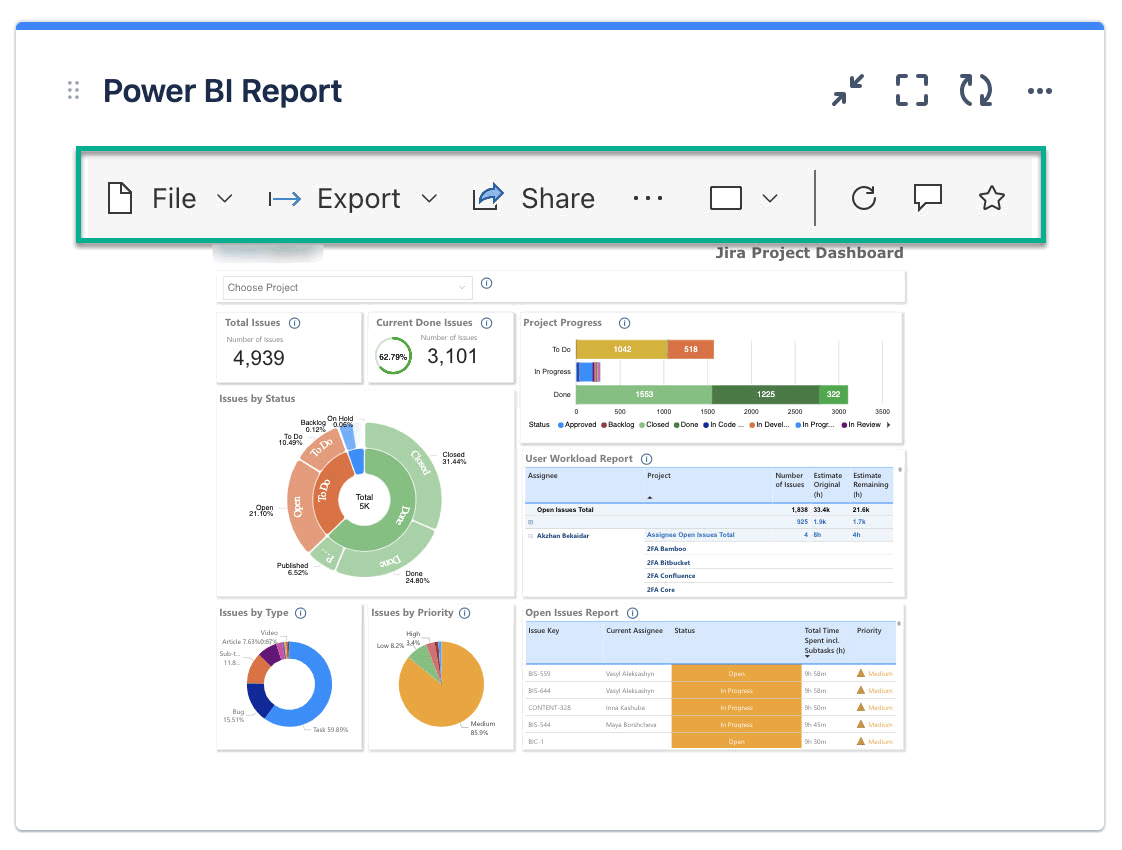
10.3. Select Show action bar if you want the upper ribbon with possible action to be displayed on your gadget.
Found this helpful? Share your thoughts in a review on the Marketplace!
Power BI Gadget Configuration Options
-
This is what the Power BI gadget looks like when everything is disabled.
-
This is what the Power BI gadget looks like when everything is enabled.
When everything is enabled, the navigation panel moves to the left.
-
This is what it looks like when you have 2 Power BI gadgets at the same time.