
Creating and deleting permission roles for a team requires the Manage Team permission for that team.
Team permission roles let you grant specific team permissions to Tempo users for only that team. By default, each team has two default permission roles: Team Lead and Member. The Team Lead automatically has permission to view, manage, and approve all plans and worklogs, as well as to manage the team. Members do not have any team permissions by default, but the Team Lead can grant permissions to them.
Adding a permission role lets you grant specific team permissions to multiple users at once, whether they are part of the team or not. For example, you can grant more or all permissions to a senior team member so they act like a Team Lead.
You can also create multi-team permission roles from the Permission Roles page in Settings to quickly give access to data from multiple teams at once - find out how to do that in Permission Roles for Multi-Team and Full User Access. You need the Tempo Team Administrator permission to do this.
If any of these multi-team permission roles have been created and apply to your team, they will be visible on your team’s Permissions page but dimmed and uneditable. They can only be edited or deleted in the Permission Roles page.
Create a Team Permission Role
-
Select Teams in the sidebar and select the team for which you want to create permission roles.
-
In the team's page, click Permissions at the upper-right. If you don't see this option, click More.
-
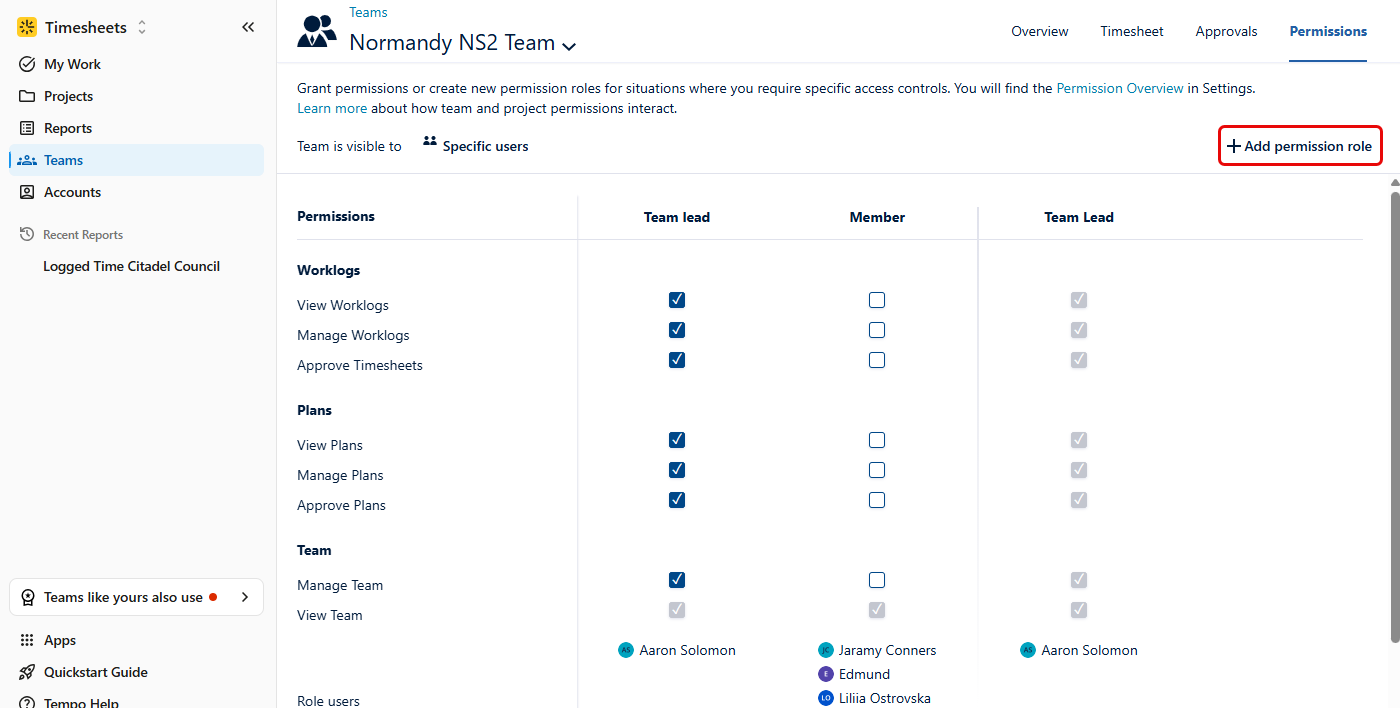
On the team's permissions page, click + Add permission role at the upper-right.
-
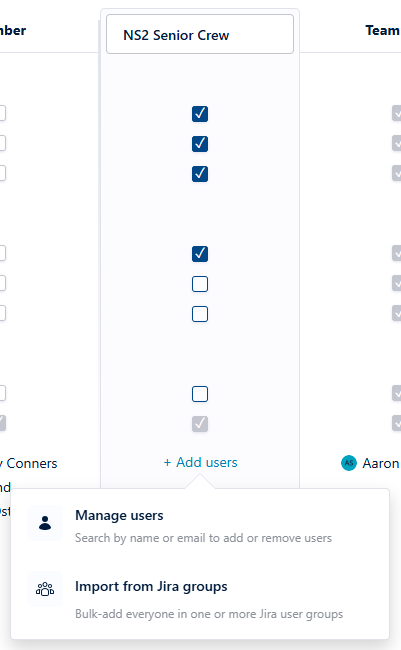
Enter a name for this permission role, and select the permissions this role should have.
-
Click + Add users, then select the users who should have these team permissions. You can add users individually by name or bulk import users from Jira groups.
-
When you're done, click the checkmark icon at the bottom of the column to save the permission role.
-
You can add more members to this permission role later by clicking + Add users.
-
For users added to a permission role via Jira group, membership changes to the Jira group after import are not synced automatically to Tempo. The group must be removed from the permission role and re-added to reflect any membership updates to the Jira group.
-
Team permission roles cannot be reused across teams: they're applied only for this team. To create multi-team permission roles, see Permission Roles for Multi-Team and Full User Access.
-
All permission roles are automatically granted the View team permission so that these users can see the team and its members
Deleting a Team Permission Role
-
Select Teams in the sidebar.
-
In the Teams view, select the team for which you want to delete permission roles.
-
On the team's page, click Permissions at the upper-right. If you don't see this option, click More.
-
Select the permission role you want to delete, then click the trash can icon at the bottom of the column.
-
Click Delete to confirm.
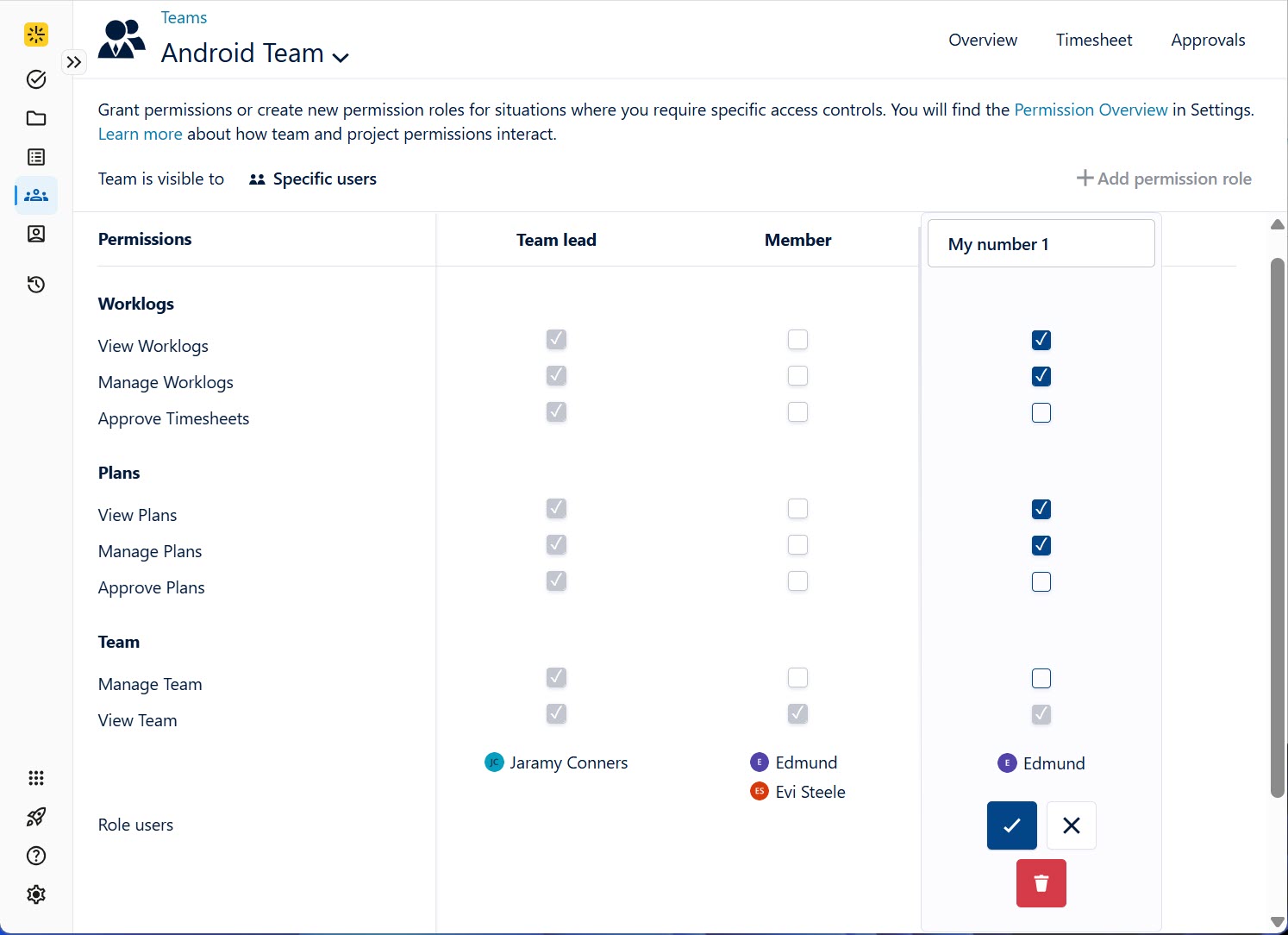
The default Team Lead and Member permissions roles cannot be deleted.