-
Select Copy link.

-
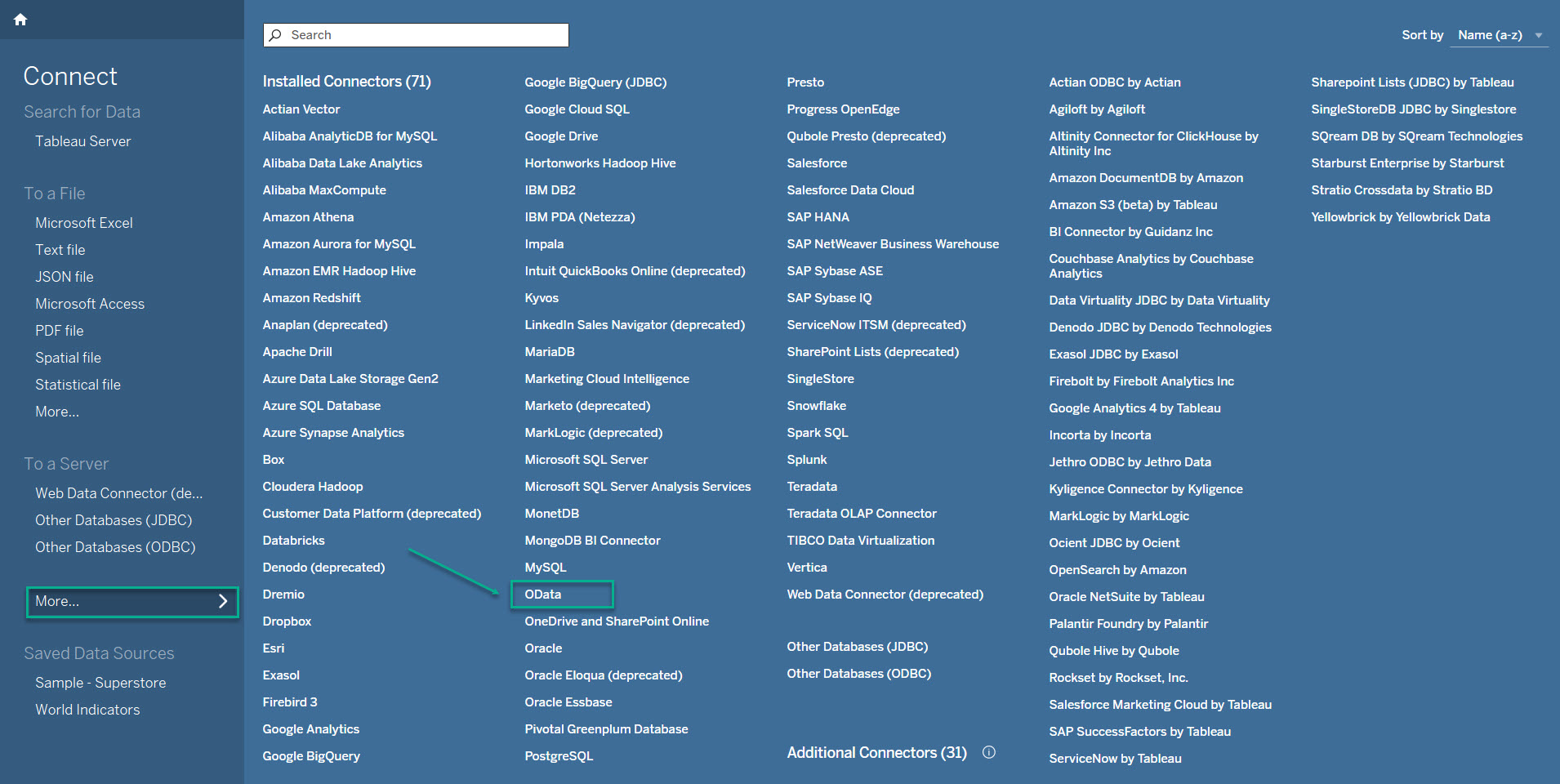
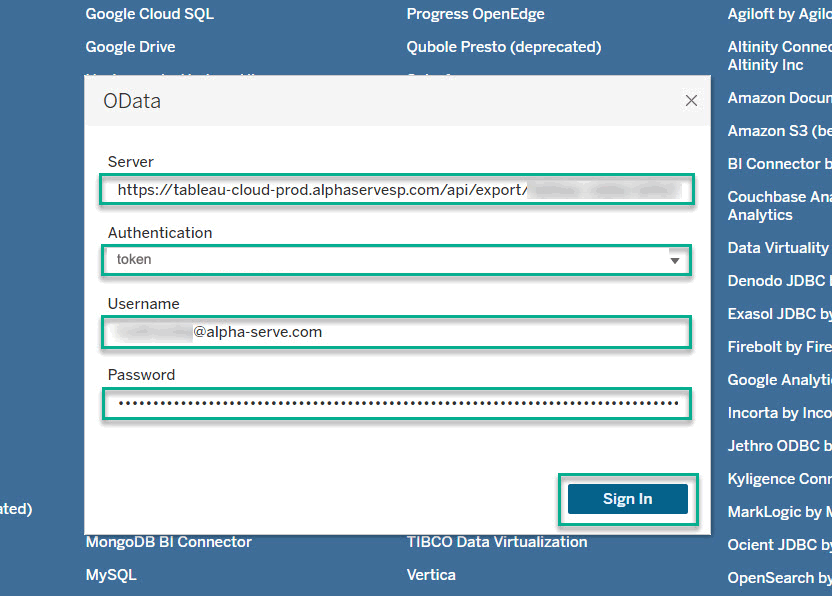
Launch your Tableau Desktop/Tableau Public, select More…, and then select OData.
-
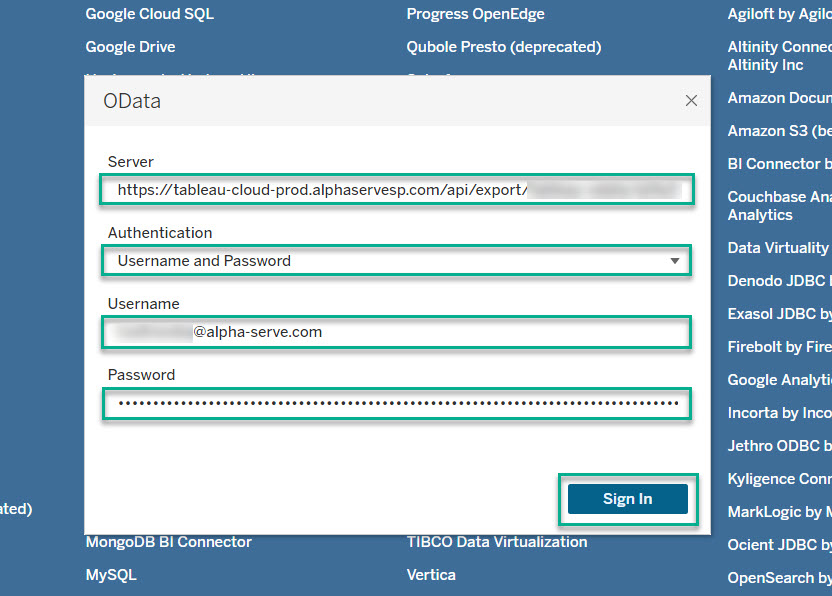
In the Server field, paste the link of your data source.
-
In the Authentication field, select Username and Password.
-
In the Username field, enter the predefined word token.
-
In the Password field, enter the export password you’ve created here.
-
Select Sign In.
The previous export credentials
The previous export credentials (Zendesk API Token) will be deprecated on December 1, 2025. To keep access to your reports, switch to using the Export Password. This option is available to both administrators and regular users.
-
*In the Username field, enter your email address associated with your Zendesk instance.
-
*In the Password field, enter the access token you’ve created here.
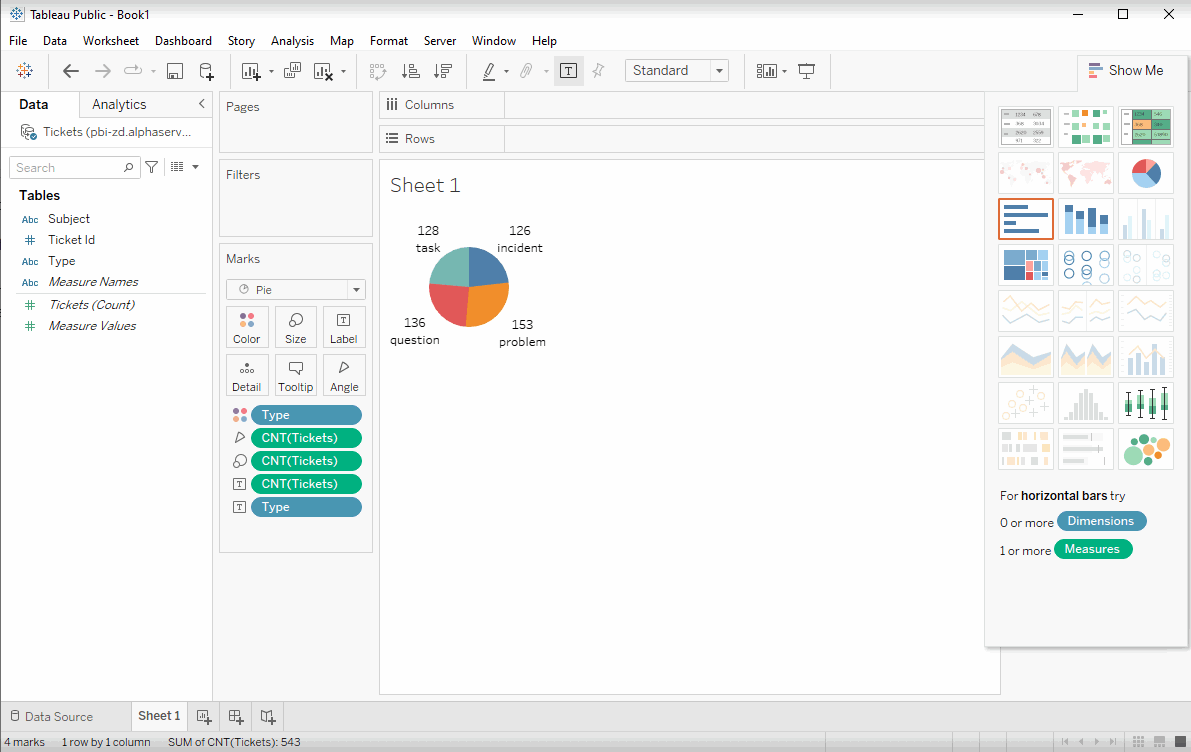
Data will be loaded into Tableau. If there is a large amount of data to be imported, it may take some time.
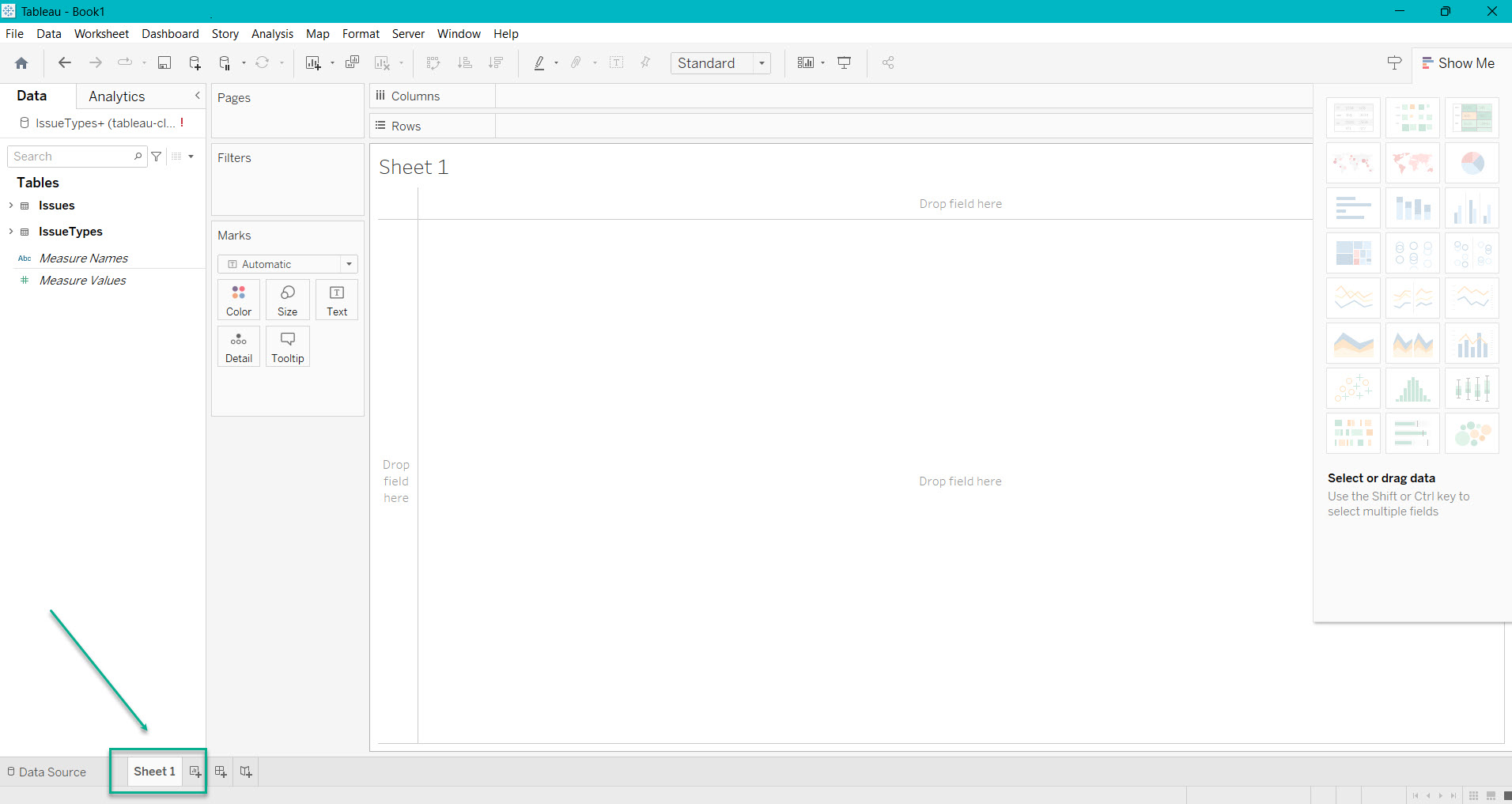
Proceed to Sheet 1, where you can start building graphs and dashboards using the exported Zendesk data. To do this, simply select the visualization type and the data you want to display on the graph or dashboard.