
Time Tracker is moving from the legacy Atlassian Connect framework to Forge, Atlassian’s modern, secure, and scalable cloud app platform. This upgrade improves Time Tracker’s security, reliability, and long‑term compatibility with Atlassian Cloud.
This document outlines major blockers, known issues, and expected UX changes so users understand what to expect. If you encounter any problems not covered on this page, please let us know.
Major Behavior Changes
These are the most impactful changes users may experience when Time Tracker migrates to Forge.
1. New URL Structure Causing Blank Pages or Hash Errors
Time Tracker now uses Forge routing, which introduces a new URL structure. In some cases, the browser may still cache and redirect to the old Connect URL, resulting in blank pages, hash errors, or issues loading Time Tracker. Old bookmarks and emailed links may also break with this change.
Old (Connect) URL:
/plugins/servlet/ac/jira-timesheet-plugin/timereports-system
New (Forge) URL:
YOUR_JIRA_INSTANCE/jira/apps/d95630c7-9fd4-495d-8988-b55637f4f8e9/1e298677-4dfa-4966-9486-544a5b279ca7
Troubleshooting
These errors occur because the browser is still referencing the old Connect URL. You can resolve this in one of two ways:
-
Clear the browser cache completely to register the new URL.
-
Access Time Tracker directly using the new URL, which will automatically register it.
{YOUR_JIRA_INSTANCE}.atlassian.net/jira/apps/d95630c7-9fd4-495d-8988-b55637f4f8e9/1e298677-4dfa-4966-9486-544a5b279ca7
After completing either of the above actions, the page should load normally without the hash error. Refer to this article for additional information.
Additionally, please note that you may encounter an Authentication Error because the previous configuration didn’t carry over to the new Forge system. To resolve this, see #2 below.
Rebuilding Report URLs
On Connect, the #! parameter was used in generated URLs for reports, as shown in the example below.
Old (Connect) URL:
/timereports-system?project.key=AGOS#!startDate=2025-01-01&endDate=2025-01-31
The #! parameter is no longer supported on Forge; instead, it uses &, as shown in the example below.
New (Forge) URL:
/1e298677-4dfa-4966-9486-544a5b279ca7?project.key=AGOS&startDate=2025-01-01&endDate=2025-01-31
You will need to update report URLs by replacing #! with &, otherwise reports will not load with the correct filters.
2. Authorization / Authentication Errors
Some authentication settings do not migrate automatically from Connect to Forge, which may result in an Authorization Error message.
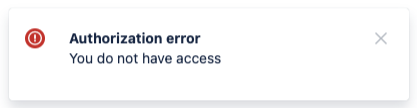
Troubleshooting
If you encounter an Authorization Error, follow this article, which includes the re-authorization steps for Forge. This will resolve mismatched credentials between Connect and Forge.
3. Worklogs not Visible in Dashboard Gadgets and Reports
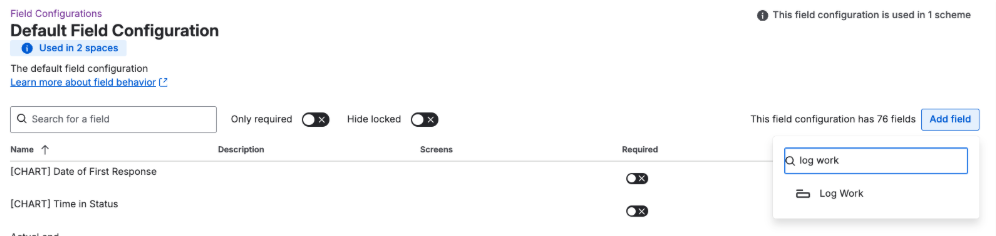
After moving to Forge, Time Tracker now uses a Jira API that requires the Log Work field to be included in the project’s field configuration.
If this field isn’t configured, Jira won’t return worklog data, so worklogs won’t appear in Tempo. If worklogs are not visible in dashboard gadgets or reports, add the Log Work field to your project’s field configuration through one of the following:
-
Go to Project settings → Work items → Field Configurations -> Field configuration Scheme -> Add Log Work
-
Go to Jira settings -> Fields Configuration -> Field configuration Scheme -> Add Log Work
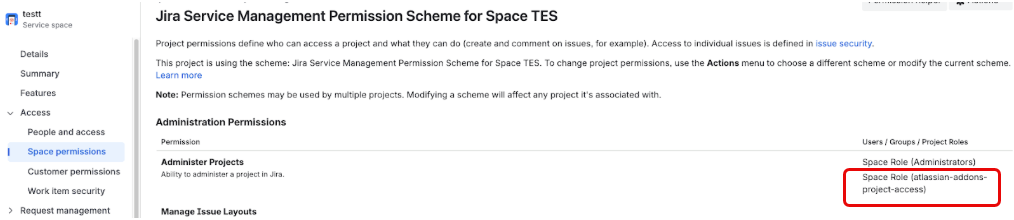
If your Time Tracker has the Auditor Roles configuration set, ensure that your projects also have the project permissions correct for our app to access them by doing the following:
Go to Project Settings -> Permissions -> Actions -> Edit Permissions -> Update “Administer Projects” permission and on “Space Role” include the role “atlassian-addons-project-access”
4. Admins Cannot Impersonate Other Users on Forge
On the Forge platform, impersonating another user causes a permissions-exchange issue that prevents the application from opening.
5. Time Tracking Provider Must be Set Again
During the version upgrade process, the time tracking provider is reverted from Time Tracker to Jira. An Administrator needs to add Time Tracker back as the default time tracking provider.

6. Atlassian Forge CDN Blocked
Atlassian Forge uses *.cdn.prod.atlassian-dev.net to serve app content inside Jira. Some antivirus or network security tools may block *.cdn.prod.atlassian-dev.net, causing a browser load error similar to the one shown below.
If the app doesn’t load and you see a browser error similar to the above, check with your IT/security team to ensure *.cdn.prod.atlassian-dev.net is allowlisted.
User Experience (UX) Changes
These are expected differences caused by Forge’s user interface and Atlassian’s new extension framework.
1. Time Tracker Reports No Longer Appear under Reports
Atlassian has made changes to both Connect and Forge, so Time Tracker reports no longer appear under the Reports menu item. To find Time Tracker reports, navigate to Projects > your project > More.
2. Time Tracker No Longer Appears under Filters > Apps Dropdown
Atlassian has updated Forge so that apps (including Time Tracker) no longer appear in the Apps dropdown within the Filters menu. This behavior was previously supported in Atlassian Connect but is not available in Forge.
Connect (previously):

Forge (now):

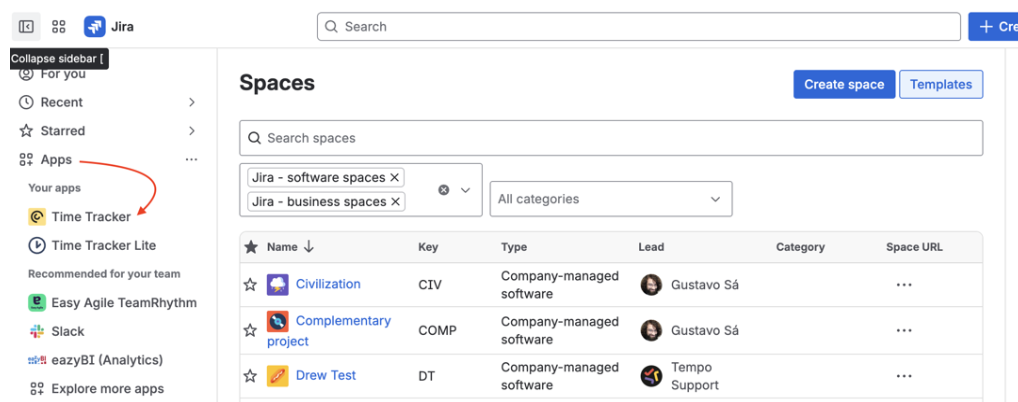
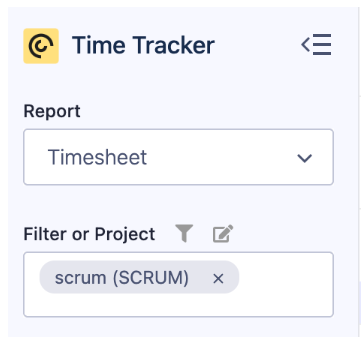
You can still view and use all your filters (including JQL filters) directly inside the Time Tracker app. The Time Tracker application will always appear under the Apps dropdown in the main navigation bar, and from there, you can choose the filter under the Filter or Project field.
3. Notification Placement Has Moved
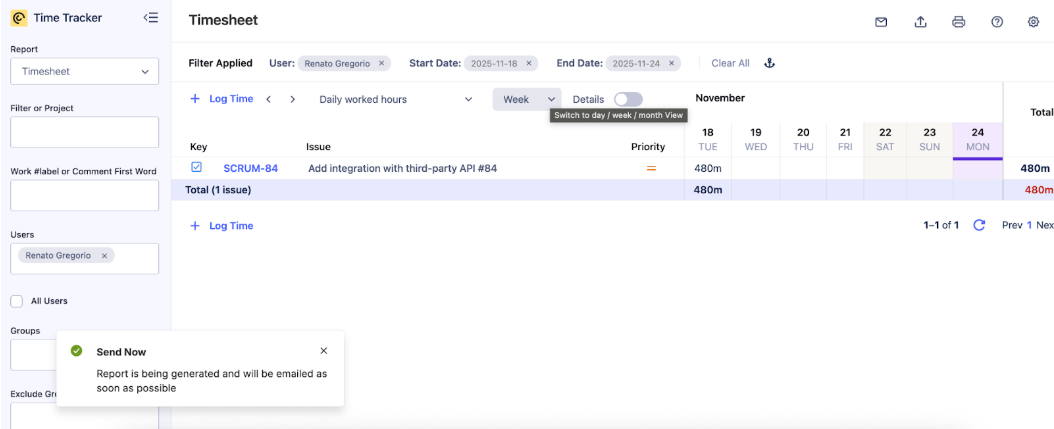
Notifications now appear in the bottom-left corner instead of the upper-right-hand corner.
4. “Log Work” No Longer Available from Overflow Menu
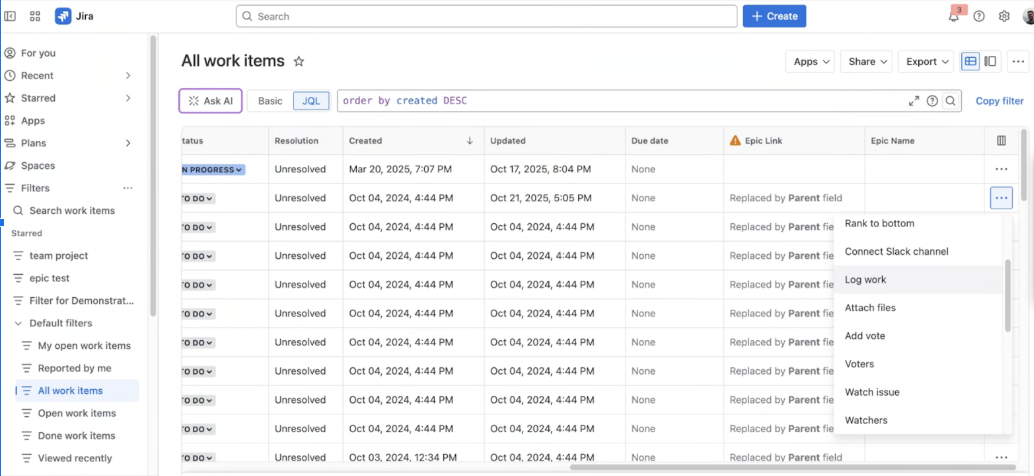
The Log Work option will no longer appear under Jira > All Work Items > Overflow.
5. Log Work form within Jira Issues
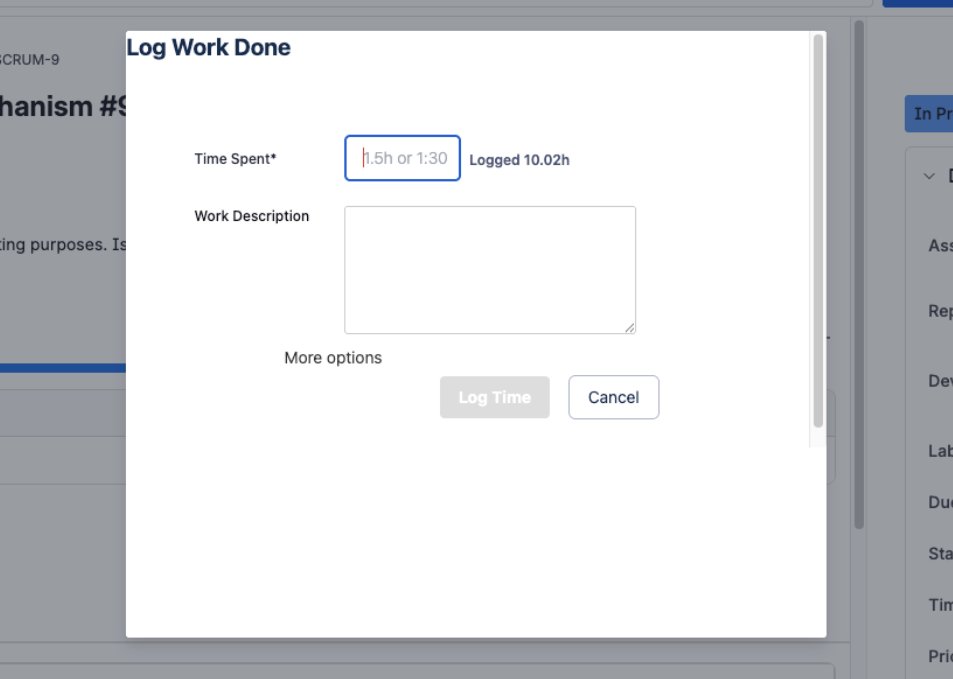
When opening the Log Work form from within a Jira issue, the form’s size is smaller and more constricted. To view the hidden fields in the form, click on More options. The hidden fields are visible by default only when the Log Work form is opened from within Time Tracker.
6. Other Slight UI Differences
Forge apps utilize Atlassian’s new Forge UI, which may result in subtle differences in layout or styling compared to Connect.