Power BI Connector for Zendesk is scheduled for deprecation. Please plan accordingly.
Before You Start
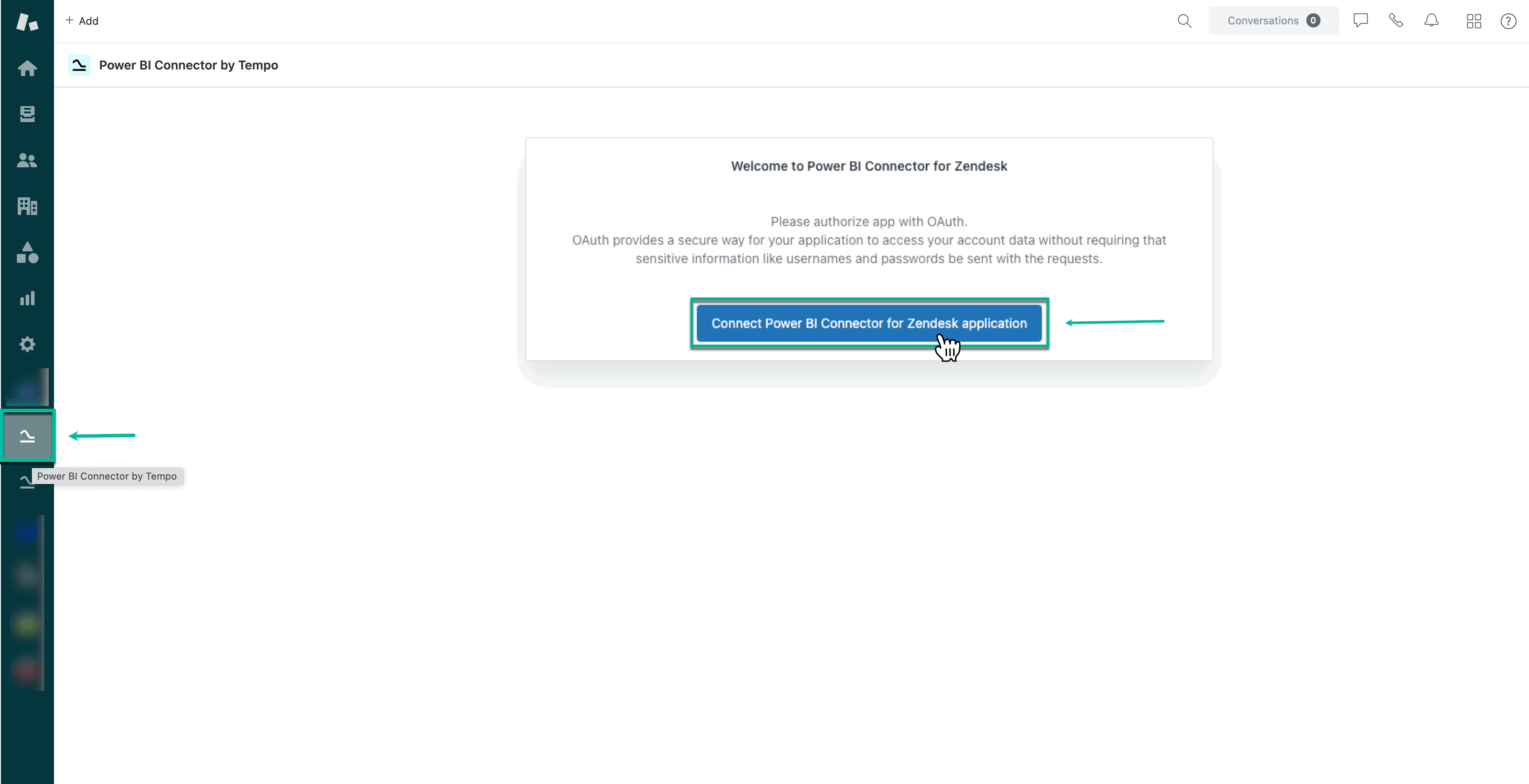
📘 After the Zendesk Administrator installs Power BI Connector for Zendesk on the instance, each user must authorize the app with OAuth by selecting Connect Power BI Connector for Zendesk application.
📘 Connection will be completed automatically. You will be redirected to the Power BI Connector page, and after this you can start using the app.
To view installation guide, click here ⬅️
How to Export Data from Zendesk to Microsoft Power BI
1. Create Export Password
The previous export credentials (Zendesk API Token) will be deprecated on December 1, 2025.
To avoid losing access to your reports, switch to using the Export Password. This option is available to both administrators and standard users.
An export password is a security credential used to authorize and authenticate your connection to Microsoft Power BI. It ensures that your data exports are secure and accessible only to authorized users.
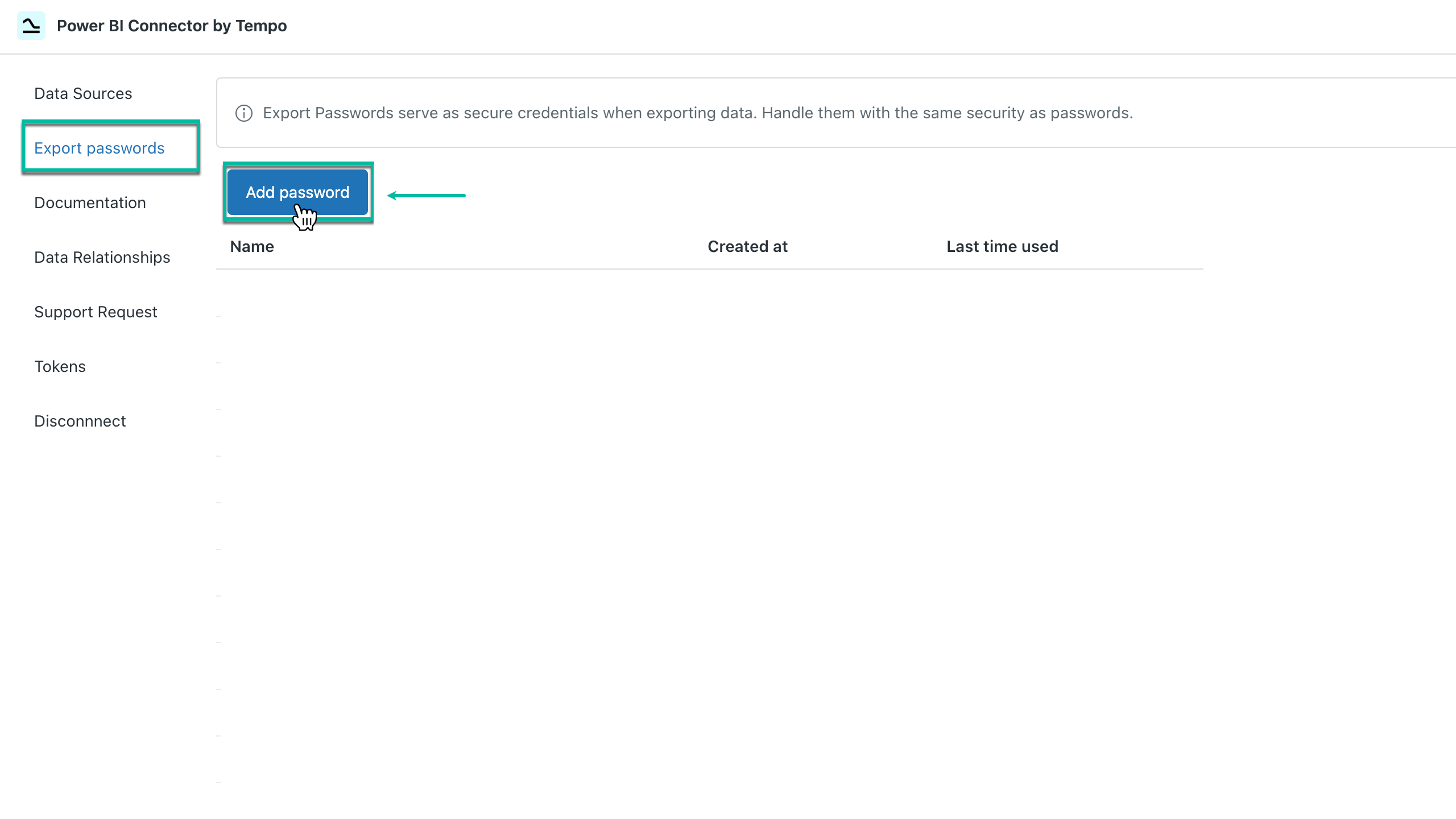
You can create your password by accessing Export password in Power BI Connector for Zendesk.
If you need more information on how to create an export password, please refer to our step-by-step instruction.
2. Create Data Source
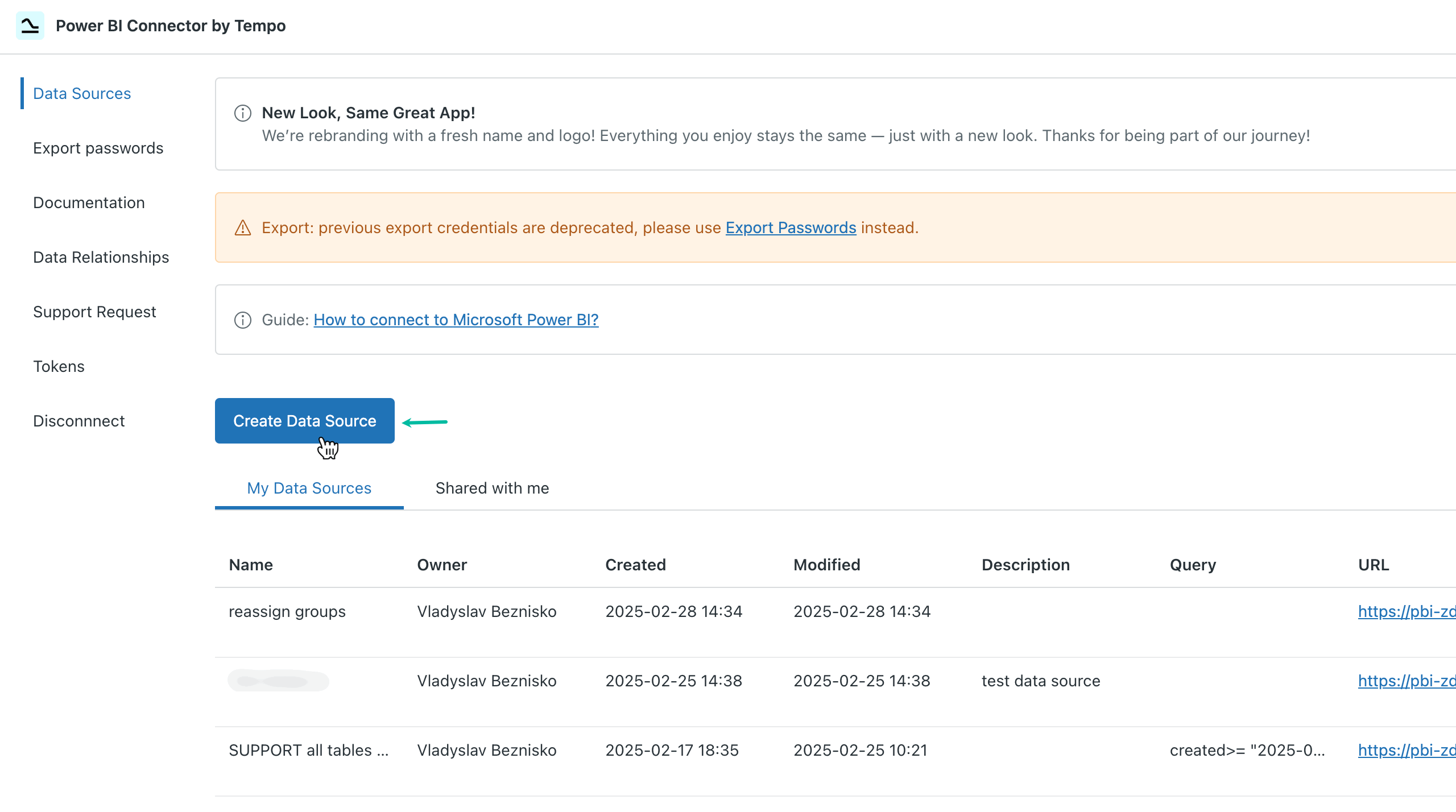
Now you need to create a data source for data you want to export from your Zendesk to your Microsoft Power BI. You can do it by accessing the Connectors page inside the Power BI Connector for Zendesk.
You have to name your data source, adjust sharing settings, and filter the tables you’d like to be in your data source.
If you need a detailed description of all fields and features of the Data Source page, please refer to this page.
If you need more information on how to create a data source, please refer to our step-by-step instruction.
3. Export Data into Microsoft Power BI
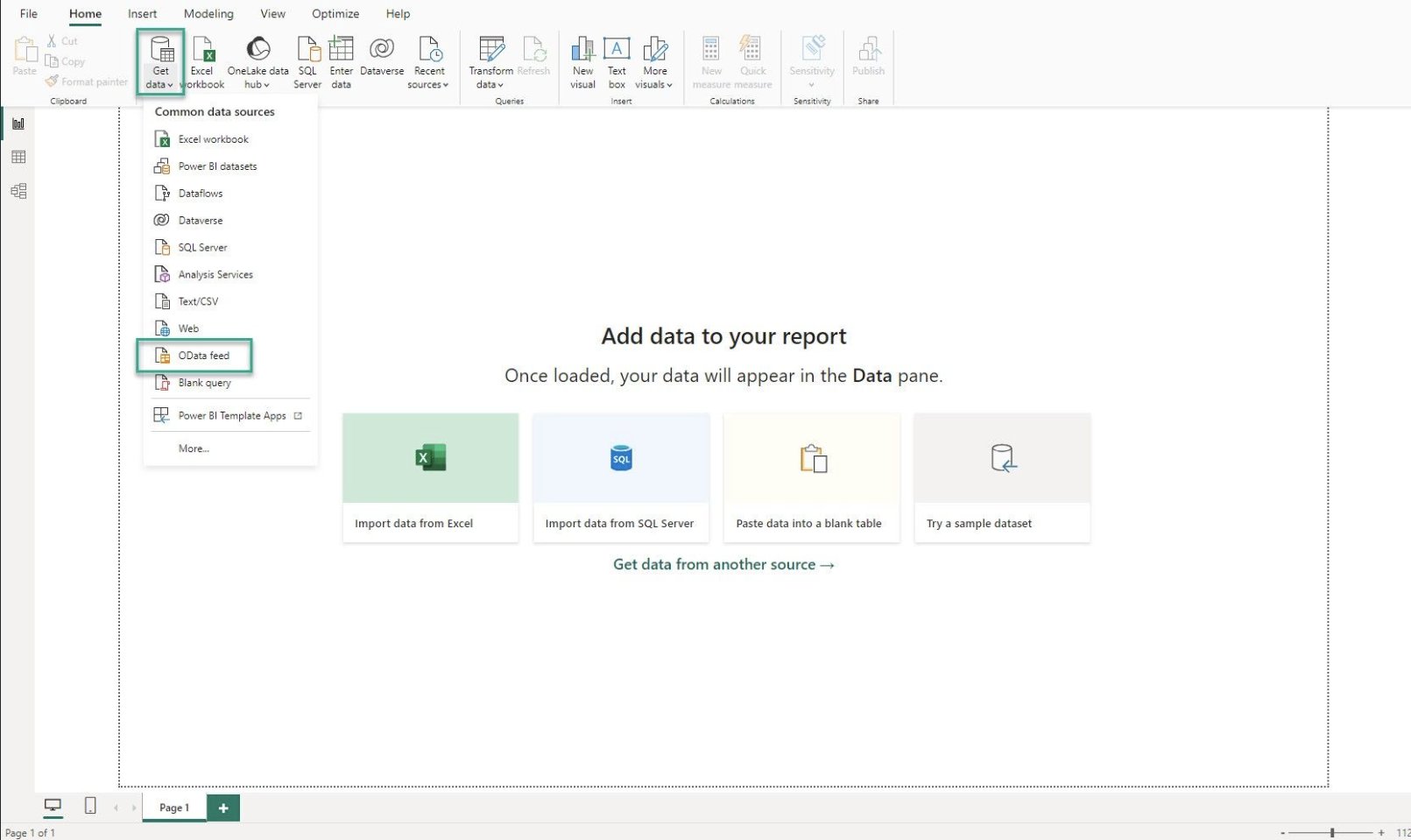
After creating an access token and creating a data source, you can easily export your data into Microsoft Power BI. Being on the Connectors page, select Copy link. Launch your Microsoft Power BI, authorize, connect, and start working with your data.
If you need more information on how to export data, please refer to our step-by-step guide.
How to Uninstall Power BI Connector for Zendesk
The Zendesk Administrator can uninstall the Power BI Connector for Zendesk from the instance. However, regular users can also uninstall the app if needed. This action will disconnect the app from your account and revoke your OAuth token. All data sources will remain intact and will not be deleted.
-
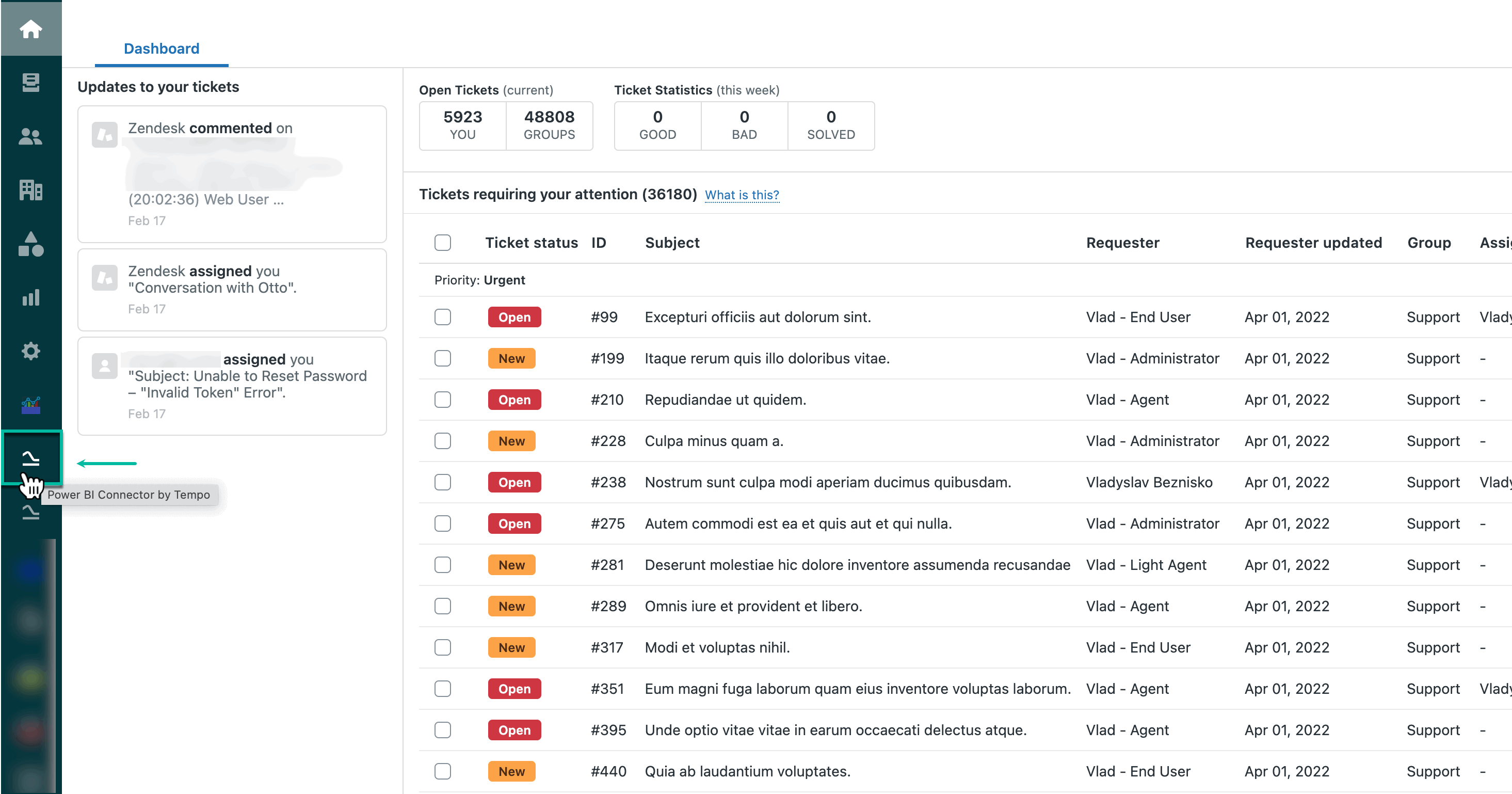
Being signed in to your Zendesk account, select Power BI Connector by Tempo.
-
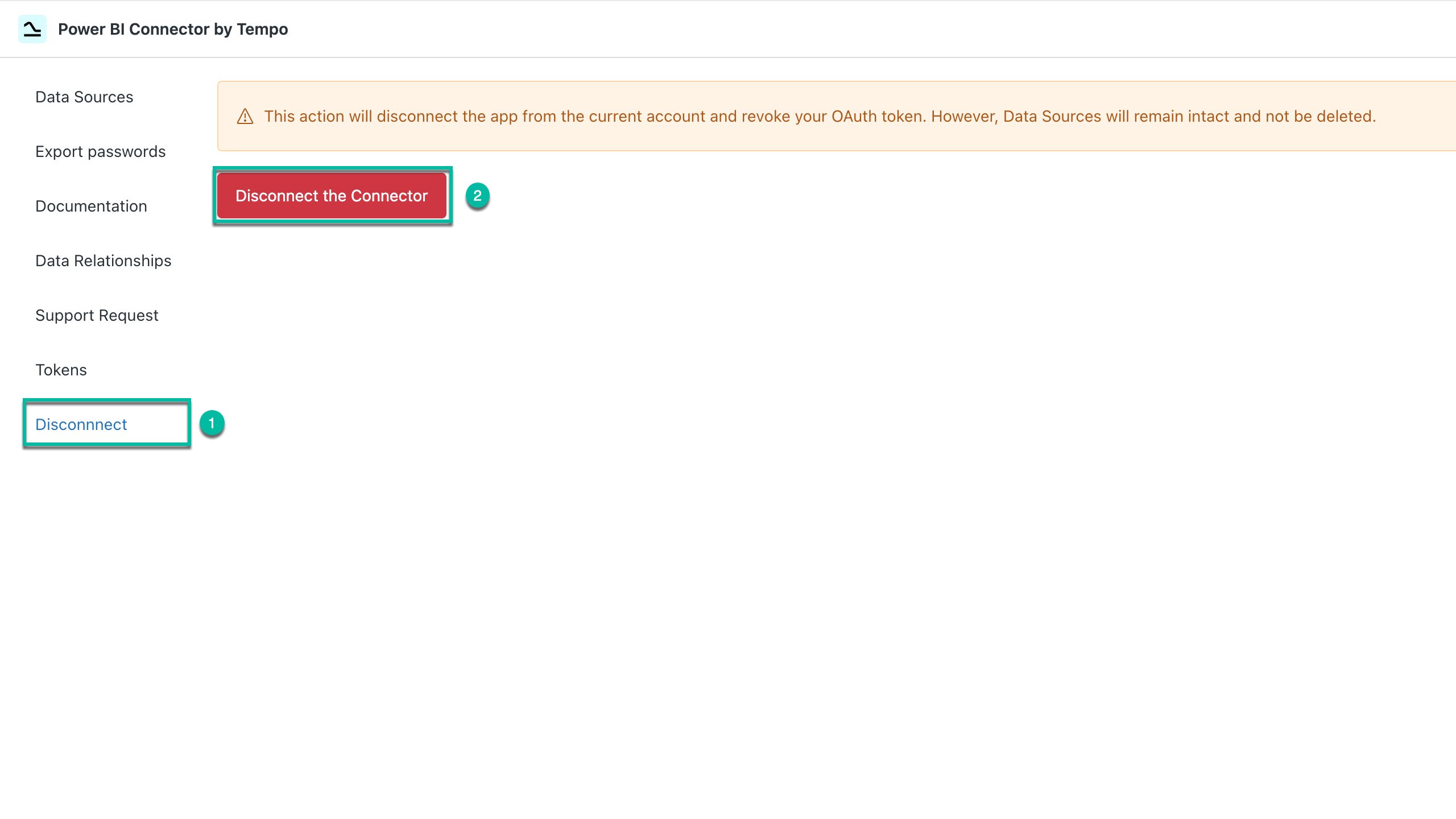
Select Disconnect, and then select Disconnect the Connector.
-
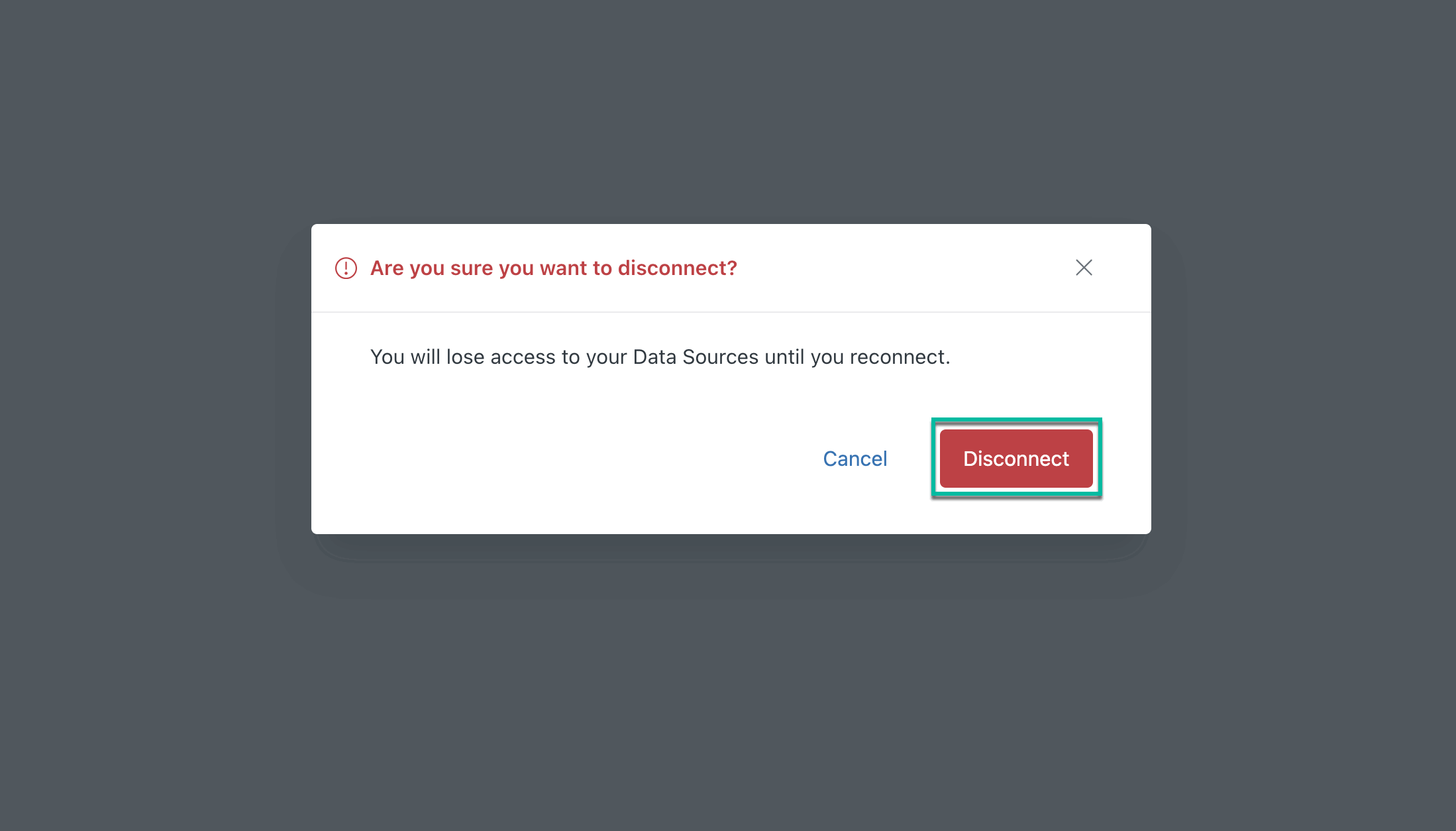
Select Disconnect.