How to Install Tableau Connector
Tableau Connector for monday.com is designed as a dashboard widget, so it’s essential to have at least one dashboard to add the app.
For your convenience, we recommend creating a separate dashboard for Tableau Connector before installing it.
Since this is just a recommendation, you can select any dashboard for your Tableau Connector.
How to Create Dashboard for Tableau Connector
-
Being signed in to your monday account, select the needed workspace, select +, and then select Dashboard.
-
In the Dashboard name field, enter your dashboard name (e.g. Tableau Connector by Tempo).
-
Select the privacy option, and then select Create Dashboard.
Select this dashboard when installing Tableau Connector.
How to Add Tableau Connector to Your Account
-
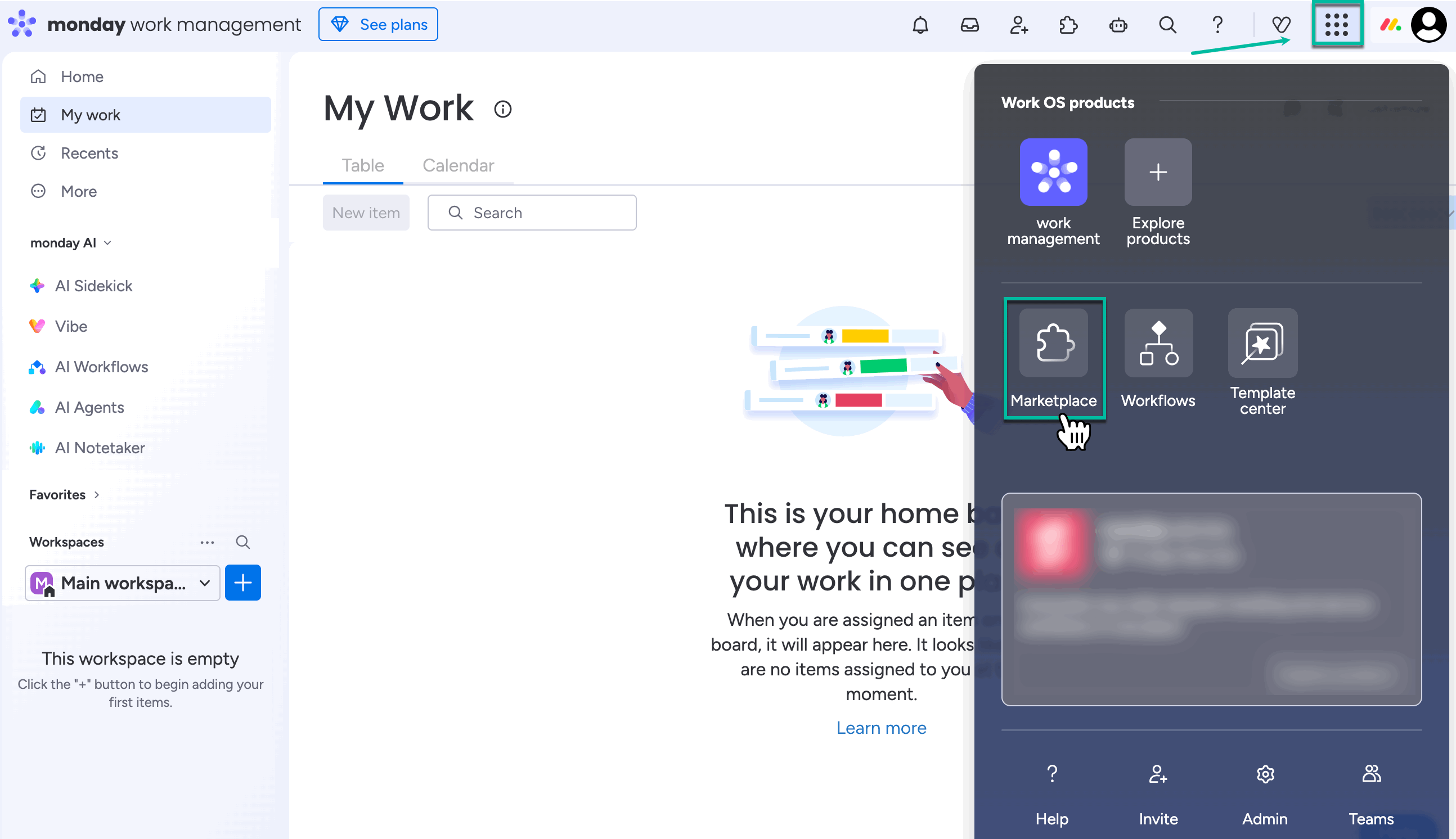
Being signed in to your monday account, select menu, and then select Marketplace.
-
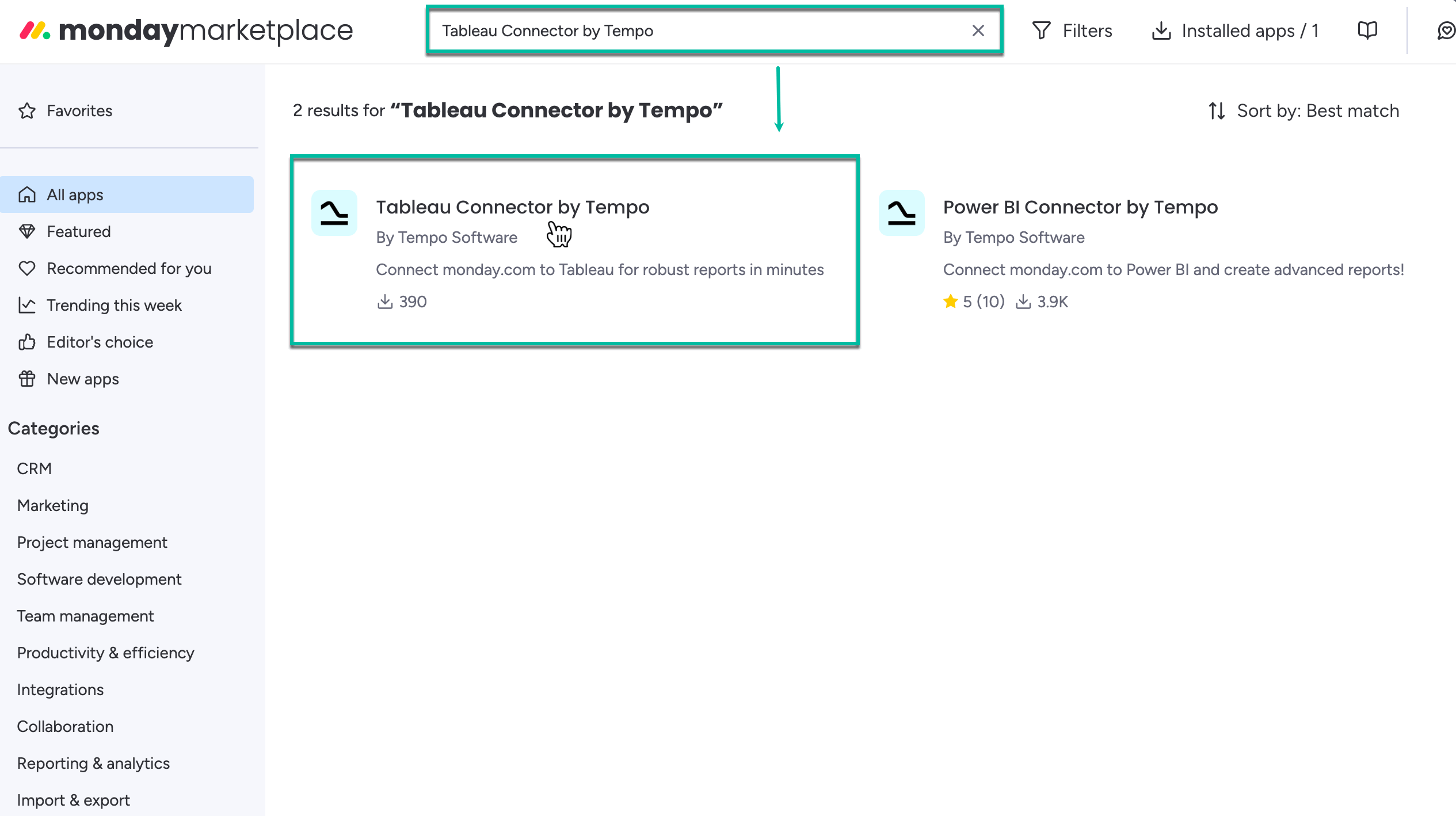
In the Search the marketplace box, enter Tableau Connector by Tempo, and then press Enter.
-
From the search results, select Tableau Connector by Tempo.
-
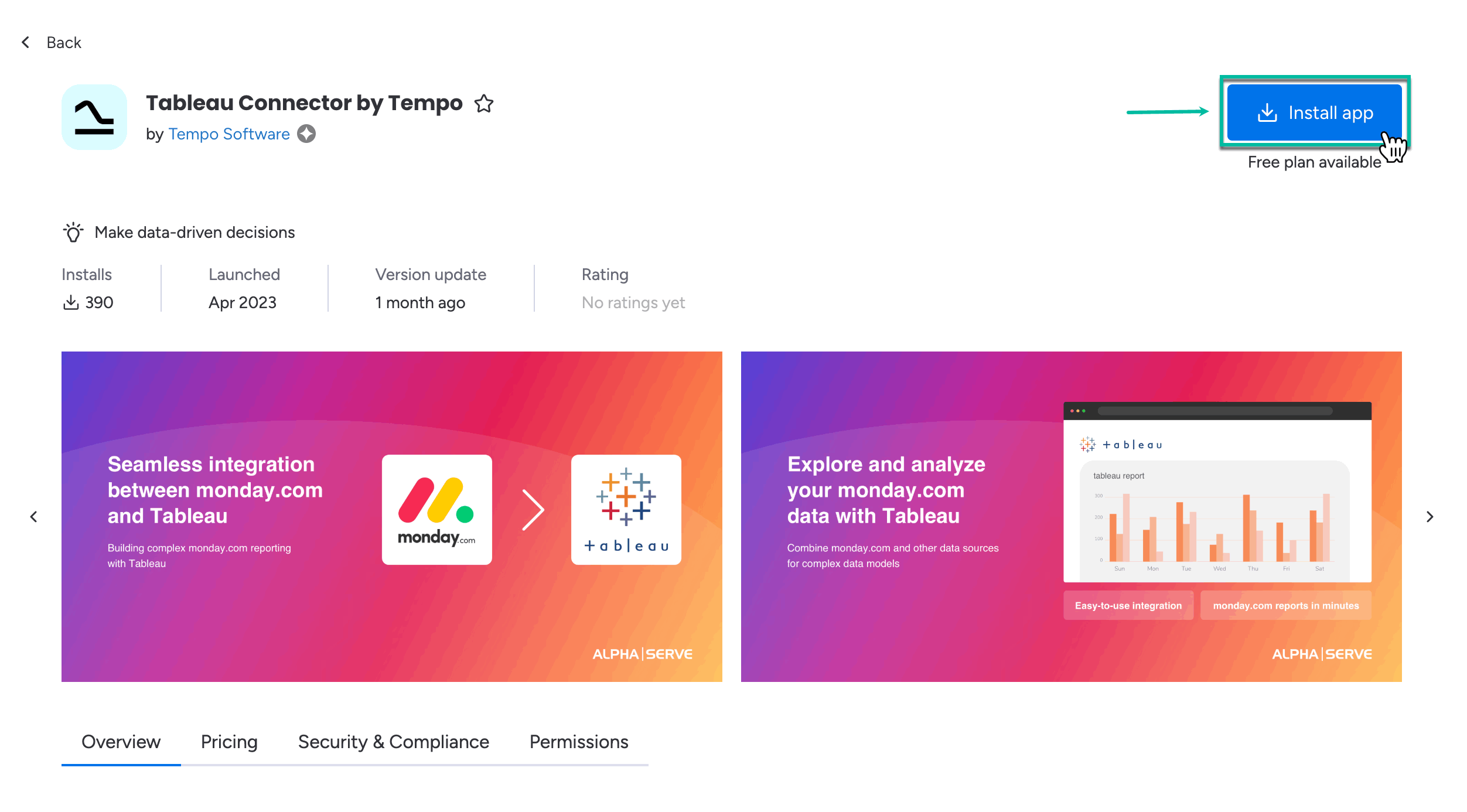
Select Install app.
-
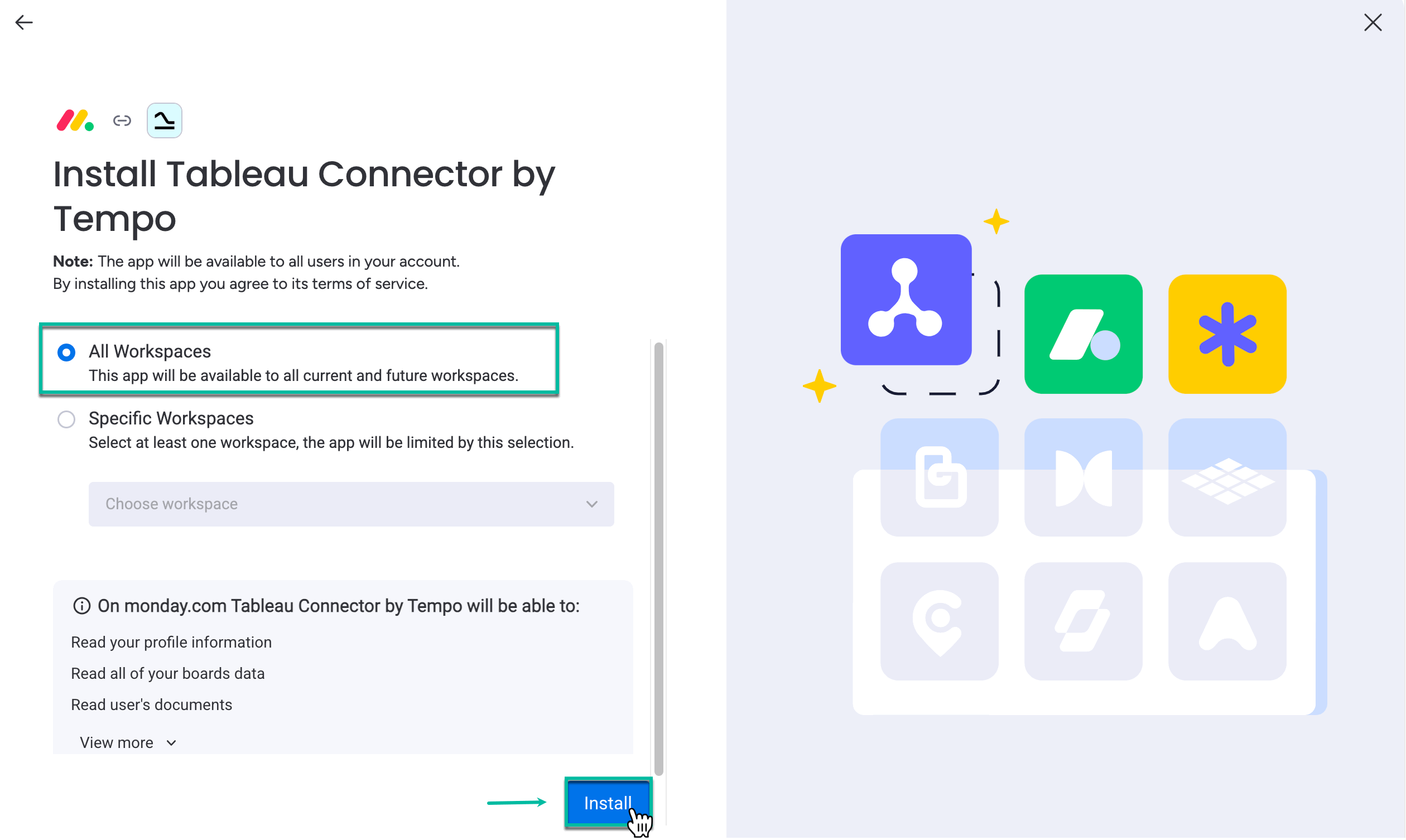
Select All Workspaces, and then select Install.
-
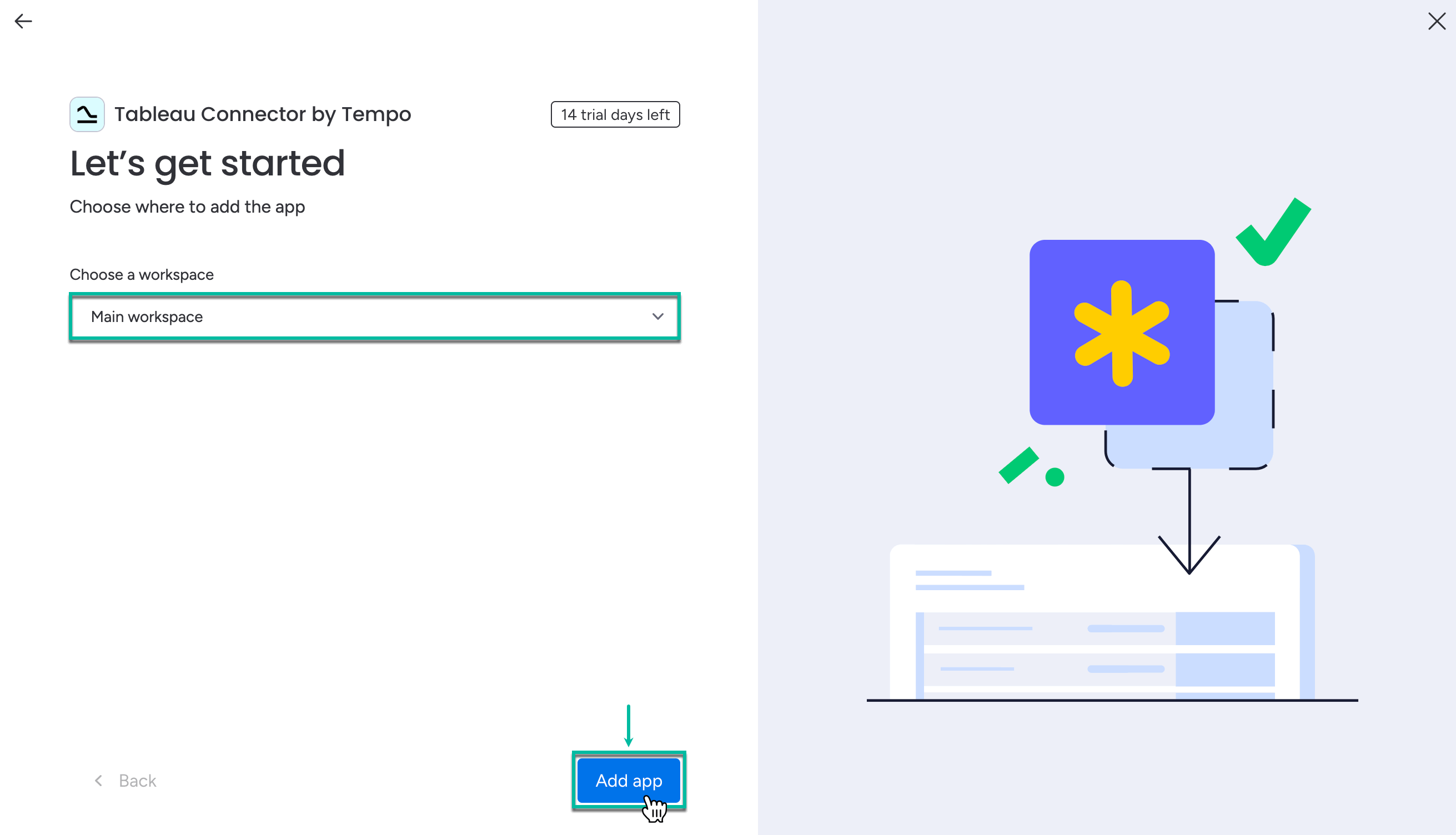
Select a workspace where to add Tableau Connector.
-
Select a dashboard you’ve created here to add Tableau Connector.
-
Select Add app.
-
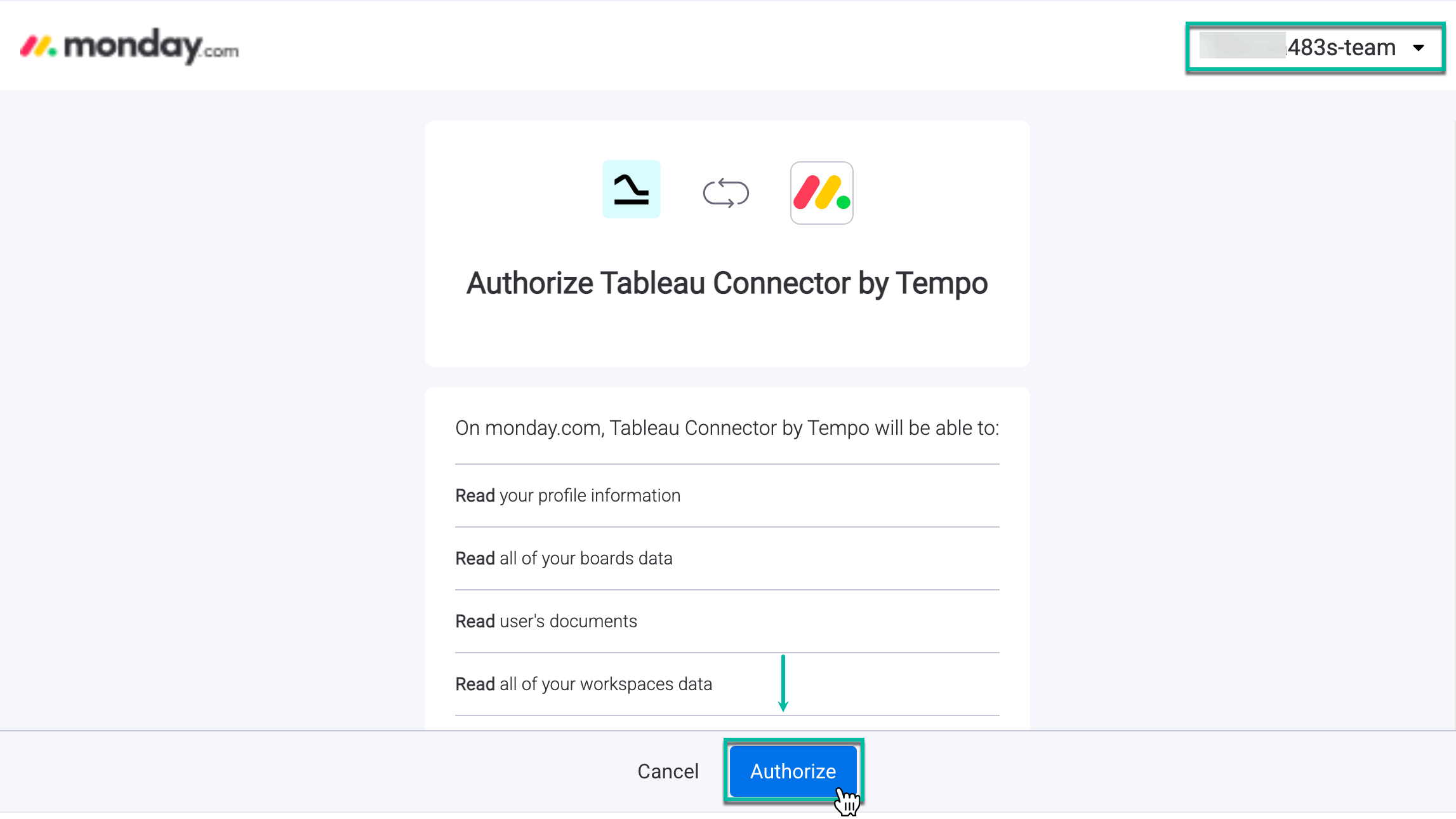
Select Authorize.
Please make sure that, during the authorization, you select the same account you signed in with to moday.com.
How to Uninstall Tableau Connector for monday.com
-
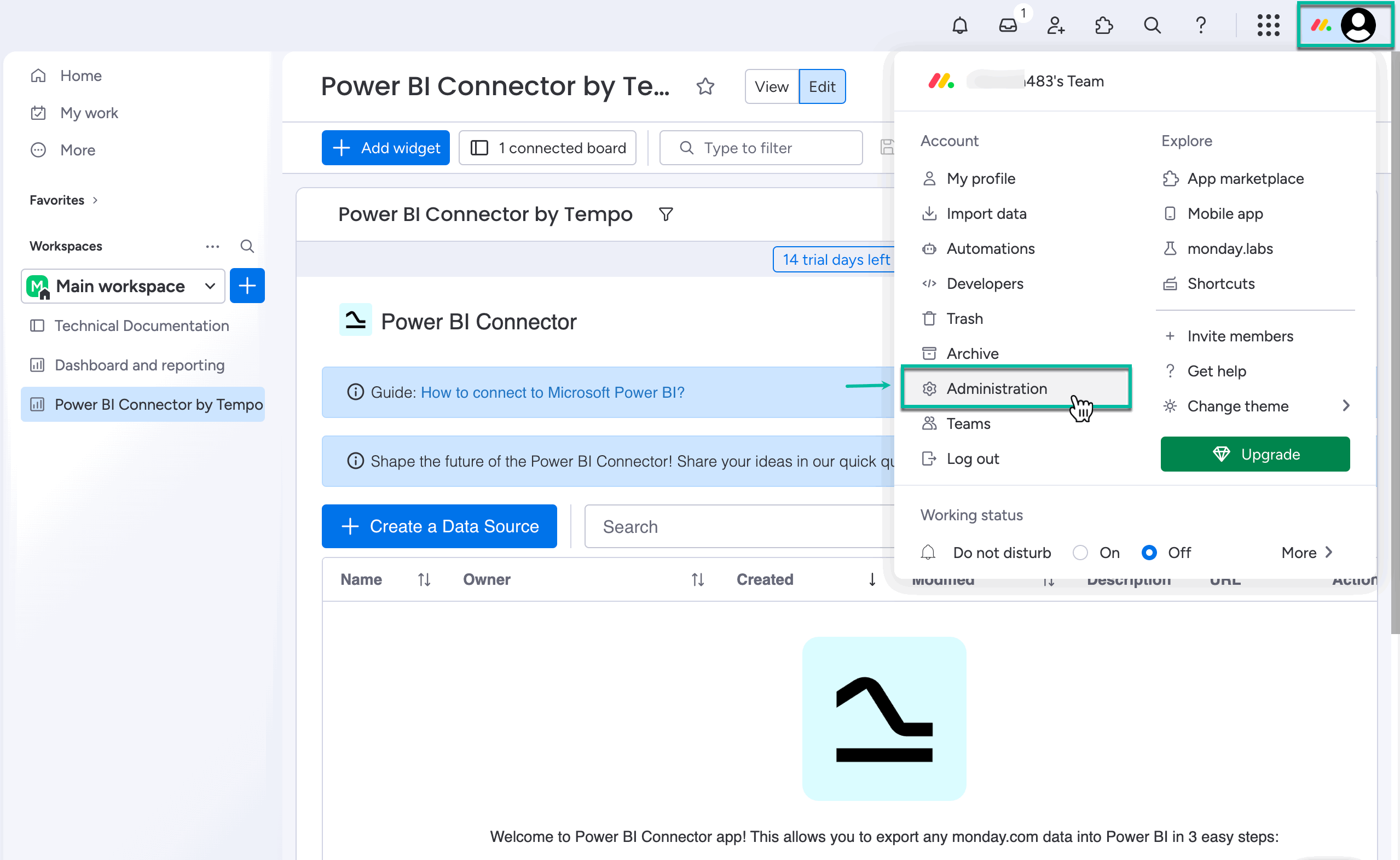
Being signed in to your monday account, select your profile picture, and then select Administration.
-
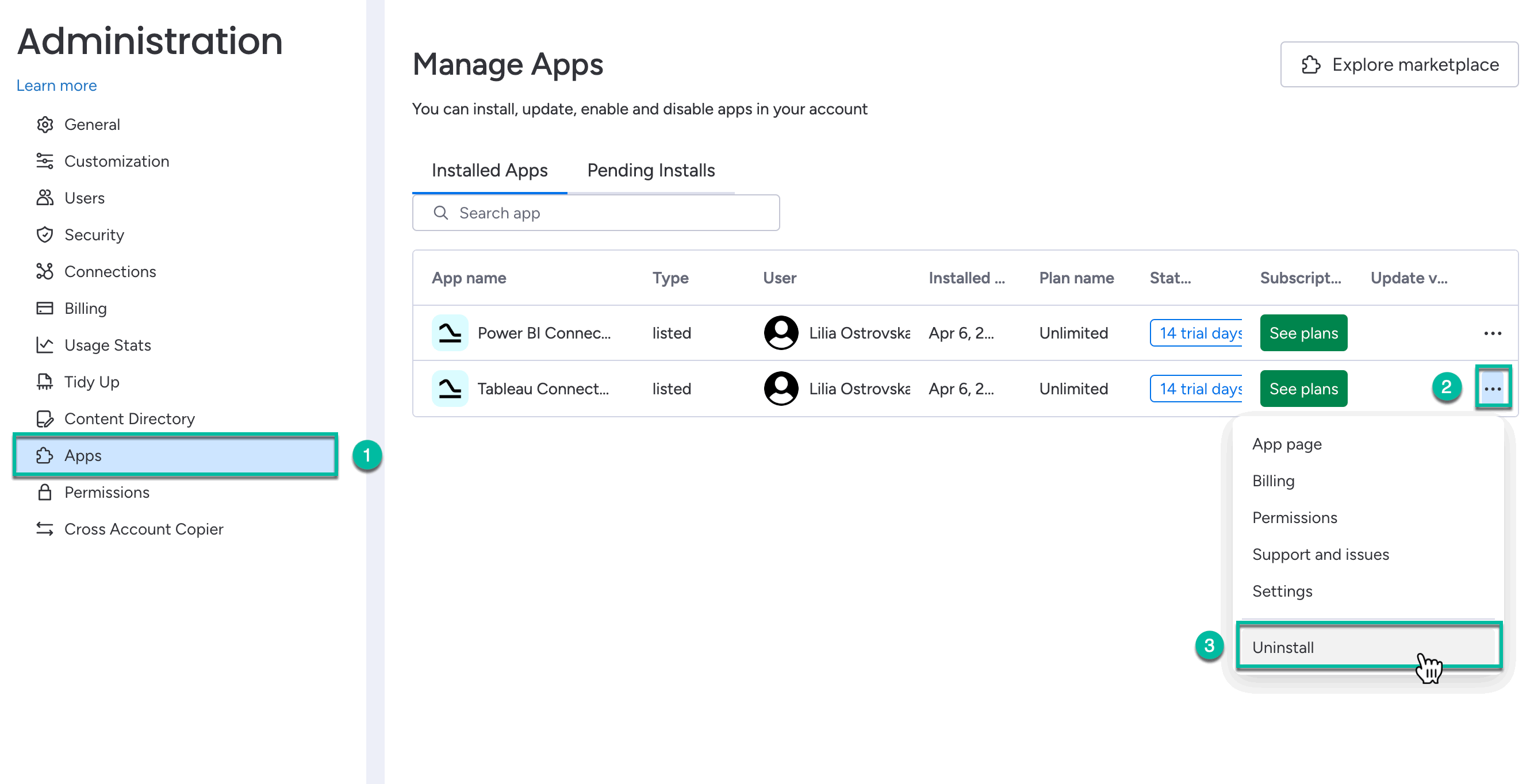
Select Apps.
-
Find Tableau Connector by Tempo, select ellipsis, and then select Uninstall.
Learn more on how to connect monday.com to Tableau from our blog ⬇️
https://www.alphaservesp.com/blog/how-to-connect-monday-com-to-tableau-step-by-step-instruction-guide