
You can use labels in Structure to categorize your structures based on your own criteria. This is especially helpful if you have a large amount of structures in your organization.
Labels are completely custom and are meant to cover many use cases. For example:
-
Assign the “Template” label to identify structures you copy and reuse for project planning.
-
Label structures with the team they belong to.
-
Plan for future work by using labels for sprints or quarters.
-
Track the progress of projects through labels like “planning”, “production”, or “review”.
Using labels
Anyone with the permissions to control structures can add and remove labels from a structure. Each structure can only have one label assigned to it at any time.
The labels available to add to a structure are set by a Jira admin for your space.
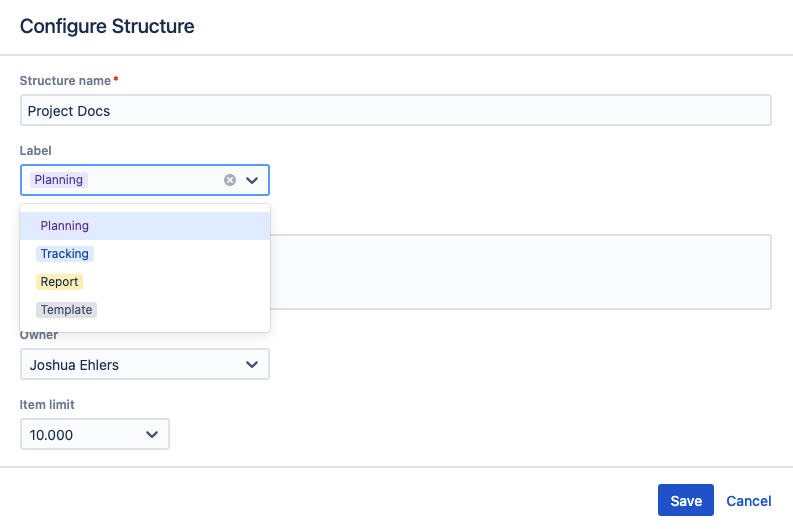
To add a label to an existing structure:
-
Open the structure’s configuration. To do so:
-
While viewing a single structure, select the gear icon next to the structure’s name.
-
From the All Structures page, select the gear icon in the structure’s Actions column.
-
-
Select a Label.
-
Select Save.
You can also select a label for new structures when you create them.
Filter by labels
From the All Structures page, you can use the Label filter to view only structures with the labels you select.
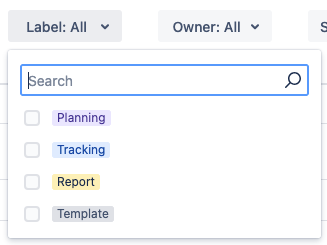
To clear the filter, either deselect the selected labels, or select Clear selected items.
You also can bookmark the filtered All Structures page
Managing labels
Only Jira admins can create or edit Structure labels.
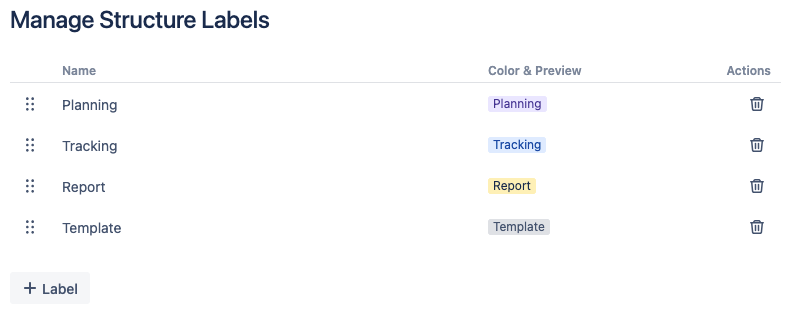
To create a new label:
-
Select Marketplace apps from the Jira settings (⚙️) menu.
-
Select Manage Structure Labels in the sidebar.
-
Select + Label and enter a name, then select the checkbox to create the label.
After you create your label, you can change its appearance from the Color & Preview dropdown.
Editing a label
From the label management screen, you can:
-
Rearrange the labels to change their display order in the Label menu.
-
Rename a label: Click the label’s name, enter a new name, and select the checkbox.
-
Select a new appearance for a label from the Color & Preview dropdown.
-
Delete a label by clicking the trash can icon.