
Question
The contractor, who is no longer with the company, was working on creating Power Bi reports for us.
We’d like to edit and update the reports, but do not have the ability to do so.
Please assist us with the steps.
Answer
When a data source or report owner leaves the company, please follow these steps to ensure the connector continues to function without interruption.
Phase 1: Update ownership in Jira
-
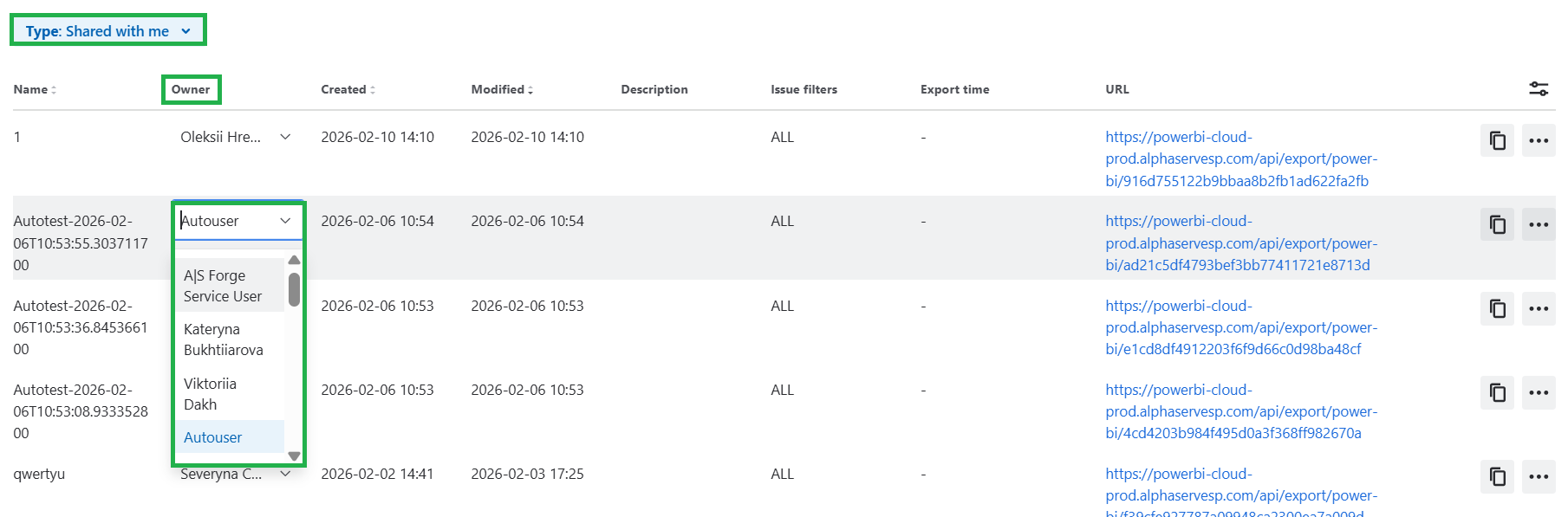
Identify the data sources: A Jira administrator can view all sources owned by the former employee under the "Shared with me" tab in the app.
-
Transfer ownership: Change the owner of the source to the designated user to allow future editing and updates:
Phase 2: Update credentials in Power BI Desktop
To avoid refresh errors, you must update the authentication details within the report file.
Note: If you cannot open the report locally, download the ".pbix" file from Power BI Service or request it from your Power BI workspace administrator.
Steps to update:
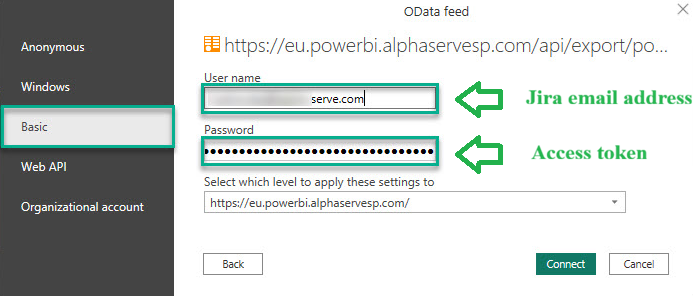
1.) In Power BI Desktop, navigate to "File" > "Options and settings" > "Data source settings".
2.) Select the relevant source and click "Edit Permissions".
3.) Set the authentication method to Basic.
4.) Enter the new owner’s Jira email address as the username.
5.) Enter the new owner's export password as the password.
6.) Save and repeat for any other affected sources.
Phase 3: Update Power BI Service (Cloud)
Once the desktop file is updated and republished, configure the cloud settings:
1.) Locate the dataset used by the report in Power BI Service.
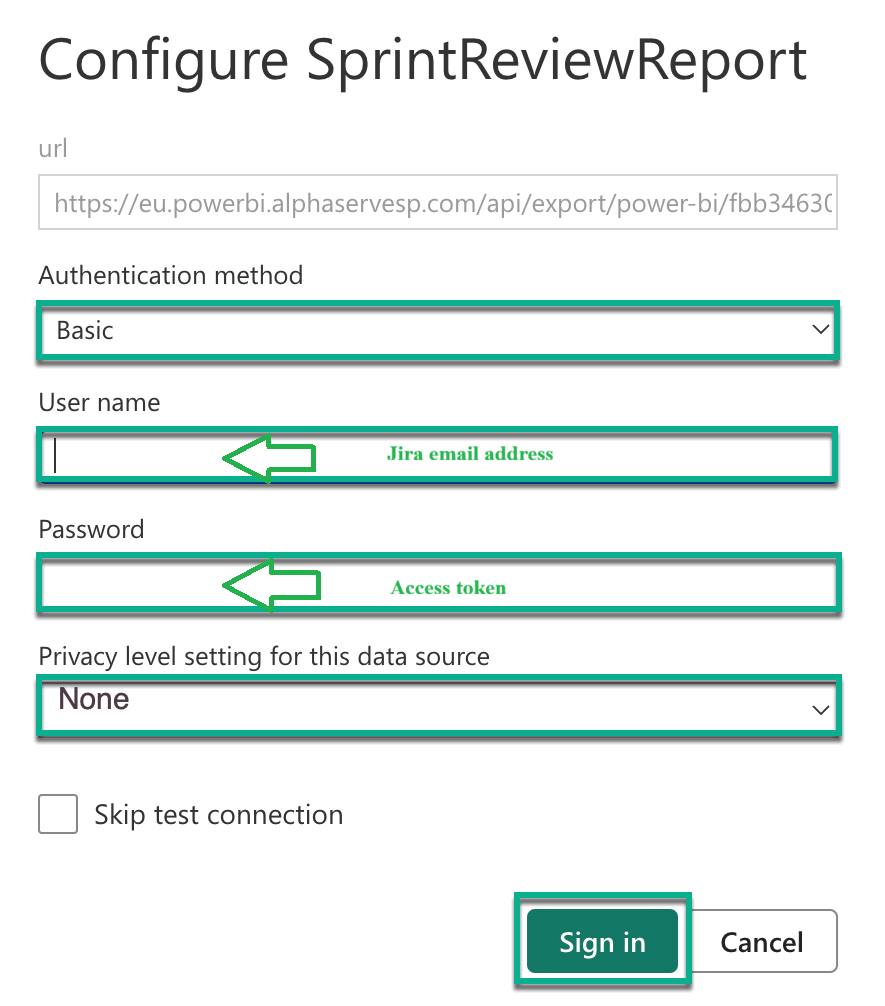
2.) Go to "Settings" > "Data source credentials".
3.) If you see a "Credentials are invalid" error, click "Edit credentials".
4.) Use the same Basic authentication details (email and export password) as in phase 2.
5.) Run a manual refresh to ensure it succeeds.
6.) Verify that the scheduled refresh is functioning as expected.
On a side note, always ensure the export password is generated by the same user whose email address is being used for authentication.