Question
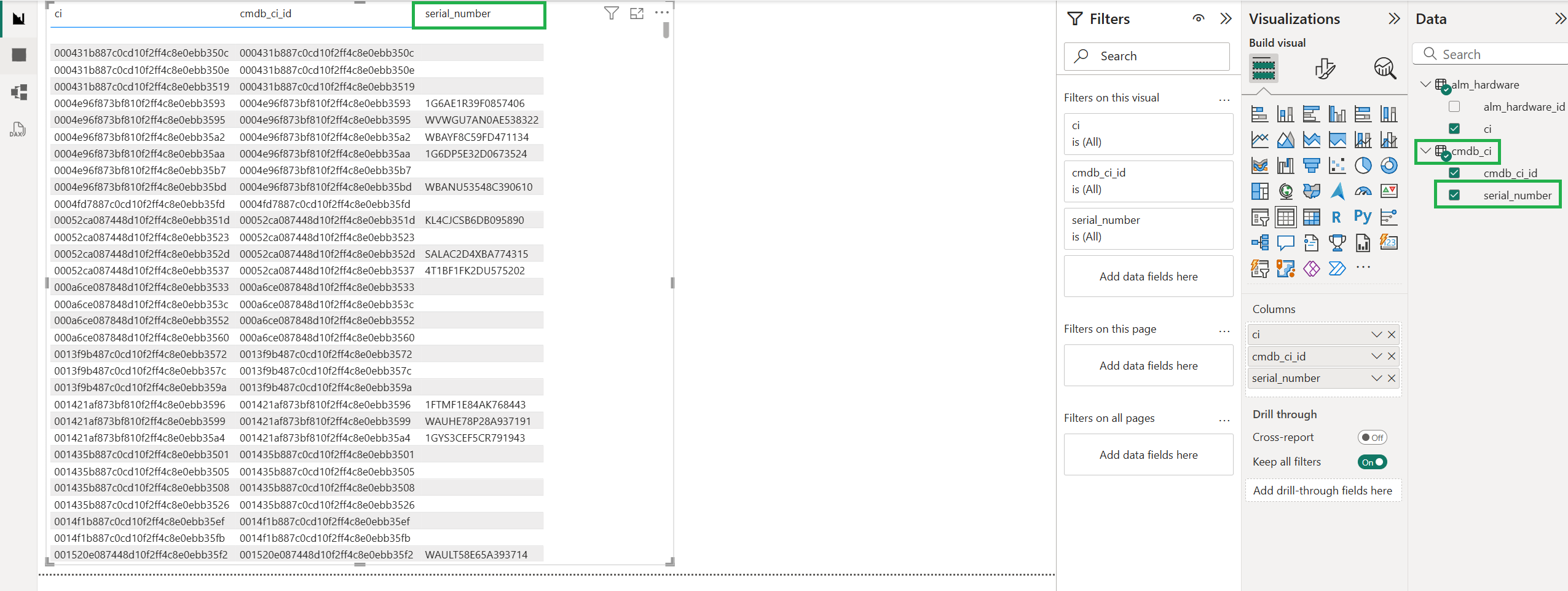
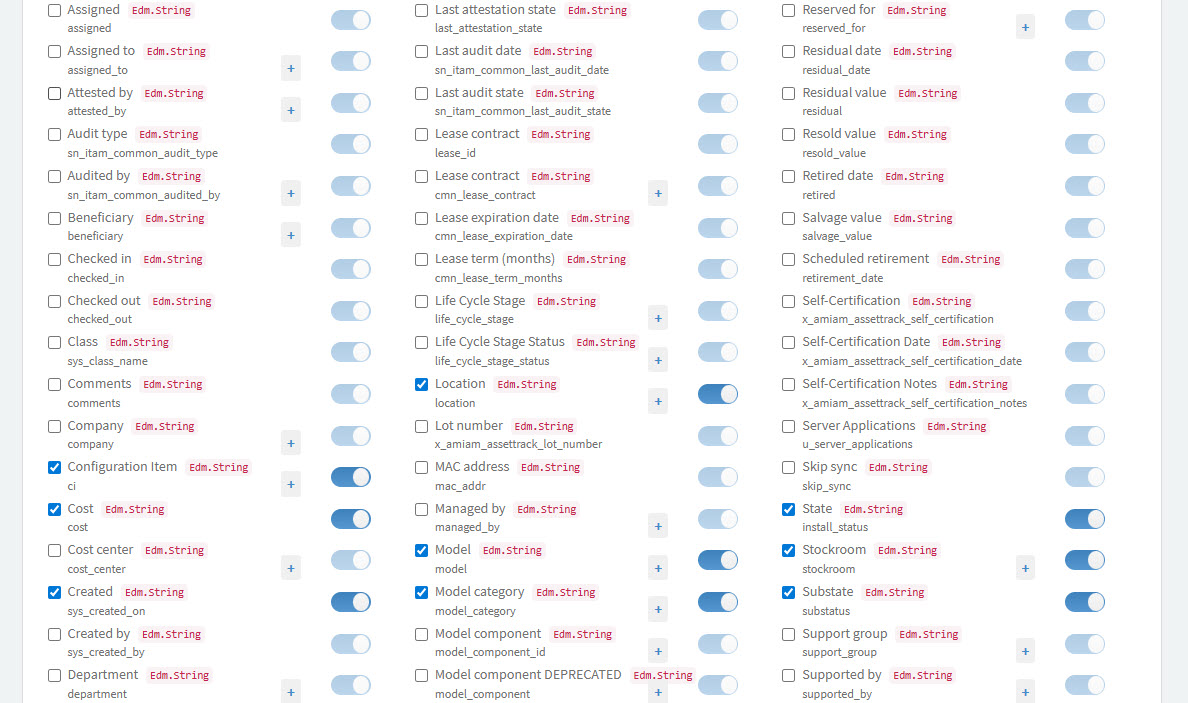
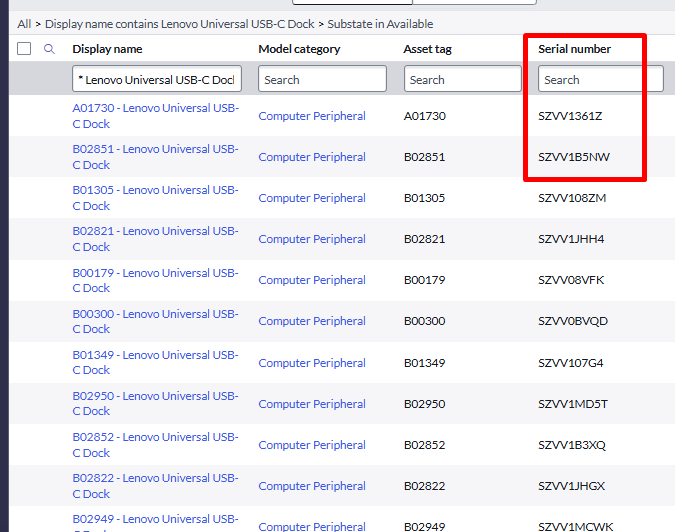
I’m using the Power BI - ServiceNow connector to pull some data from the alm_hardware (or alm_asset) table in ServiceNow. However, I’m not able to see the Serial number and Asset tag fields in the table. Our ServiceNow admins do see these fields in the ServiceNow UI, but I (and administrators) don’t see them through the connector (see attached screenshots). Do you know what might be causing this?
Answer
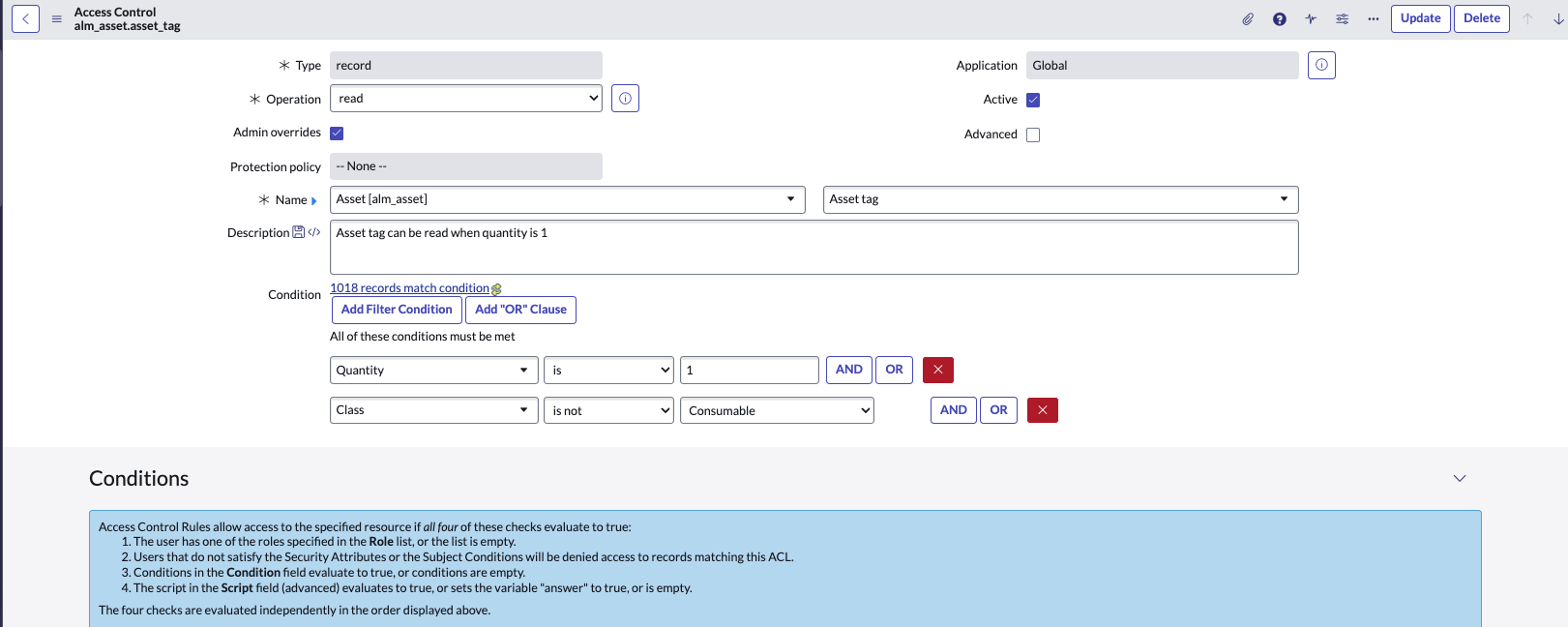
The "Asset tag" and "Serial number" fields are blocked by ACLs (Access Control Lists). For testing perspectives, we tried setting the "Admin overrides" option within the following ACLs:
-
The Asset Tag ACL sys_id: 6fabe6ac1b1020002502fbcd2c07139a;
-
The Serial Number ACL sys_id: 0dbc2aac1b1020002502fbcd2c071347.
After that, both fields became visible within the connector’s interface (just for administrators):
.png?cb=08c23d1462bef4ef526b77954605102f)
For non-administrators to utilize both fields, it is necessary to deactivate the mentioned ACL rules (6fabe6ac1b1020002502fbcd2c07139a and 0dbc2aac1b1020002502fbcd2c071347). The conditions in the ACLs are a bit strange from the standpoint of the application.
Also, there is another workaround for at least the “Serial number” field. The instructions are as follows:
-
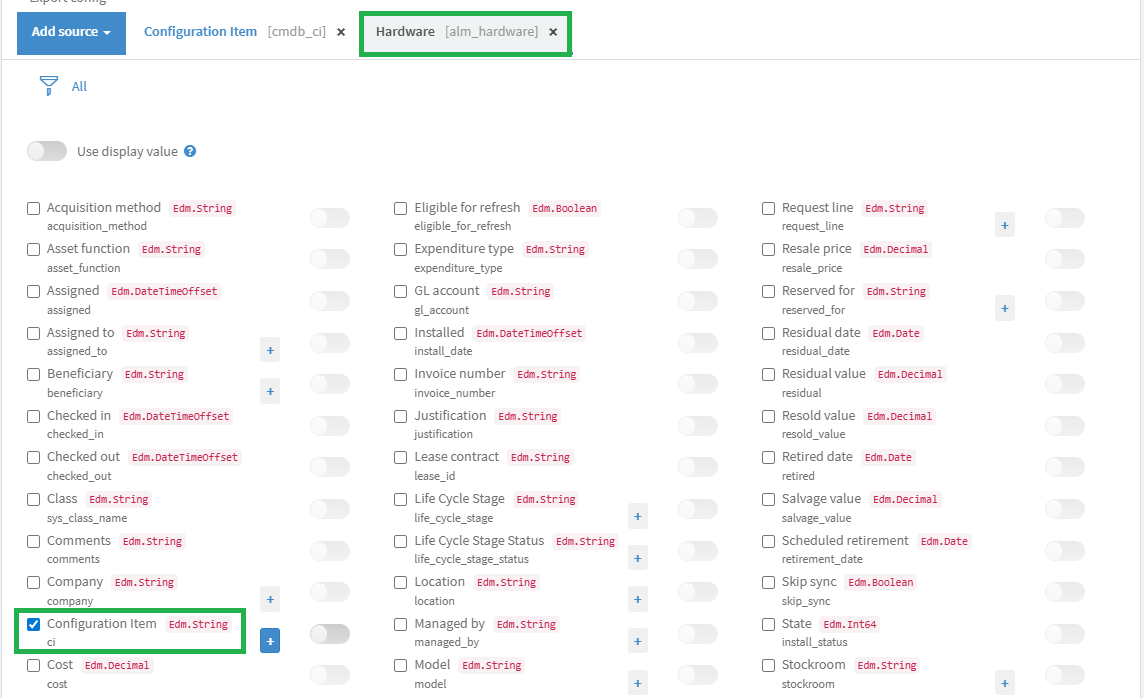
Select the required fields from the “cmdb_ci” and “alm_hardware” tables (including “Serial number” from “cmdb_ci”). Make sure to pick the “Configuration Item” (“ci”) field from the latter table (leave the “Use display value” option disabled for this field):
-
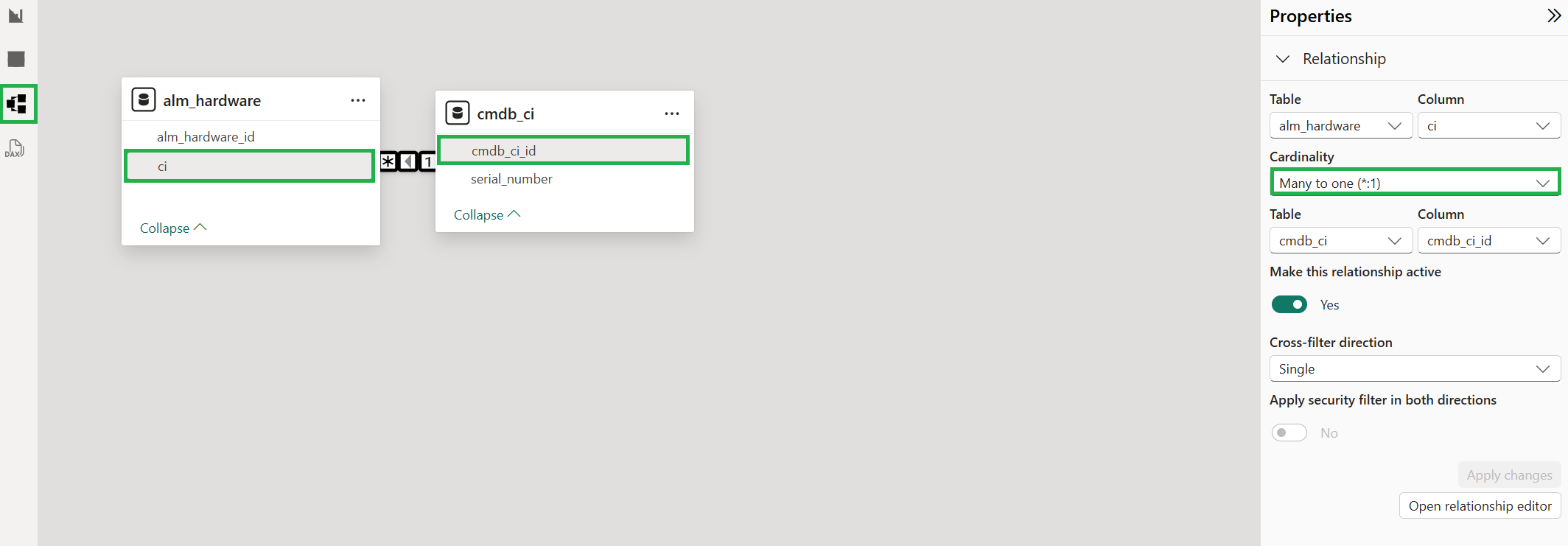
Export data from both tables to Power BI and set the relationships between them:
-
Connection: “cmdb_ci” > “cmdb_ci_id” (retrieved automatically) = “alm_hardware” > “ci”
-
Cardinality: one to many
-
Use the “Serial number” and other fields in your Power BI reports: