
Configuring projects requires the Project Administrator Jira permission.
Projects can be displayed with a custom color in Tempo Timesheets planning display for the timesheets.
To configure a custom color for a project:
-
Log in to JIRA as a Project Administrator.
-
Choose the Projects option from the cog icon at the top right of the screen. Alternatively, you can use the keyboard shortcut g + g and start typing the project name.
-
Click on the project name from the project list to open its Administration section.
-
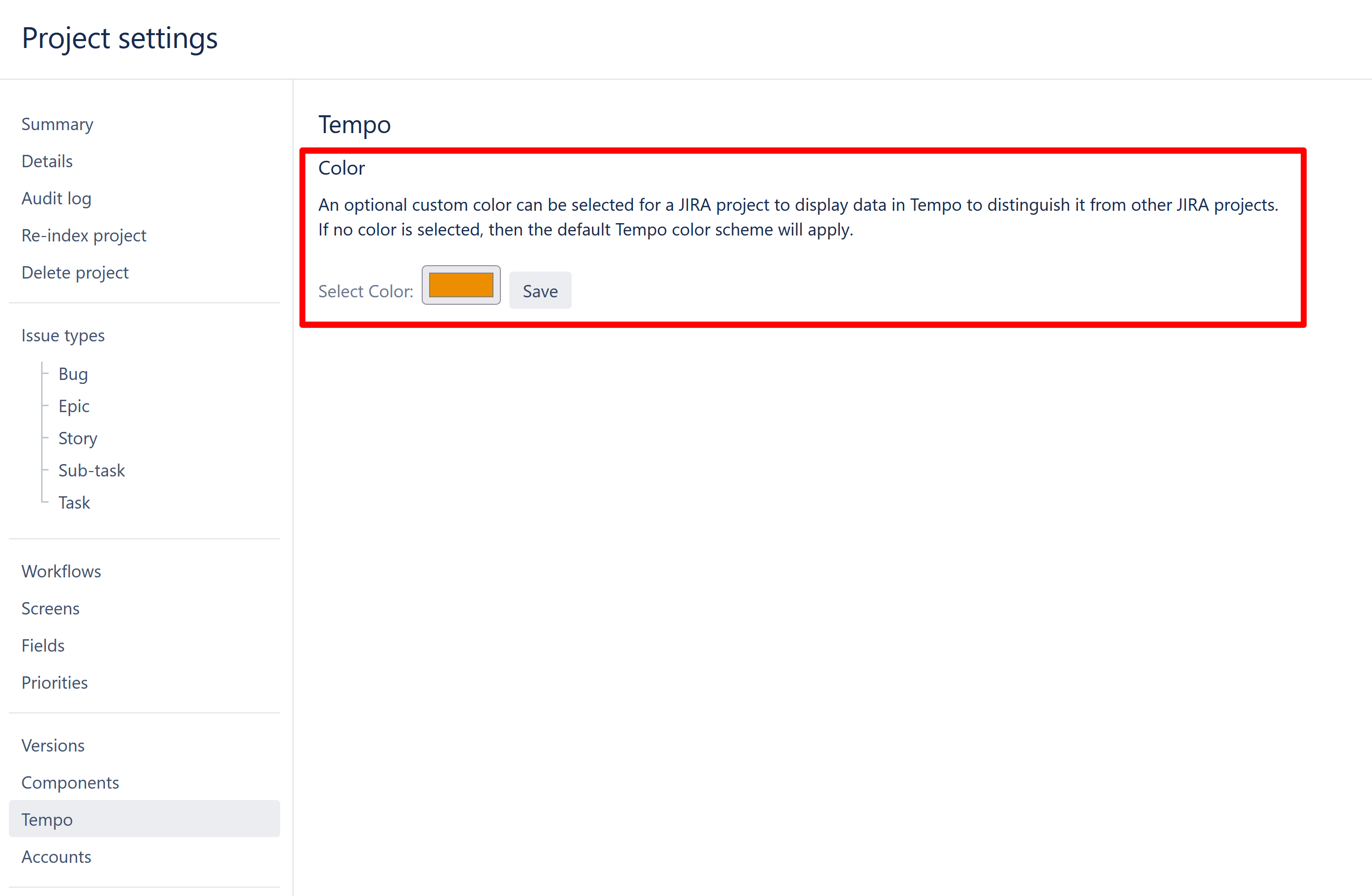
Open the Tempo tab in the left sidebar, which shows orange as the default color code.
-
Click on the color box to open the color palette.
-
Select a custom color from the color palette.
-
Click the Save button to save your project settings.
The selected colors for each project are displayed in the Timesheets.
For multi-user timesheets, each user must be expanded to see the project colors.