
Applies to: Tempo Timesheets, Data Center to Cloud migration
What happens during migration
-
Jira Cloud Migration Assistant (JCMA) migrates Jira worklogs together with their timestamps.
-
Tempo Cloud then syncs those worklogs from Jira.
-
Tempo Cloud works out each worklog’s date from the timestamp and the Default user time zone set in Jira Cloud.
The time spent and the timestamp (the exact moment) stay the same. The date shown is a display of that moment in a time zone. That is why the Cloud Default user time zone matters.
Image 1: one moment, two dates
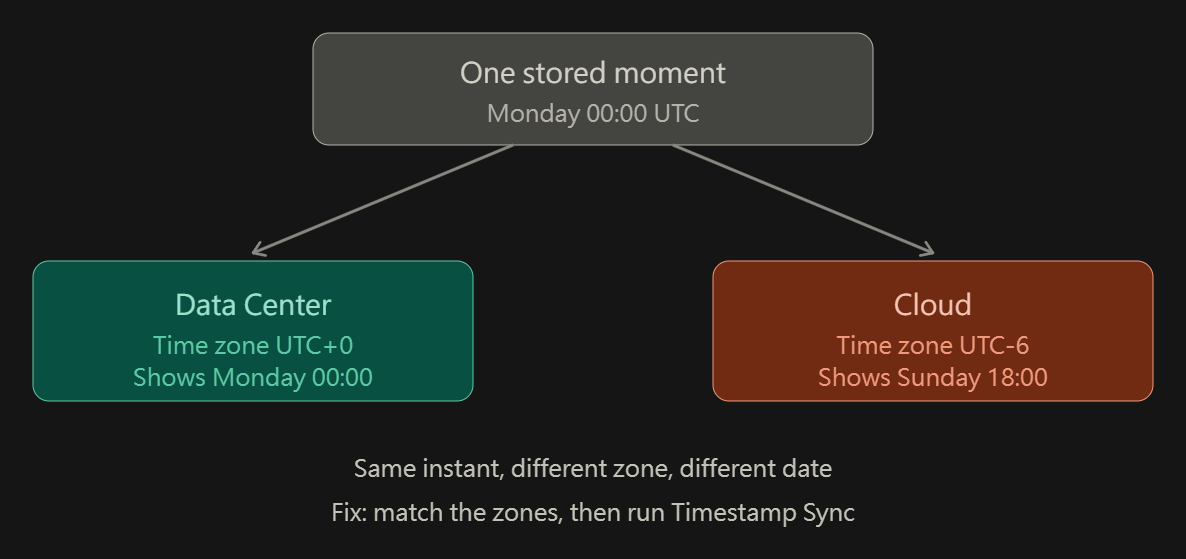
Why dates can differ from Data Center
Data Center Tempo keeps the date as it was entered. Cloud derives it from the timestamp. If the Cloud Default user time zone differs from the Data Center one, the same moment can land on a different date. Example: Monday 00:00 UTC is Monday in UTC+0 but Sunday 18:00 in UTC-6.
Typical signs: worklogs appear one day earlier or later, or a weekend that was empty in Data Center now has time on it.
Before migrating
Set the Default user time zone in Jira Cloud to match Data Center before you migrate.
👉 https://help.tempo.io/cloudmigration/latest/key-migration-steps
Settings to compare
|
|
Where to check |
|---|---|
|
Data Center |
Jira Default user time zone (System default), Server/OS time zone, JVM time zone |
|
Cloud |
Default user time zone (Jira admin: System > General configuration) |
Compare the Default user time zone first. The serverTimeZone value at /rest/api/3/serverInfo may not match the zone users actually see. Individual users’ profile time zones don’t need to match Data Center for migrated worklogs.
If dates are already wrong after migration
Changing the Cloud time zone alone does not correct worklogs that were already migrated. A Tempo Timestamp Sync is needed after the zone is fixed.
Image 2: fix order
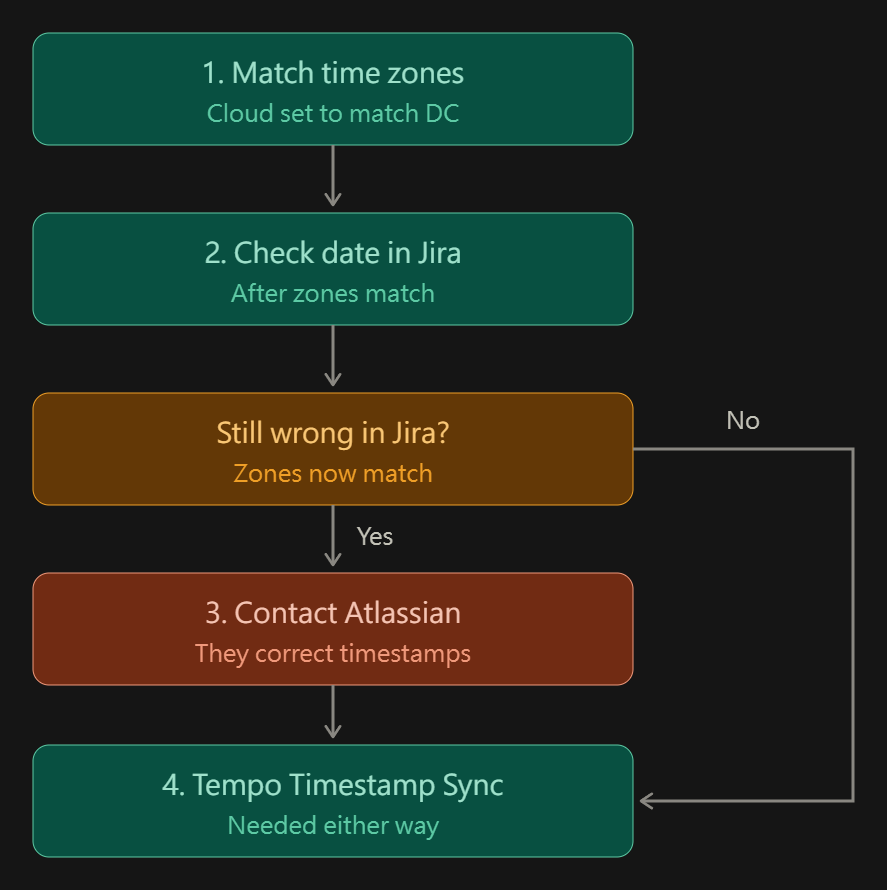
-
Set the Cloud Default user time zone to match Data Center.
-
After matching the zones, check the worklog date in Jira’s own work item view. You can also switch the time tracking provider to Jira and back (Settings → Work items → Time Tracking). If the date is now correct, go to step 4.
-
If the date is still wrong in Jira after the zones match, contact Atlassian Support to correct the timestamps.
👉 https://support.atlassian.com/contact/ -
Once Jira shows the right dates, submit a Tempo Support request to run the Timestamp Sync. It’s needed either way, so finish the other fixes first, and avoid editing historic worklogs while it runs. The sync recalculates all worklogs in the instance, so you don’t need to fix them one by one.
If a worklog is missing rather than on the wrong day, check permissions instead:
👉 https://help.tempo.io/cloudmigration/latest/testing-after-migration-is-complete