
This feature is not yet available to all customers. To participate in Tempo's Early Access Program and gain access to this feature, visit our TempoLab page.
If you work in Claude Code, integrating it with Tempo Timesheets turns that work into log time suggestions. Every prompt you send in Claude Code sends a small signal to Tempo. Those signals become suggestions in your My Work Calendar and List views. Mention a Jira work item key, and the suggestion arrives with that work item already attached. Suggestions remain in your calendar until you accept, edit, or delete them. Key benefits upon integrating Claude Code with Timesheets include:
-
Coding time stops disappearing. Work done in Claude Code appears in your calendar without you having to write anything down.
-
Work Item keys attach themselves. When a Claude Code query references a work item key, the suggestion arrives pointed at it.
-
Nothing to remember at the end of the day. The signal arrives while you work, so Friday afternoon isn't a memory test.
Before you begin
-
You must have Tempo Timesheets on Jira Cloud, and permission to log your own time.
-
Claude Code must be installed on your machine.
-
You must have a Jira account on the site you want suggestions to land in.
-
You need a terminal, plus
curlandgit(both ship with macOS and most Linux setups).
Your Atlassian connector in Timesheets must point at the same Jira site where you set up this integration. If it points somewhere else, your work item keys won't be recognized, and suggestions will arrive without a work item. Check under Connectors > Atlassian, and if it's wrong, disconnect and reconnect to the right one.
Installing Claude Code
-
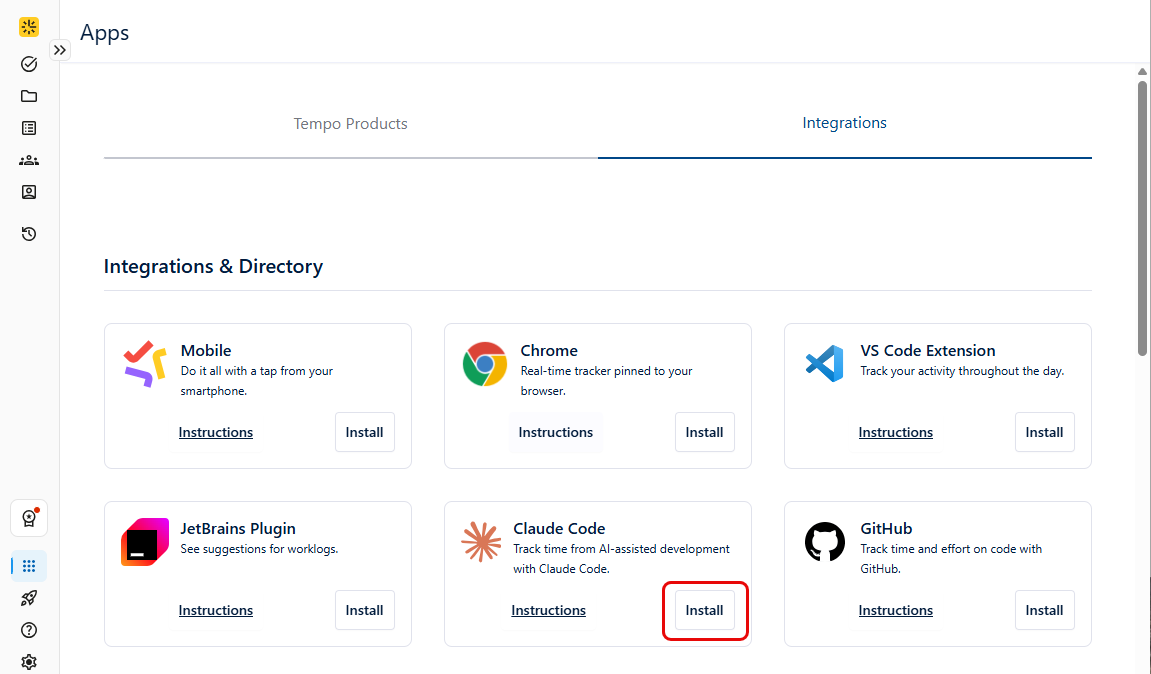
From the Timesheets sidebar, click Apps > Integrations > Claude Code.
-
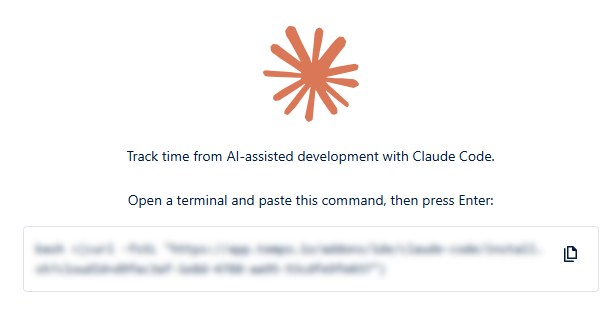
Copy the installation command shown on that page. This command is instance-specific.
-
Paste it into your terminal and run it. Your browser opens an Atlassian authorization page.
-
Choose the Jira site where you want suggestions to land, then approve access.
-
Go back to the terminal and follow the prompts.
-
When the installer asks you to quit Claude Code, quit it. This step is required. Claude Code reads its settings at startup, so the integration starts working in your next session, not the current one.
-
You'll see a confirmation that the Claude Code hook was installed.
-
Start Claude Code again and send a prompt.
Back in Jira, the Claude Code integration shows as Active once your first prompt arrives.
How suggestions show up
Send prompts as you normally would. In Timesheets, open My Work and look at the calendar.
Suggestions are named after the work, not the prompt. A suggestion with no work item key attached still works. Use the work item picker to choose one, then log the time.
How to turn off suggestions
Suggestions can be turned off via your machine, not through Tempo. There's no disconnect button, because Tempo never stores a connection to end. Like Tempo's other IDE integrations, Active means Tempo has received a “recent” signal from you, so the way to stop it is to stop the signal.
You can Ask Claude Code to remove the Tempo suggestions hook, or you can do it manually by following the steps below:
-
Remove the
UserPromptSubmithook that runsclaude-code-hook.shfrom~/.claude/settings.json. -
Delete the hook script at
~/.local/share/tempo/claude-code-hook.sh. -
Delete the cached credentials at
~/.cache/tempo/cc-*. -
Quit and reopen Claude Code.
New suggestions stop arriving right away. Suggestions already in your calendar will remain there until you log or delete them. The label will remain Active for a while after you've removed the files. It clears on its own once the signal stops.
What Tempo Receives
The session title is generated by Claude. Anthropic is your own provider, not a Tempo sub-processor. Tempo receives the following:
|
Field |
Value |
|---|---|
|
source |
Always “claude-code” |
|
trigger |
Always “prompt” |
|
groupId |
The git branch of the hook’s cwd. If there’s no branch, it falls back to the session title. |
|
timestamp |
UTC now, date -u =%Y-%m-%dT%H:%M:%SZ (:276) |
|
searchStrings |
On-element array. It holds the session title if there is one, otherwise groupID |
Limitations
-
The Active label lags. It follows the “recent” signal, so it can lag behind what's actually on your machine in both directions.
-
Moving to a new computer requires a fresh install. Your old machine's signal can keep the integration showing as Active, which can hide the install command on the Claude Code page. Run the install on the new machine anyway.
-
One site at a time. The integration authorizes one Jira site. Working across sites means reinstalling against the site you want.
-
Suggestions are per branch or session, not per prompt. Twenty prompts on one branch make one suggestion, not twenty.
Troubleshooting Integration
|
Problem |
What to do |
|---|---|
|
No suggestions at all |
Check that you quit and reopened Claude Code after installing. Then confirm the hook is still in |
|
Suggestions arrive with no work item key |
Your Atlassian connector is probably pointing at a different Jira site than the one you installed against. Reconnect under Connectors > Atlassian. |
|
Suggestions stopped after weeks of working fine |
Your Tempo authorization may have expired. Reinstall from Apps > Claude Code. |
|
Work shows up as a Jira suggestion instead of a Claude Code one |
This is expected when your prompt asked Claude Code to act on Jira through the Atlassian connector. |