Archiving a team requires the Tempo Team Administrator Jira global permission, the Manage Team global Tempo permission role, or the Manage Team Tempo Team permission role (which Team Leads have by default).
Restoring a Team requires the Tempo Team Administrator Jira global permission or the global Multi-Team Tempo permission role. Team Leads cannot restore archived teams.
Archiving Teams provides administrators and managers with a clean, straightforward way to mark teams as inactive without losing any historical data. Archived teams are hidden from active views by default, providing an attractive alternative to deleting them. Whether you're managing a handful of legacy teams or dozens, archiving keeps your team list organized and clutter-free while ensuring full historical visibility is retained.
Archiving Teams
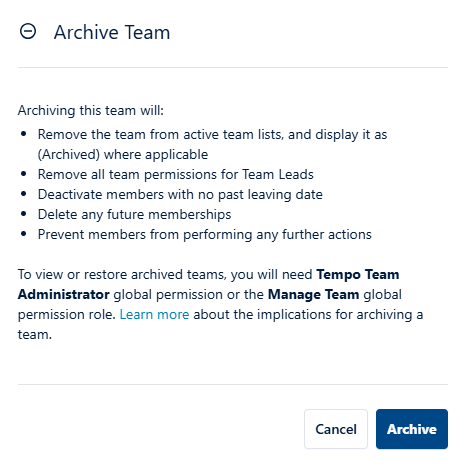
Archiving the team will:
-
Remove the team from active team lists, and display it as (Archived) where applicable
The team will no longer appear in the Jira Tempo Team dropdown list in Jira work item view or the Tempo Teams list for Create Program (Teams page > Programs tab > Create Program). All archived teams in the team dropdowns within Timesheets and Capacity Planner (if installed) will be indicated (see How Archived Teams are Indicated). -
Remove all team permissions for Team Leads
The Team Lead will lose team permissions, meaning they will lose the Manage Team permission for the specific team. If Team Leads need to view/report on worklogs from archived teams, they need to be granted the Tempo Team Administrator Jira global permission or the View Worklogs Tempo permission role. -
Deactivate members with no past leaving date
All active team members whose leaving dates are either not set or not in the past will be deactivated. Their leaving date will be set to the day before the team was archived, which means the team member will lose the ability to:-
filter by hours logged against the archived team
-
submit timesheets for approval, if the user doesn’t belong to an active Tempo Team
-
-
Delete any future memberships
Any team members with a future start date will be deleted. If the team is later restored, these team members can be manually added back. -
Make all data read-only, preventing members from performing any further actions
Team members will no longer be able to submit timesheets, and Team Leads will no longer be able to approve timesheets for team members. If Capacity Planner is installed, Team Leads will no longer be able to create, approve, or view plans.
After a team is archived, it will only be visible to users with Tempo Team Administrator Jira global permission or the global Multi-Team Tempo permission role.
To archive a team:
-
In the Tempo sidebar, select Teams, then select the team you want to archive.
-
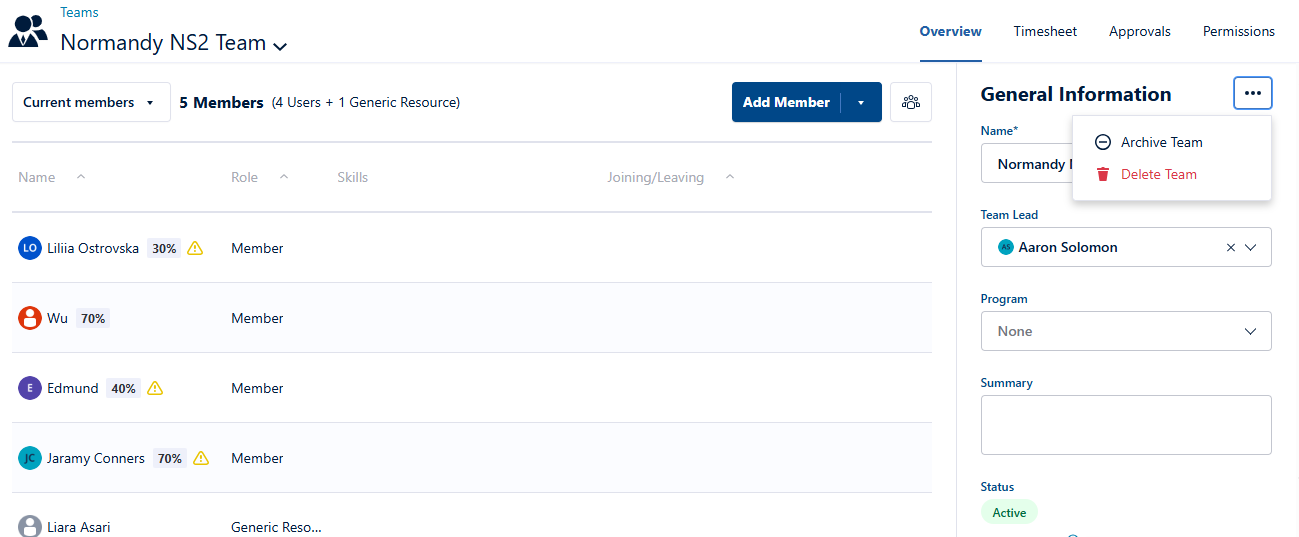
In the Overview tab at the upper right, click the more options button (ellipsis) next to General Information and select Archive Team.
-
A confirmation window displays with a brief list describing the impacts of archiving the team. For a more detailed description of the impacts of archiving the team, see below. Click Archive to complete the action.
How Archived Teams are Indicated
-
Team Dropdowns
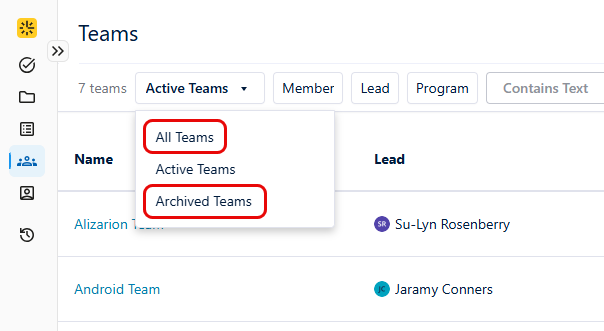
On the Teams page, active teams are selected by default in the team dropdown list. To view archived teams, click the dropdown list and select either Archived Teams or All Teams.
-
Team List
On the Teams page, the status column indicates whether the team is Active or Archived. To display archived teams in the list, you must select either All Teams or Archived Teams in the team dropdown.
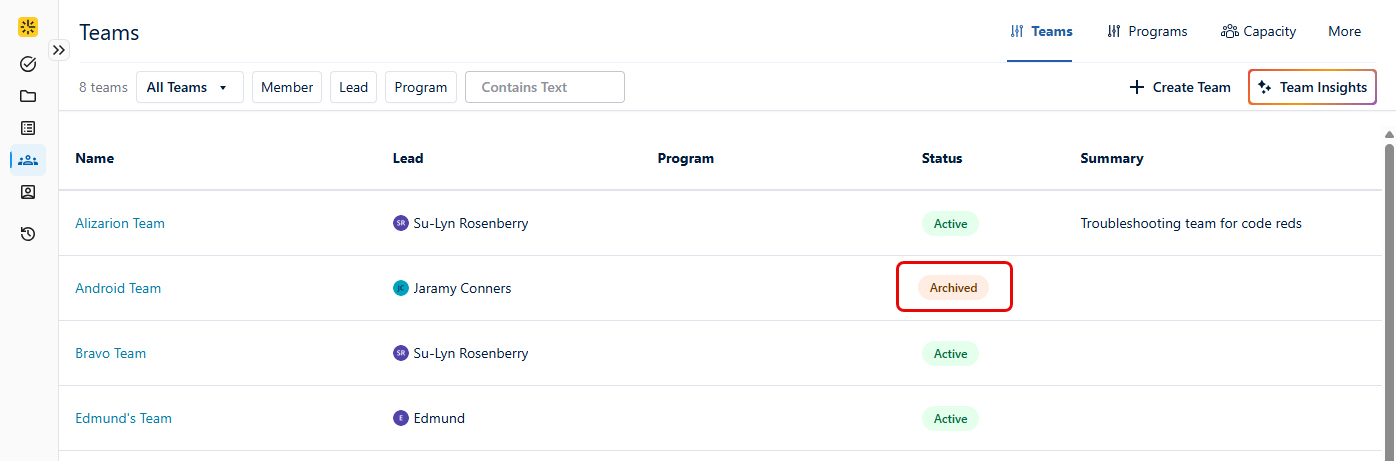
-
Team Selection
When selecting teams within the following modals, archived teams are greyed out and indicated as (Archived) in the team list:-
Tempo Reports - On the Reports page, when creating a Logged Time report and filtering by TEAMS, archived teams are indicated. If Capacity Planner is installed, this also applies when creating a Planned Time or Planned vs Actual Time report.
-
Add Teams - In Capacity Planner (if installed), when adding a team on the Planning page, archived teams are indicated.
-
Permission Roles - When adding a permission role in Tempo Settings > Permission Roles > Add permission role, archived teams are indicated in the Role access list.
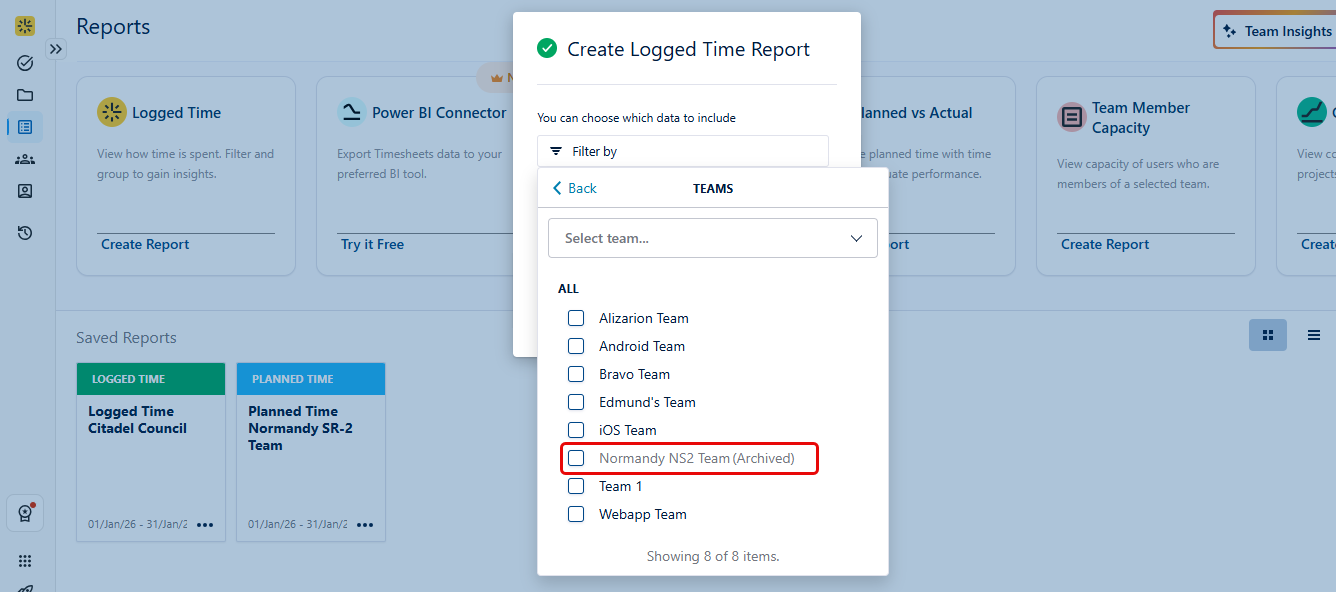
-
Restoring Teams
When you restore a team, its previous settings and historical data return to their state before archiving. However, team members are not automatically reactivated and must be added back to the team.
To restore a team:
-
Select Teams in the Tempo sidebar.
-
Select Archived Teams or All Teams from the team dropdown at the upper left to view archived teams, then select the team that you want to restore.
-
In the Overview tab at the upper right, click the more options button (ellipsis) next to General Information and select Restore Team.
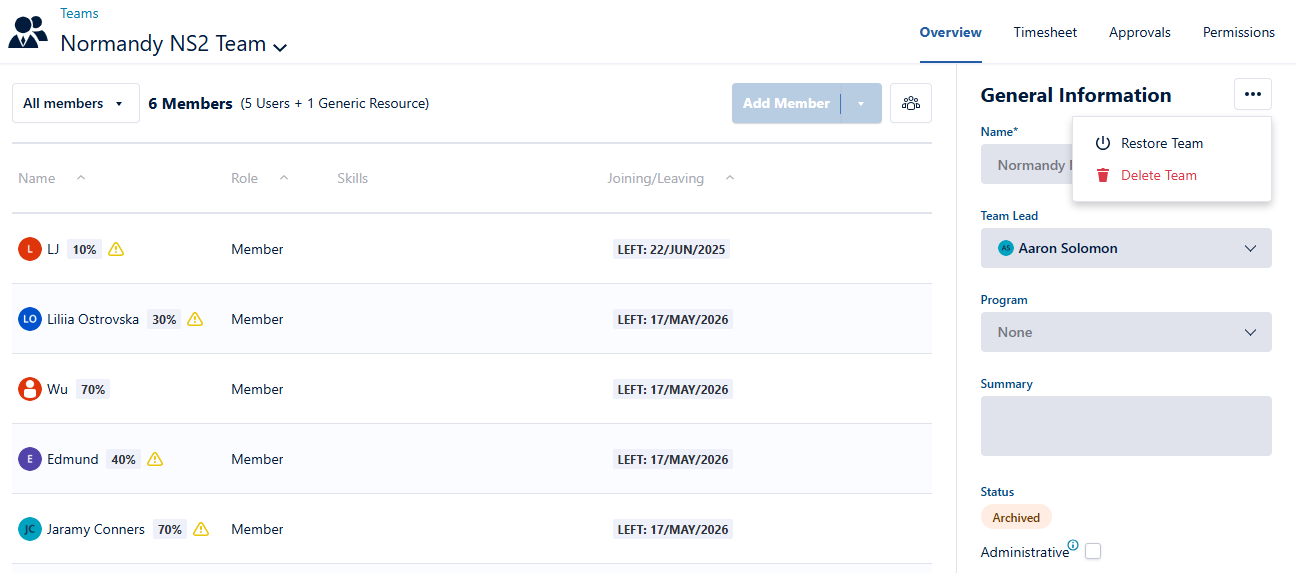
-
A confirmation window briefly describes what will occur when restoring the team. Click Restore to complete the action.
-
The team is now restored. No active team members appear in the member list; however, any generic resources that were added to the team prior to archival will still appear. You can now add new team members (see below).
Adding New Members (Recommended)
After restoring a team, it is recommended that team members be added by clicking Add Member, even if the user was previously a team member. Previous members can be granted new memberships.
To view previous team members and review their join/leave history:
-
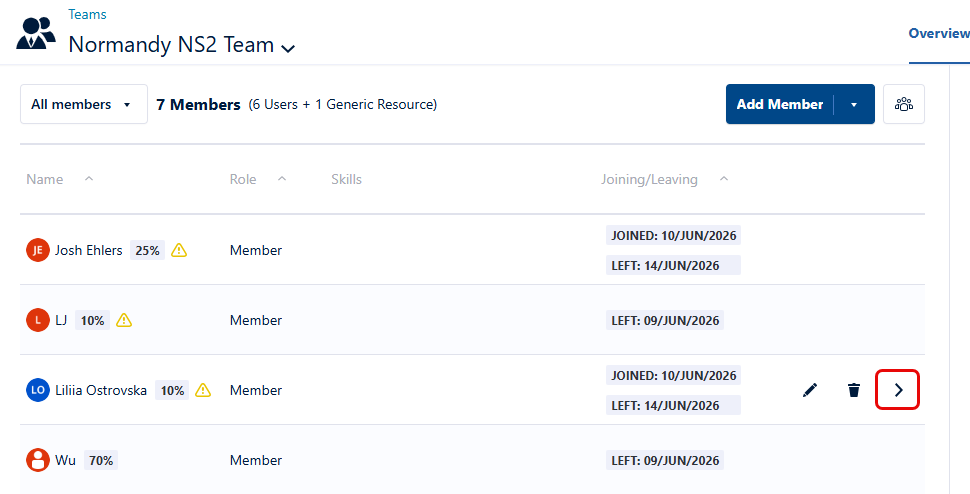
Click the team member dropdown in the upper left, then select All members to display all team members.
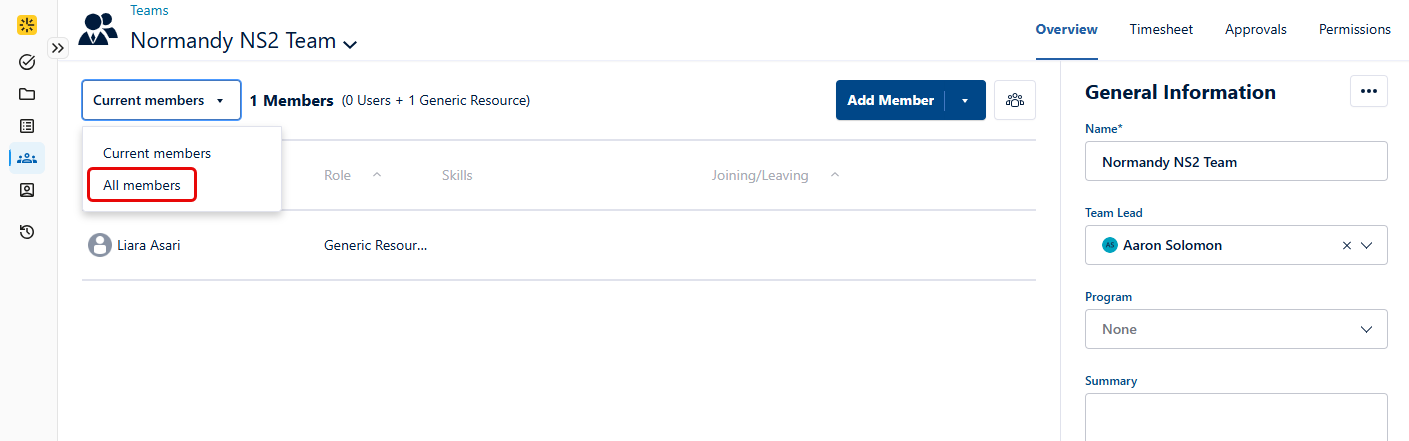
-
All previous team members are displayed, including their most recent join/leave dates. Select the arrow icon next to the desired member to view additional team membership details.
-
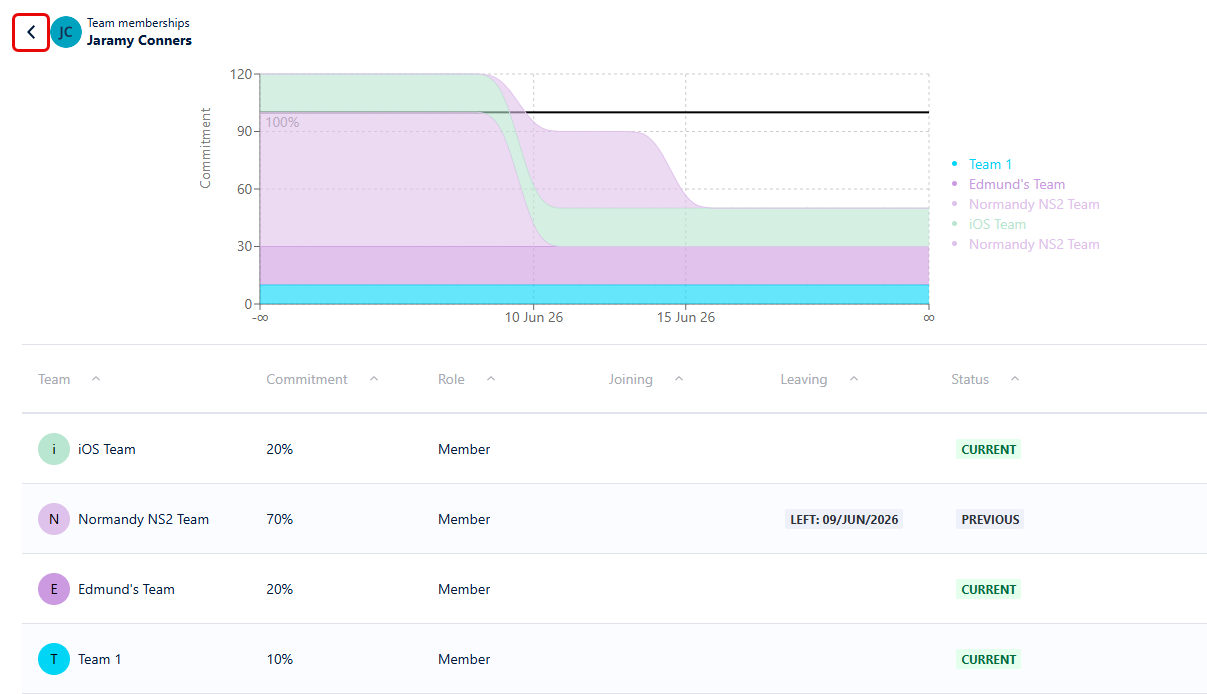
All team membership information for the selected team member is displayed, including other team memberships and all join/leave dates. Click the back arrow icon to return to the team Overview page.
Reactivating Previous Team Members
After restoring a team, all previous team members remain inactive. It is recommended to grant new memberships to any former members you want to bring back to the team, but they can also be manually reactivated if desired.
To reactivate previous team members:
-
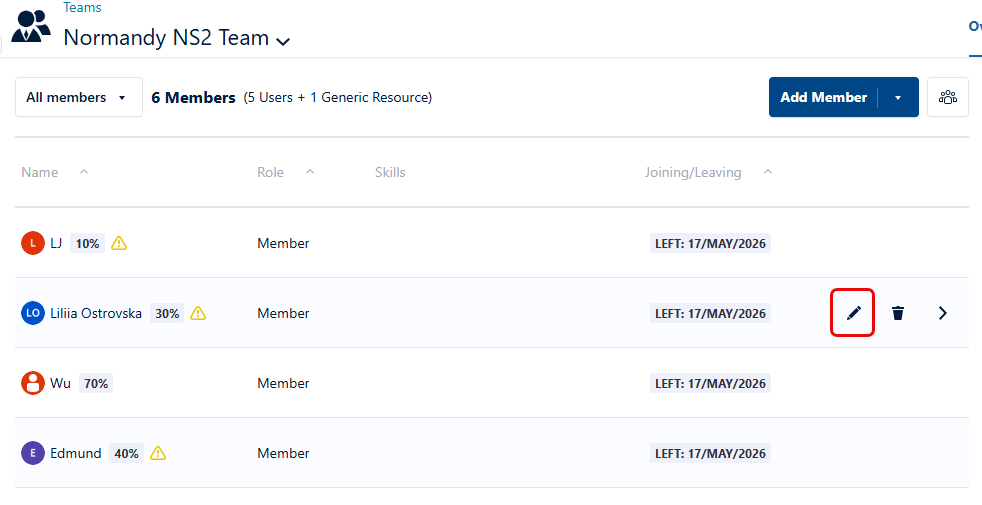
Click the team member dropdown in the upper left, then select All members to display all team members.
-
Click the Edit icon to the right of the first team member you want to reactivate to open the Edit modal.
-
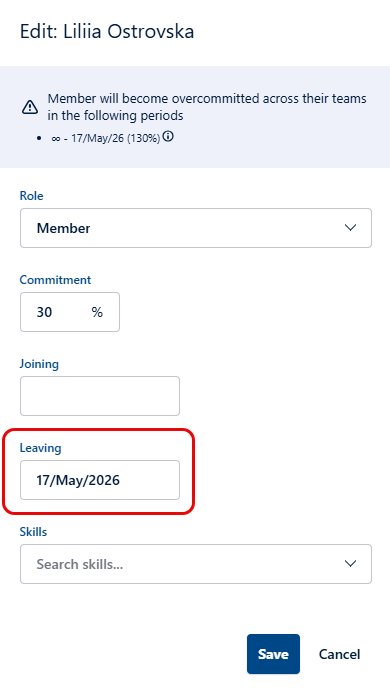
In the Edit modal, delete the leaving date for the team member or (optionally) select the date the
member will be leaving this team, then click Save. Repeat this process for the remaining team members you want to reactivate.