
The following fields can be edited from the table:
-
All items: Status, Team, Effort Estimate, Planned Start, Planned Finish, Target Start, Target Finish
-
Items created in Loop: Name, Description, Item Type, Parent
-
Items imported through an integration: The parent field can be changed if the item does not already have an imported parent in Loop.
Inline Editing
Loop supports inline editing for the following fields:
-
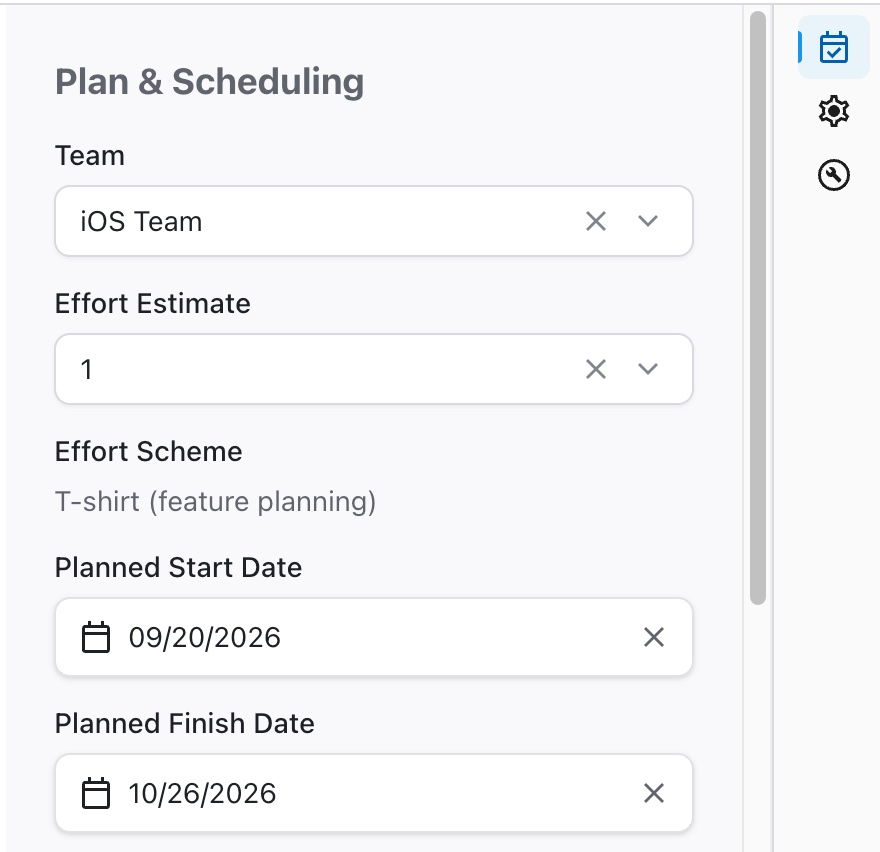
Team: choose from teams assigned to the portfolio and teams not associated with any portfolio
-
Effort Estimate: estimates are grouped by scheme with time range hints
-
Planned Start / Planned Finish: used in Visualizations for timeline roadmap views
-
Target Start / Target Finish: used in Planner to guide scheduling
-
Status: represents item workflow
Inline edits save immediately to Loop. To update the items in Jira, click Sync with Integrations.
Editing in the Item Panel
Clicking an item’s name opens the Item Panel, where you can view and edit additional information about the item.
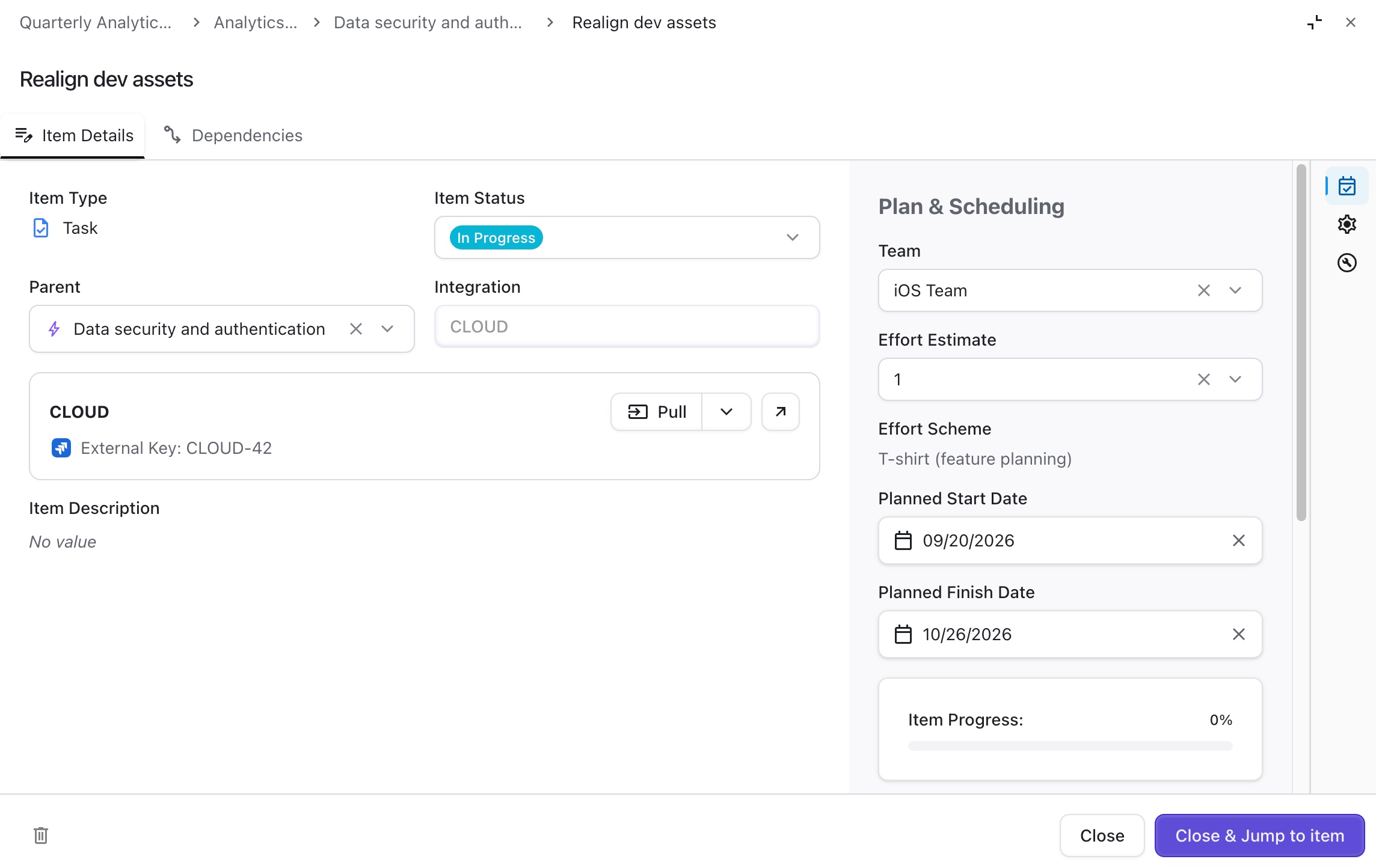
Item Details tab
On the Item Details tab, you will find the following:
-
Item Type:
-
Editable for items created in Loop when there are other item types at the same hierarchy level. For example, the same hierarchy level might support tasks, stories, and bugs.
-
Read-only for imported items and items with only one Item Type at their hierarchy level.
-
-
Status: Select the item’s location within the workflow.
-
Parent:
-
Editable for items created in Loop.
-
For imported items, the parent field can only be changed if the item does not already have an imported parent in Loop.
-
-
Item Description:
-
Editable for items created in Loop.
-
Read-only for imported items.
-
Sidebar Items
The three icons in the sidebar allow you to view the following item details:
-
Plan and Schedule (calendar) - fields associated with planning and scheduling.
-
System Fields (cogwheel) - Read-only fields: Created By, Created On, Updated By, and Updated On.
-
Custom Fields (wrench icon) - Custom fields associated with the item type.
Dependencies tab
On the Dependencies tab, you can view and edit dependencies:
-
Predecessors - Items that must be started or completed before work can begin on the current item.
-
Successors - Items that can’t be started or completed until the current item has been completed.
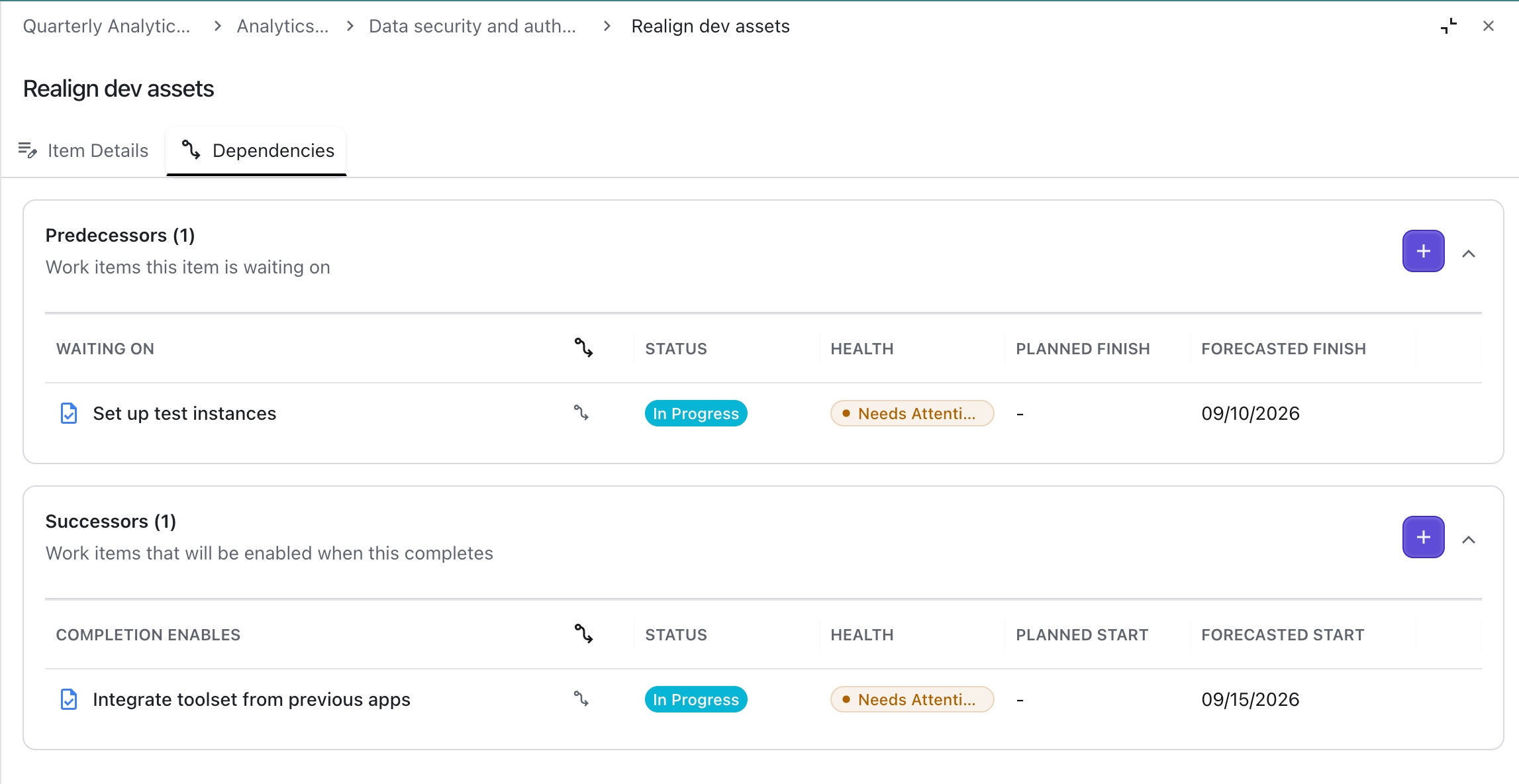
The Dependencies tab lists dependencies for the current item, as well as dependencies inherited from its ancestors (parent item, etc.). Inherited dependencies are read-only.
Financials Tab
The Financials tab allows you to view information related to the item’s budget, forecasted revenue, and cost.
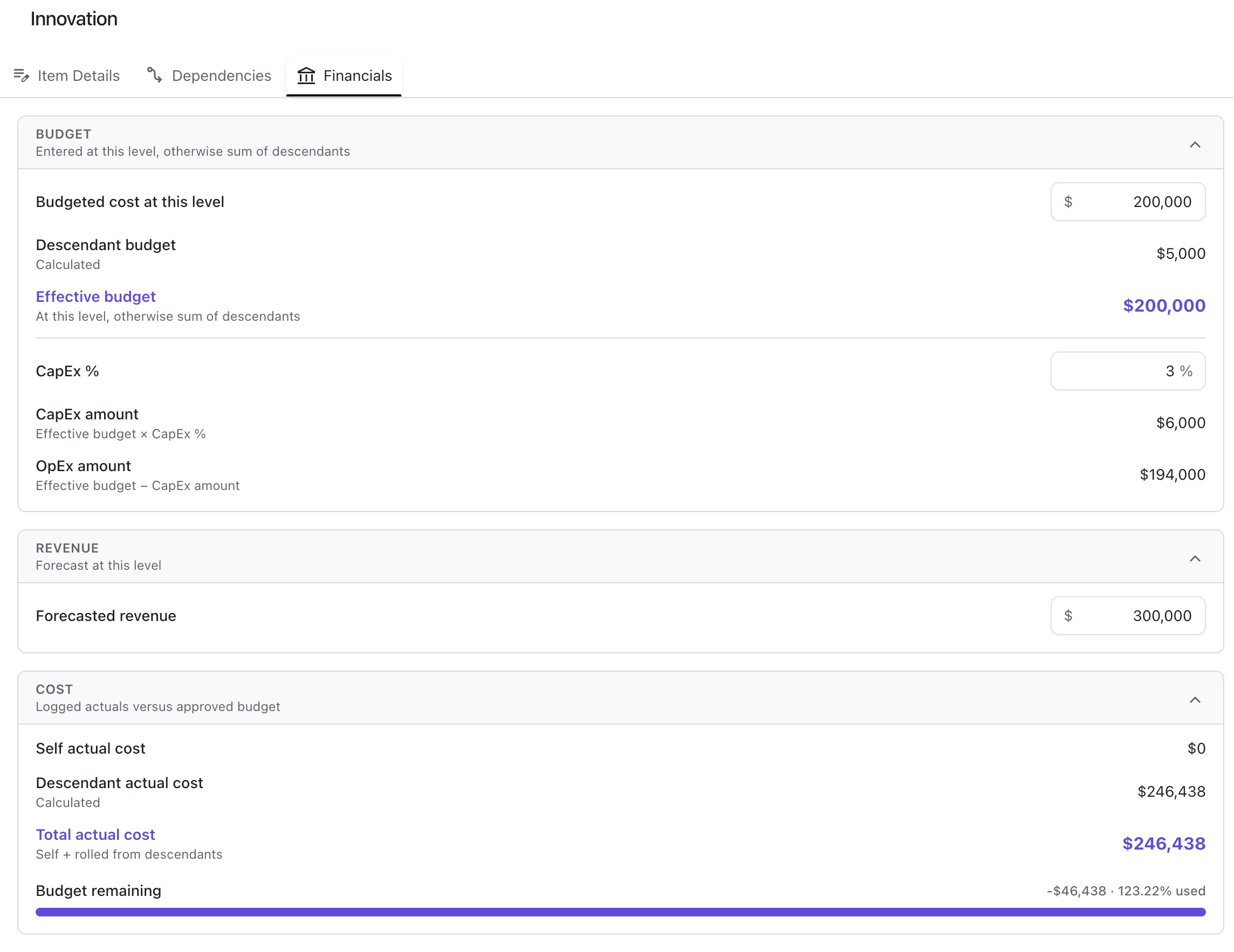
On the Financials tab, you can edit the following fields:
-
Budget - the amount of money allotted for this work.
-
CapEx % (top-level items only) - the percent of the budget reserved for capital expenditure.
-
Revenue (top-level items only) - the forecasted revenue attributed to this work.
Bulk Editing
In the Portfolio view, select the checkboxes next to each item you want to edit.
-
Use shift-click to select a range of items.
As soon as more than one item is selected, the Bulk Edit bar appears at the top of the table. To view additional editable fields, click the … icon.
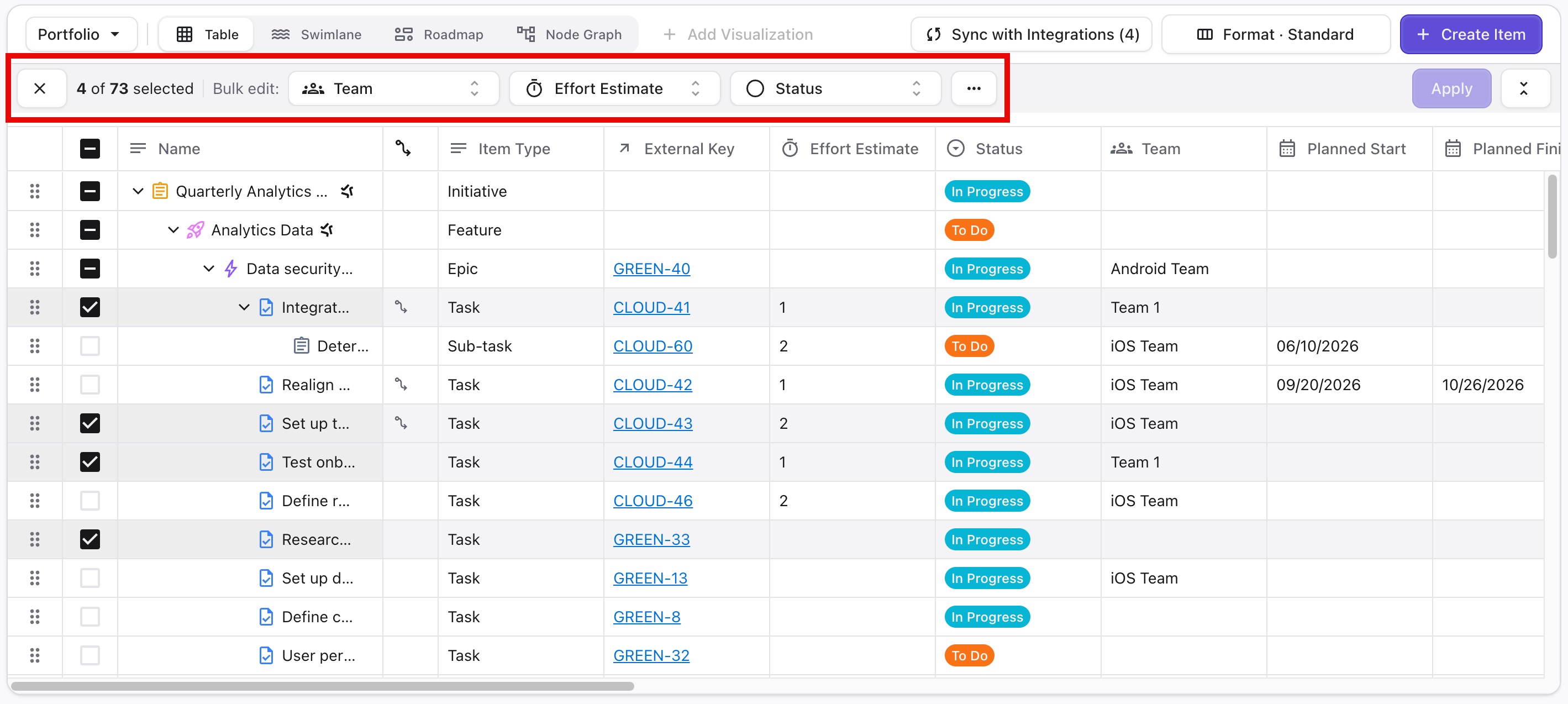
Bulk editing is available for the following fields:
-
Team
-
Effort Estimate
-
Status
-
Parent - only when all selected items are at the same hierarchy level
-
Planned start date
-
Planned finish date
-
Earliest start date
-
Deadline
-
Dependencies
-
Custom fields - when set up in the Organization
Once you’ve made the desired changes, click Apply.
Editing Effort Estimate for Imported Items
When you edit the Effort Estimate for items imported from Jira, Loop can only send those updates back to Jira if you select values from the field configured in the integration, as well as values that are also available in Jira.
For example:
-
If the integration uses T-shirt size for the estimate field and you select a Story Points value, Loop can’t send the value back to Jira, because it won’t match the Jira space settings.
-
If the Jira space uses T-shirt sizes with possible values of S, M, and L, but in Loop you have options for XS and XL, those additional values can’t be sent back to Jira, because they aren’t configured there.