
The Swimlane provides a customizable, Kanban-style view of your portfolio. You can organize work by fields based on the information you need to present and adjust the colors to suit your project or branding.
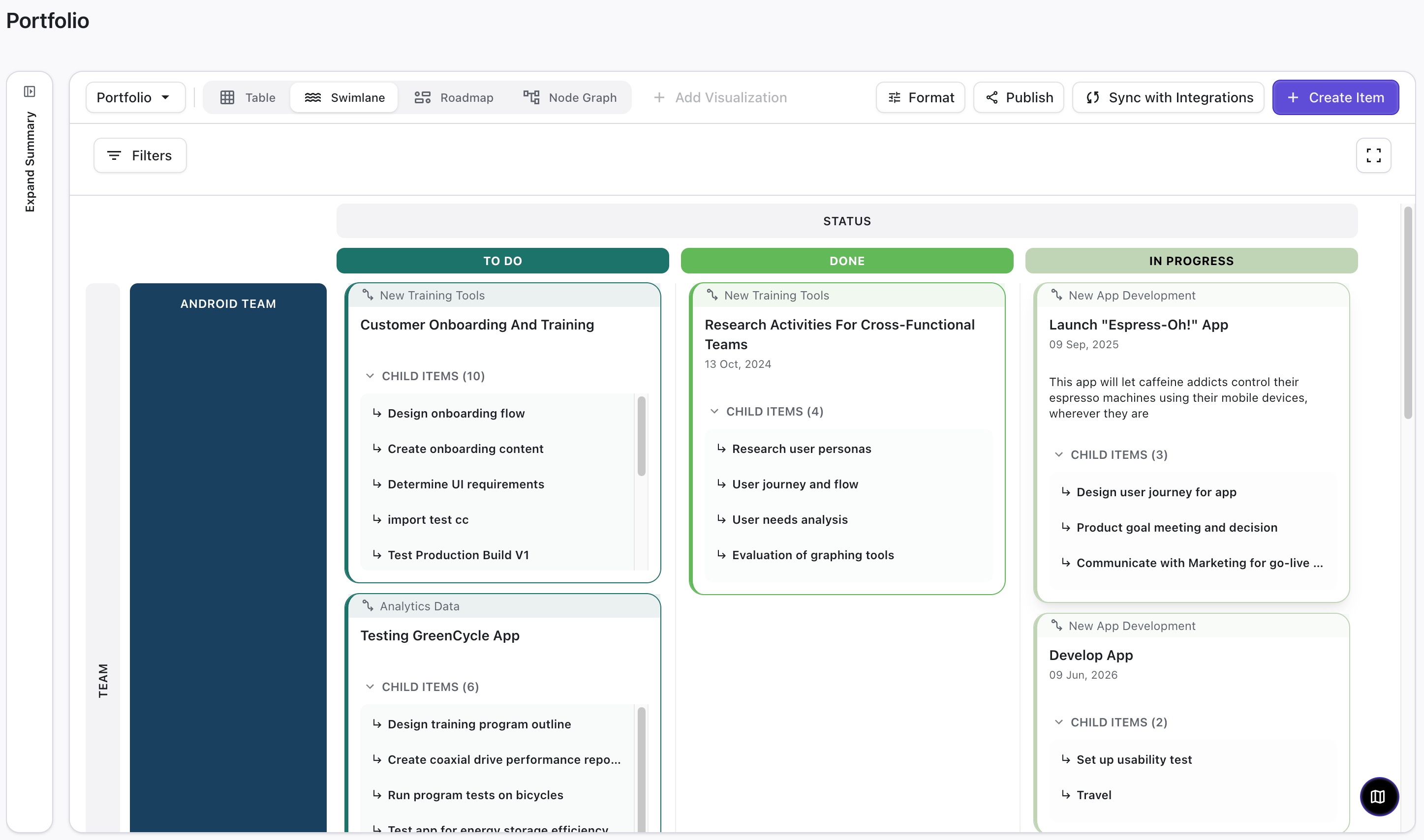
If there aren’t any items displayed on your swimlane, make sure the Target Item Levels contain data in the selected Header fields. See Formatting the Swimlane below.
Formatting the Swimlane
To change the appearance of your swimlane, click the Format button at the top of the screen.
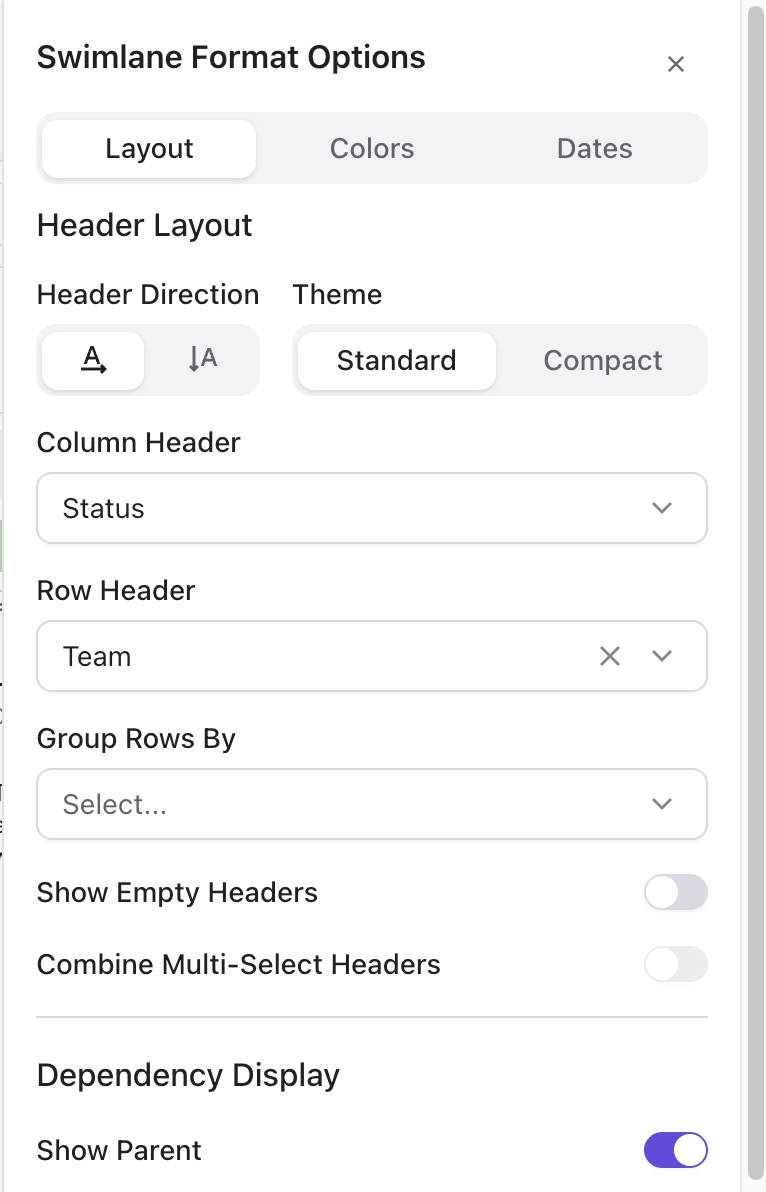
Layout
On the Layout tab, you can adjust the following:
-
Header Direction - change the direction of the Header texts at the side of the timeline
-
Theme - choose Standard for more detail or Compact to fit more items on the screen
-
Column Header - select the field used to organize work items into columns
-
Row Header - select the field used to organize items into rows
-
Group Rows By - select to group your Row headers by another field
-
Show Empty Headers - if toggled off, header values with no items in them will not be shown
-
Combine Multi-Select Headers - if the Header field is a multi-select list, choose whether to combine values
-
Show Parent - show the parent item at the top of item cards
-
Show Child Items - show child items at the bottom of item cards
-
Target Item Level - select the hierarchy level you want to display
-
Child Item Levels - select the number of child levels to show on parent cards (grayed out if “Show Child Items is not selected)
-
Grid Lines - show or hide grid lines
-
Show Dates - include start and finish dates on item cards
-
Show Description - including the description on item cards
-
Title Size - adjust the size of the Title text
-
Title Height - show less limits the title to 1 line; show more allows additional lines for longer titles
-
Label By - select which labels to show or hide
-
Progress - select how progress is visualized on Item bars
Colors
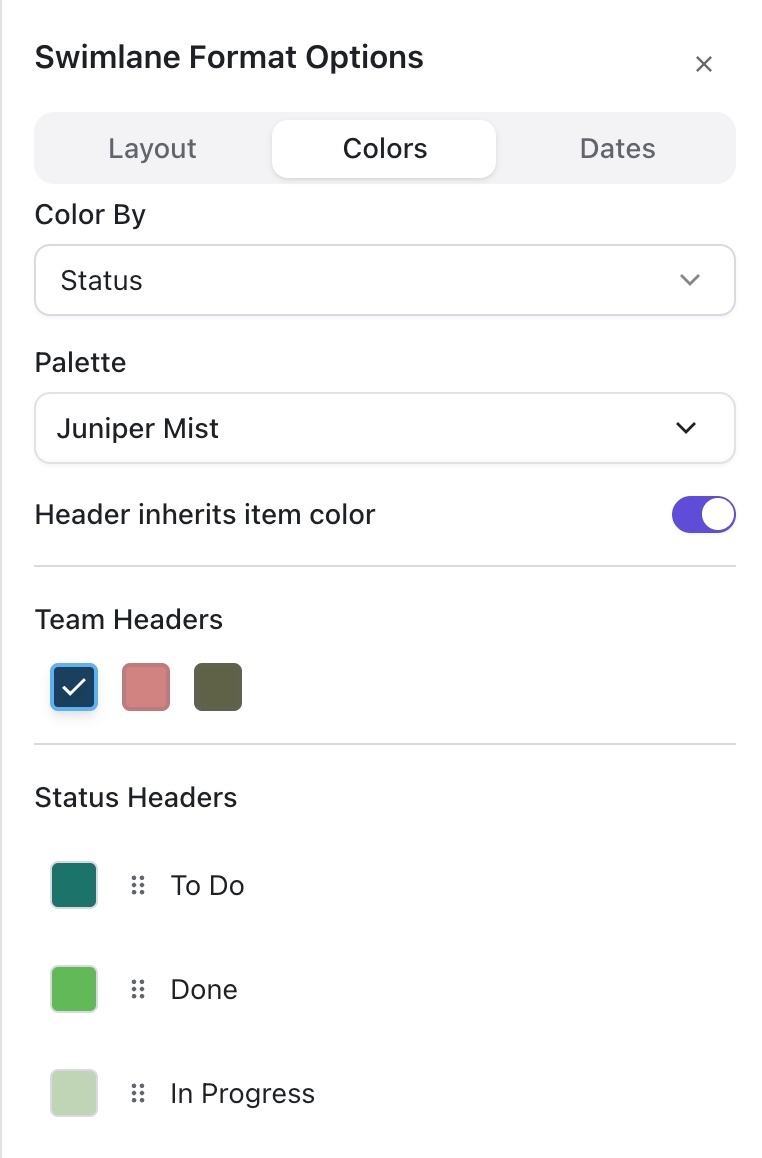
On the Colors tab, you can adjust the following:
-
Color By - select the field used to assign colors to items on the timeline
-
Palette - select from predefined color schemes
-
Header inherits item color - if selected, the selected header color will be ignored, and the header will match the items grouped within it
-
Headers - assign colors to specific header values (based on the Color By field)
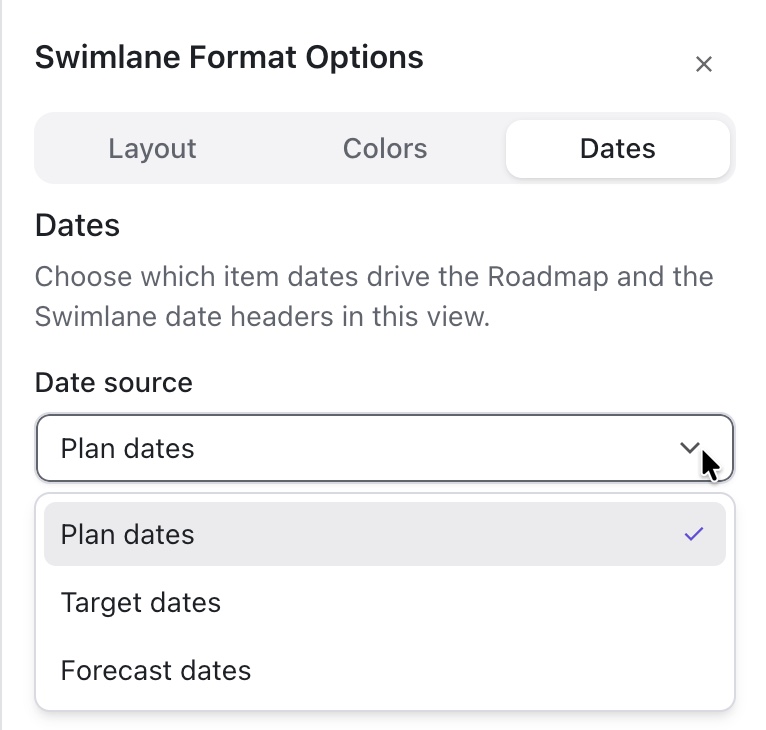
Dates
Select the date source that is used for items within the swimlane.
Viewing Item Details
The details shown on the item card depend on the Format option (see above).
-
To see more details about an item, click the item to open the Item Card.
Child Items
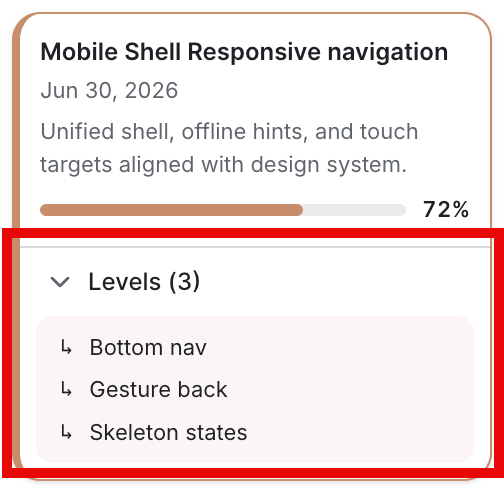
If the Show Child Items option is selected, child items are displayed at the bottom of their parent cards.
-
Expand/Collapse child items - click the arrow next to “Levels” at the top of the Child Items list to show or hide the child items
-
View child items - to view a child item, click its name in the Child Items list
Publishing a Swimlane
Swimlanes can be published to a URL, PNG image, or PDF, so you can easily include them in presentations or share them with team members or shareholders who may not have access to the loop.
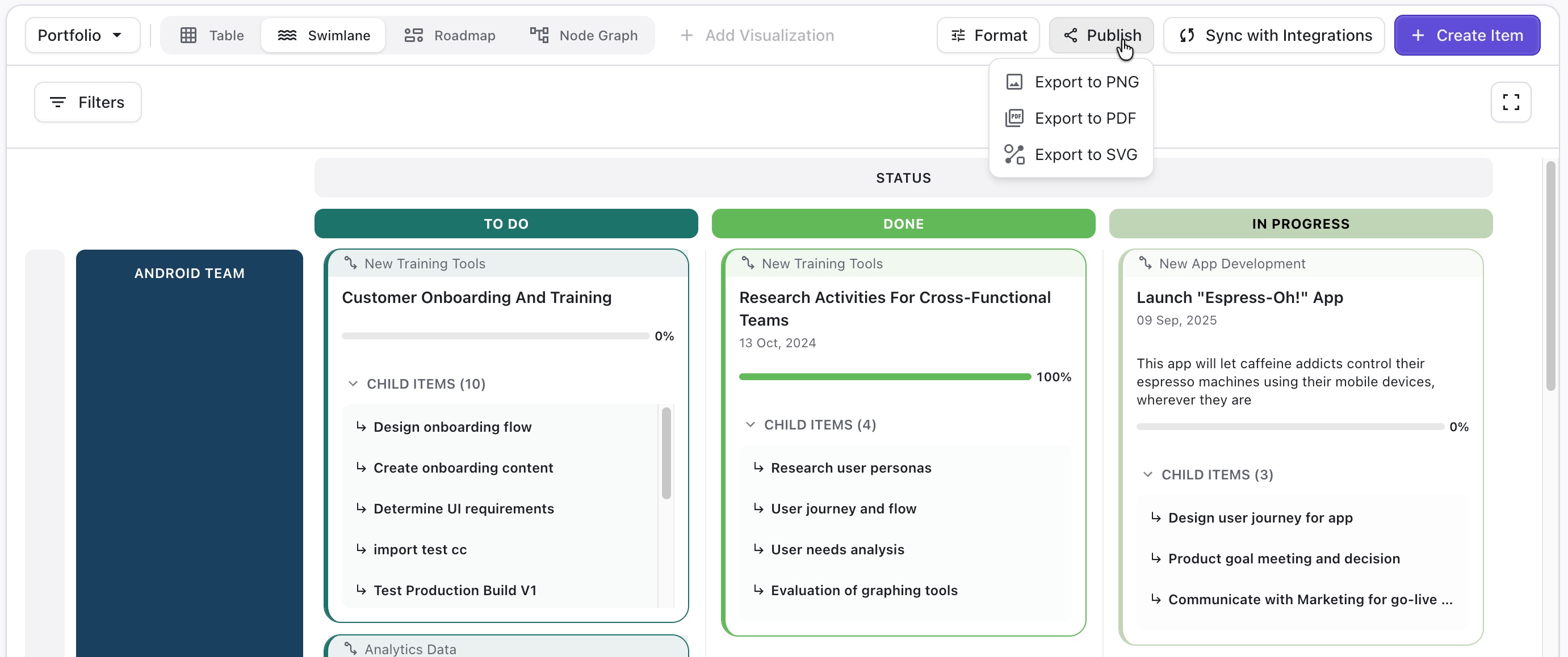
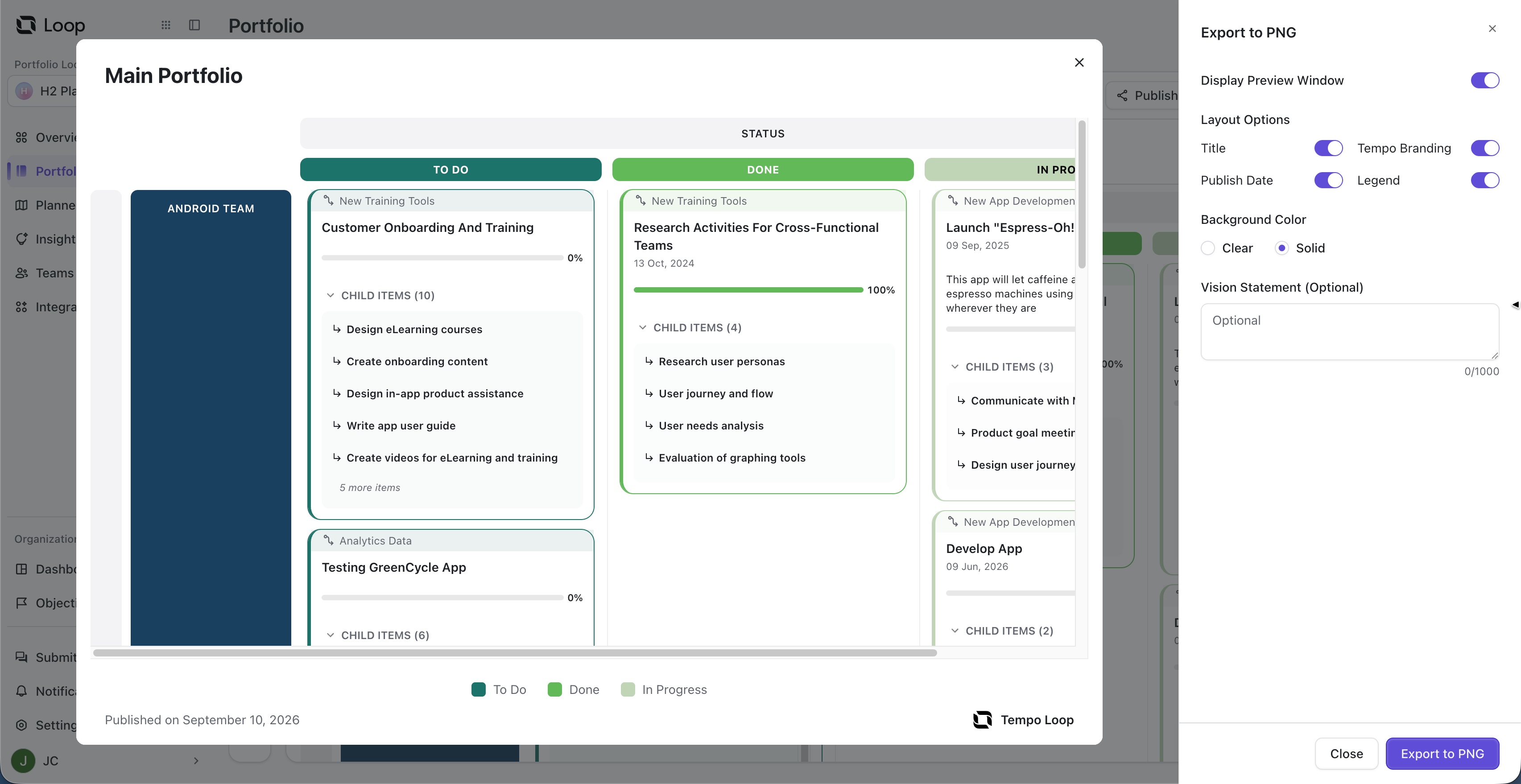
After clicking Publish, you will see several output options and a preview window. As you adjust the options, the preview will update accordingly.
Publish to URL
Publish to URL creates a live website for stakeholders who don’t have access to Loop.
Publish to URL includes some additional options:
-
Hidden fields - hide fields you don’t want visible
-
Vision Statement - include an options statement to provide context for the visualization
-
Auto-Publish - select how often (if ever) the URL is updated with data from Loop
-
Password - require a password for access to the URL
Publish to URL is not available for the Main Portfolio, because changes to that portfolio are meant to only be seen by you.