
Financials allows you to track the financial health of your projects and spot excess spend before it's too late.
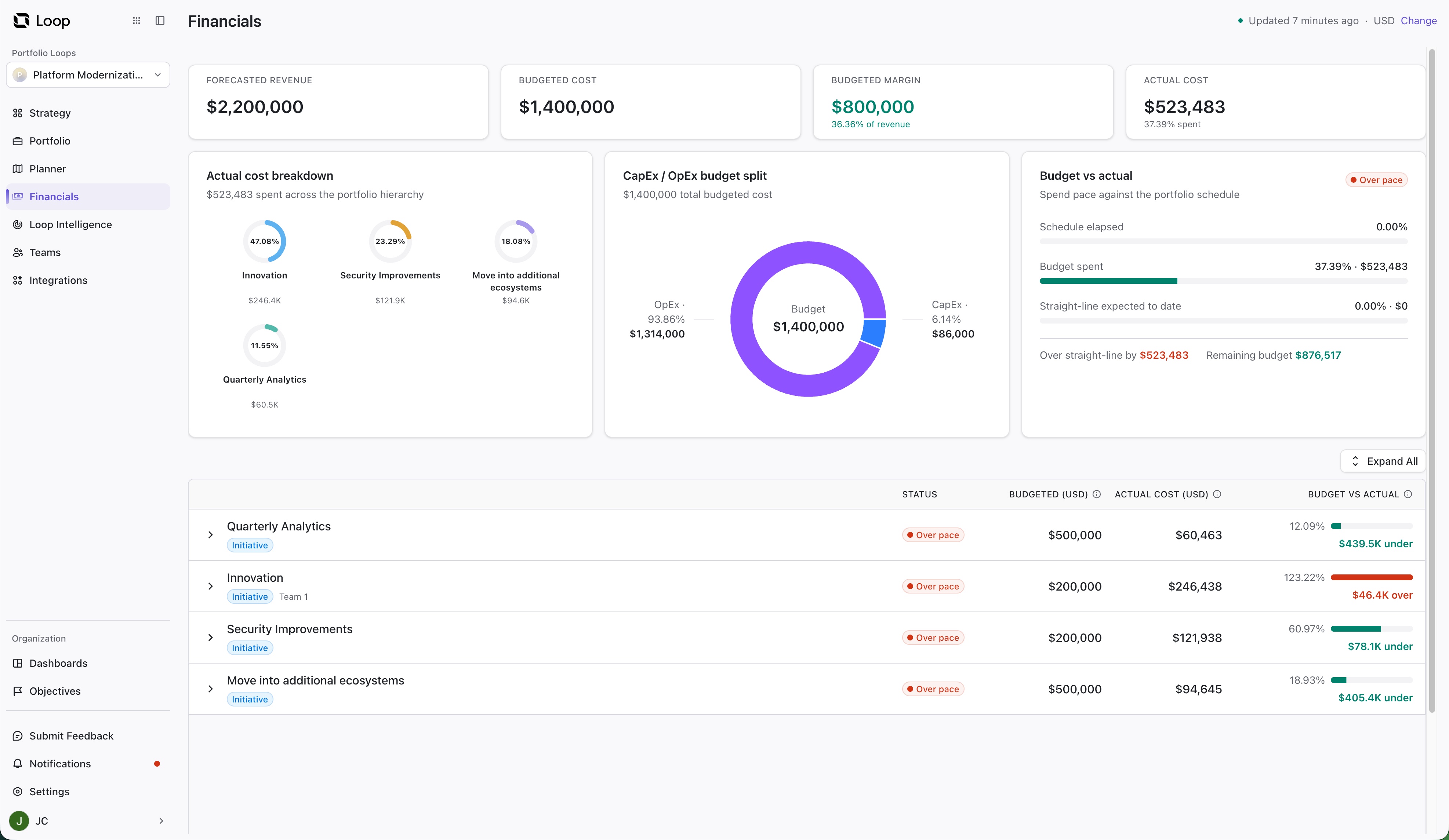
Get a financial overview of the entire Loop, including:
-
Summary metrics for forecasted revenue, budget, margin, and actual cost.
-
Charts showing actual-cost breakdown, budgeted CapEx/OpEx split, and spend pace.
-
A three-level item hierarchy showing budget, actual cost, variance, and financial status.
-
Item-level details such as remaining budget, contribution, margin, schedule progress, and data freshness.
Breakdown by Items
The bottom of the Financials Screen provides a financial breakdown by item. This allows you to track your spending across your highest-level work items, and to dig down to discover exactly where that spending is coming from.
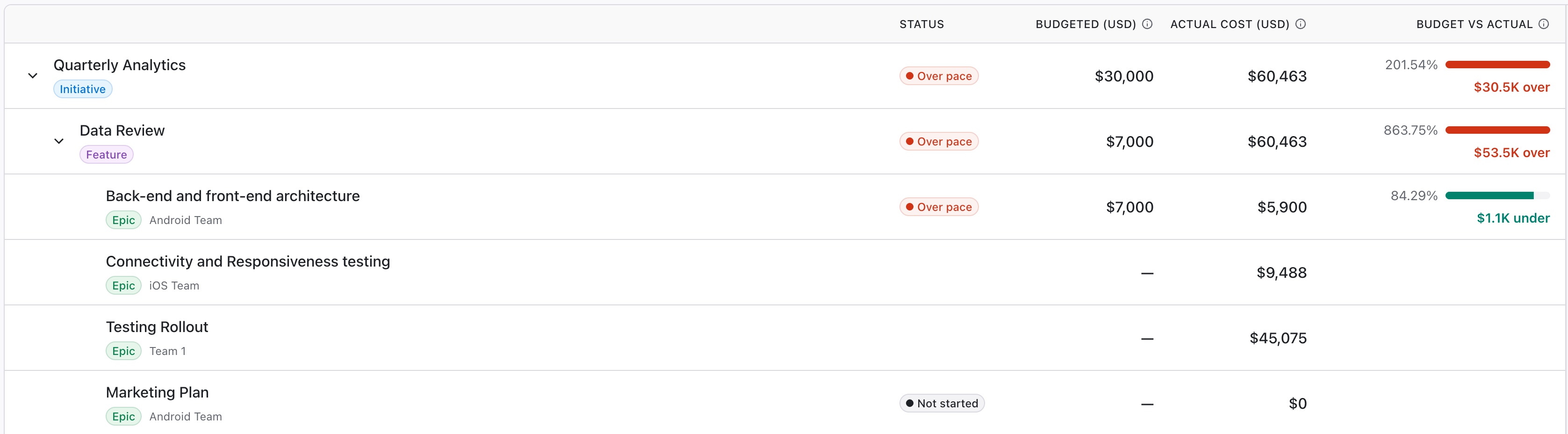
You can expand the table to view up to three levels of hierarchy.
Status
The Status column indicates the current status of the item:
-
Not Started - no actual cost has been recorded for the item yet.
-
Complete - the planned finish date has passed.
-
Over Pace - the actual cost is above 110% of the expected cost to date.
-
Under Pace - the actual cost is below 90% of the expected cost to date.
-
On Track - the actual cost is 90–110% of the expected cost to date.
Each item can only have one status. If more than one of the statuses apply, the highest status (in the order listed above) is assigned.
Budgeted
The Budgeted column lists the amount of money allotted for this work. This can be edited in the the Portfolio, using the item’s Financials tab.
Actual Cost
Actual cost represents the amount spent on the item and its child items thus far. The value is calcuated as: time spent (in hours) × its directly assigned team's rate. See Cost Calculation Method below for more details.
If team data is missing for the item or any of its descendents, a data quality indicator will appear next to the calculated cost.
Budget vs Actual
The Budget vs Actual column compares your budgeted cost for the item to its actual cost.
Updating Financials
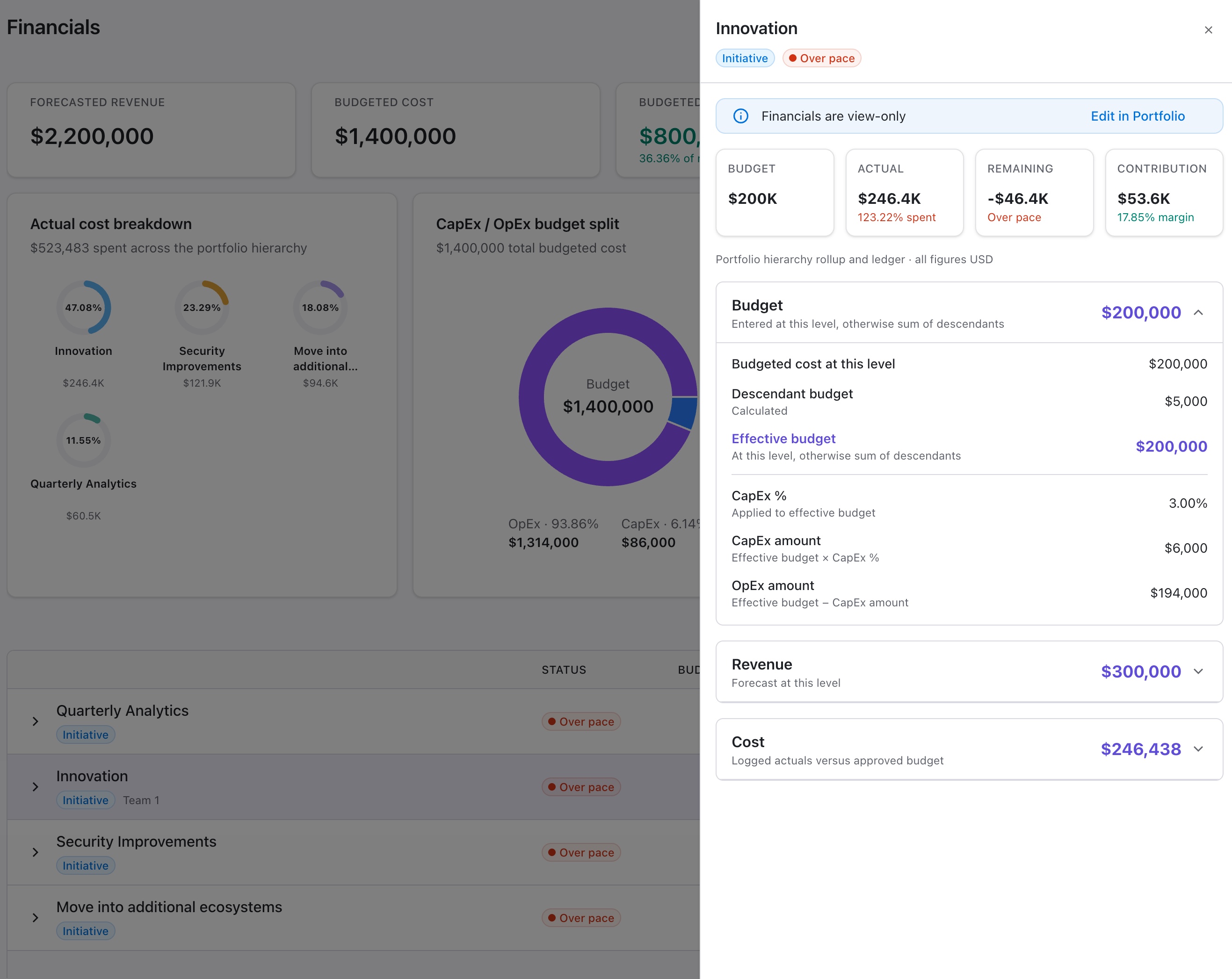
To view or edit an item's financial details, select the item in the list at the bottom of the Financials screen. This will open its financial overview. To update the information here, click Edit in Portfolio.
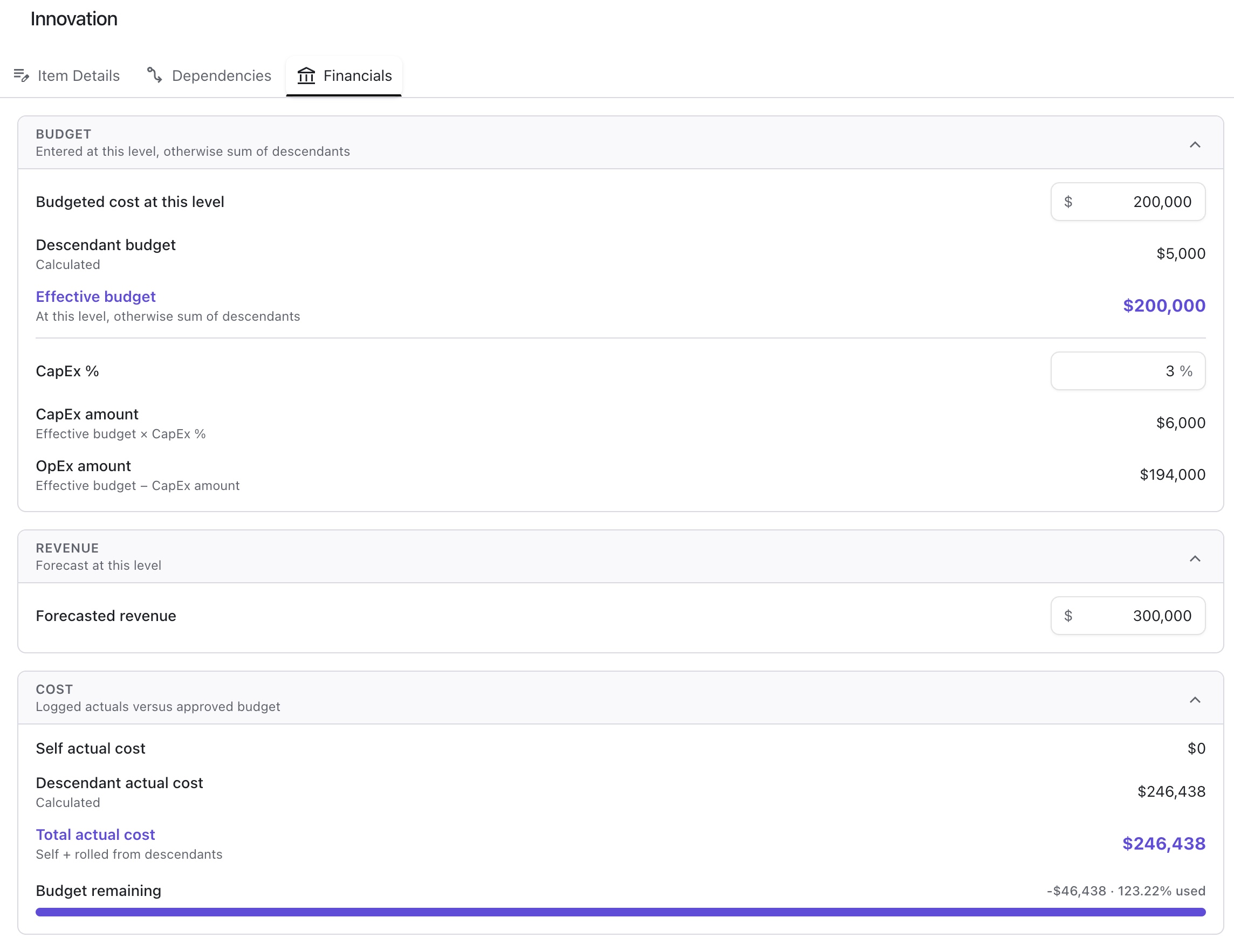
This will open the item in the Portfolio, where you can adjust values on the Financials tab.
Editable Financial Fields
For top-level items, you can edit the following fields:
-
Budget - amount of money allotted for this work
-
CapEx % - the percent of the budget reserved for capital expenditure
-
Revenue - the forecasted revenue attributed to this work
For lower-level items, you can only edit the Budget.
Cost Calculation Method
Loop calculates cost in the following way:
-
Team cost rate - Each team is given a commitment-weighted average of its members' role rates:
sum of (role rate × commitment) ÷ sum of commitments.-
Commitment is the percentage of a member's time allocated to the team.
-
Only active, real-user members count; open positions are excluded.
-
If a member has not been assigned a role, or the hourly rate has not been set for their role, the org default role rate will be used.
-
-
Item cost - An item's own cost is calculated as:
time spent (in hours) × its directly assigned team's rate.-
Effort estimates are not used.
-
Teams are not inherited from parents, so an item with no team of its own gets no cost.
-
-
Roll-up
-
For cost: an item's total cost includes its own cost (Self actual cost) plus the cost of its direct children (Descendent actual cost).
-
A parent with no team of its own still shows its children's cost through the roll-up.
-
-
For budget: a parent's own budget takes precedence over the sum of its descendants.
-
Important Notes
-
A team with no active members, or zero total commitment, produces $0 cost.
-
Items with time logged but no team will display a warning, as no cost can be calculated.
-
The calculation uses current rates and current team compositions. Changes to either of these will affect your historical cost.
-
Actual cost recalculates automatically after a change, whether it comes from Loop or an integration sync.
Requirements for Calculating Financials
In order to calculate the values found on the Financials screen, Loop needs the following information.
To calculate Actual Cost:
-
Time spent for each item - configured in the Portfolioor your source system.
-
Team assigned to each item - assigned in the Portfolioor your source system. Note: only the item's directly assigned team is used.
-
Hourly rates assigned to each team role - configured in Team Roles. Note: if no rate is assigned to a role, the org default role rate is used.
To calculate Variance, Pace, and Status:
-
Item budgets - these can be entered at any level in the portfolio - see Updating Financials.
-
Planned dates - this can be configured in the Portfolioor your source system
To calculate Margin:
-
Forecasted revenue - set at the top level of your portfolio - see Updating Financials.
To calculate CapEx/OpEx budget split:
-
CapEx percentage - set at the top level of your portfolio - see Updating Financials.
All values are represented in the org-wide currency. To change the selected currency, go to Settings | Default Currency.
The default currency is USD.