
Creating strategic objectives and linking them to items in Loop allows you to track your progress toward your organization’s strategic objectives in real time, based on the actual work being done to achieve them.
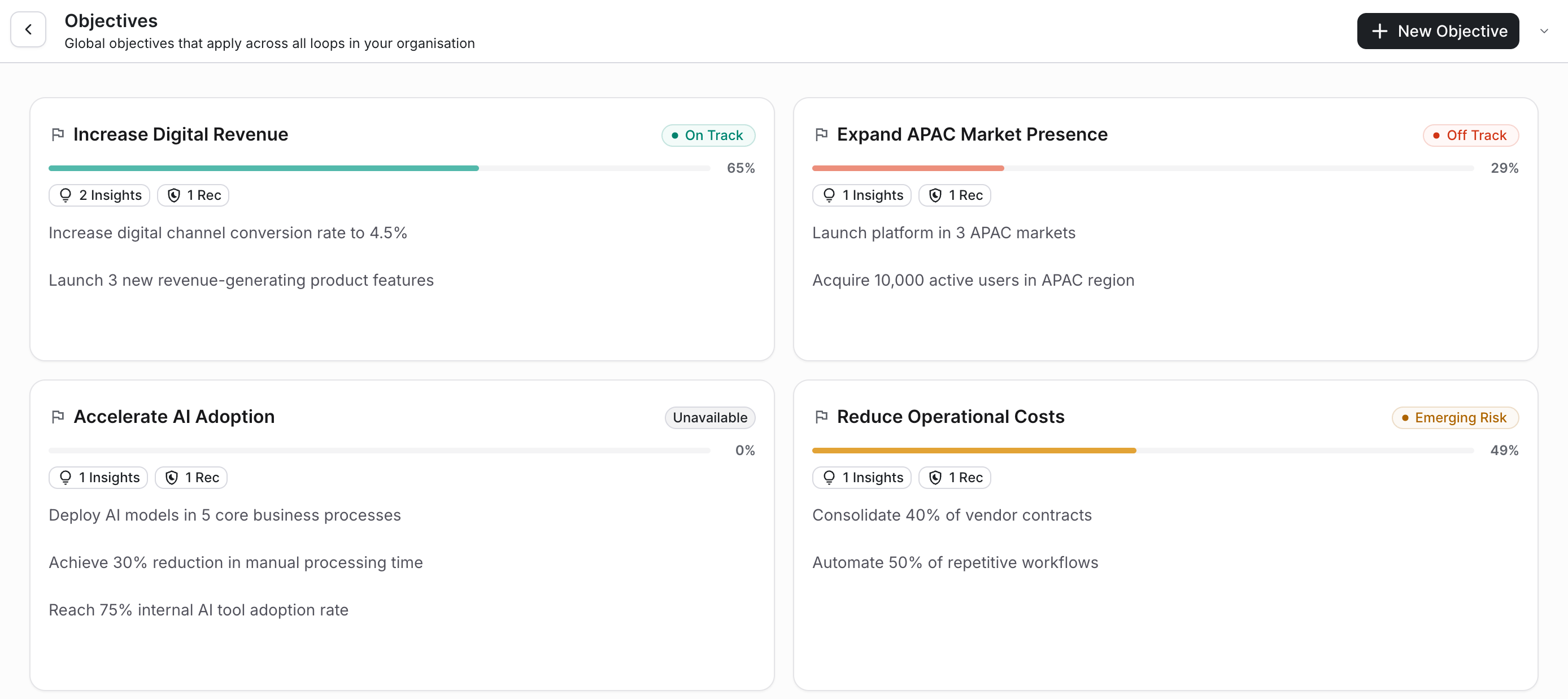
Creating Objectives
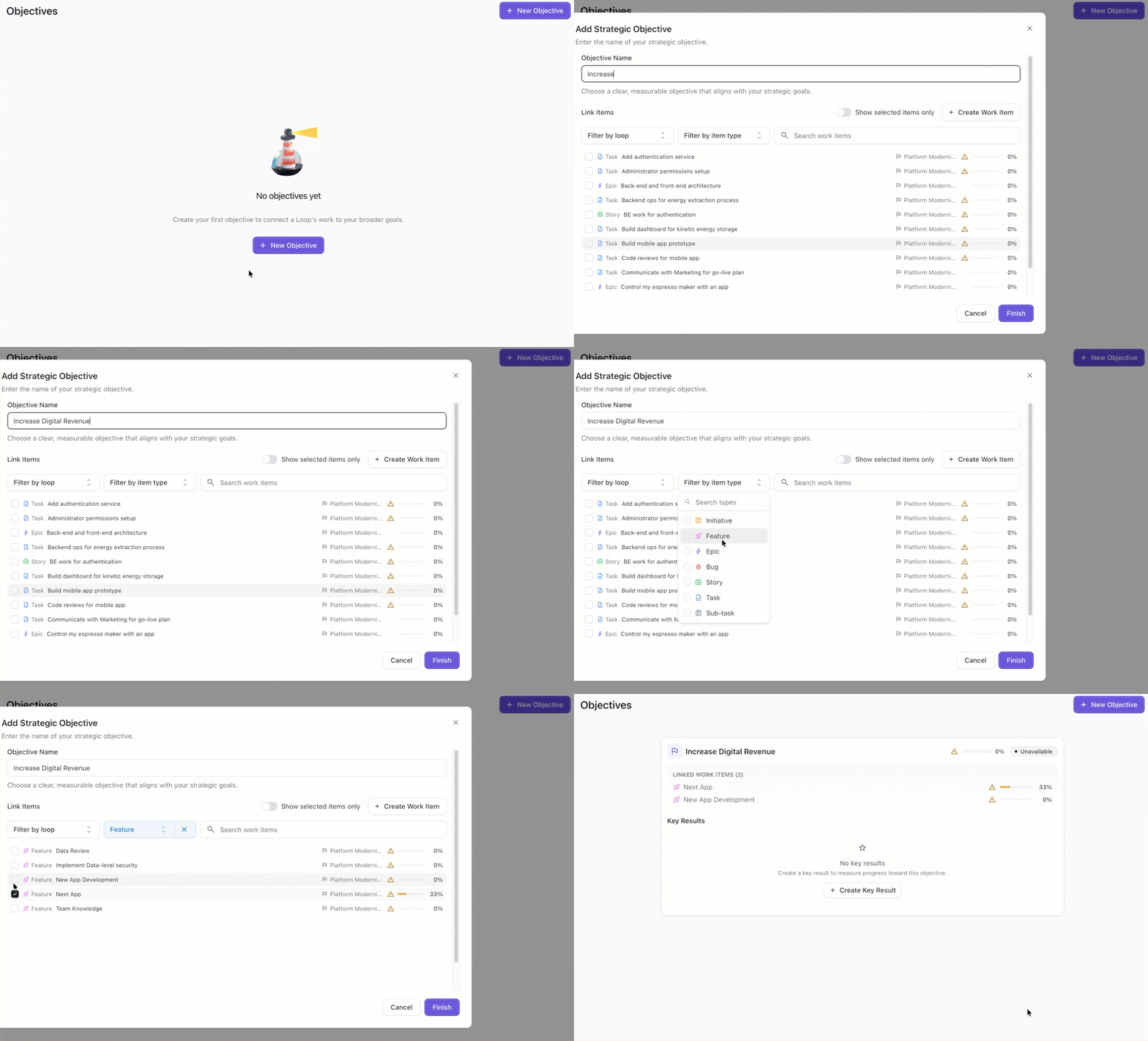
To create a new objective:
-
Click Objectives at the top of the Loop window.
-
Click + New Objective.
-
Name the objective.
-
Link the objective to existing items to track its progress. You can filter your items or use the Search bar to locate specific items.
-
Click Finish.
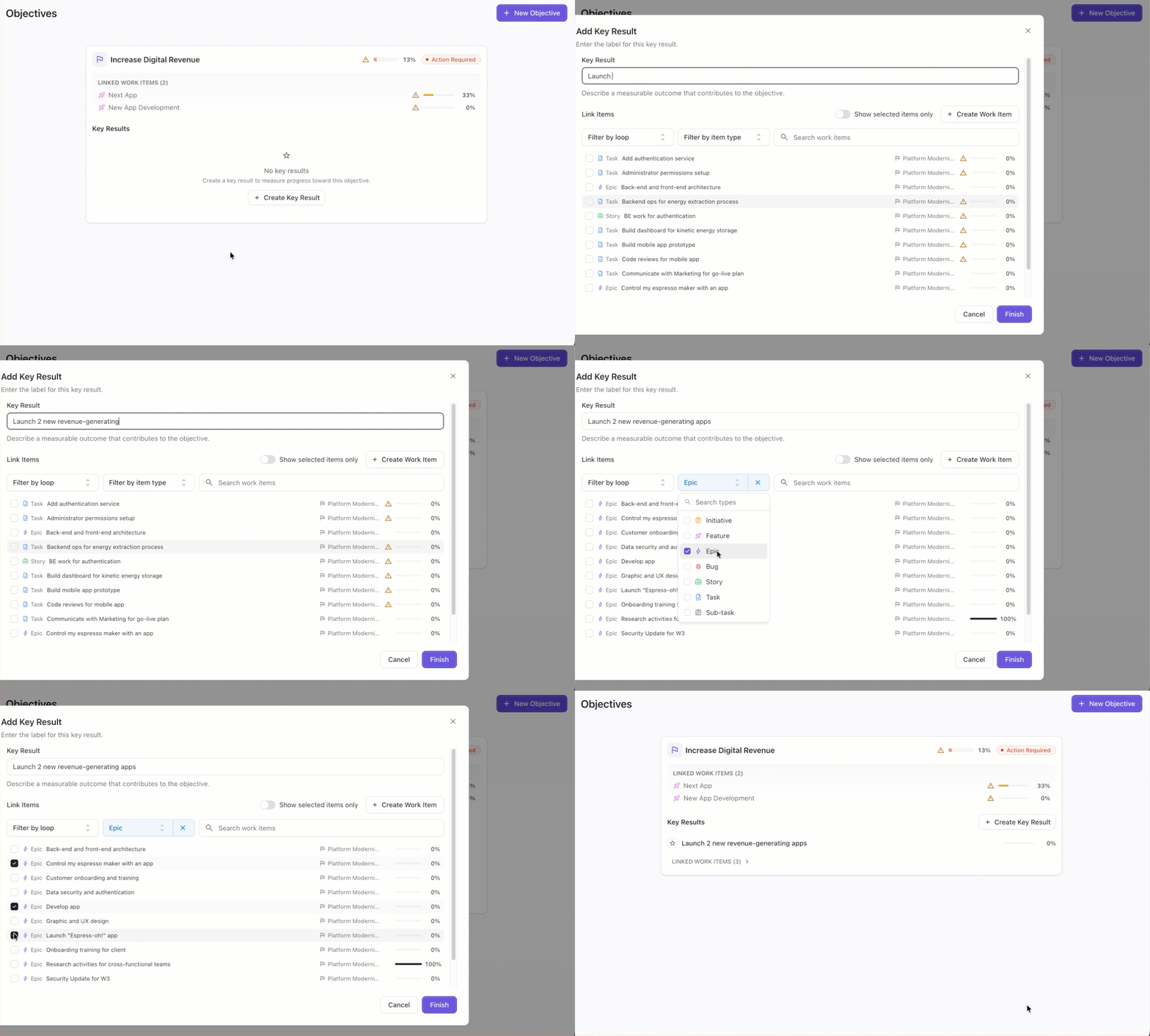
Key Results
After creating an objective, click + Add Key Result to enter your key results - these should be specific, quantifiable metrics that will be used to measure progress toward the objective.
You can also link work items to your key results.
Editing Objectives and Key Results
To make changes to an objective or key result, return to the Objectives screen.
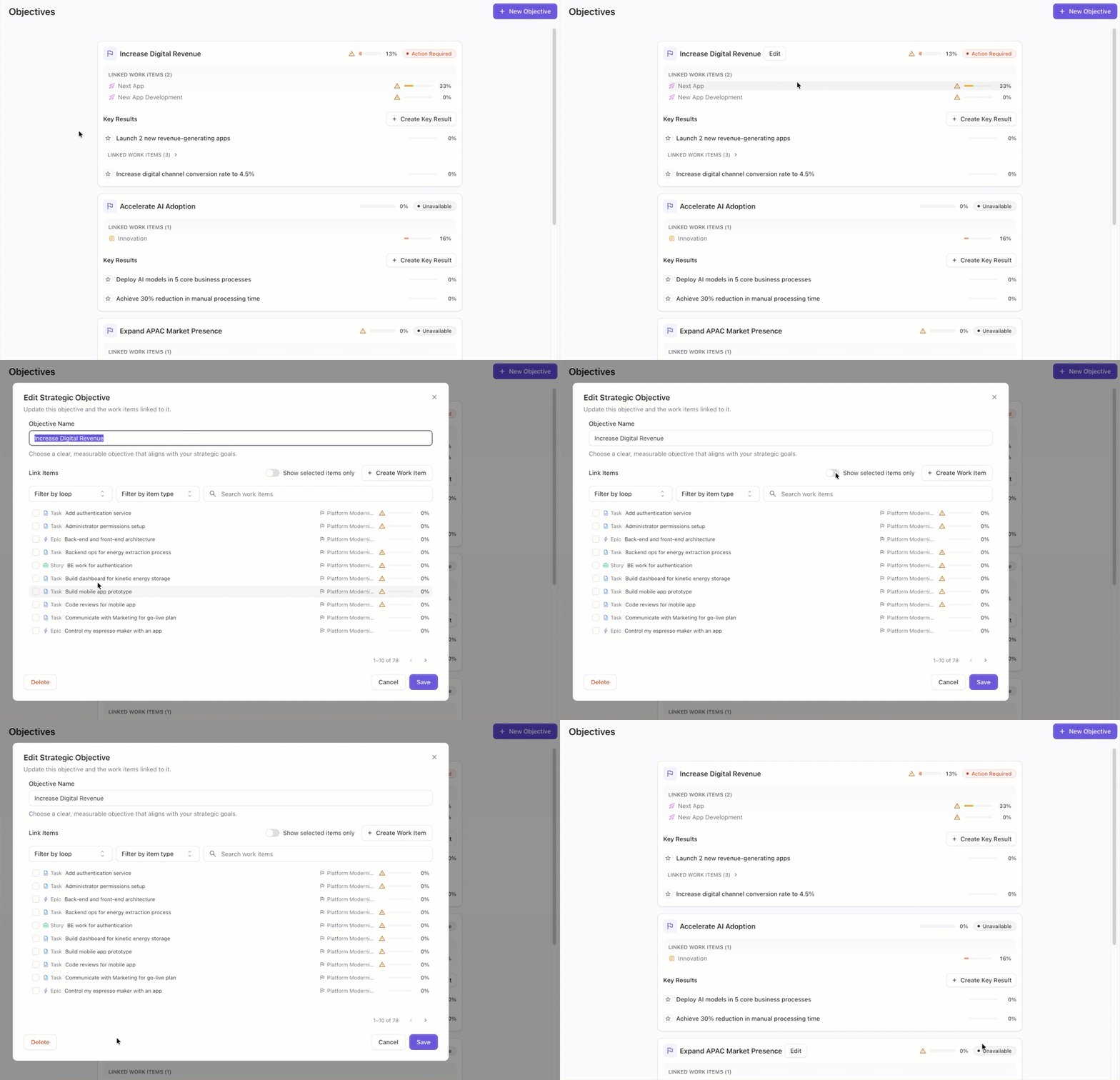
Hover over any objective to make changes to the objective, edit key results, or add new key results.
From the edit screen, you can:
-
Change the name - click the pencil icon next to the name.
-
Link additional items to the objective/key result.
-
Delete the objective/key result.
Overview Screen
Every time you log in to Loop, the Overview screen provides a progress chart for your strategic objectives, where you can quickly see how you’re tracking and what moves you can make to get back on track.
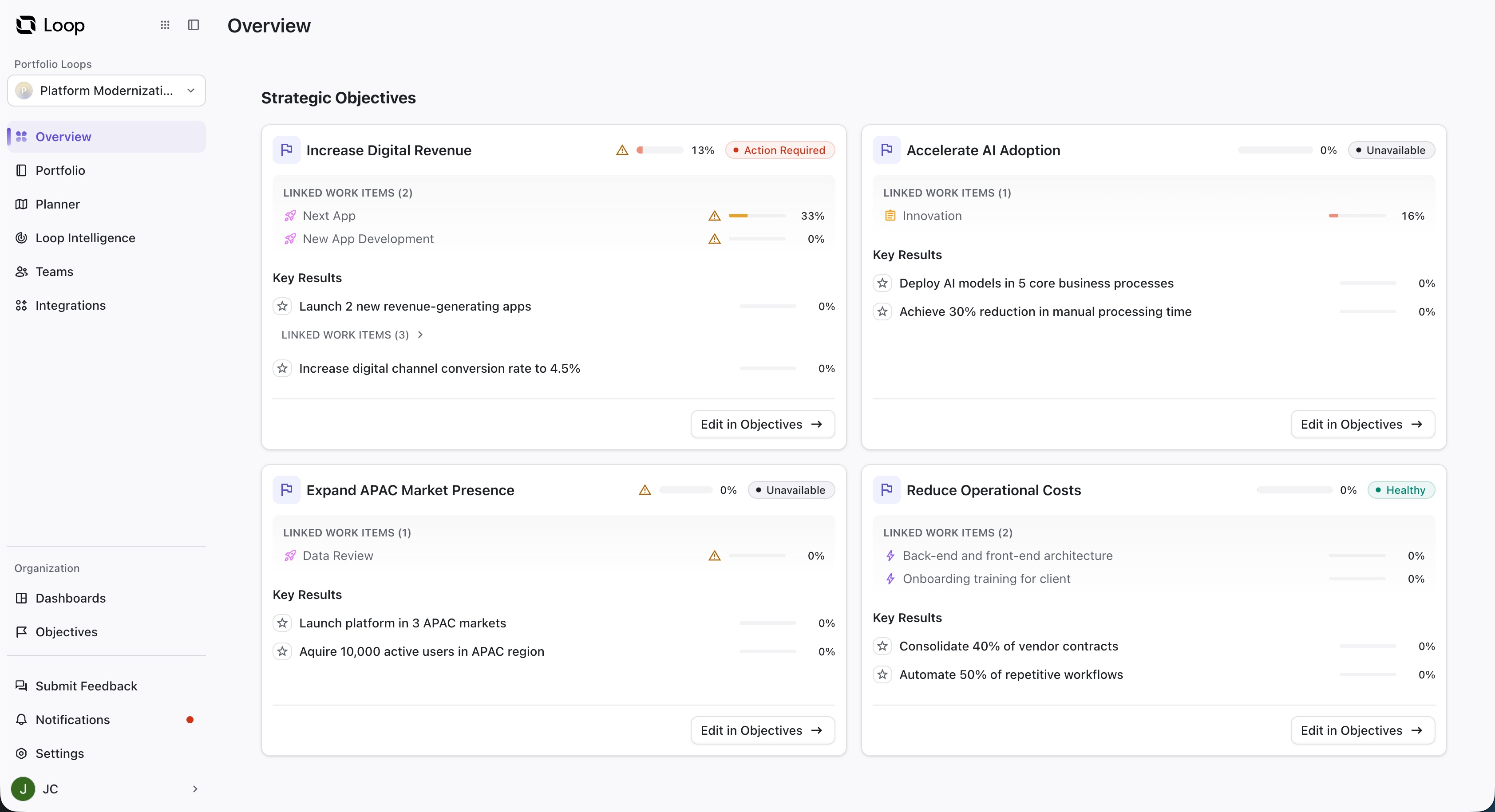
If you have more strategic objectives than fit on the Overview screen, click View All Objectives to see them all.