There are currently two ways to add items to a Portfolio:
-
Importing items from an integration - See Integrations.
-
Create items in Loop - These items do not sync with Jira, but can be useful for building out your strategic hierarchy and planning.
Creating New Items with Integrations
To add new items from an integration:
-
Create the new item in your integrated platform. Make sure the item is part of the project and filters used in your Loop integration.
-
In Loop, return to the Portfolio and select Sync with Integration
-
Pull the new data from your integrated instance.
Creating New Items in Loop
To create items in Loop:
-
Open the Portfolio.
-
Select +Create Item.
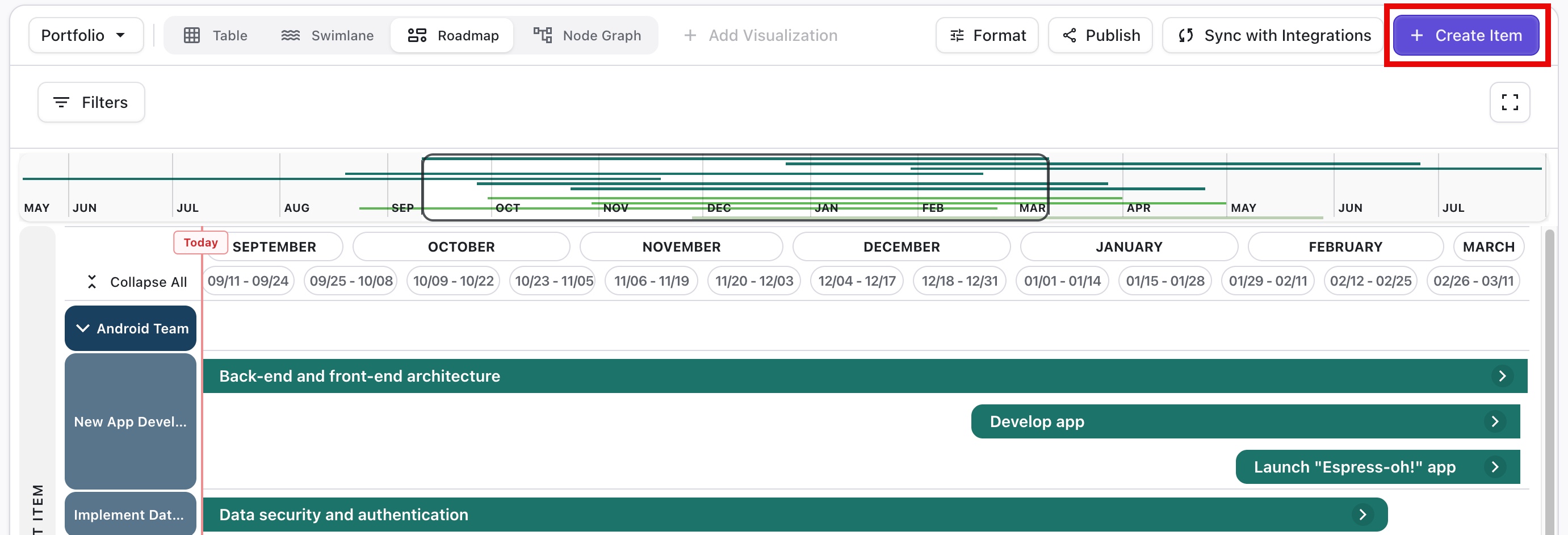
You can create new items from any Portfolio view.
-
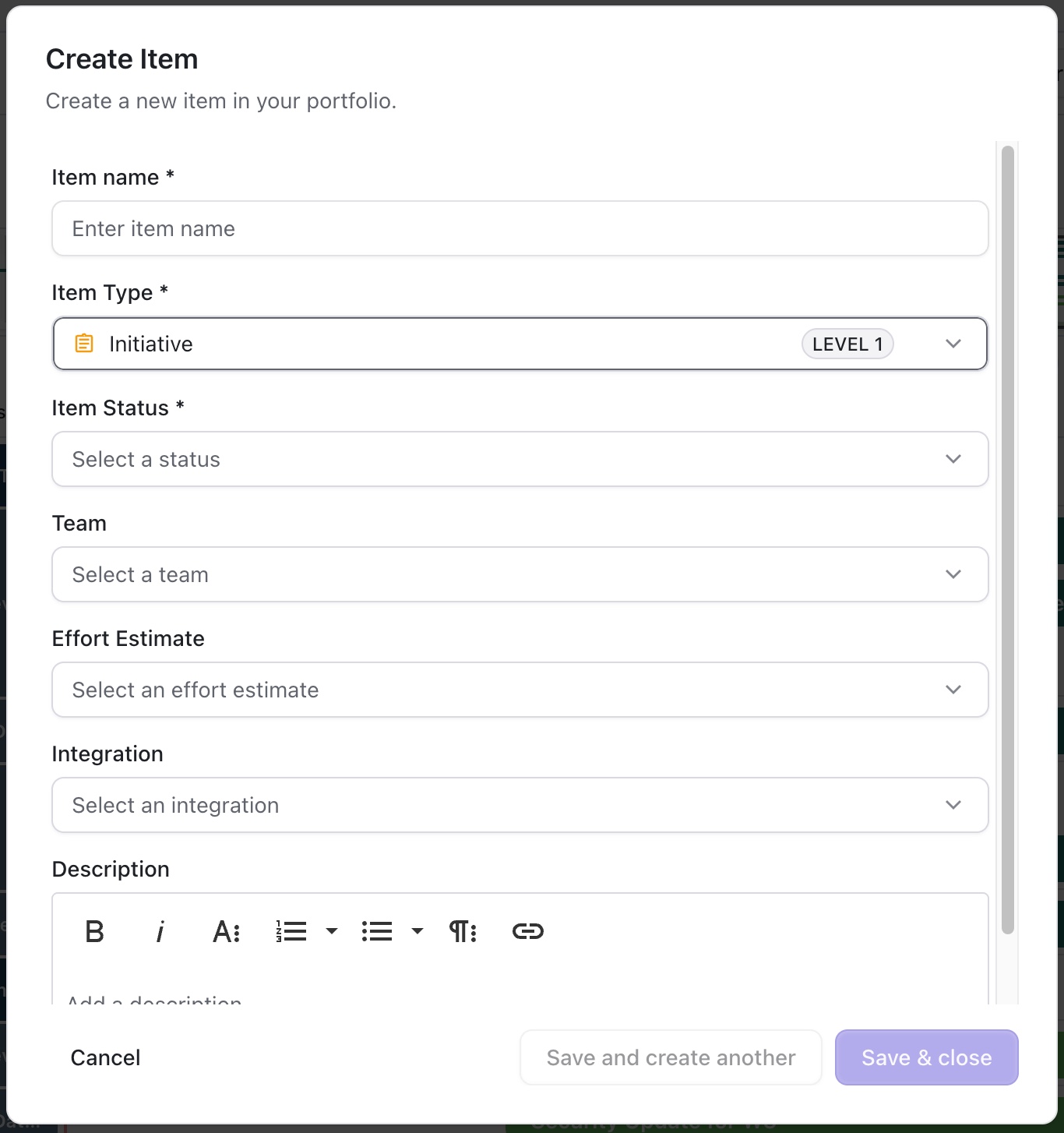
On the Create Item card, enter the following information:
-
Item name
-
Item type
-
Status
-
Any other optional information
-
-
Click Save & Close to create just the one new item, or Save and create another to create multiple new items.
Identifying Loop-native Items
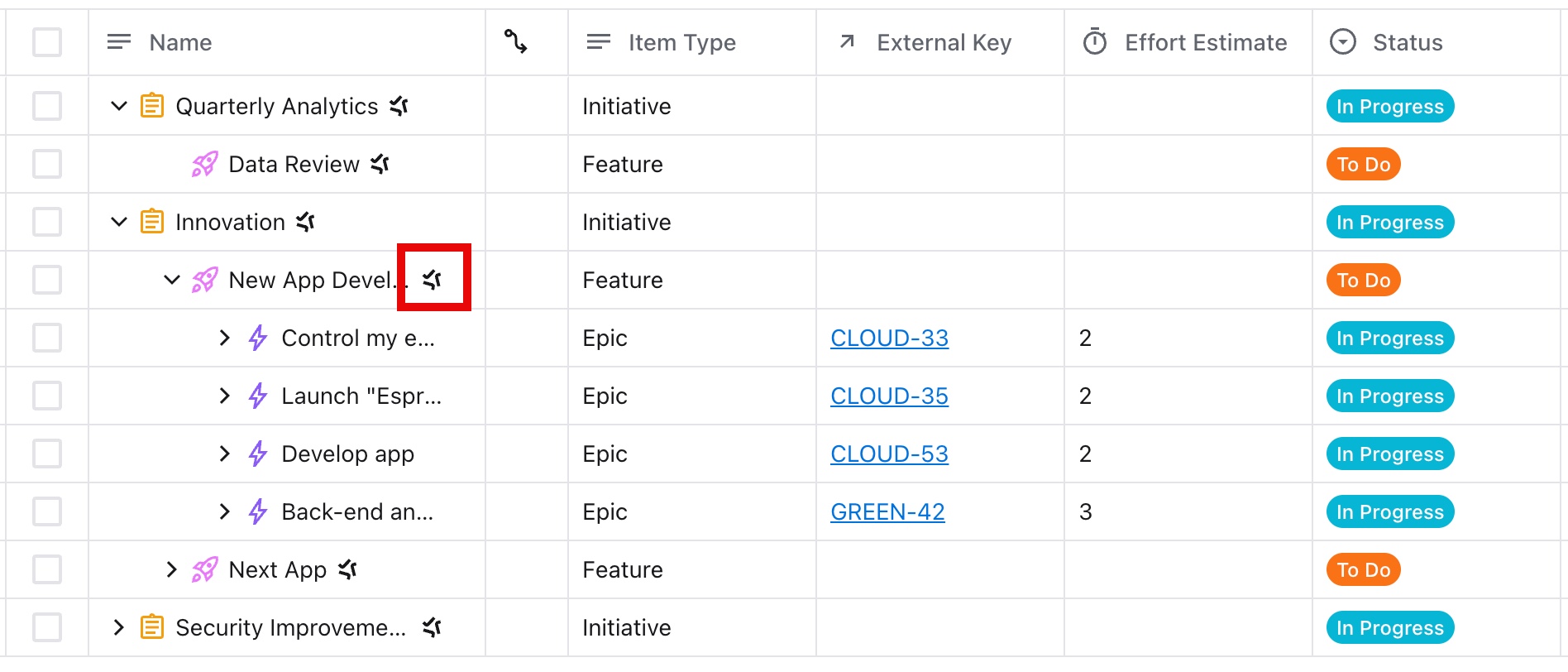
Loop-native items have a Tempo logo next to their name in the Table view and no External Key.