
The Node Graph view allows you to visualize the relationships between all the items in your portfolio.
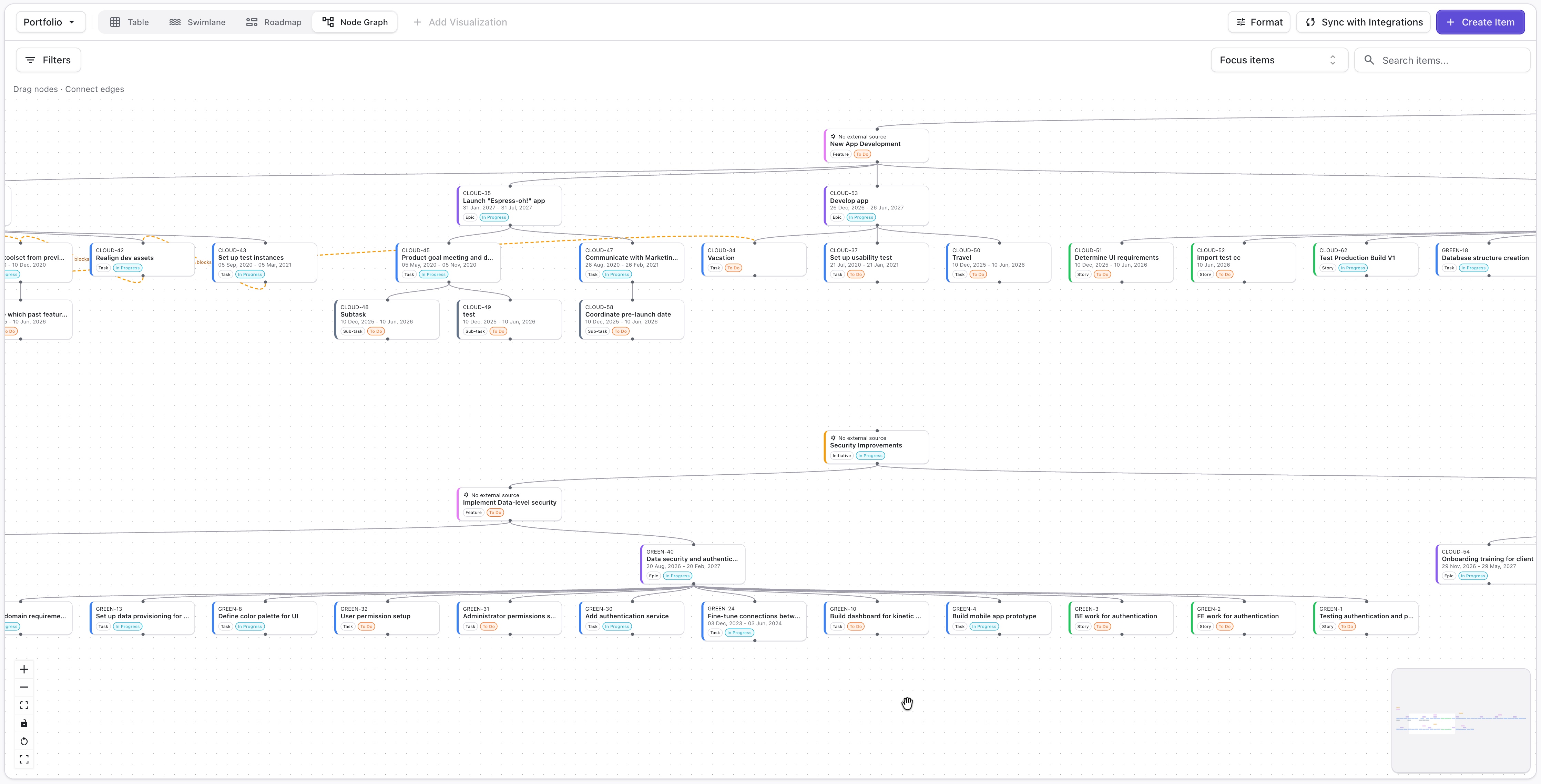
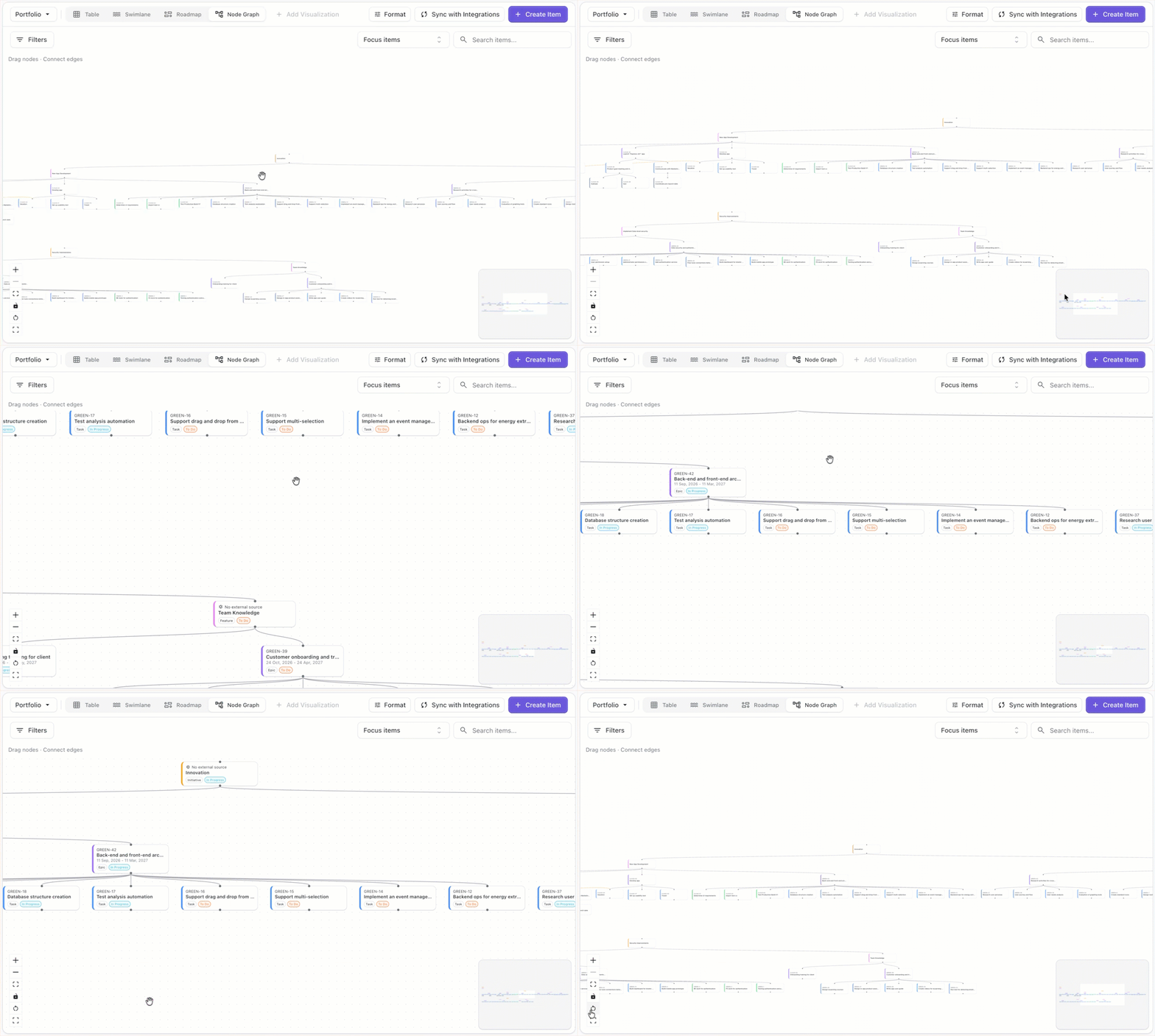
Navigating the Node Graph
To navigate around the node graph:
-
Zoom in / zoom out - use the + and - buttons in the bottom toolbar, or use your mouse’s scroll wheel
-
Adjust the focus - press the left mouse button and drag the graph, or drag the focus square at the bottom right of the screen
-
Reset view - click the refresh icon in the bottom toolbar
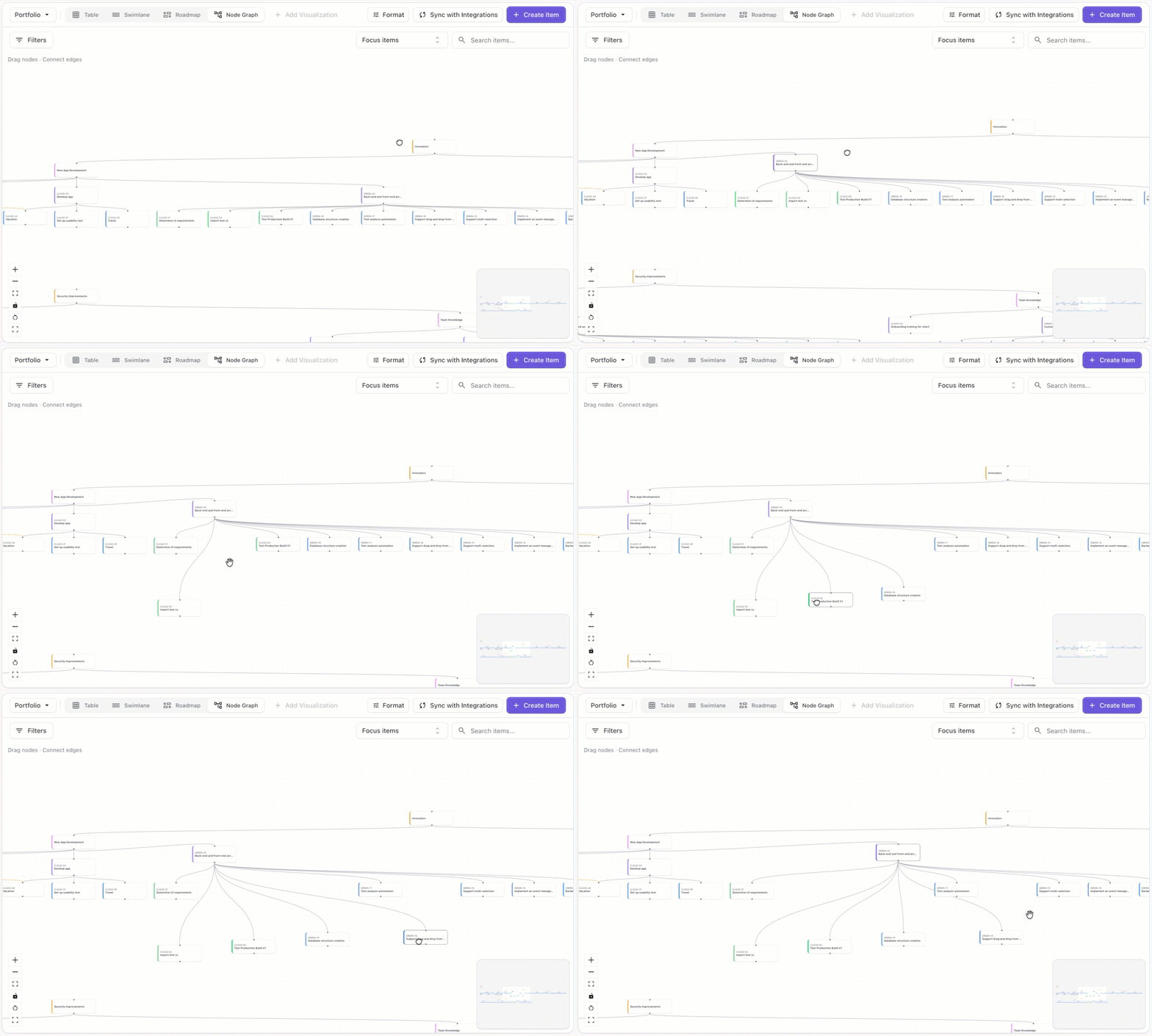
Rearranging Items
You can rearrange items on the node graph to better visualize the relationships. To reposition an item, grab it with your mouse and move it to the desired location.
Managing Dependencies
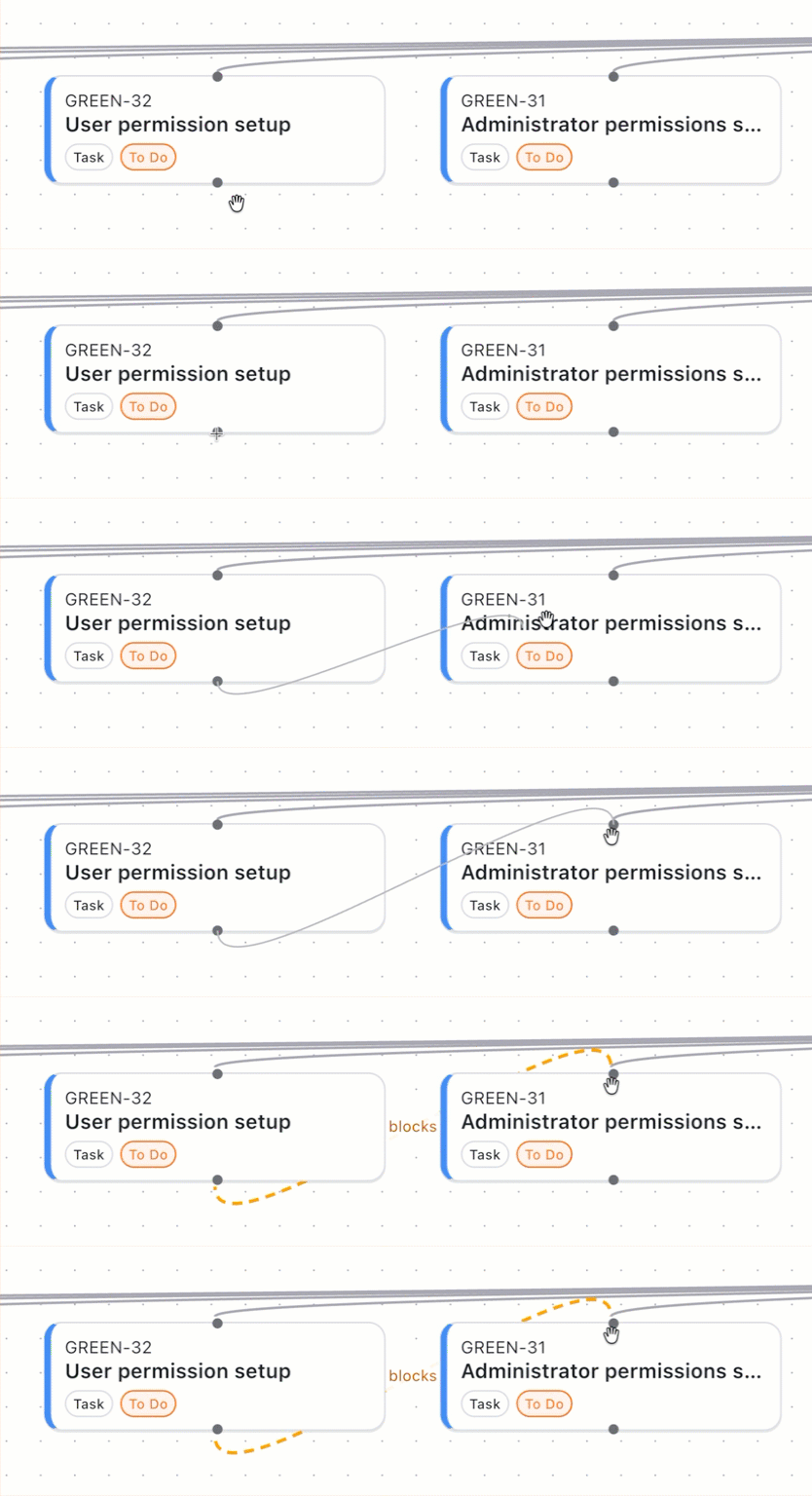
Dependencies appear on the node graph as dotted lines connecting items. You can add or remove dependencies directly from the gnode graph.
Adding Dependencies
To add a dependency, select the circle at the bottom of an item card and drag it to the top of another.
Removing Dependencies
To remove a dependency between two items, hover over the dotted line connecting them and select Remove this dependency.
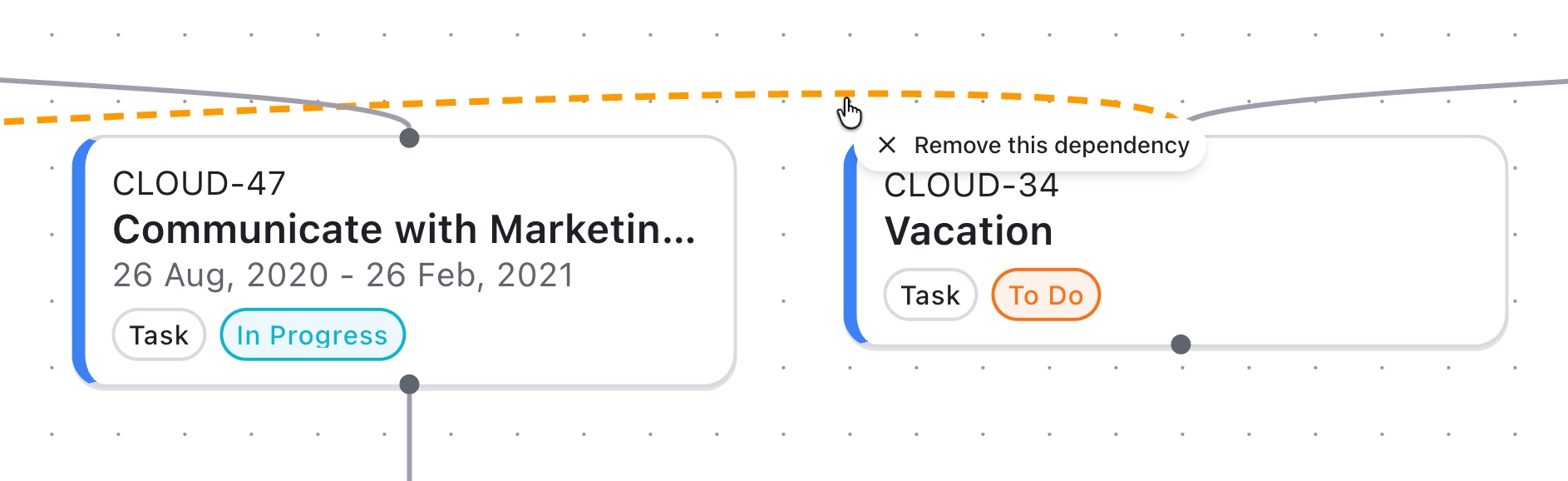
Inherited dependencies are read-only.
Focusing the Node Graph
To locate and focus on a specific item:
-
Click the Fucus Items box at the top of the graph
-
Search for and select the desired focus item
.gif?cb=1f71a3b749edeec6cd0e0b872f6a3534)
Searching the Node Graph
You can also locate items using the Search bar.
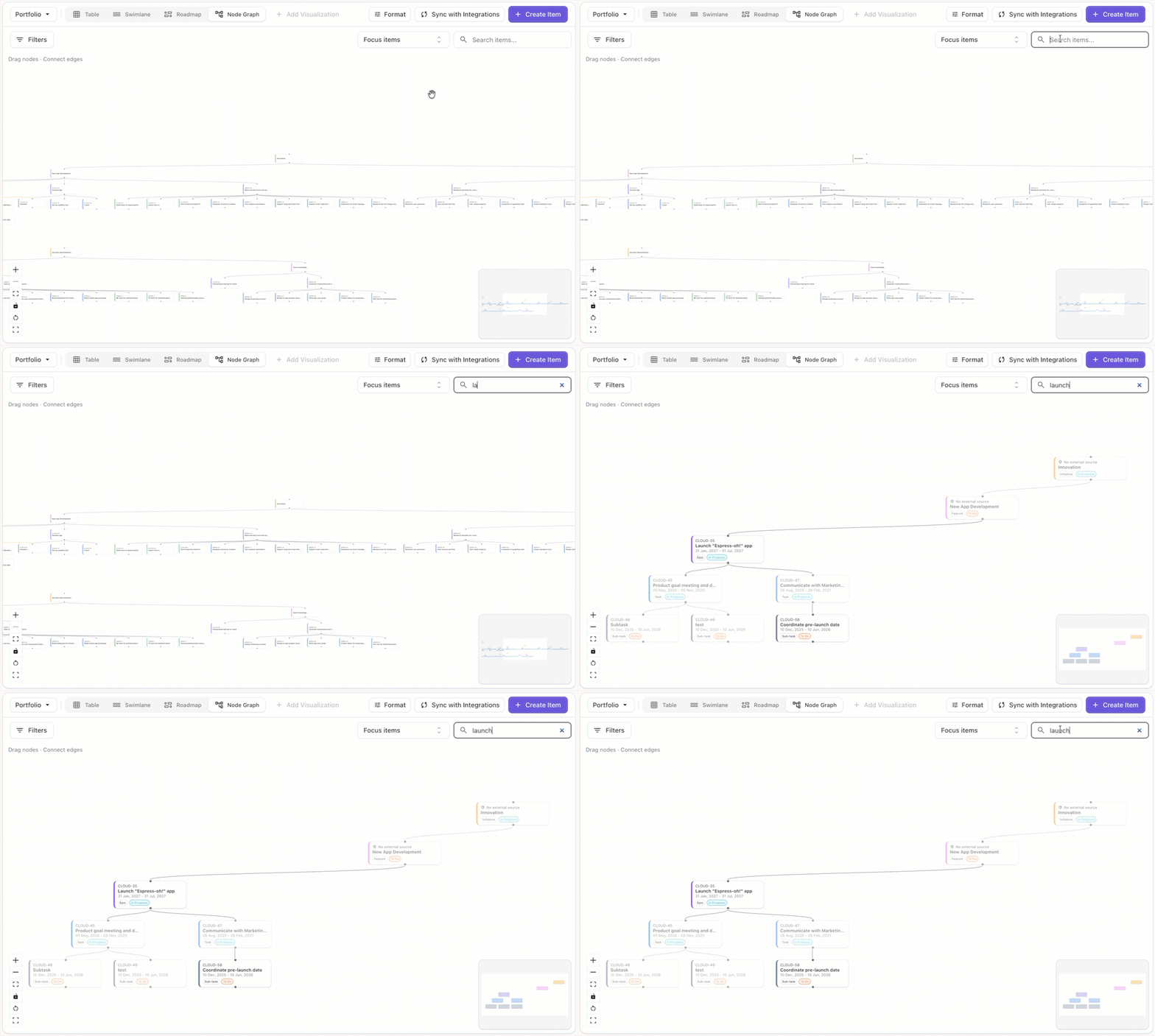
Formatting the Node Graph
To change the appearance of your node graph, click the Format button at the top of the screen.
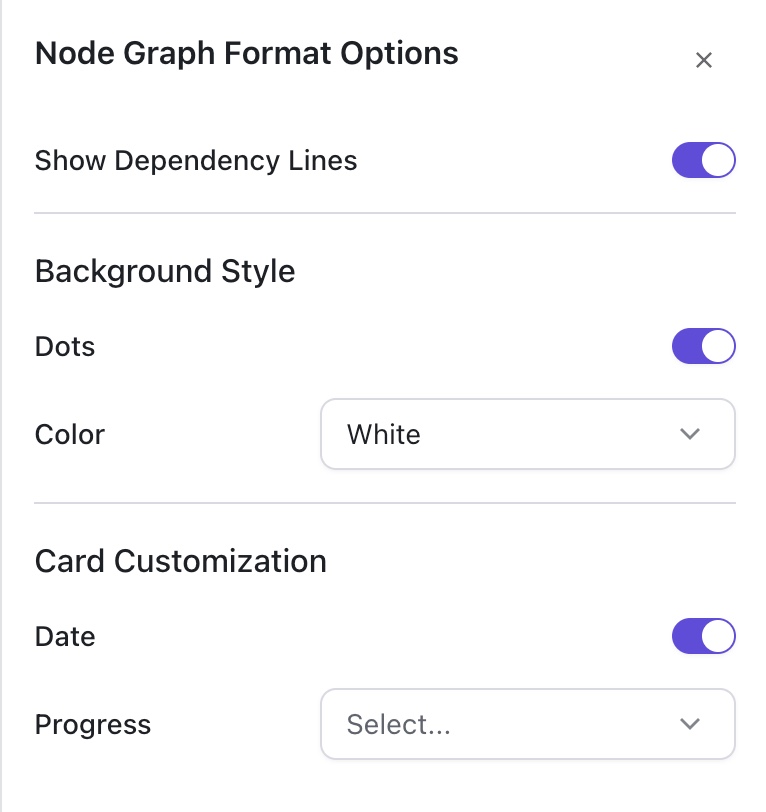
Formatting options:
-
Show Dependency Lines - show/hide dependencies between items
-
Dots - show/hide the graph dots
-
Color - change the background color
-
Date - show/hide Start and Finish dates on item cards
-
Progress - select how progress is visualized on item cards