
The Table presents a hierarchical view of your work items.
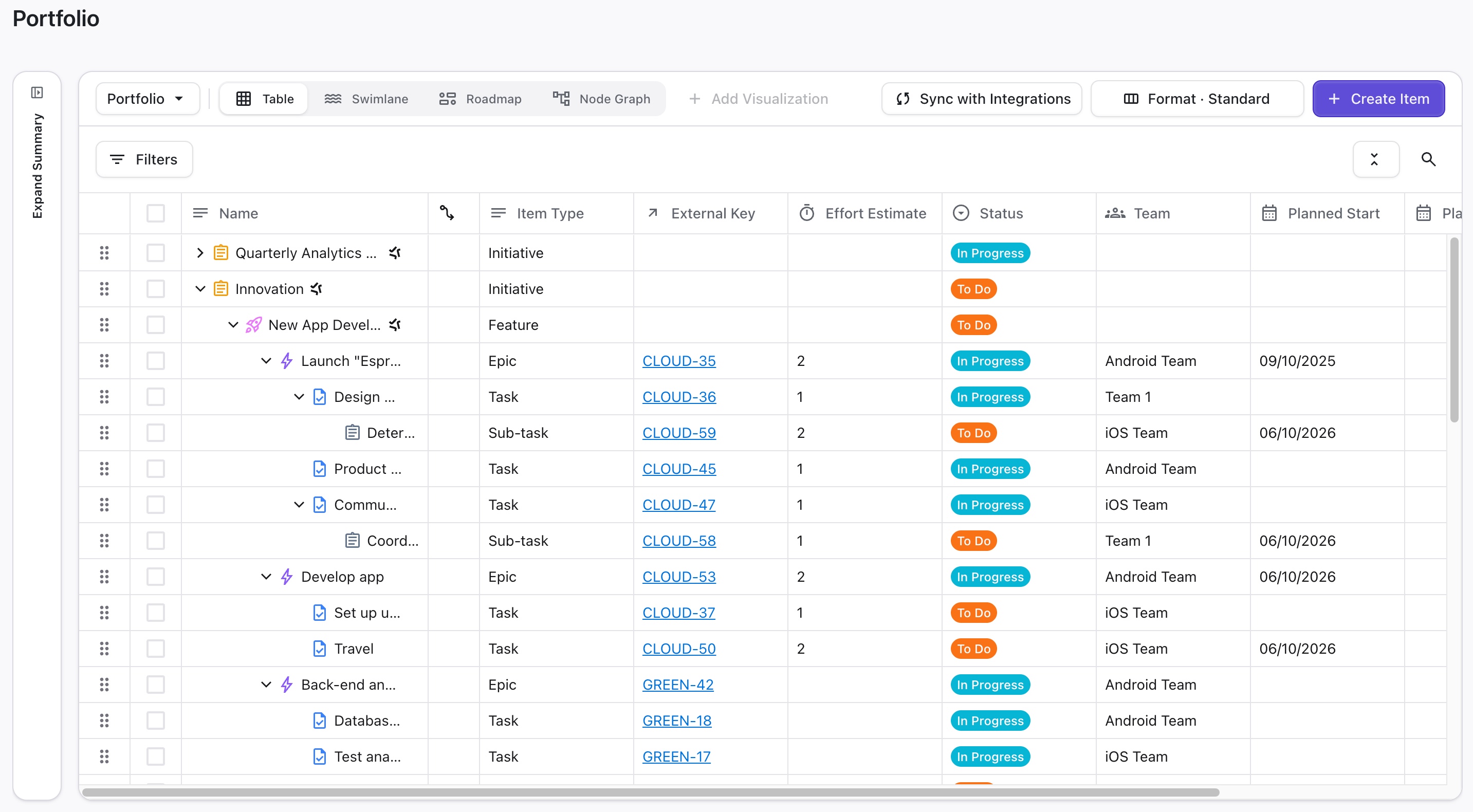
Here you can:
-
Quickly view key details about all your work items
-
Add new Loop-native work items
-
Inline and bulk edit item values
-
Click on a work item to view and edit additional details
-
Click on the External Key to see the item in Jira
-
Resync items with Jira
Dependency Health Indicators
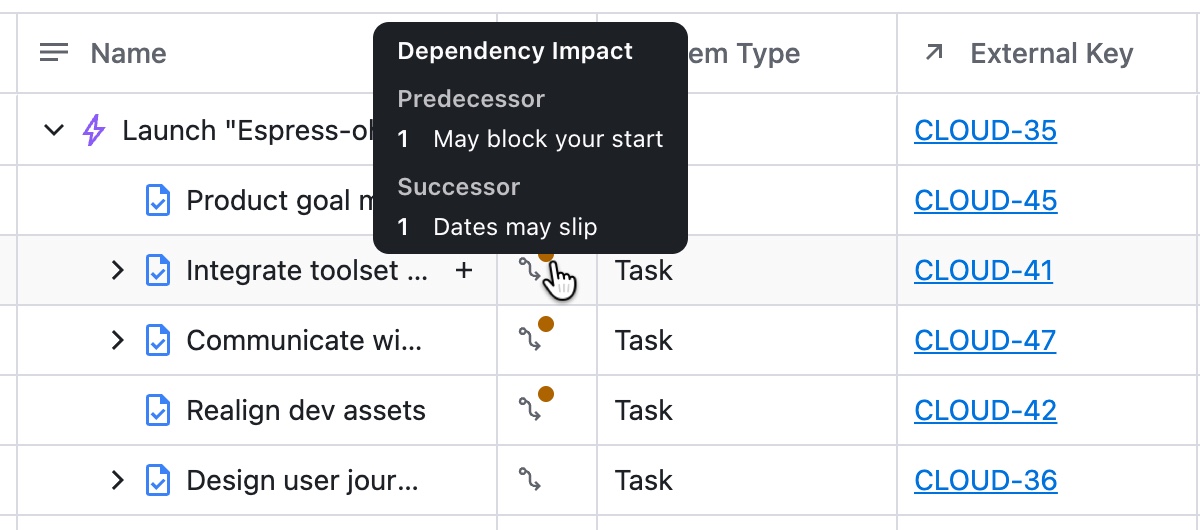
The Dependency column lets you know when a dependency exists between items and flags those dependencies that are at risk:
-
-
A red icon indicates the item is blocked.
-
An amber icon indicates the item is at risk or missing dates.
-
Hover over a flagged dependency to see more details.
View Individual Work Items
To view details for a work item or make changes, click its name. This will open the Item Details card, where you can review the item's details.
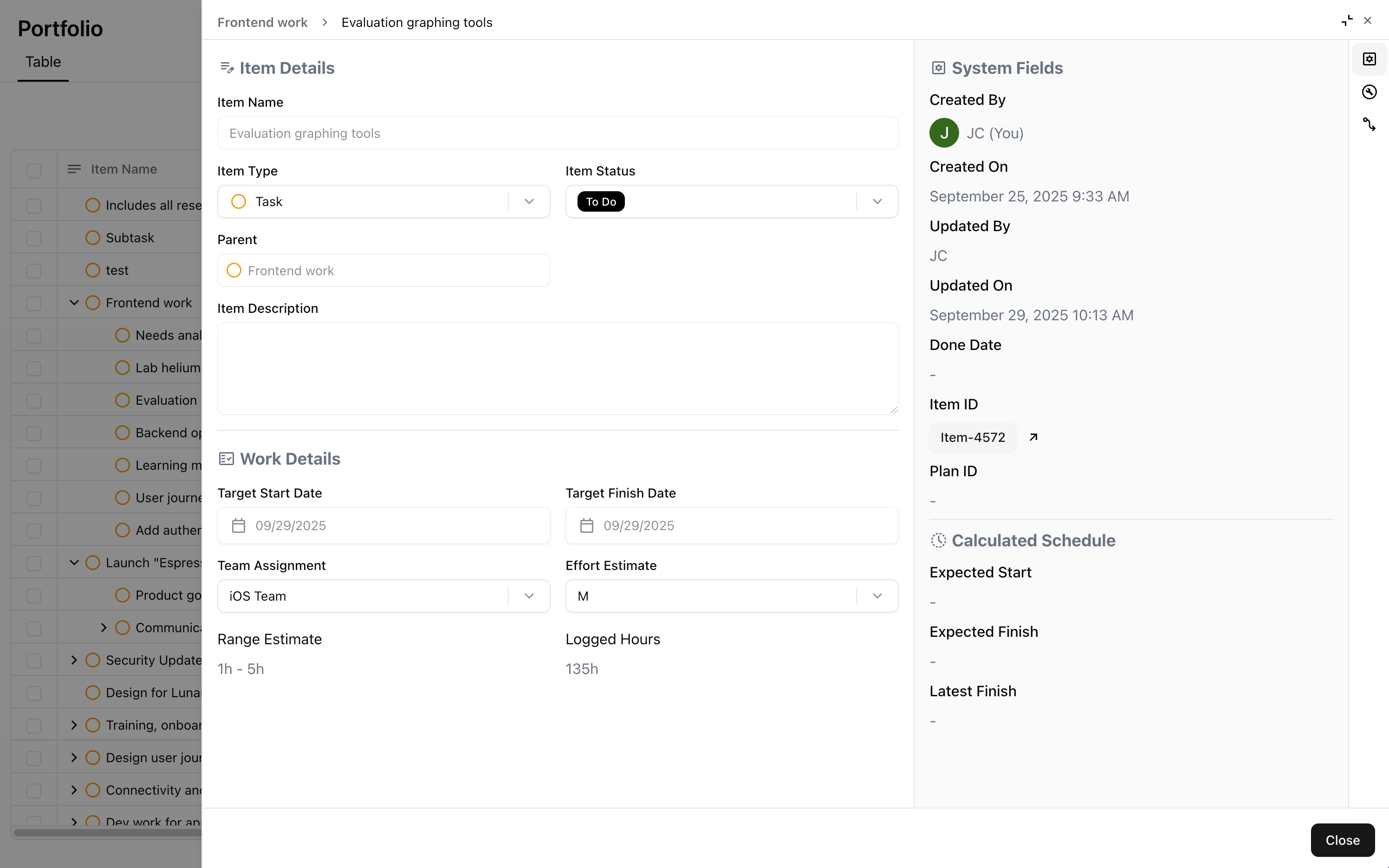
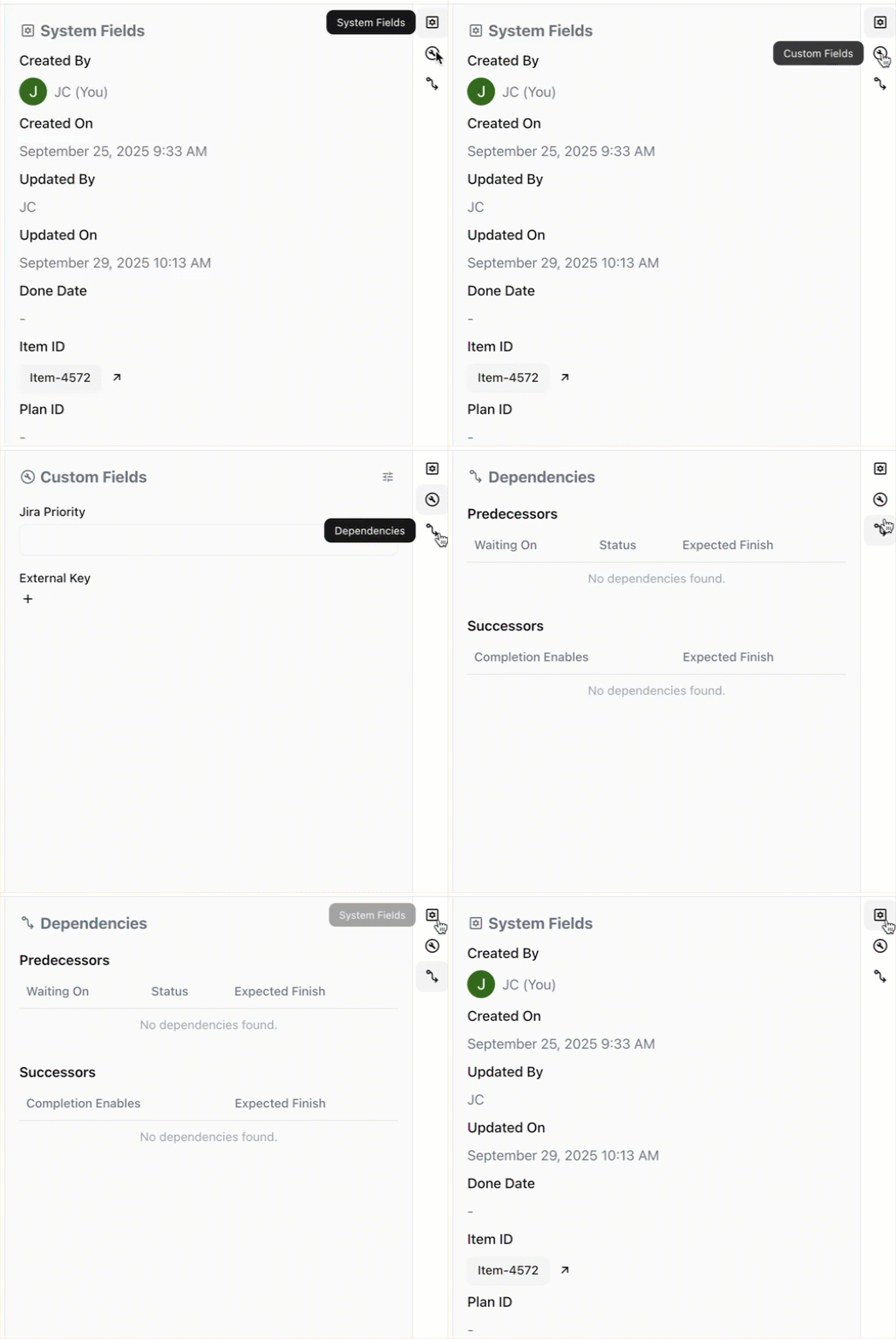
The right side of the card shows additional details, including System Fields, Custom Fields, and Dependencies.
Searching the Table
To search for items in the table, click the magnifying glass at the top of the table.
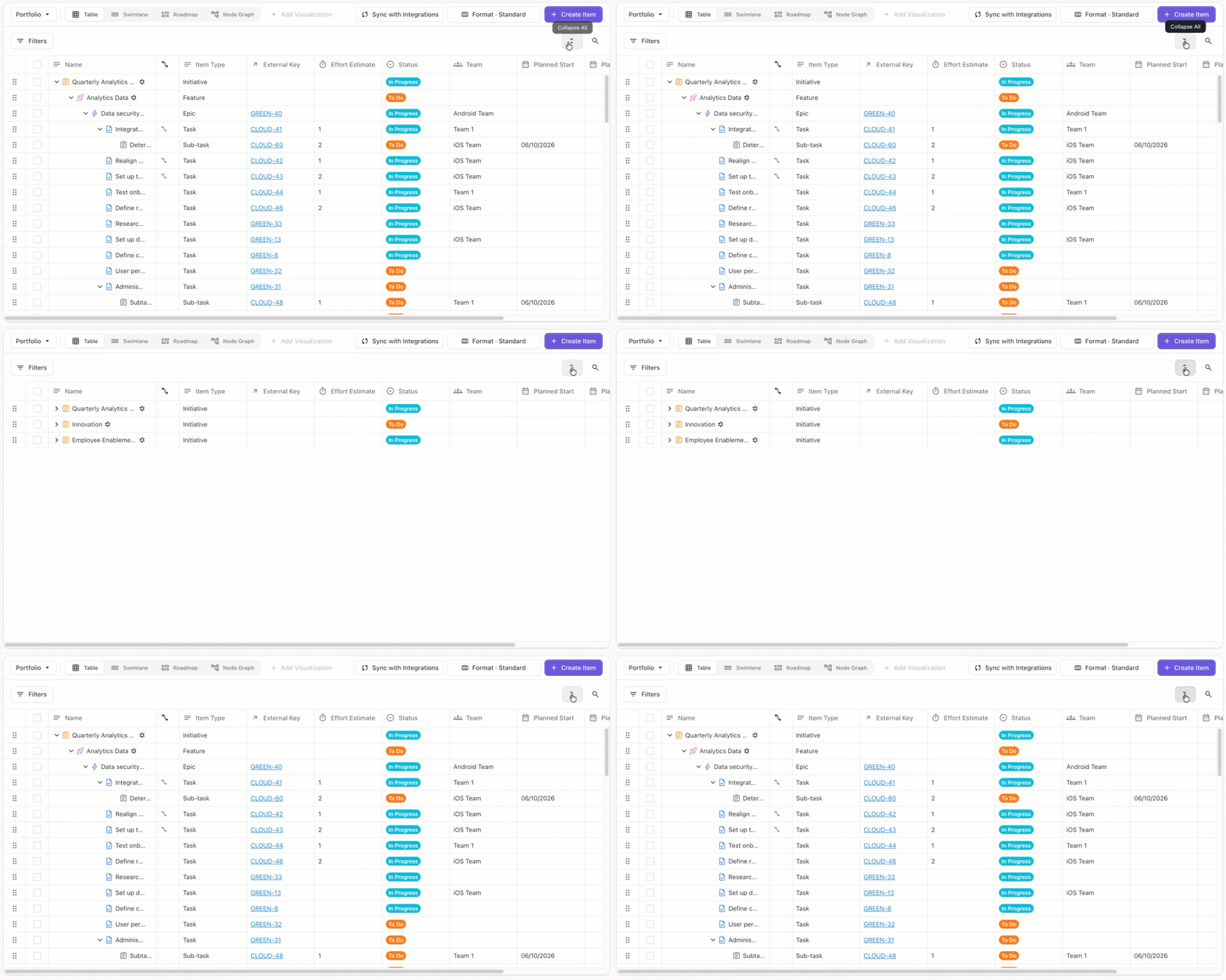
Expanding and Collapsing the Hierarchy
-
To expand a single branch of the hierarchy, click the arrow beside the parent item you want to expand or collapse.
-
To expand or collapse the entire hierarchy, click the expand/collapse button at the top of the table.
Filtering the Table
To limit the items visible within the table, click the Filters button.
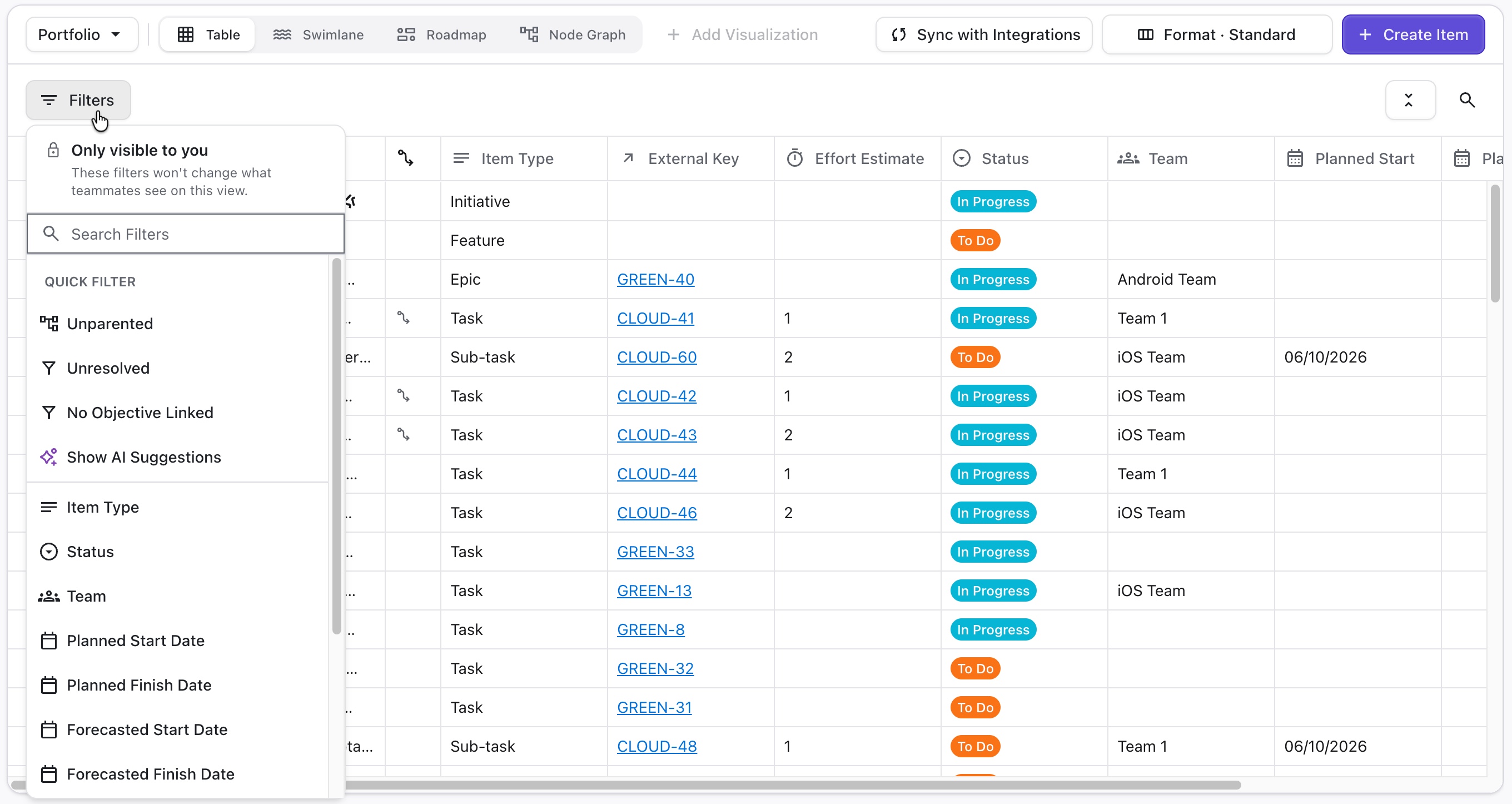
Filters work differently depending on the view:
-
For the default “Portfolio” view - filters are visible only to you and do not affect the data itself or what your teammates see when they view the table
-
For other views - filters are applied for everyone using the view