
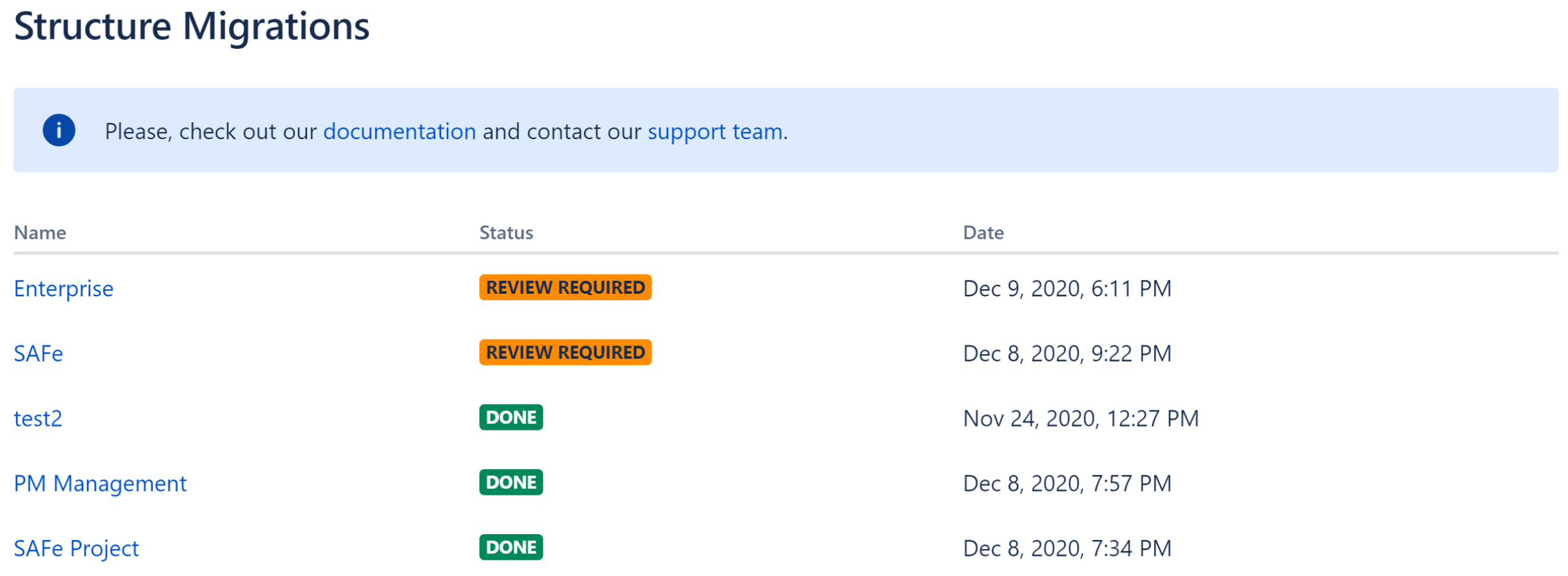
After a migration is complete, you may need to review your structures for potential issues. If the content—including generators, work items, permissions, and other data—of any structure included in the migration scope could not be migrated, the entire migration will have the Review required label in the Structure Migrations page.
To check for structures that need a review:
-
Go to Jira settings > Marketplace apps > Structure Cloud > Migration.
-
Select the migration Name to view a list of the structures included in that migration.
-
Structures that need a review will have the same Review required label. Select each one to review the migration issues.
Reviewing Structures
The Review required label is meant to inform a structure’s owners that something is preventing a successful migration, and allow them to adjust the affected structure’s configuration and work items as needed. Not all content issues affect the appearance of a structure or its usability.
Only the owner of a structure, as someone that knows how a structure looks and behaves, can evaluate the functionality and appearance of a structure following a migration. After finishing their evaluation, the structure owner must select Mark reviewed to complete the review and remove the Review required label and banner.
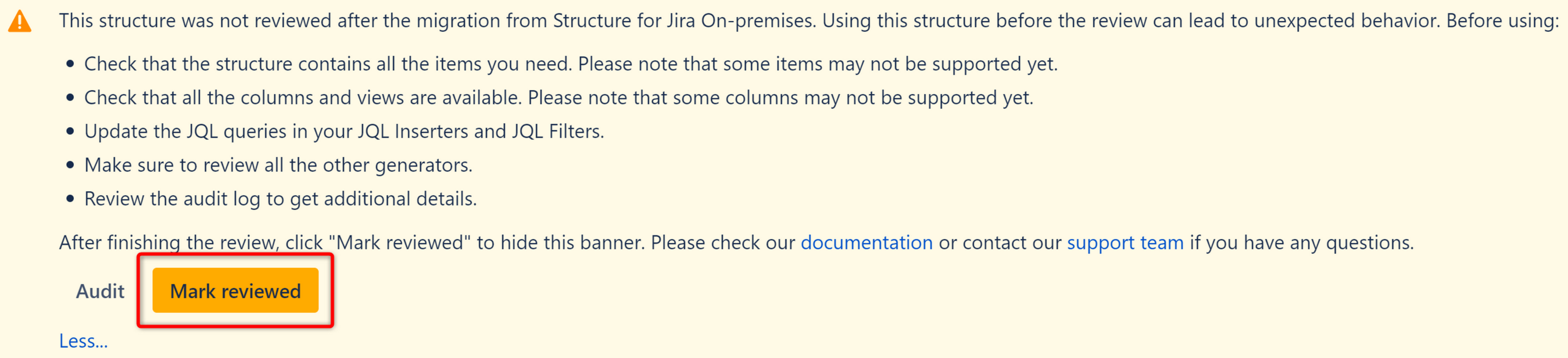
Automatic review is not possible for all structures. As a structure is built and configured for a specific purpose, the review process must be manual for each migrated structure.
Common Issues to Check During a Review
-
Check for features in Structure DC that are not supported in Structure Cloud. For example, effectors, manual adjustments, synchronizers, certain generators, and certain quick transformations.
-
Any generators that reference hidden or missing Jira data—for example, work items, spaces, or boards—will migrate successfully, but they may appear as unsupported or broken. Adjusting the generator’s configuration to source existing data should restore full functionality.
-
Insert generators that add epics, or an epic’s work items, from a specific Agile board will migrate, but will not retain their data. You must delete then recreate these generators with a configuration that points to the correct board.
-
Memos and folders in Structure DC change into the Structure Cloud equivalent, flex items, during migration.
-
Views must be saved and associated with a migrated structure to be included during migration.
-
If your structure uses Target start or Target end date columns from Advanced Roadmaps, make sure the relevant Advanced Roadmap plans are included as part of the migration’s scope. If these plans are not available, the Target start and Target end date columns will not come across during the migration.
-
Structure permissions must meet the following requirements to migrate successfully:
-
All permission rules are Set rules (not copied from another structure).
-
All users, groups, or project roles mentioned in every permission rule can be mapped to a new user, group, or project role in Cloud.
-
Levels of the permission groups form a non-decreasing monotonic sequence (each permission group is greater than or equal to the previous permission group).
-
-
Any permissions that fail to migrate must be recreated after you finish the migration.
-
You can migrate Notes columns from DC to Cloud, but those columns appear in Cloud as empty Flex Field columns. To repopulate the Flex Field column with your migrated data:
-
Click the column name and select Edit column.
-
Open the Text Field dropdown.
-
Under Context Fields, select the migrated data to populate the Flex Field column. Data from the DC Structure contains the (migrated) prefix.
-
-
If you have Jira dashboards that use Structure gadgets, make sure you migrate the structures related to those gadgets at the same time. You cannot migrate dashboard gadgets separately from the structures they use as a source.
Additional Checks
-
The Structure selector menu will be empty after the migration. This menu displays recently opened structures, but there is no history immediately following a migration. You can find and access structures from the All structures page.
-
Migrated structures that contain work items from archived spaces will show those archived work items with the label “Unavailable items”. Structure removes work items from a board if their parent space is archived. It also maintains references to these work items so they will reappear in a structure if their parent space is ever restored. Because these references are included during a migration, restoring a parent space will also add those work items back to the migrated structure.
-
Administrators on Structure Cloud do not have access to every structure by default. They must be granted access for each individual structure to access them. Admins can still view the list of existing structures and grant themselves access.
Empty Structures After a Migration
It’s possible that one or more structures may be empty following a migration. Before you attempt to migrate that structure again, make sure you check all of the following items.
Check for Generators
Verify the structure’s generators migrated correctly. Select Show/hide generators and if the structure remains empty, it contains no generators that would have added work items to the structure. Double-check the Data Center version of the structure to confirm if having no generators is expected, or an issue with the migration.

Check Permissions
If the structure contains generators, but the generators do not add work items, there may be an issue with Jira or Structure permissions.
Make sure your global permissions in Jira are correct. Without these permissions, Structure will not load content for the owner of a structure. Set any missing permissions to the correct value and wait at least ten minutes for Structure to recognize the permissions change before reopening or refreshing the empty structure.
The owner of a structure must also have access to your Jira Cloud instance for items to load properly. Go to Jira settings > User management to grant them the access.
Check if the Content Exists
If the permissions for both Jira and Structure are set correctly, verify the owner of the structure can access the work items that the generator is configured to add. As an example, you can copy the JQL query of a generator and use it in the standard Jira search while logged in as the owner. If this shows no results, then the owner does not have the correct access, or the items do not exist in Jira Cloud.
Perform the same search while logged in as a Jira admin, and if it returns the correct work items you must grant the structure owner access to those work items. You can also change the owner of the structure to a different user that already has those permissions.
If the second search still returns no results, it means the generator is configured to pull content that does not exist. Update that generator’s settings to reference the correct information. This includes available spaces, custom fields, and saved filters.