
Enabling the MCP server for your organization requires the Tempo Administrator permission.
The Tempo MCP Server allows AI assistants (such as Claude, GitHub Copilot, and Cursor) to answer questions about your Tempo data in plain language. This allows you to query worklogs, timesheets, plans, and financial reports directly, without exports or manual lookups.
It works with any MCP client that supports remote servers over Streamable HTTP with OAuth 2.0. The steps on this page use Claude as the example. The server is read-only and uses per-user authentication, so each person sees only the data their own Tempo permissions allow.
AI answers are not deterministic and should be verified. The data comes from Tempo, but the assistant decides which tools to call and how to read timeframes like “last quarter,” so wording and figures can vary between runs. Always confirm numbers in Tempo before using them for compliance, billing, or audits.
The Tempo API identifies people by their Atlassian account ID, so that is what your AI assistant receives. To see display names instead, connect the Atlassian MCP Server alongside the Tempo MCP Server. This will resolve those IDs into names.
Before You Begin
-
Tempo Administrator permission is required to enable the MCP server.
-
You must have an active Tempo subscription to Timesheets, Capacity Planner, or Financial Manager
-
Check your Tempo Core version (Settings > Marketplace Apps > Tempo Core > View app details). If your version is between 5.x and 12.x, update Tempo Core, Timesheets, Capacity Planner, and/or Financial Manager to the latest version to enable the MCP Server.
-
If you're on Tempo Core version 12.x or above and have disabled app analytics, the MCP Server cannot be enabled. Enable app analytics so that the MCP Server can be enabled.
Step 1. Enable the server
This is performed by a Tempo Administrator once per organization.
-
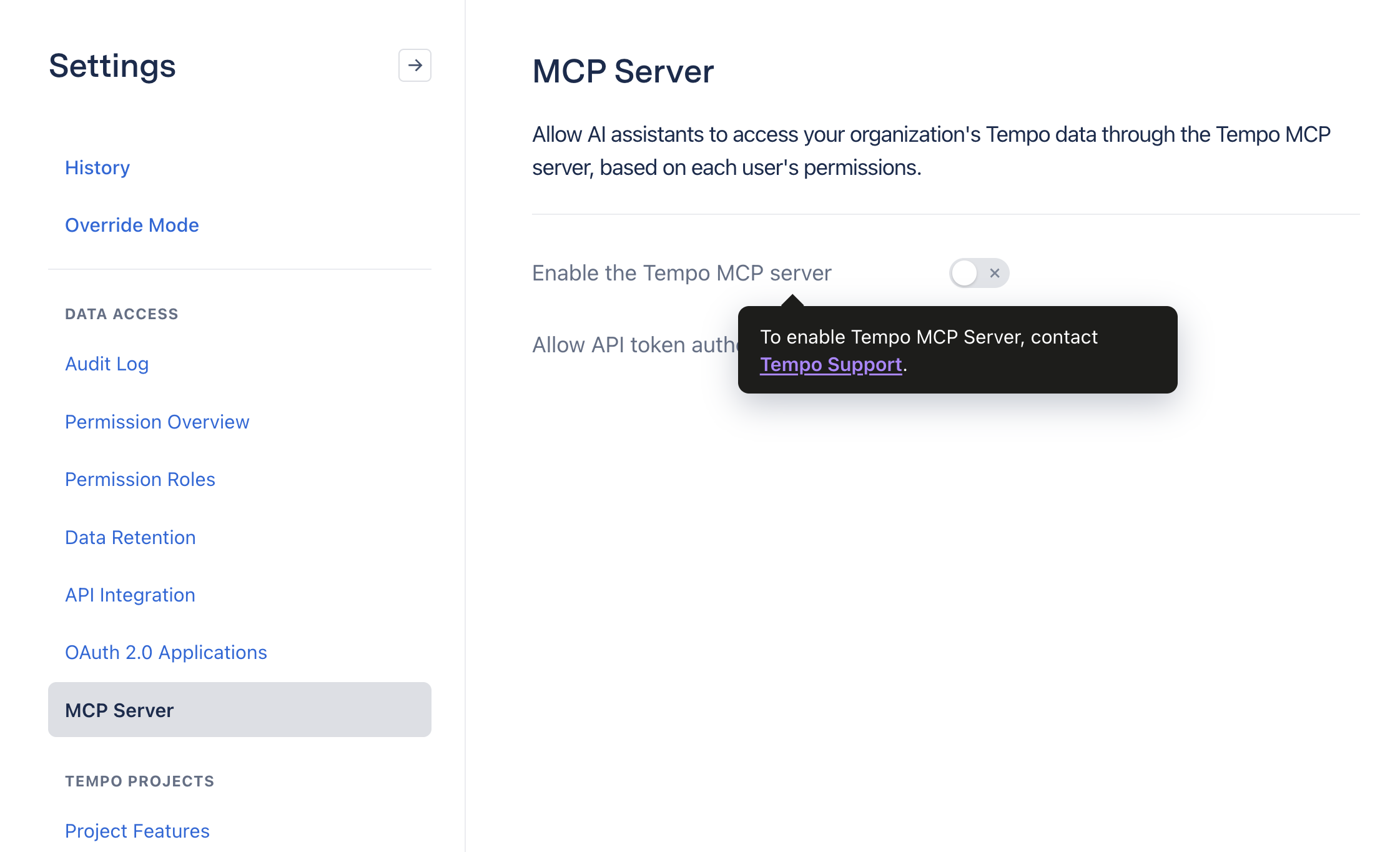
Go to Tempo Settings → Data Access → MCP Server.
-
In the tooltip for Enable the Tempo MCP server, click the Tempo Support link.
-
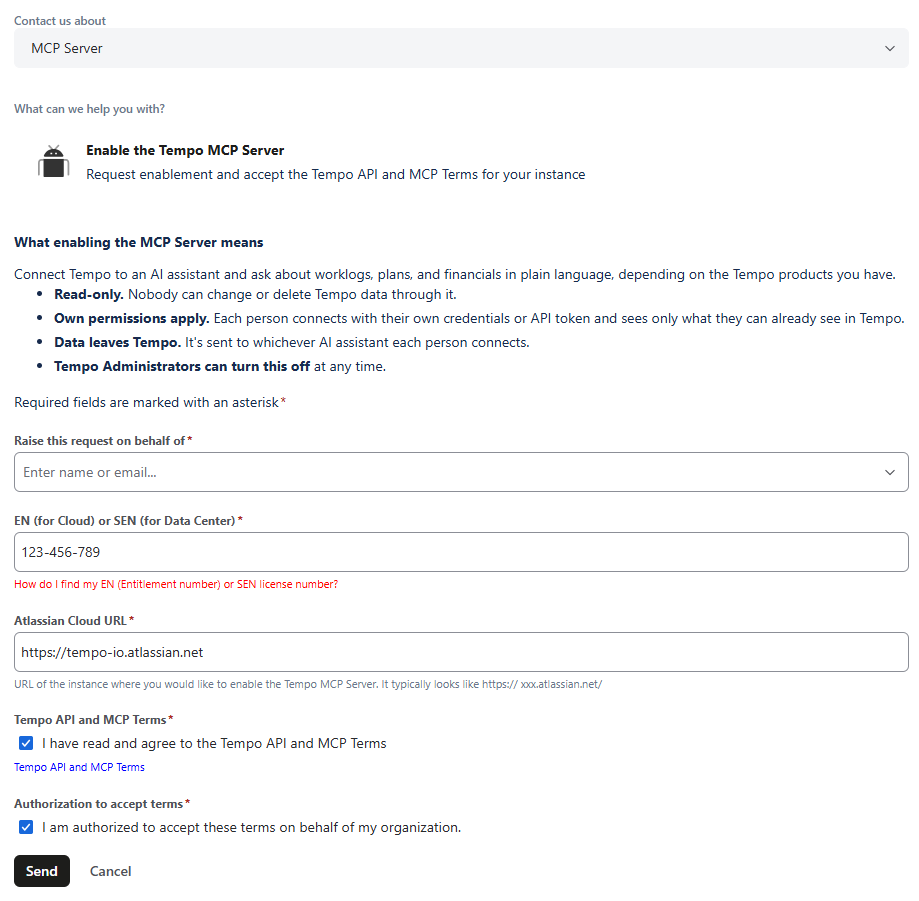
From the dropdown, select the request to Enable the Tempo MCP Server, enter the required information, and click Enable. You will receive an email response once the MCP Server is enabled for your instance.
You must accept the Tempo API and MCP Terms and acknowledge the Authorization to accept terms to submit the request for enabling the Tempo MCP Server.
-
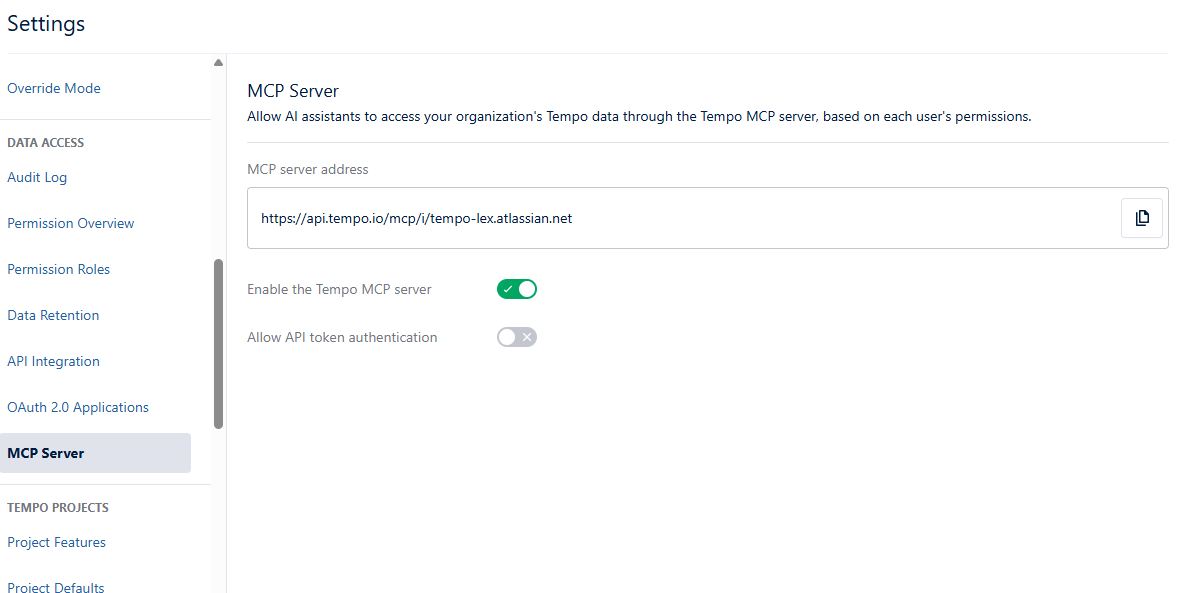
Once the server is enabled, go to Tempo Settings → Data Access → MCP Server, then click the toggle to Enable the Tempo MCP server. This page also now displays the Server address scoped to your Jira instance. Copy the Server address and share it with anyone who wants to connect.
-
Optional: turn on Allow API Token Authentication to let people connect using a Tempo API token instead of OAuth.
Step 2. Add Tempo as a custom connector
This is performed by a Tempo administrator or whoever administers your AI tool, once per organization.
-
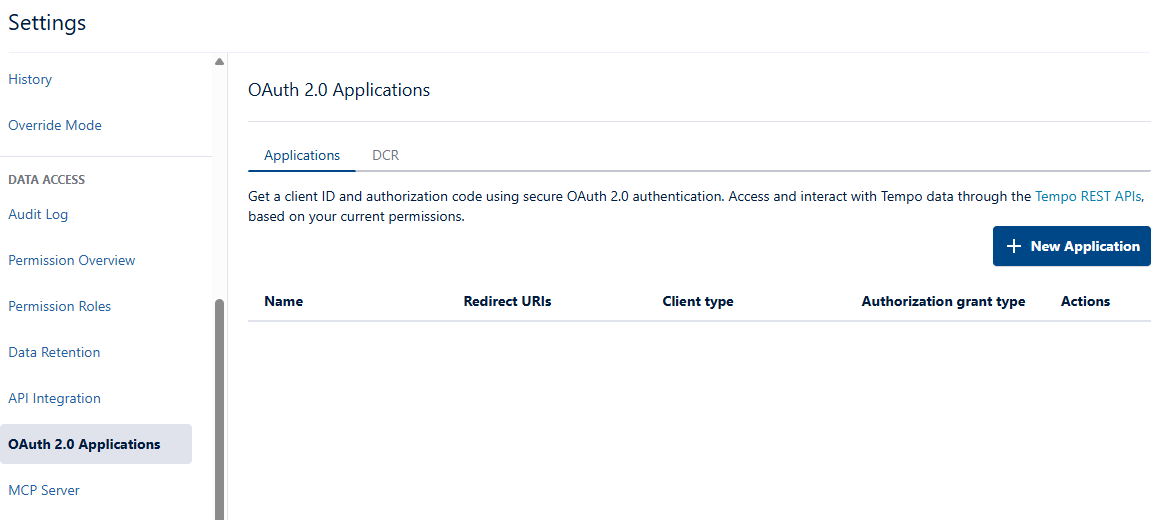
Go to Tempo Settings → OAuth 2.0 Applications.
-
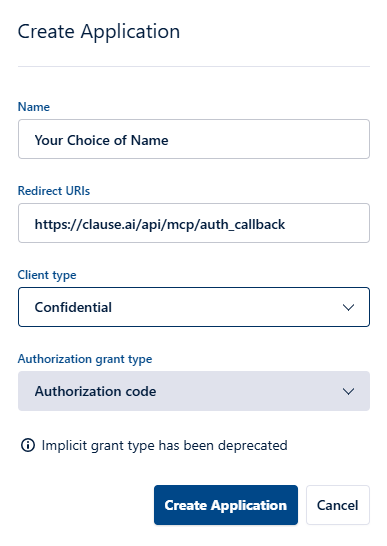
Click + New Application to open the Create Application modal. Set the following:
-
-
Name: Your choice
-
Redirect URI:
https://claude.ai/api/mcp/auth_callback, the callback used by claude.ai and Claude Desktop -
Client type: Confidential
-
Authorization grant type: Authorization code
-
-
Copy the client ID and client secret.
-
In Claude, follow the steps to add a custom connector “For Team and Enterprise Plans,” pointing at your Tempo server address, and enter the client ID and secret during setup under Advanced settings.
-
Name it Tempo MCP Server and leave individual sign-in on, so each person authenticates with their own Tempo credentials.
Entering the client ID and secret directly is what replaces Dynamic Client Registration (DCR), so under the DCR tab, leave Allow apps to register via DCR off. Turn it on only for a client that doesn’t let you enter a client ID and secret.
Step 3. Connect your AI client.
Steps 1 and 2 must be completed first. The server must be enabled, and for Claude on the web or desktop, the custom connector has to be added.
Claude on the web or desktop
-
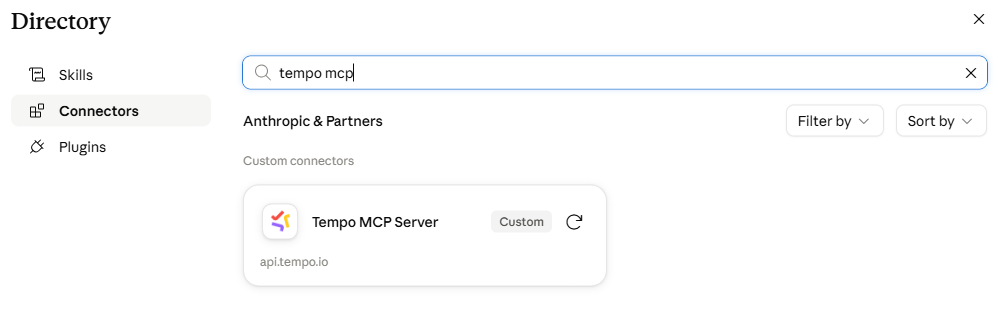
Go to Settings → Connectors → Browse and search for Tempo MCP Server.
-
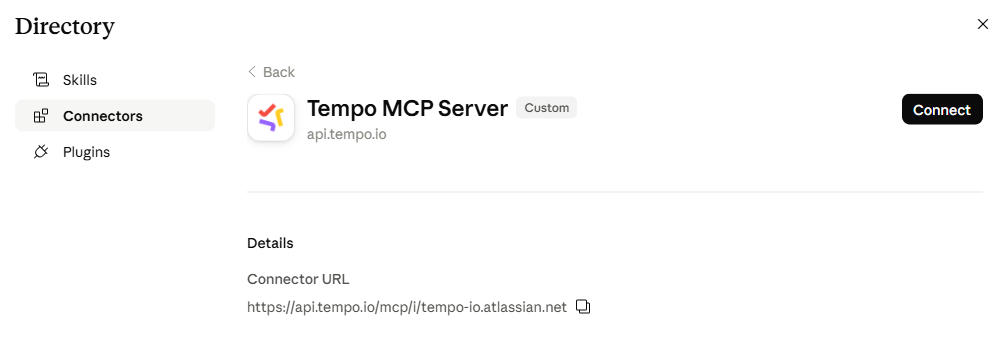
Click the connector, then click Connect.
-
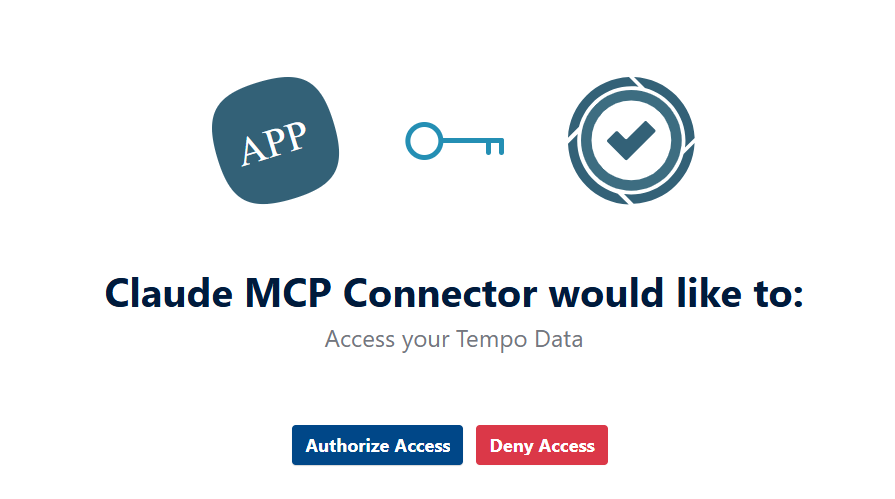
When Claude asks for access to your Tempo data, click Authorize Access, then Onwards.
Claude Code
-
Copy the server address.
Go to Tempo Settings → Data Access → MCP Server and copy the server URL. It is scoped to your Jira instance. -
Generate OAuth credentials.
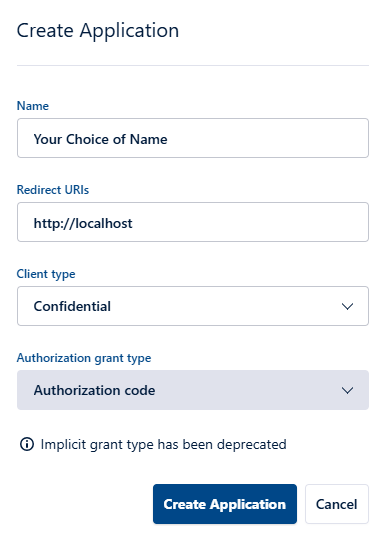
Go to Tempo Settings → OAuth 2.0 Applications and click + New Application. Enter the required information (as indicated below) to complete the New Application, then copy the client ID and secret.
-
-
Name: Your choice
-
Redirect URI:
http://localhost -
Client type: Confidential
-
Authorization grant type: Authorization code
-
-
Add the server.
Run one of the commands below.
Using Tempo OAuth 2.0, with the client ID and secret from step 2, Generating OAuth credentials. This is the default:
claude mcp add --transport http tempo \
  <MCP_ADDRESS> \
  --client-id <CLIENT-ID> --client-secret
Using a Tempo API token, available only if your admin turned on API token authentication in Step 1:
claude mcp add --transport http tempo \
  <TEMPO_API_URL>/mcp \
  --header "Authorization: Bearer <TOKEN>"
-
Authenticate.
Run/mcp, pick Tempo, and follow the prompts.
Other MCP clients
Any MCP client that supports remote servers can connect to Tempo. Before you start, check that your client:
-
Can connect to a remote MCP server over Streamable HTTP
-
Supports OAuth 2.0 authorization code flow, or lets you send a bearer token
-
Allows you to configure a custom MCP server URL
Then add your Tempo server address as a remote MCP server and authenticate with your OAuth client ID and secret, or with a Tempo API token if your admin enabled that option.
The redirect URI comes from your AI client, not from Tempo. Claude on the web and desktop uses https://claude.ai/api/mcp/auth_callback, Claude Code uses http://localhost, and other clients use their own. Check your client’s documentation for the value it expects, then use that when you create the OAuth application in Tempo.
If your client doesn’t provide a way to enter a client ID and secret, ask your Tempo admin to turn on Allow apps to register via DCR under Tempo Settings → OAuth 2.0 Applications. The client can then register itself.
Setup steps vary by client. If you encounter connection or authentication problems, check your client’s own MCP documentation first.
Step 4. Pair with the Atlassian MCP Server
For questions that span both systems, connect the Atlassian MCP Server in the same session.
-
Tempo supplies the numbers — hours, costs, budgets, plans
-
Atlassian supplies the Jira context — issue names, statuses, priorities, assignees
The assistant joins the two without any manual mapping. It also turns account IDs into display names.
What Data is Available
The server provides read-only access to the following data. Availability depends on which Tempo products your organization has licensed.
|
Tempo Product |
|
|---|---|
|
Timesheets |
|
|
Capacity Planner (if installed) |
|
|
Financial Manager (if installed) |
|
Security and Access Control
Per-user authentication
Every request carries the caller's own token; the server holds no shared credentials. Authorization, scopes, and tenant isolation are enforced by the Tempo API.
Admin control
Admins can disable the server at any time, which blocks all requests immediately.
Read-only
Only read (GET) operations are exposed. No data can be created, modified, or deleted through the MCP server.
Separate API token control
Admins can disable API token access while keeping OAuth enabled.
Data residency
The server respects your organization's data residency routing (US or EU).
Your choice of AI client
Tempo does not restrict which MCP client can connect, and does not select or operate any AI provider. When you run a query, the Tempo data you requested is sent to the AI client you connected to and to its model provider.
Example Prompts
Once connected, users can ask their AI assistant questions such as:
-
"What did my team log last week?"
-
"Show me actual hours vs. story points for issues closed last sprint."
(requires the Atlassian MCP Server) -
"What's the cost burn rate on the Platform project this quarter?"
(requires Financial Manager) -
"Which approved worklogs from May 2026 were billed to a specific client?"
-
"Is my team tracking to plan this sprint — who's over- or under-logging vs. what we planned?" (requires Capacity Planner)