Conditional Colors allow you to add custom highlighting to a row or cell based on conditional rules. This can help you create visually distinct identifiers for work items, or for work items you want to draw extra attention to for viewers. For example, you can create a conditional color rule that highlights cells in a Priority column with a color if a work item’s priority is set to High.
Conditional color rules use the columns in your current view as their source, but you can also use fields not added as a column, including formulas, to create conditional color rules.
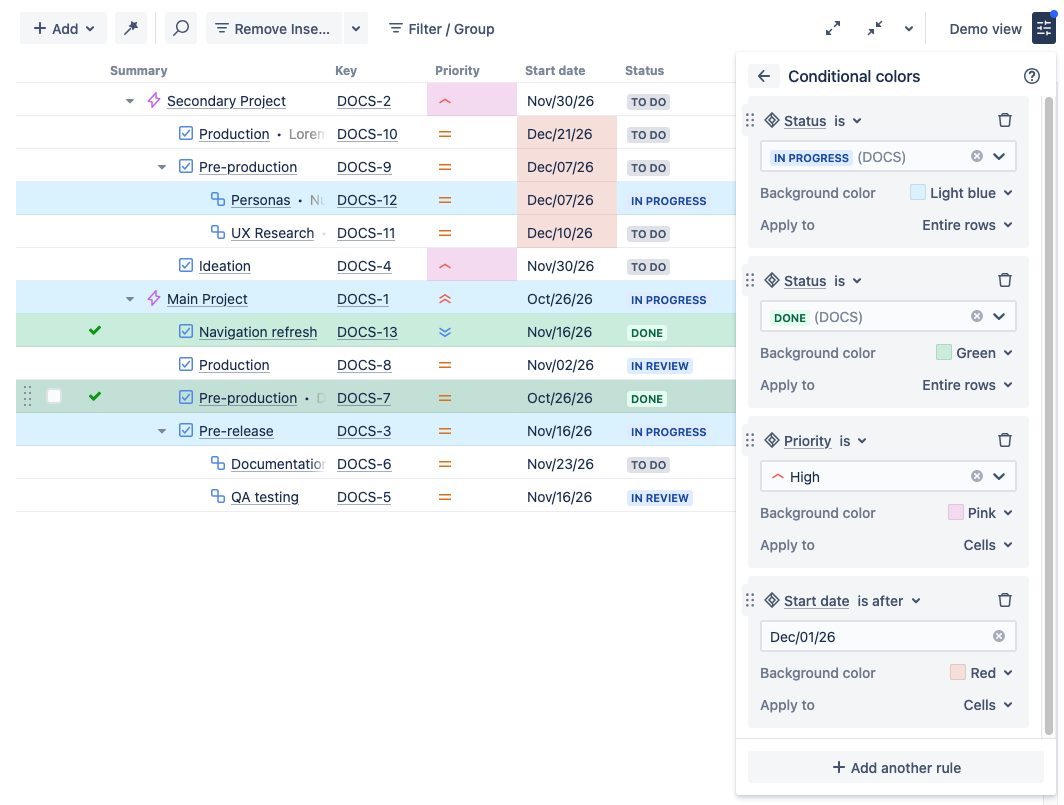
Conditional color rules support all fields with the following exceptions:
-
Test runs.
-
OKR goals, key results, and cycles.
-
Workforce Intelligence.
The Cross-Jira fields text, date, duration, and formula are supported; all other Cross-Jira fields are unsupported.
Changes to conditional colors are saved and applied automatically, but you must save your current view to keep your conditional colors settings.
Adding a Conditional Color
Conditional rules use the same fields that are available when you add columns to your current view.
To add a new conditional color:
-
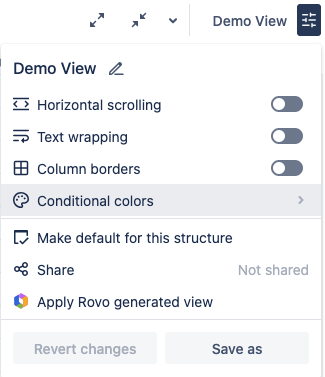
Open the View options menu and select Conditional colors.
-
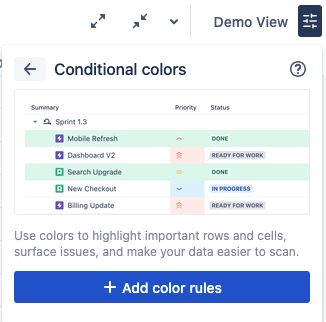
If you don’t have any rules defined, select +Add color rules. If you already have at least one color rule, select +Add another rule.
-
Select a Field to use for your rule. You can Search for a field to narrow down your options. When selecting a field, the top of the options list shows the fields already available as columns in your current view.
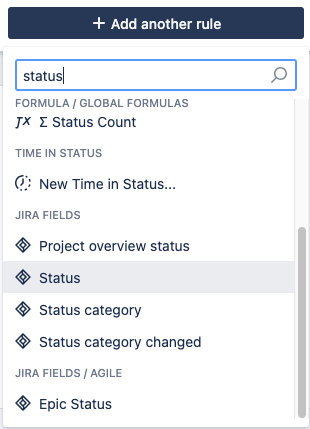
-
Select an Operator to apply to the rule. The available operators vary depending on the selected field.
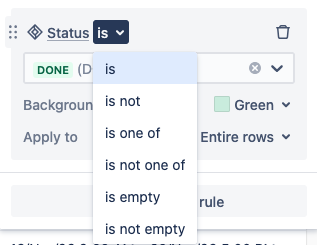
-
Select a Background color for the rule. To use a custom color, select Custom color and enter the color you want to use in HEX format (for example,
#2daafc).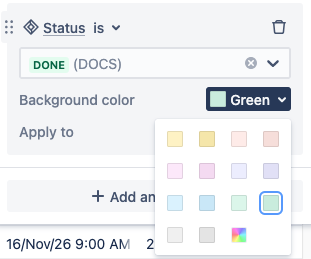
-
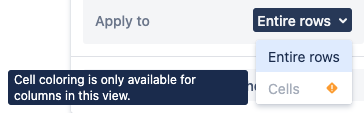
Select whether you want to apply the conditional color to the item’s Entire row, or just to the matching Cells.
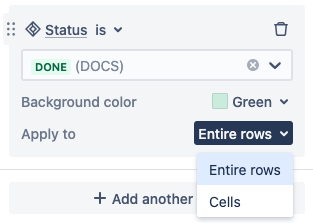
If the field you select for a rule does not exist as a column in the current view, you cannot apply the conditional color to individual cells before first adding the rule type as a column.