Adding a conditional color rule that uses an existing column links the two. Changes you make to the column will affect your conditional colors. Linked rules display Column in this view when you select the rule’s field name.
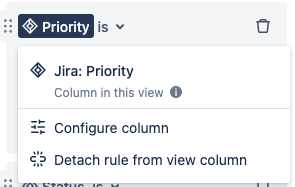
Select Configure column to open the column’s configuration menu. This is the same menu that displays when you select Edit from the column’s menu.
You can select Detach rule from view column to make that rule no longer have a direct link to the column in the current view. Detached rules still work as expected, but you can use settings and values for that rule that aren’t otherwise defined by the column. You can also remove a detached rule without also removing the column.
Detached Columns
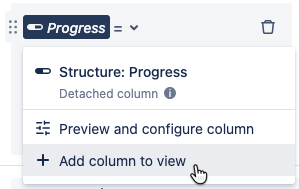
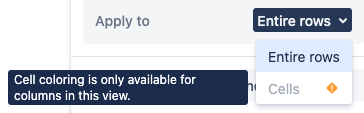
Rules without an associated column in the current view are labeled as Detached columns. You can only apply a detached column’s rule to individual cells.
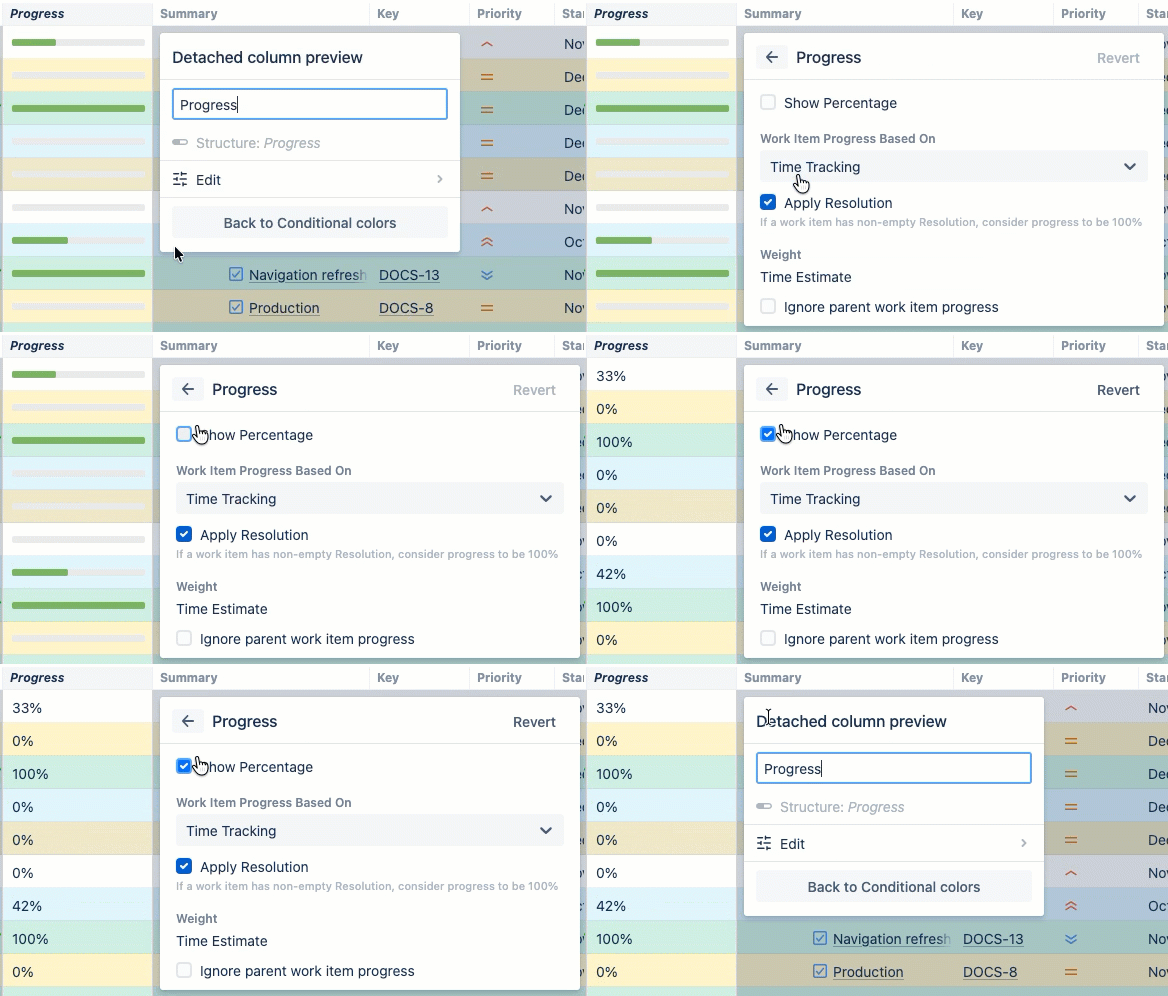
Select Preview and configure column to temporarily place the column in your view. While in this preview, select Edit to adjust the settings for that column.
Select +Add column to view to create a column in the current view that displays the rule’s field. If you already configured the column through its preview, this adds the column with those settings. After adding the column to your view, that rule can highlight rows as well as cells.