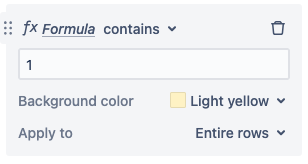
When you add conditional colors to a structure, you can use formulas for more control over how the highlighting is applied. By associating a conditional colors rule with a formula, you can set up conditions based on calculations and comparisons that you can’t access with standard fields.
Adding Conditional Colors Based on an Existing Formula Column
If you already have a formula column in your structure, you can add a conditional color rule to highlight rows or cells based on that formula.
To do so:
-
Open the View options:viewOptionsNew: menu and select Conditional colors.
-
If you don’t have any rules defined, select +Add color rules. If you already have at least one color rule, select +Add another rule.
-
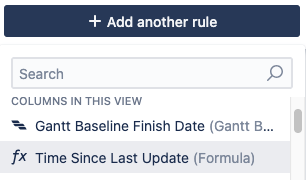
Select the name of the formula you want to use from the Columns in this view section.
-
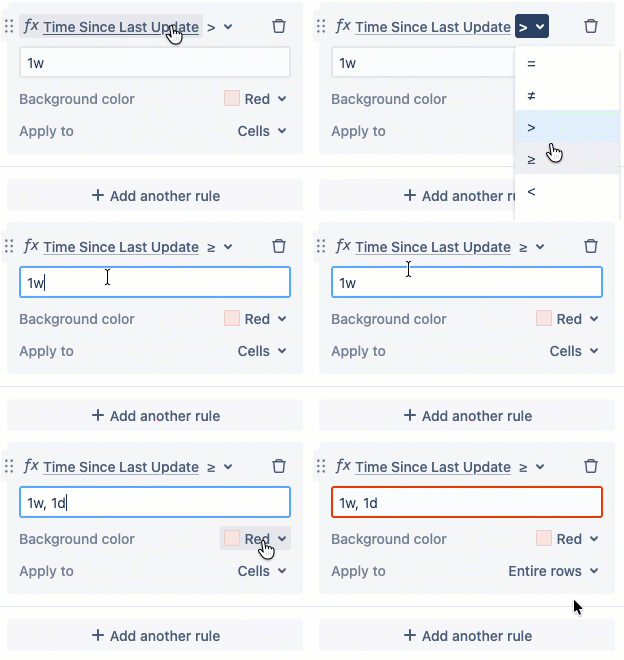
Customize the rule based on your needs. Your changes are saved and applied automatically.
Adding Conditional Colors Based on a New Formula
You can create a formula-based conditional rule without already having that formula as a column in your current view.
-
When you create a new conditional color rule select New formula…
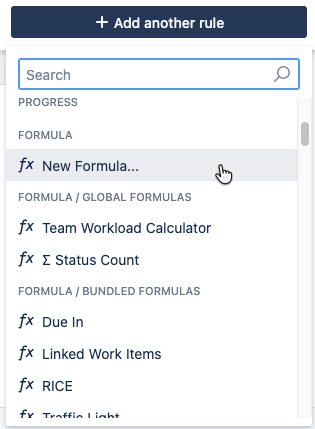
You can also select any saved formula available on your instance, or one of Structure’s bundled formulas.
-
While viewing the new rule, select ƒx Formula > Preview and configure column to open a preview of the formula as a column.
-
Select Edit in the Detached column preview to open the Structure formula editor.
-
Enter your formula and select Calculate.
-
Return to the conditional color rule and enter the calculated Value you want to highlight.
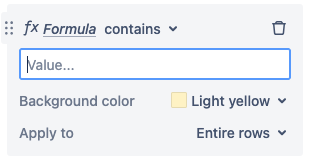
Example: Highlight Completed Items
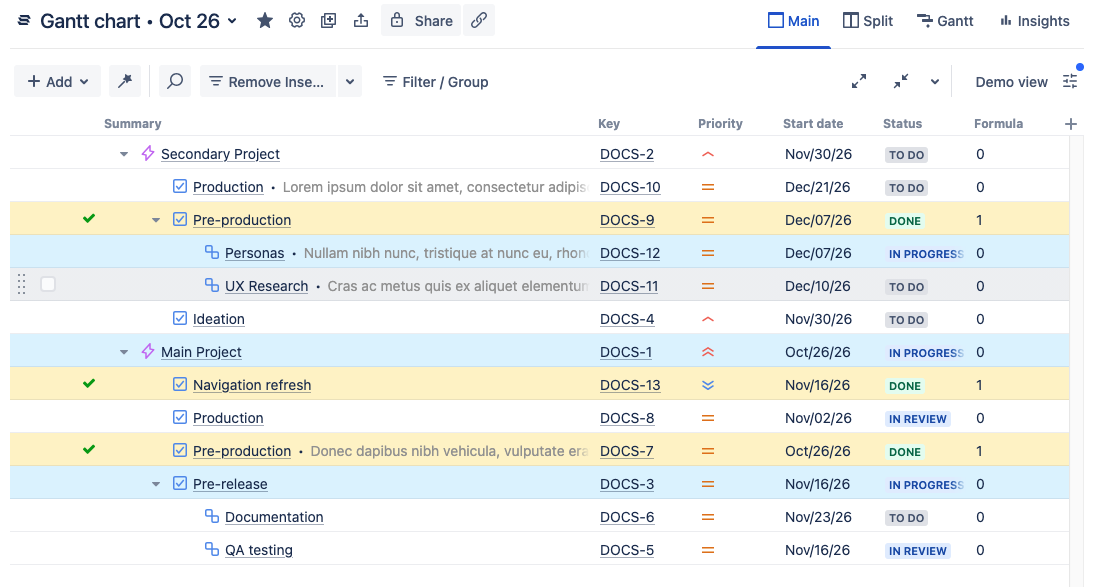
The following animation shows an example of conditional color rule that highlights work items with the status category of Done.
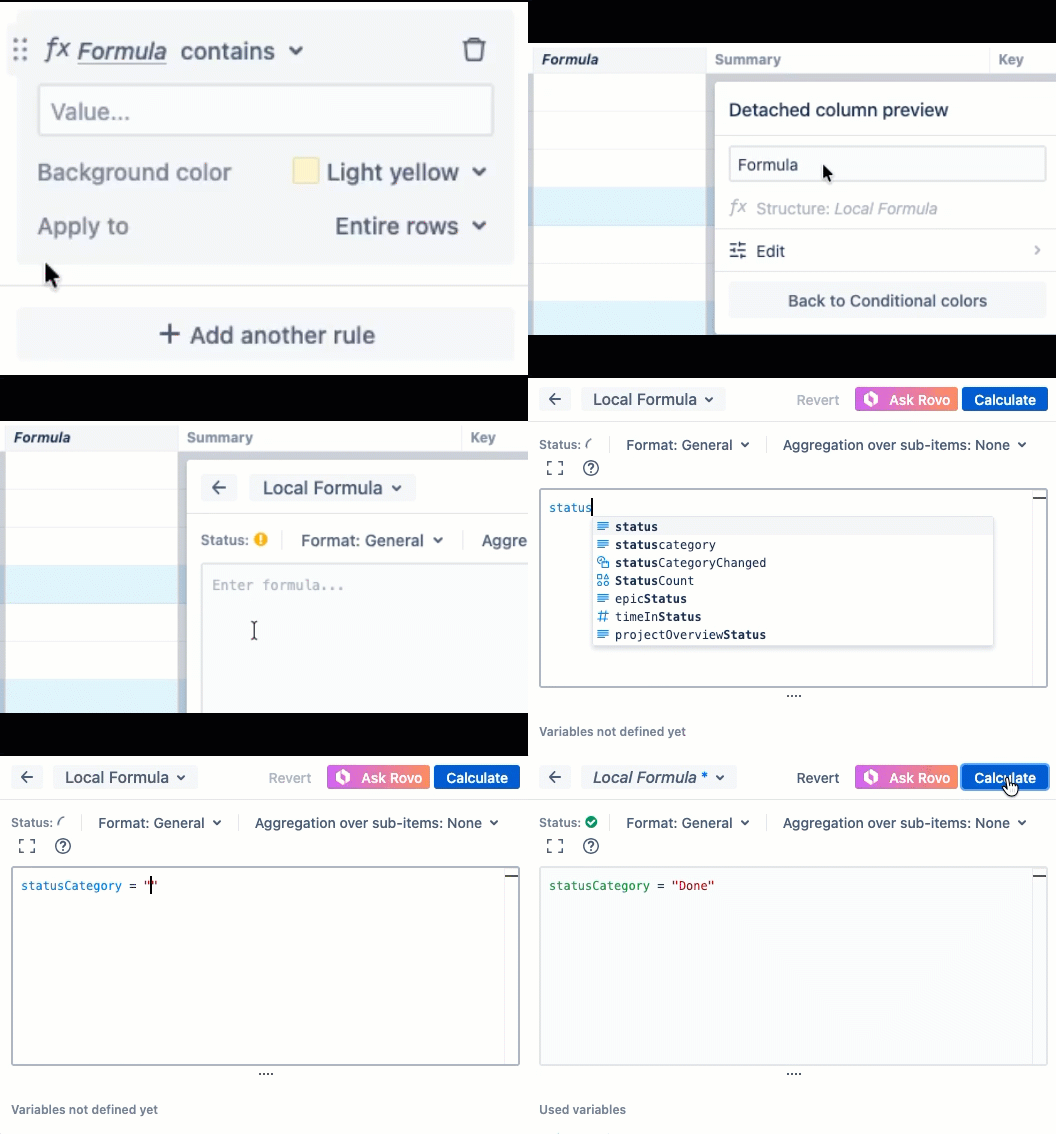
In this example, the formula returns a value of 1 if the item’s status matches Done and a 0 for all other statuses.
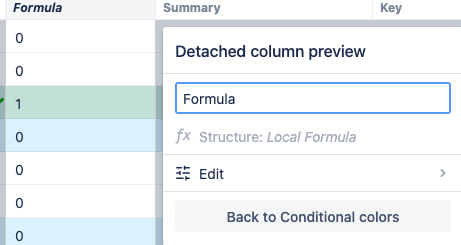
After calculating the formula, set the value of the conditional rule to 1 to highlight the correct items.