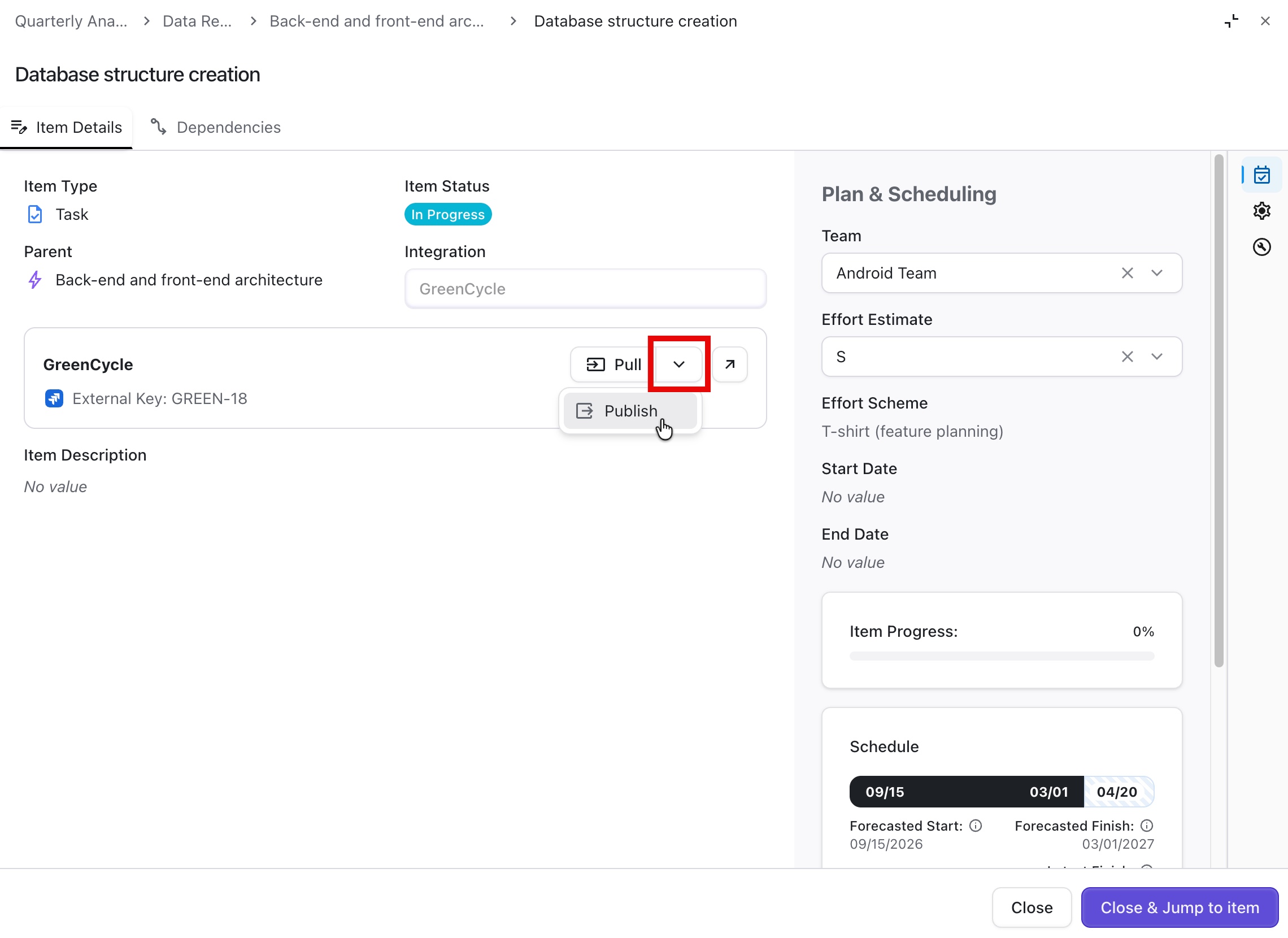
You can edit items in Planner similar to the way you edit in Portfolio, but edits in Planner don’t affect the Portfolio or Jira - unless you activate the scenario.
The following fields can be edited in Planner:
-
Team
-
Effort Estimate
-
Status
-
Earliest Start Date
-
Deadline
-
Dependencies
All other fields (Name, Item Type, dates, financials) are read-only in Planner. To make changes to these fields, open the Portfolio.
Inline Editing
Planner supports inline editing for the following fields:
-
Team: choose from teams assigned to the portfolio and teams not associated with any portfolio
-
Effort Estimate: estimates are grouped by scheme with time range hints
-
Status: the item’s position in the workflow
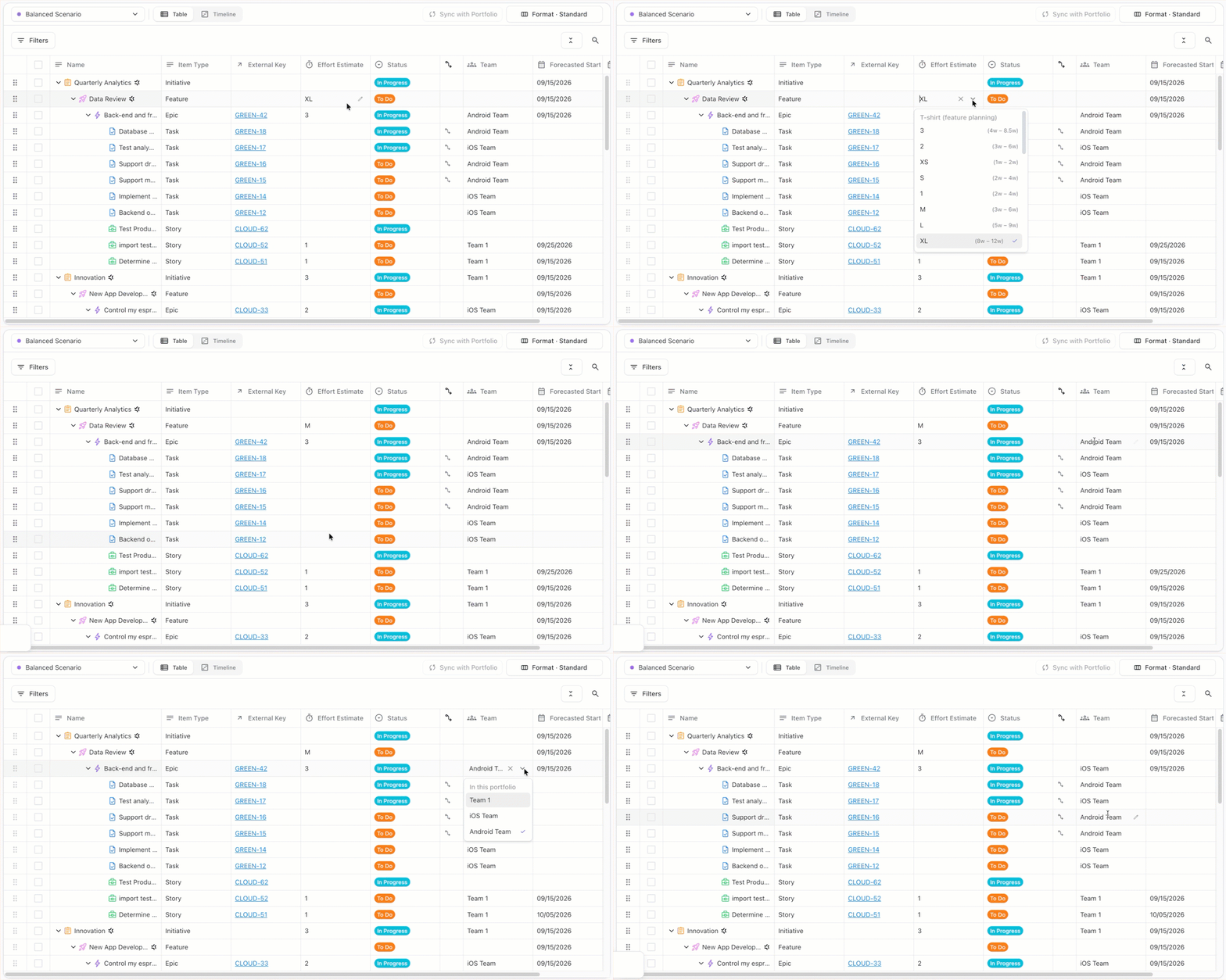
Editing in the Item Panel
Clicking an item’s name opens the Item panel, where you can view additional information about the item. From the Item Panel, you can edit the item’s Team, Effort Estimate, Status, Earliest Start Date, Deadline, and dependencies.
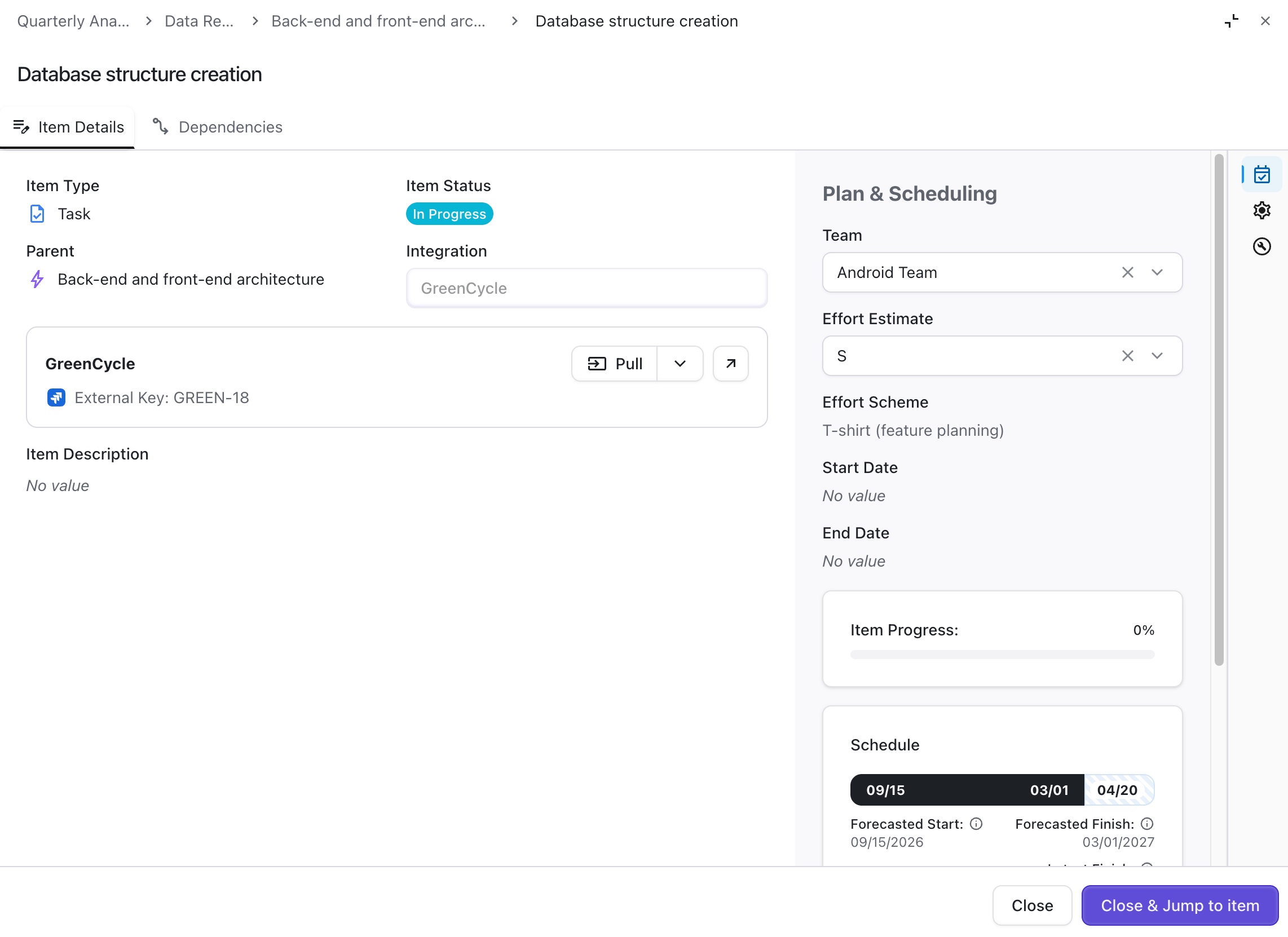
The Dependencies tab lists dependencies for the current item, as well as dependencies inherited from its ancestors (parent item, etc.). Inherited dependencies are read-only.
Bulk Editing
In the Table view, select the checkboxes next to each item you want to edit. As soon as more than one item is selected, the bulk edit bar appears at the top of the Items Table.
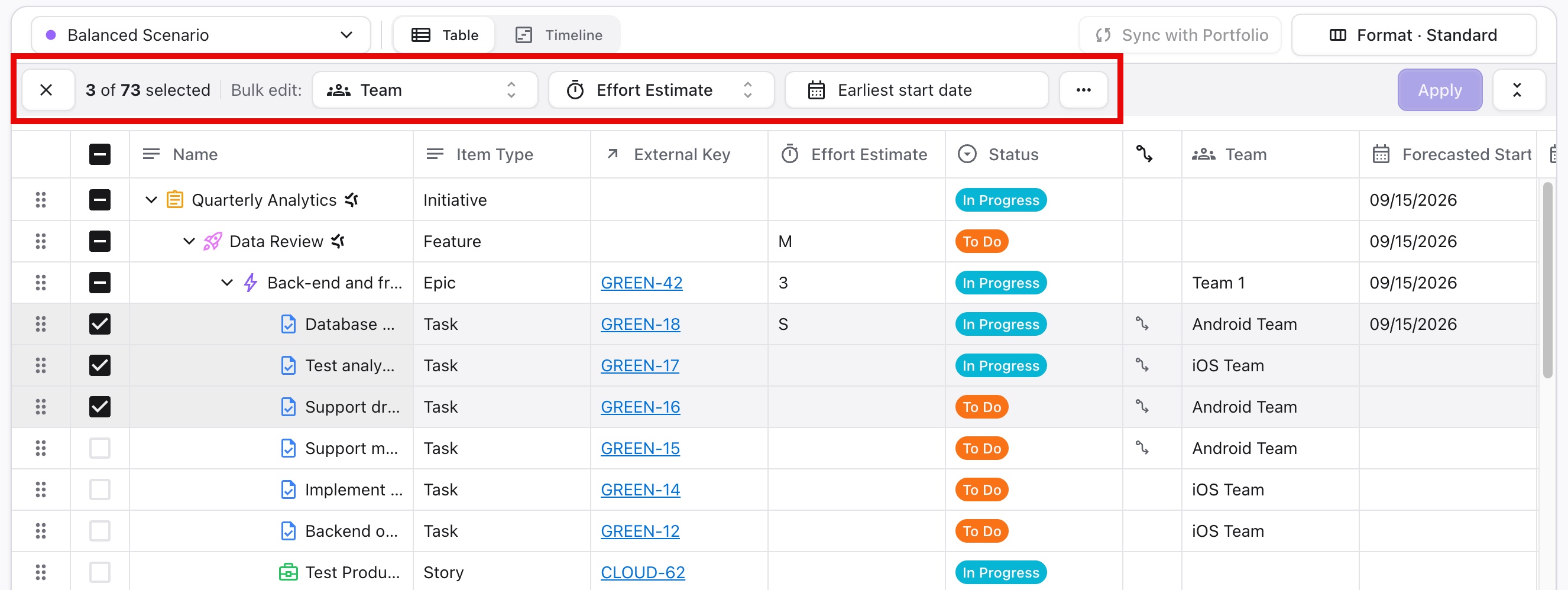
Once you’ve made the desired changes, click Apply.
To select a range of work items, press Shift and click.
Publishing Changes
Changes you make in Planner are not reflected in the portfolio or your integrations until you activate the scenario.
To activate a scenario, click the Activate Scenario & publish button.
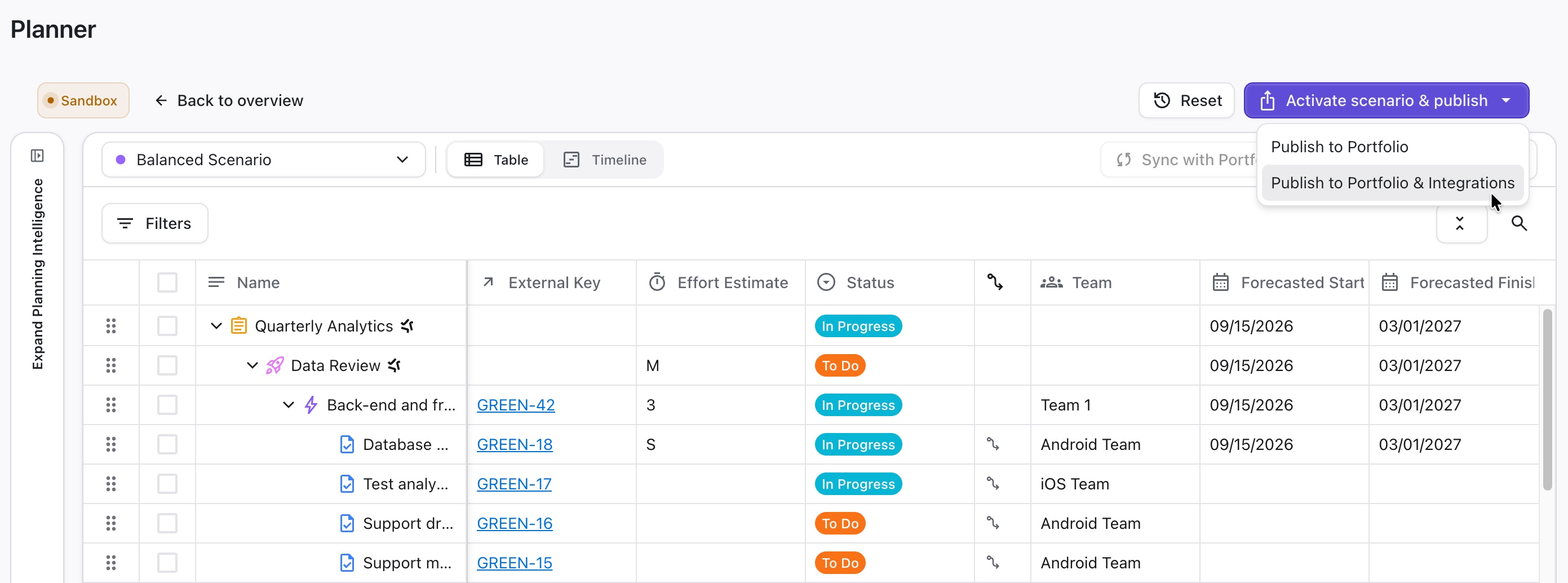
You have two publish options:
-
Publish to Portfolio - updates changes in your Portfolio. This will not overwrite any data in your integrated platforms. You can push these changes later using the Sync with Integrations option in Portfolio, but if you pull items from your integration first, you might lose these changes.
-
Publish to Portfolio & integrations - overwrite existing data in the Portfolio and your integrated platforms.
After you activate a scenario, you can return to it to make any necessary updates, then reactivate it as needed.
Activating a scenario overwrites existing values in the Portfolio and integrated platforms. These changes cannot be undone.
Publishing Changes to Individual Items
If you’re not ready to publish an entire plan, but need to push small changes back to your portfolio, you can publish changes to individual items in Planner.
To do so:
-
Click the item’s name to open the Item Panel
-
In the integration section, open the dropdown and select Publish