The Capacity settings allow you to configure working hours for your teams and team members, as well as holiday time.
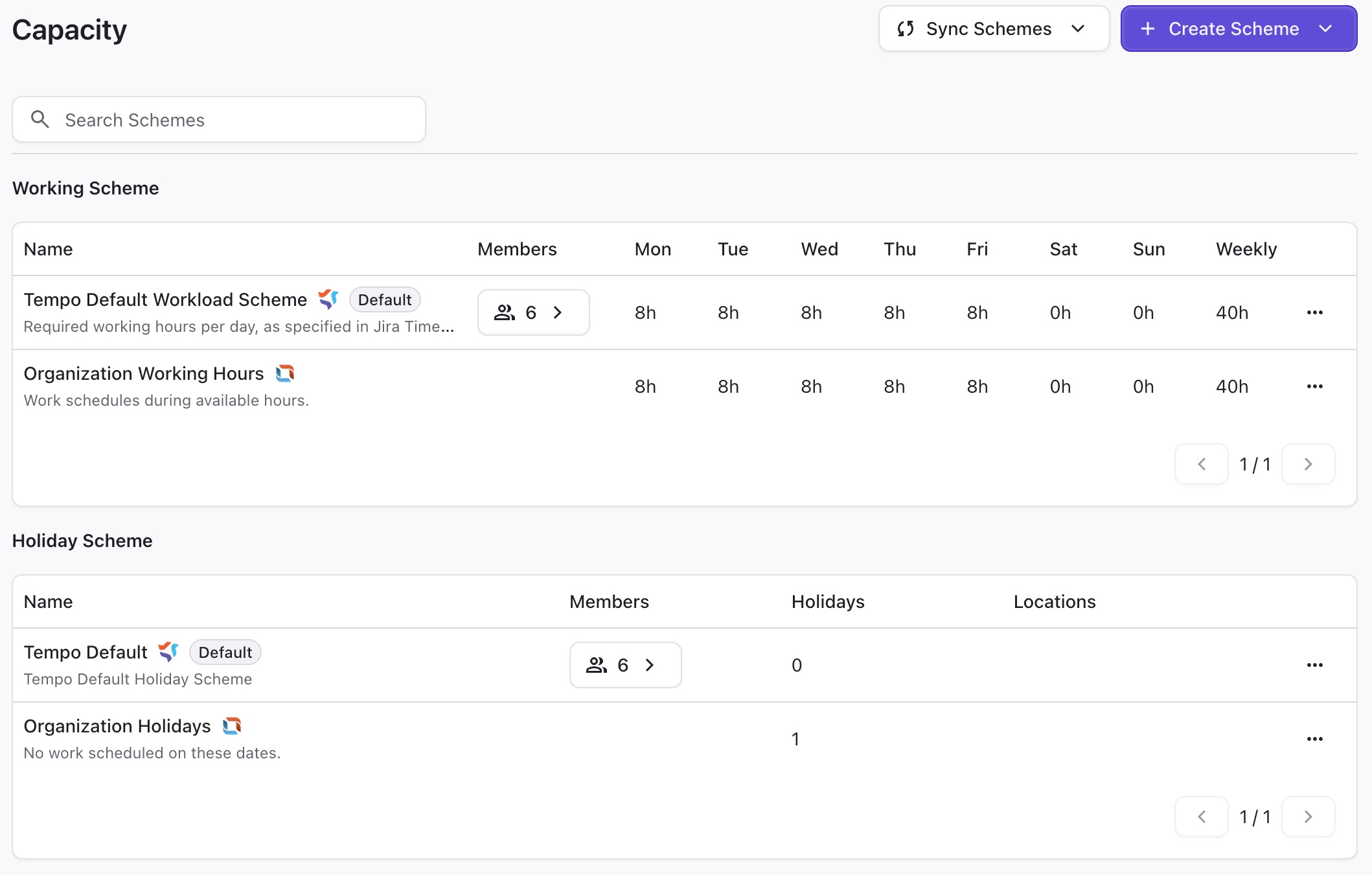
These settings are used to determine team members' availability and capacity when building a plan and estimating its timeline.
You can build as many working schemes as necessary, and then assign team members to them.
Creating a New Working Scheme
To create a new Working Scheme:
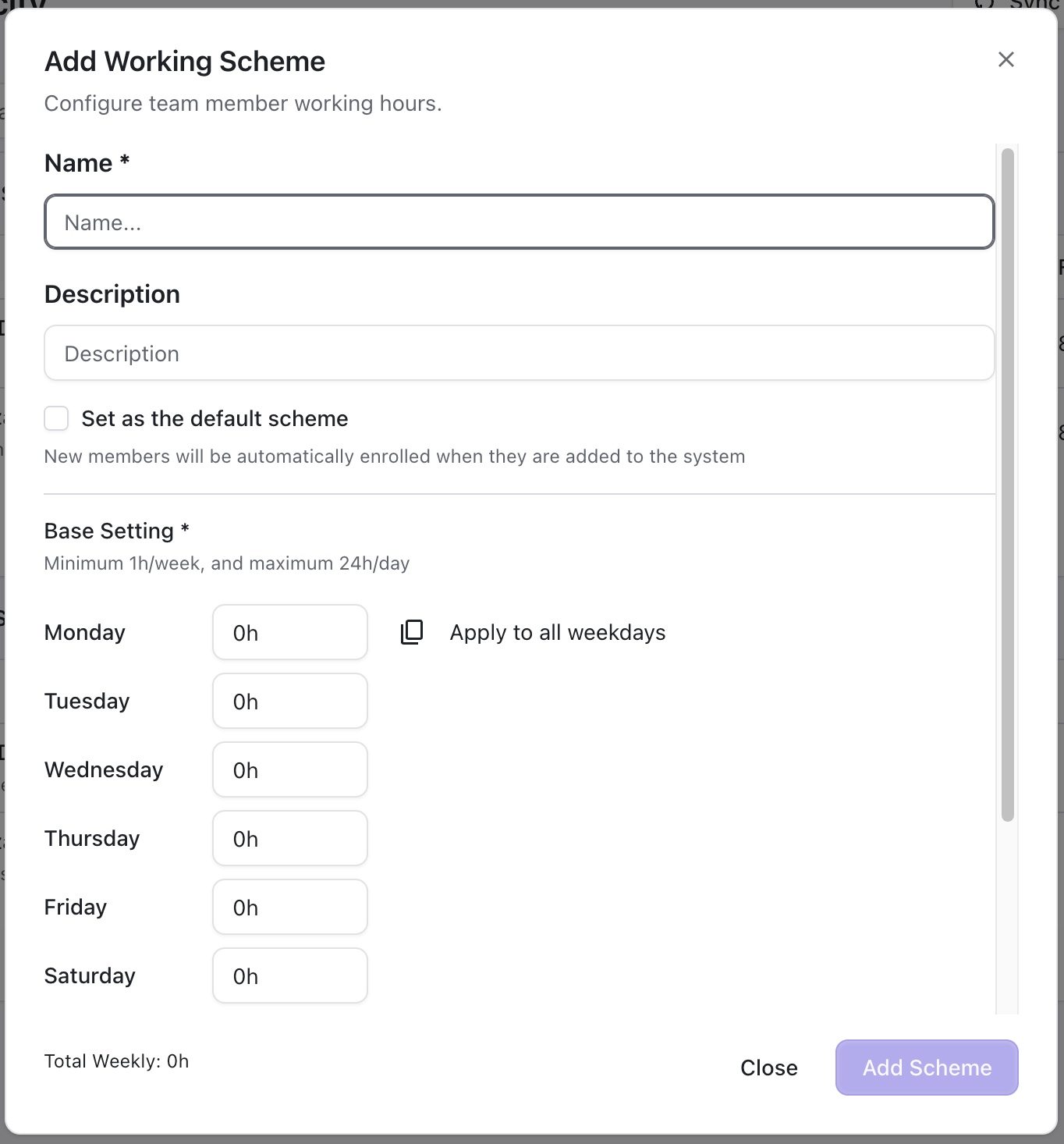
Click + Create Scheme.
Select the type of scheme you want to create (Working scheme or Holiday scheme).
Enter the details for the new scheme. If you want this to be the new default scheme, click Set as the default scheme. When you’re finished, click Add Scheme.
Assigning Members to a Working Scheme
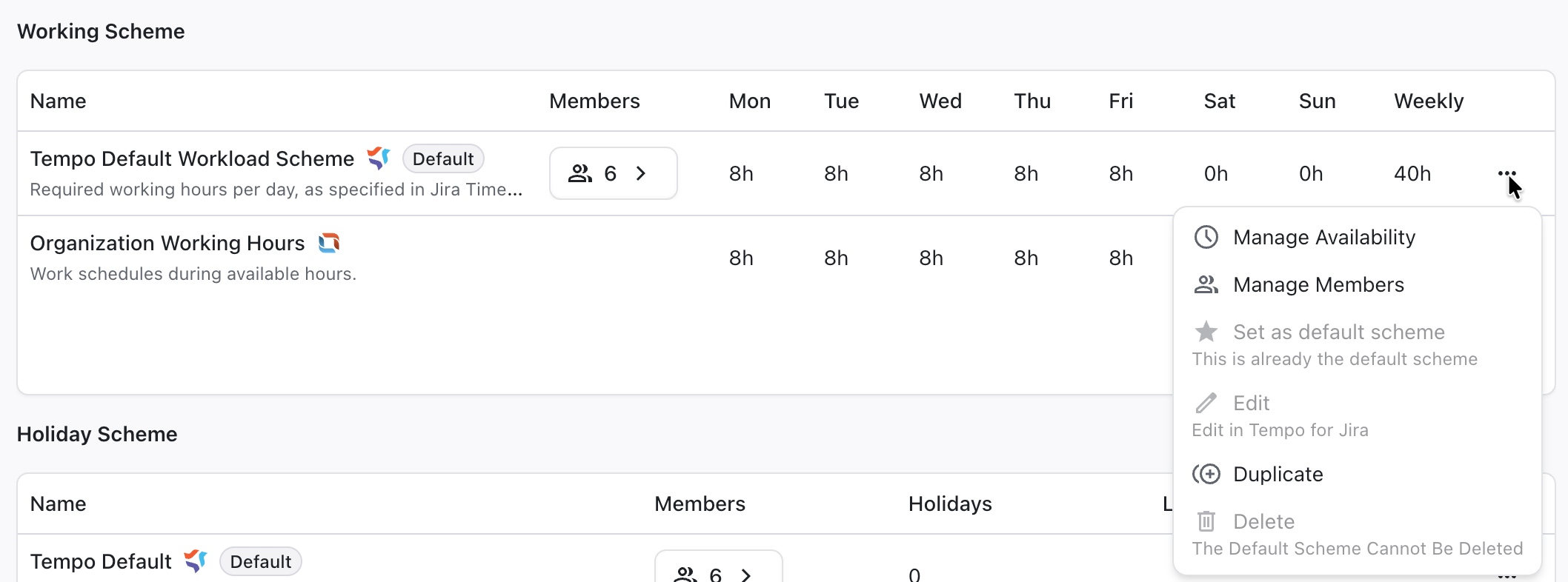
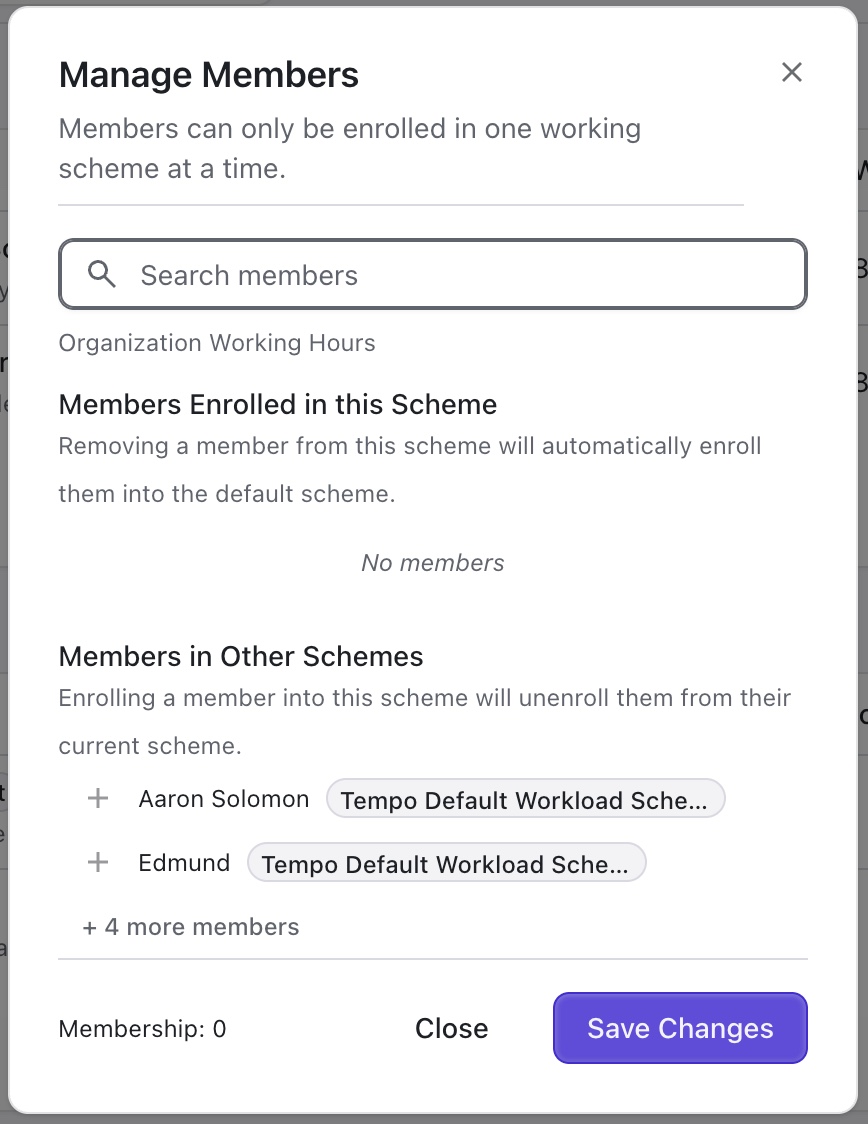
To add members to a working scheme, click the three dots at the right of the scheme’s row and select Manage Members.
Use the search box to locate members, and click + to add those members to the working scheme.
-
A member can only be in 1 working scheme. Adding them to a new scheme will remove them from their previous scheme.
-
All members must be in a working scheme.
Editing a Working Scheme
To edit a working scheme, click the three dots at the right of the scheme’s row and select Edit.
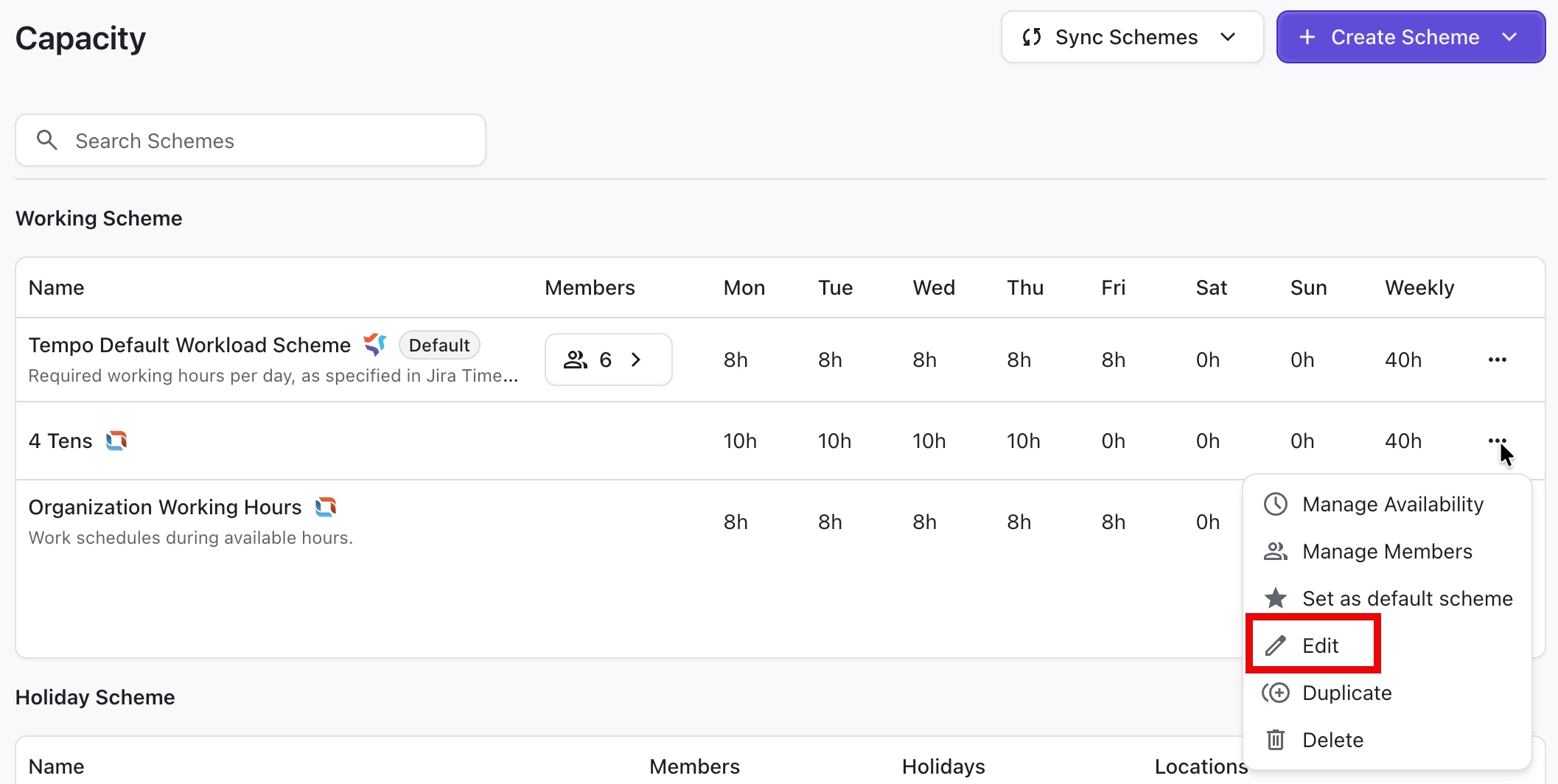
You can edit a scheme’s:
-
Name
-
Description
-
Daily Hours
-
Locations
You can also set the Default scheme from the edit screen.
The Edit option is not available for schemes added through an integration. To edit these schemes, changes must be made in the original application.
Custom Availability Rules
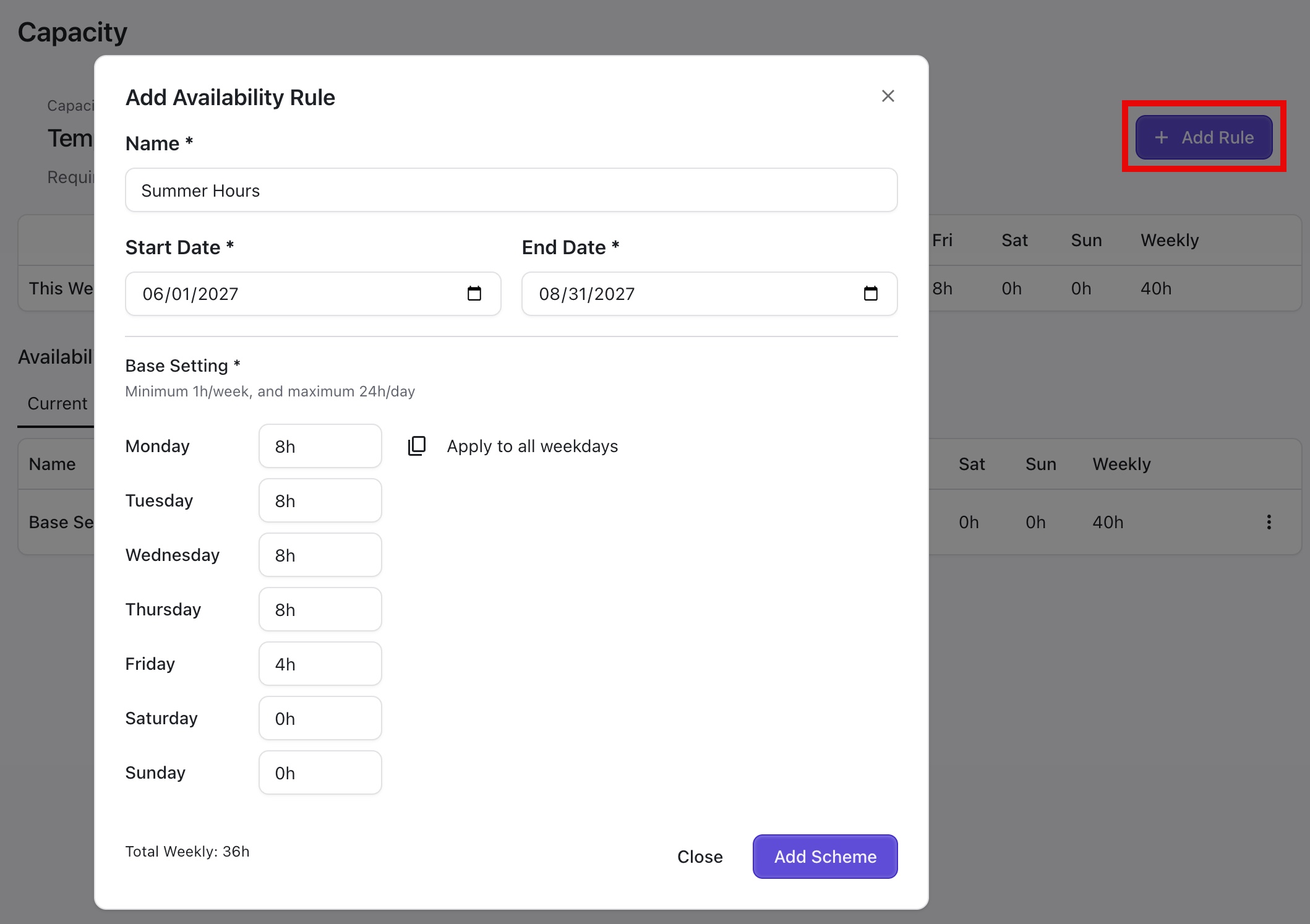
You can also add custom, temporary availability rules to an existing scheme. For example, if your organization does half-day Fridays during the summer, you can add that to your schedule.
To add availability rules:
-
Click the scheme you want to update to open its details.
-
Click + Add Rule
-
Set your custom availability rule